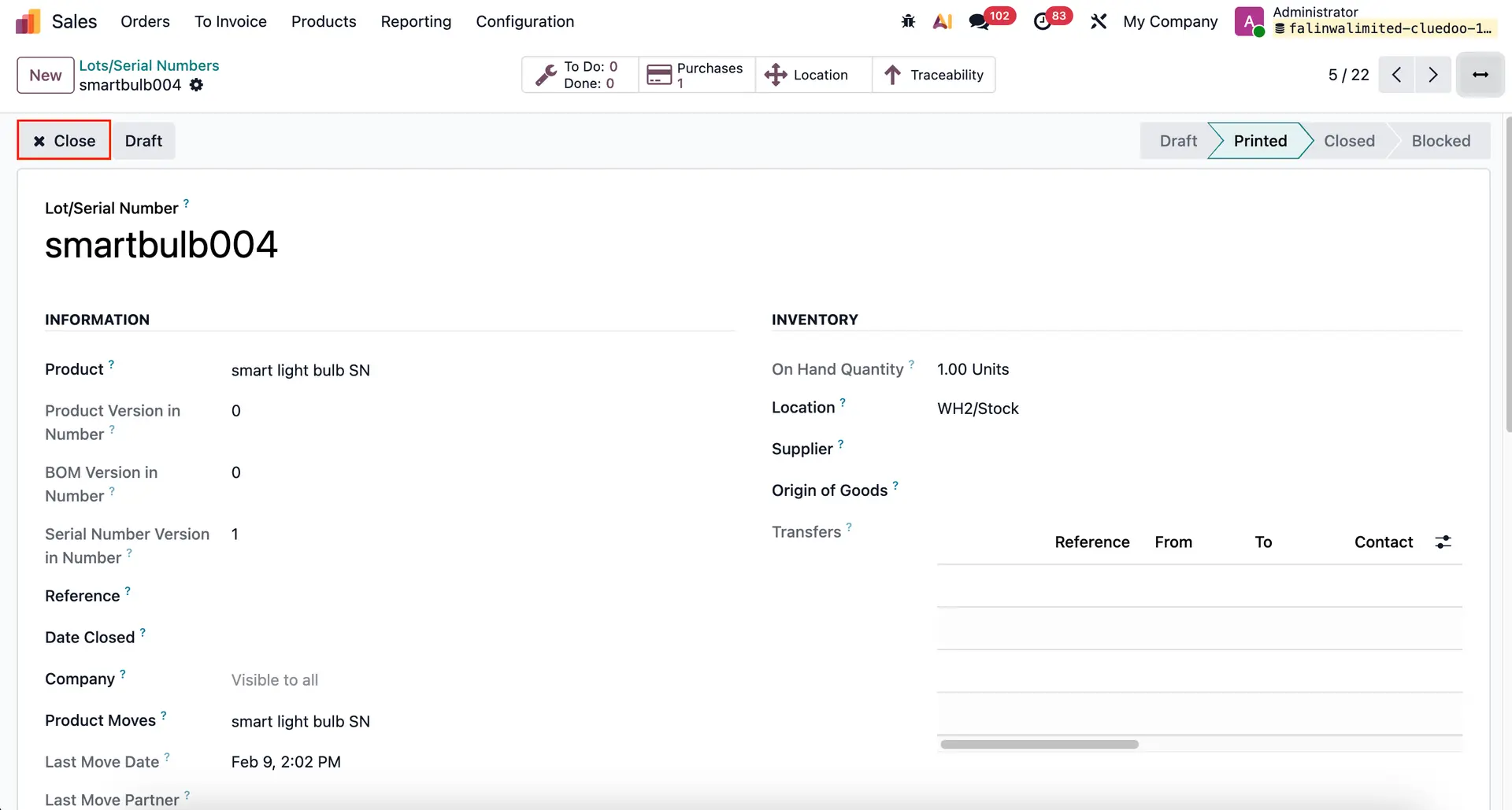



ODOO'S FUNCTION
Odoo only proposes the creation of the serial number, without any notion of status, of serial number life does not manage any process on serial number (SN). You can select all of them without limitation according to their status (Draft - Confirmed - Closed).
CLUEDOO'S FUNCTION
Cluedoo introduces the notion of status on the serial number in order to track the life of the serial number (draft - confirmed/available - closed). And to link serial number list of choices to the status confirmed by default or closed with a studio customization.
We also extend this feature, on operation type, give the option to reserve the SN (in transfer) only if the SN is in a specific status & on transfer, give domain on SN.
| 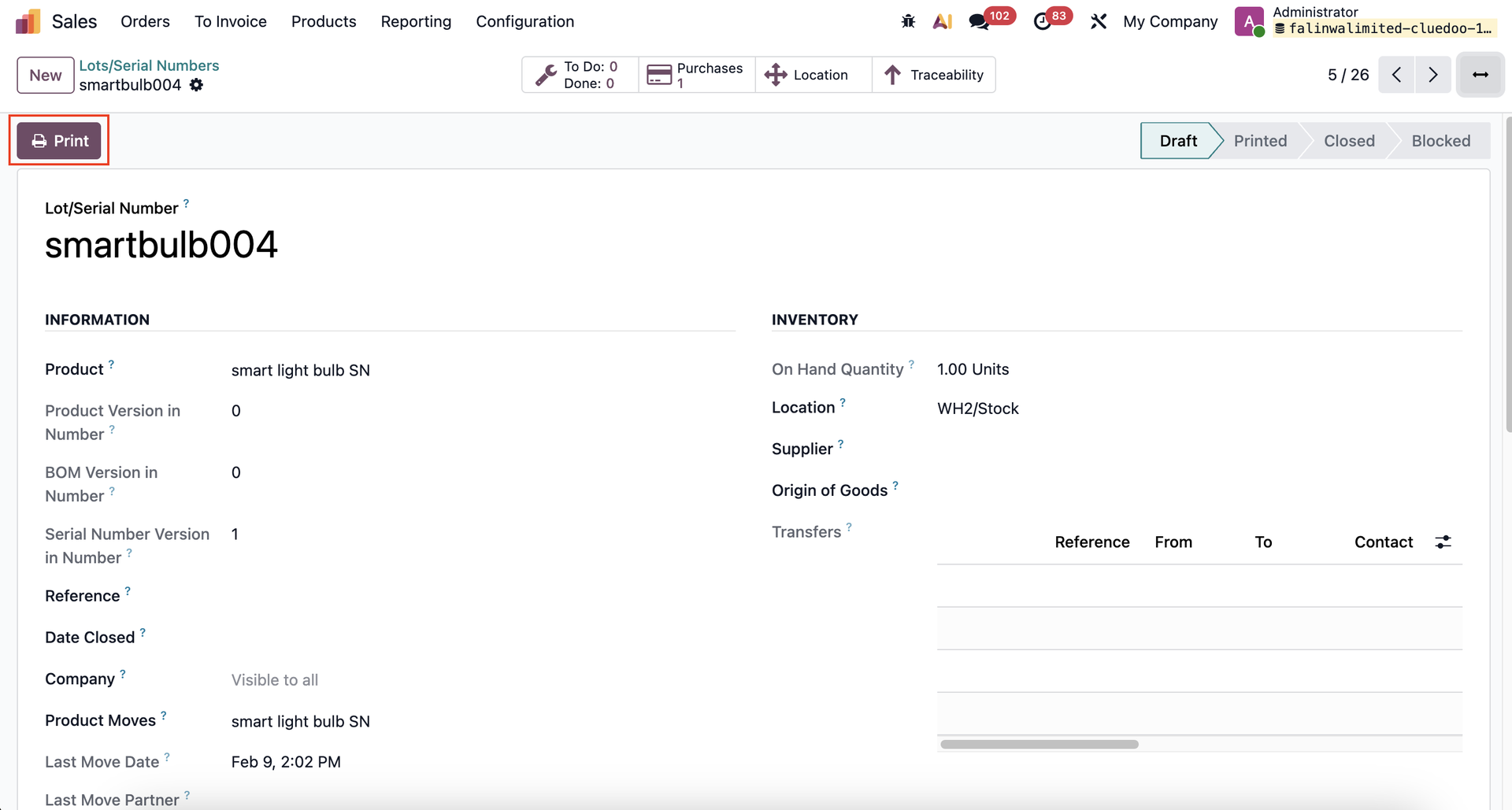 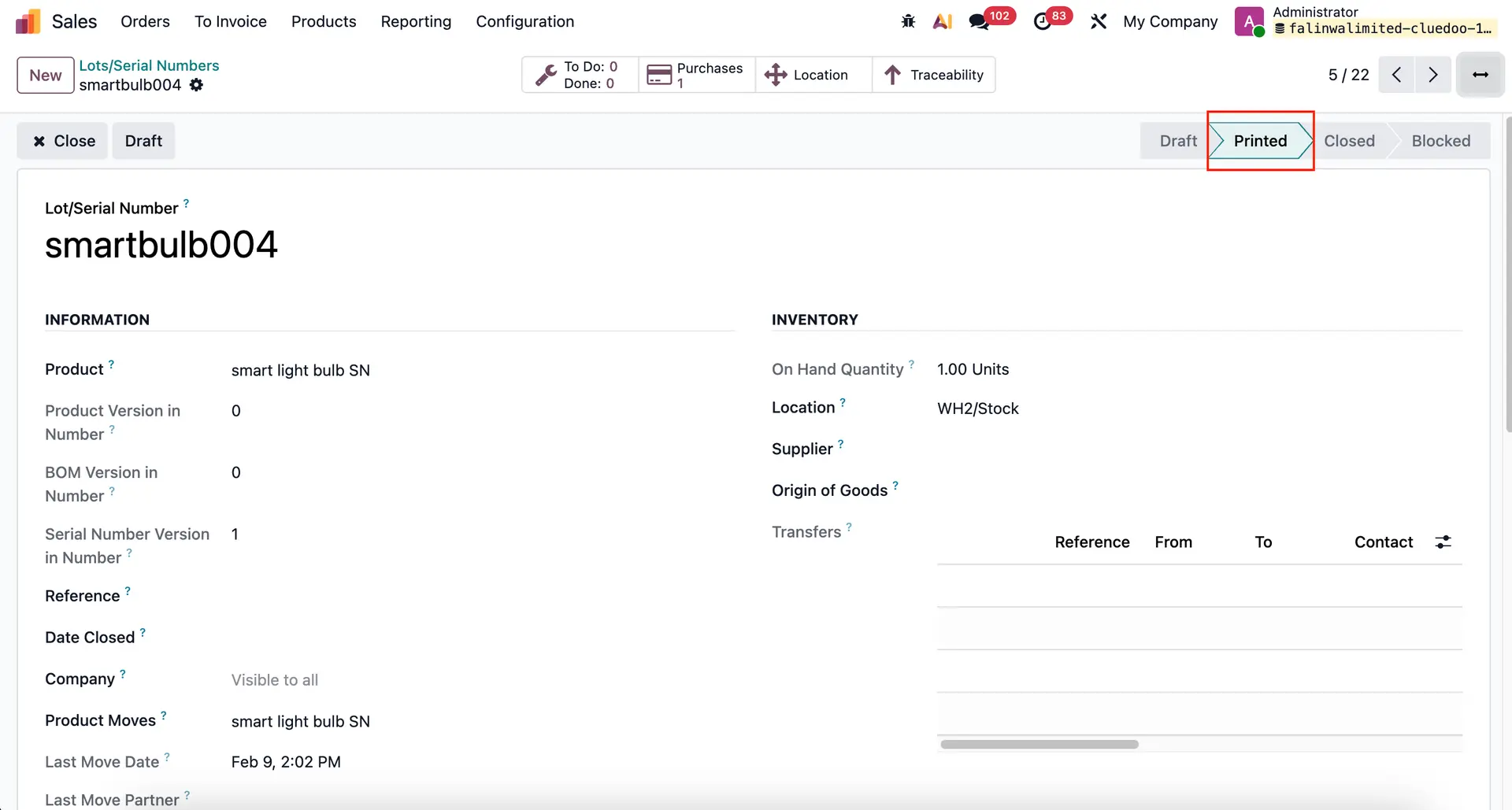 |
2. Click close to archive the Lots/Serial Numbers and the status will change to close. |
|
Note: feature "blocked" on SN is not available from v17 and onward. | 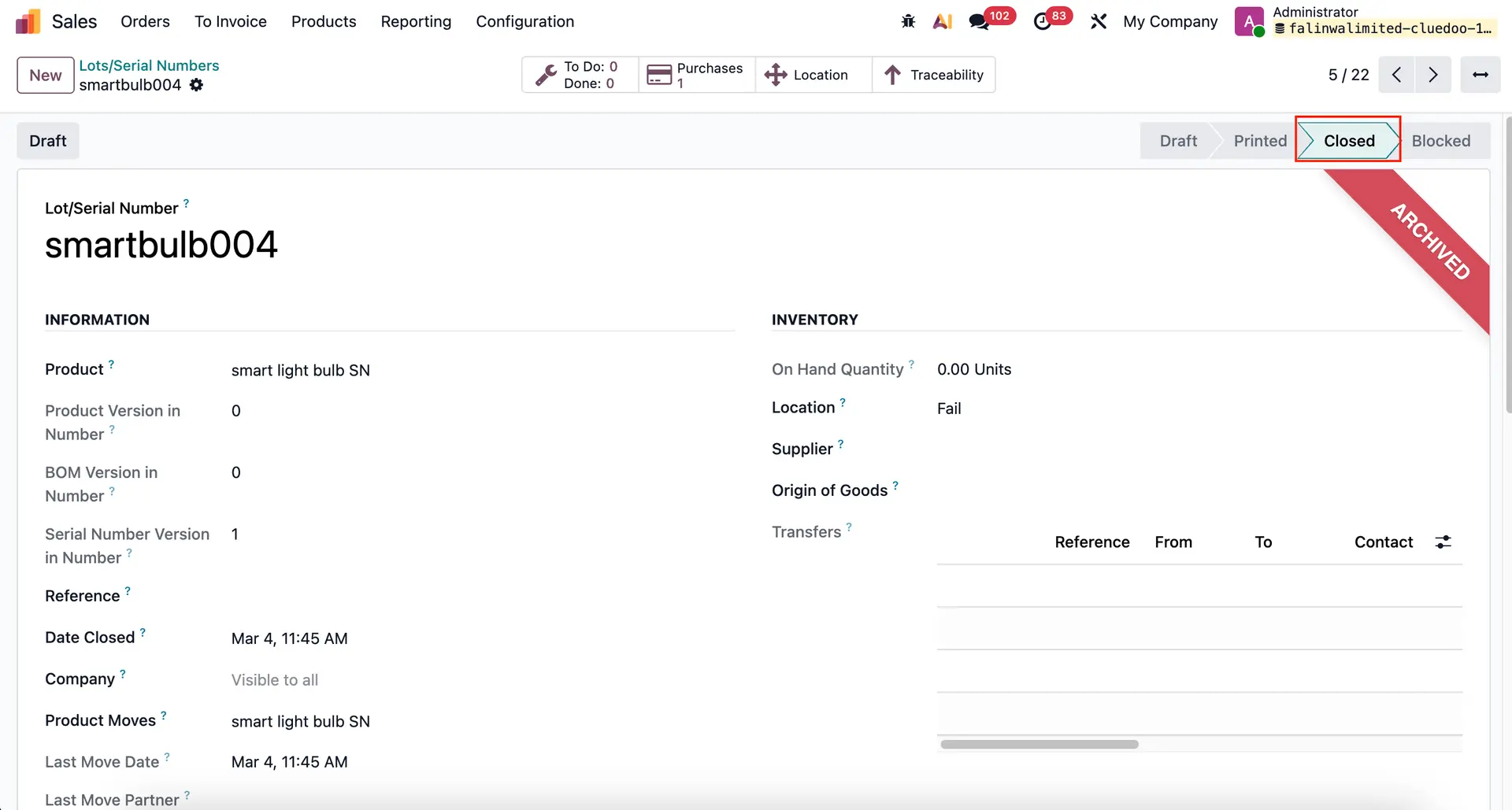 |
3. Go to Inventory > Operation types > Allowed State: choose specific status for SN For ex: I choose state "Print" only and as picture above we have 3 SN printed for product. | 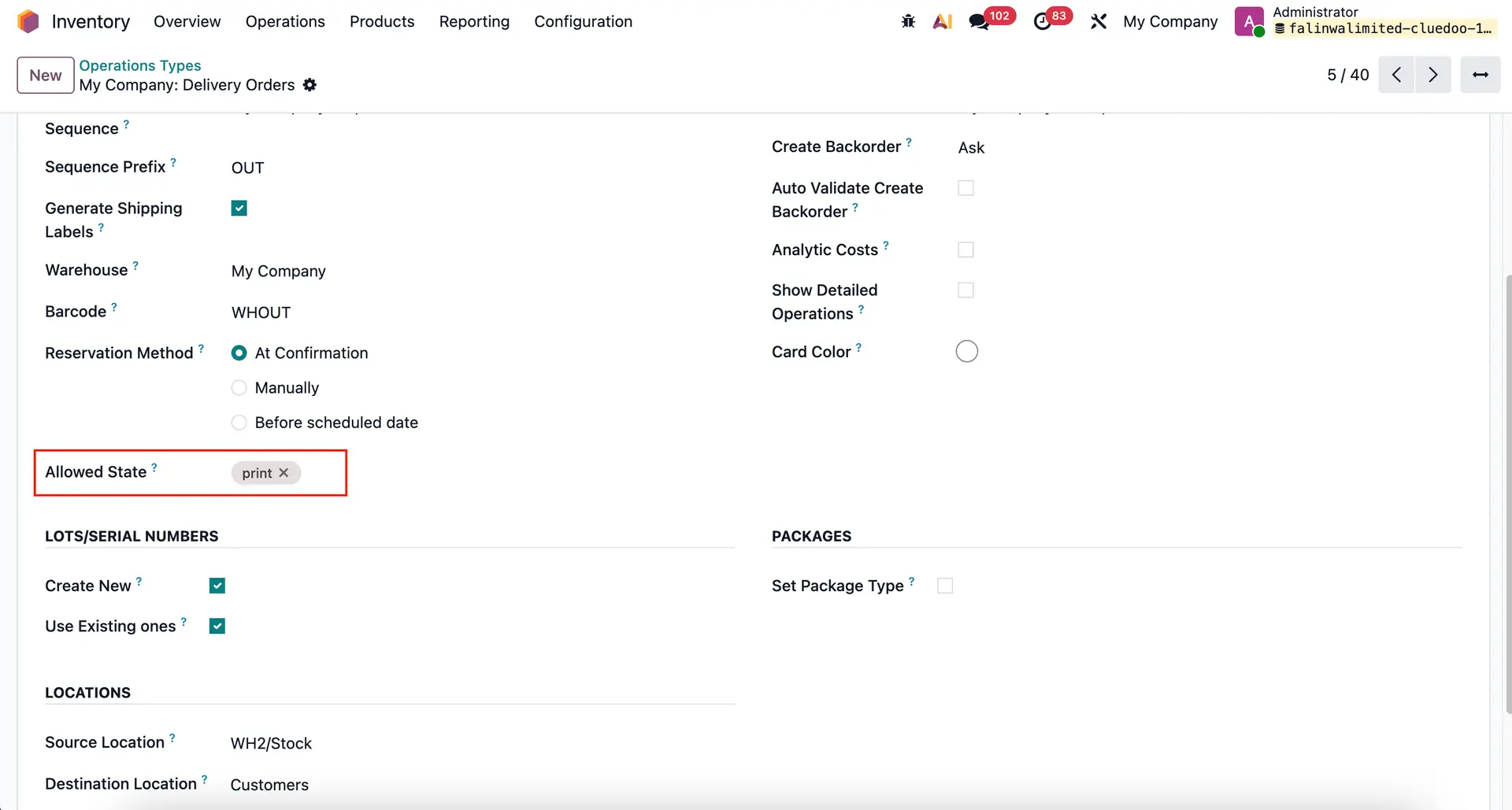 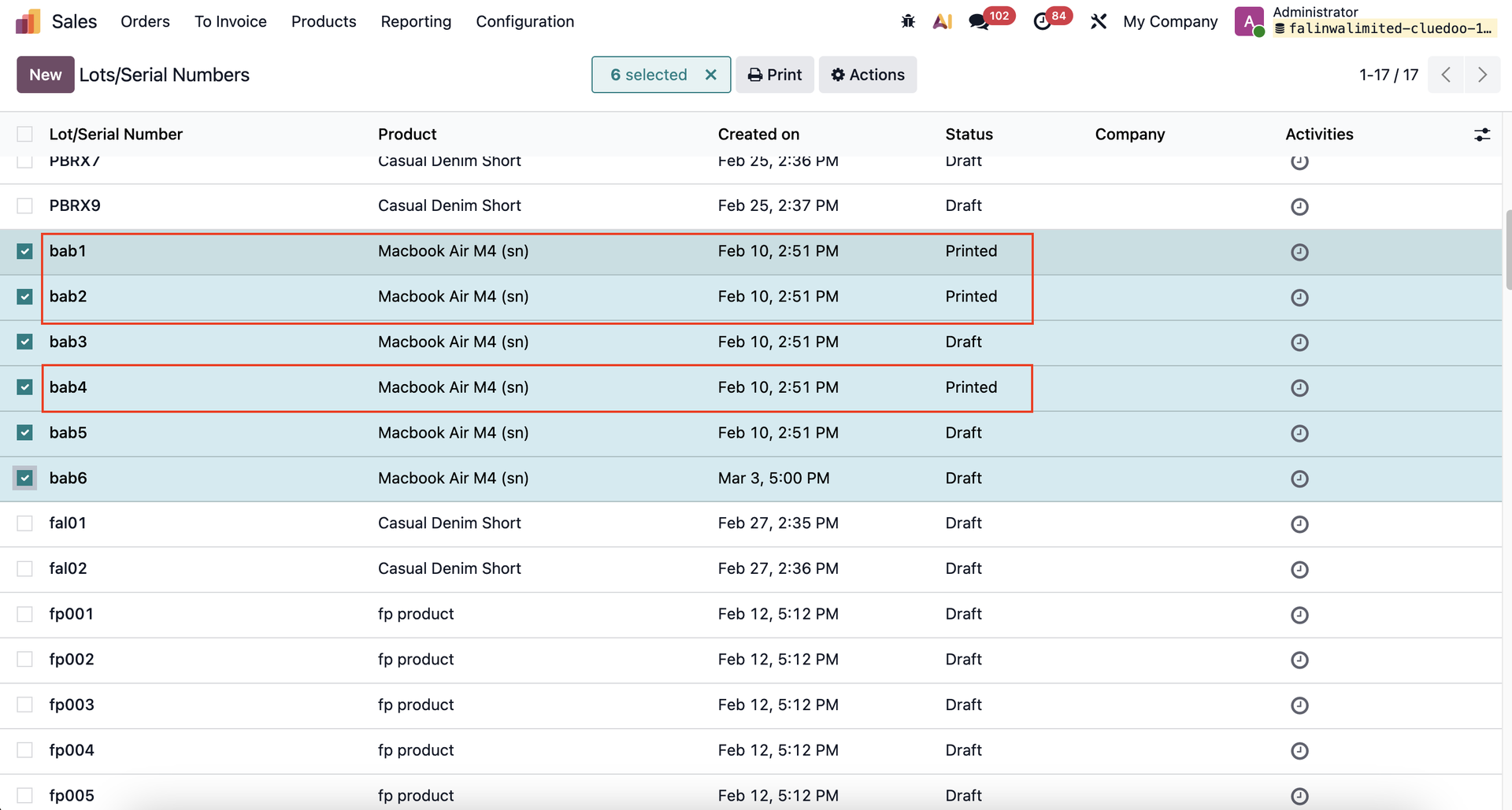 |
4. Create new SO > confirm > Delivery out > There are 2 SN which is in the Printed stage Note: You can only choose SN in state that you set up in Operation Type/Allowed State (applied for Serial Number field and on pop up wizard). - Only SN without negative qty appear | 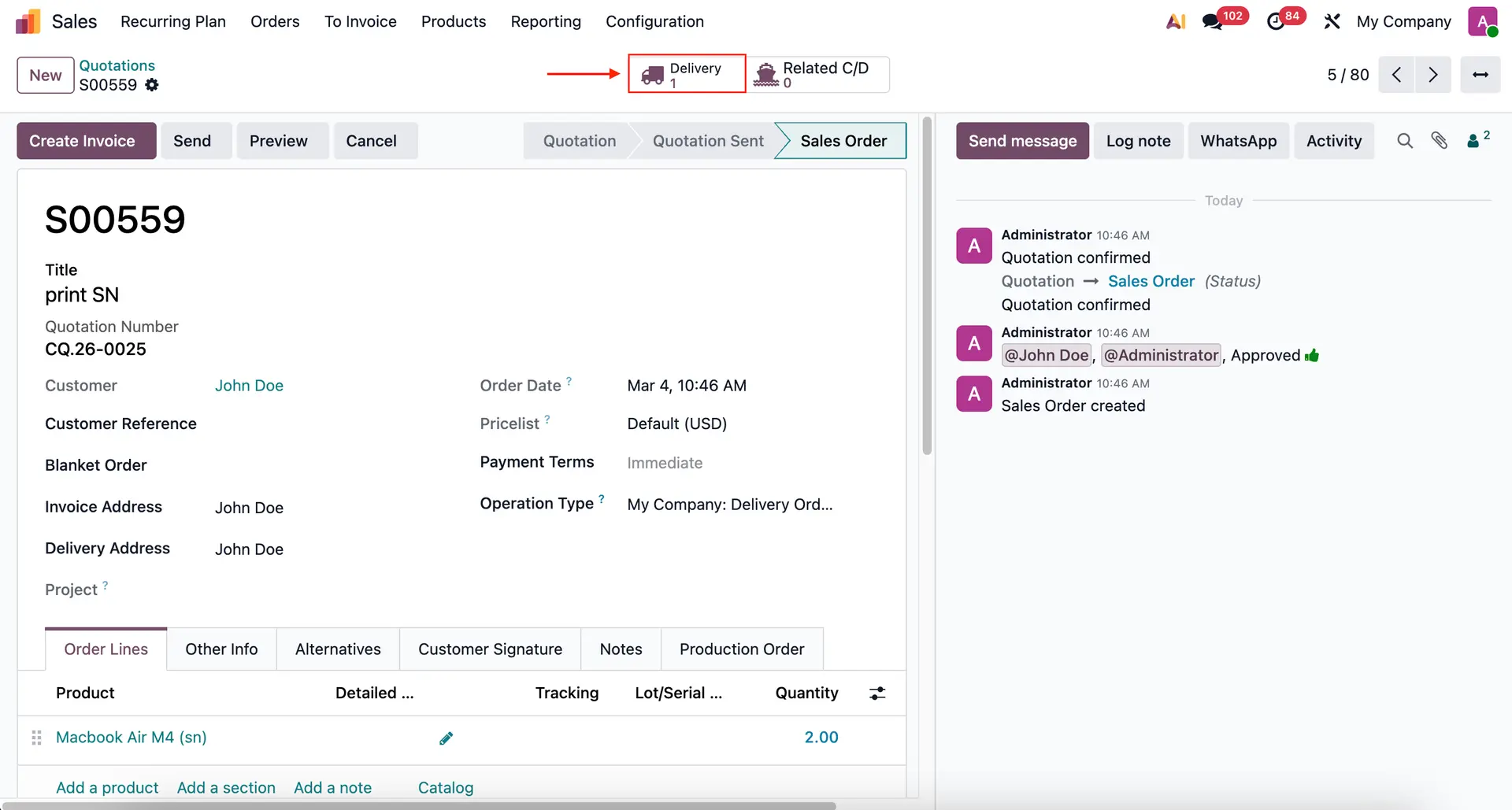 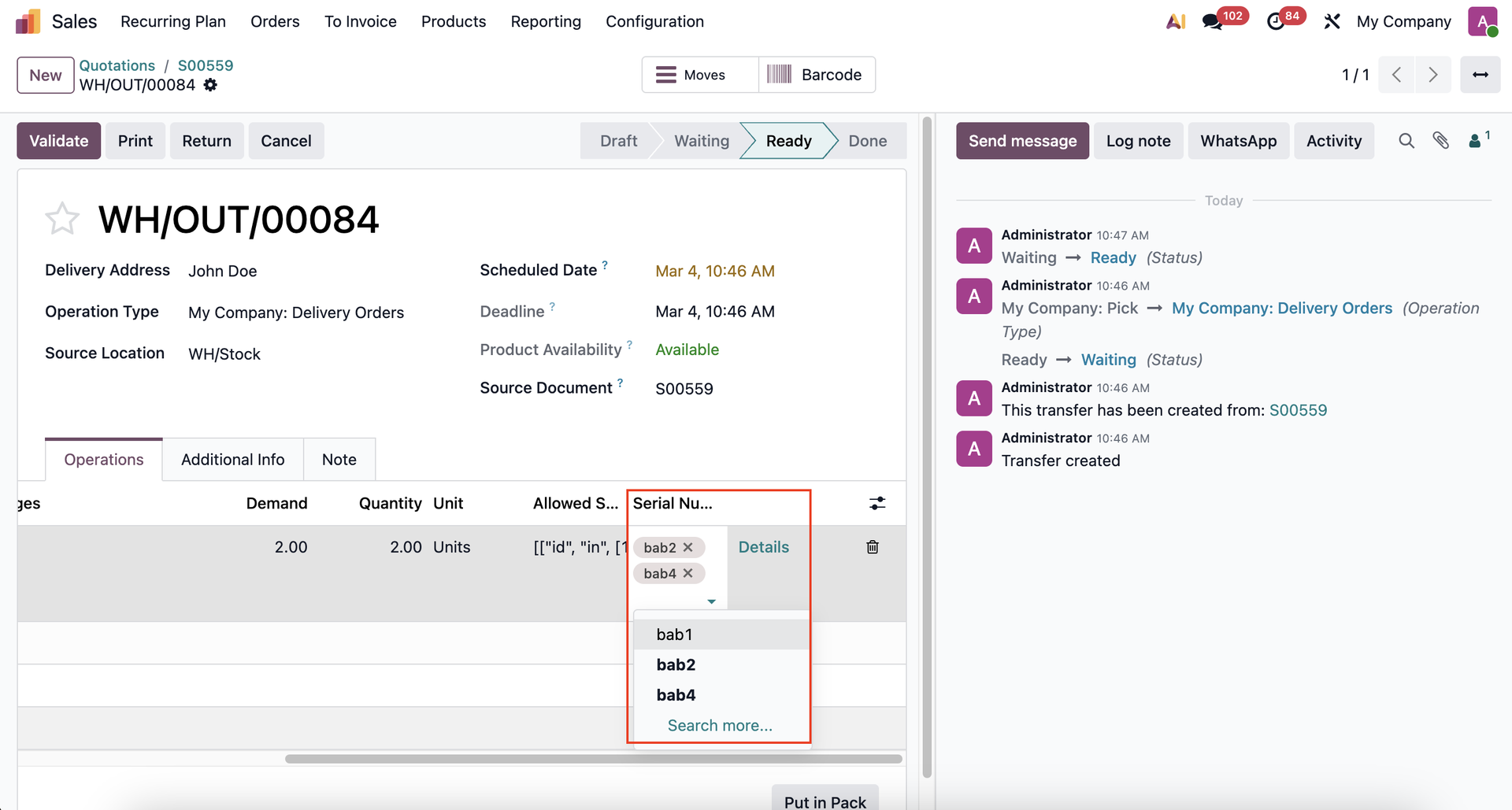 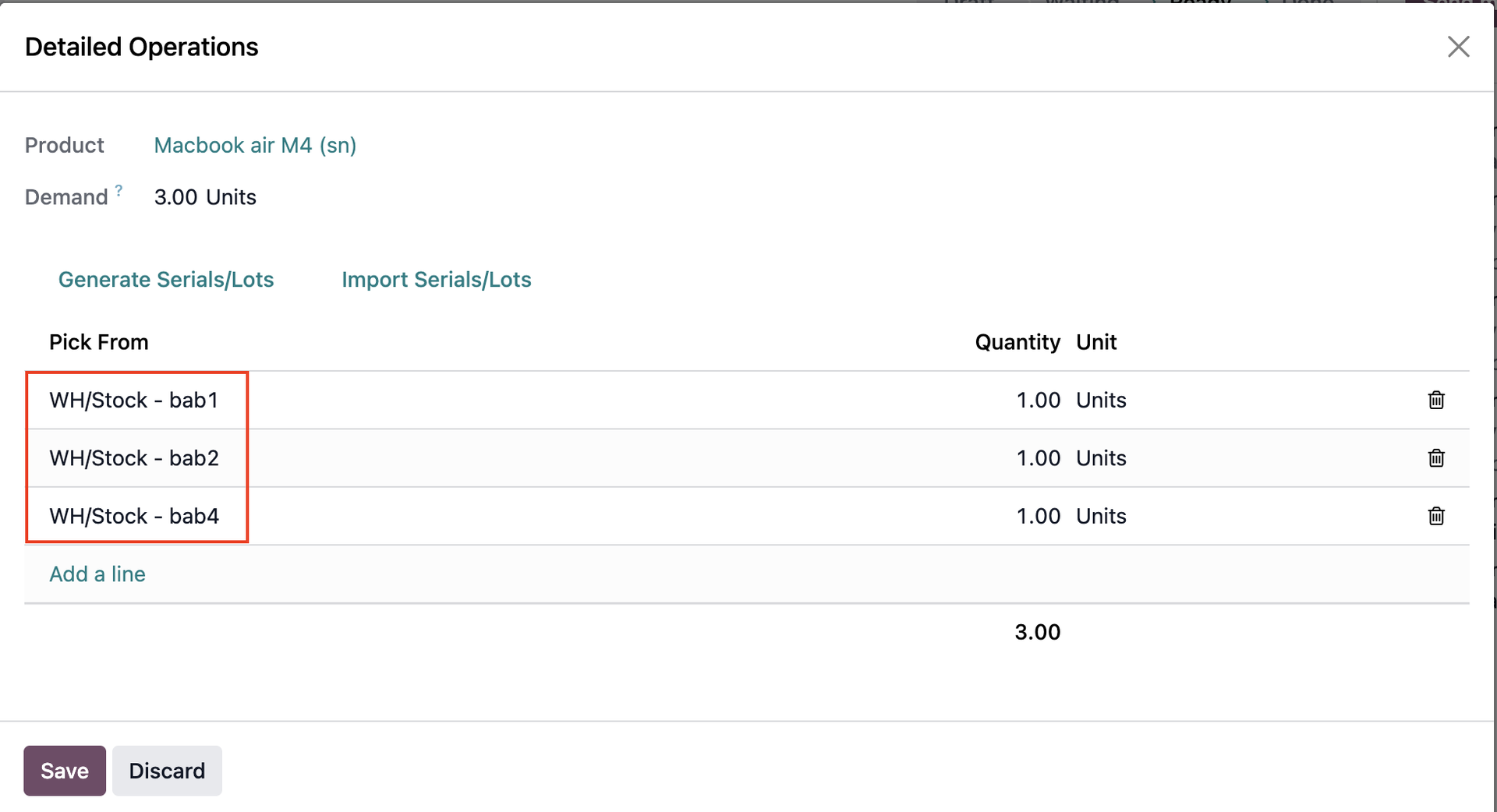 |