


ODOO'S FUNCTION
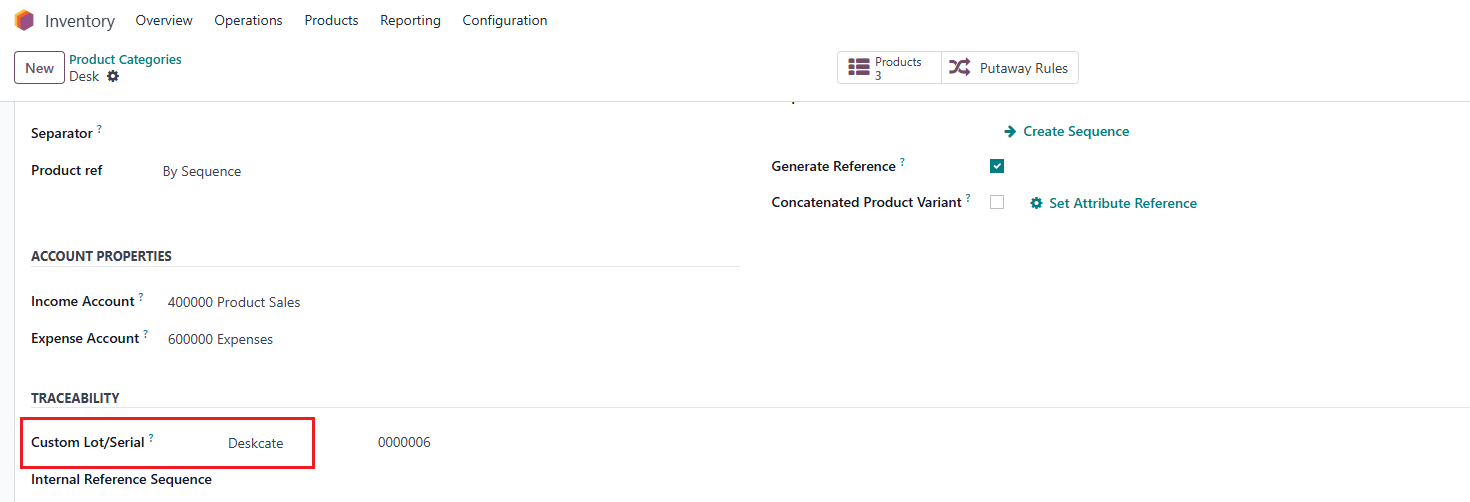
In older Odoo versions, there was no dedicated serial number category feature, so users could not define serial number categories and assign them to products for structured serial management. In Odoo 19, the concept is replaced by Custom Lot/Serial configuration.
CLUEDOO'S FUNCTION
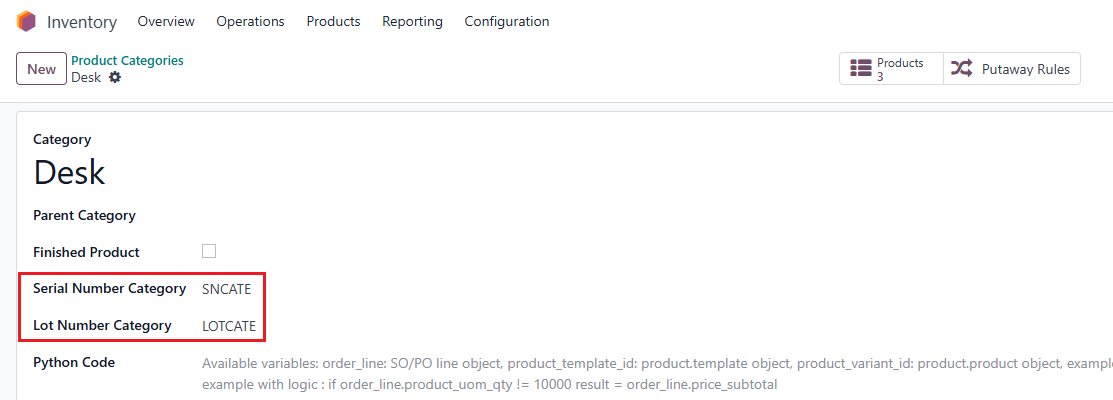
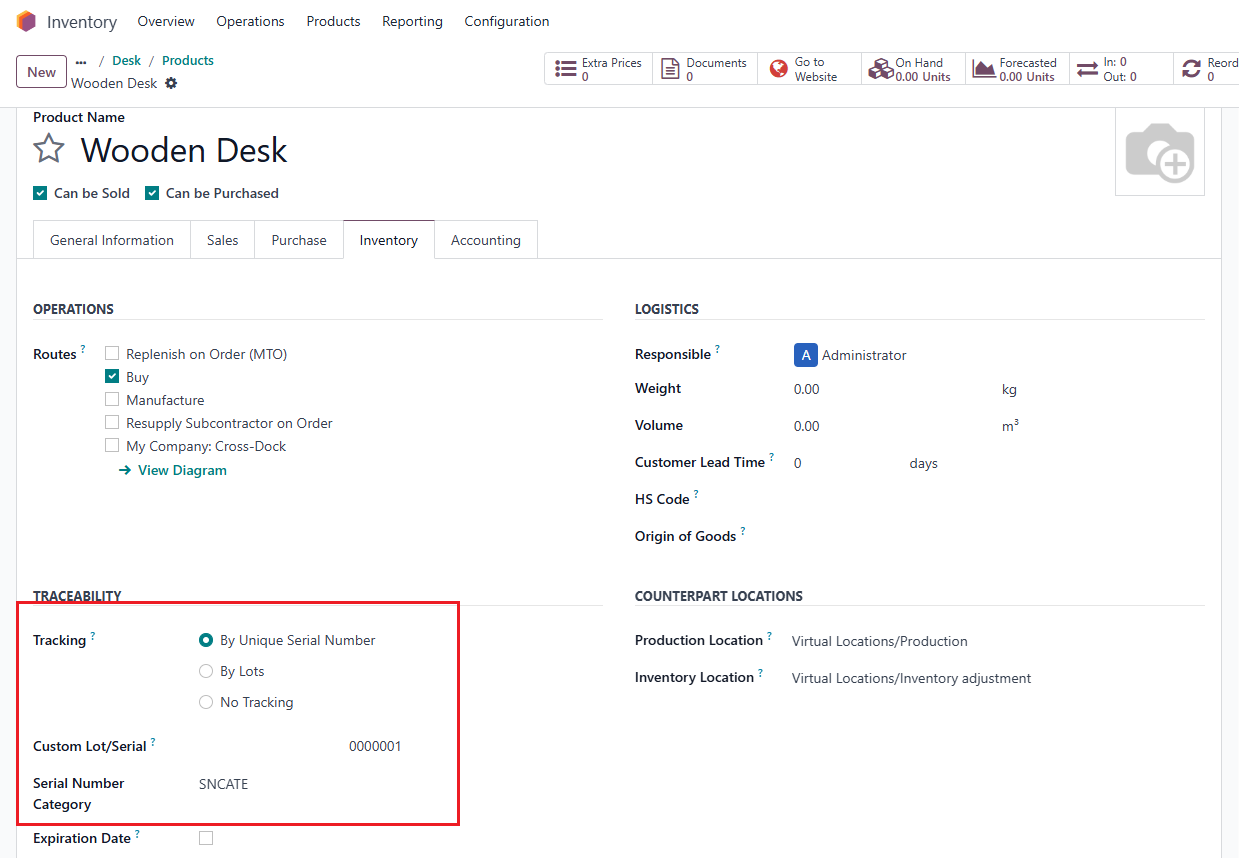
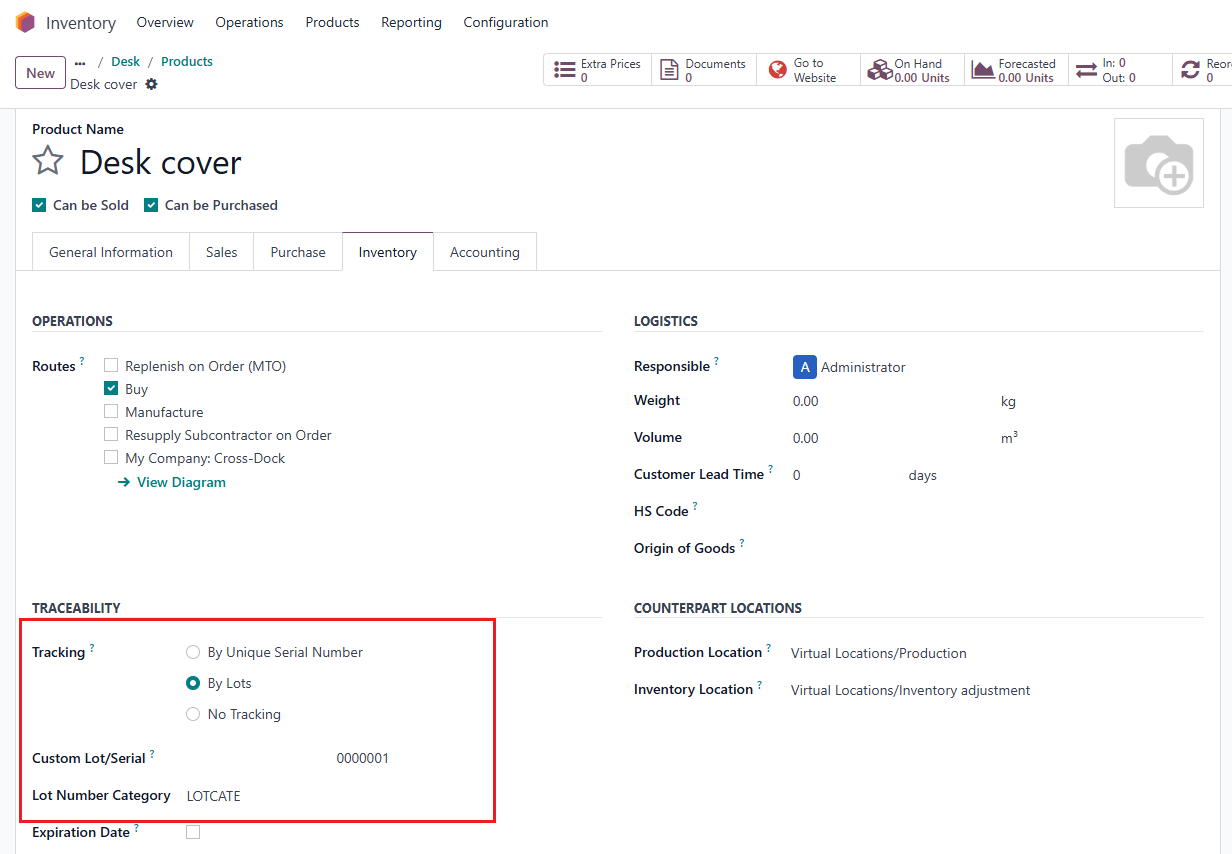
CLuedoo allows users to create serial number categories and set serial number categories on both product categories and serial-tracked products, enabling organized serial number management.
CLuedoo also enhances Odoo 19's Custom Lot/Serial Numbers, enabling users to:
1️⃣ Create dedicated serial number categories and assign them to product categories and serial-tracked products.
2️⃣ Set up categories on parent categories, with automatic inheritance to child categories and products.
V17 |
|
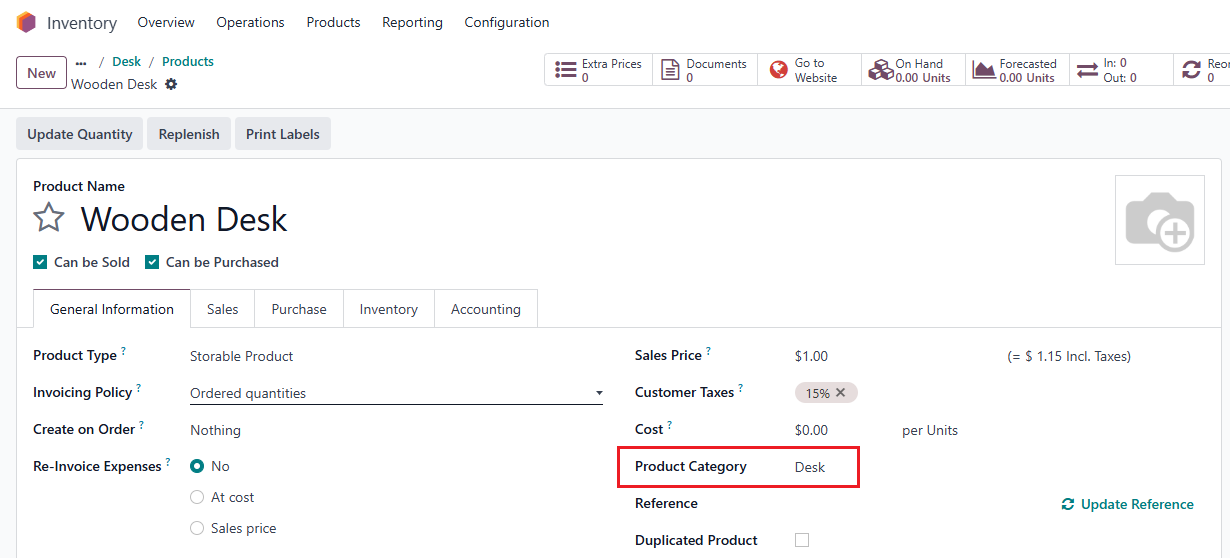
2. Create a new product > Choose a Product Category & Type of Tracking.
|
|
3. Custom Lot/ Serial is also inherited. |
|
| V18 1. Go to Inventory > Configuration > Products > Serial Number Category > Create a new/ access an existing category. |  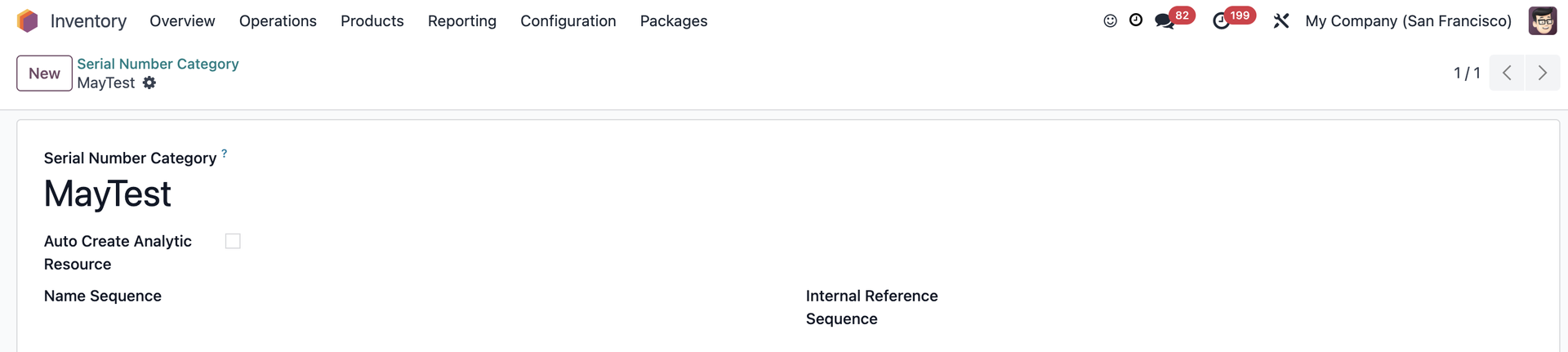 |
2. Go to Inventory > Configuration > Products > Product Categories > Set the Serial Number Category. | 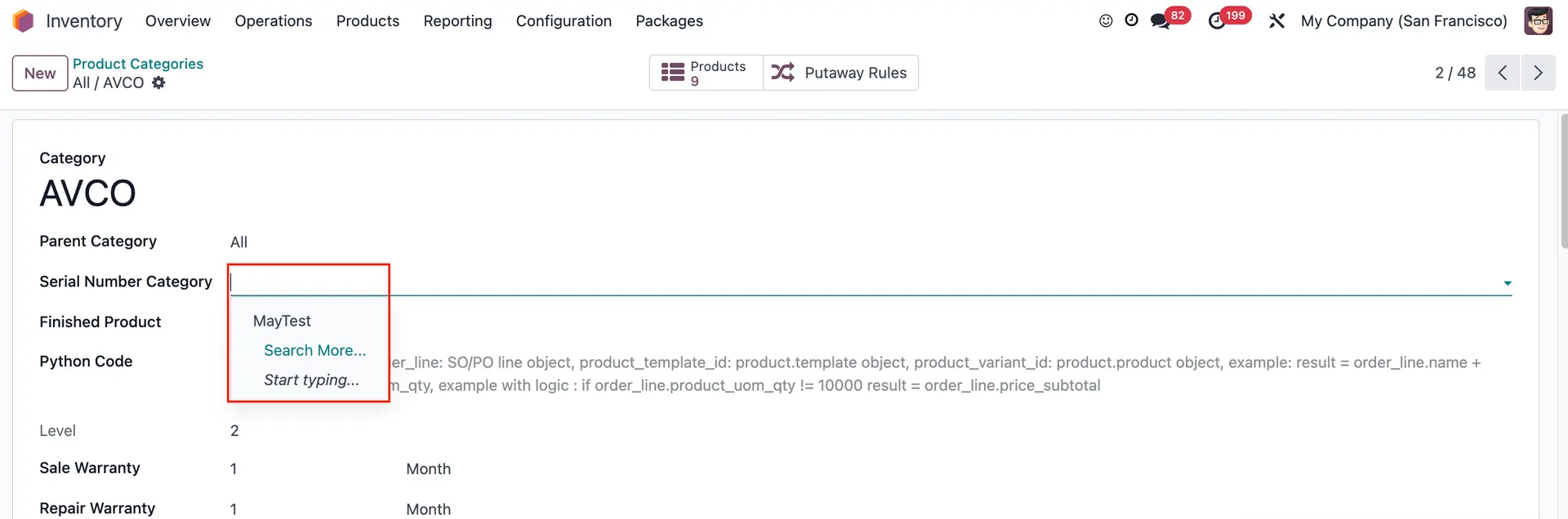 |
3. Go to the products belonging to the product category > We can set the Serial Number/Lot Category if it's tracked by Unique Serial Number. | 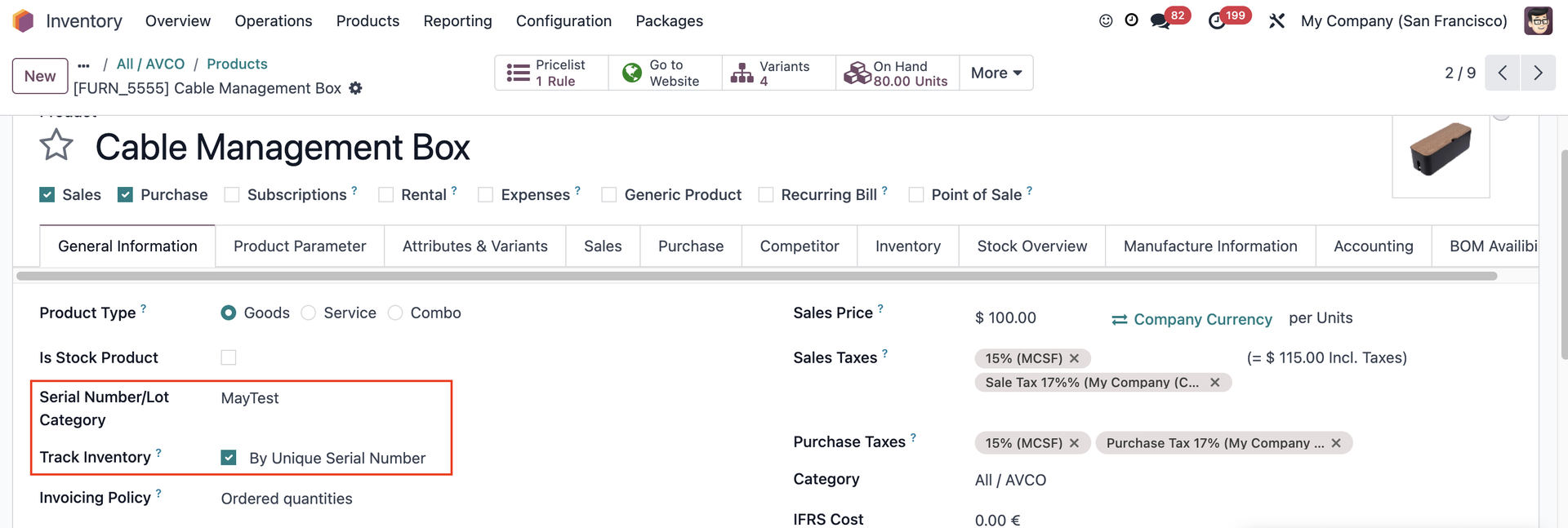 |
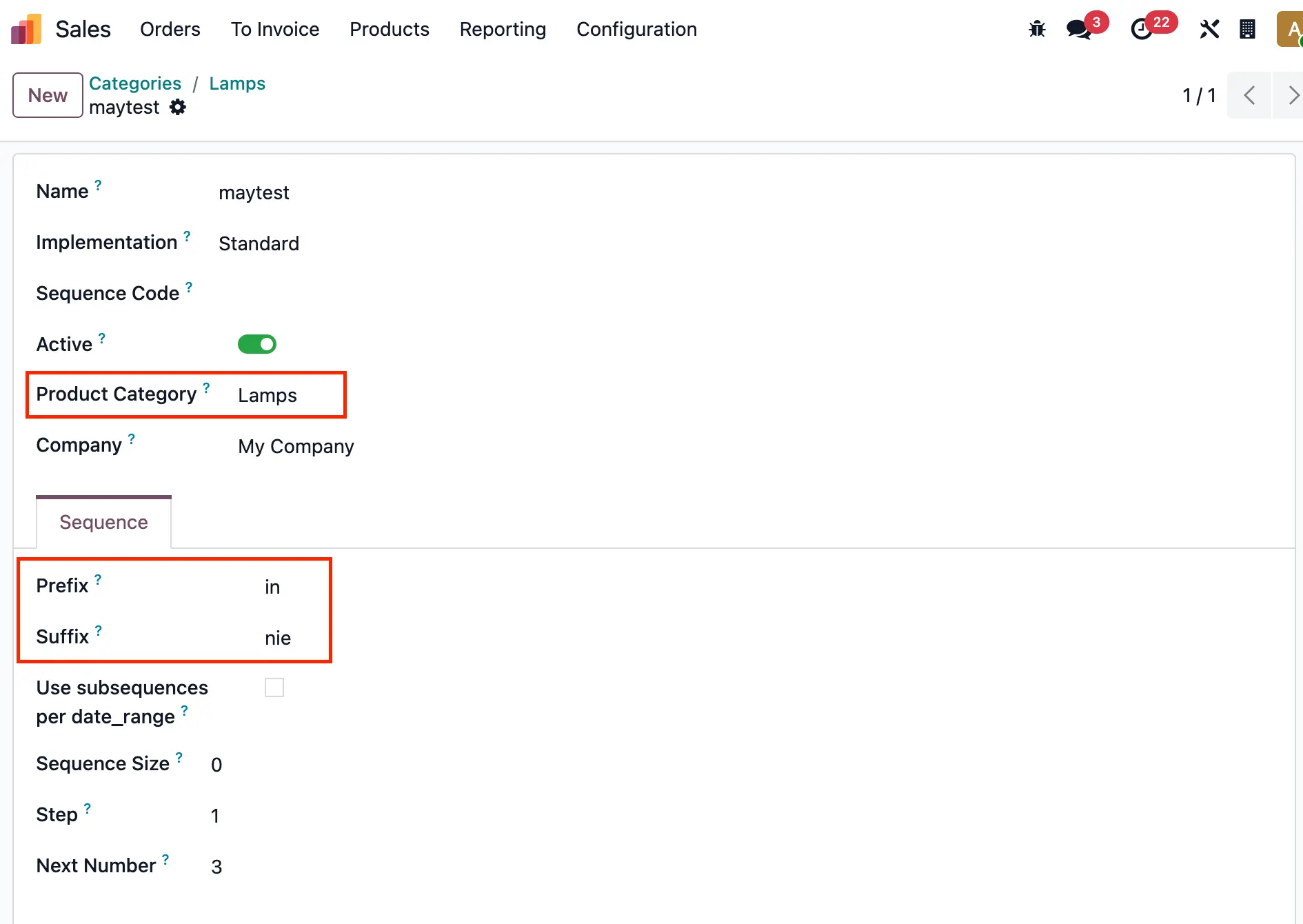
V19 Serial Number Category has been removed since v19. Custom Lot/Serial1. Go to a Product Category > Set up the Custom Lot/Serial and Internal Reference Sequence.
| 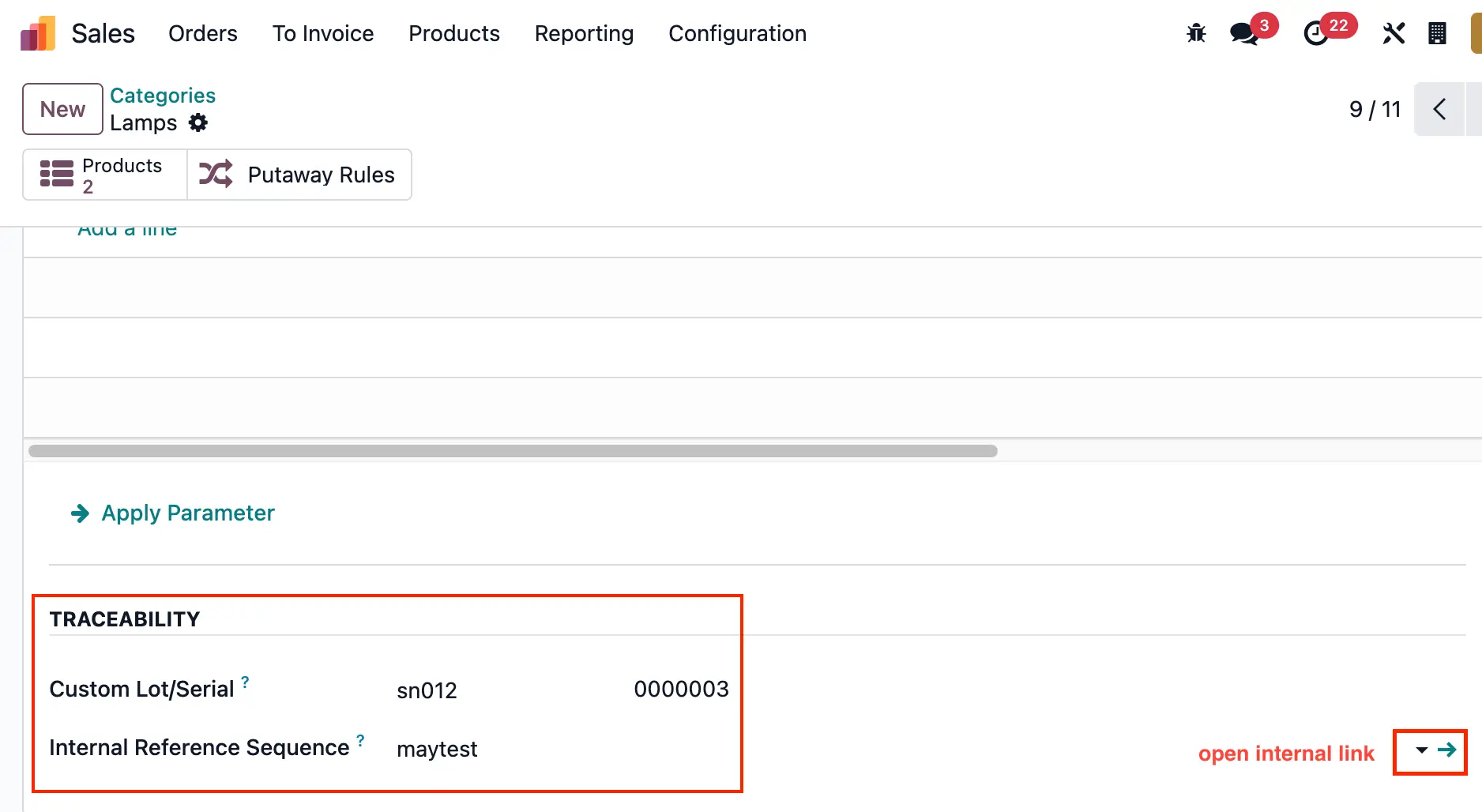 |
Set up the Prefix and Suffix for the reference. |
|
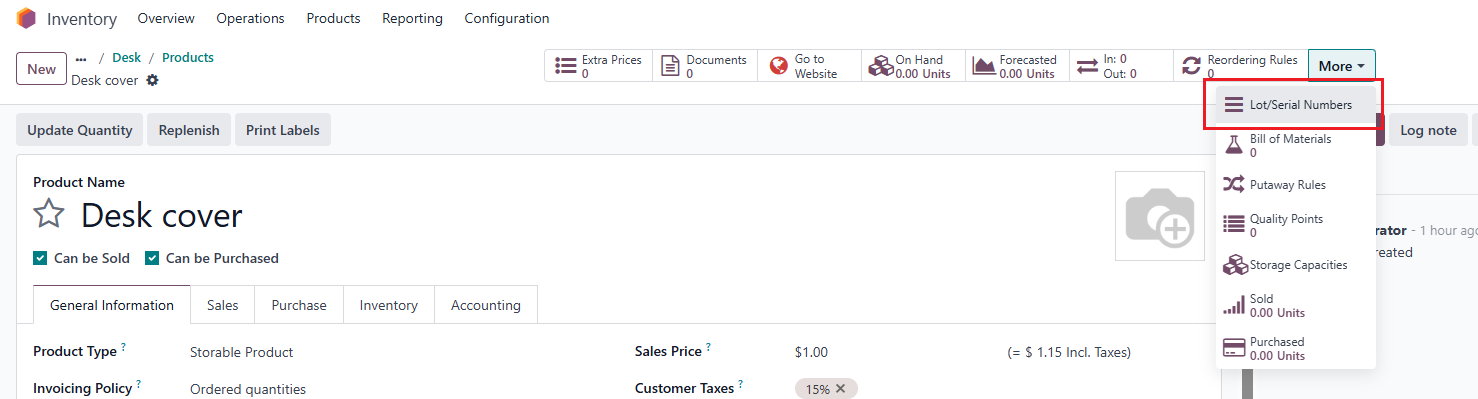
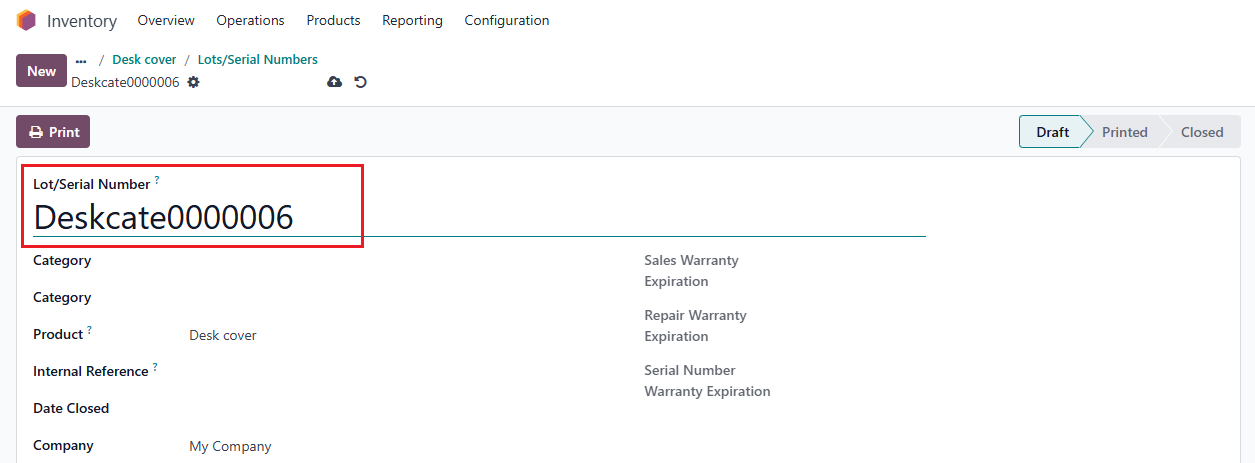
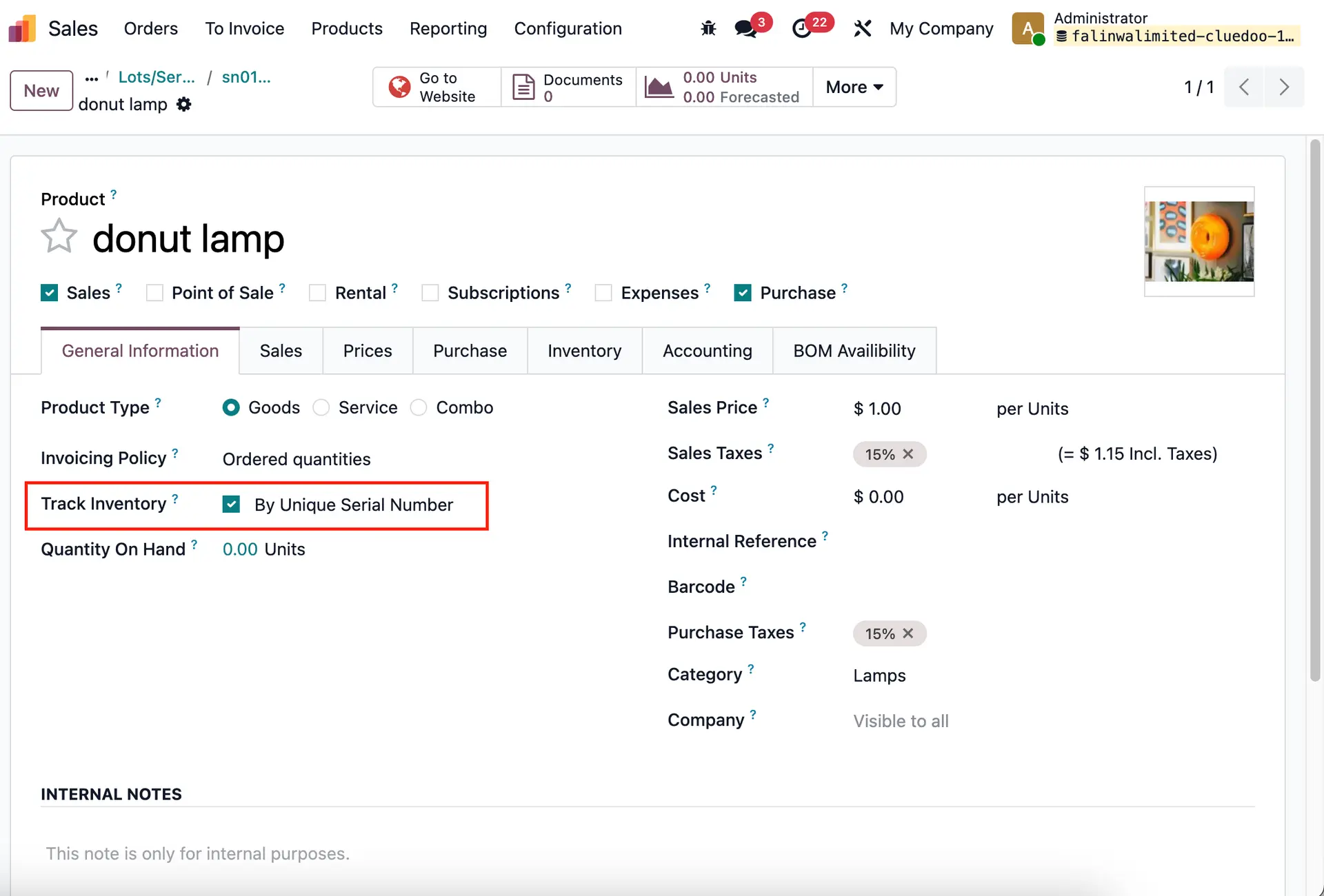
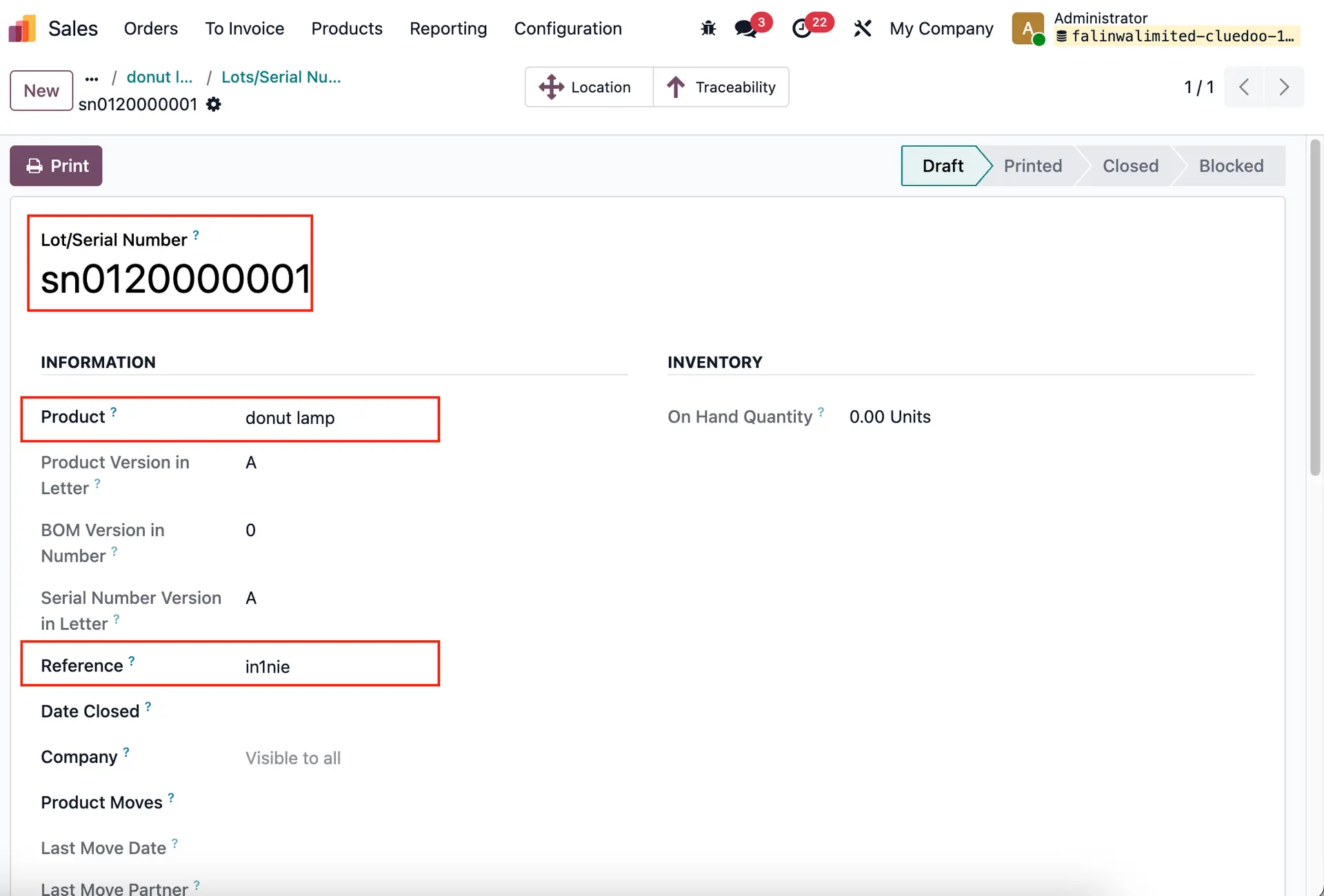
2. Create a Lot/SN product tracked by Unique Serial Number. e.g., I set Lot/ SN for 'donut lamp' in the 'Lamps' category. > We can see the Sequence and Reference are created according to the formula that we set up in the Custom Lot/Serial and Internal Reference Sequence on the category. Note: This will be applied to all products which are included in the product category that you set up.
|   |
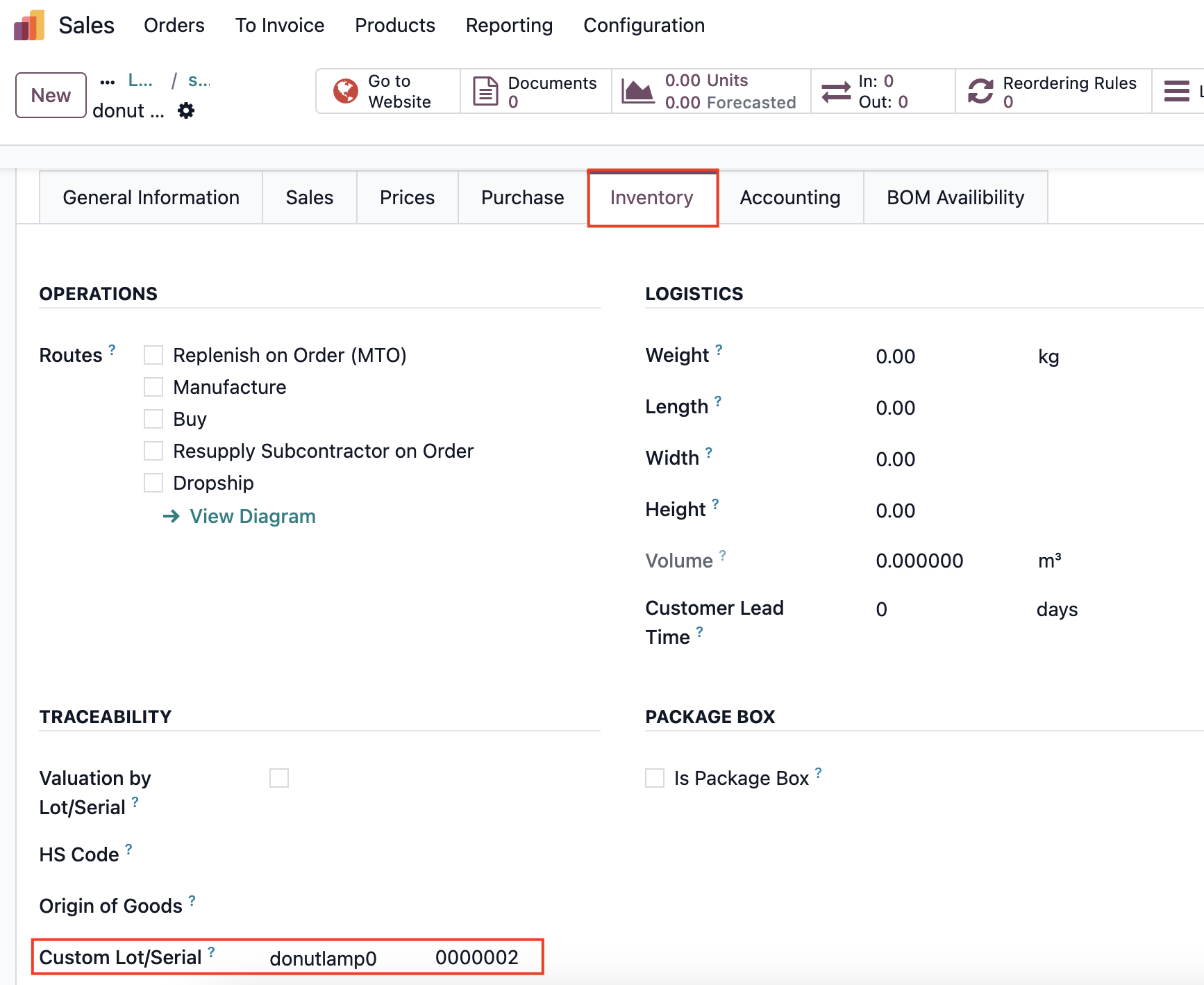
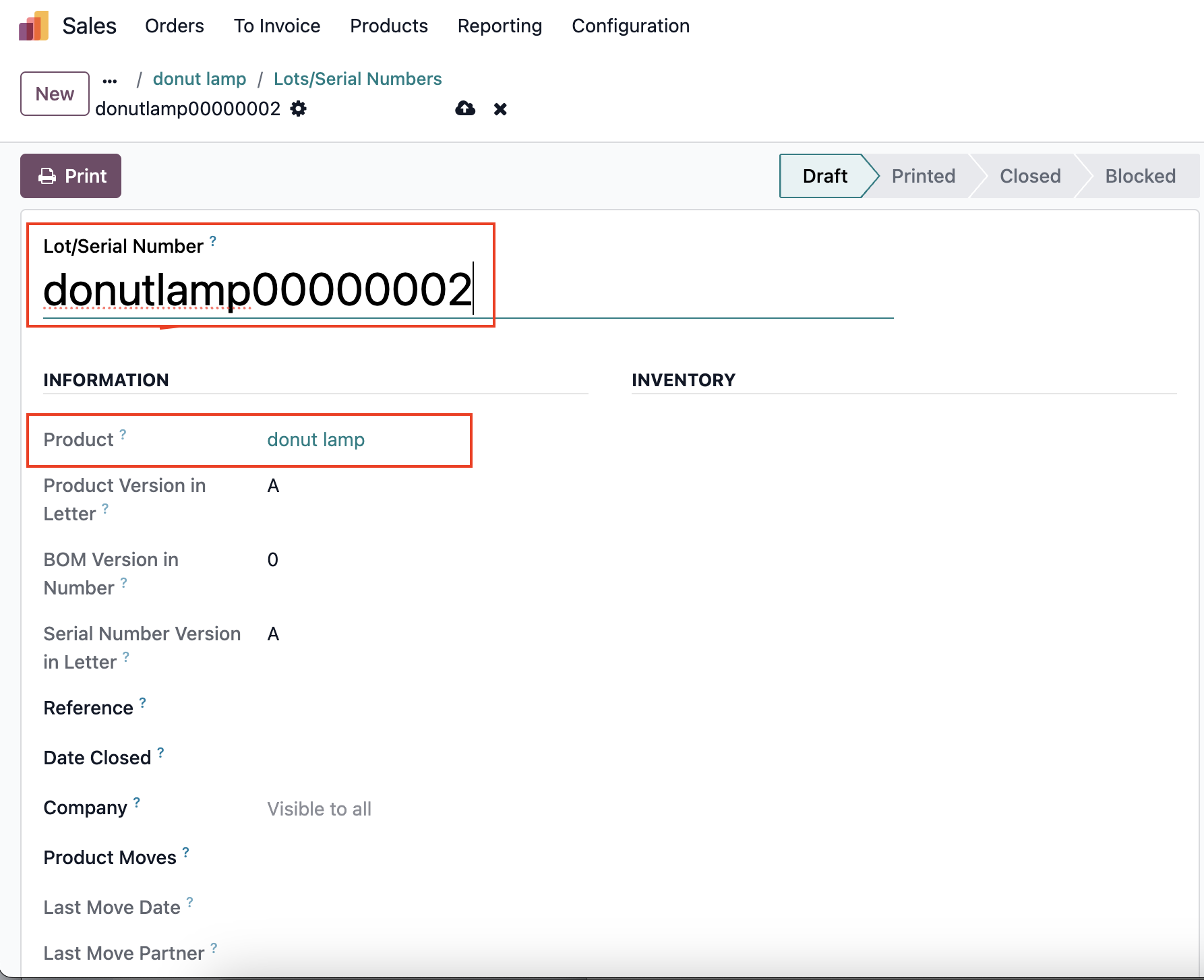
3. Go to the product form > Inventory tab > set the Custom Lot/Serial > The sequence of the SN/Lot will be applied by the configuration of the product form instead of that on product category.
|   |
3. The Custom Lot/Serial and Internal Reference Sequence set up on the parent category will also apply to all products in its child category.
| 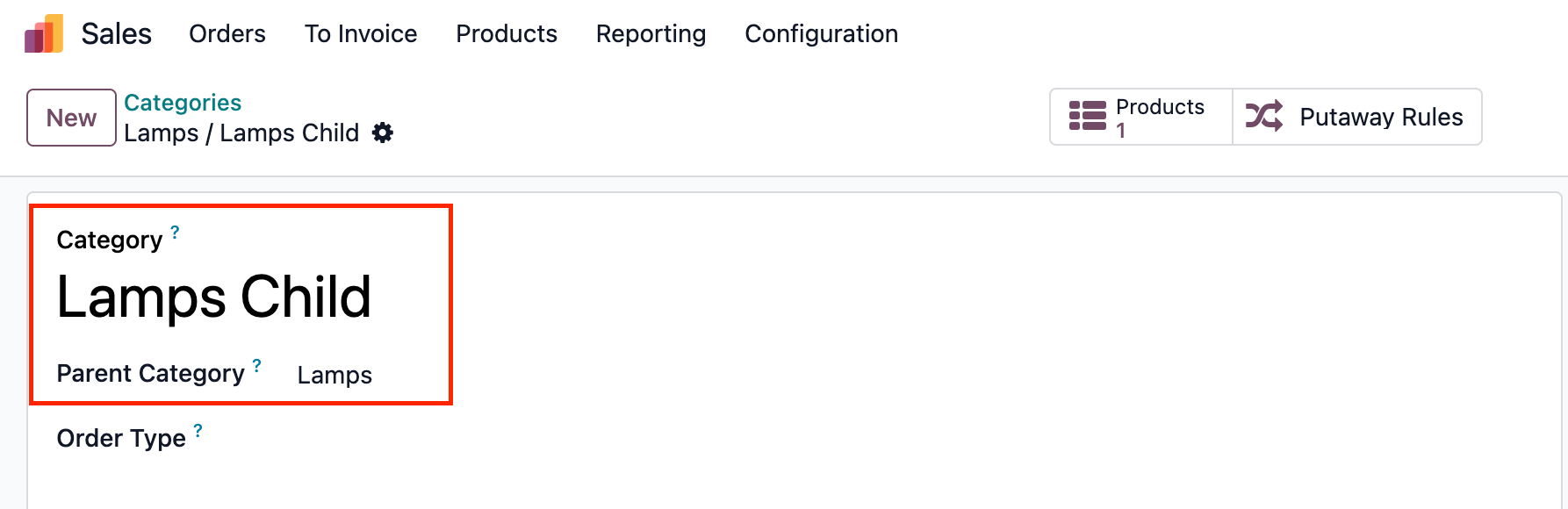 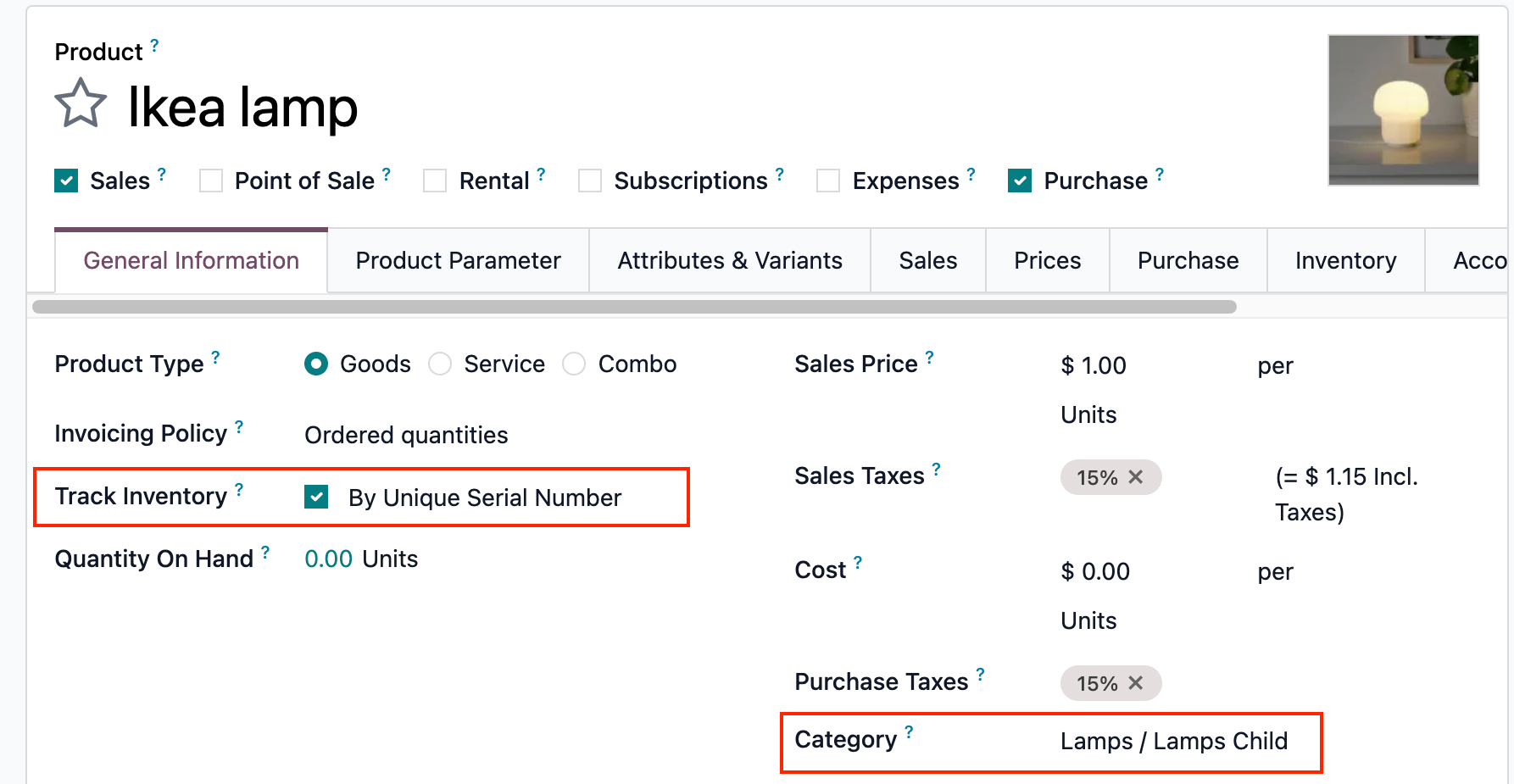 |
e.g., I set Lot/ SN for 'Ikea lamp' in 'Lamps child' Category. | 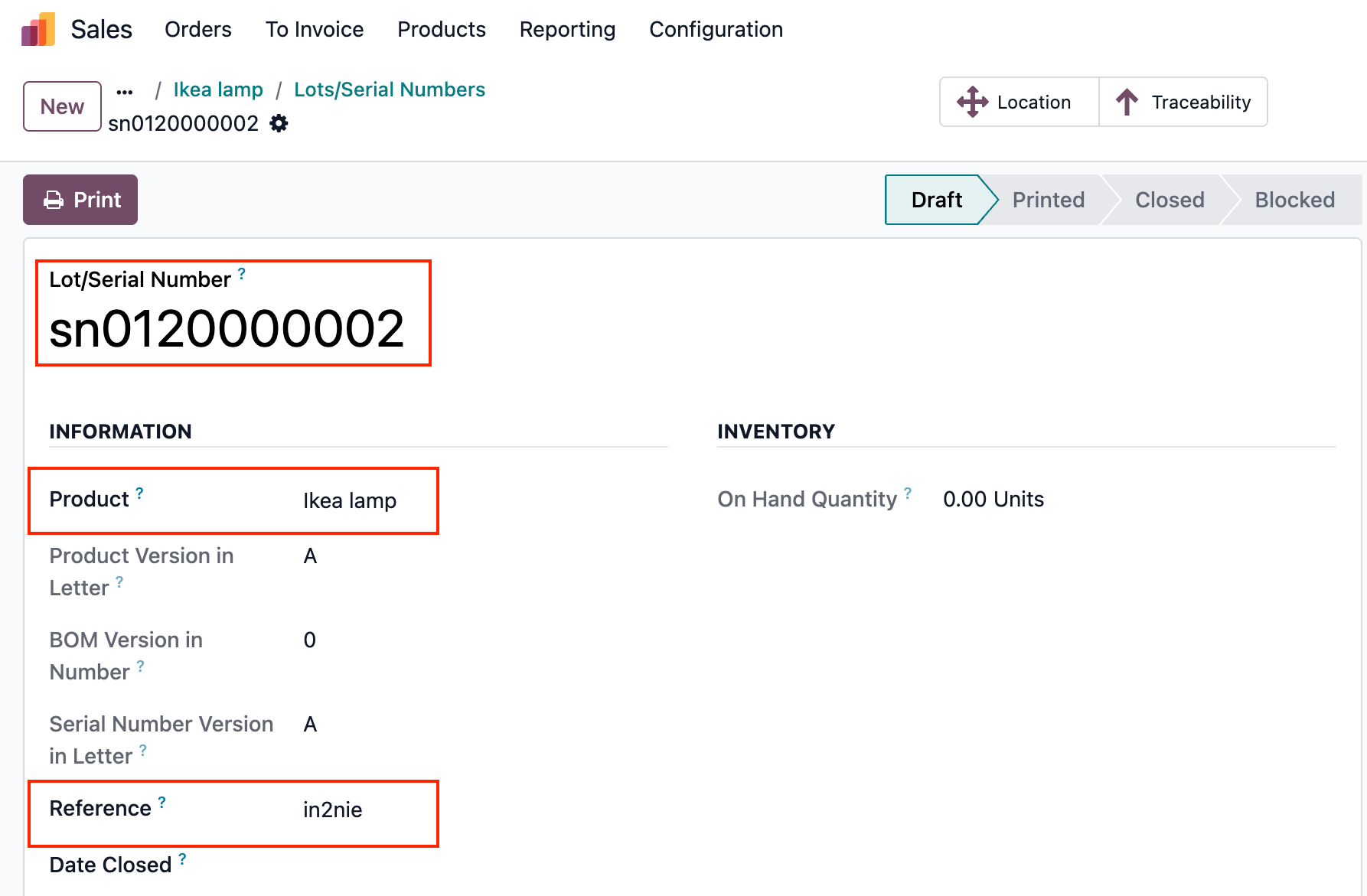 |