



ODOO'S FUNCTION
In Odoo, there exists a limitation where users are unable to directly associate tasks and projects with the Purchase Order (PO). This lack of connectivity can create challenges in maintaining a seamless workflow, as the relationship between the PO and the corresponding tasks or projects remains disconnected, potentially leading to inefficiencies in project management and oversight.
CLUEDOO'S FUNCTION
By utilizing the smart "Milestones" button, CLuedoo enables an efficient and intelligent linkage, ensuring that the PO is directly tied to the relevant tasks and projects, thereby enhancing coordination, improving oversight, and fostering a more streamlined project management experience.
1. Go to Products > Create a new product Under the General Information tab, make sure to set:
Note: Milestone Template is optional at this step. | 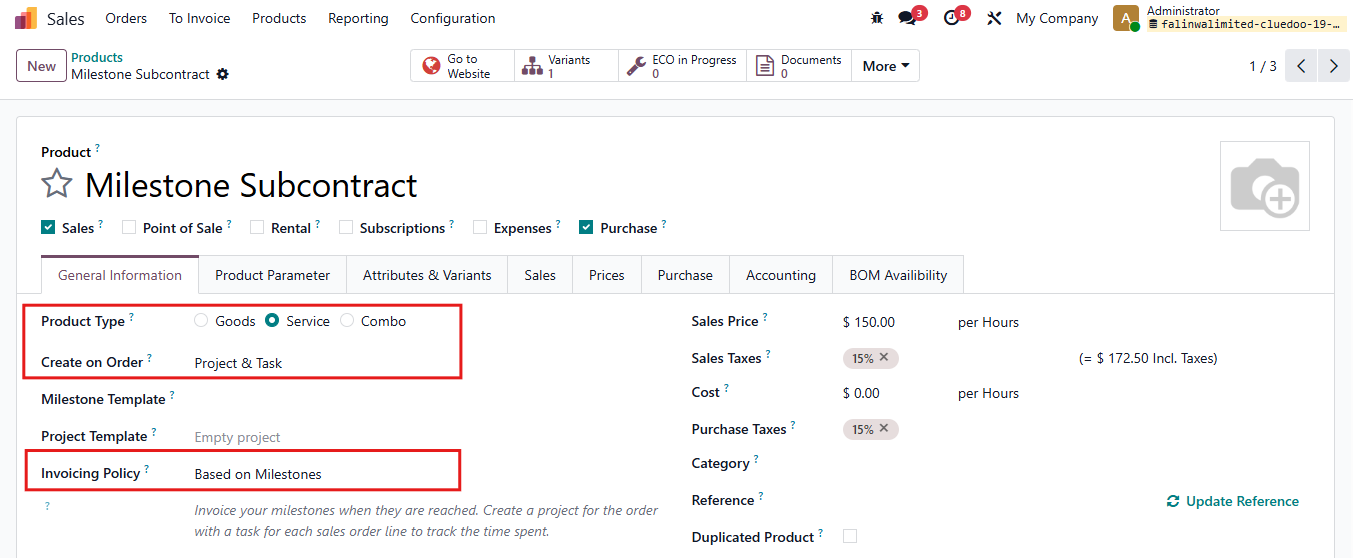 |
Under the Purchase tab
| 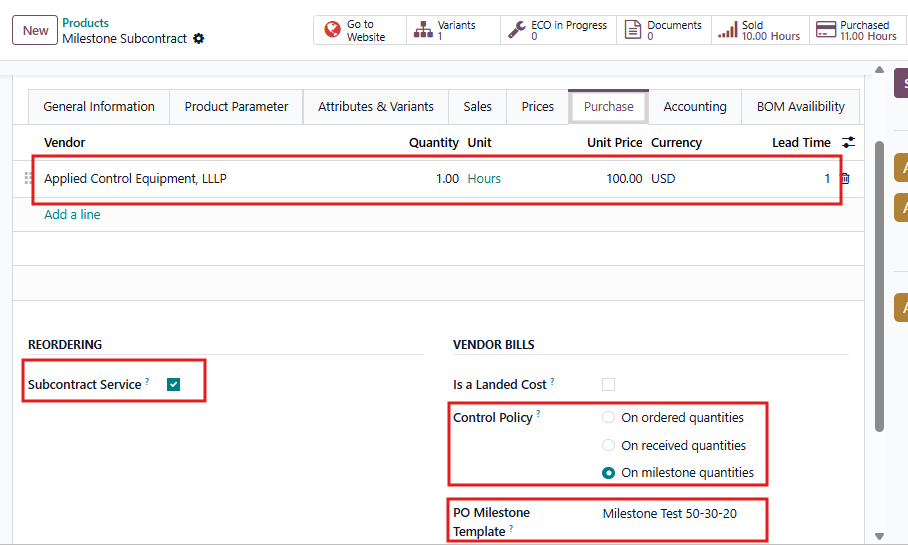 |
Note: To create Milestone Template, go to Inventory > Product > Product Template Milestone | 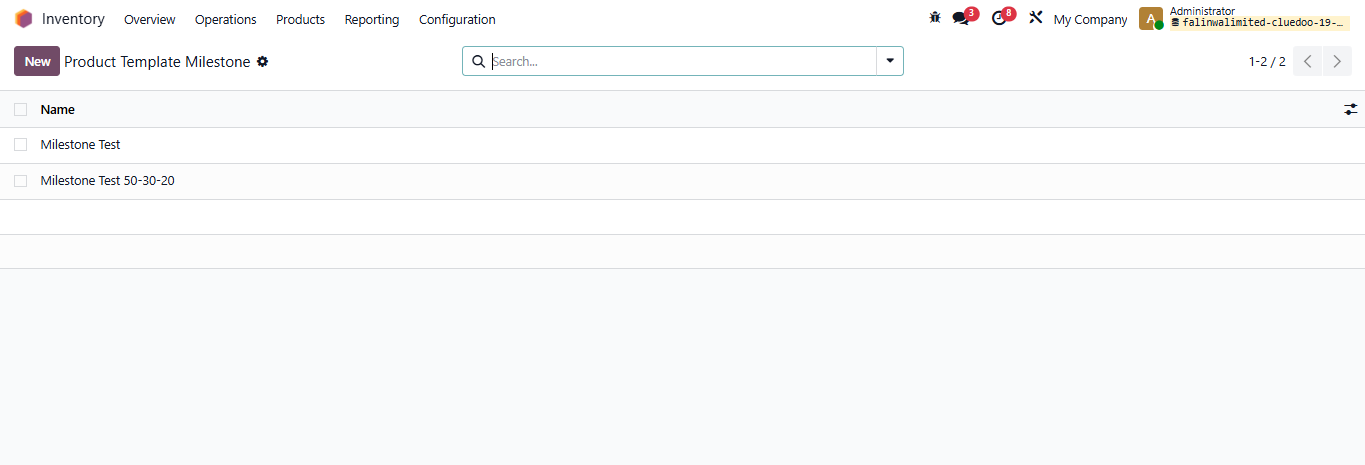 |
2. Create Sales Order for this product > Confirm After confirmation, you can see the smart buttons for Projects, Milestones and Purchase | 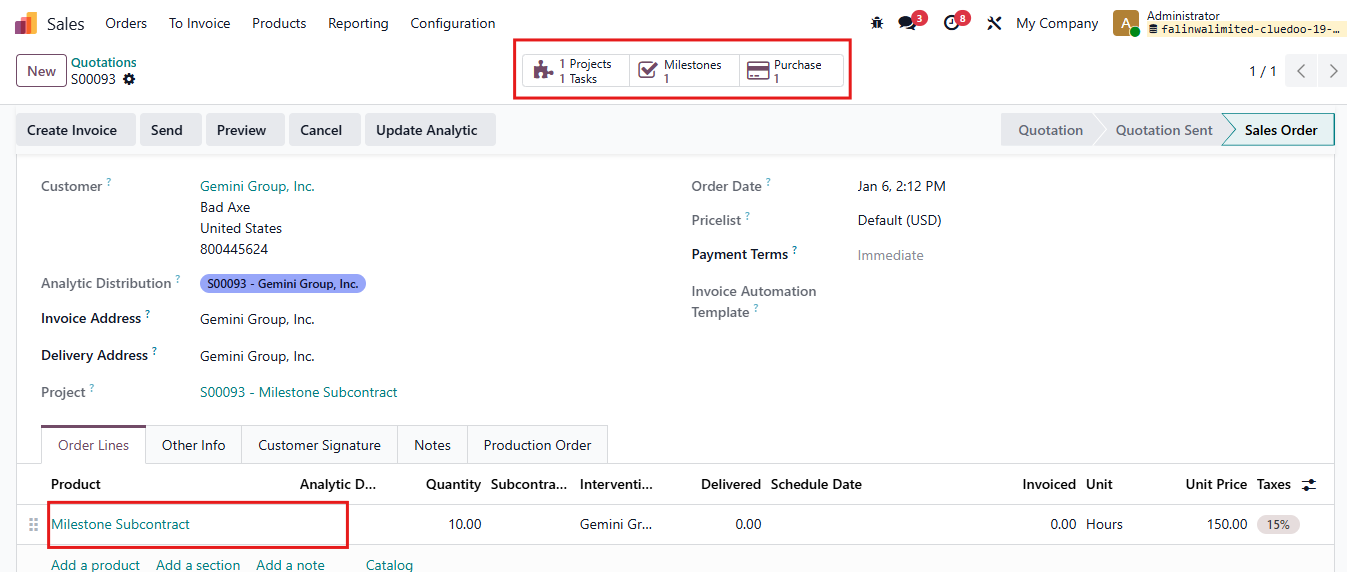 |
3.1. Click on smart button Milestones. You can see it automatically set the quantity to 100%, but this field is editable. | 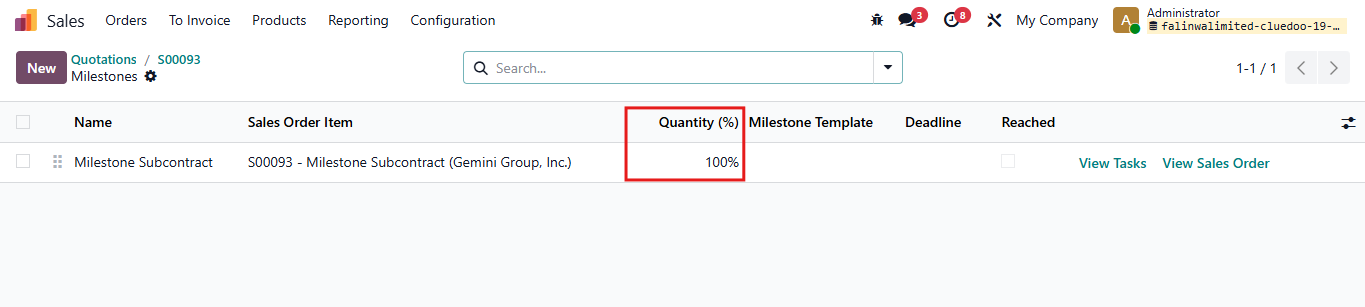 |
After finishing a milestone, tick the Reached checkbox. | 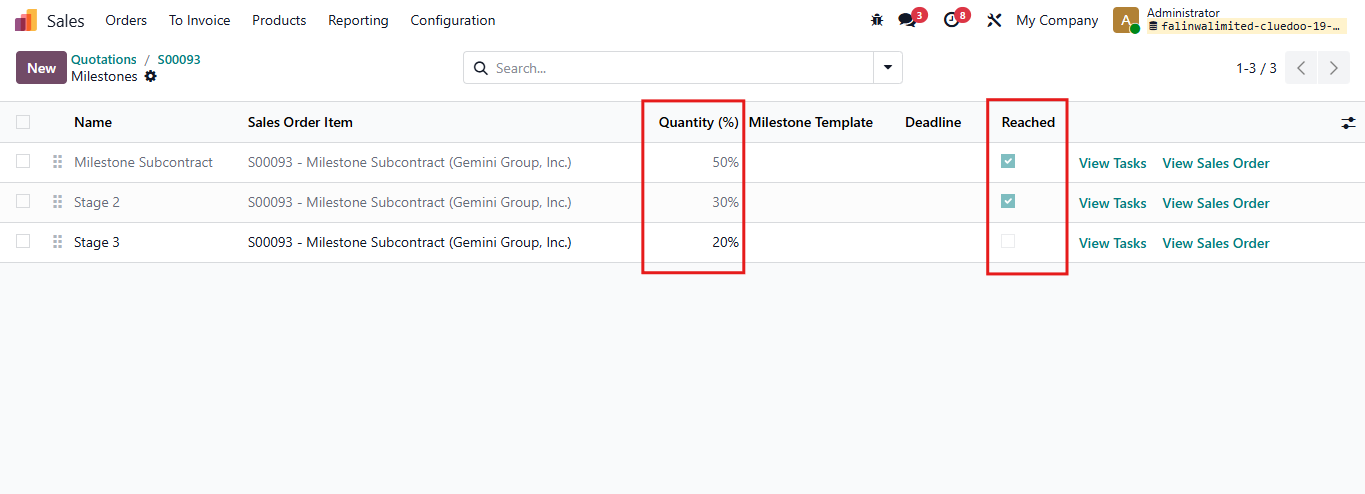 |
You can see the Delivered quantity column in the SO is equal to the Quantity of all the milestone reached. | 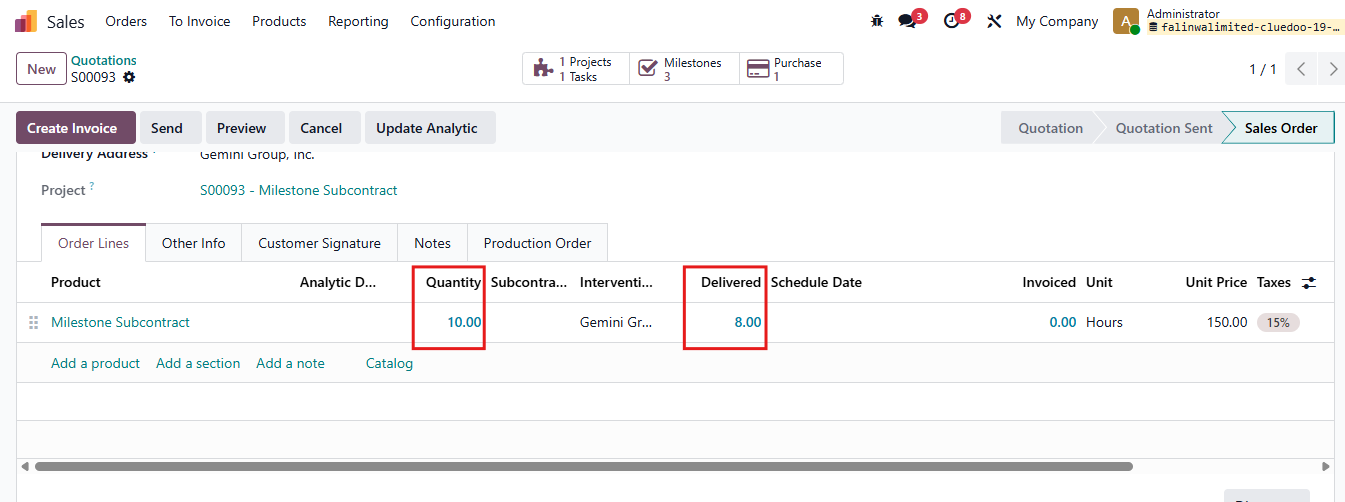 |
3.2. Click on the smart button Purchase to access the PO > Confirm PO After that, you will see smart button Milestones appears and it will follow the template of the Milestone you set in Step 1. | 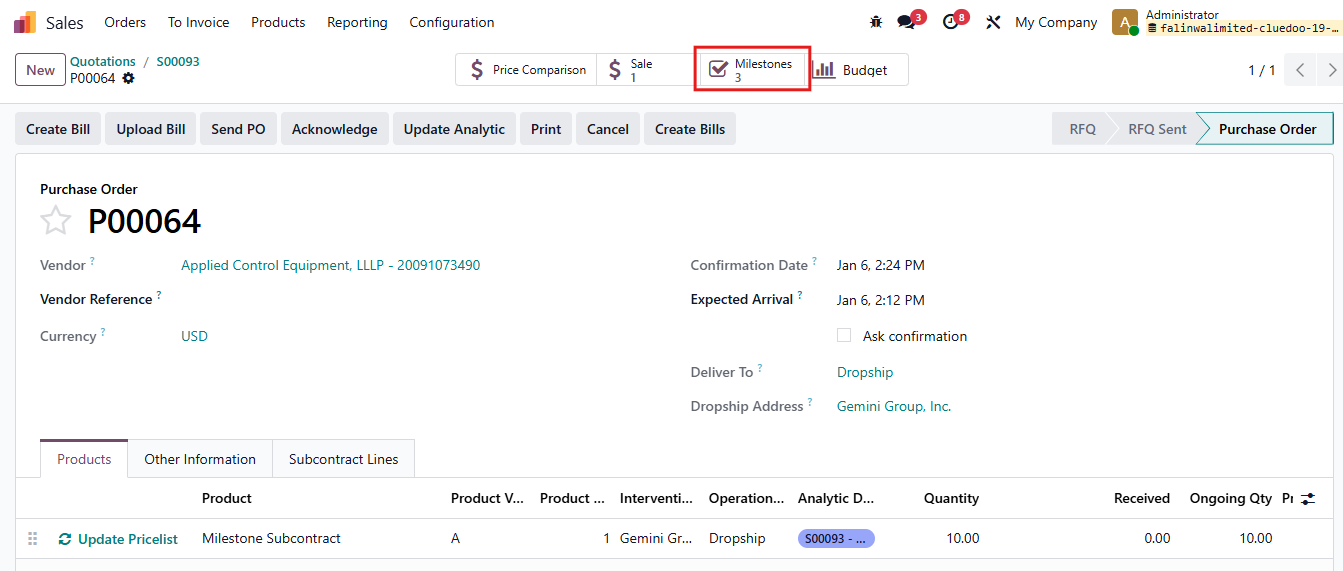 |
You can see the Received quantity in the PO is equal to the Quantity of all the milestone reached. | 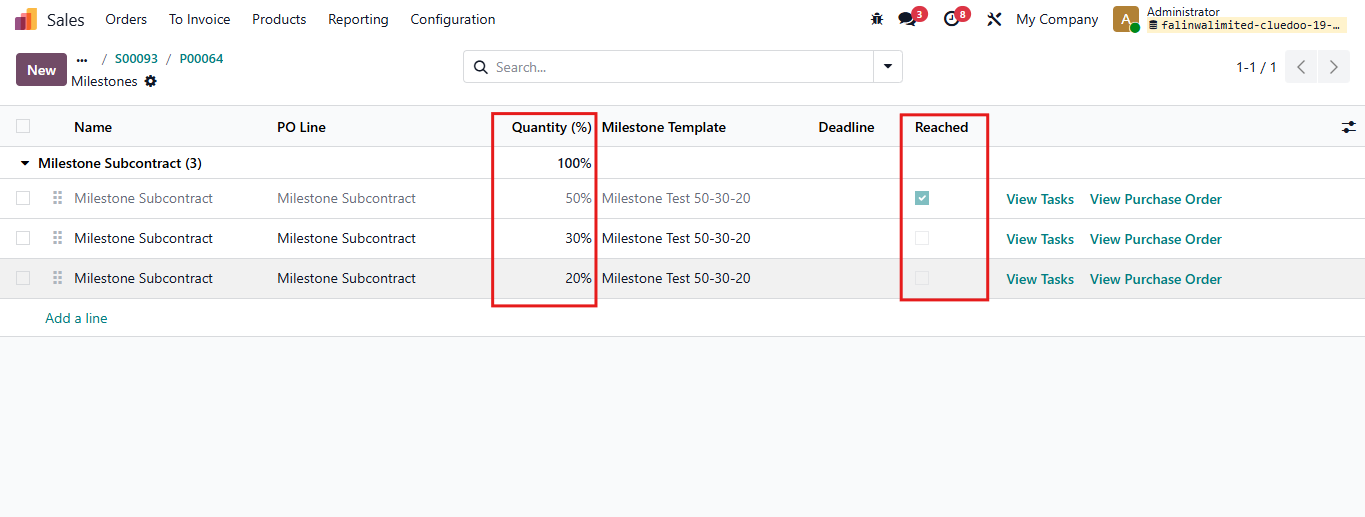 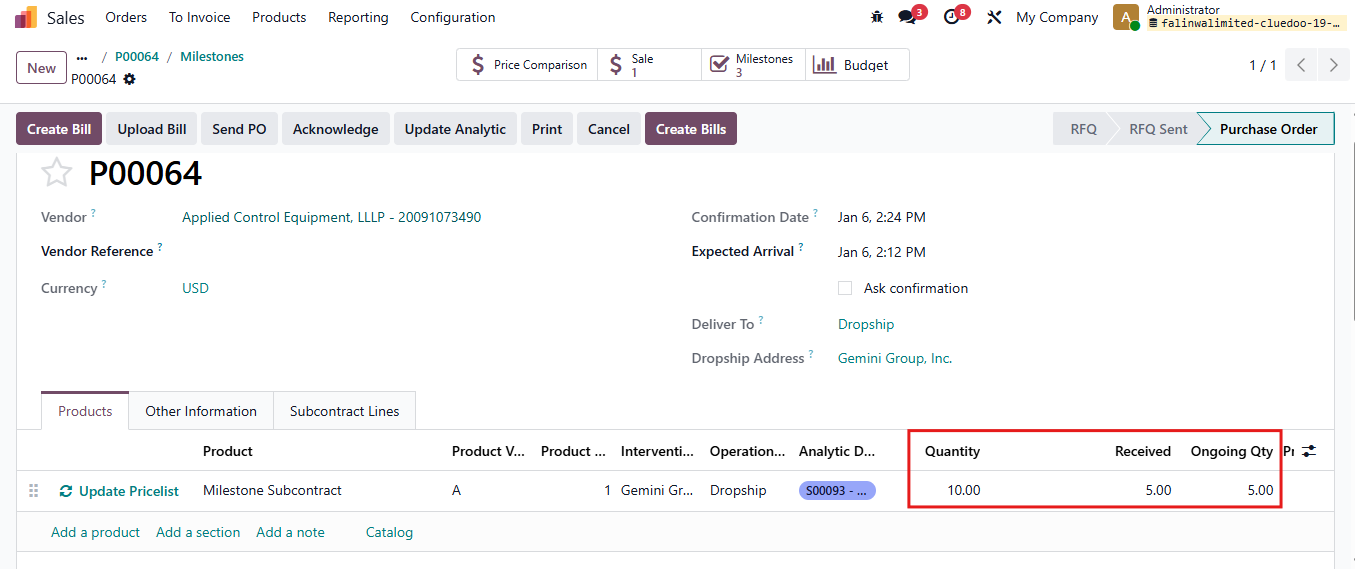 |
You can also see the smart button PO Milestones and the task viewed from the PO Milestones is linked to the task originally created from the SO. | 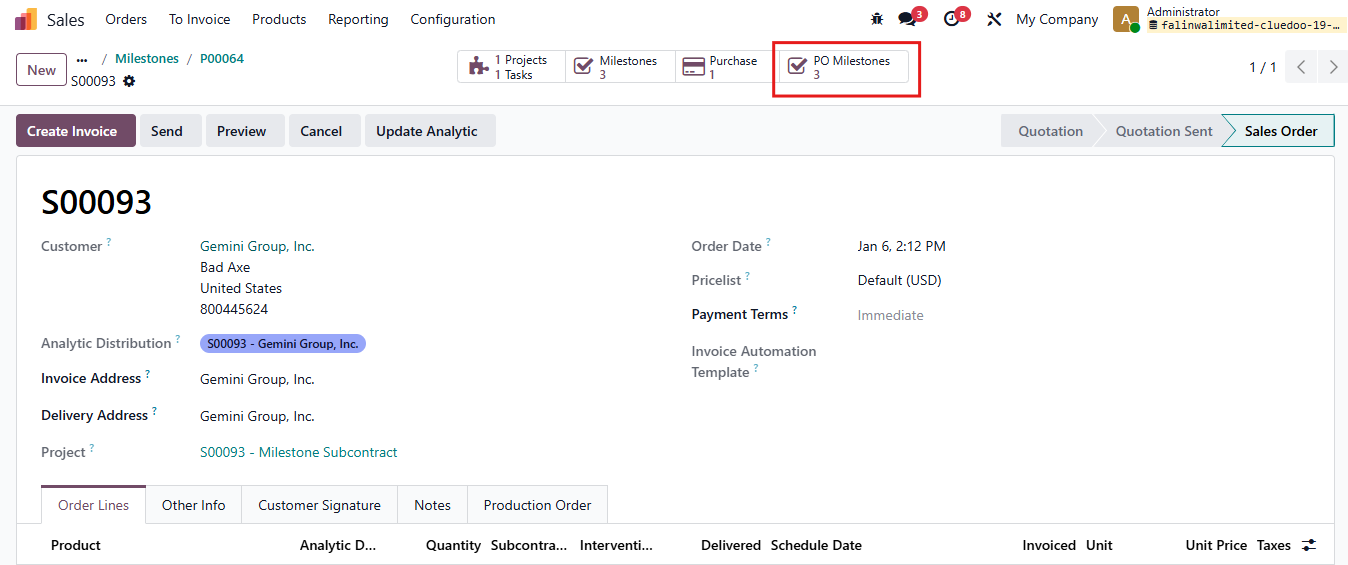 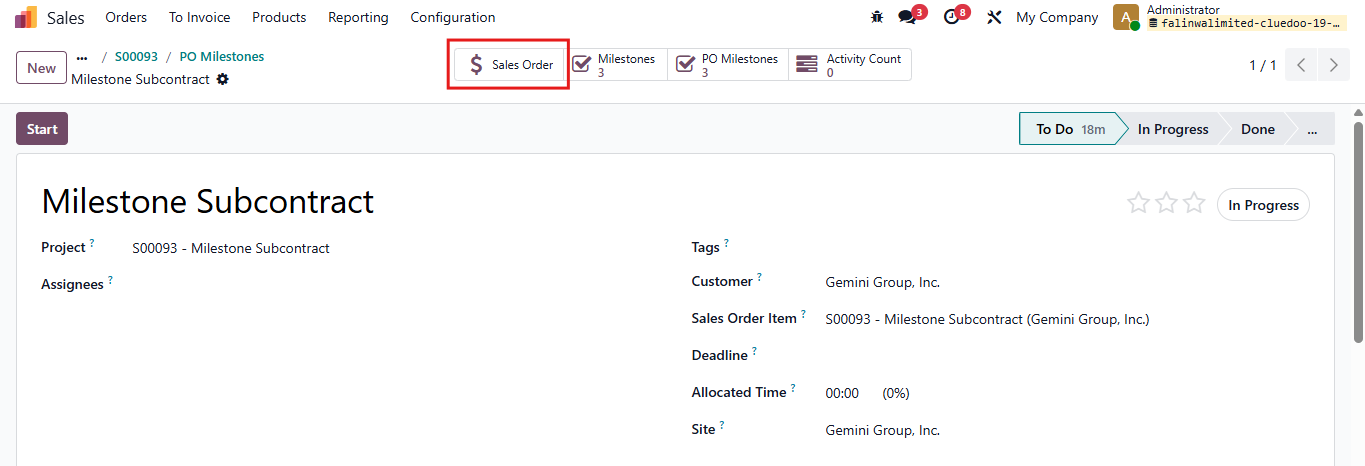 |
4.1. You can also create PO from the task in a project Go to Projects > Choose a project > create a new task Fill two fields: Product and Subcontractor Then click on Create PO | 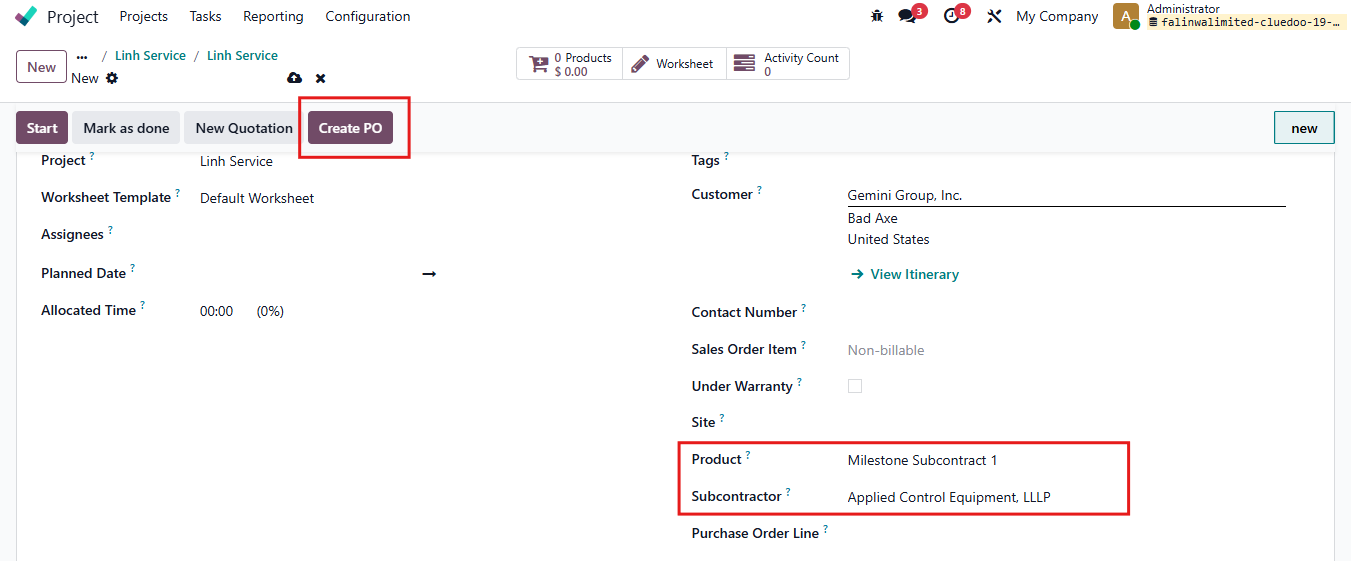 |
Note: The selected project must be set to Field Service. | 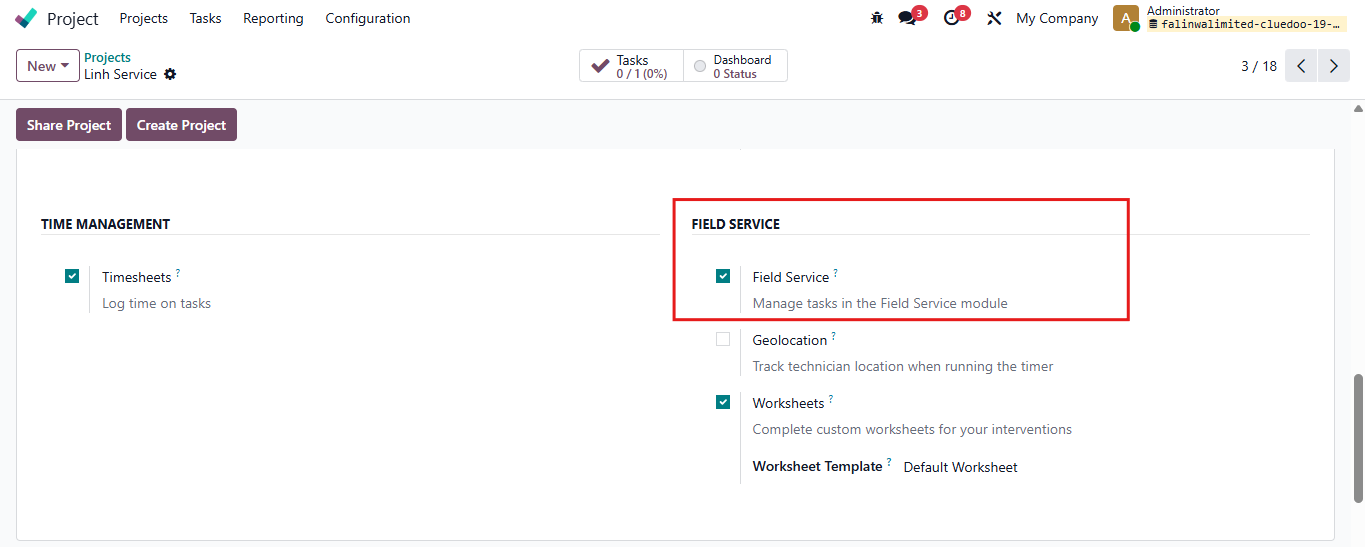 |
4.2. Then, a Purchase Order is created You can check field Purchase Order Line Click on the arrow and you will see the PO | 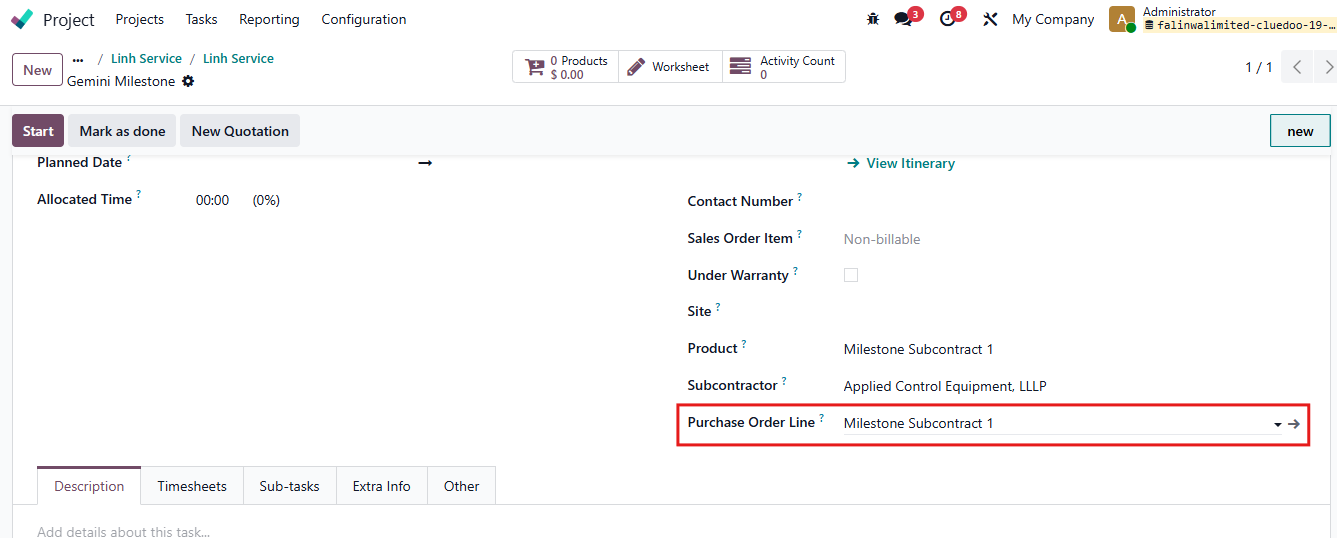 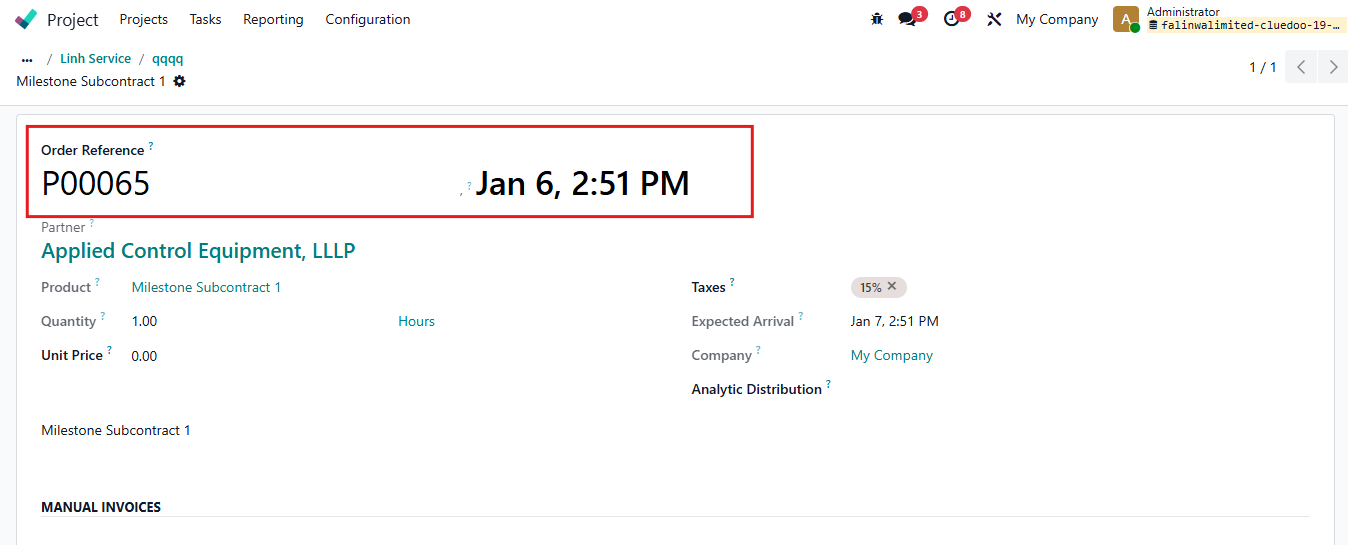 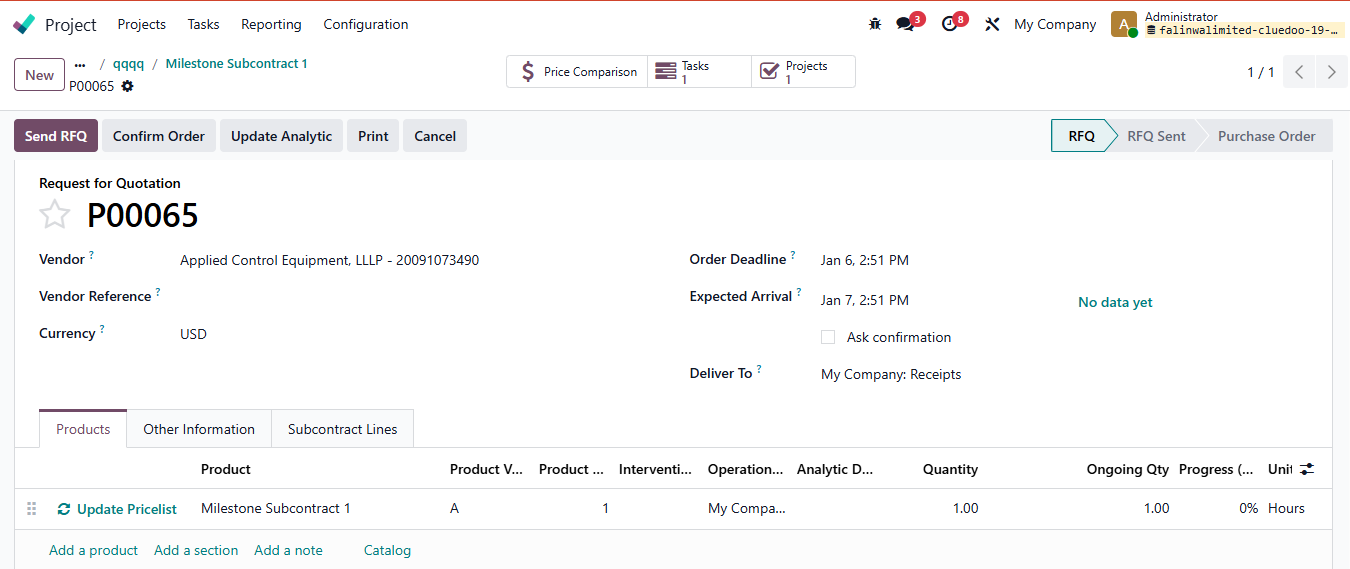 |
4.2. Confirm the Purchase Order The smart button Milestones appears You can also see the tasks and projects linked with this PO. | 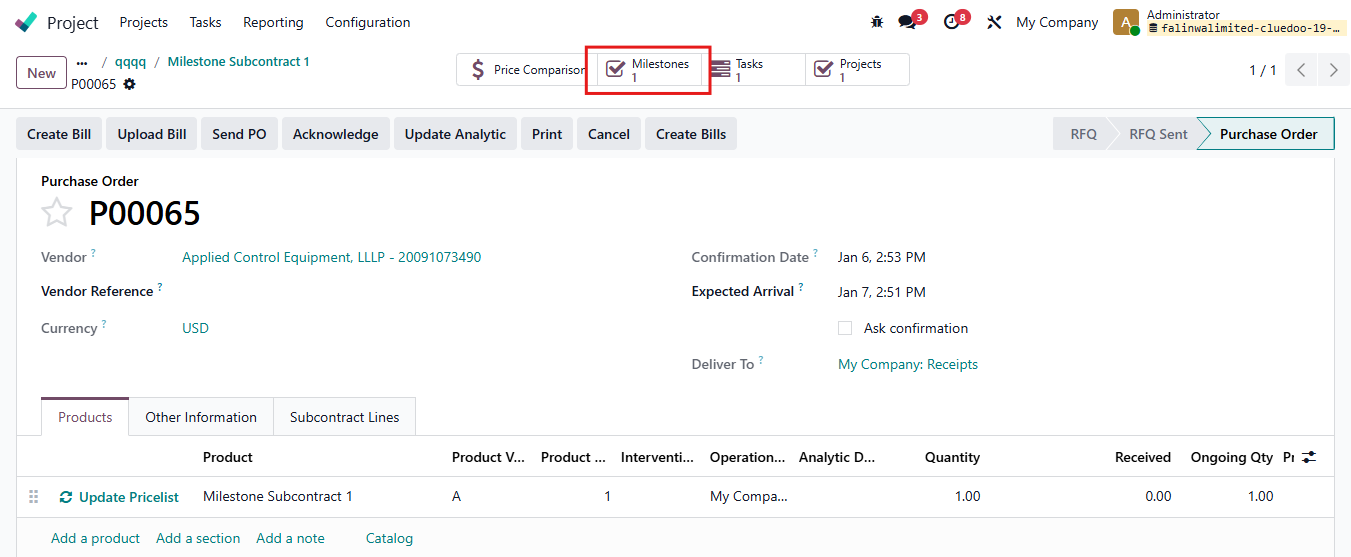 |