


ODOO'S STANDARD
In Odoo, there is no direct link between vendor pricelists and purchase order or bill lines. Odoo does not display which vendor pricelist is applied, and there is no option to update or re-evaluate the vendor pricelist automatically based on the PO or bill date.
CLUEDOO'S FUNCTION
CLuedoo adds full vendor pricelist traceability and control by:
1️⃣ Linking the vendor pricelist directly to the PO line to show which pricelist is applied.
2️⃣ Adding an Update Pricelist button in PO lines that updates the pricelist reference using the PO date (or today’s date if not specified).
3️⃣ Making the vendor pricelist inherited from the PO line to the bill line.
4️⃣ Allowing the same update function in bill lines, recalculating the vendor pricelist based on the bill date (or today’s date if not specified).
5️⃣ Allowing changing the Unit of Measure (UoM) directly in the vendor pricelist.
VENDOR PRICELIST IN POL1. Go to Products > Select/Create a new product > Under the Purchase tab, add the necessary information Note: The MOQ sensitive checkbox does not have a specific function | 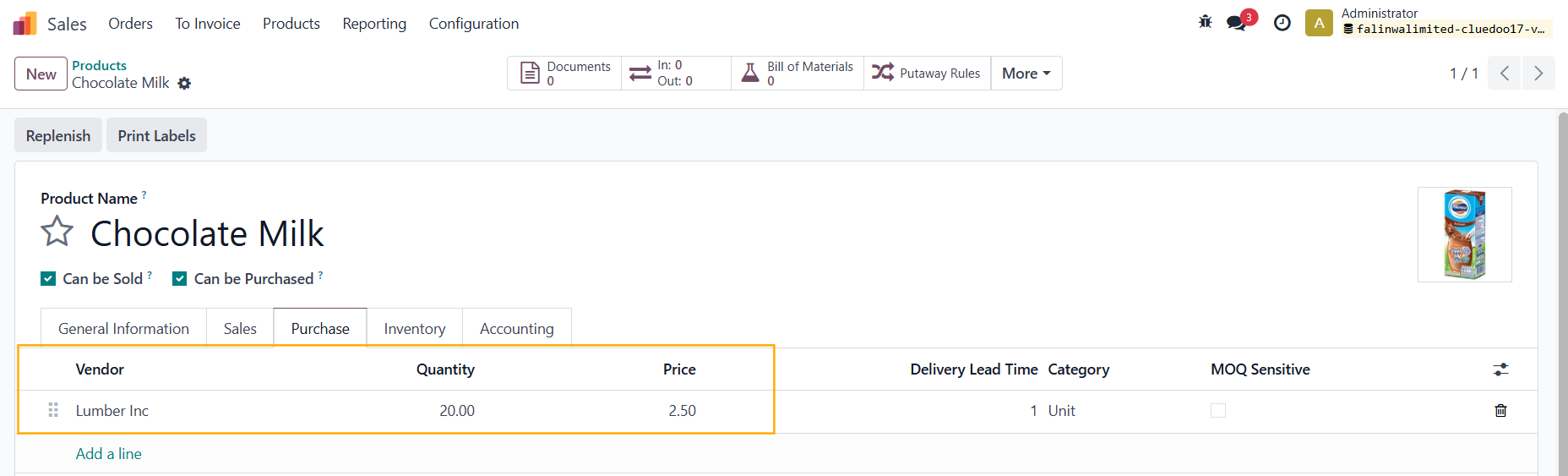 |
2. Create a Purchase Order > Fill in the Vendor and the Product > The Vendor Pricelist field will be automatically updated | 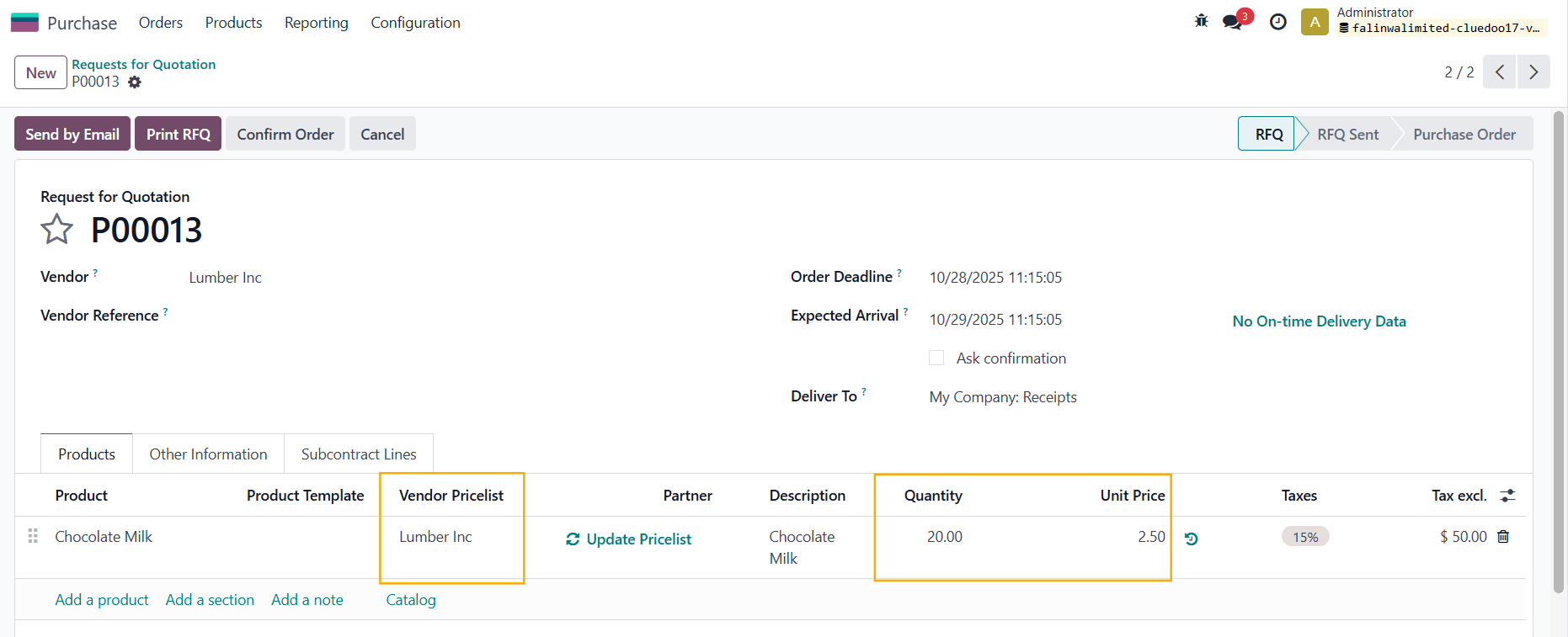 |
"UPDATE PRICELIST" BUTTONGo to the product and update the vendor pricelist information | 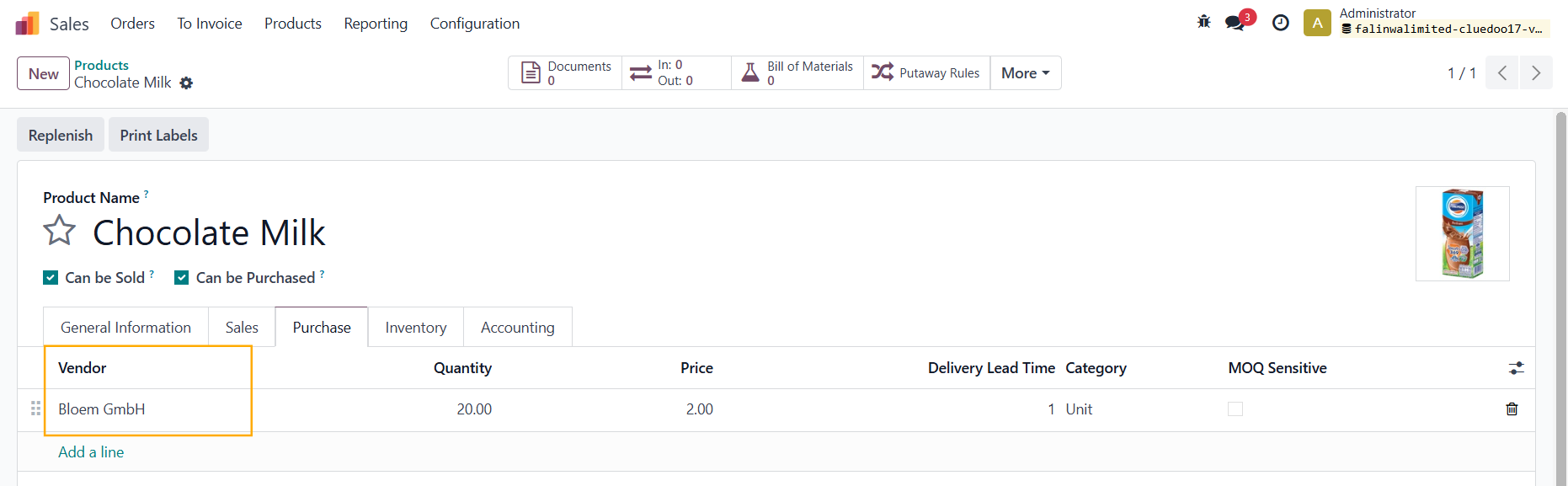 |
Go back to the PO > click Update Pricelist > The Vendor Pricelist field will be automatically updated again Note: It will NOT update the Unit Price |  After clicking Update Pricelist  |
INHERIT VENDOR PRICELIST TO BILL LINESConfirm Order > Receive Products > Create Bill > The Vendor Pricelist field will be inherited from the POL to the bill line | 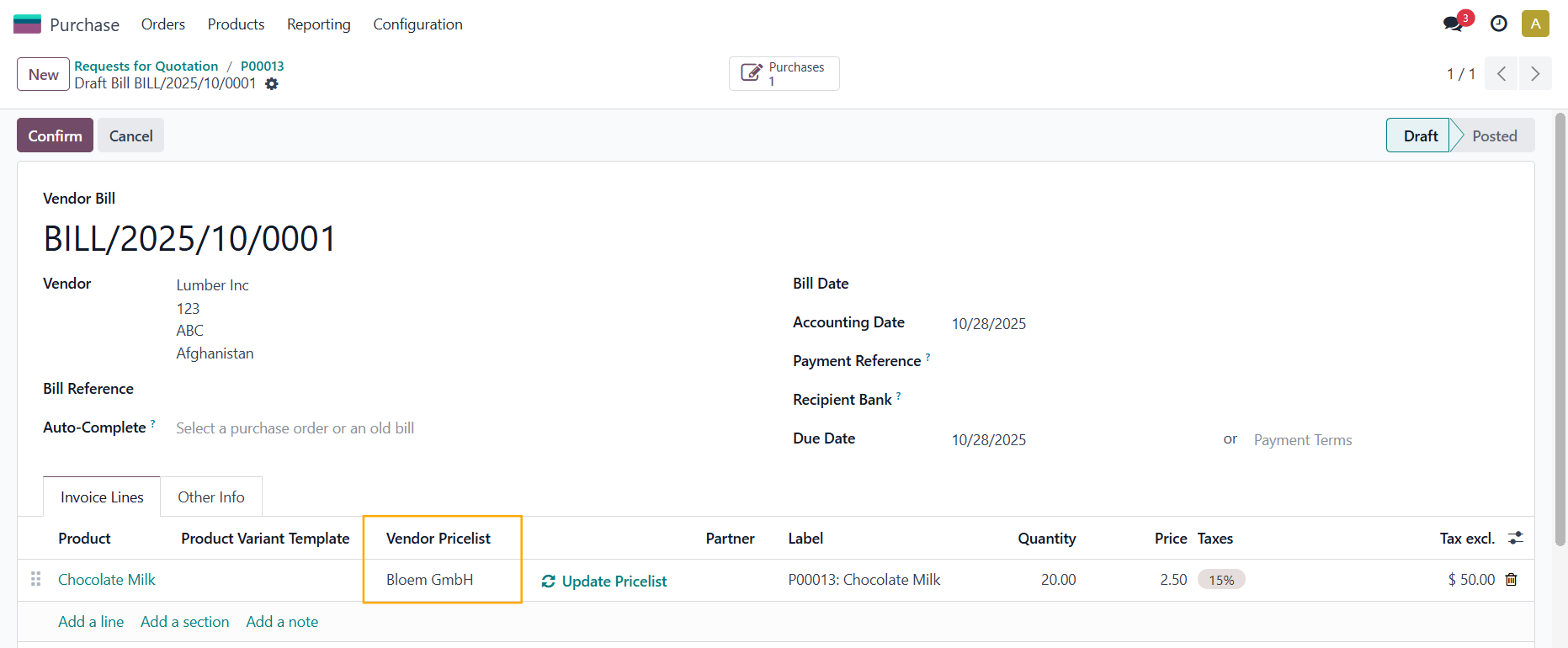 |
Go to the product and update the vendor pricelist information again > Go back to the bill > The Vendor Pricelist field has been automatically updated to the newest pricelist | 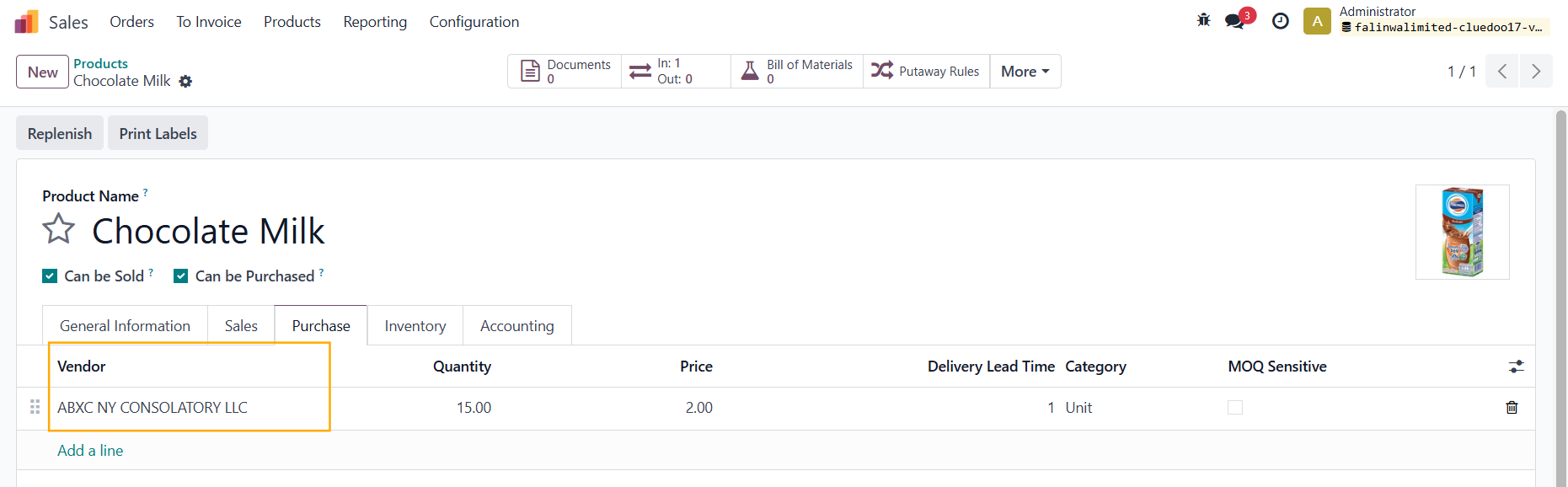 After clicking Update Pricelist 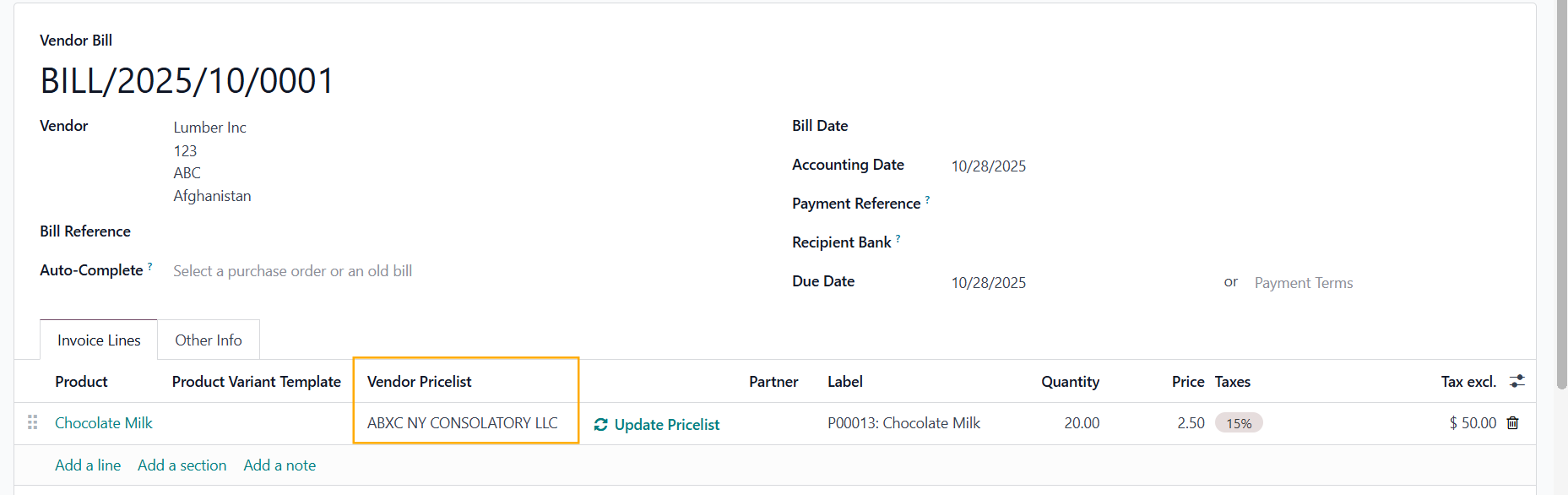 |
CHANGE UOM IN VENDOR PRICELISTWe can change the Unit of Measure in vendor pricelist Note: Since v19, we have removed this function since it is available in Odoo Standard | 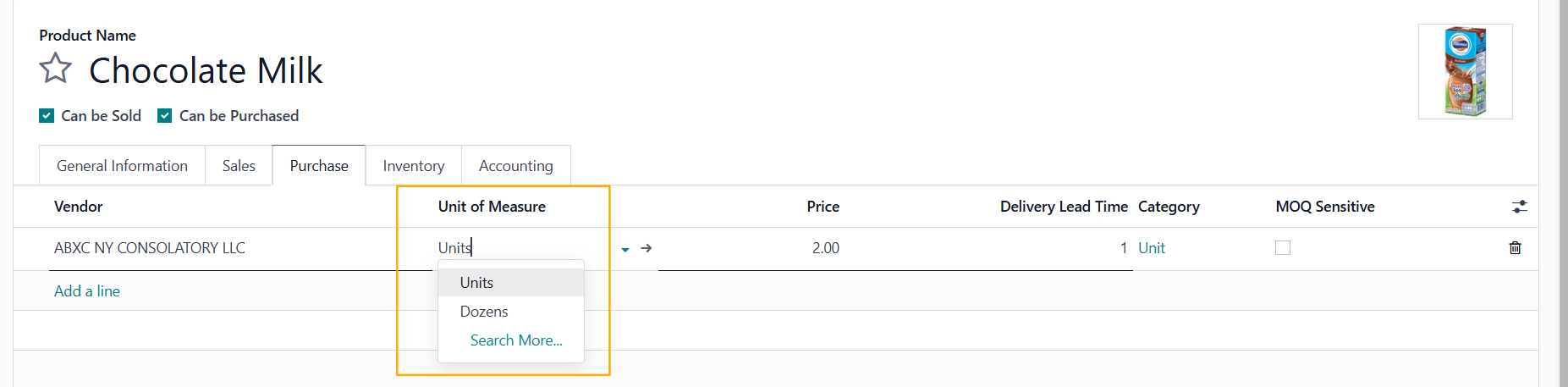 |
DROPSHIP PRODUCTSCreate a dropship product and add a vendor pricelist | 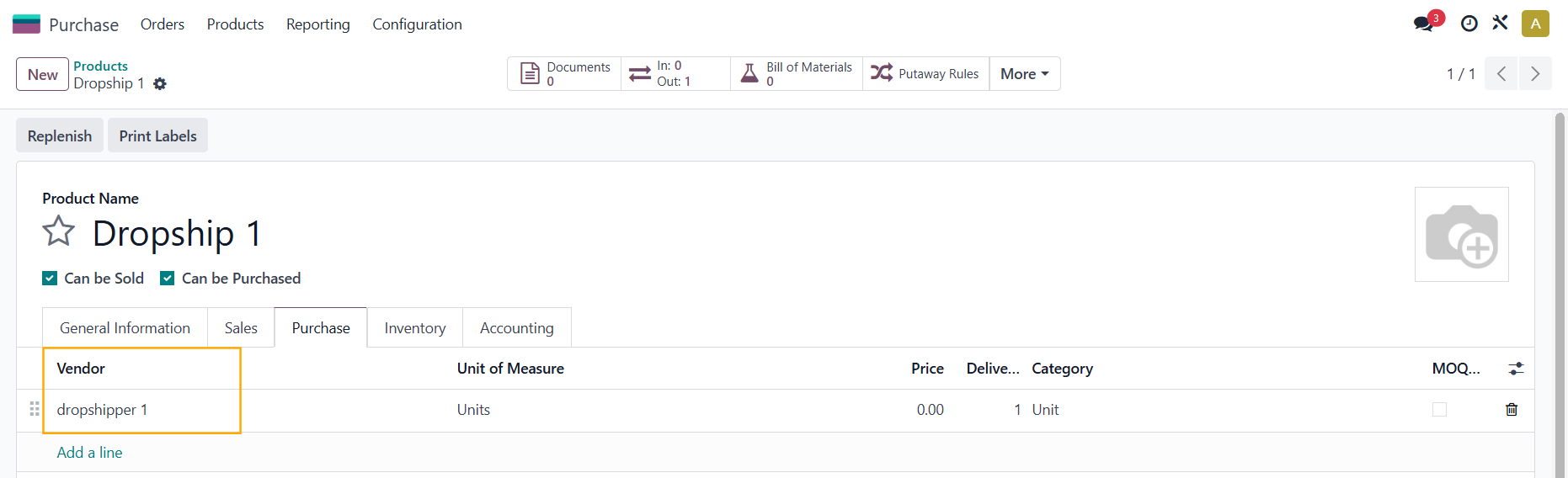 |
Create a Sales Order > Choose the dropship product > Confirm > Click on the Purchase smart button and you will see the pricelist has been inherited to the Vendor Pricelist field | 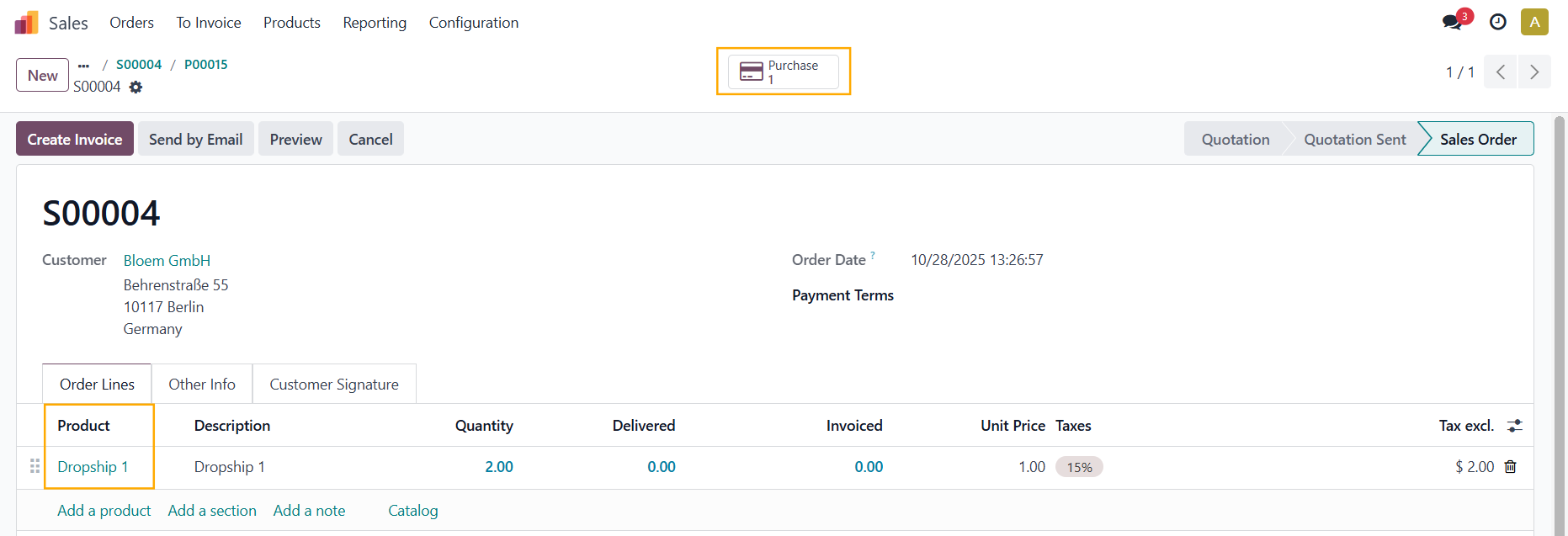 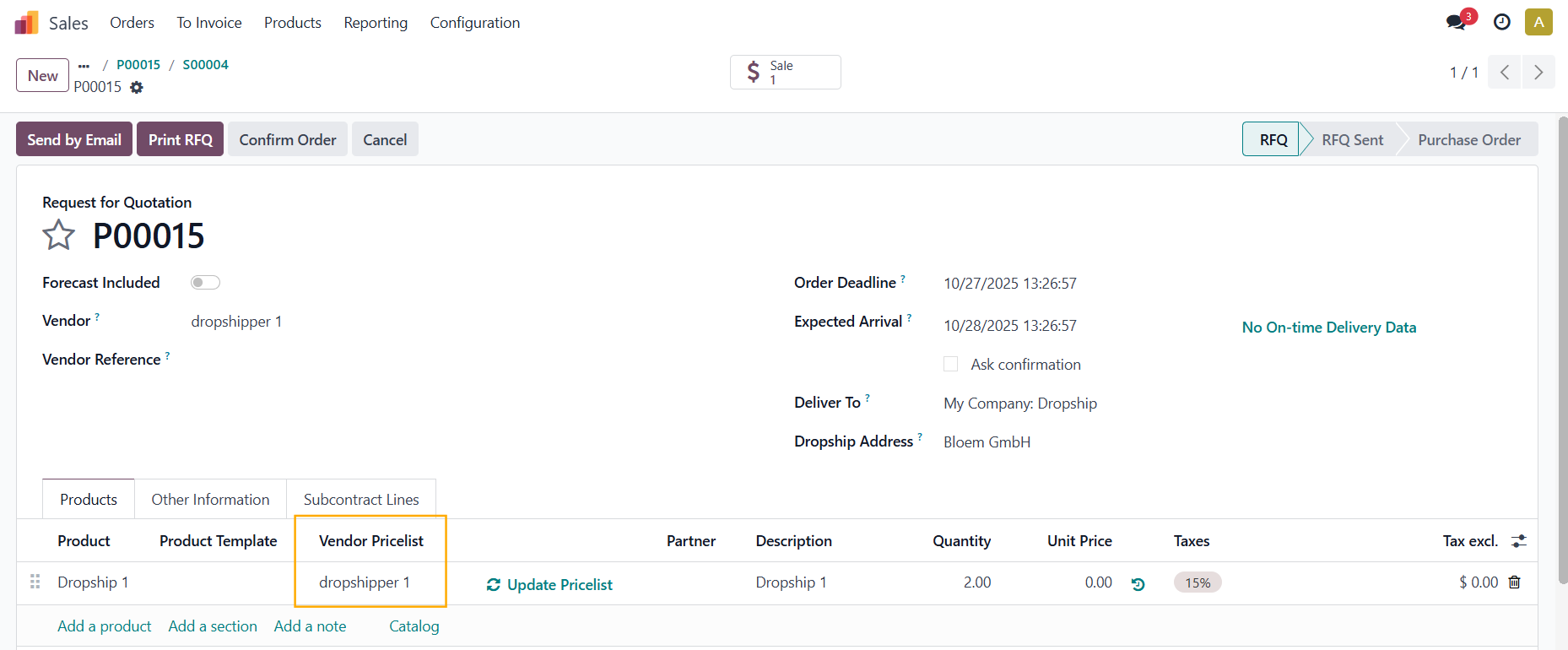 |
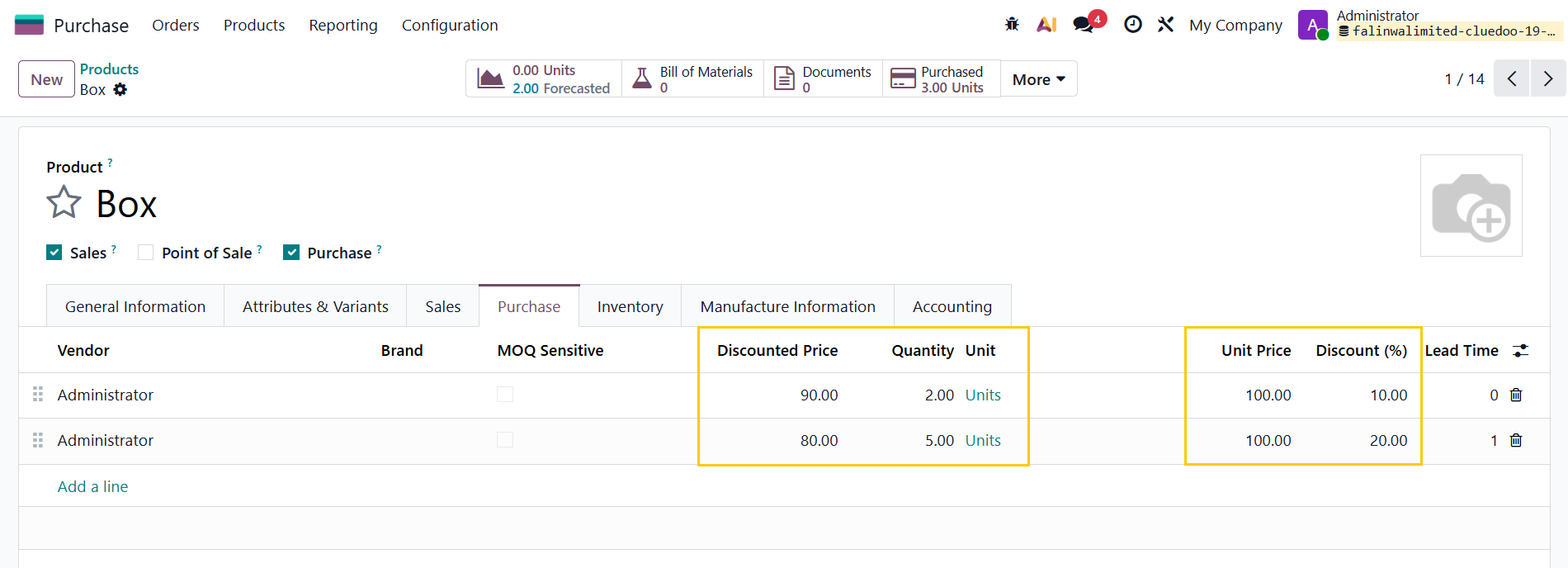
NET PRICE OF VENDOR PRICELIST IN POL (since v19)In Purchase tab of Product Template, fill in Vendor, Quantity, Unit Price and Discount Percentage > Discounted Price will be automatically calculated. |
|
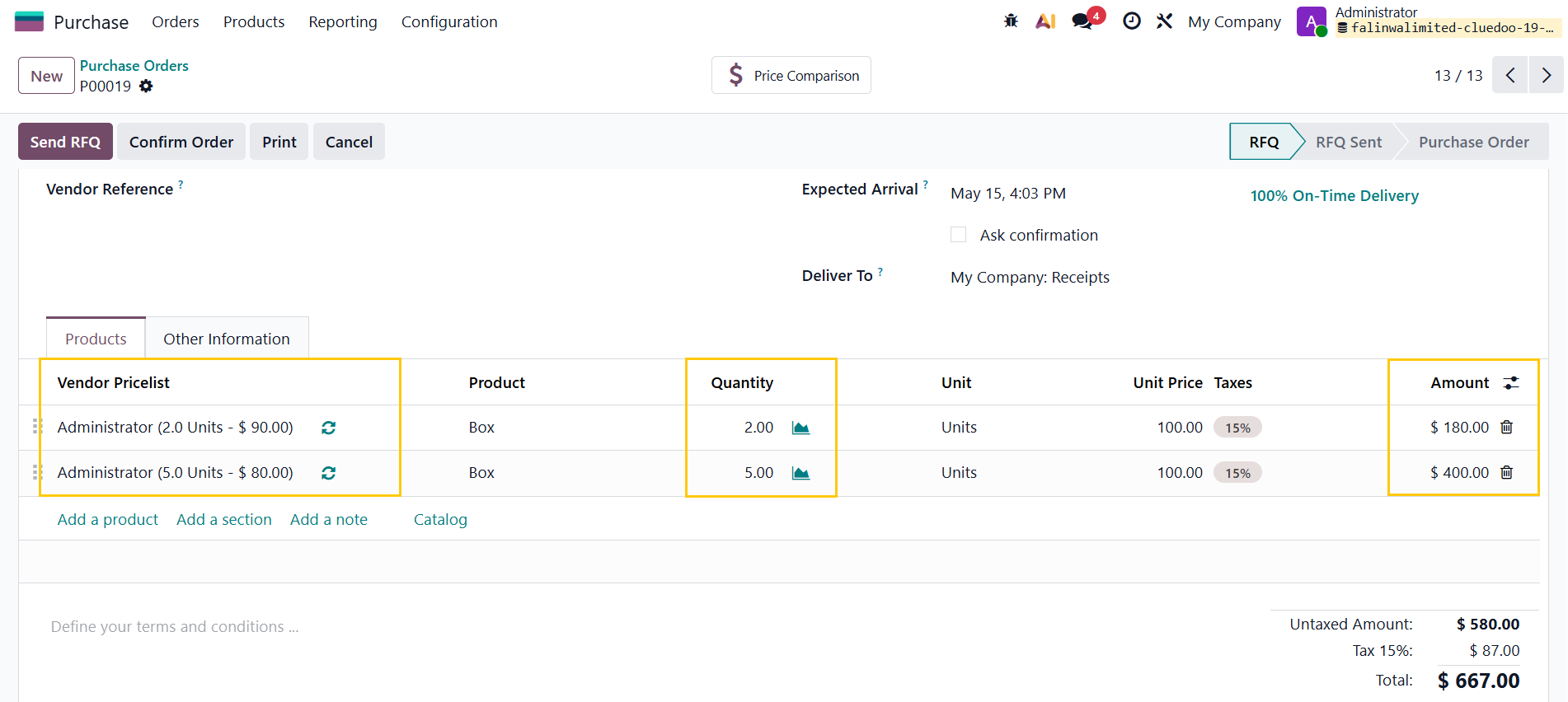
Create a PO > Enter the Vendor, Product, and Quantity > The Net Price will automatically populate from the Vendor Pricelist if the entered quantity matches the quantity configured for that vendor. |
|