

ODOO'S FUNCTION
Odoo Sales Subscriptions is useful for recurring businesses: sell new contracts, upsell customers, keep the churn under control, and generate reports on the main KPIs: MRR, ARR, retention, churn, etc.
CLUEDOO'S FUNCTION
CLuedoo adds a new application to extend the subscription function to purchasing.
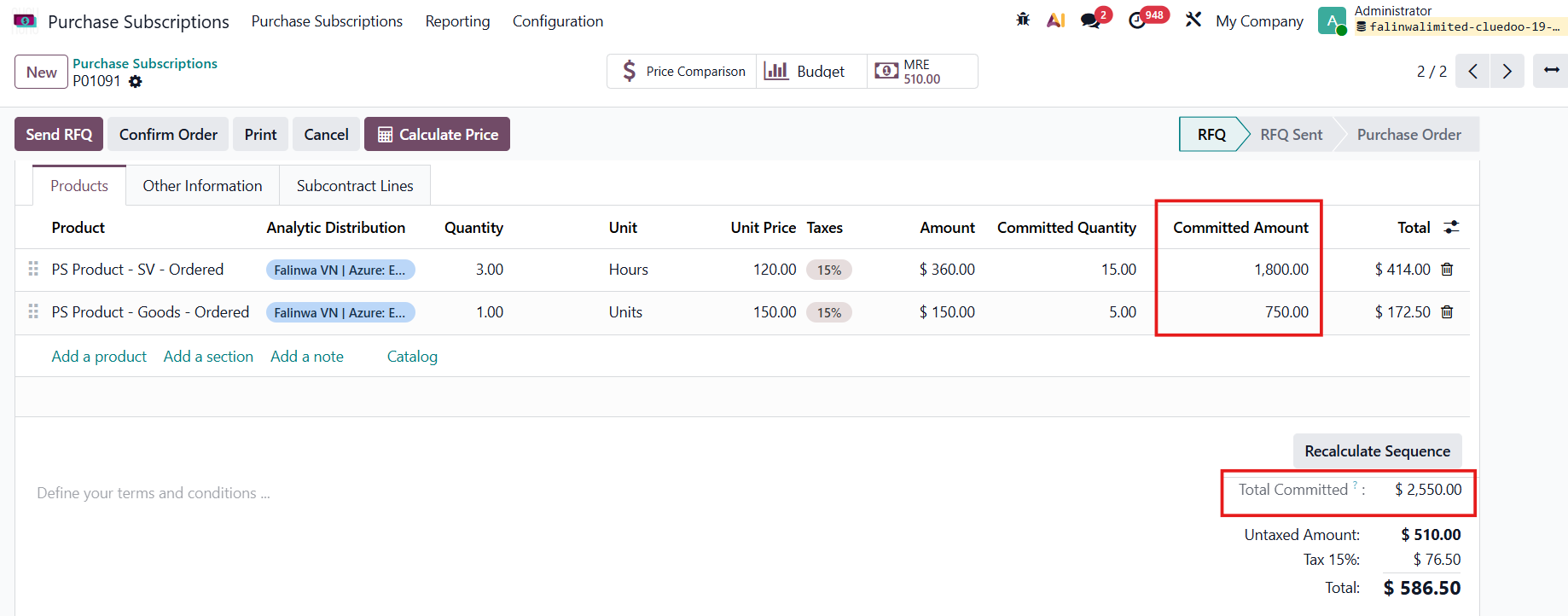
Cluedoo's Purchase Subscription application runs in the same way as Sales Subscription. In addition, Cluedoo adds committed quantity and committed amount columns based on the subscription end date and number of periods, with a total committed table at the end.
A. CREATE RECURRING PRODUCTS | |
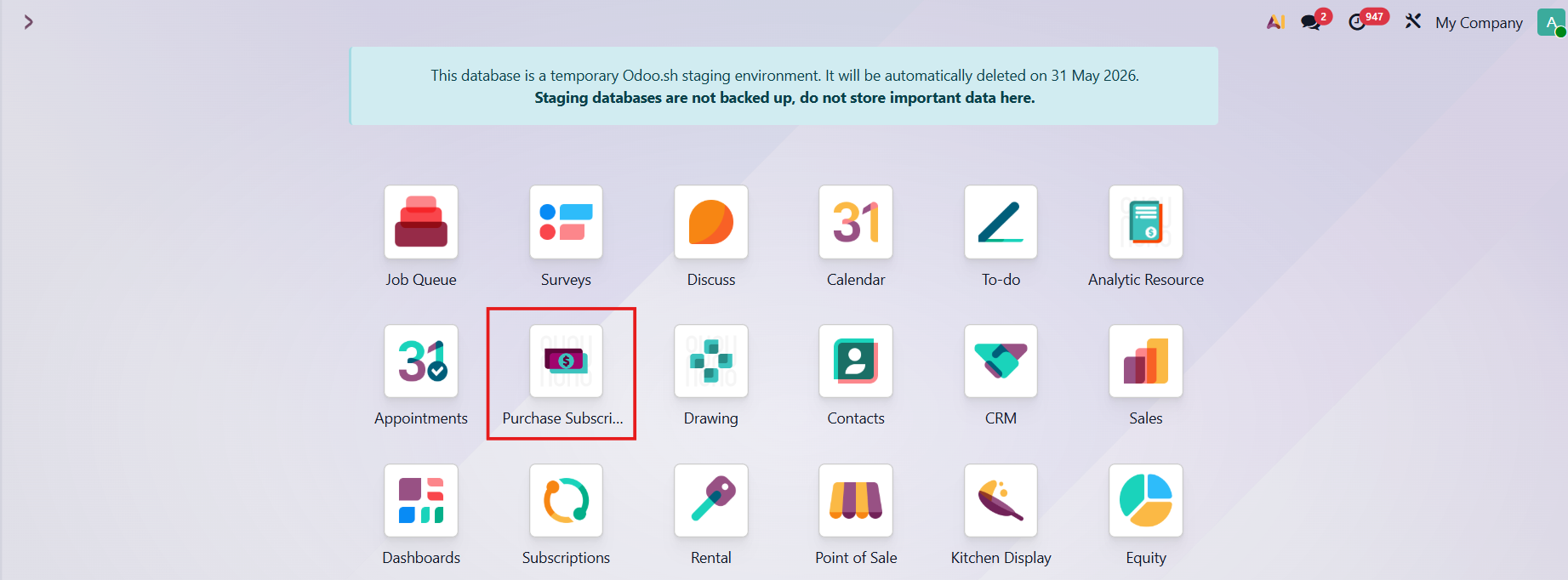
1. From the homepage, open the Purchase Subscription module |
|
2. On the Purchase Subscriptions menu, go to Products |  |
3. Click New to create a new product |  |
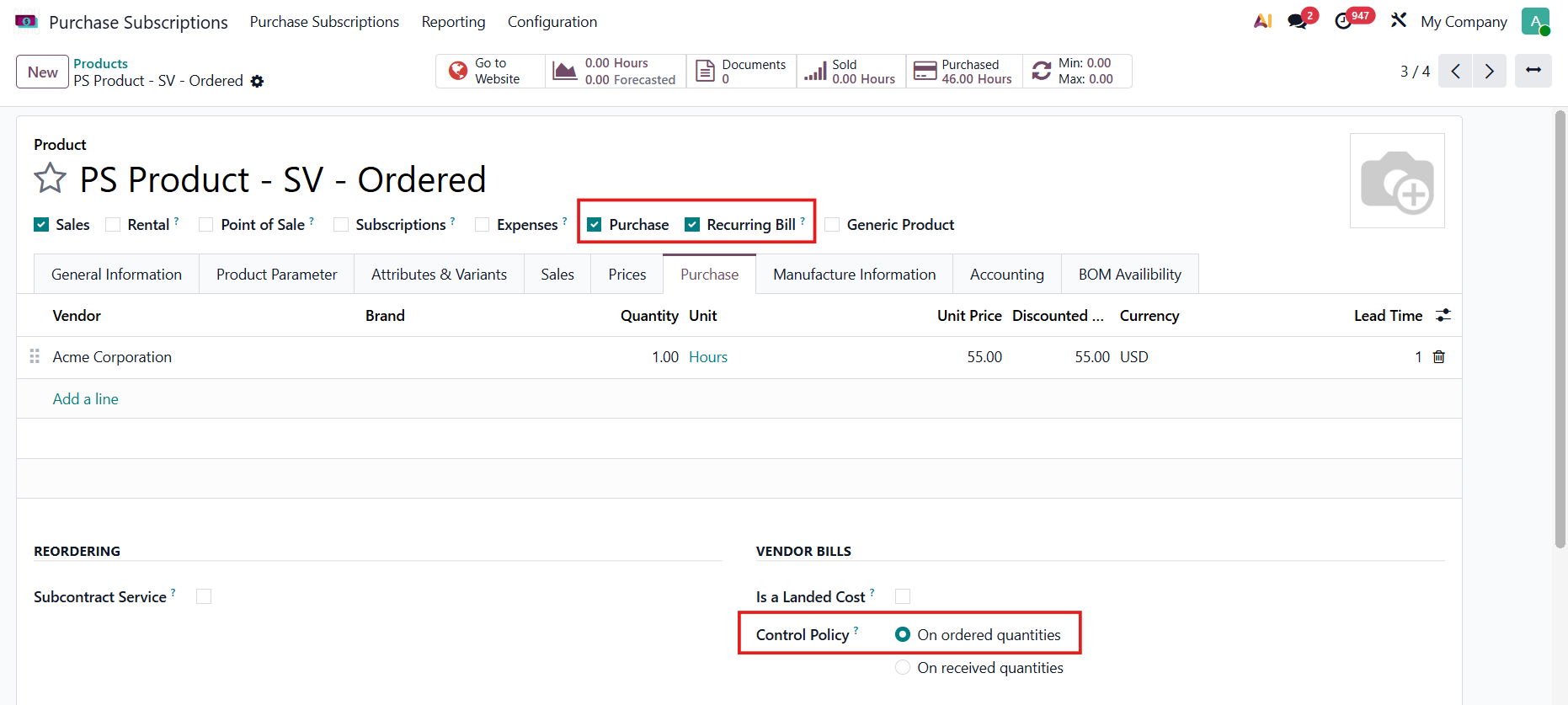
4. Tick the Purchase and Recurring Bill checkbox and set up the product as Good/Service type | 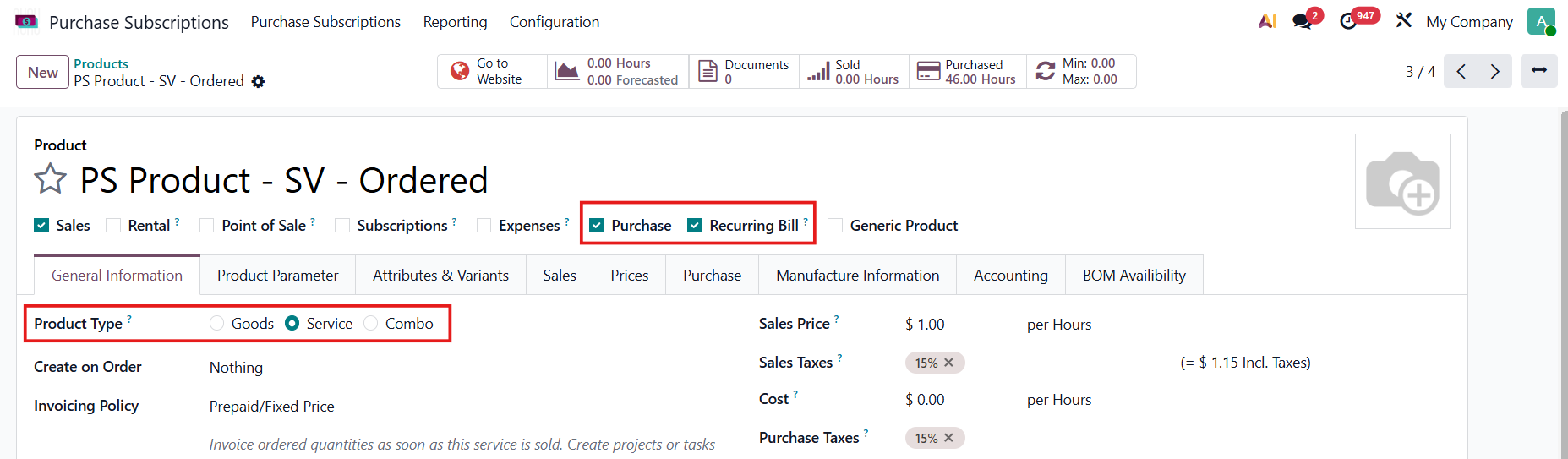 |
Set up the Control Policy under the Purchase tab. Note:
|
|
B. CREATE RECURRING PLAN | |
1. From the homepage, open the Purchase Subscription module |
|
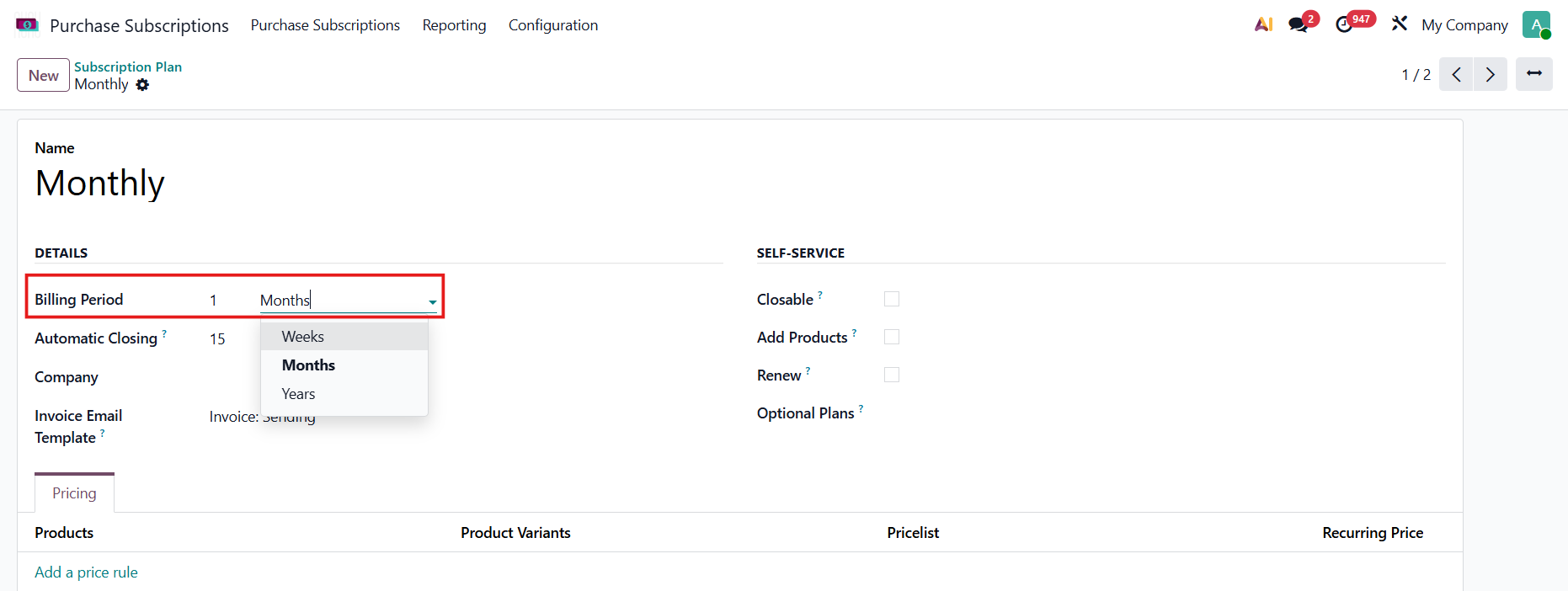
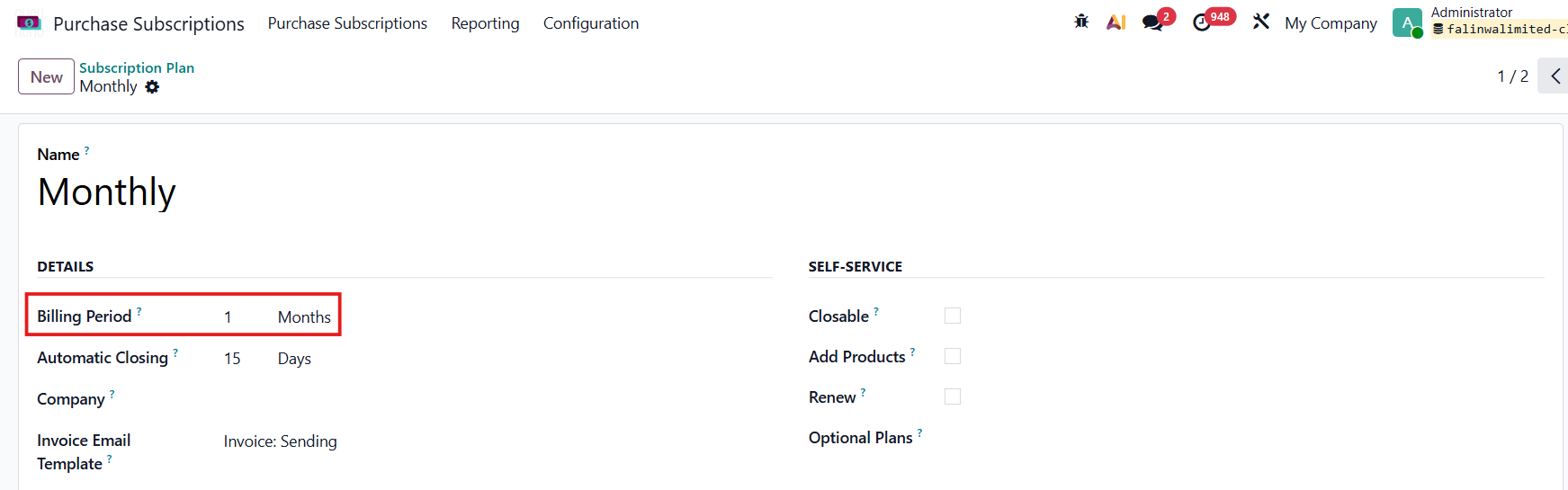
2. On the Configuration menu, go to Subscription Plan to specify the recurrence of the subscription (frequency and duration). |
|
3. Click New to create a new plan |
|
e.g., create a monthly subscription plan |
|
C. CREATE A PURCHASE SUBSCRIPTION FOR GOODS/SERVICE PRODUCT | |
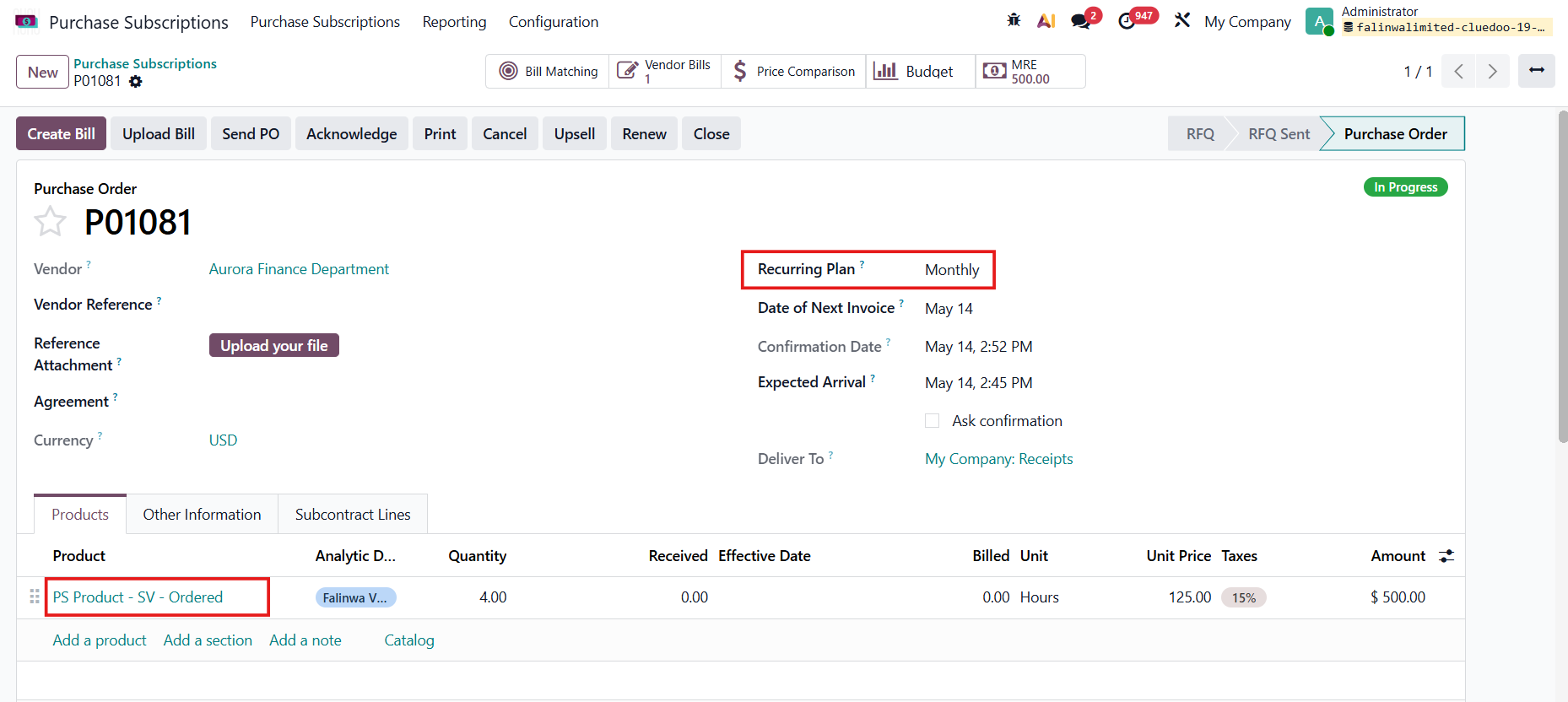
1. Click New to create a new purchase subscription > Add subscription product to order line and specify the Recurring Plan > Confirm Order > Create Bill Note:
|
|
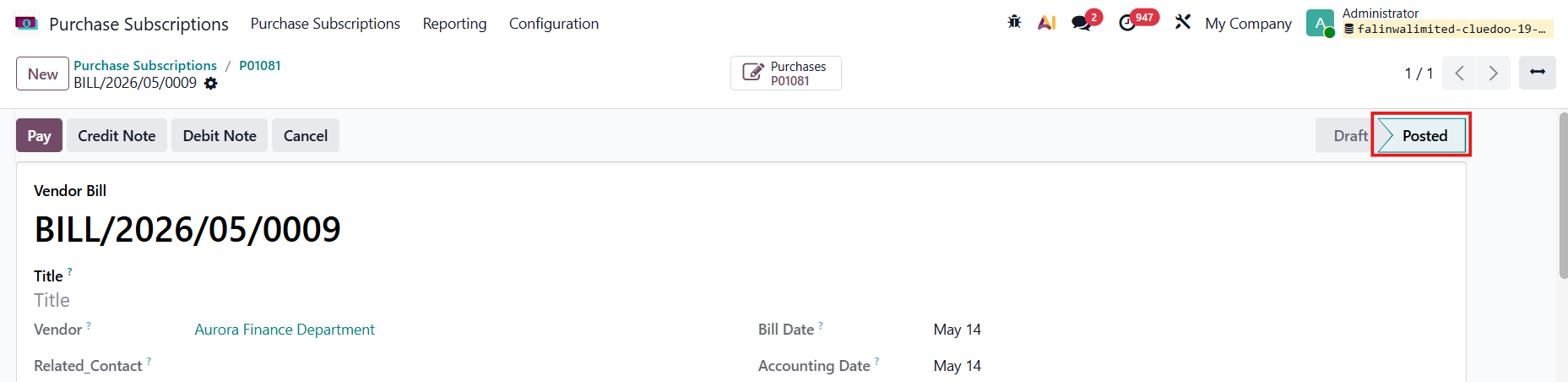
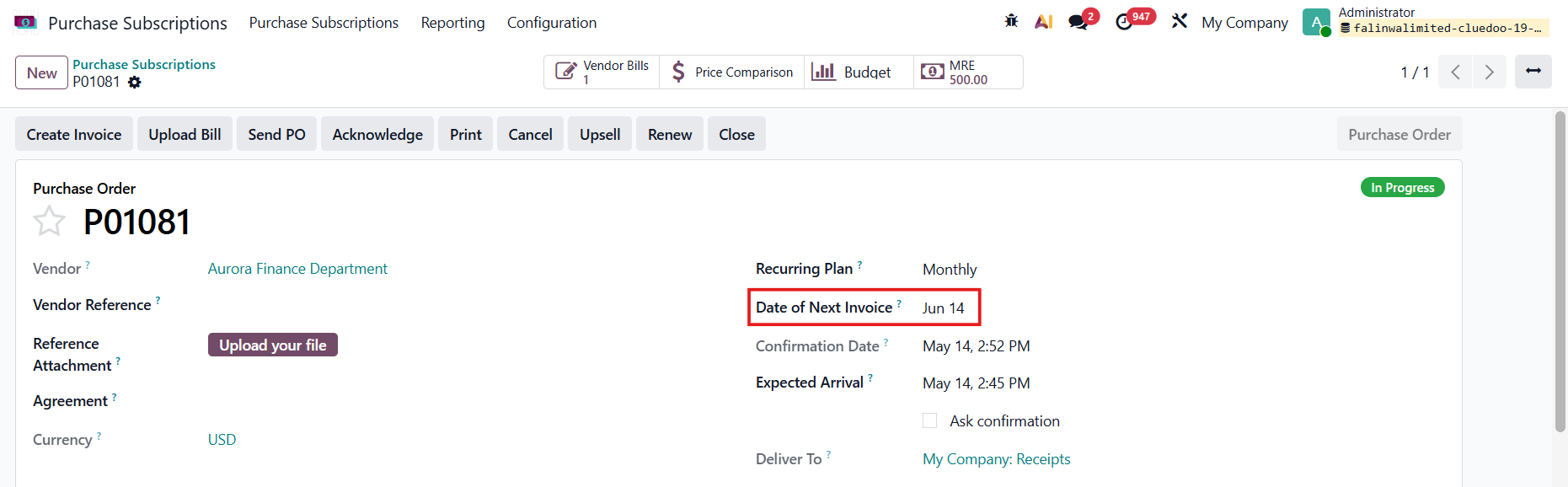
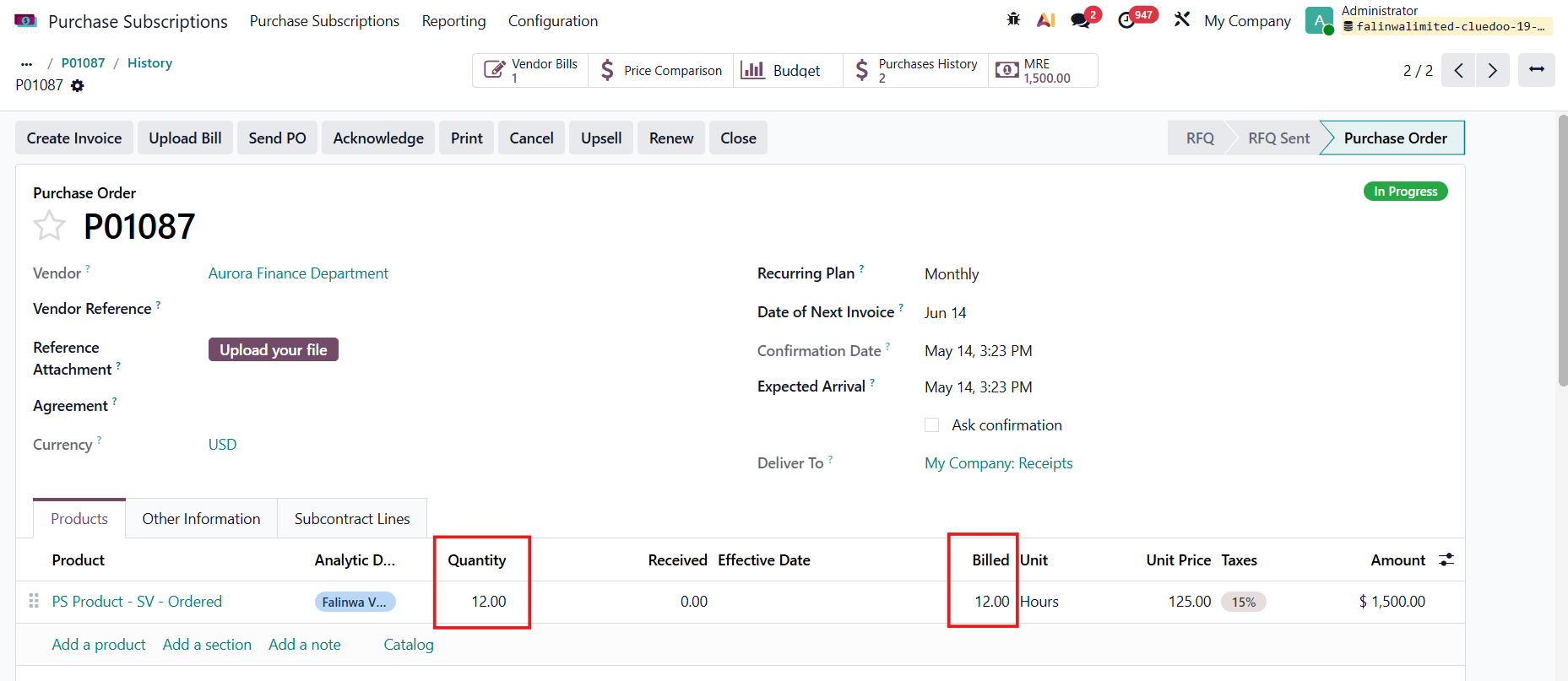
2. After a vendor bill is issued, Date of Next Invoice will be updated on the purchase order
e.g., Date of Next Invoice jumps from May 14 to Jun 14 due to a monthly recurring plan. |
|
D. UPSELL AND RENEW SUBSCRIPTION | |
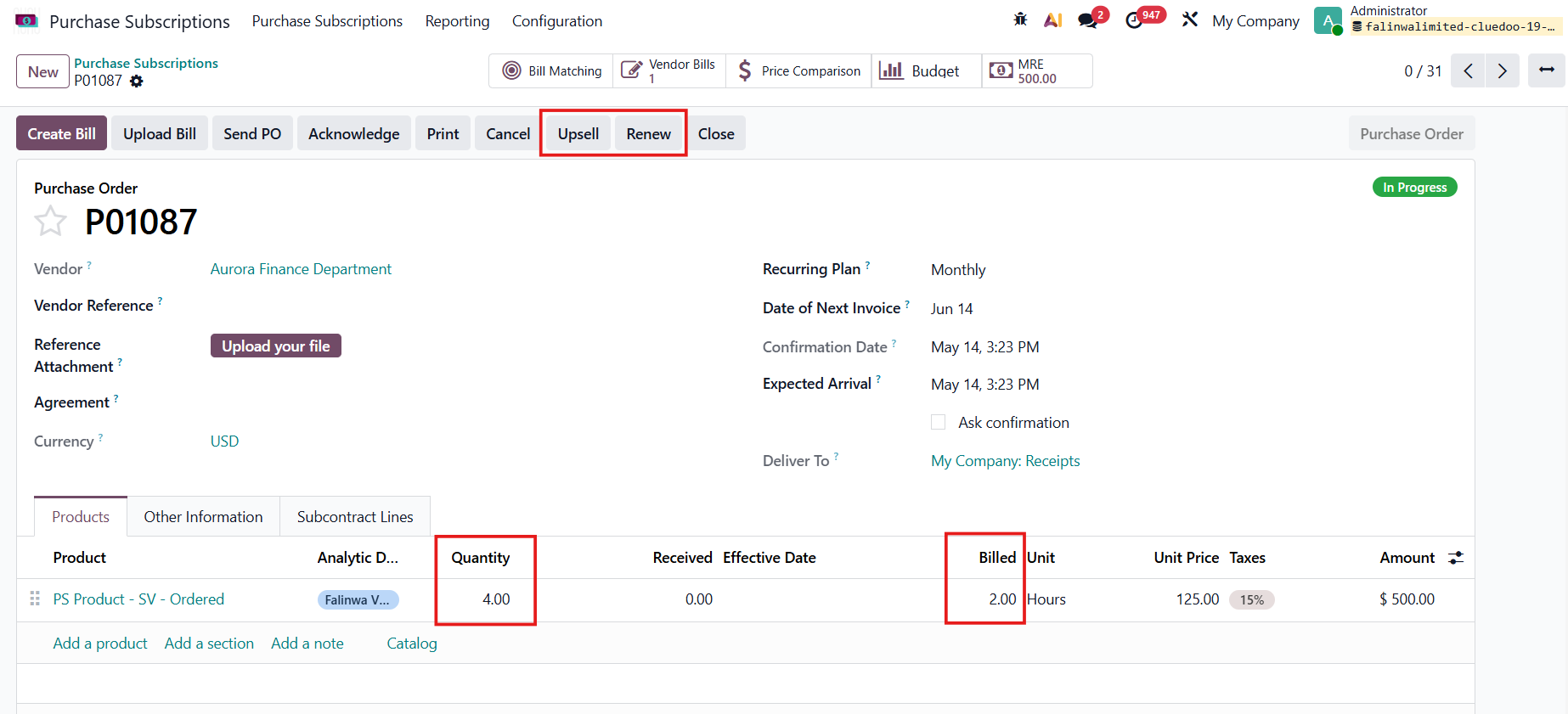
1. User can upsell/renew a subscription and clicking Upsell and Renew button on Purchase Order Notes:
|
|
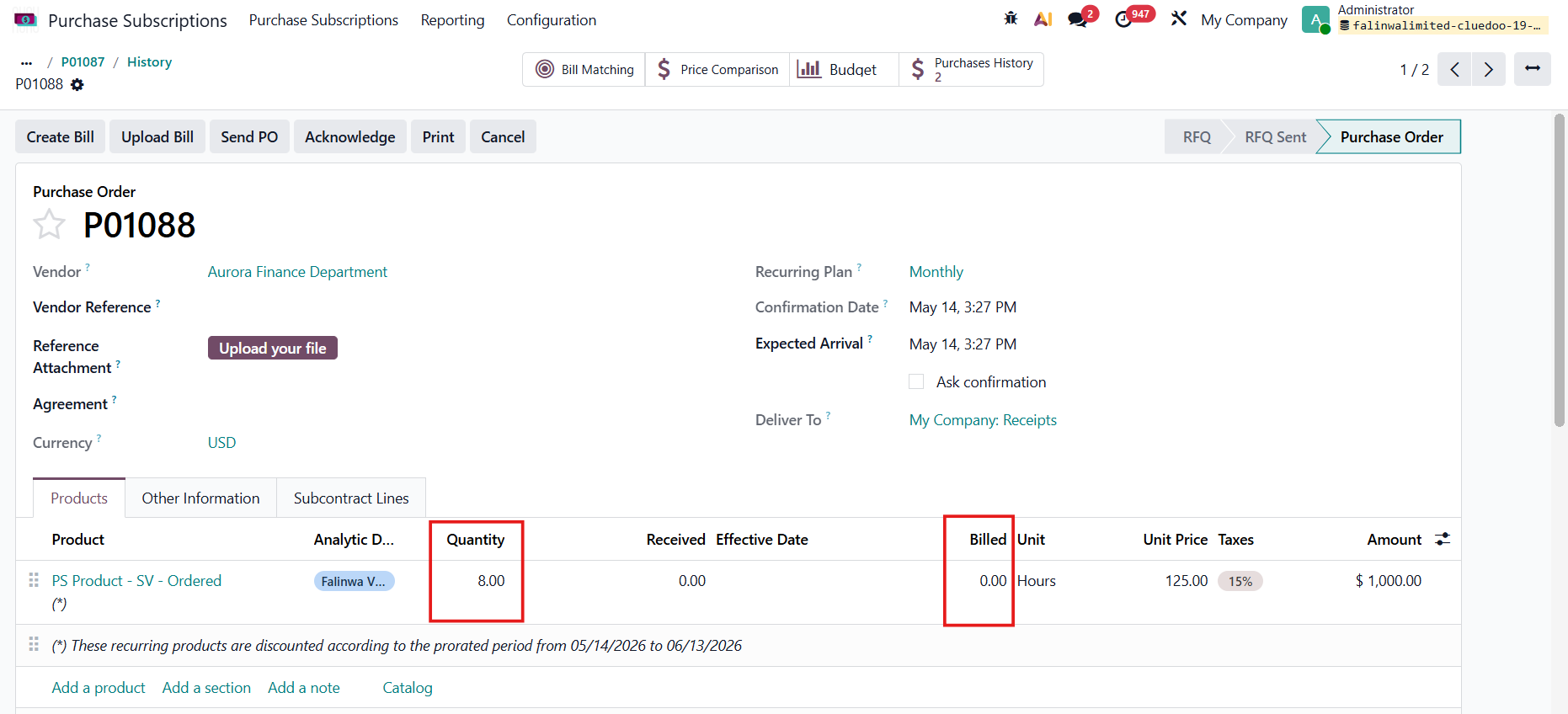
| Upsell
Original subscription
|
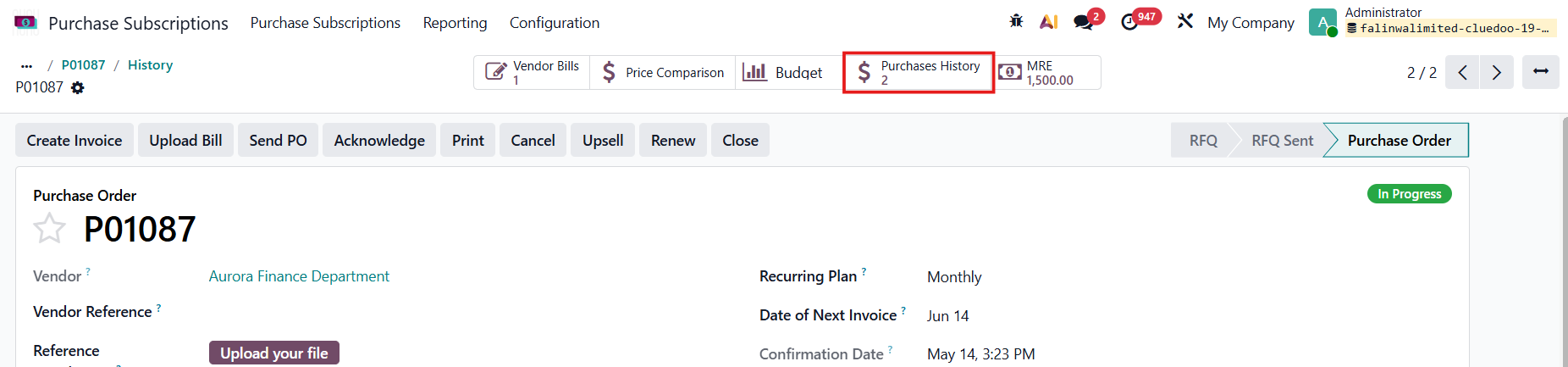
2. Click the Purchase History smart button to view upsell/renew purchase orders linked to the original order |
|
E. CLOSE SUBSCRIPTION | |
1. |
|
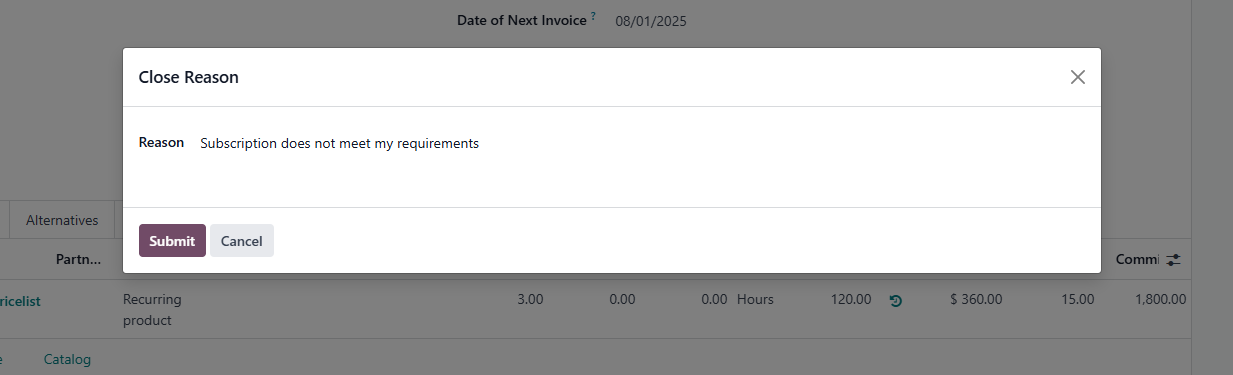
2. On the pop-up wizard, select the Close Reason > Submit |
|
The purchase order will move to Churned |
|
F. MONTHLY RECURRING EXPENSE (MRE) | |
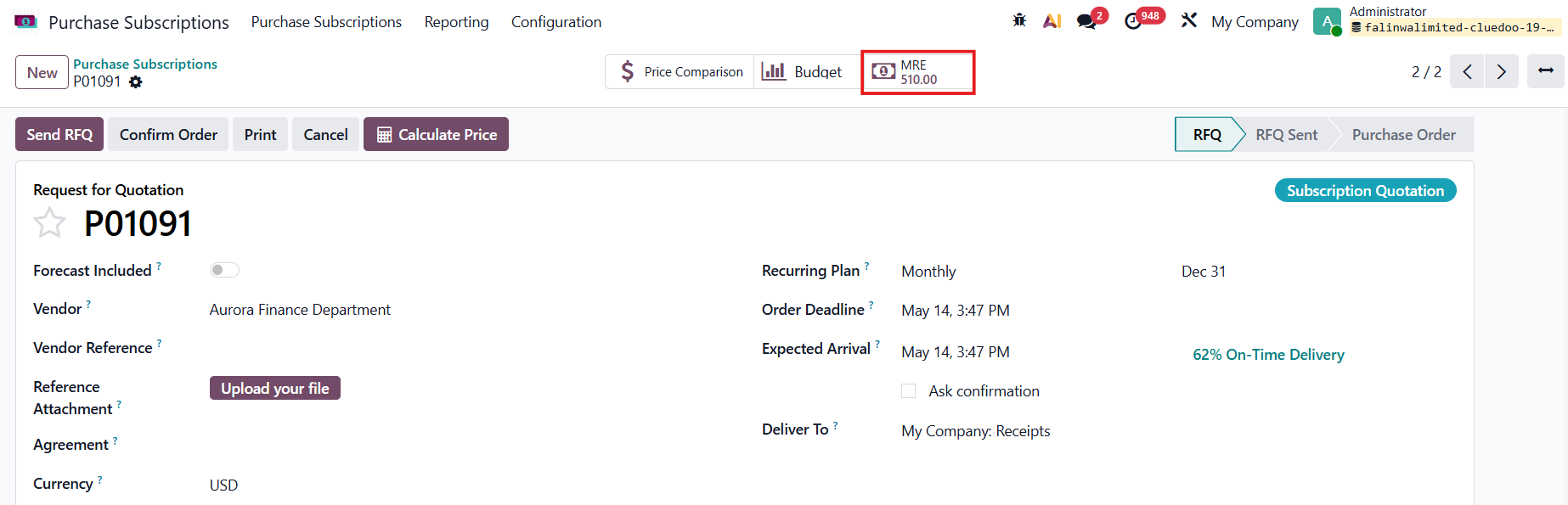
On the purchase order, click the smart button "MRE" to view the recurring expense linked to the subscription. |
|
G. GENERATE BILLS AUTOMATICALLY BY SCHEDULED ACTION | |
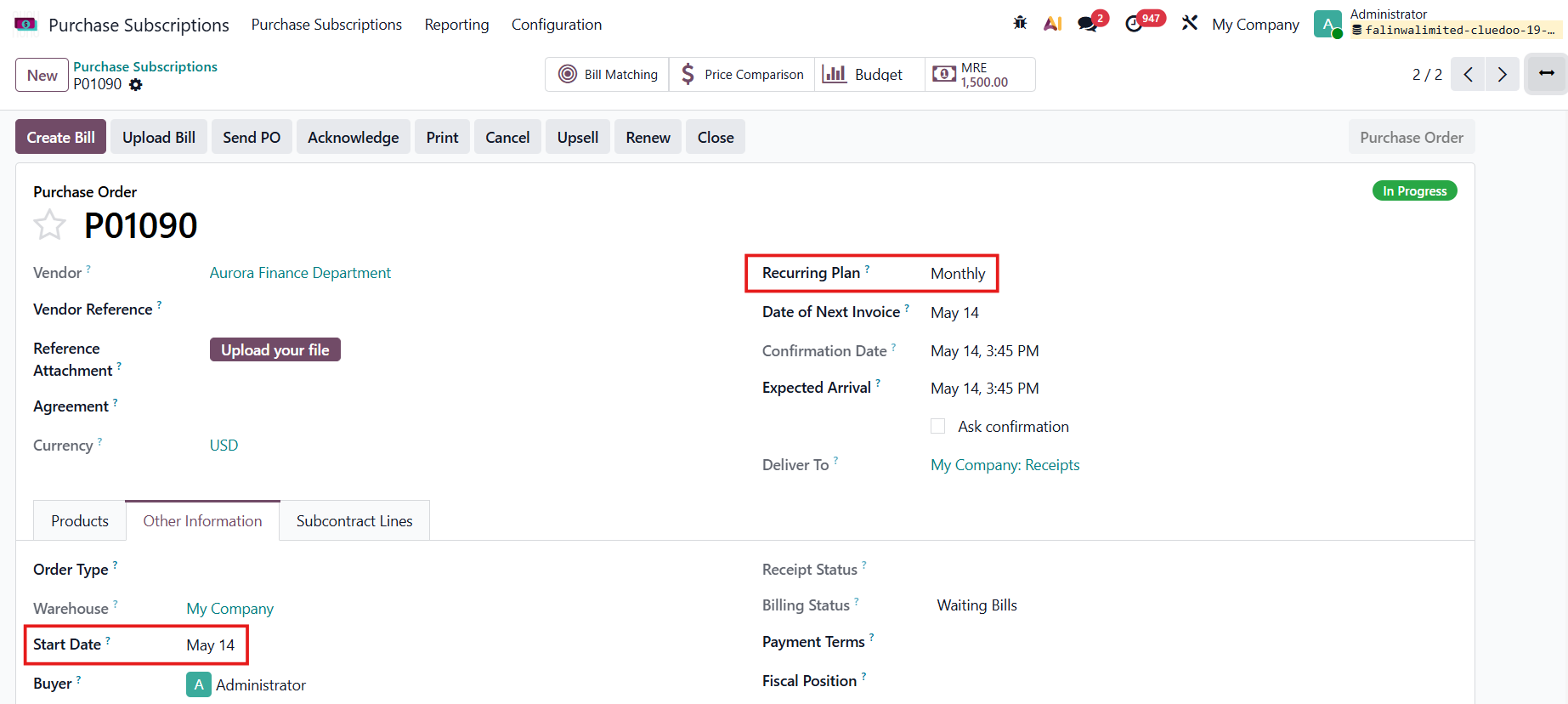
1. Go to Purchased Subscriptions to create a new Purchase Subscription and then confirm the order. Remember to set the Recurring Plan and Start Date |
|
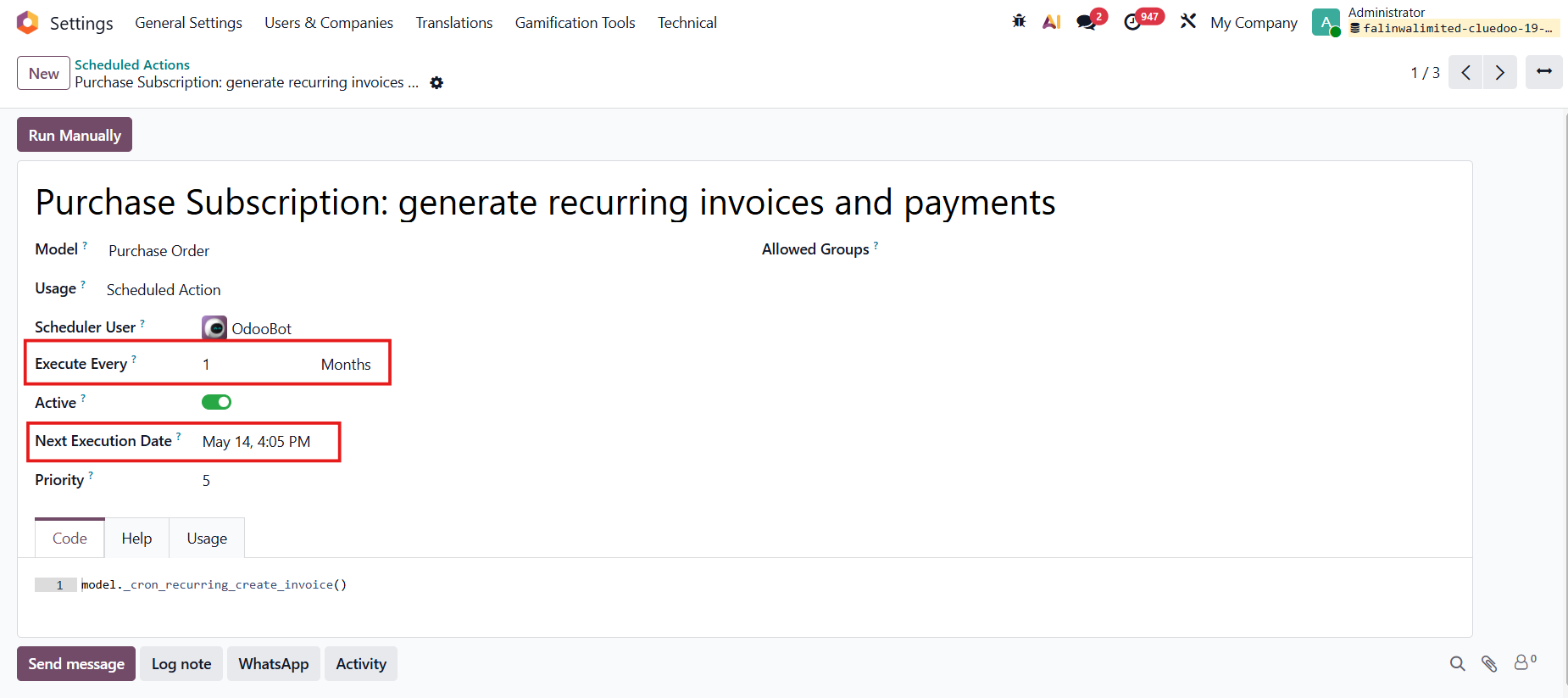
2. Go to Settings > Technical > Automation > Scheduled Actions > Choose Purchase Subscription: generate recurring invoices and payments, and set up the Execute Every and Next Execution Date fields > Run Manually or wait until the configured Date Time |
|
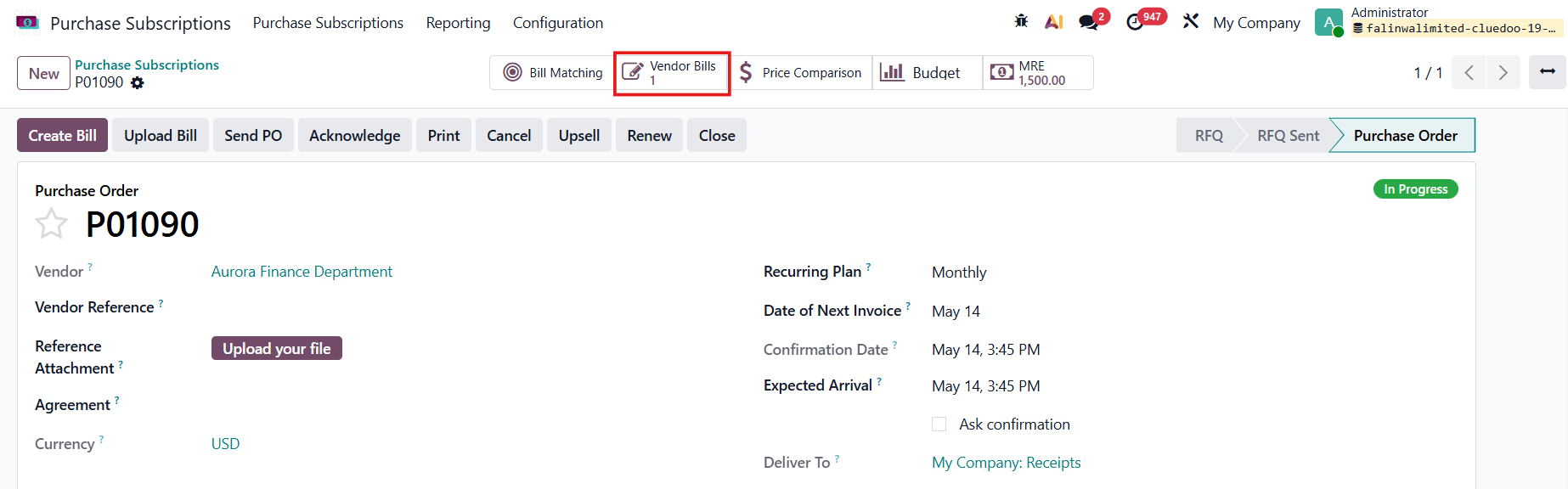
3. The draft Vendor Bill will be automatically generated corresponding to your setup in the Scheduled Action. Note that the next bills are only created when the previous one is confirmed. |
|
H. TOTAL COMMITMENT | |
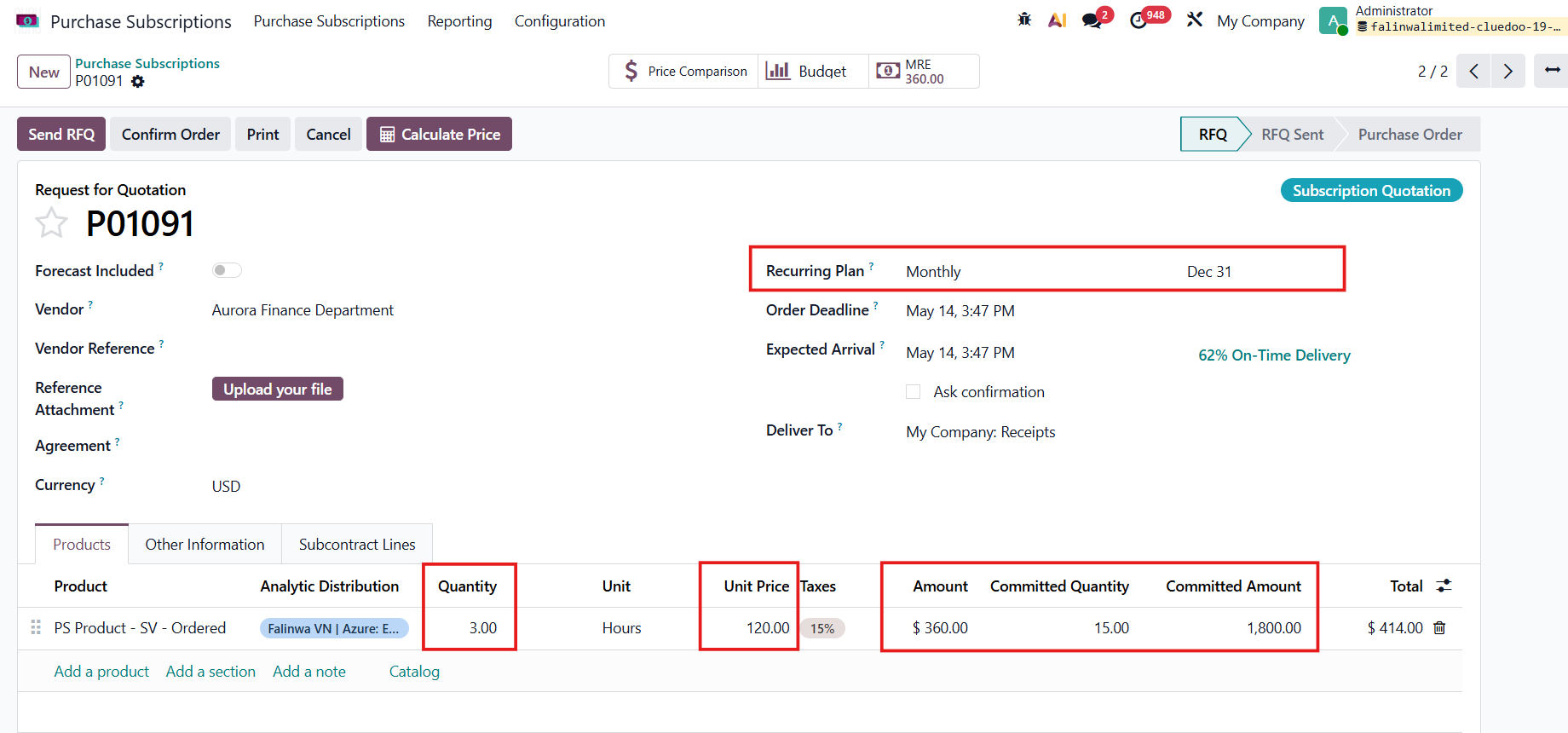
Go to Purchase Subscriptions and create a new one > Fill in the necessary information Choose the Start Date in the Other Information tab and manually input the End Date next to the Recurring Plan In the Order Lines, we have 2 new columns:
e.g., ODS Quantity [3]*Number of Periods [5] = 15
e.g., ODS Amount [360]*Number of Periods [5] = 1800 |
|
Note: To calculate the Number of Periods, we check the Start Date and End Date, as well as the Recurring Plan e.g., Start Date = 1 Aug 2025, End Date = 31 Dec 2025Billing Period for Recurring Plan = 1 month--> Number of Periods = 5 |
|
We have a Total Committed field at the end of the subscription to show the total subscription amount for the whole period |
|