ODOO'S FUNCTION
Odoo only allows scrapping for a single product, which creates certain limitations and reduces efficiency, especially when handling a large number of components.
CLUEDOO'S FUNCTION
CLuedoo offers a feature that enables users to create scrap batches from Manufacture Orders and Shopfloor, allowing multiple components to be scrapped simultaneously. The scrap batch automatically inherits key information from the Manufacturing Order, minimizing manual input and improving accuracy and efficiency in shopfloor operations.
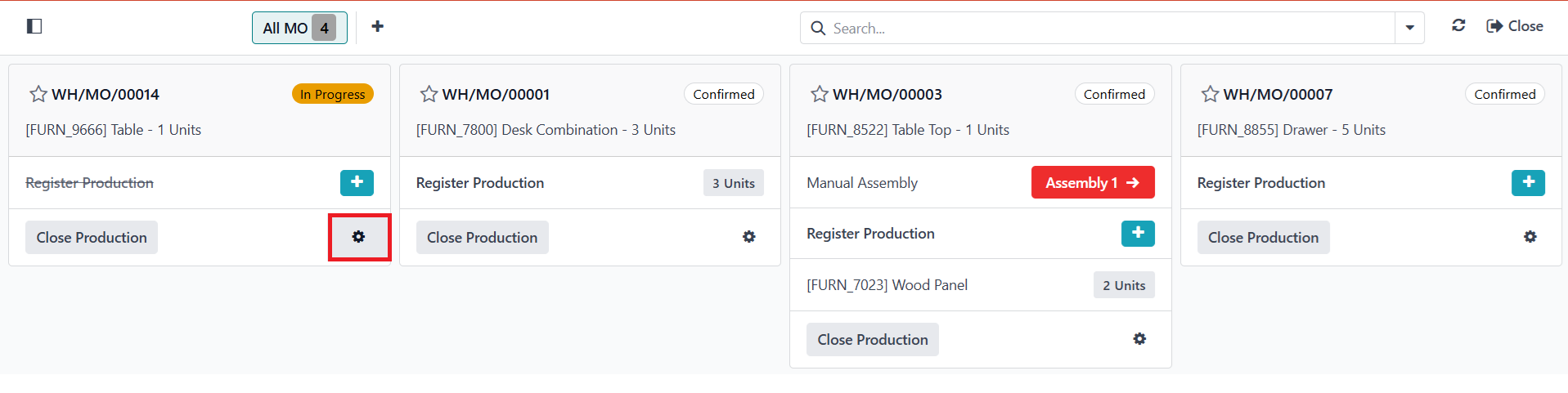
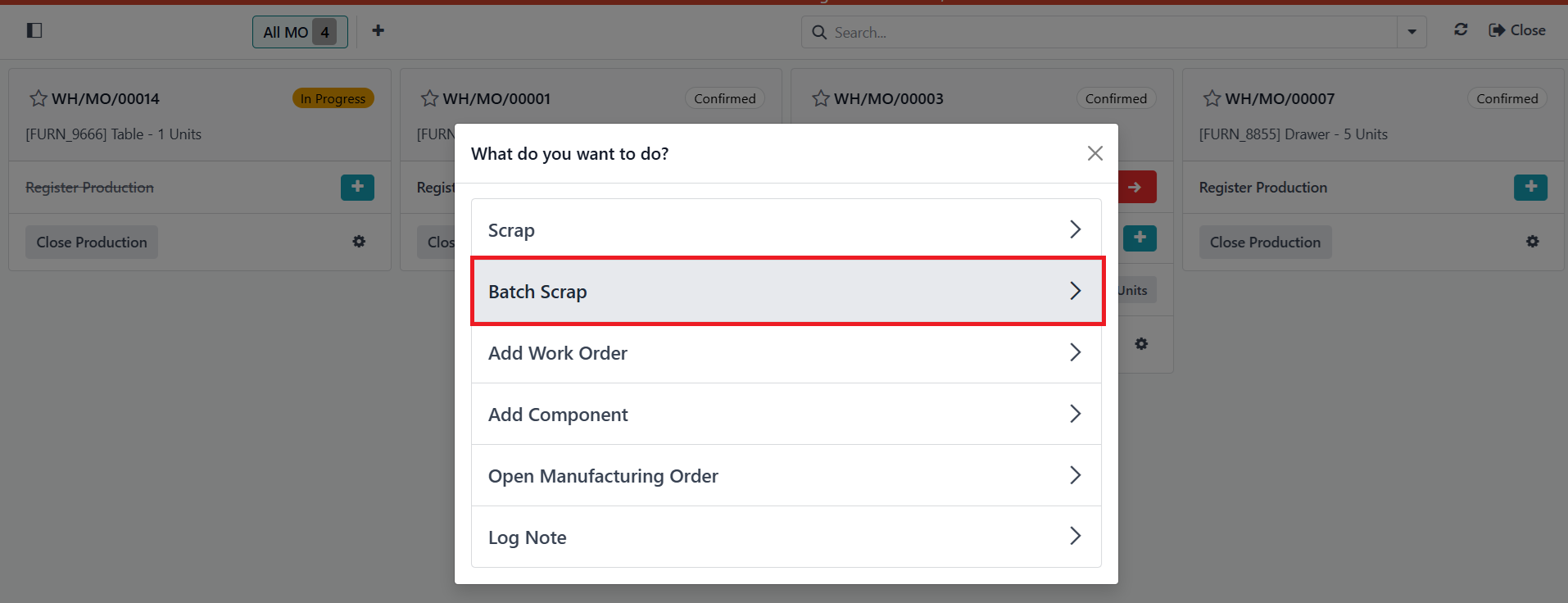
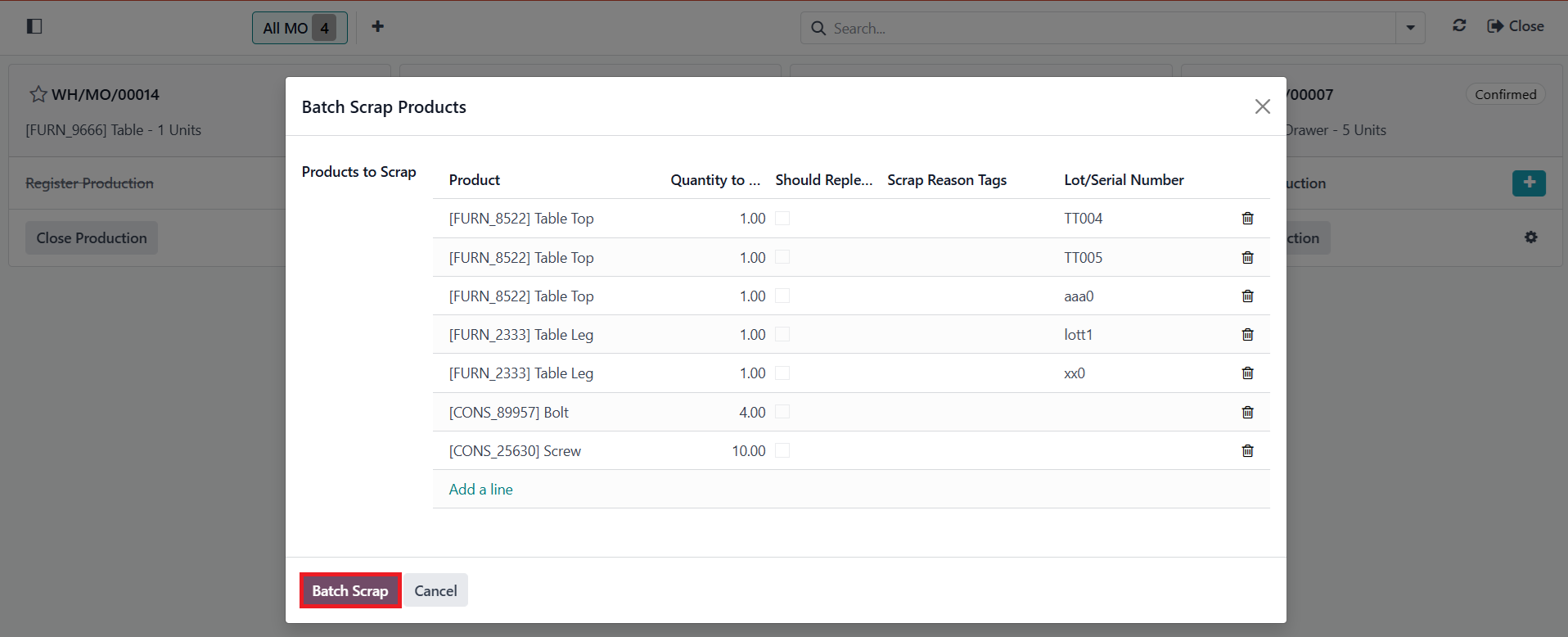
MASS SCRAP COMPONENTS ON MANUFACTURING ORDERS1 Go to Manufacturing > Create a new Manufacture Order/ Access an existing one > Click on the Gear icon > Click on Batch Scrap action > A pop-up appears with the following information:
> We can configure fields on the pop-up > Click on the Batch Scrap button | 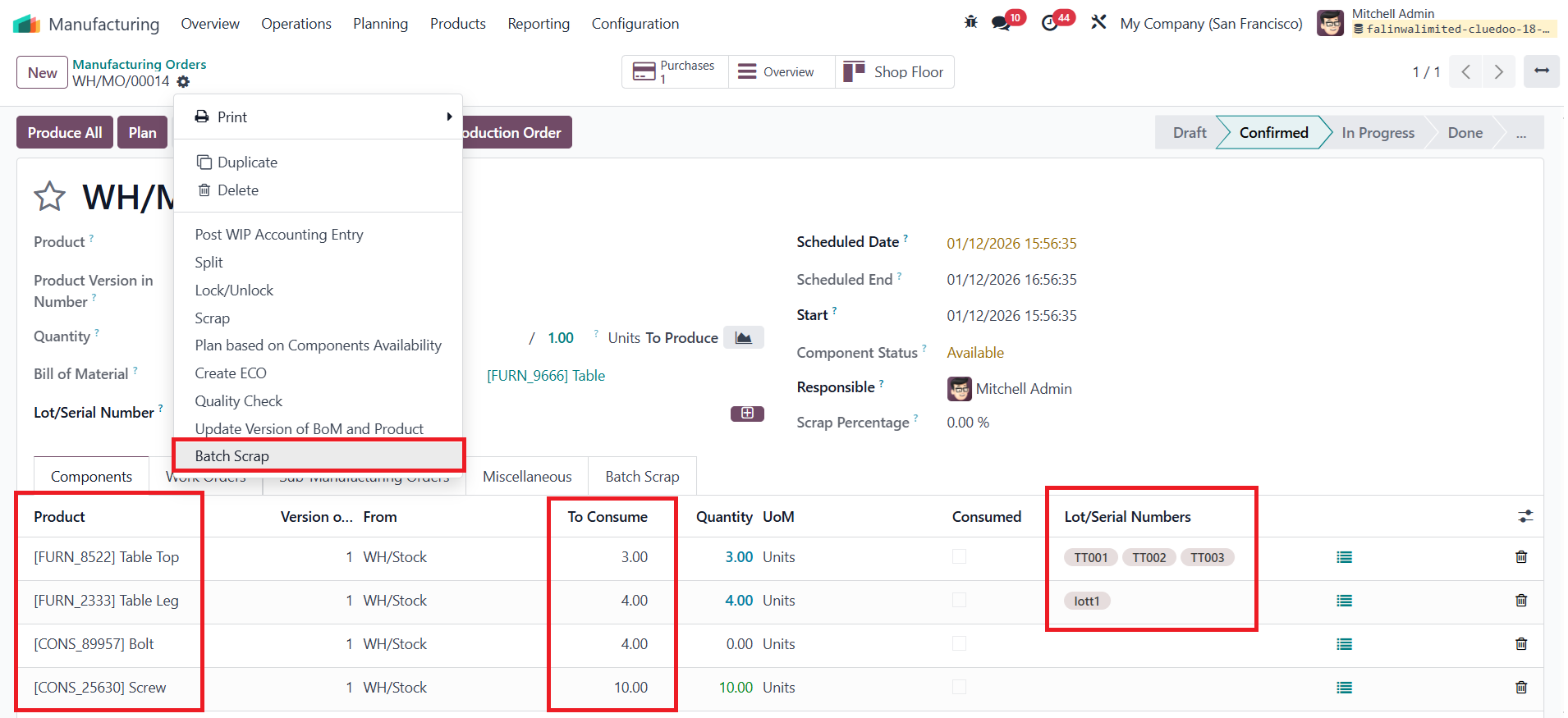 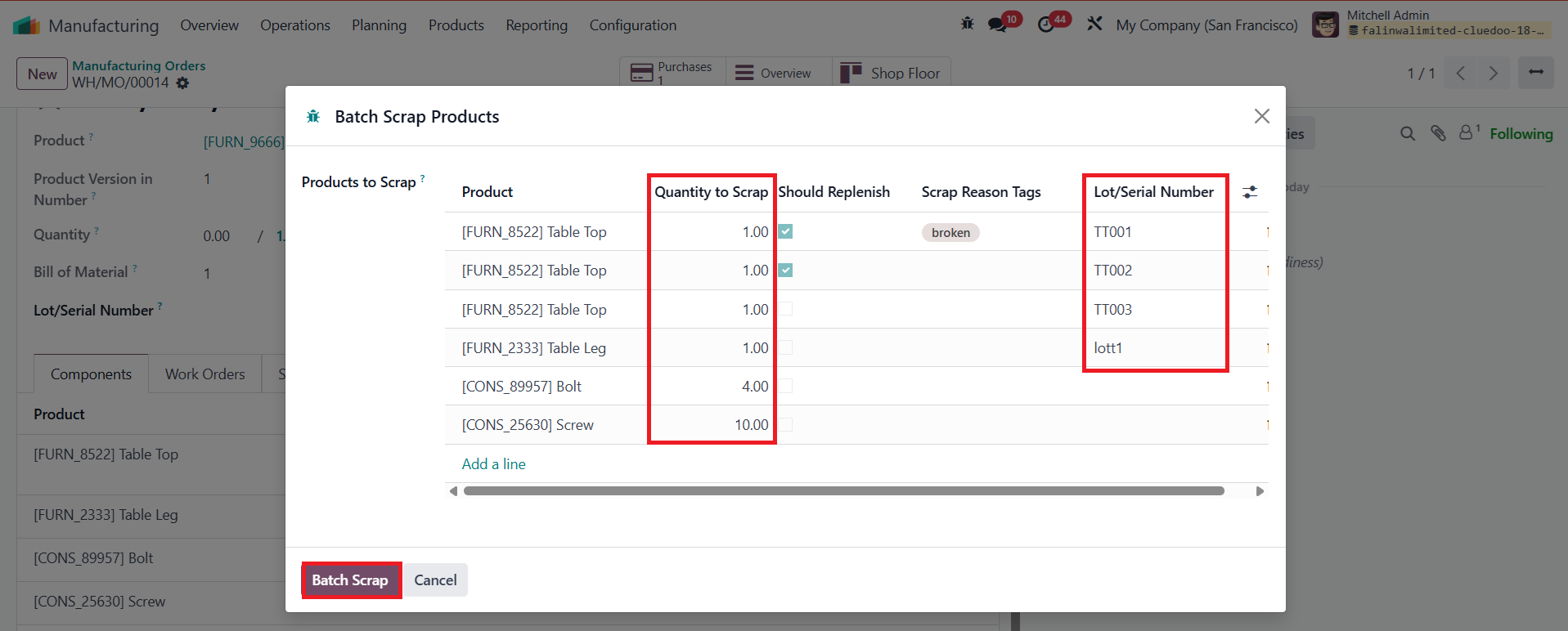 |
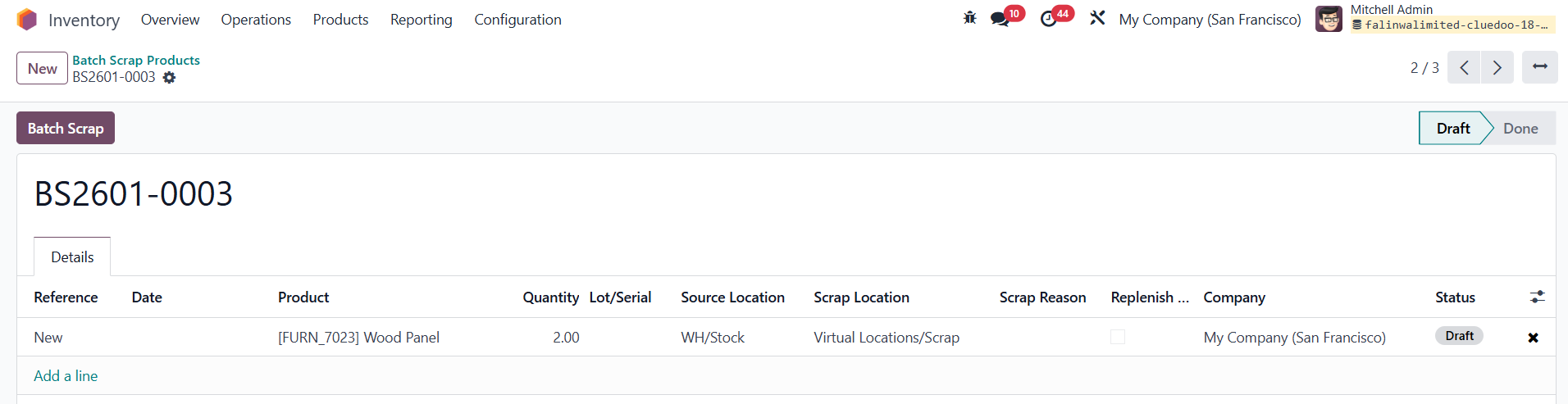
2 A Batch Scrap tab is added to the Manufacture Order, showing all related scrap batches Click on the created scrap batch > all configurations in the pop-up are inherited to the created Scrap Batch Click on the Batch Scrap button > the state of the Scrap Batch will change to Done | 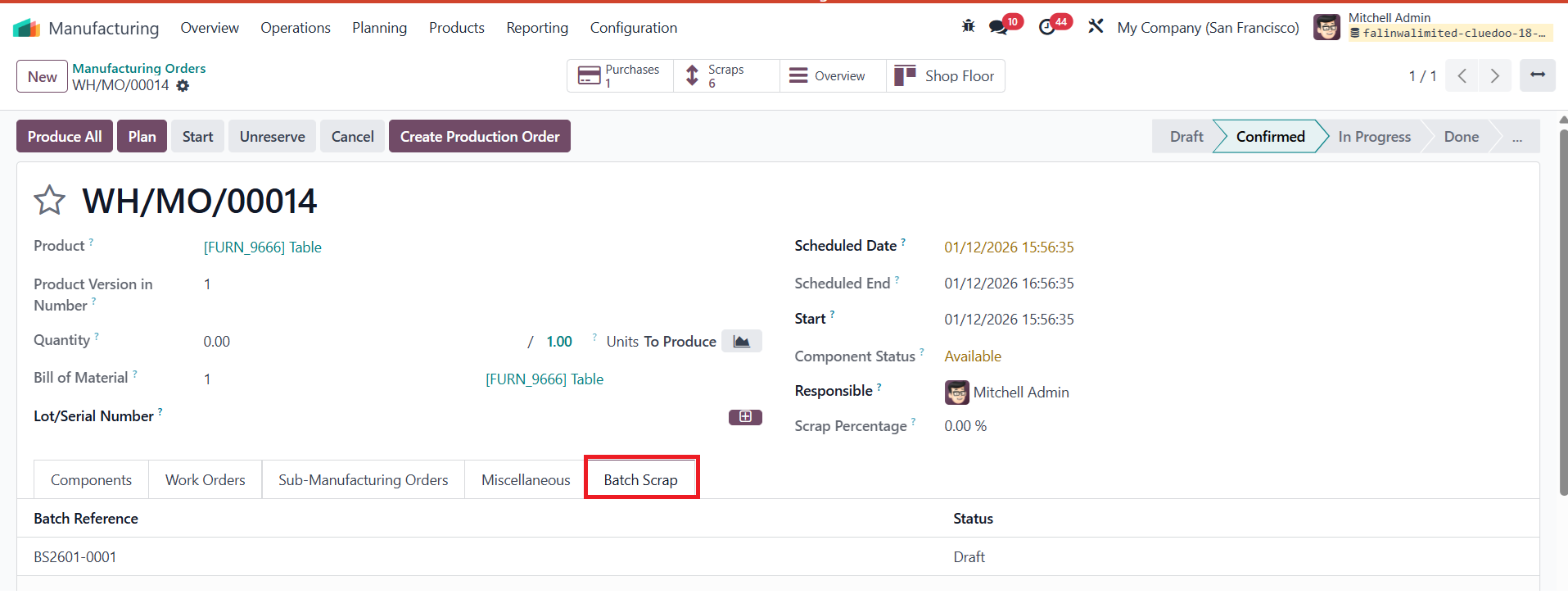 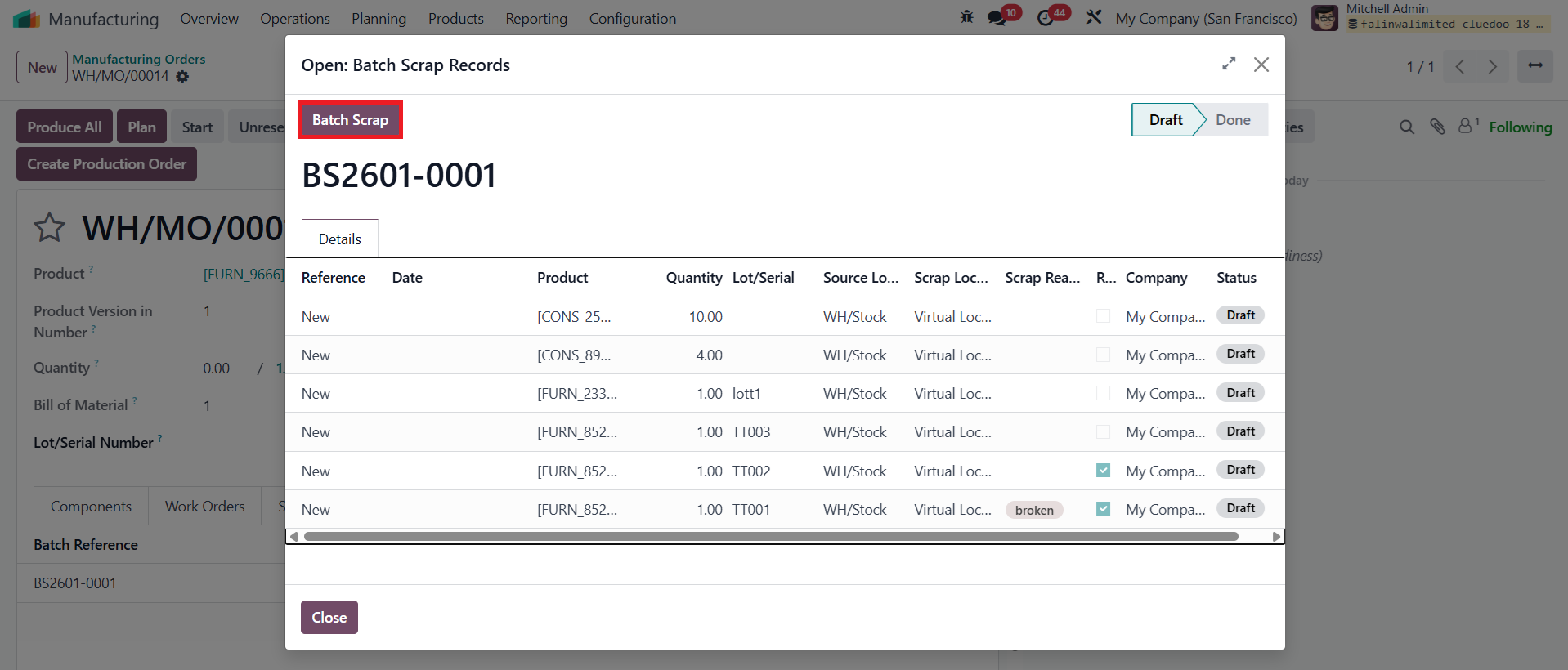 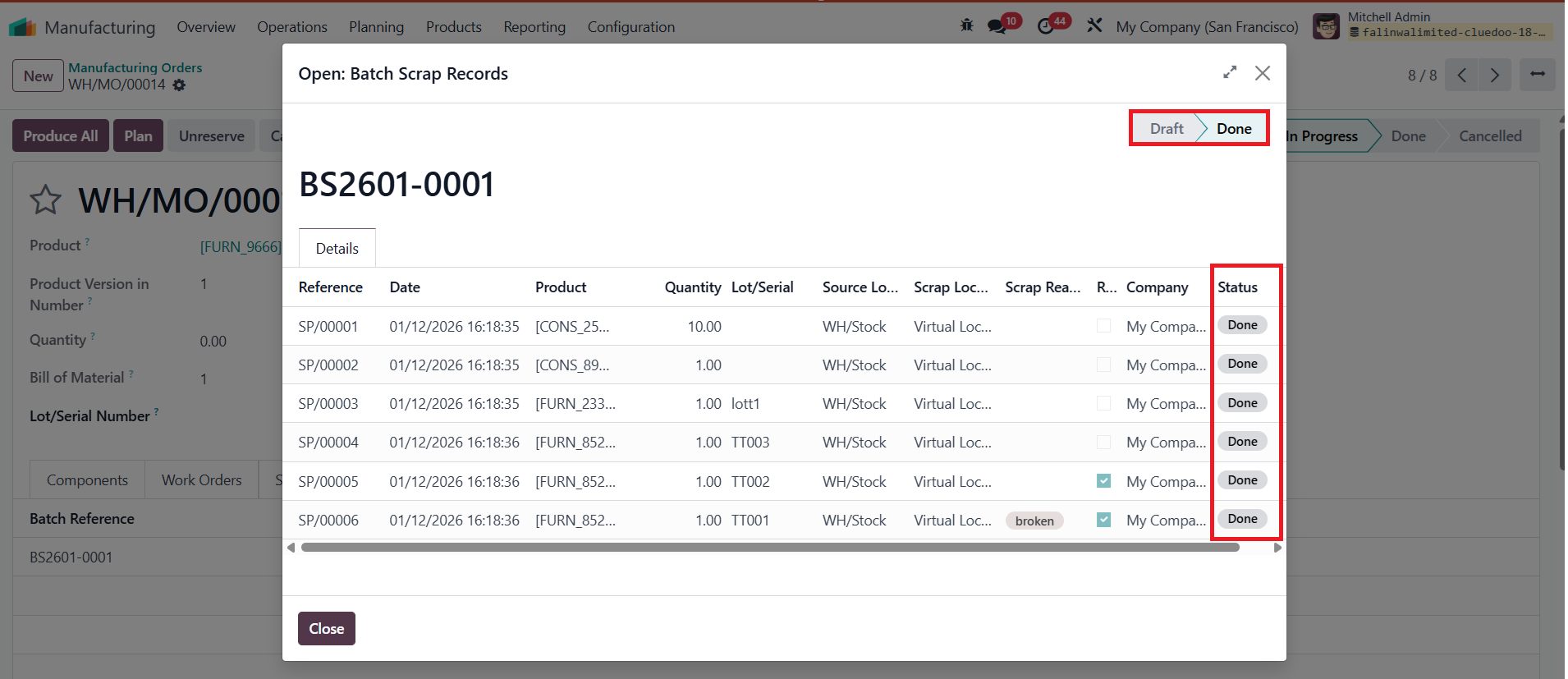 |
MASS SCRAP COMPONENTS ON SHOPFLOORGo to Shopfloor > Click on the Gear icon > Batch Scrap > A pop-up appears, allowing users to configure > Click on the Batch Scrap button > A scrap batch will be created with all of the configured information on the pop-up. Note: Mass scrap components on the Shopfloor works the same way as Mass scrap components on the Manufacture Order. |
|
SCRAP BATCH MENUGo to Inventory > Scrap Batch > We can see all of the created scrap batches here We can create a new scrap batch/ Access an existing one to edit |
|