


ODOO'S BEHAVIOR
In Odoo, launching a contextual survey is complex and lacks direct integration within workflows. Surveys can be linked via email, but there is no hard connection between the survey and specific records or activities within the system. This limitation makes collecting feedback directly tied to specific actions or records challenging, leading to a disconnected user experience and manual intervention to analyze survey results in context.
CLUEDOO'S BEHAVIOR
CLuedoo enhances the survey functionality by introducing an activity-type survey directly linked to system records. This feature automatically records survey participation when a test survey is completed, capturing the results tied to any model that initiated the survey activity. Once the survey is finished, the model record that triggered the survey receives a score based on the participation results, creating a seamless feedback loop that directly integrates survey data into the workflow, enhancing usability and insight.
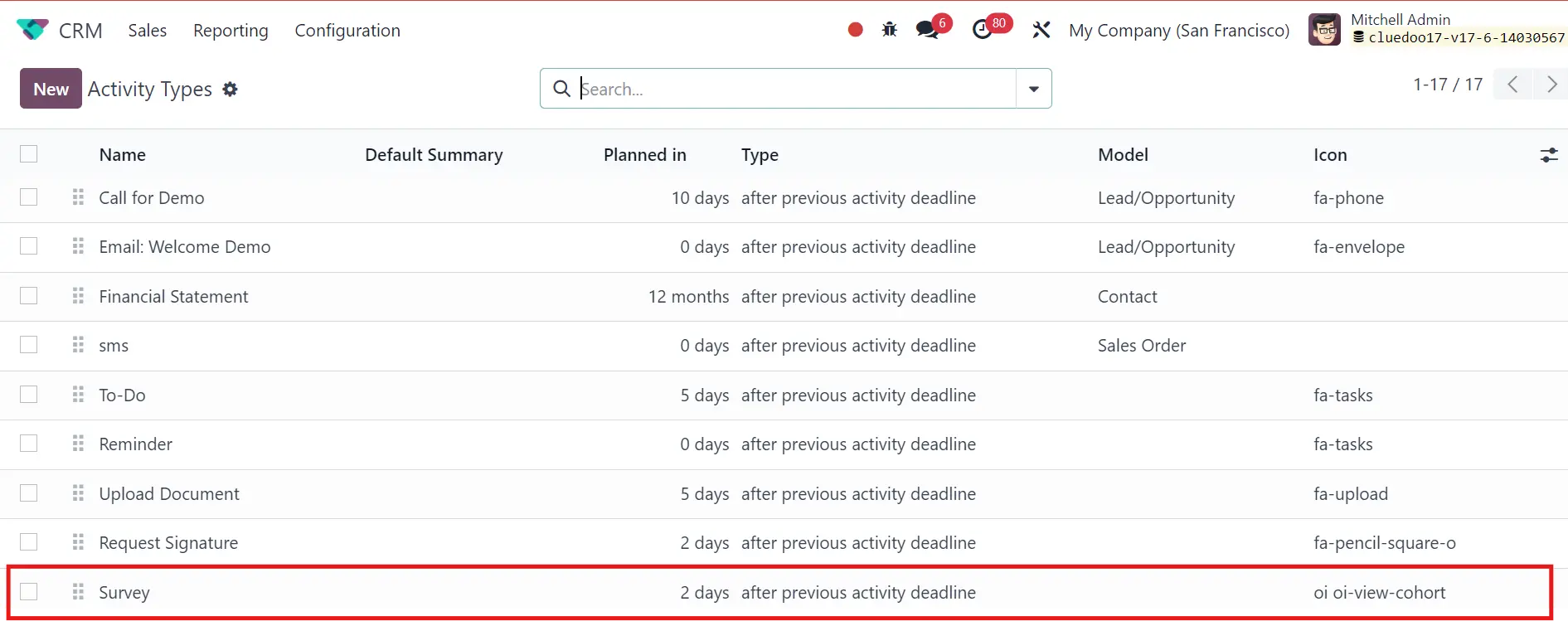
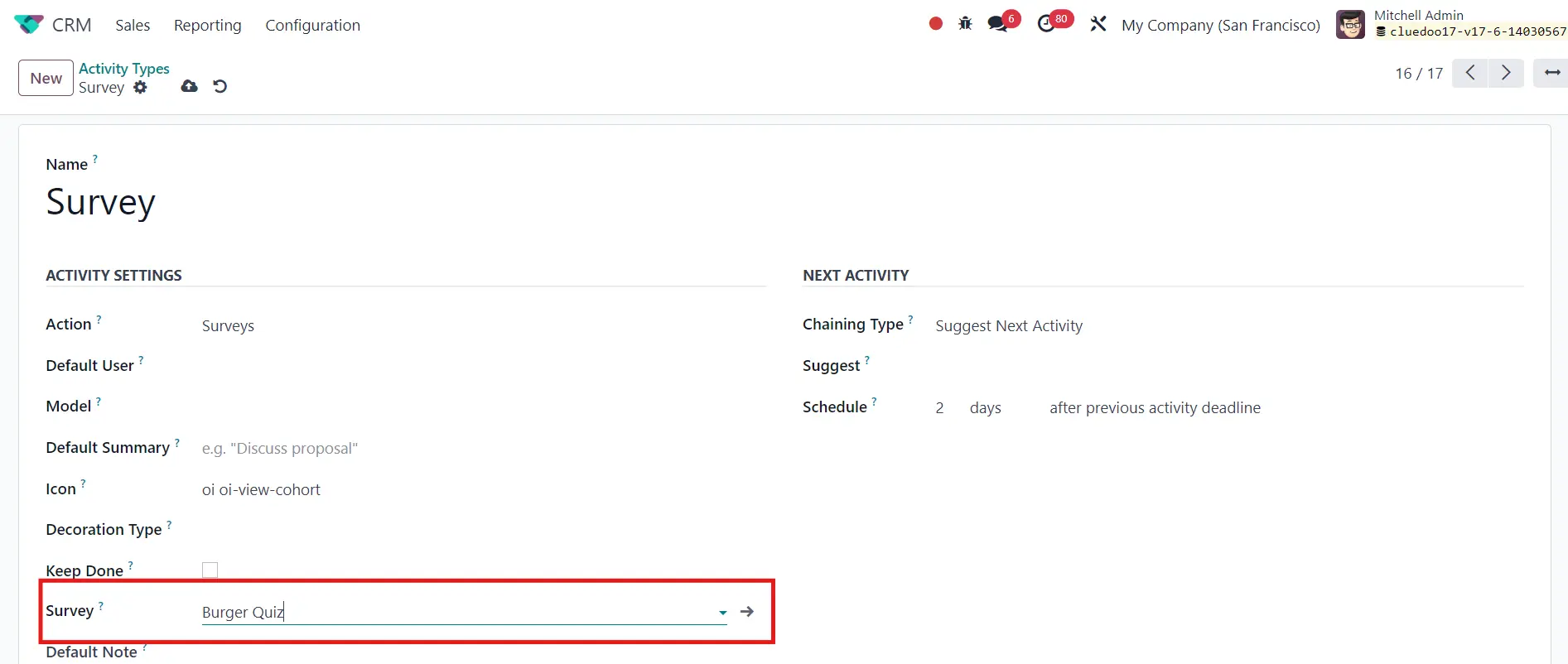
1. Go to CRM > Configuration > Activity Types > Survey and choose a survey that you already created > Save e.g. I choose Burger Quiz
|   |
2. Go to Contacts (or Invoices/Projects/Tasks/Purchase Orders) > Choose the target record > Click the Activity button in the chatter on the right side. | 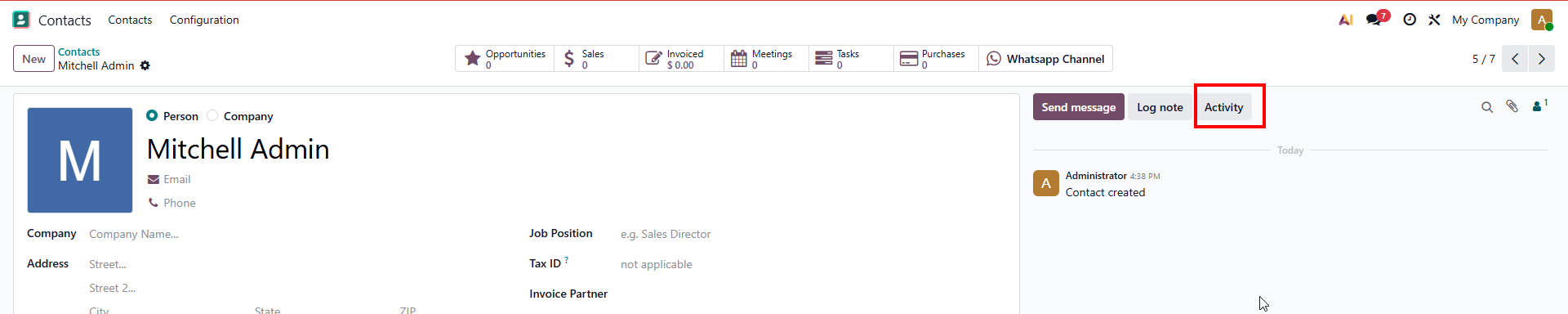 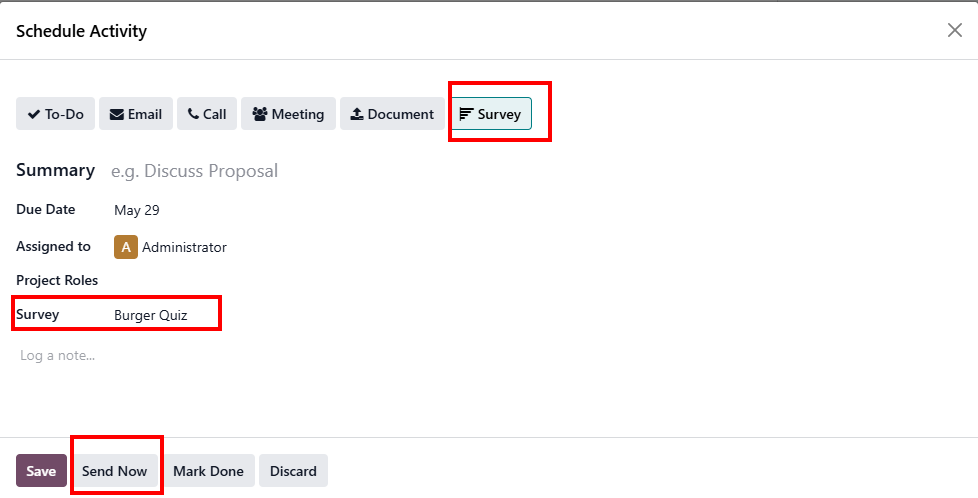 |
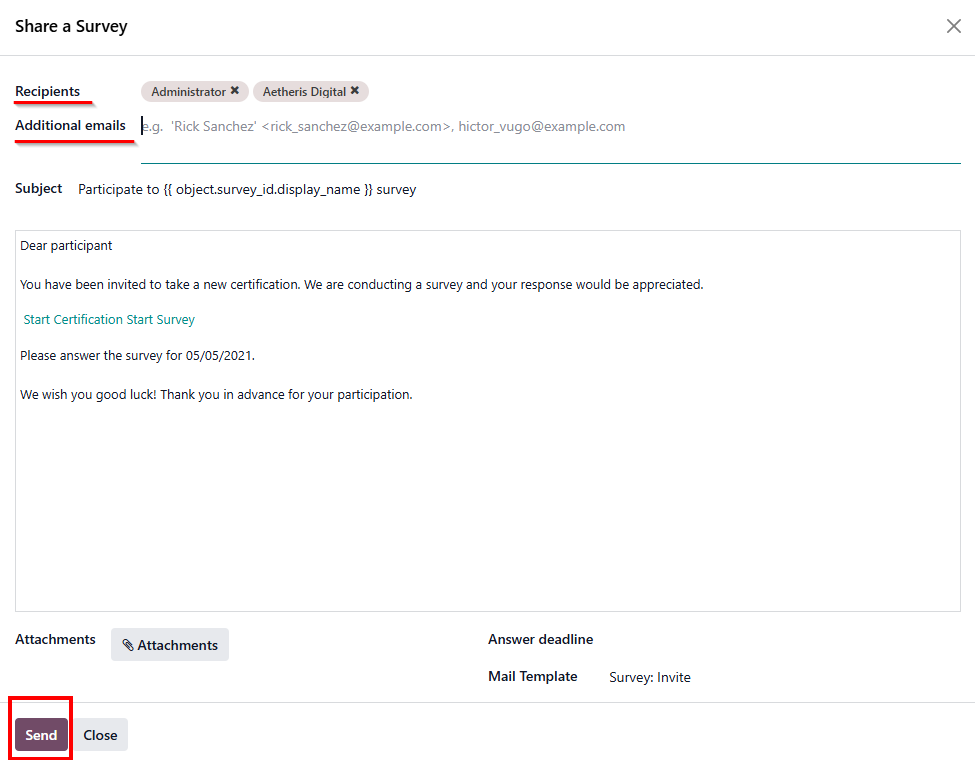
3. A Share a Survey pop-up wizard will instantly open. Add your Recipients or Additional emails, then click the Send button at the bottom-left corner.
|
|
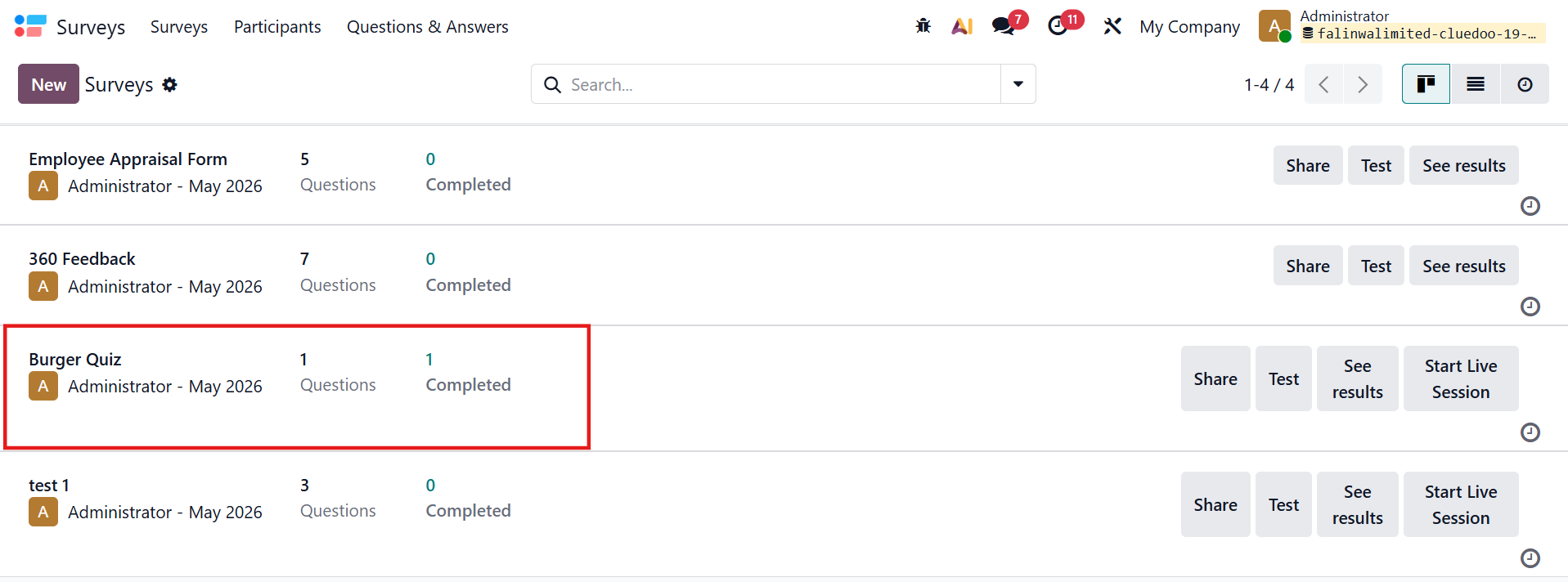
Go to Survey > Choose the sent Survey > Click Registered/Participants button > The survey is now sent to correct emails. |
|
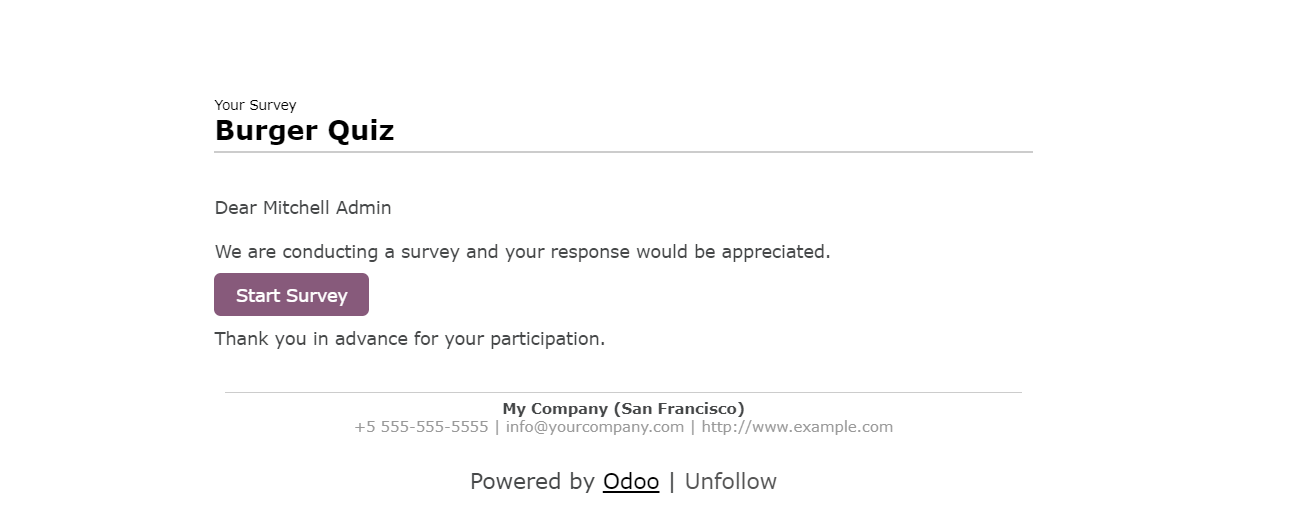
4. For participant, go to Settings > Technical > Email > Emails and you will see an invitation sent to you > Start Survey After you finish, click Submit or press Enter > Your score will appear on the screen Note: The survey will pop out on a new tab
|  |
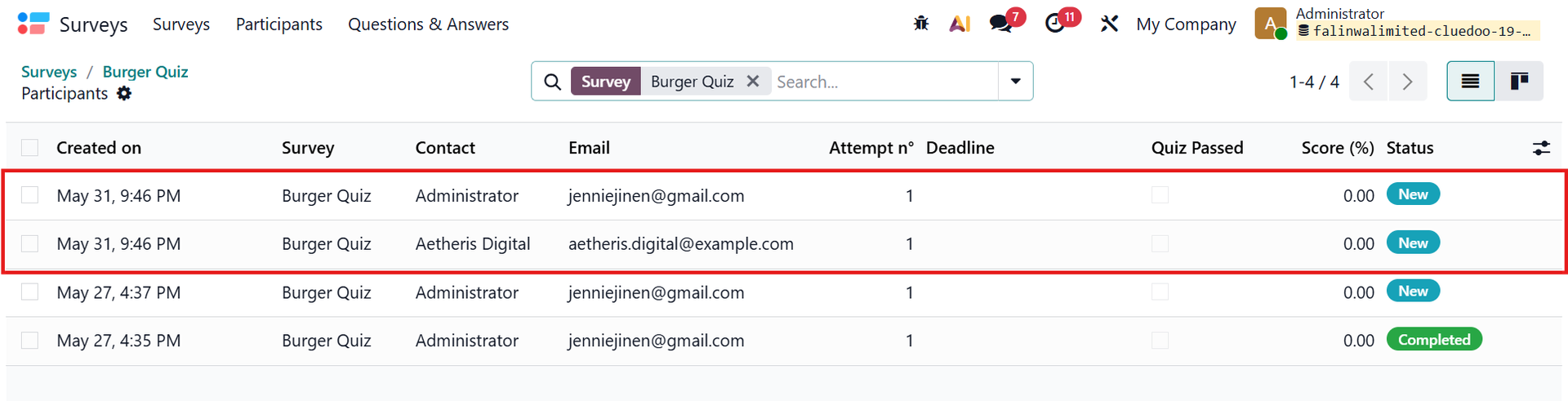
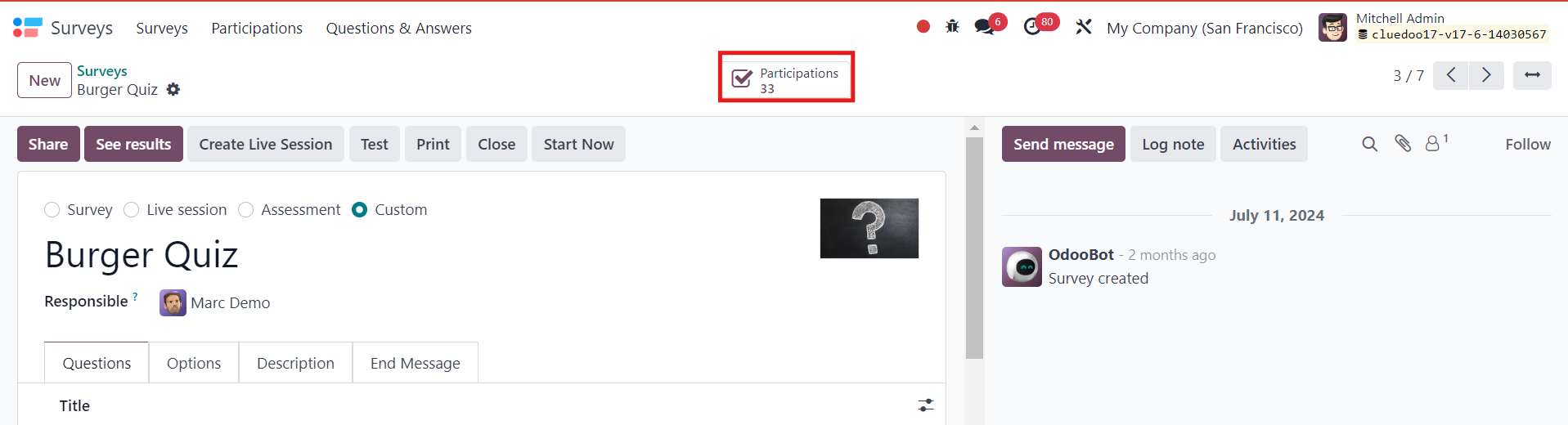
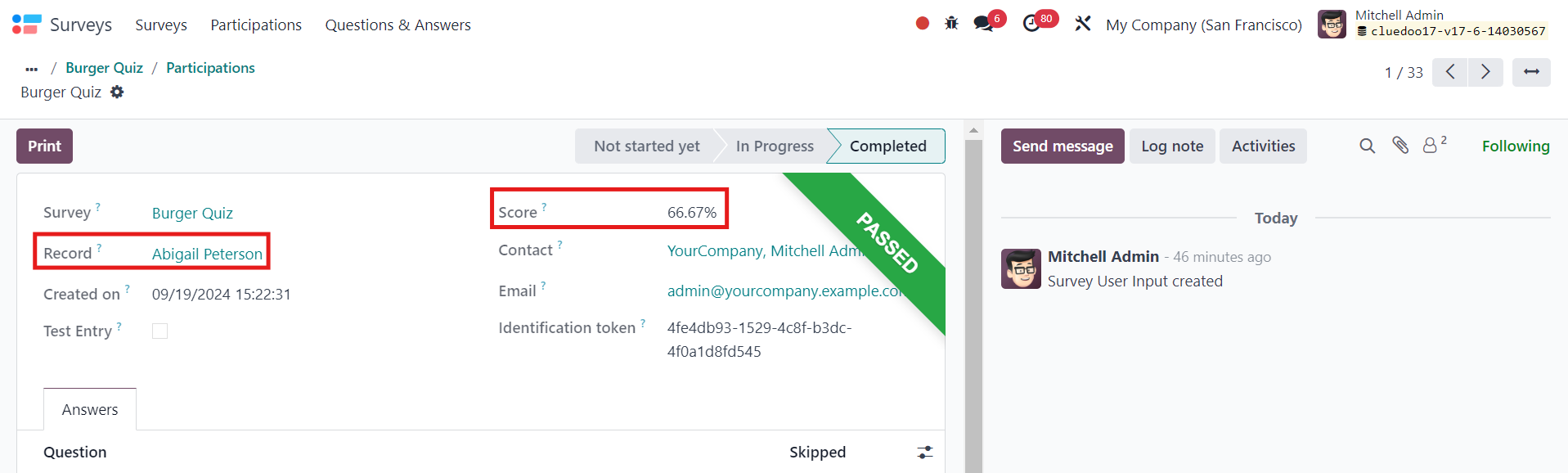
5. Head to Surveys > Choose the survey (e.g. Burger Quiz) > Participations and you will see that the Record has been linked to the person who sent out the survey and the participant's Score is visible as well
|   |
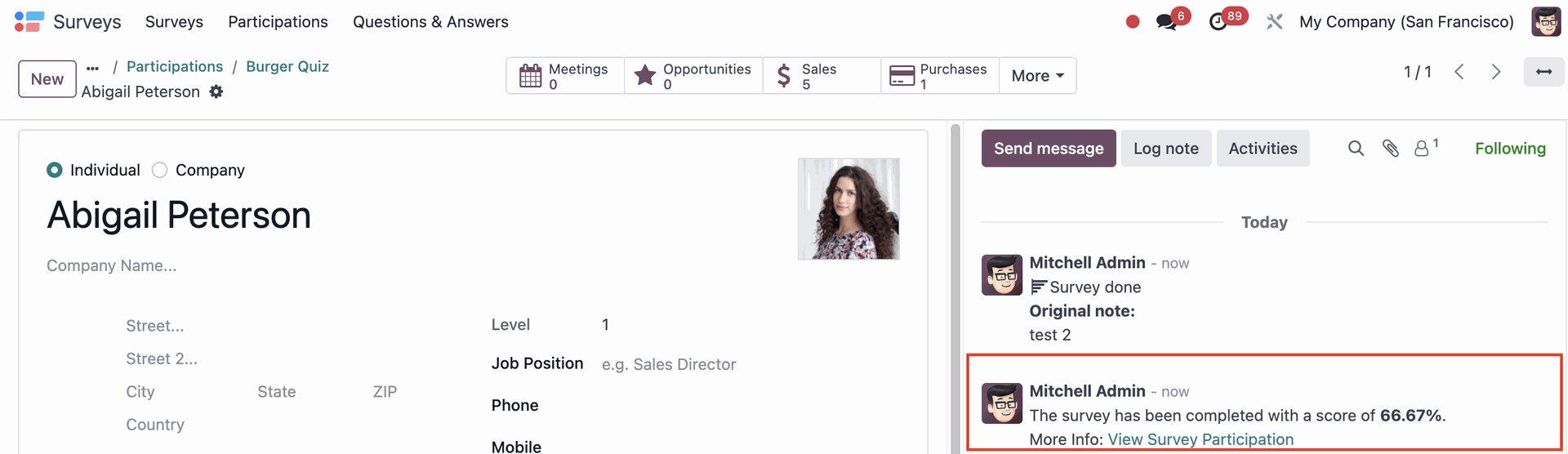
6. Head back to Contacts or click on the employee's name in Record, the survey score of the participant has also been updated on the employee's profile
|  |