


ODOO'S FUNCTION
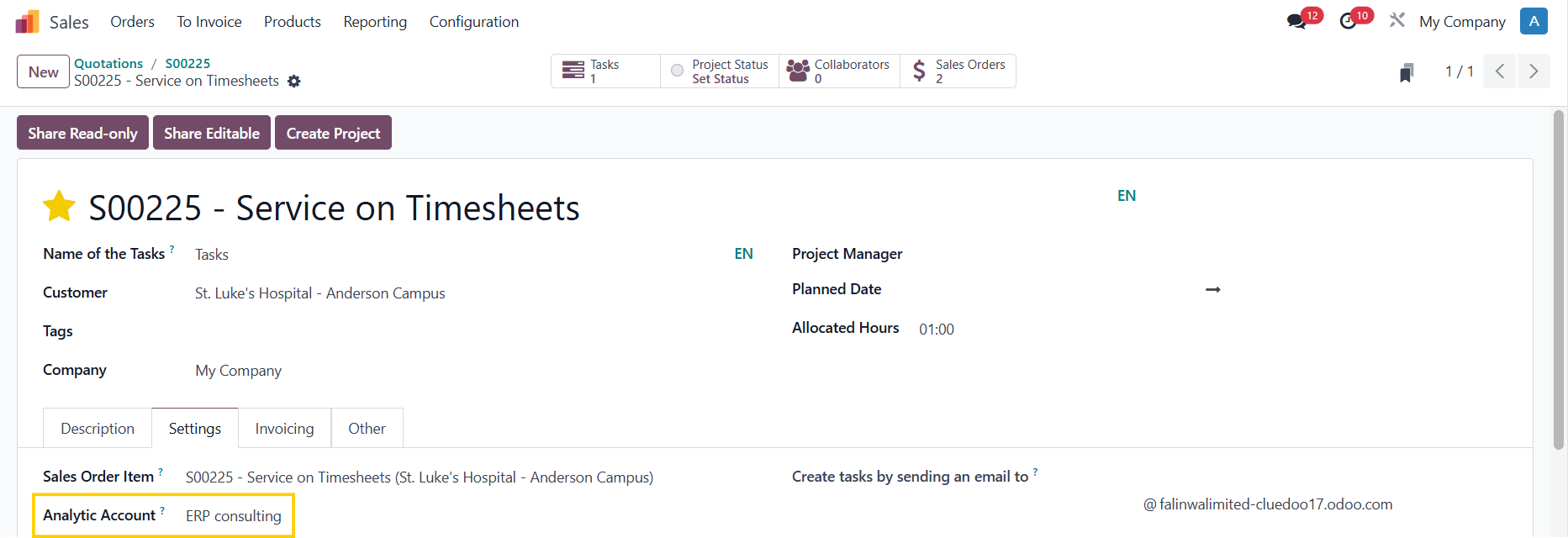
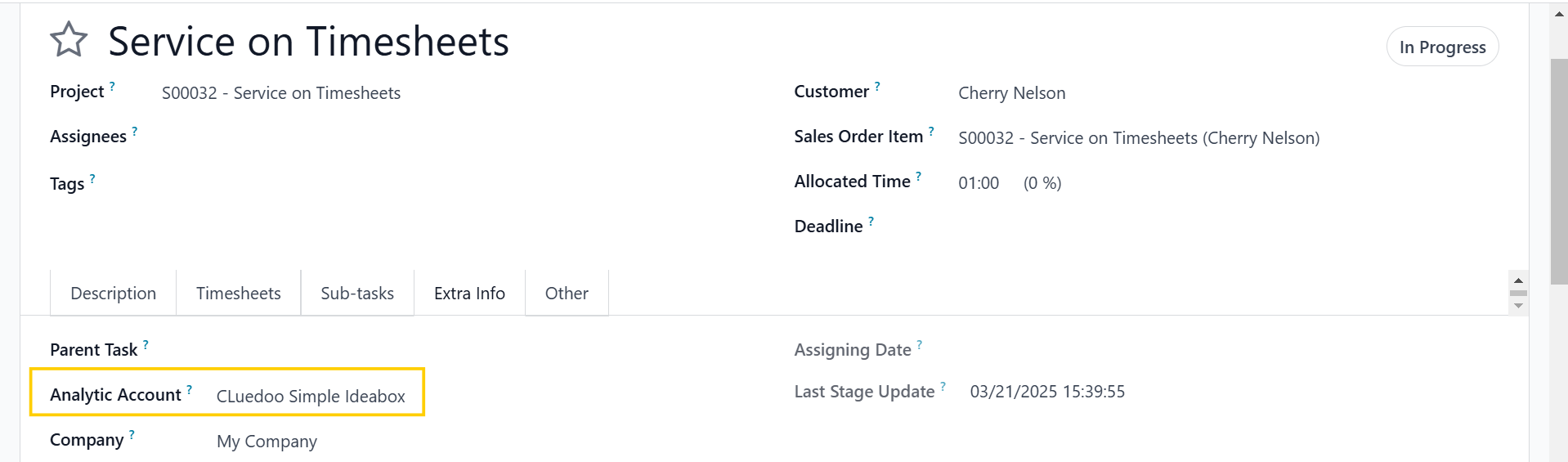
In Odoo, when a Sales Order (SO) is confirmed with a service product set to "Create on: Project & Task," a project and its corresponding task(s) are automatically created. However, Odoo does not provide Analytic Distribution at the task level.
CLUEDOO'S FUNCTION
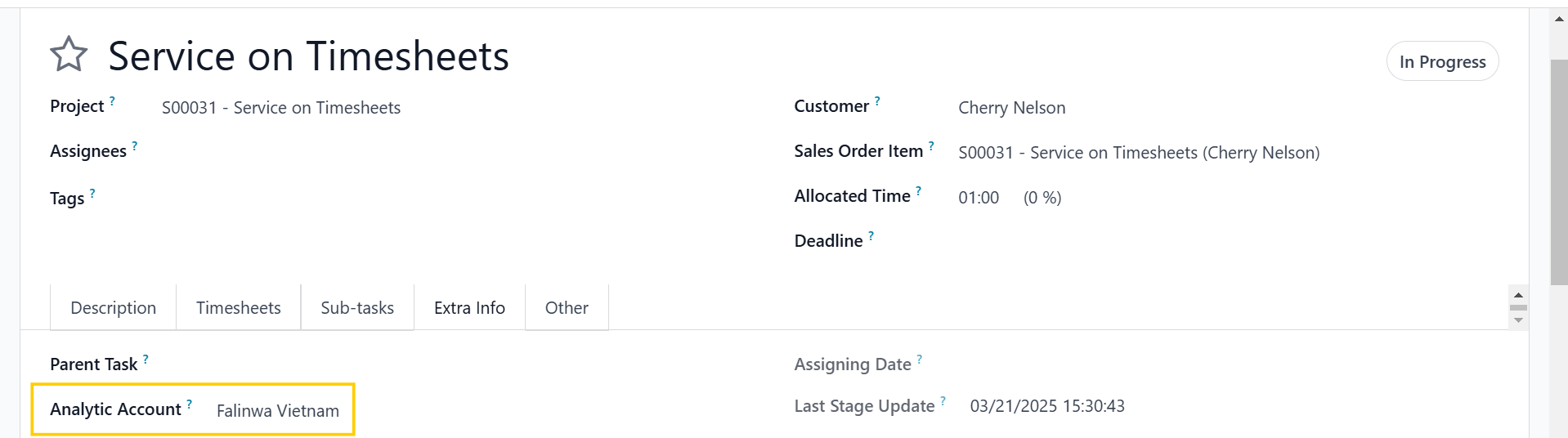
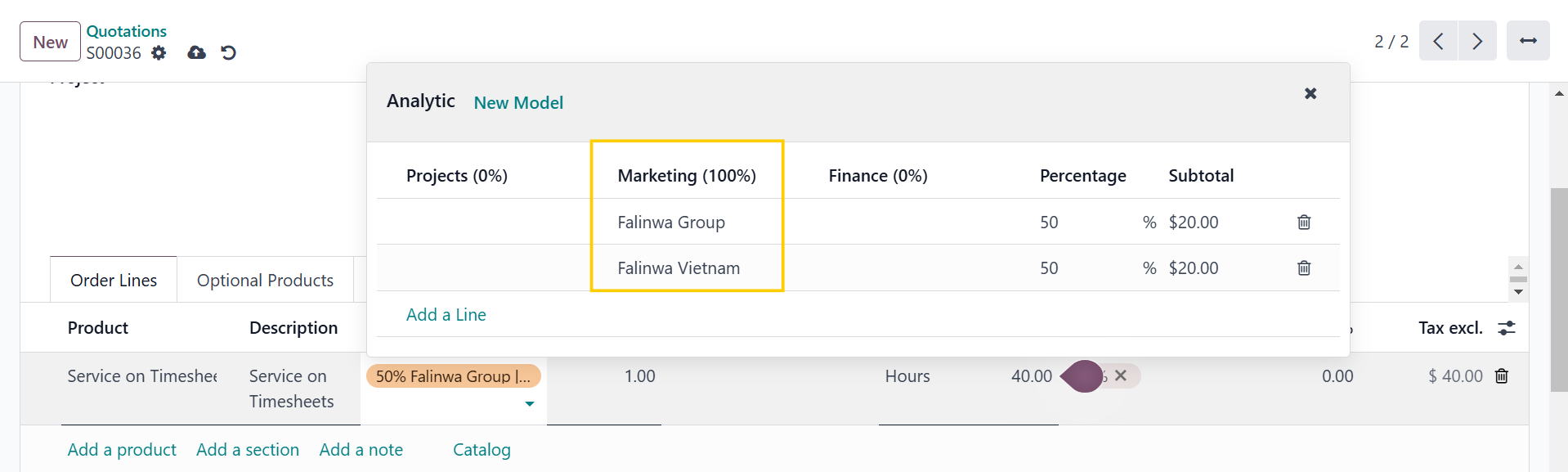
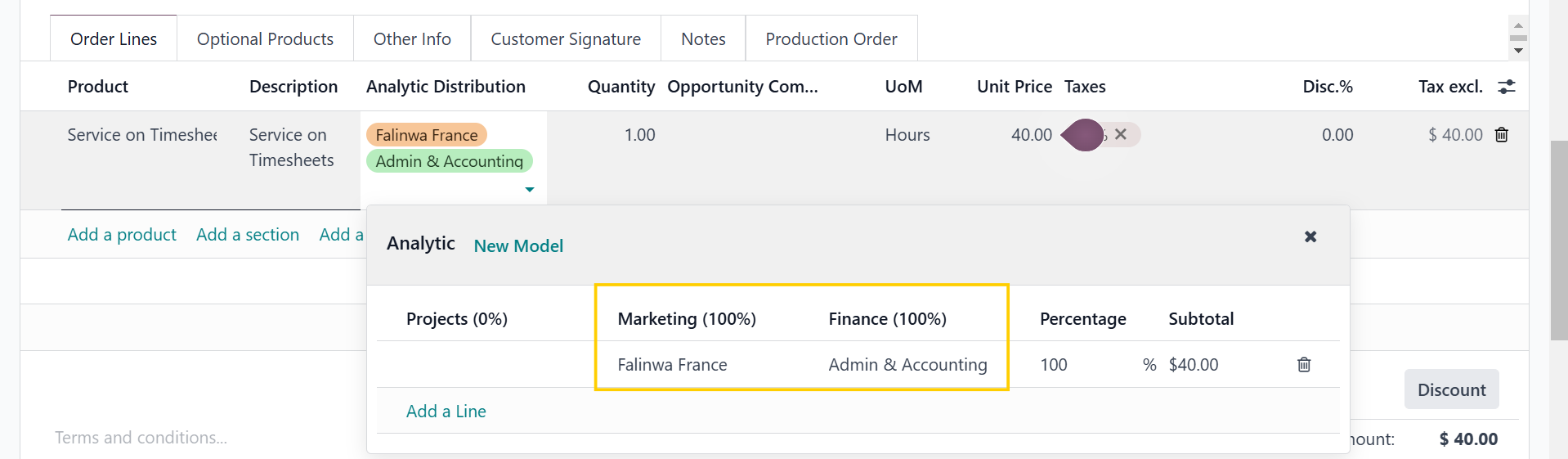
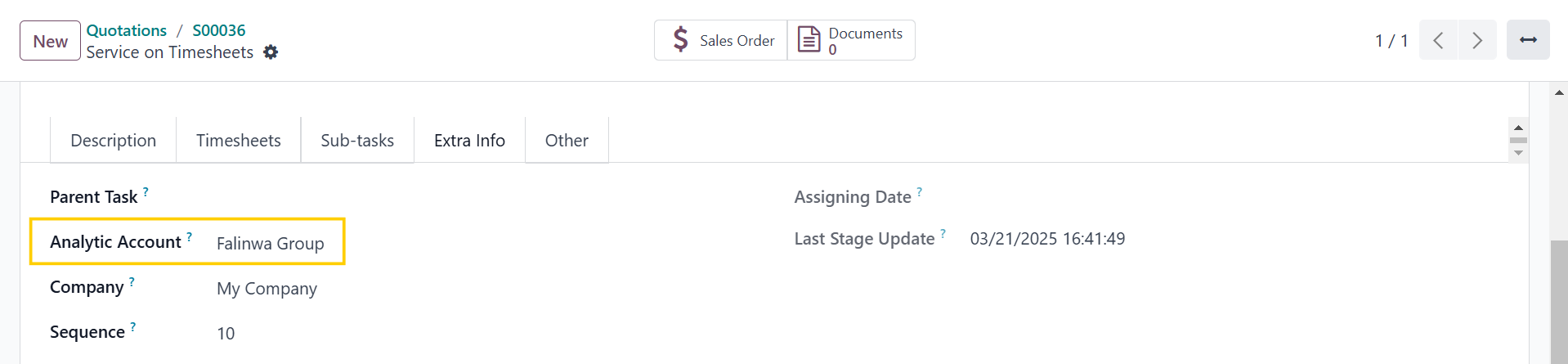
CLuedoo introduces a new feature that adds Analytic Distribution on Tasks. When an SO with a service product (set to "Create on: Project & Task") is confirmed, the automatically generated tasks now support Analytic Distribution. This allows users to allocate task-related costs and revenues across multiple analytic accounts with specific percentages.
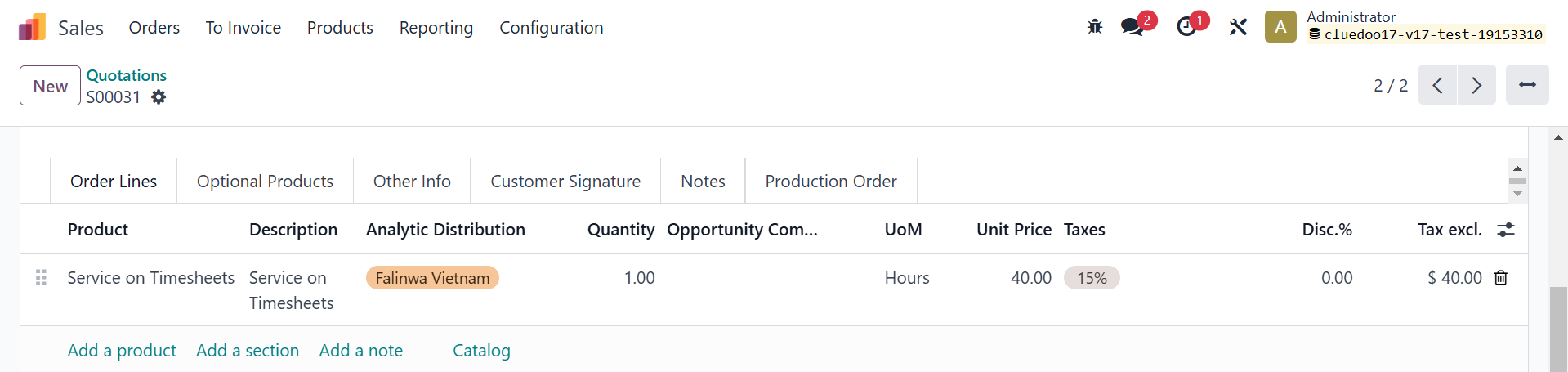
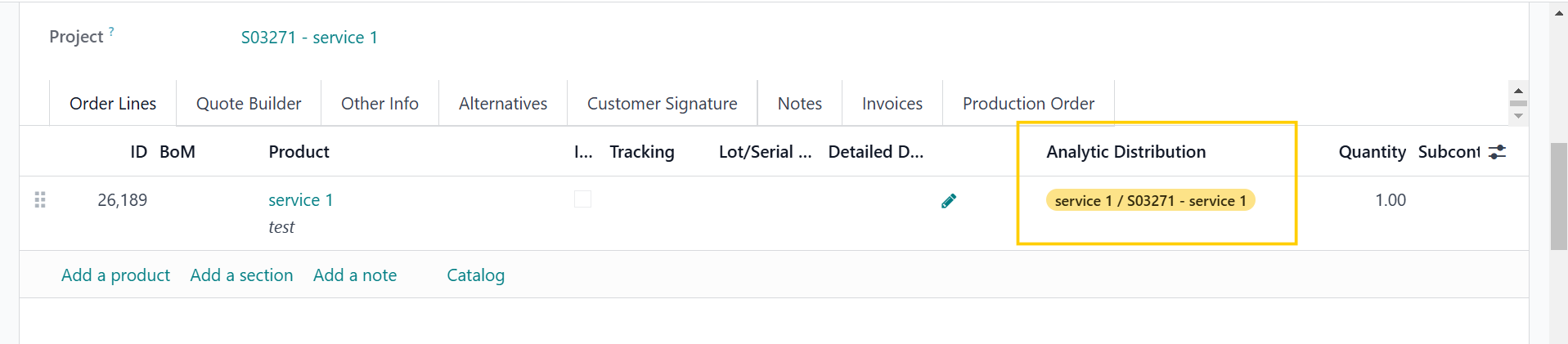
1. On the sales order lines, we have an Analytic Distribution field |
|
2. Create a service product with Create on Order: Project & Task | 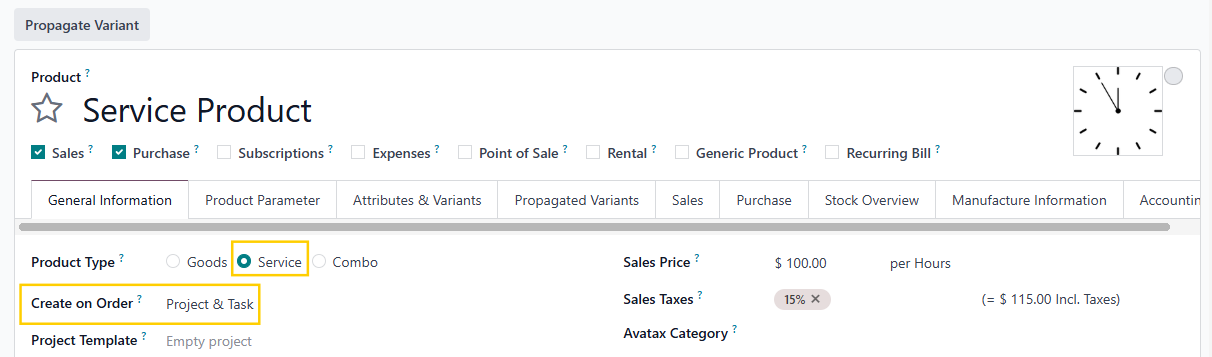 |
Note: Remember to set the Default Analytic Plan in Settings |  |
ANALYTIC DISTRIBUTION PROPAGATIONOdoo v17Create an SO > Fill in SO AA under the Other Info tab | 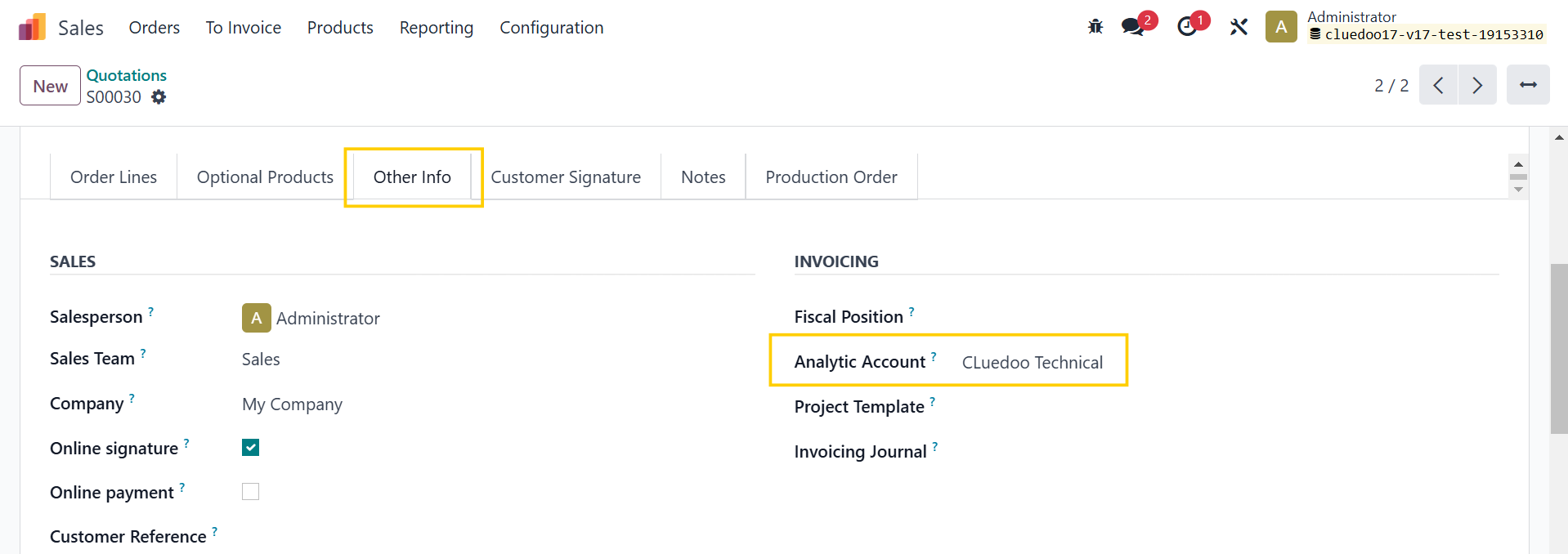 |
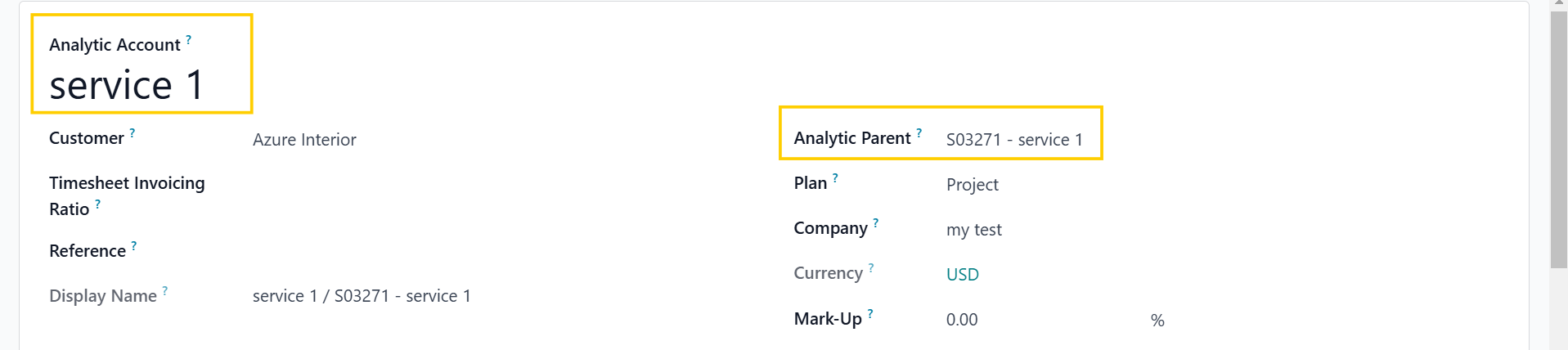
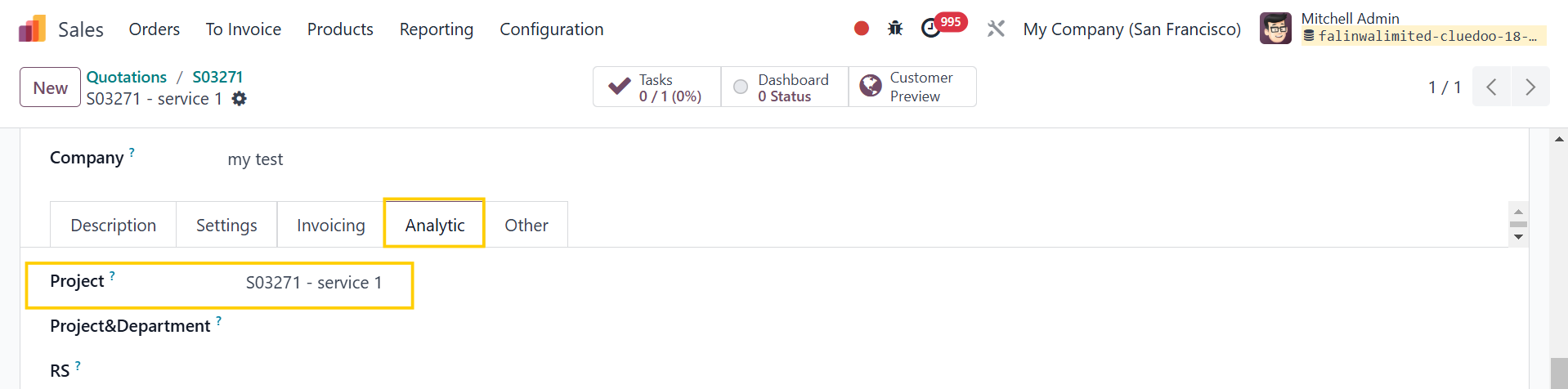
1. If there is no AD on SOL Project AA is SO AA | 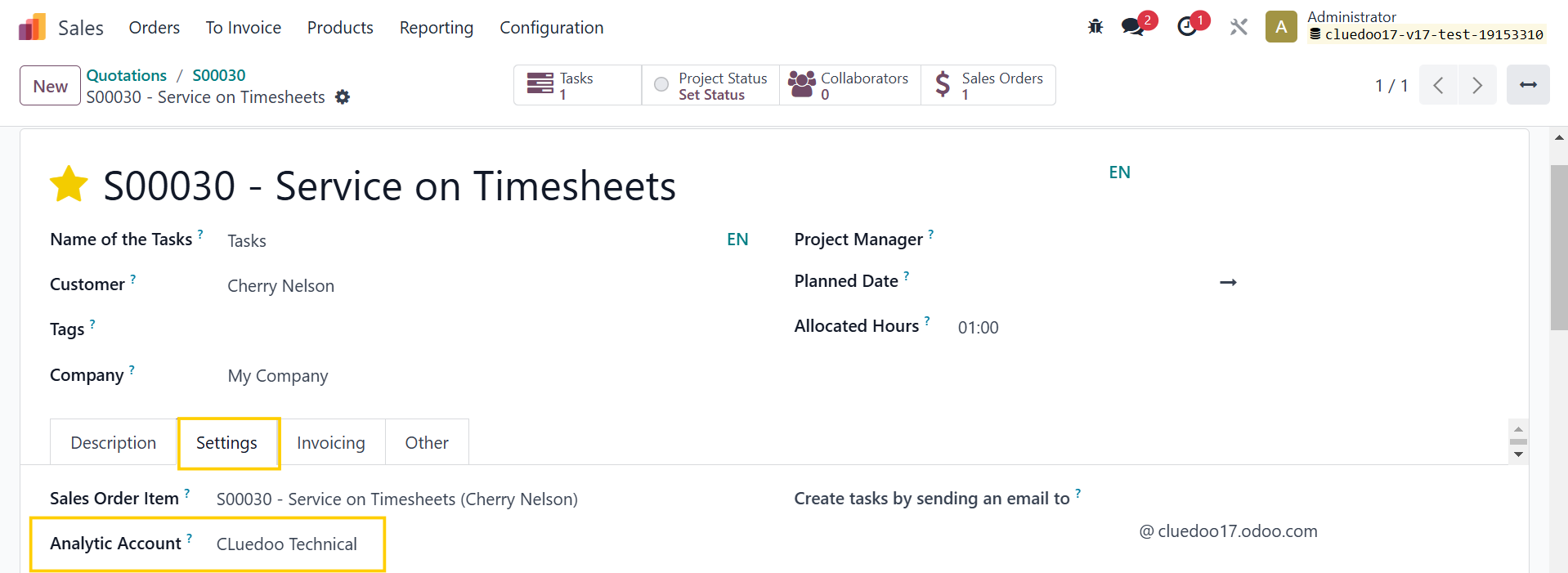 |
Task AA is the child of Project AA |   |
SOL AD is Task AA |  |
2. If there is AD on SOL Project AA will always be SO AA |
|
2.1 If there is only 1 AD on SOL Task AA is SOL AA |
|
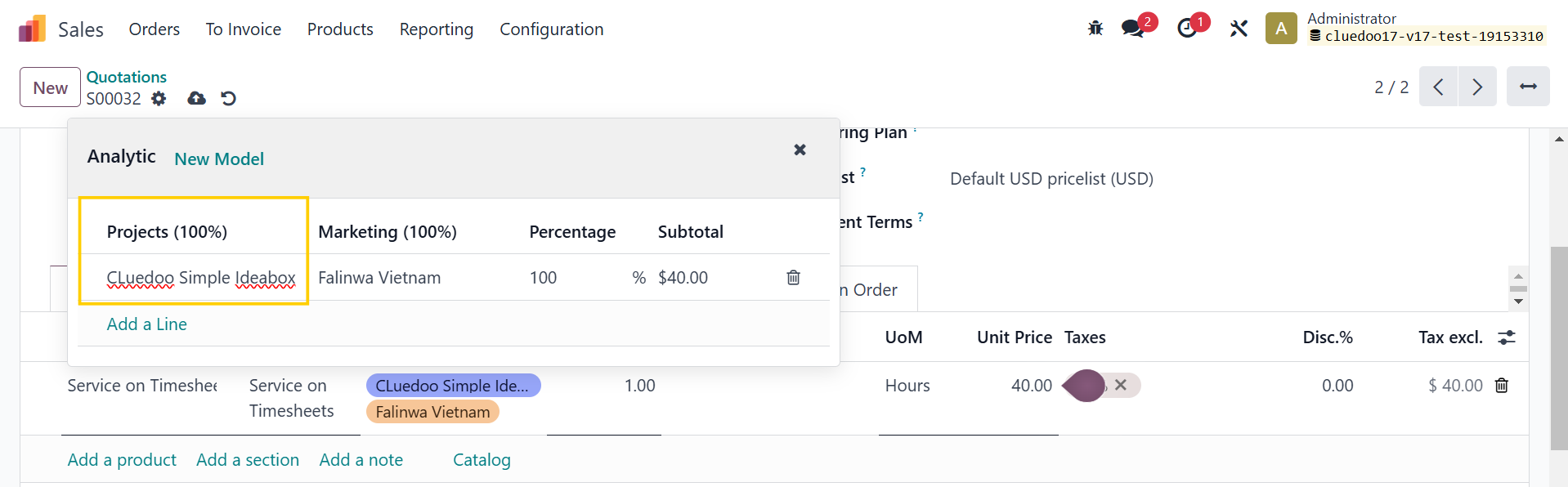
2.2 If there are 2 AD in 2 different plans and 1 of them is from the Default Analytic Plan in Settings e.g. I set default plan = Project |
|
Task AA is the AD from plan Project |
|
2.3 If there are 2 AD in 1 plan OR 2 AD in different plans, but none of them is the Default Analytic Plan |
|
Task AA is the first AD on SOL |
|
Odoo v18From v18, Odoo removes SO AA > Project will automatically create a new AA | |
1. If there is no AD on SOL Task AD is the child of Project AA |
|
Project AA |
|
SOL AD is Task AD |
|
2. If there is AD on SOL Task AD is SOL AD Note: Field AD in v18 is JSON > All the SOL AD will be propagated |   |
ANALYTIC ON ANALYTIC ITEMS1. Create a Sales Order > Add Analytic Distribution > Confirm > Go to the Tasks smart button | 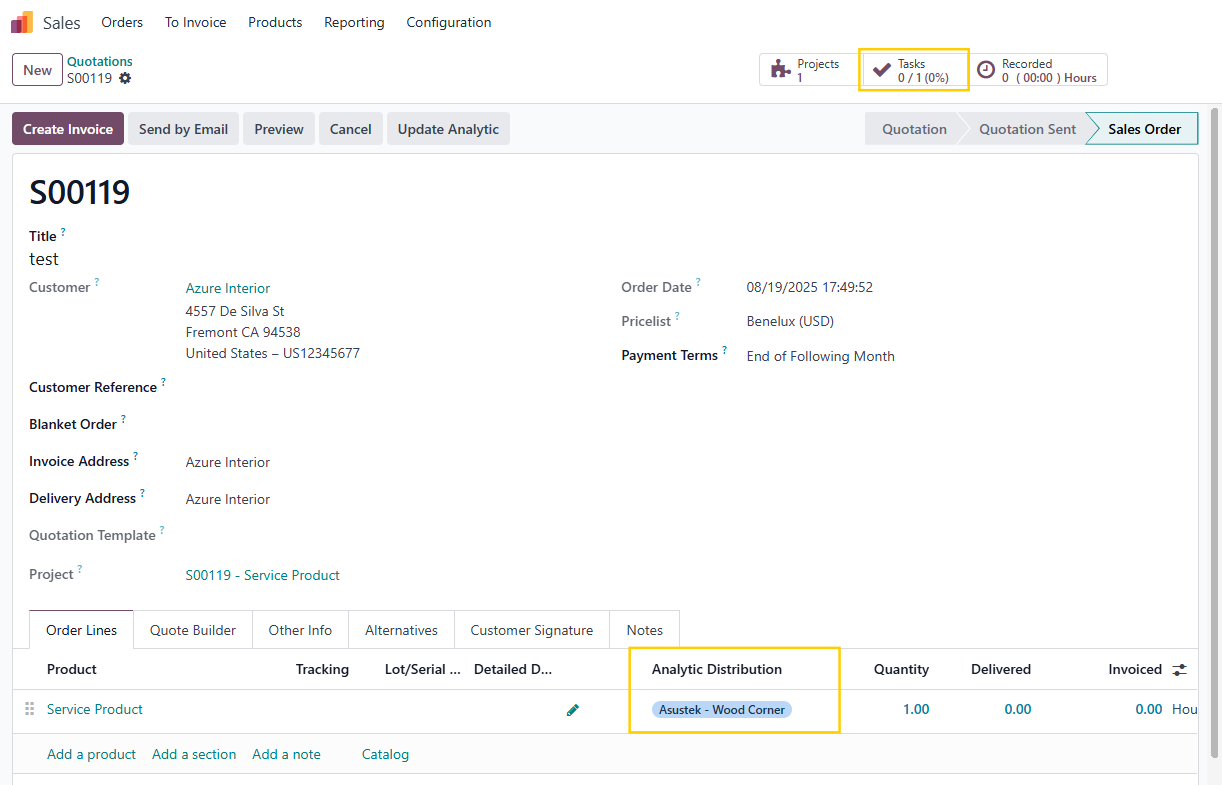 |
2. In the task, add/change the Analytic Distribution | 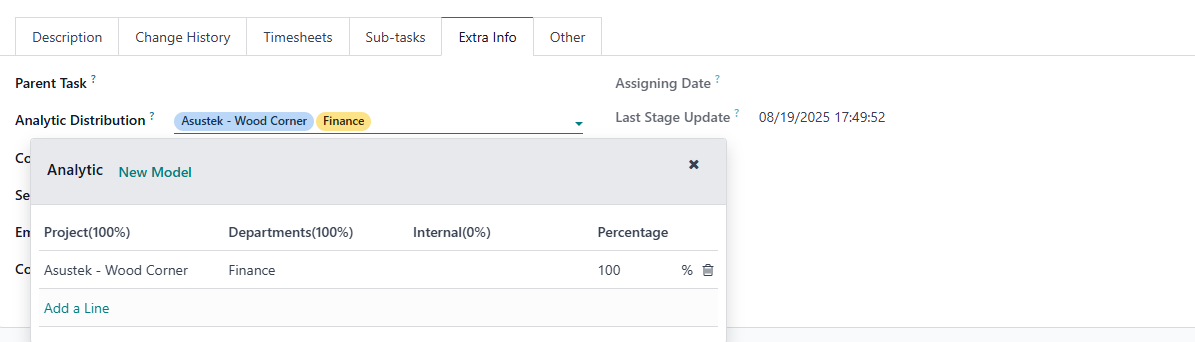 |
3. Add timesheets |  |
4. Go to Analytic Items > The Analytic Item created from the timesheet will inherit the AD assigned to the Task from each Analytic Plan | 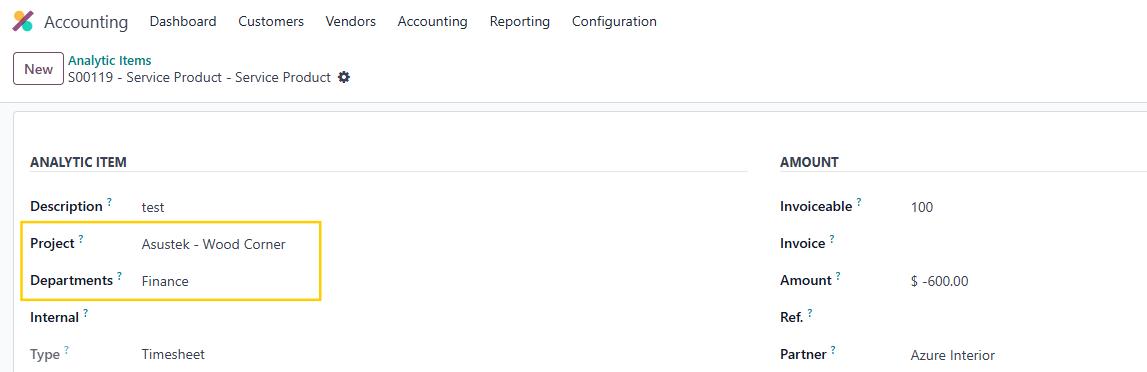 |