


CHỨC NĂNG CỦA ODOO
Odoo cung cấp đầy đủ khả năng quản lý MRP từ giao diện form của Lệnh sản xuất, nhưng buộc người dùng phải mở từng lệnh để thực hiện thao tác.
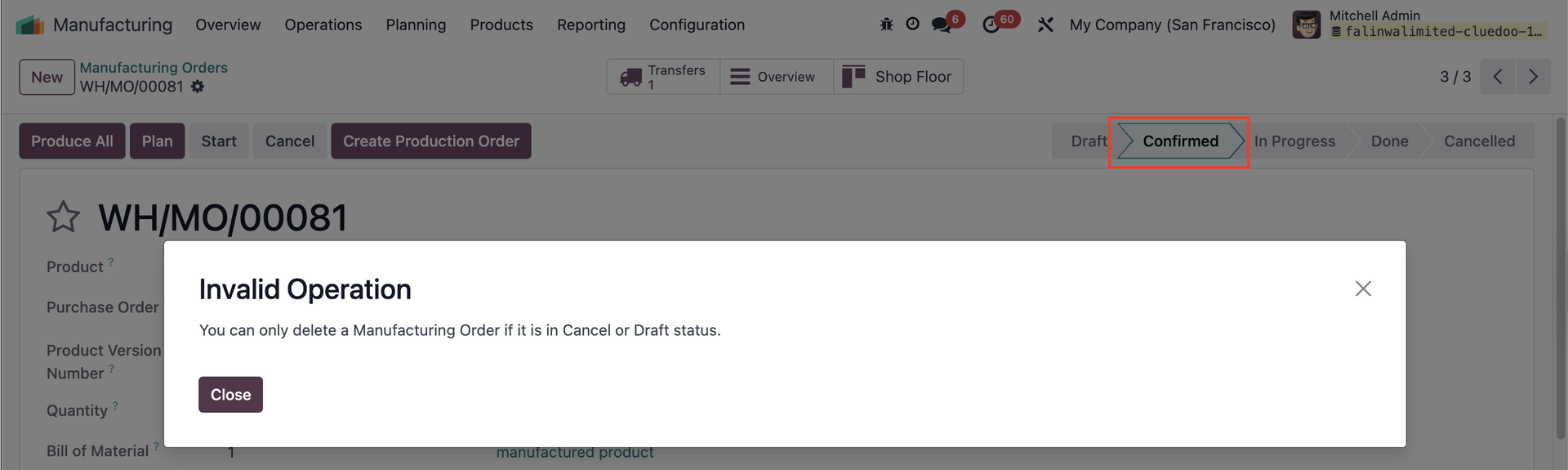
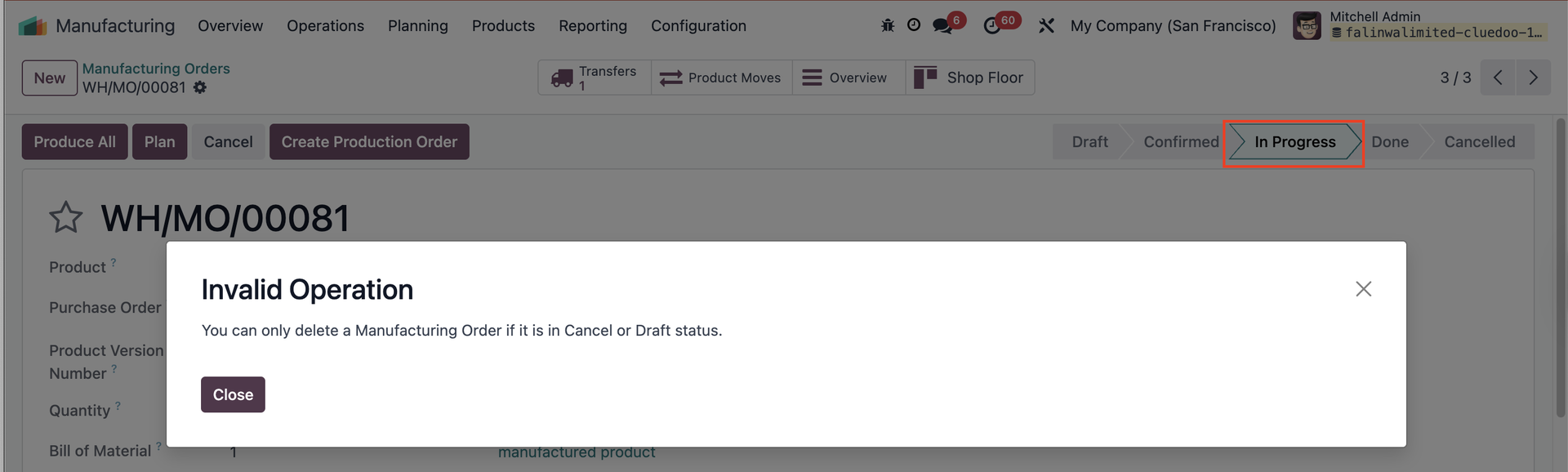
Ngoài ra, Odoo cho phép xóa Lệnh sản xuất ngay cả khi đang ở trạng thái "Confirmed" hoặc "In Progress", có thể gây không nhất quán dữ liệu.
CHỨC NĂNG CỦA CLUEDOO
Cluedoo enhances production management by introducing:
\t1️⃣ Quick action buttons directly in the list view, offering a general overview and saving time by avoiding the need to open individual form views.
\t2️⃣ Multi-selection actions to process multiple production orders (Production Orders, Manufacturing Orders, or Work Orders) simultaneously.
\t3️⃣ A restriction that prevents the deletion of Manufacturing Orders in Confirmed/In Progress Status, requiring users to cancel them first.
This allows users to validate 80 or more orders in just 3 clicks compared to the 240 clicks needed in standard Odoo (open form view > validate > return to list view), leading to a dramatic increase in operational efficiency and improving overall workflow flexibility.
KIỂM TRA SẴN CÓGo to Manufacturing > Manufacturing Orders > choose MO on list view > click Actions > Check Availability Availability of components of the chosen MO will be updated. Ghi chú: Đã bị xóa từ v17 |  |
NÚT PLANConfigure the Manufacturing Order (MO) > Set up the Work Order (WO) In the list view, select the MO > Click the "Plan" button > The MO will be scheduled/produced, and the Work Order will display the planned start and end dates. Ghi chú: Đã bị xóa từ v17 |  |
NÚT UNRESERVEThis button is to unreserve the quantity of the component that is already reserved Ghi chú: Đã bị xóa từ v17 |  |
NÚT CANCELIn the list view, select the MO > Click the button "Cancel" > The MO will be canceled. Ghi chú: Đã bị xóa từ v17 |  |
TRUNG TÂM LÀM VIỆC ĐƯỢC PHÉPGo to Settings > Users, then add work centers in the "Allowed Work Centers" field. Users will only be able to access the work centers assigned to them. Nếu người dùng chưa được gán work center, họ sẽ không thể xác nhận Lệnh sản xuất (MO) liên quan đến work center không có trong cài đặt người dùng. Ghi chú: Đã bị xóa từ v17 |  |
WO READY / WO IN PROGRESSGo to Manufacturing > Overview Nhấp WO Ready để hiển thị mọi Work Order có trạng thái "Ready" trên giao diện danh sách. Nhấp WO In Progress để hiển thị mọi Work Order có trạng thái "In Progress" trên giao diện danh sách. Ghi chú: Đã bị xóa từ v17 |  |
COMITTMENT DATEOn Manufacturing > Operations > Production Order, we have a field Commitment Date | 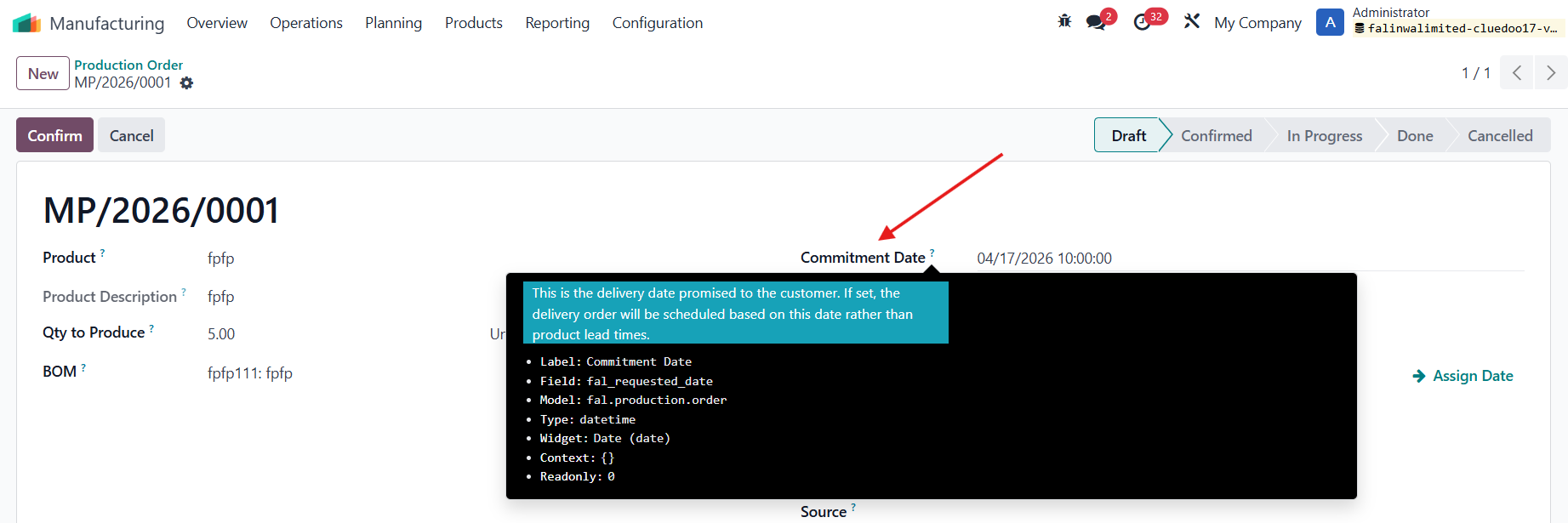 |
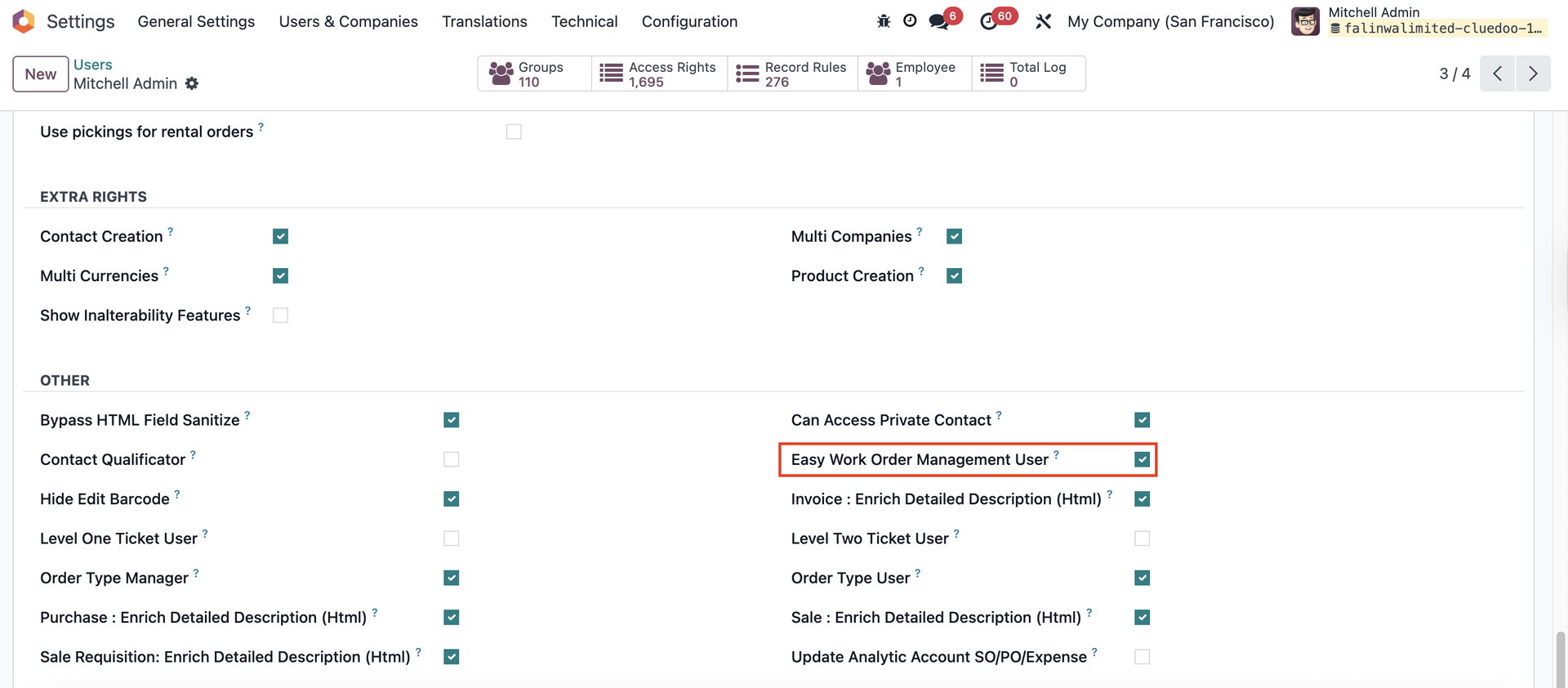
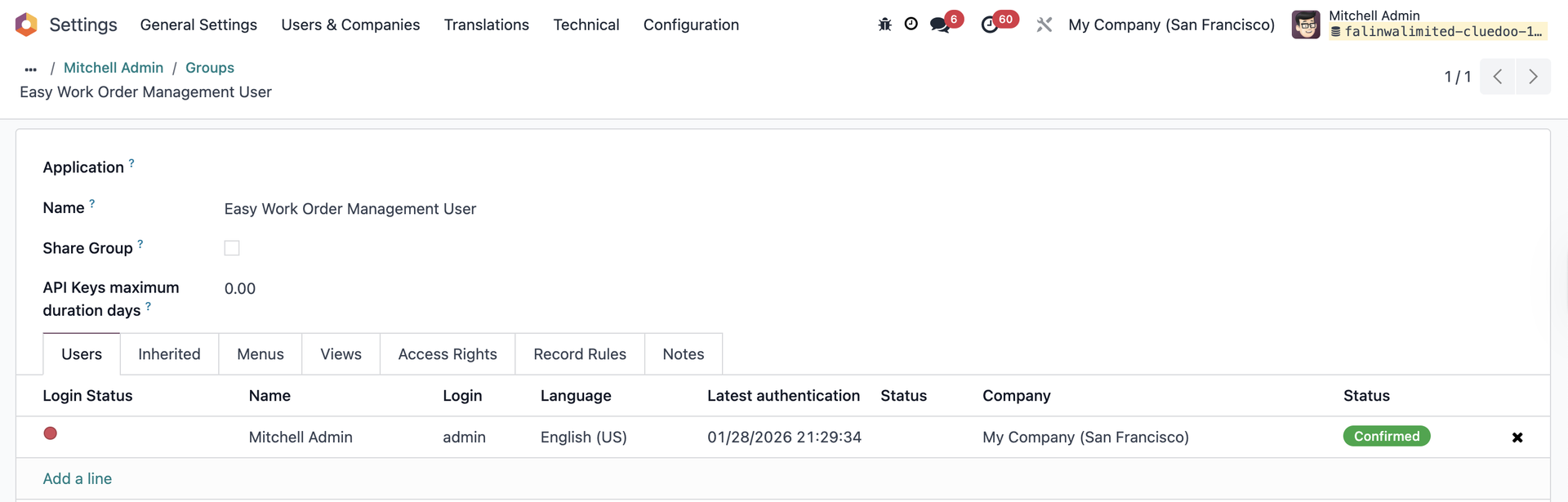
EASY WORK ORDER MANAGEMENT USER
|   |
TRẠNG THÁI ĐỂ BẮT ĐẦUTrên Work Orders có Status to Start hiển thị trạng thái MO/Linh kiện để dễ theo dõi. | 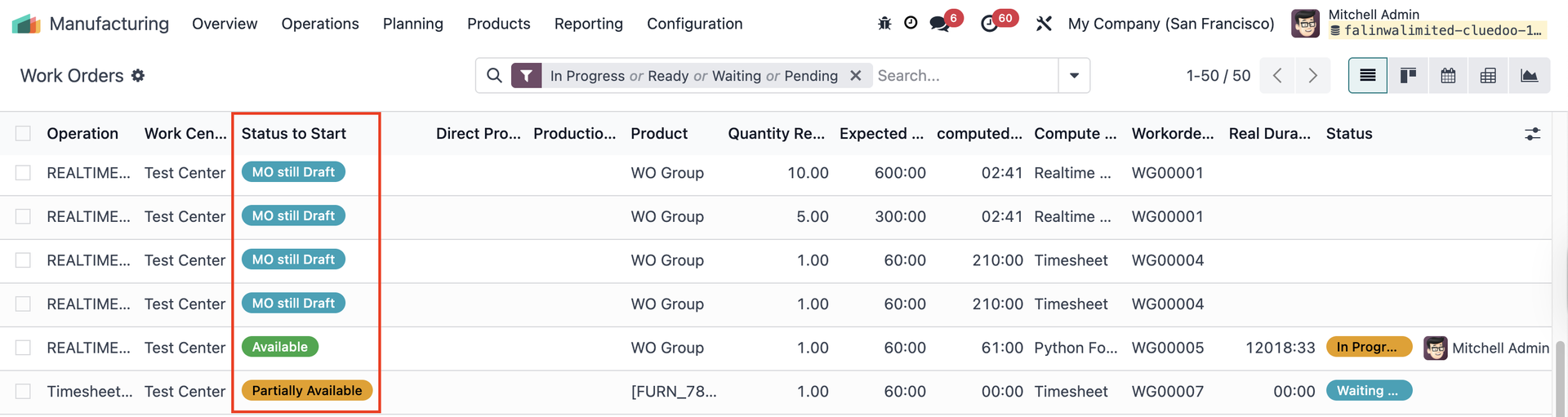 |
BÁO CÁO TRÊN LỆNH SẢN XUẤTOn a Manufacturing Order, access Print > We have a new report Production Order (Product not Reserved) | 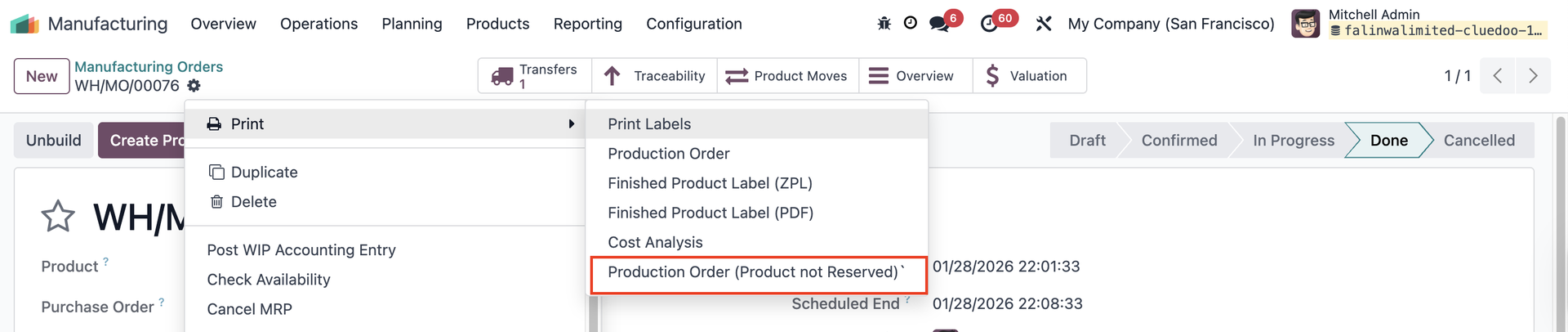 Báo cáo 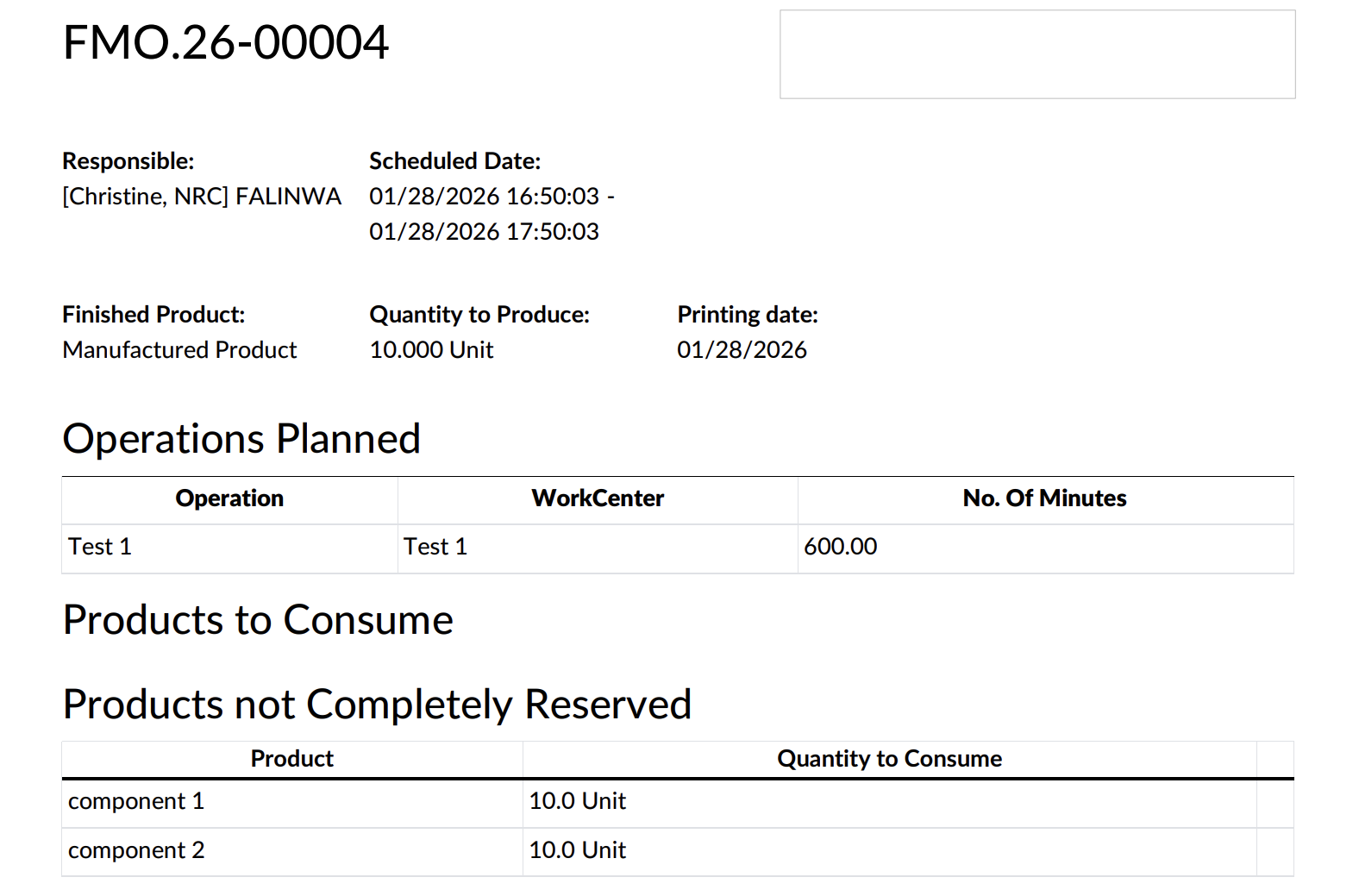 |
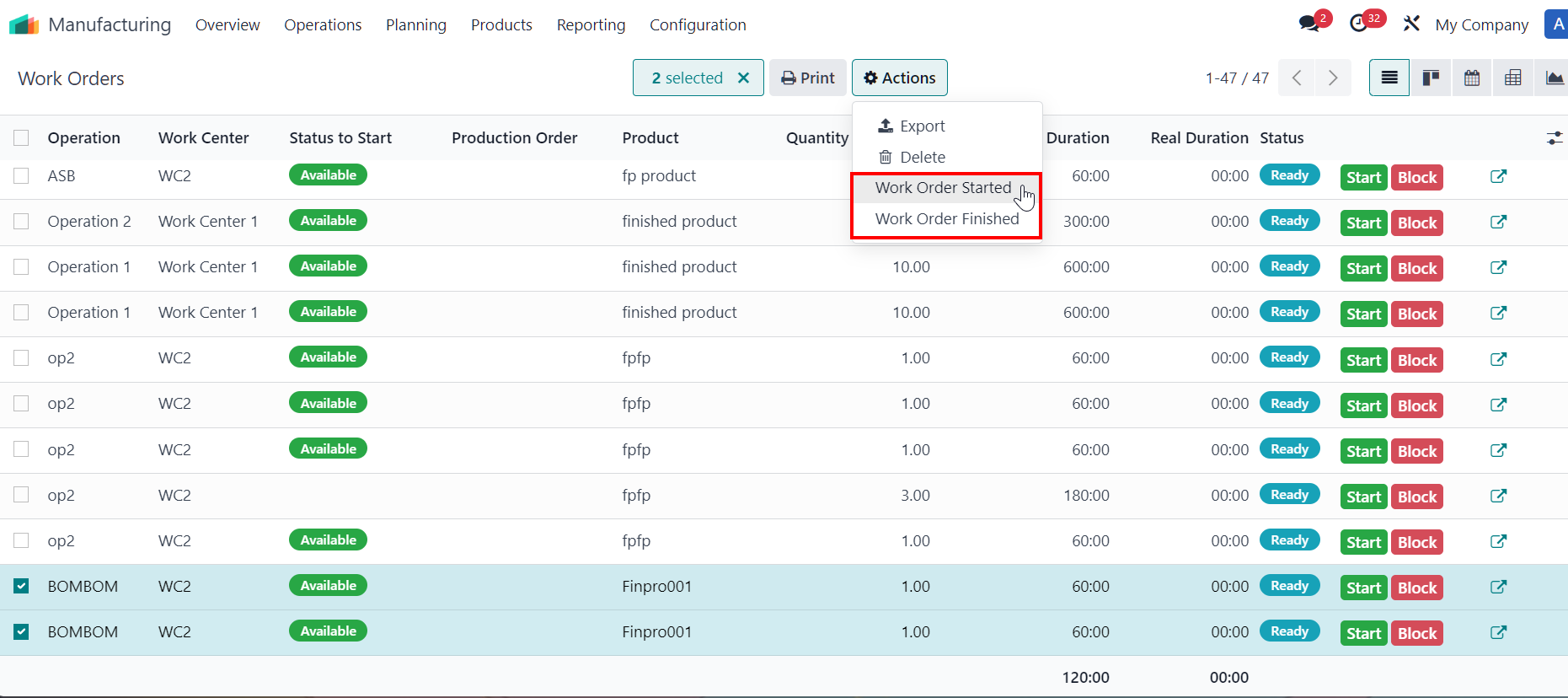
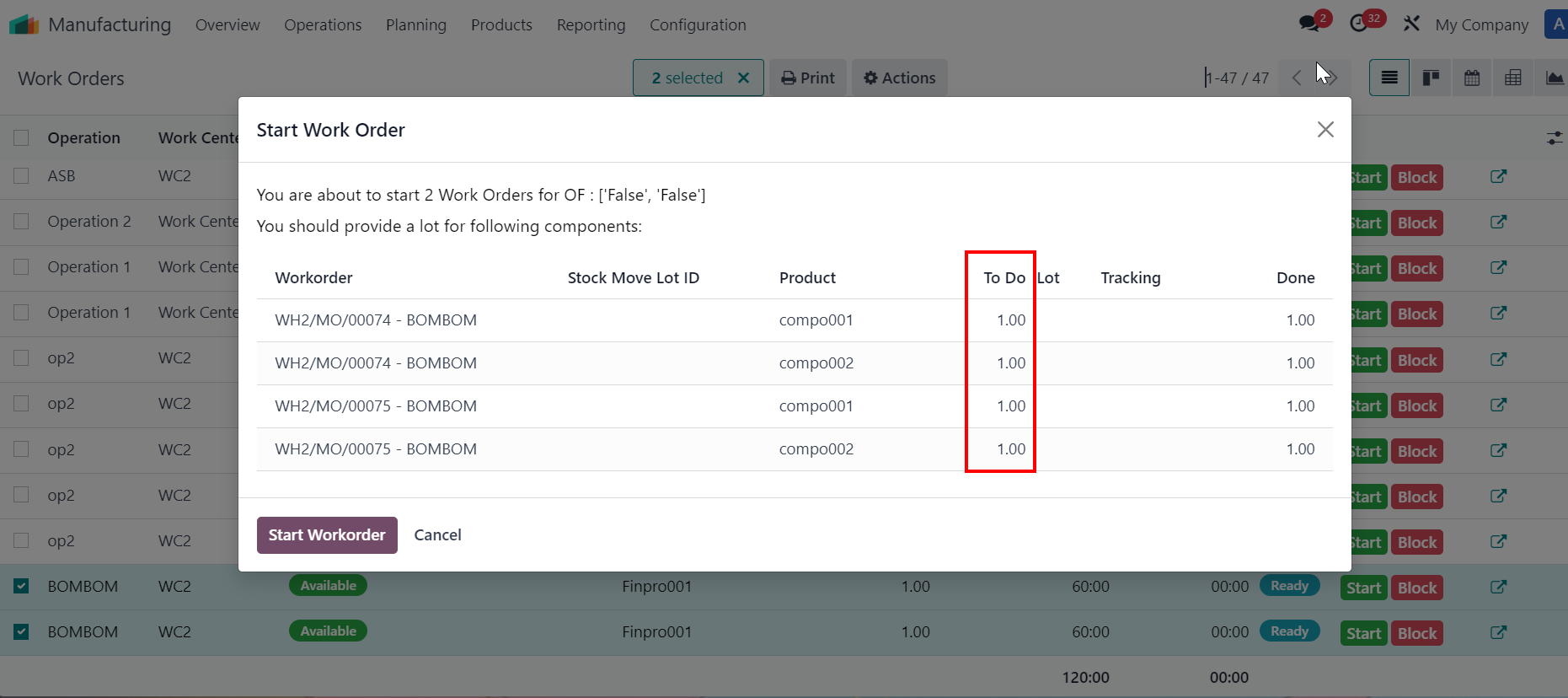
BẮT ĐẦU/HOÀN THÀNH HÀNG LOẠT WORK ORDERSSelect multiple work orders > Actions > Work Order Started / Work Order Finished
Ghi chú:
|    in line start button 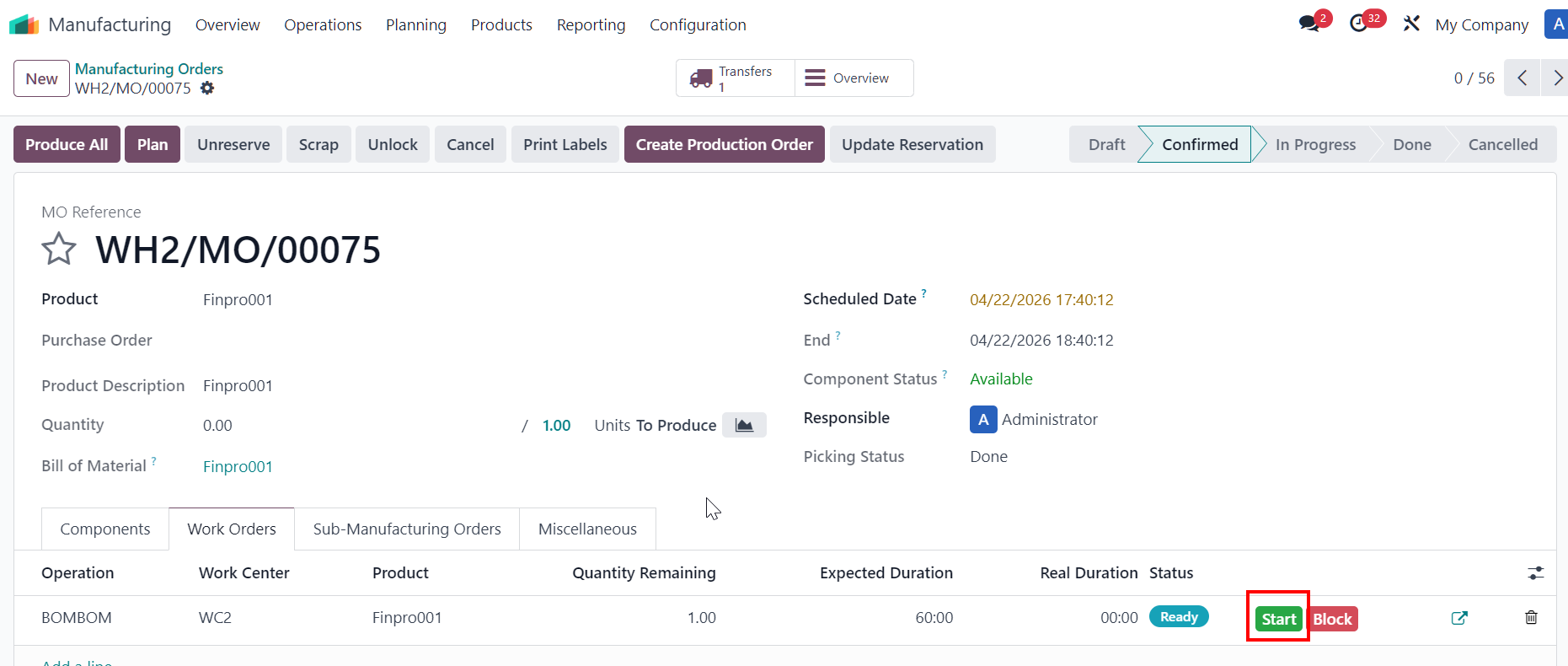 |
|  |
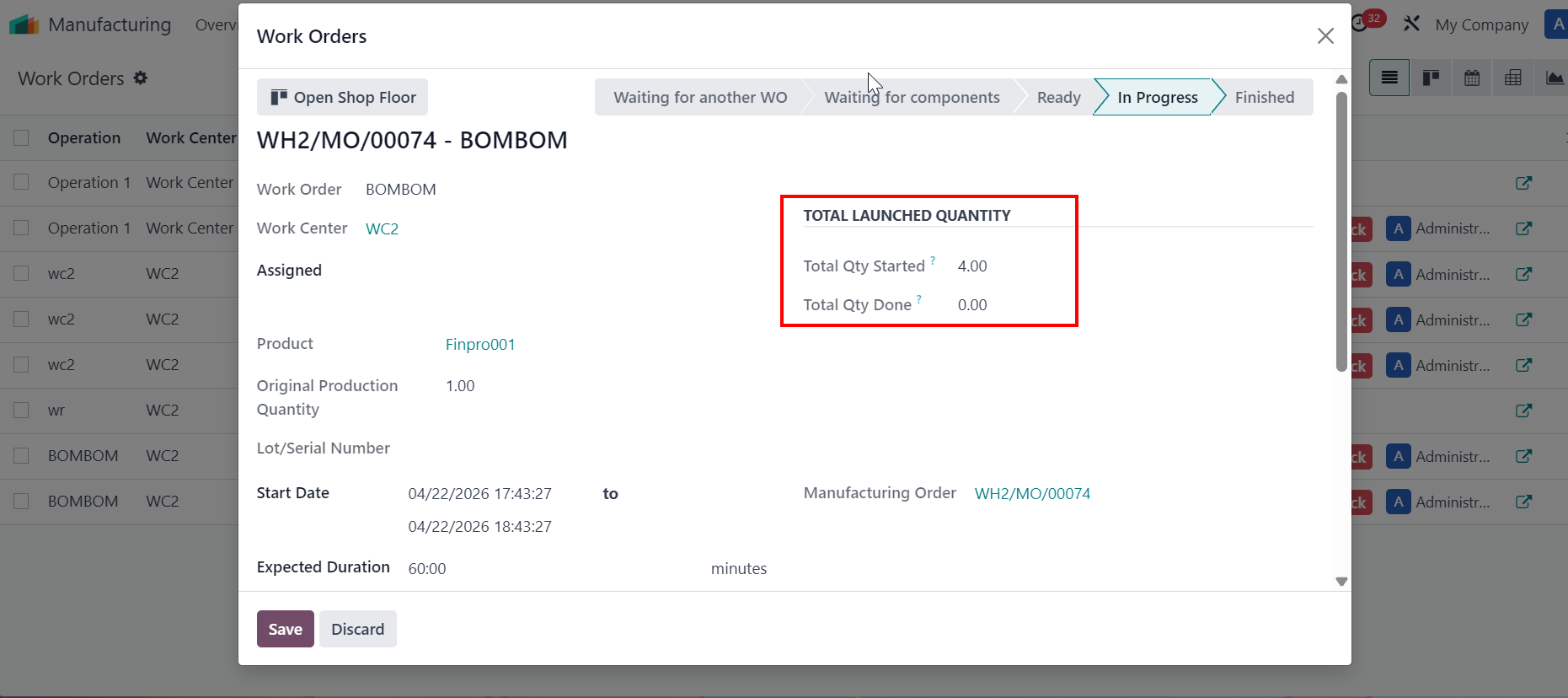
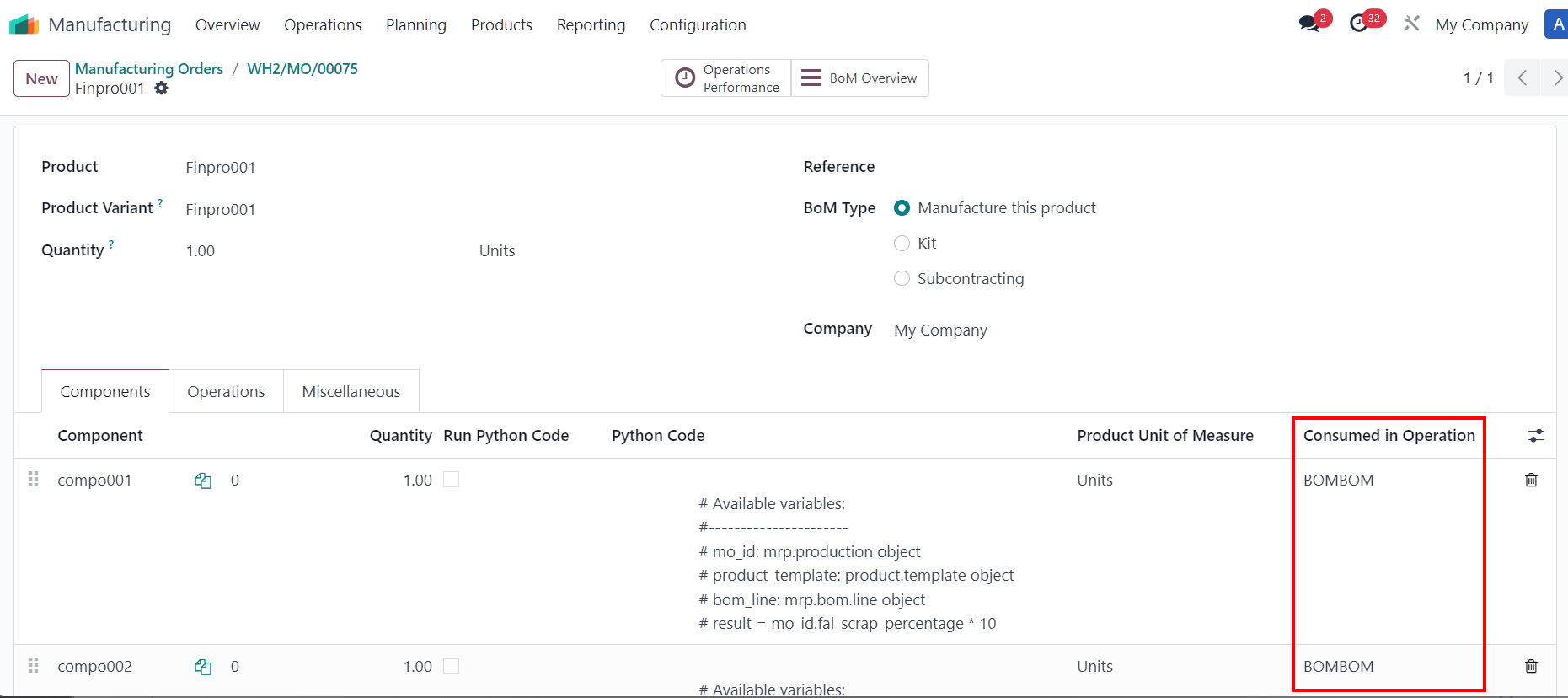
TỔNG SỐ LƯỢNG ĐÃ KHỞI CHẠYClick on Start Workorder > The Total Launched Quantity takes values from wizard Start Work order, which is the sum of the components' quantity. Since there are 4 components on the wizard > Total Qty Started = 4. |
|
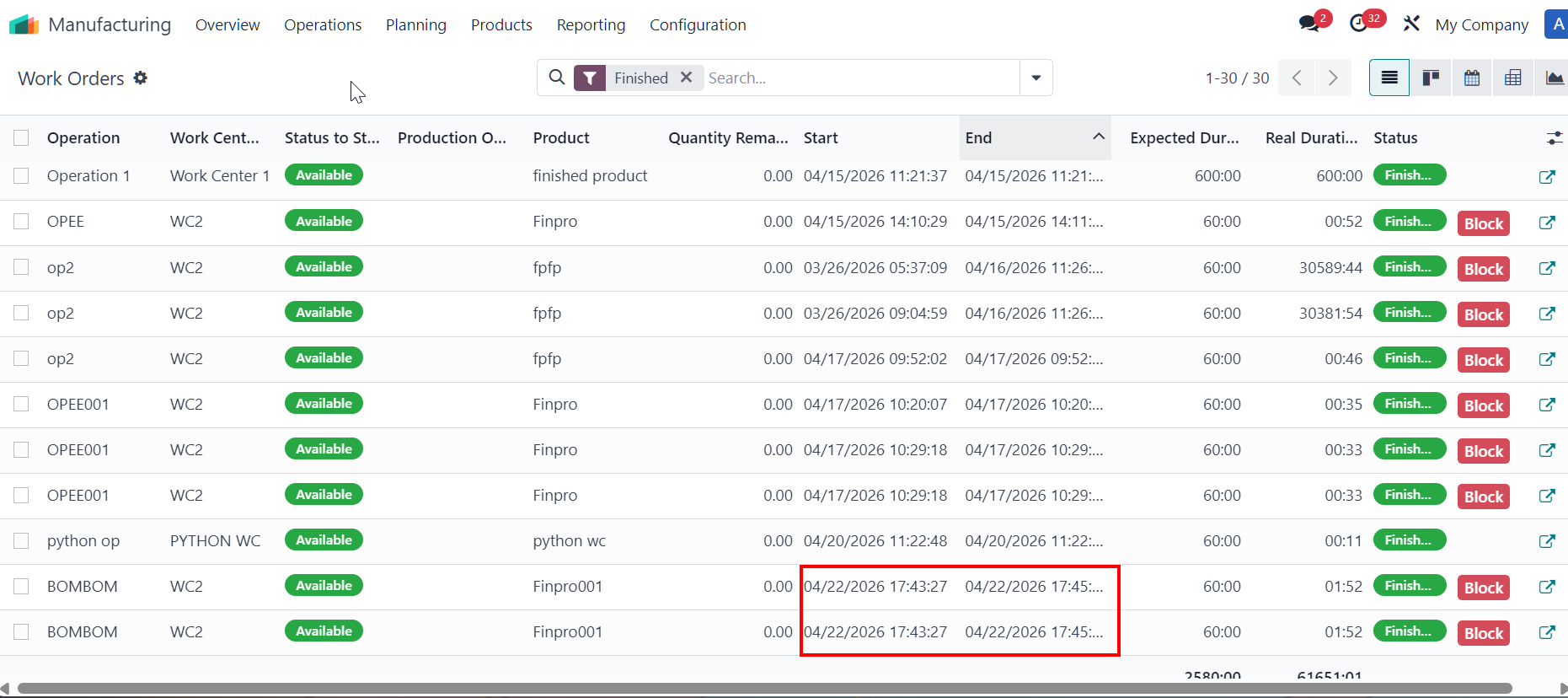
Once WOs are finished > total quantity done takes value from original production quantity field per work order, which is the total amount of finished goods. Since there are 2 WOs finished for product > the total qty done = 2. | 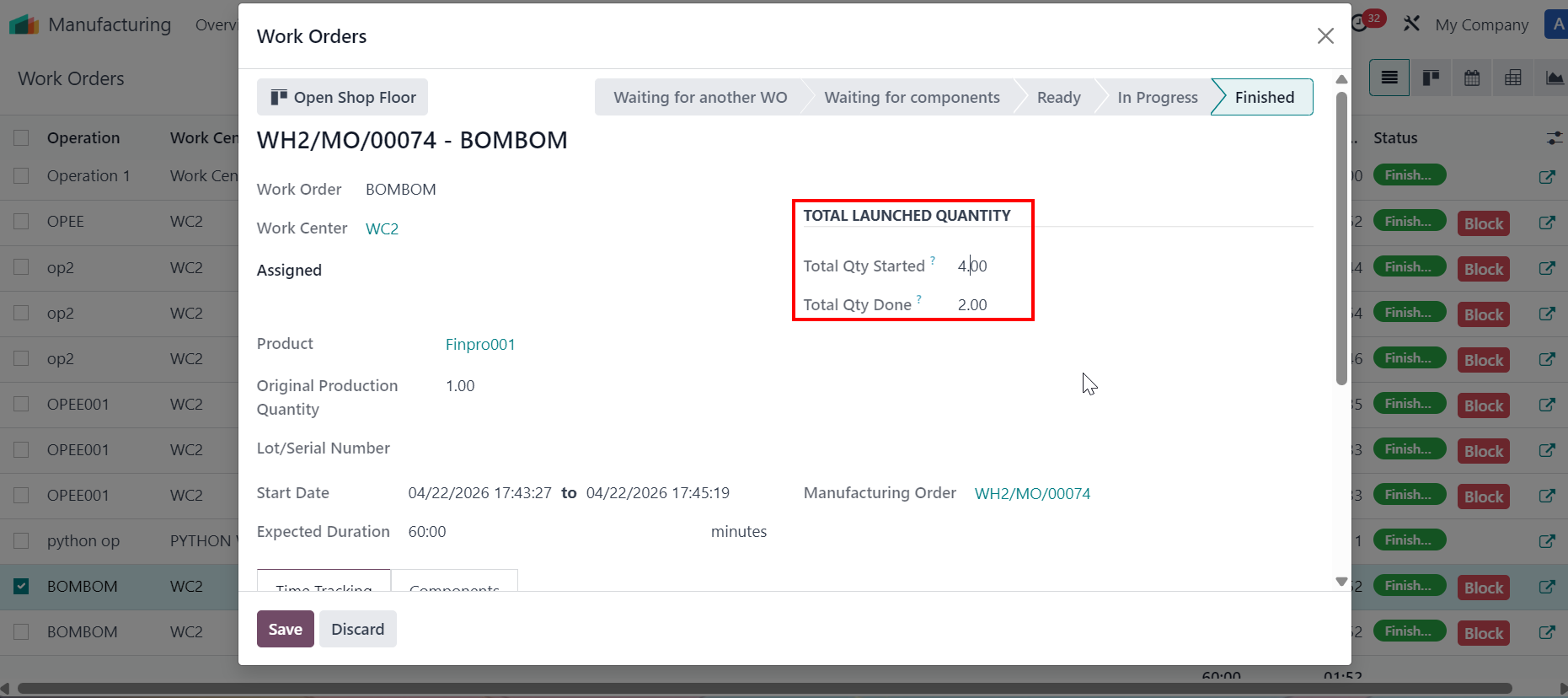 |
XÓA LỆNH SẢN XUẤT CONFIRMED/IN PROGRESS
|   |