


FUNGSI ODOO
Odoo menyediakan kemampuan manajemen MRP penuh dari Manufacturing Order form view. Ini mengharuskan pengguna membuka setiap order satu per satu untuk melakukan tindakan.
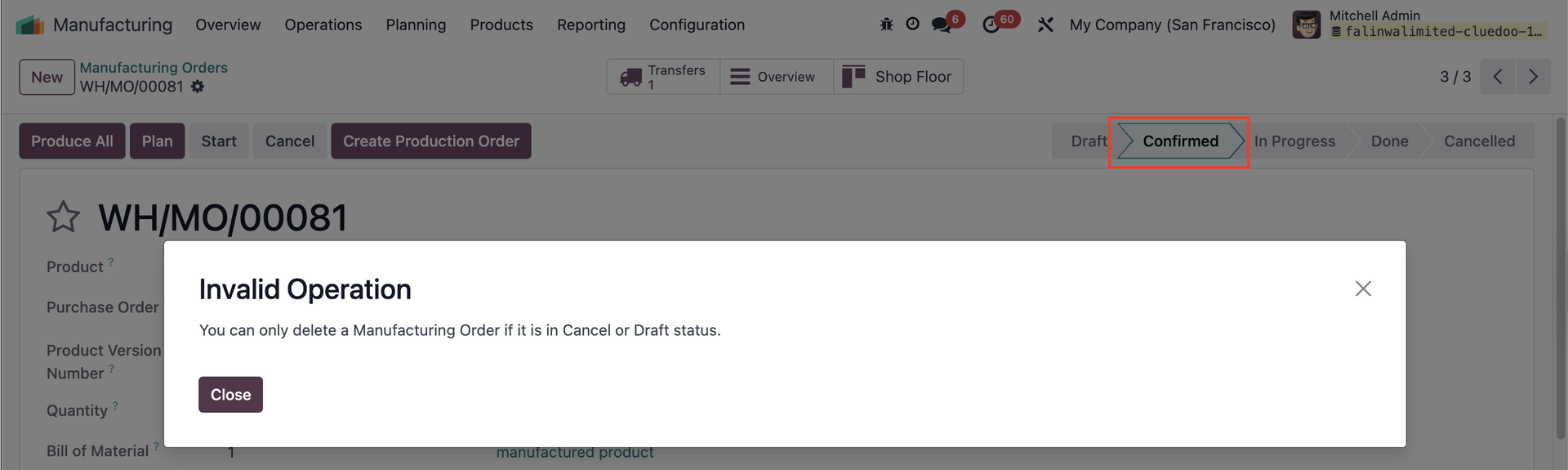
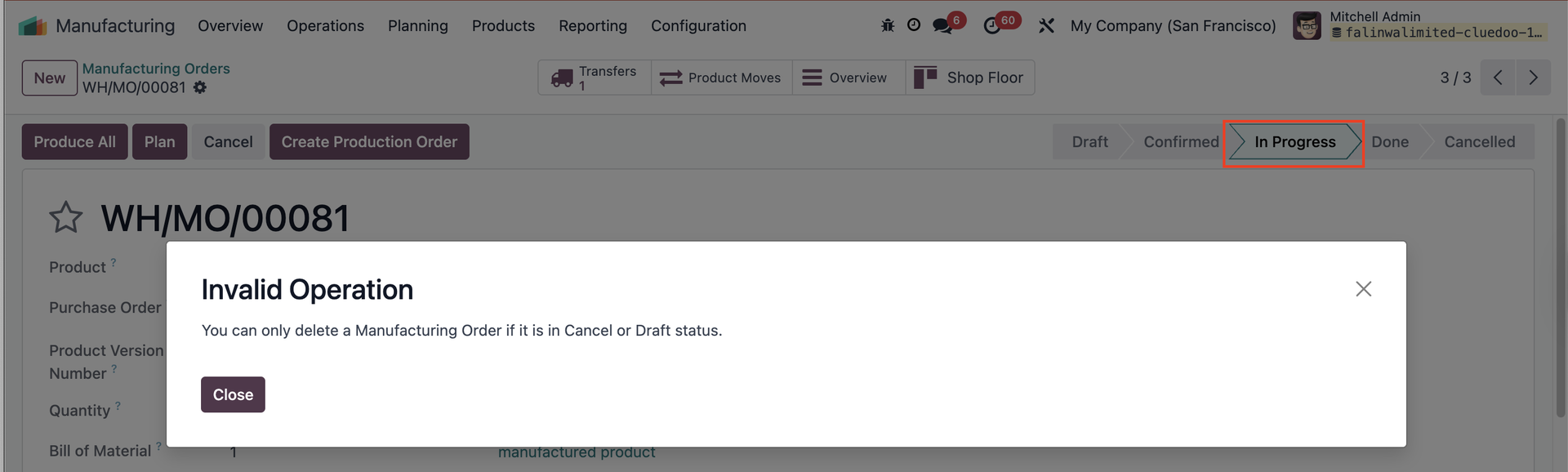
Selain itu, Odoo memungkinkan pengguna menghapus Manufacturing Order meski statusnya "Confirmed" atau "In Progress", yang dapat menyebabkan inkonsistensi data.
FUNGSI CLUEDOO
Cluedoo enhances production management by introducing:
\t1️⃣ Quick action buttons directly in the list view, offering a general overview and saving time by avoiding the need to open individual form views.
\t2️⃣ Multi-selection actions to process multiple production orders (Production Orders, Manufacturing Orders, or Work Orders) simultaneously.
\t3️⃣ A restriction that prevents the deletion of Manufacturing Orders in Confirmed/In Progress Status, requiring users to cancel them first.
This allows users to validate 80 or more orders in just 3 clicks compared to the 240 clicks needed in standard Odoo (open form view > validate > return to list view), leading to a dramatic increase in operational efficiency and improving overall workflow flexibility.
CHECK AVAILABILITYGo to Manufacturing > Manufacturing Orders > choose MO on list view > click Actions > Check Availability Availability of components of the chosen MO will be updated. Catatan: Dihapus mulai v17 |  |
TOMBOL PLANConfigure the Manufacturing Order (MO) > Set up the Work Order (WO) In the list view, select the MO > Click the "Plan" button > The MO will be scheduled/produced, and the Work Order will display the planned start and end dates. Catatan: Dihapus mulai v17 |  |
TOMBOL UNRESERVEThis button is to unreserve the quantity of the component that is already reserved Catatan: Dihapus mulai v17 |  |
TOMBOL CANCELIn the list view, select the MO > Click the button "Cancel" > The MO will be canceled. Catatan: Dihapus mulai v17 |  |
ALLOWED WORK CENTERSGo to Settings > Users, then add work centers in the "Allowed Work Centers" field. Users will only be able to access the work centers assigned to them. Jika pengguna belum ditetapkan work center, mereka tidak akan dapat mengonfirmasi Manufacturing Order (MO) yang melibatkan work center yang tidak ada di pengaturan user-nya. Catatan: Dihapus mulai v17 |  |
WO READY / WO IN PROGRESSGo to Manufacturing > Overview Klik WO Ready untuk menampilkan semua Work Order berstatus "Ready" pada list view. Klik WO In Progress untuk menampilkan semua Work Order berstatus "In Progress" pada list view. Catatan: Dihapus mulai v17 |  |
COMITTMENT DATEOn Manufacturing > Operations > Production Order, we have a field Commitment Date | 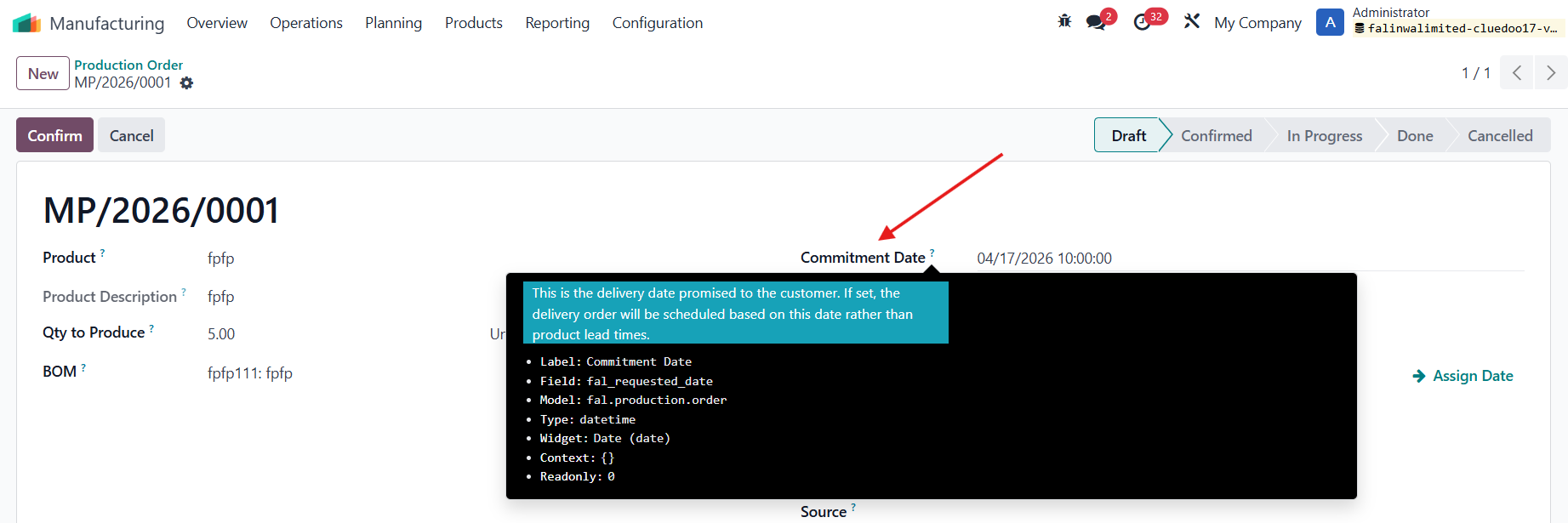 |
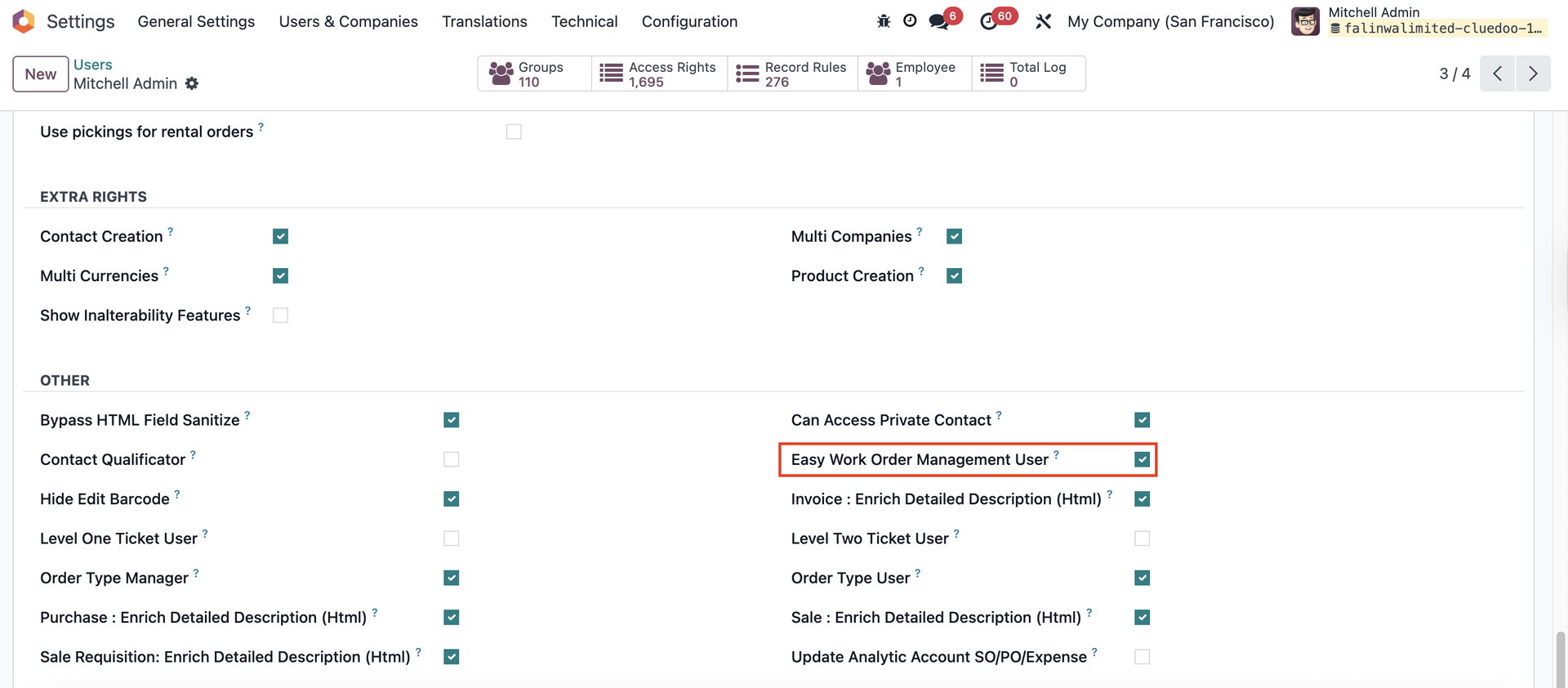
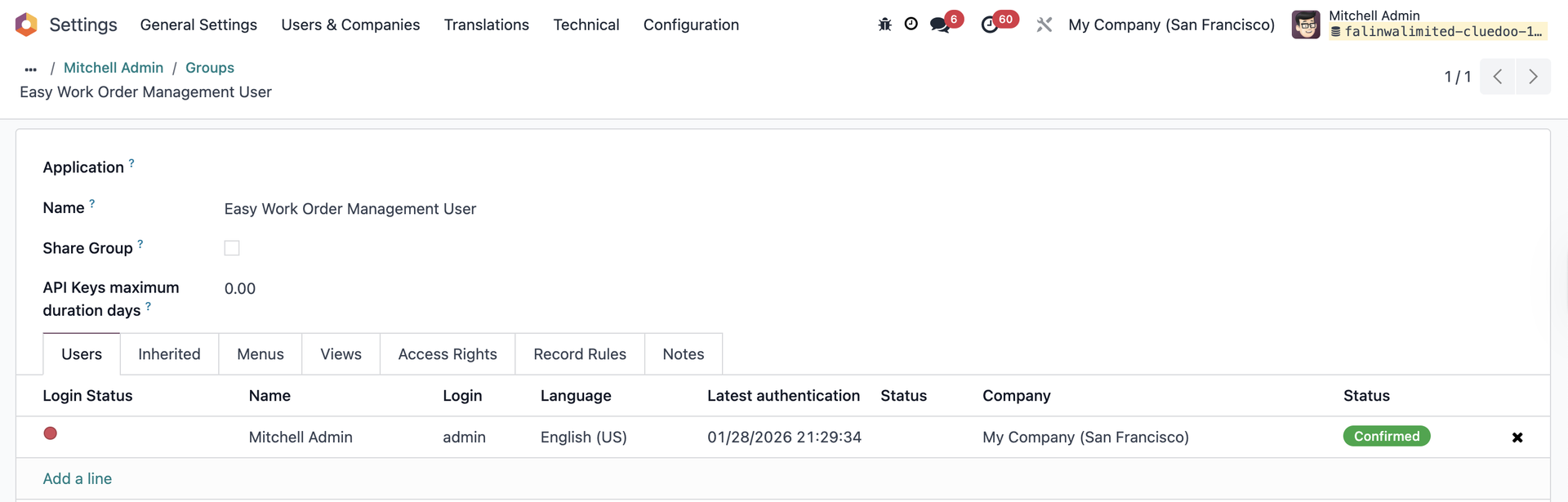
EASY WORK ORDER MANAGEMENT USER
|   |
STATUS TO STARTPada Work Orders, terdapat Status to Start yang menampilkan status MO/Komponen agar mudah dilacak. | 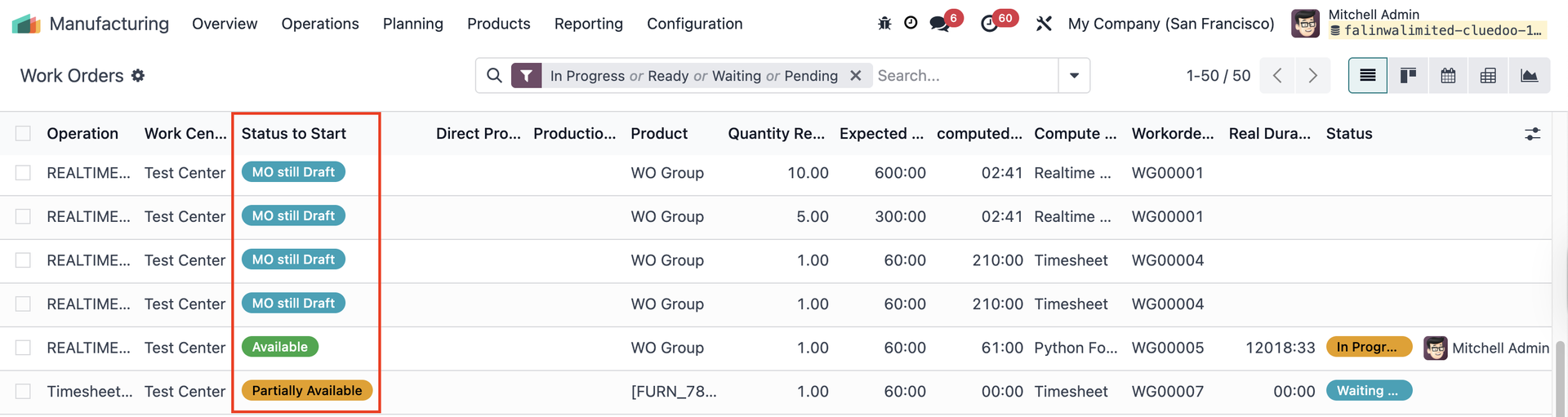 |
LAPORAN MANUFACTURING ORDERSOn a Manufacturing Order, access Print > We have a new report Production Order (Product not Reserved) | 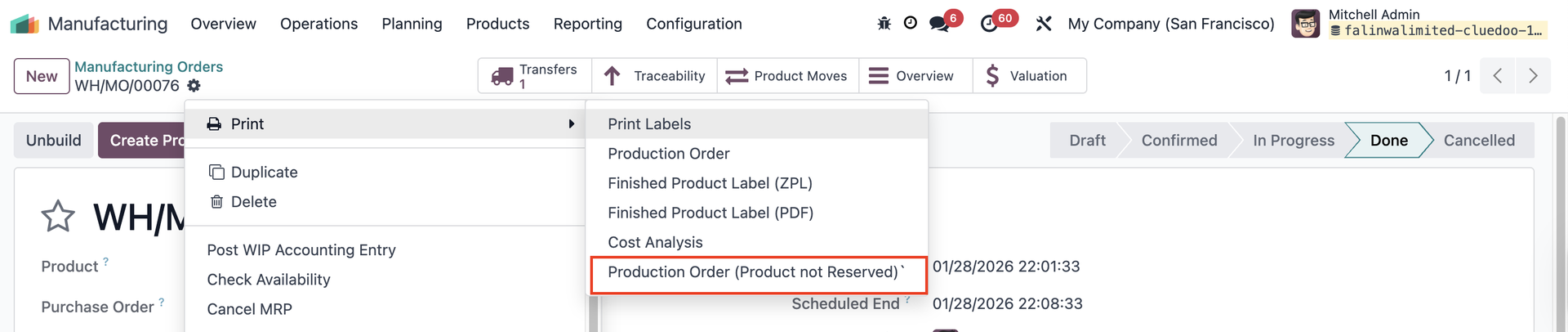 Laporan 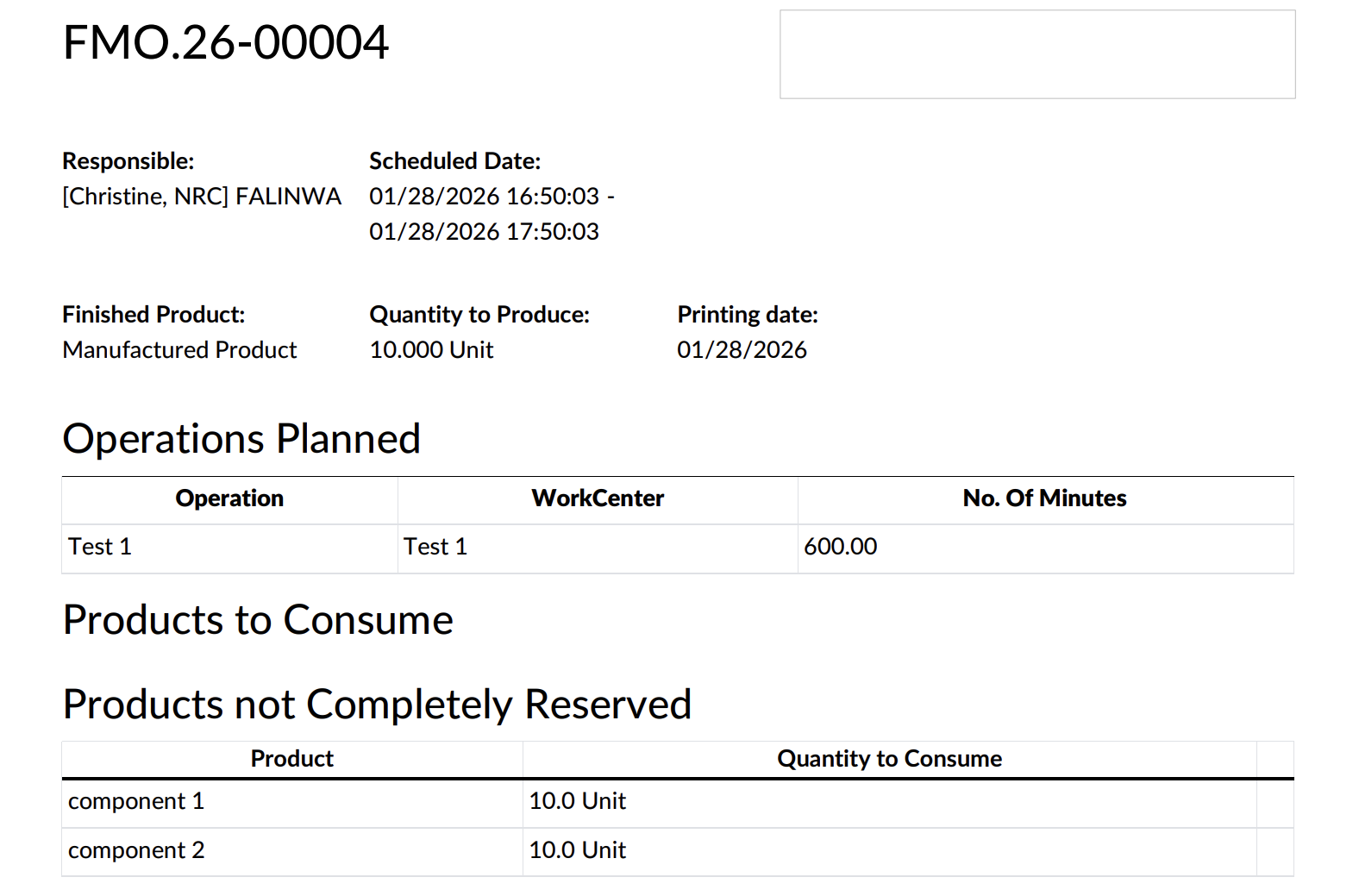 |
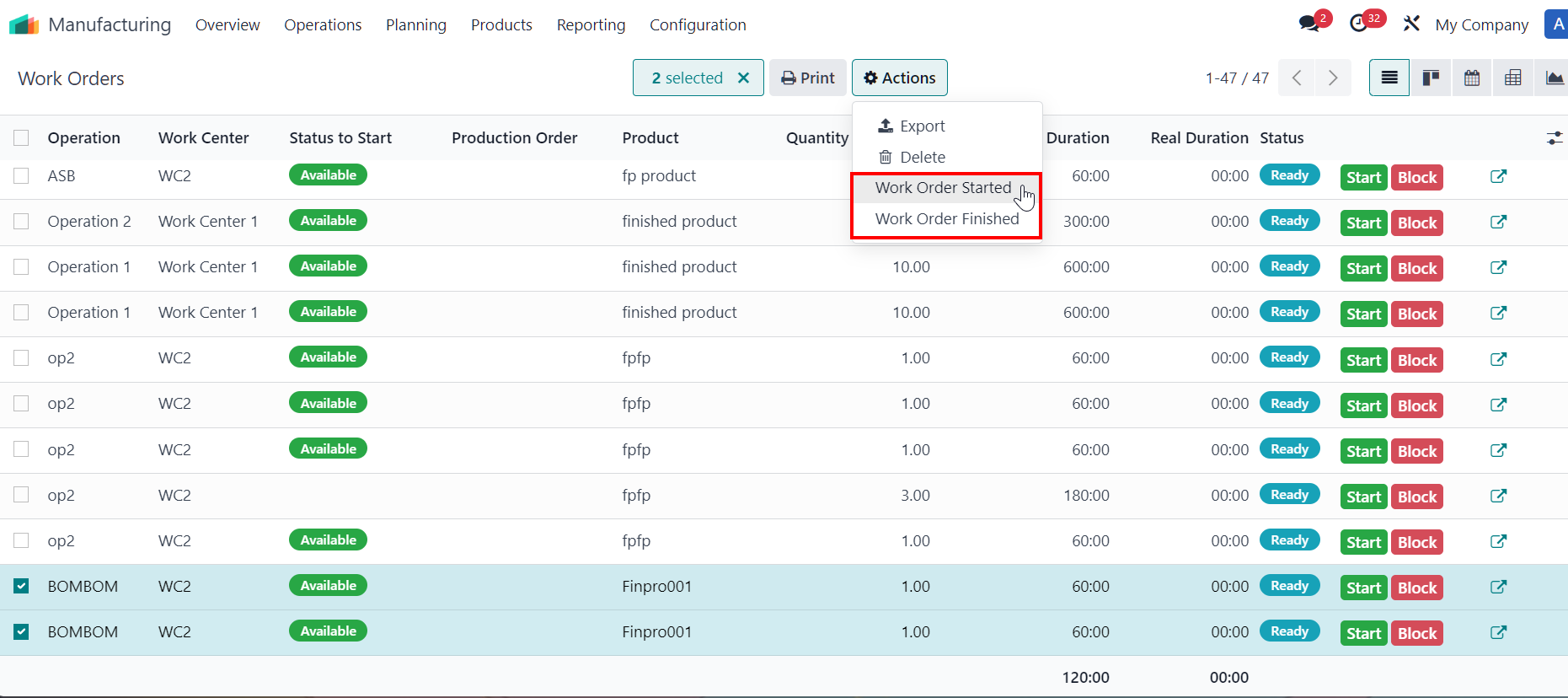
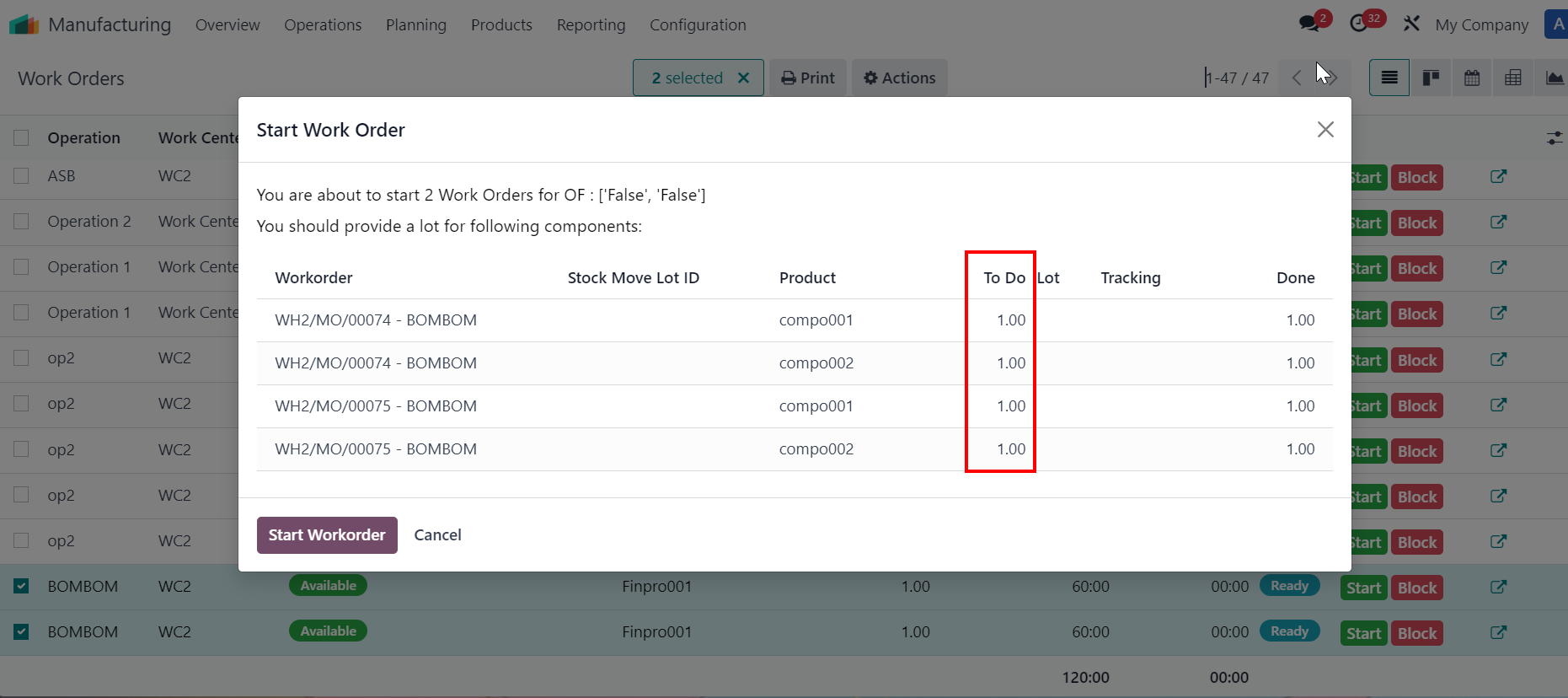
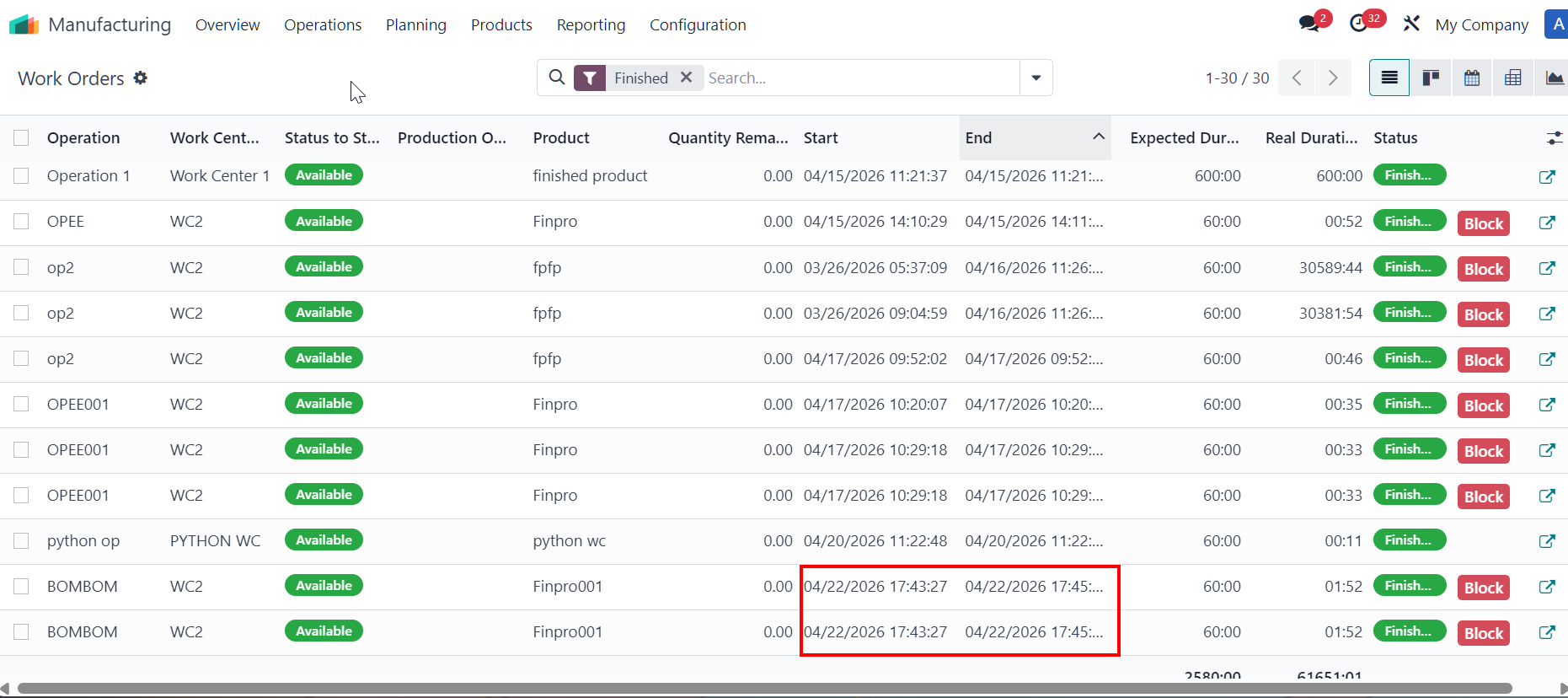
MULAI/SELESAI MASSAL WORK ORDERSSelect multiple work orders > Actions > Work Order Started / Work Order Finished
Catatan:
|    in line start button 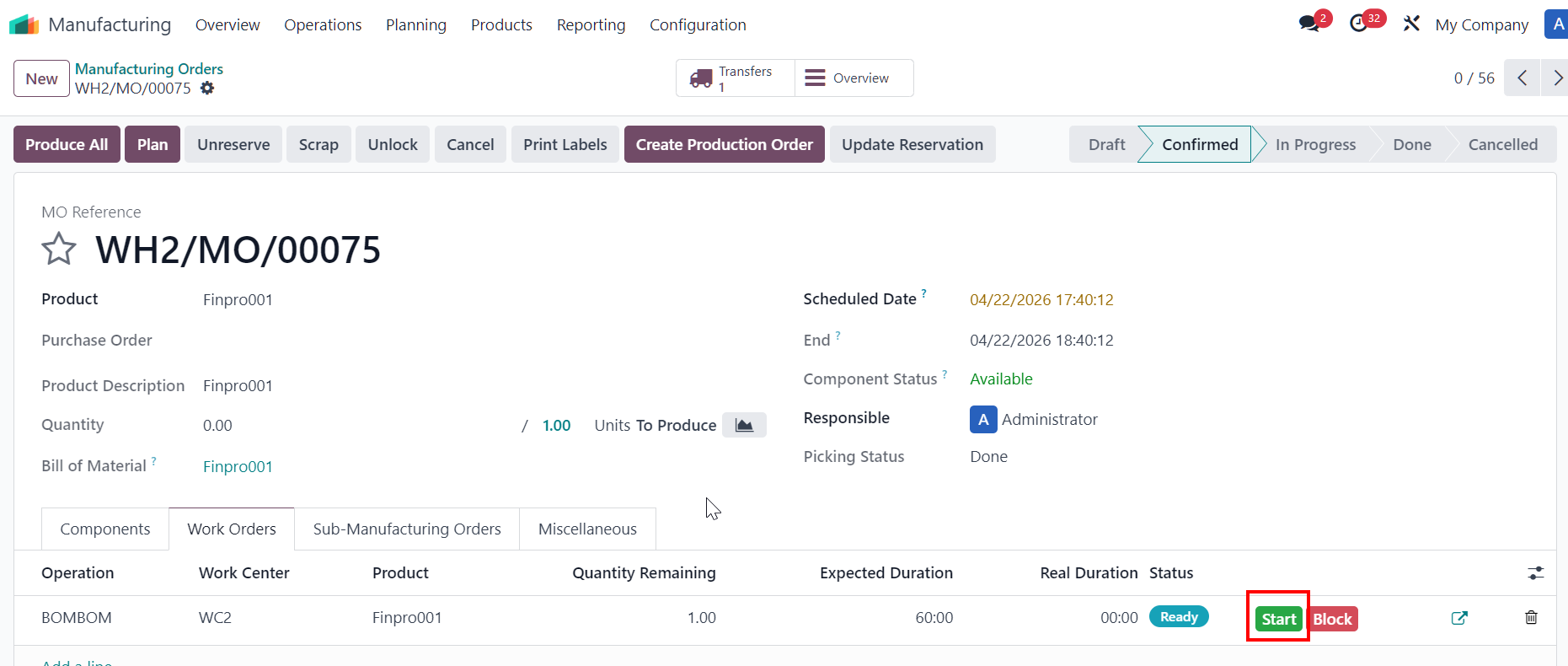 |
|  |
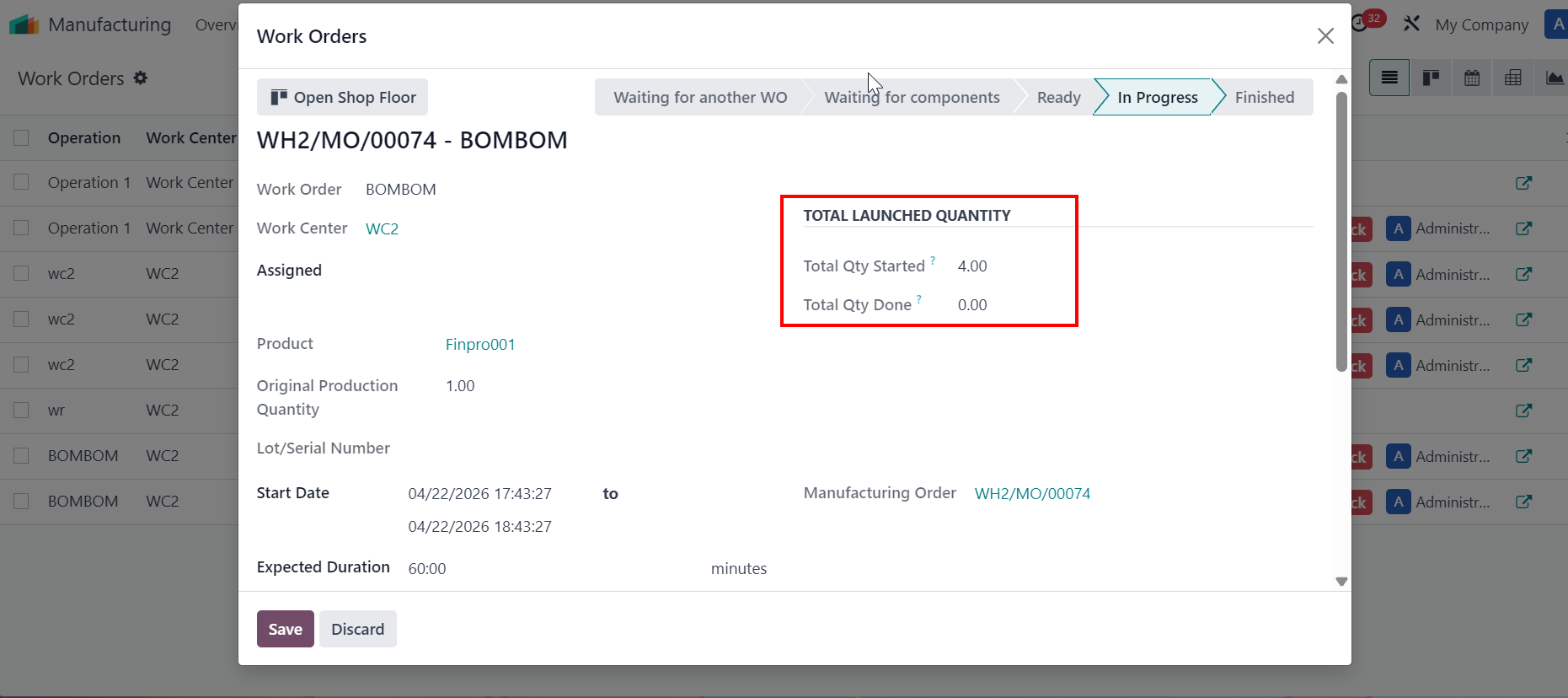
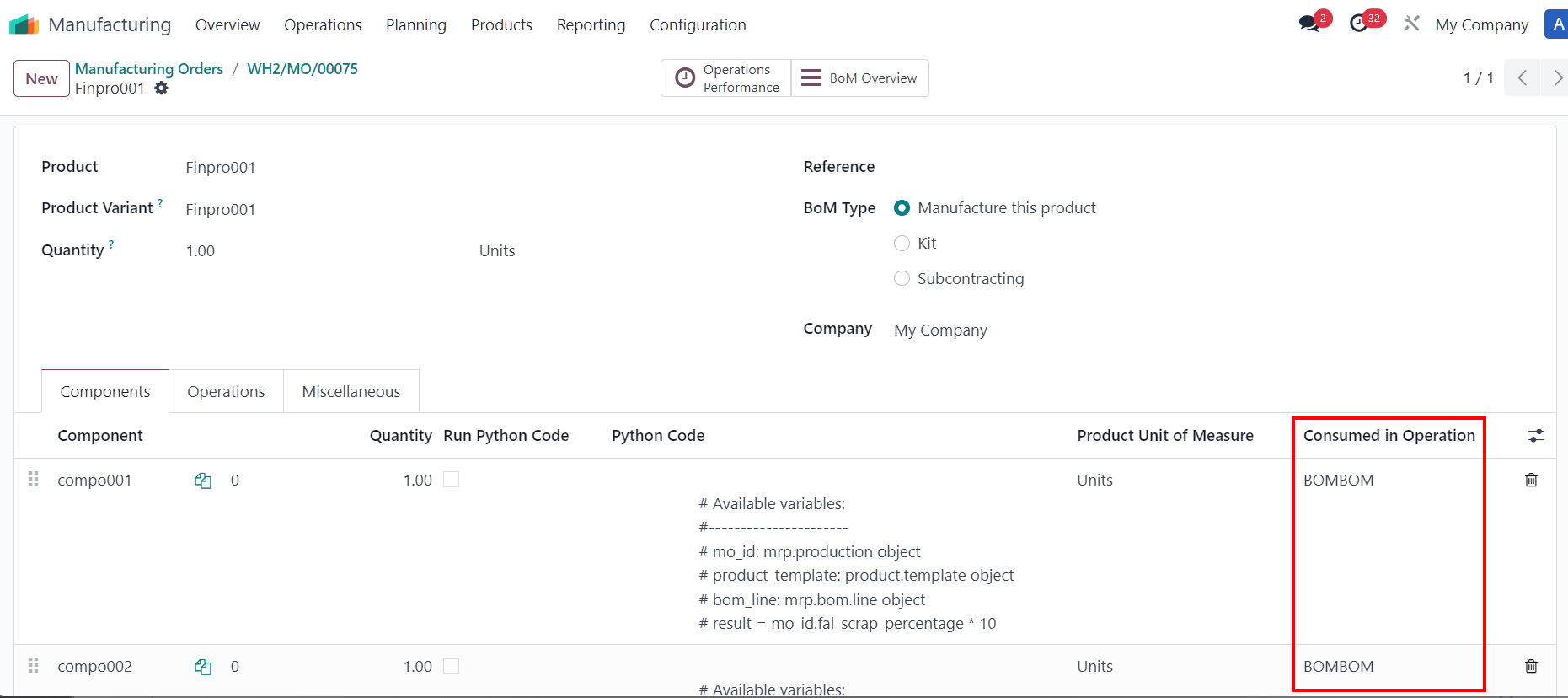
TOTAL LAUNCHED QUANTITYClick on Start Workorder > The Total Launched Quantity takes values from wizard Start Work order, which is the sum of the components' quantity. Since there are 4 components on the wizard > Total Qty Started = 4. |
|
Once WOs are finished > total quantity done takes value from original production quantity field per work order, which is the total amount of finished goods. Since there are 2 WOs finished for product > the total qty done = 2. | 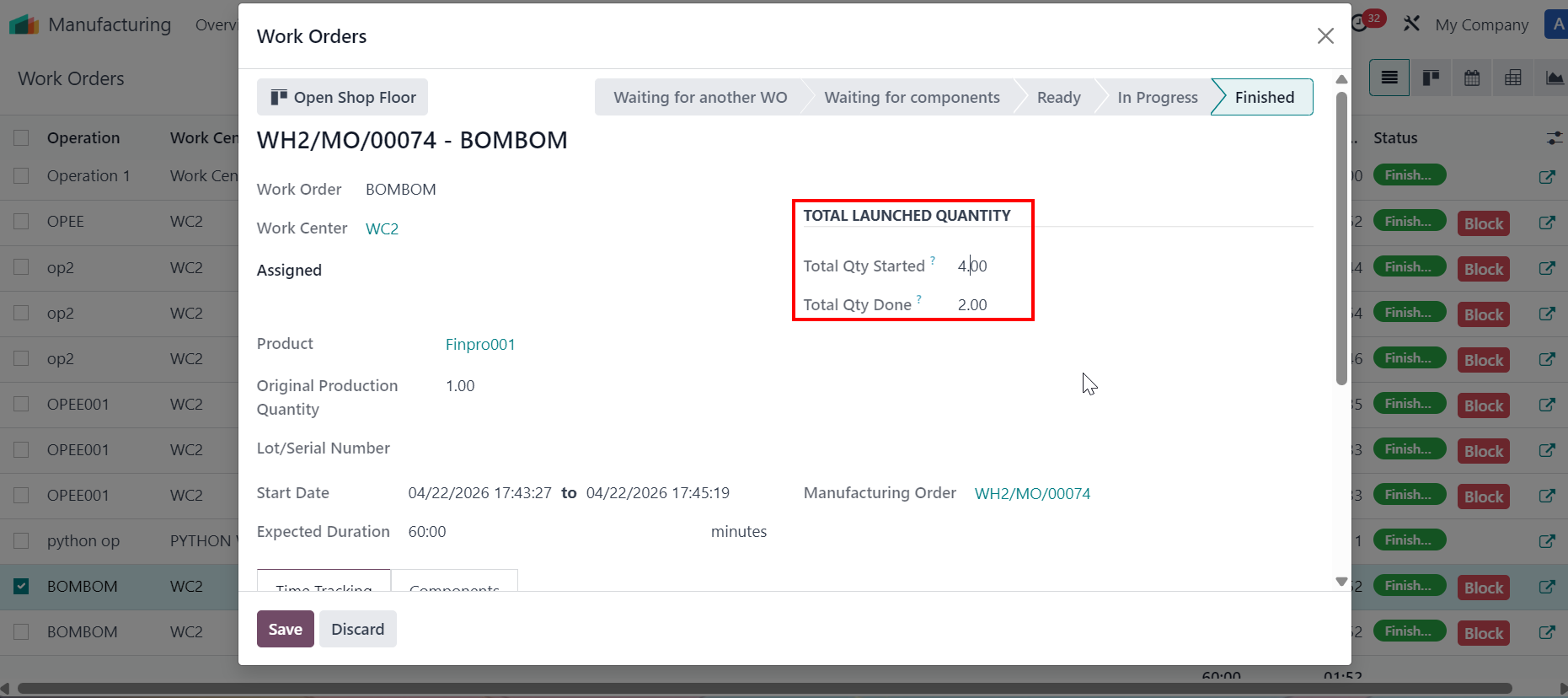 |
HAPUS MANUFACTURING ORDER YANG CONFIRMED/IN PROGRESS
|   |