


ODOO'S FUNCTION
In Odoo, when performing a Quality Check, there is no direct link to related documents such as the Purchase Order (PO), Receipt, or Manufacturing Order (MO). Users must manually navigate to the respective modules to find the associated records, which can slow down the quality control process and make tracking related documents less efficient. Additionally, the Partner field in QC works correctly when the receipt is configured with 1-step (Receive goods). However, it remains blank when QC is enabled on chained transfers (2- or 3-step incoming shipments).
CLUEDOO'S FUNCTION
CLuedoo introduces a new feature that enhances the Quality Check form with the following improvements:
1️⃣ Smart Buttons:
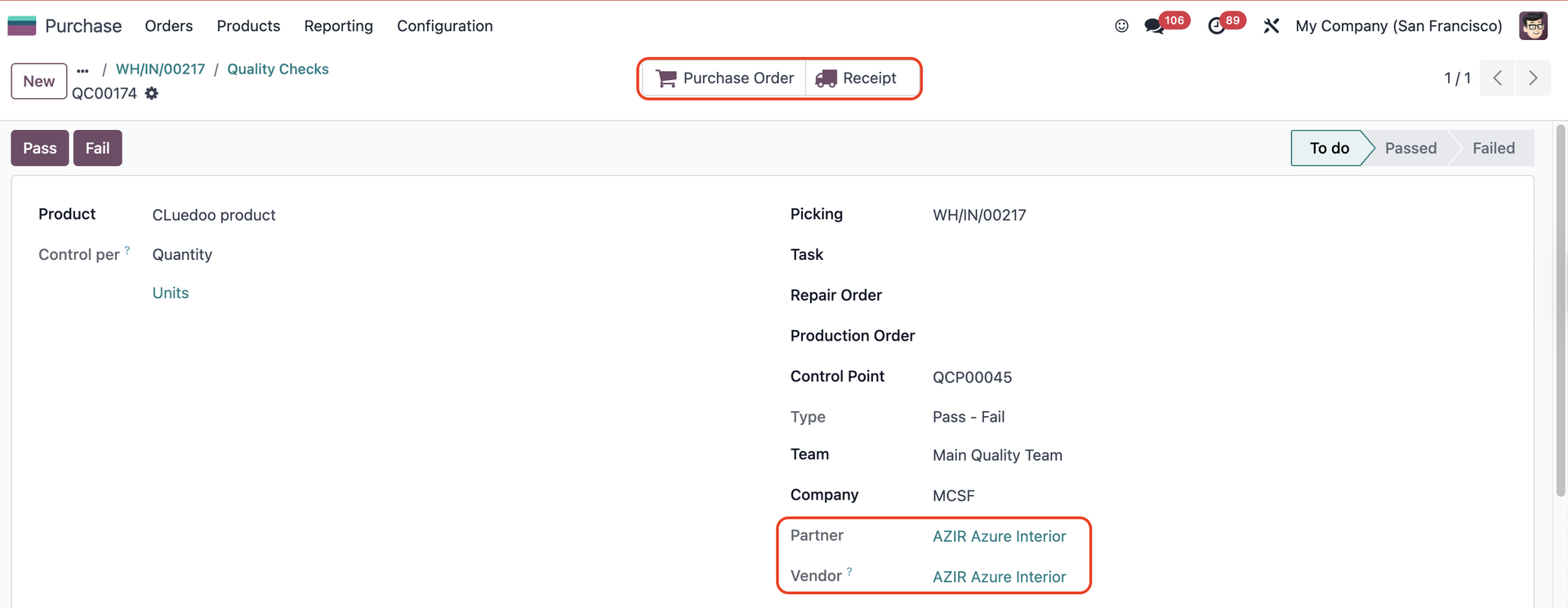
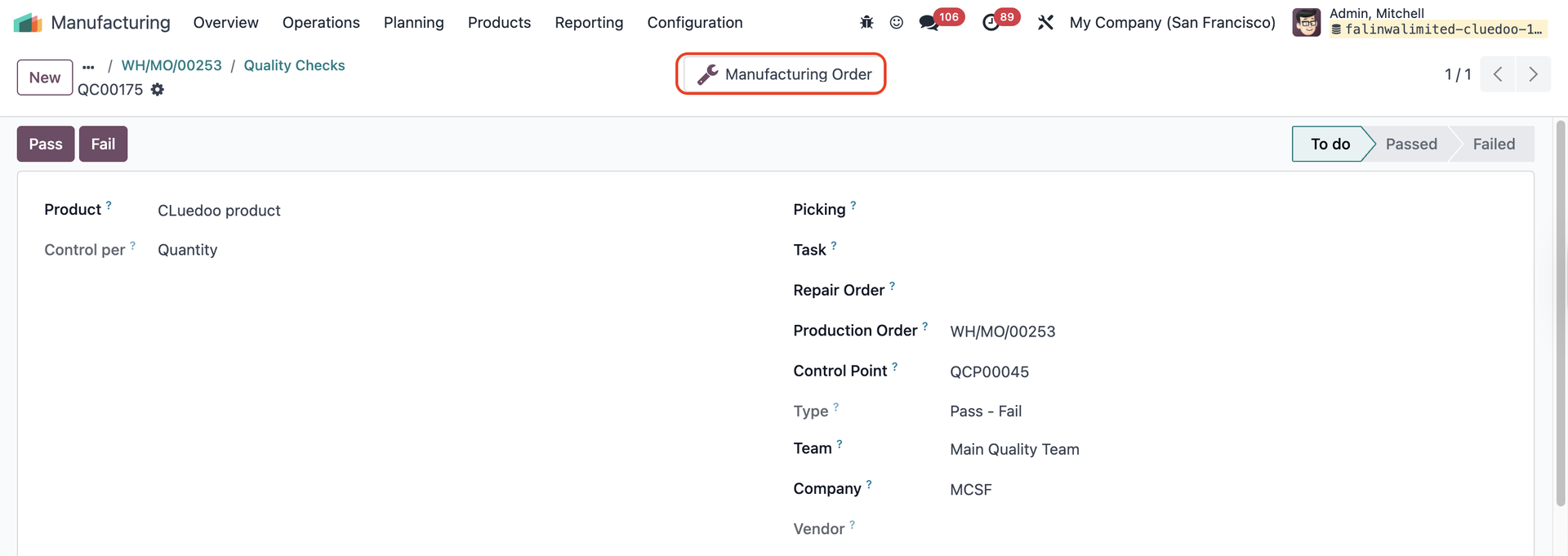
- Adds smart buttons for Purchase Order, Receipt, and Manufacturing Order directly on the Quality Check form.
- Allows quick access to related documents without needing to navigate away from the quality control interface.
2️⃣ Vendor Field:
- Adds a Vendor field that directly links to the Purchase Order's partner.
- Enhances traceability by making supplier information easily accessible within the quality check.
These enhancements significantly improve efficiency and traceability in quality management workflows.
BASIC SETTINGS1. Go to Inventory > Warehouses and set up a warehouse e.g., I choose 1-step incoming shipments | 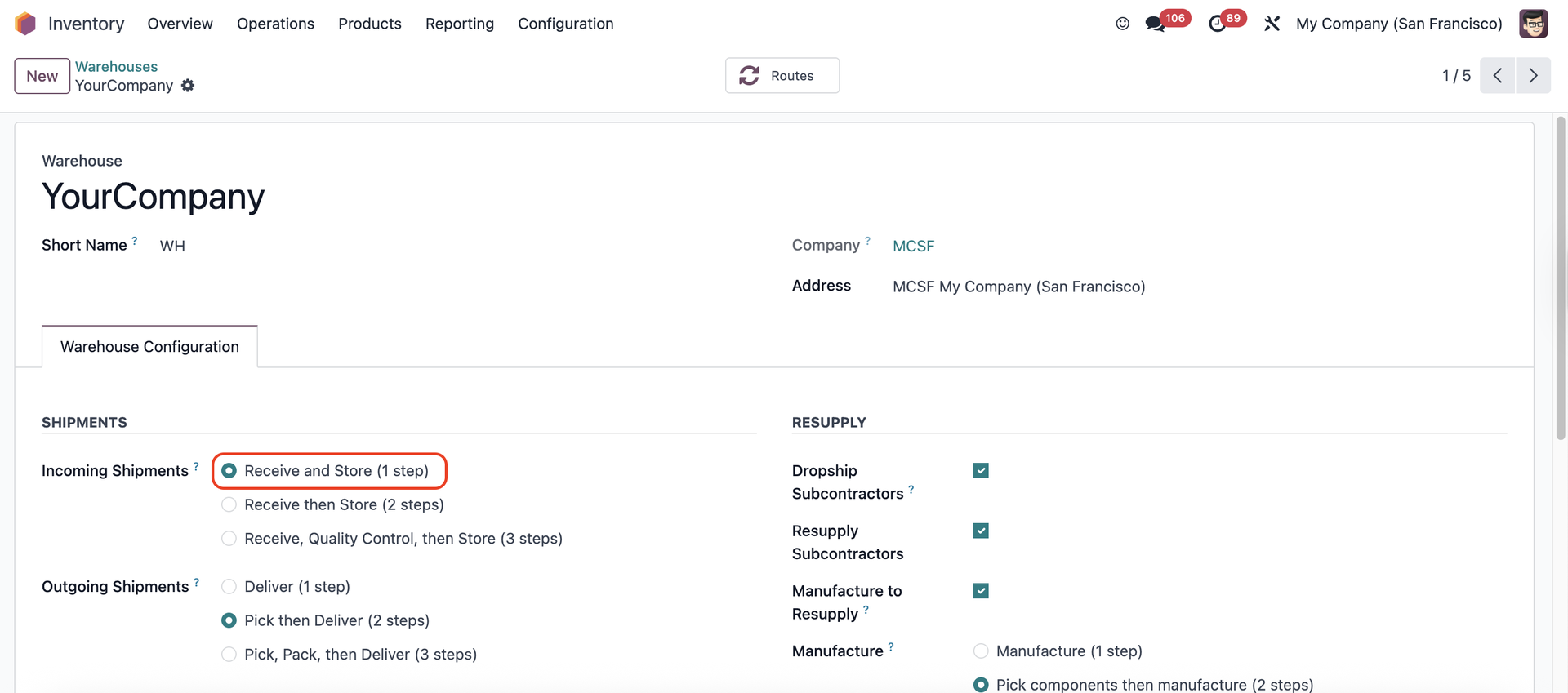 |
2. On the product form, remember to check the correct routes | 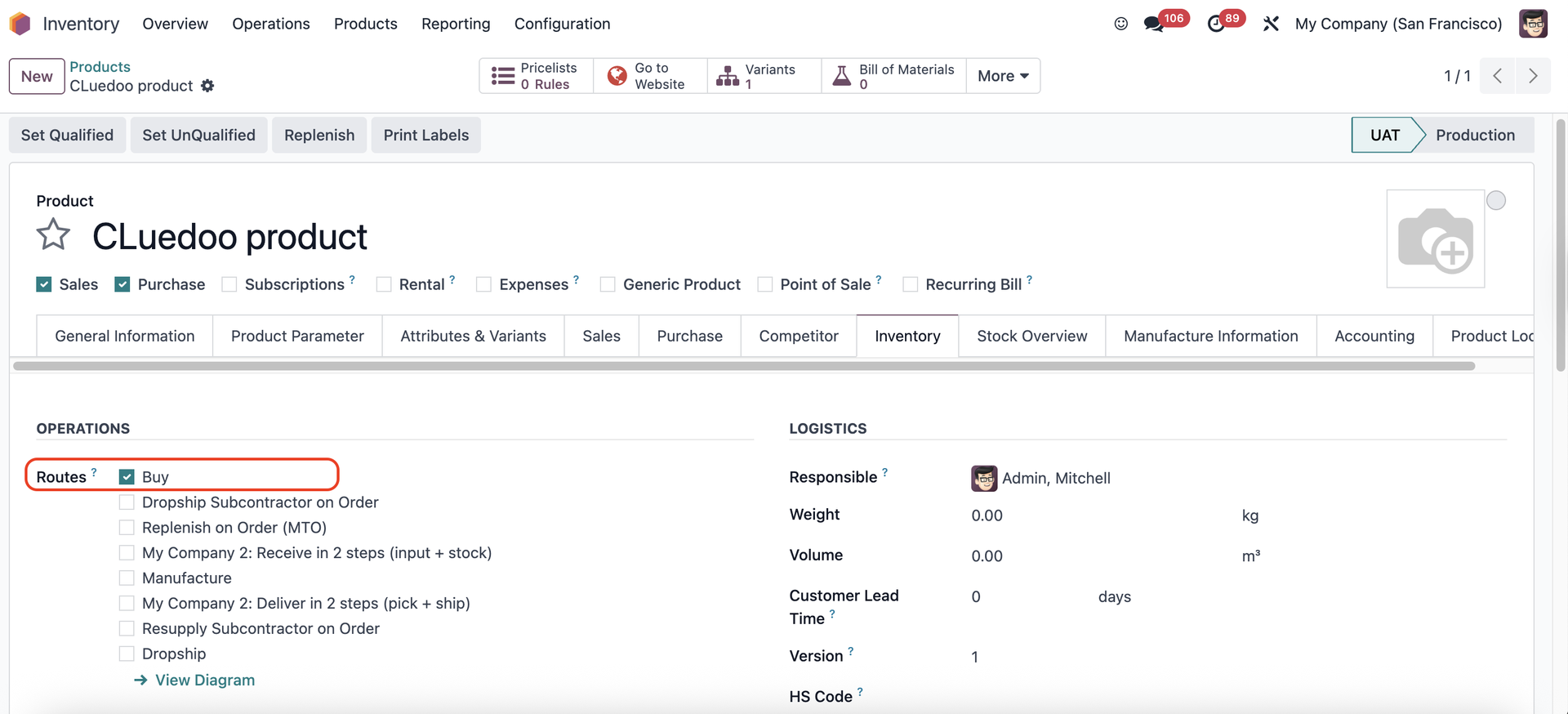 |
A. PURCHASE ORDER1. Go to Quality > Quality Control Points > Set up a new QCP and choose Operations: Receipts | 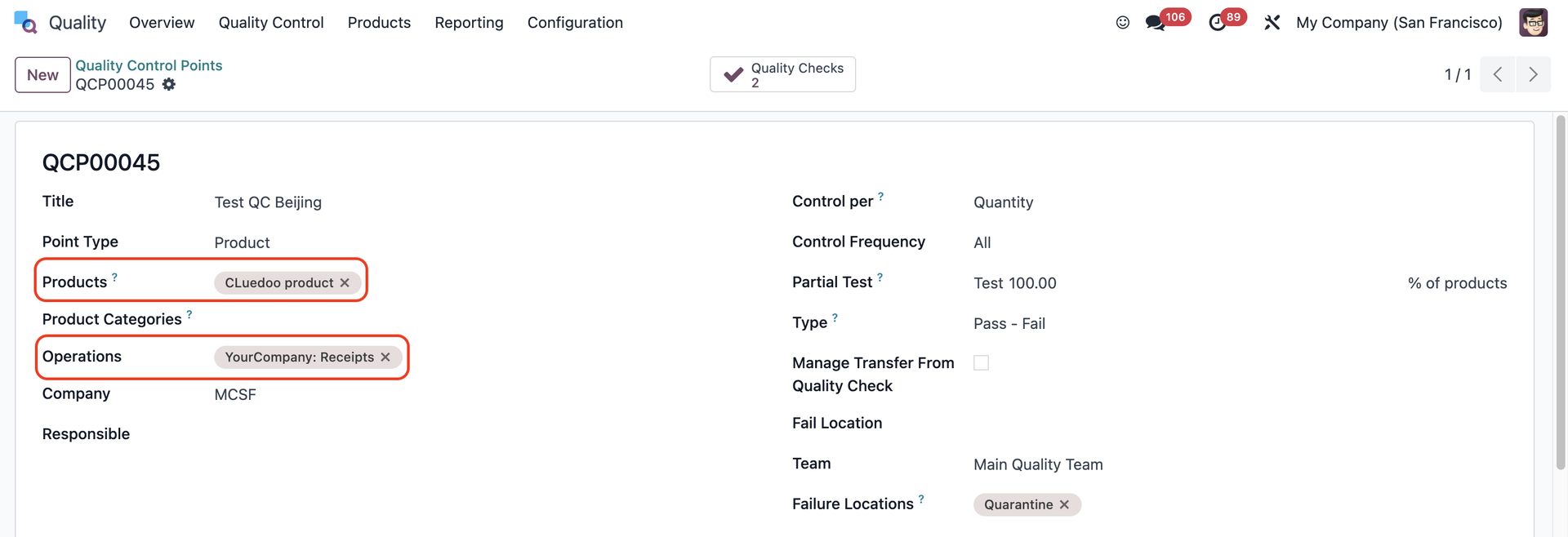 |
2. Create a new Purchase Order > Confirm Order > Go to the Receipt smart button | 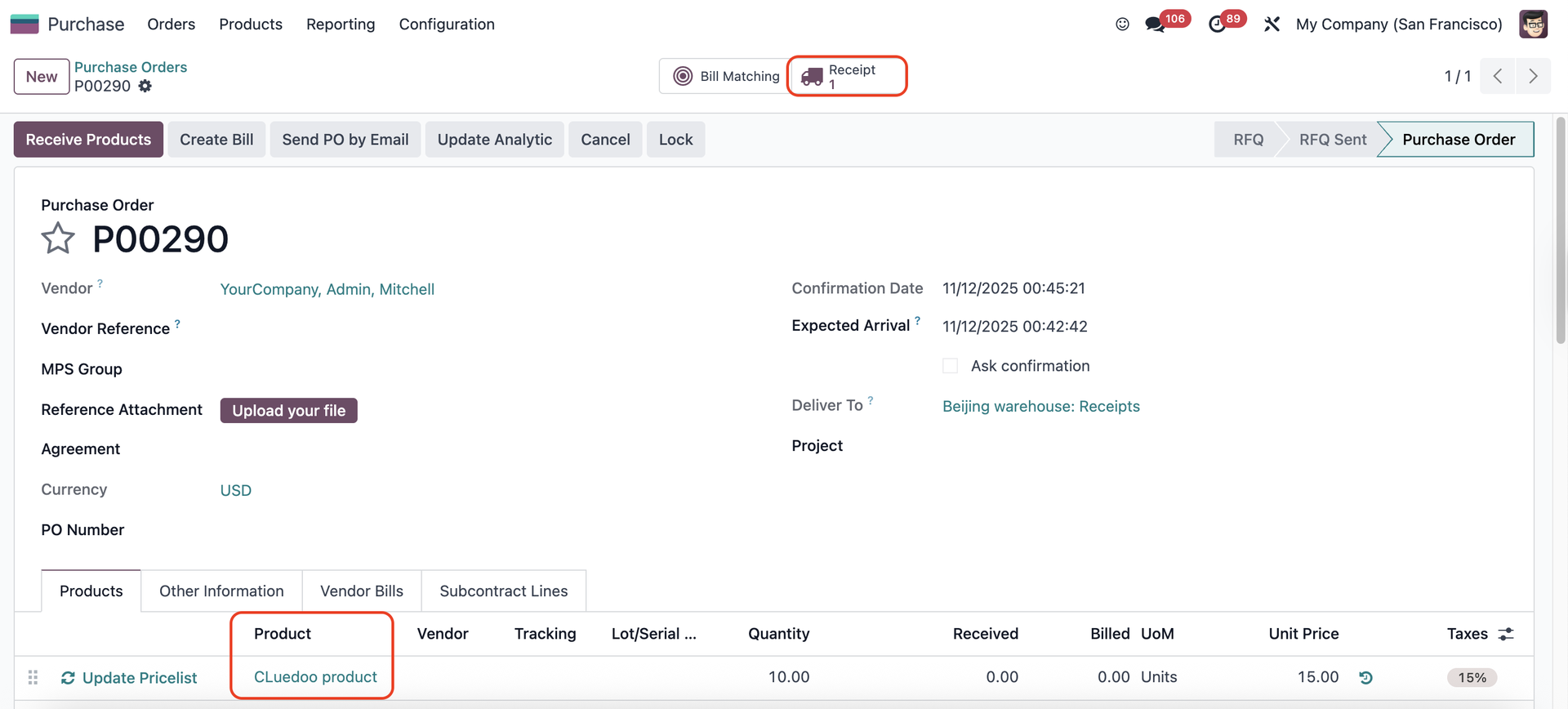 |
Check Availability > it will trigger the Quality Checks smart button in the transfer | 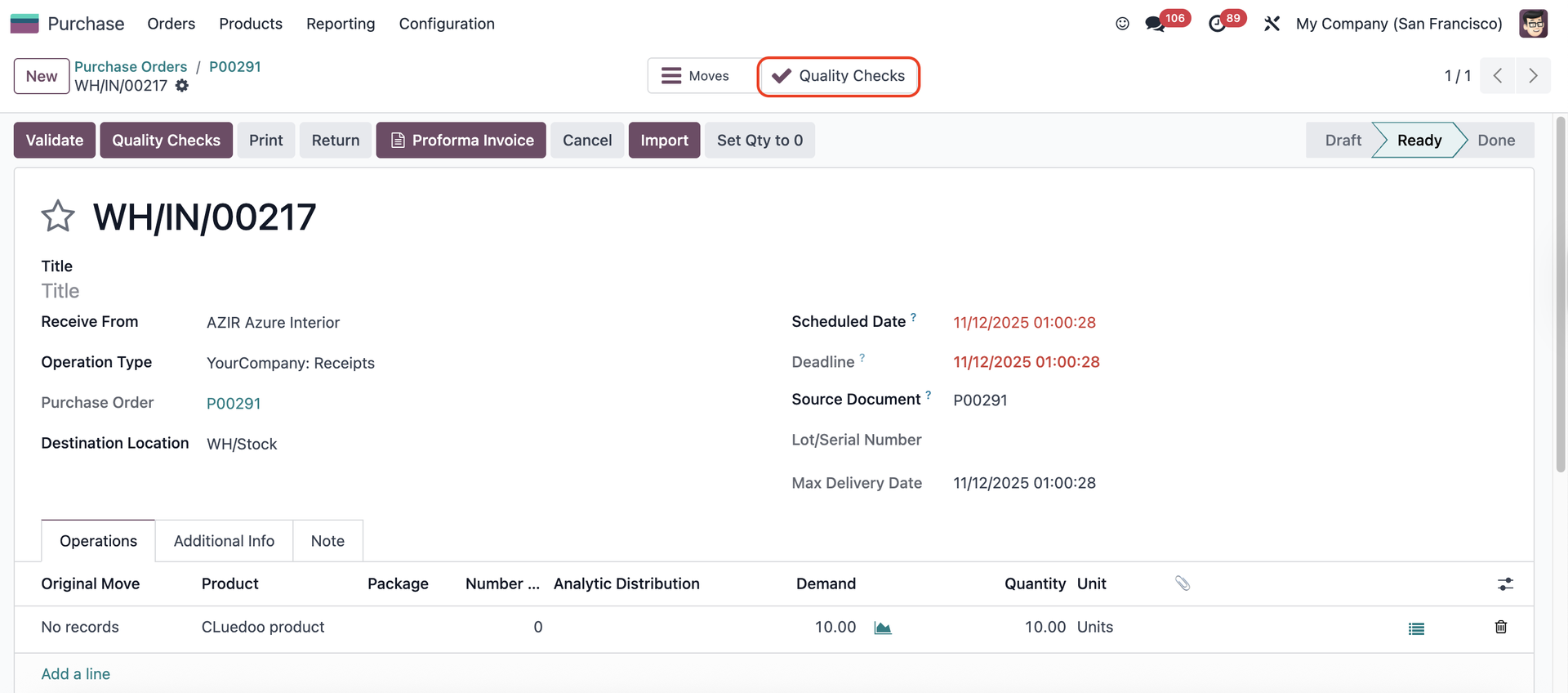 |
3. Click on the Quality Checks > A Purchase Order and a Receipt smart buttons have been automatically generated to link the QC to the original PO and transfer. |
|
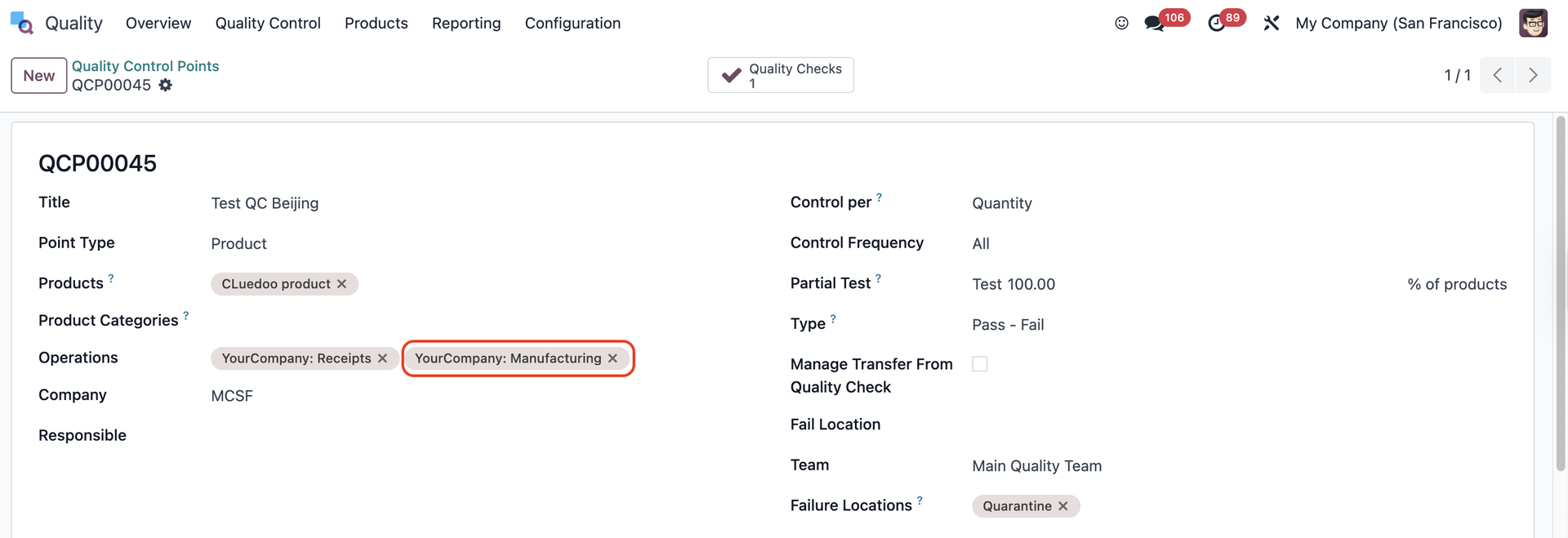
B. MANUFACTURING ORDER1. Go to Quality > Quality Control Points > Add Operations: Manufacturing |
|
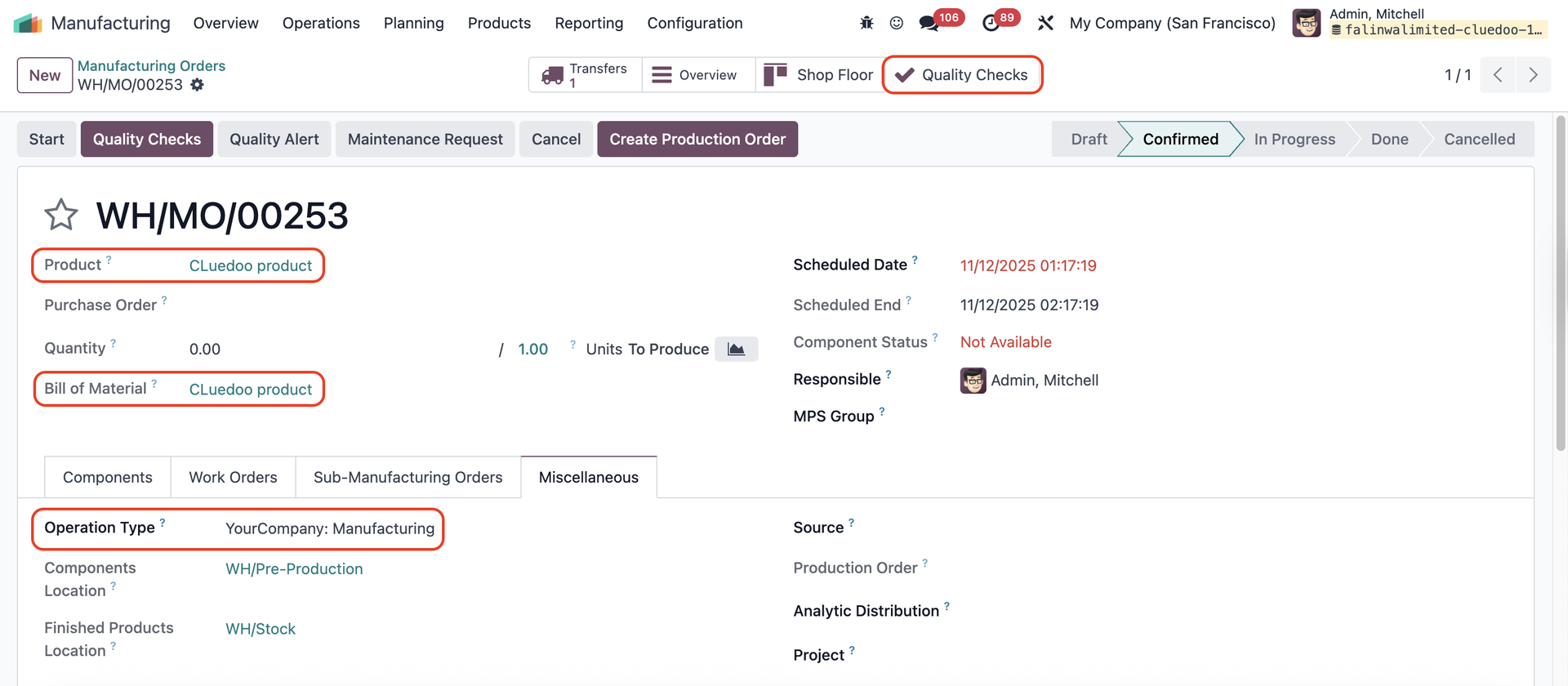
2. Create a new Manufacturing Order > Choose the product and make sure it has a BoM > Confirm > A Quality Checks button will appear |
|
3. Click on the Quality Checks > A Manufacturing Order smart button has been automatically generated to link the QC to the original MO |
|