


STORY BEHIND THE FEATURES
ODOO BEHAVIOUR
Managing projects and tasks efficiently in Odoo can be time-consuming due to repetitive manual configurations: re-creating task stages for each project, tracking project progress, and controlling timesheet entries. For organisations with standardised project flows, these limitations create friction and reduce efficiency.
CLUEDOO BEHAVIOUR
✅ Project Stages - Default for New Project:
- Allows setting a default stage for new projects in the stage view, automatically applying it when a new project is created.
✅Project Stages - Default for Project Opportunities:
- Provides an option to set a default stage for project opportunities.
✅ Cancel Task Button:
- Introduces a dedicated "Cancel" stage with a "Stage Cancel" checkbox.
✅ Update Task Button:
- Provides an "Update Task" button to streamline task modifications, improving workflow efficiency.
✅ Final Customer:
- Adds a "Final Customer" checkbox on the customer form (Sales & Purchase tab) to mark partners as final customers, enhancing customer segmentation.
✅ Project Workflow:
- Displays the project status based on the task's stage, ensuring real-time alignment.
✅ Timesheet Restriction:
- Adds a "Task Stages" menu in project configuration with a "Block Timesheet Modification" checkbox.
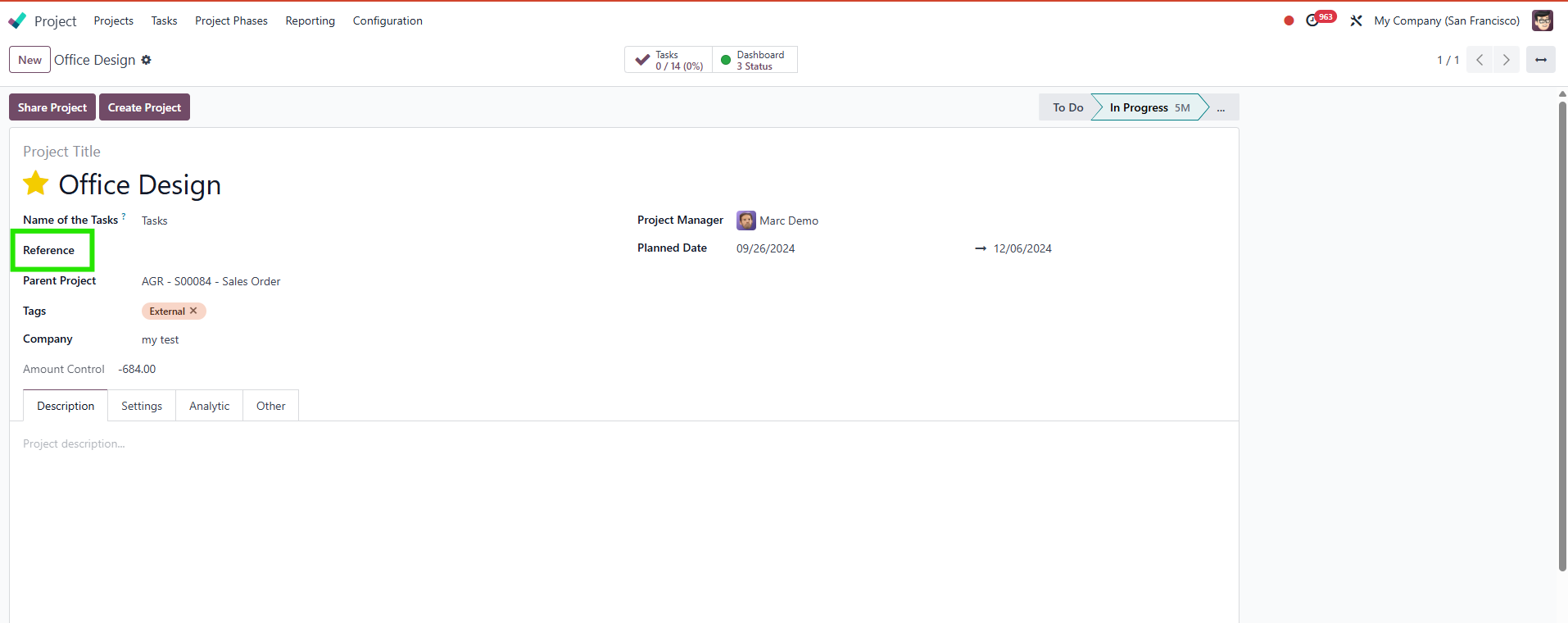
✅ Project Reference:
- Introduces a "Reference" field in project settings for standardized project identification and integration with external systems.
COMPARISON: ODOO AND CLUEDOO
Odoo:
- ❌ No default stage settings for new projects or opportunities, requiring manual configuration.
- ❌ Limited task stage transition options, relying on manual drag-and-drop.
- ❌ No built-in timesheet restrictions for completed projects.
- ❌ Lacks a dedicated project reference field or final customer designation.
- ❌ Basic project status and search functionality without stage-based filtering.
Cluedoo:
- ✅ Automates default stage setup for new projects and opportunities.
- ✅ Simplifies task cancellation with a dedicated button and stage.
- ✅ Enhances task updates with a streamlined button.
- ✅ Improves customer management with a "Final Customer" checkbox.
- ✅ Supports stage-based project search and status synchronization.
- ✅ Enforces timesheet restrictions for completed projects.
- ✅ Adds a structured "Reference" field for better project tracking and integration.
BUSINESS CASE
A consulting firm manages multiple client projects with complex workflows, requiring standardized task stages, clear project statuses, and restricted timesheet modifications for completed projects. For example, when initiating a new project for Client B with contract number "CNB-2025-456," the firm needs predefined stages like "Planning," "In Progress," and "Done" to be automatically applied. Additionally, they need to quickly cancel tasks, restrict timesheet edits on completed projects, and track final customers for reporting.
RELATED MODULE
Install this modules will trigger the installation of module fal_title_reference_task_project
OUR FEATURES AS SOLUTION
Project Stages - Default for New Project
Cancel Task
Update Task
Project Reference
Project Stages - Default for Project Opportunities
Project Workflow
Final Customer
Timesheet Restriction
HOW TO USE THIS MODULE
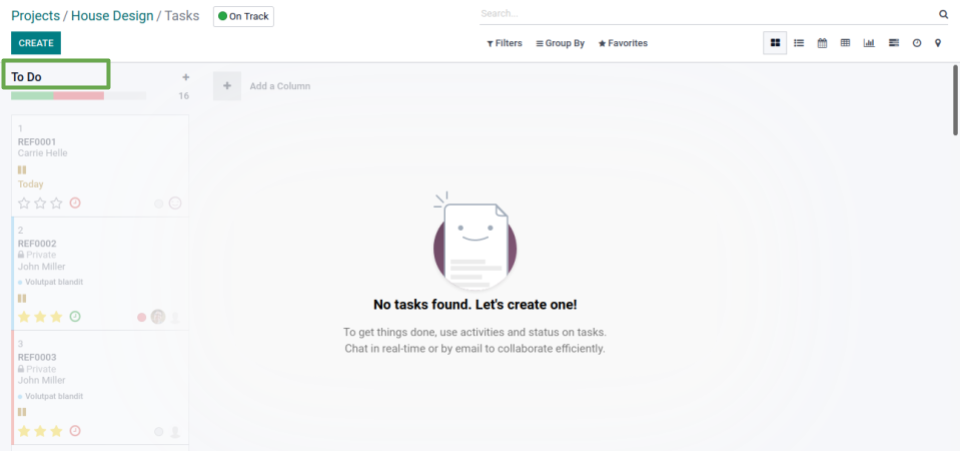
Task Stages - Default for New Project
1
On stage for view, you can set the stage as Default for New Projects.

2
So when you create a new project, it will automatically create the stage that you chose as default for new project.
Task Stages - Default for Project Opportunities
1
You also have an option to set the stage as Default for Project Opportunities.

2
- Create a Project
- On Project form view, you have the "Opportunities" checkbox on the "Settings" tab.
- Check the checkbox
- The stage that we chose as default for new project opportunities will automatically be created.
- If you check the "Opportunities" checkbox when editing an existing project, you have to click on "Modify Default Stage", then save, for it to take effect

Cancel Task Button


Update Task Button
Cluedoo also provides Update Task button


Final Customer
We have Final Customer check box on customer form view, Sales & Purchase tab to mark if this partner is final customer

Project Workflow
1
Go to Project - the project will show the status same as in the task

2
You can also search by Stage.\t

Timesheet Restriction
1

2
When a user create or modify a
timesheet on the task where the
project is in state "Done", there will be a restriction


Project reference
1