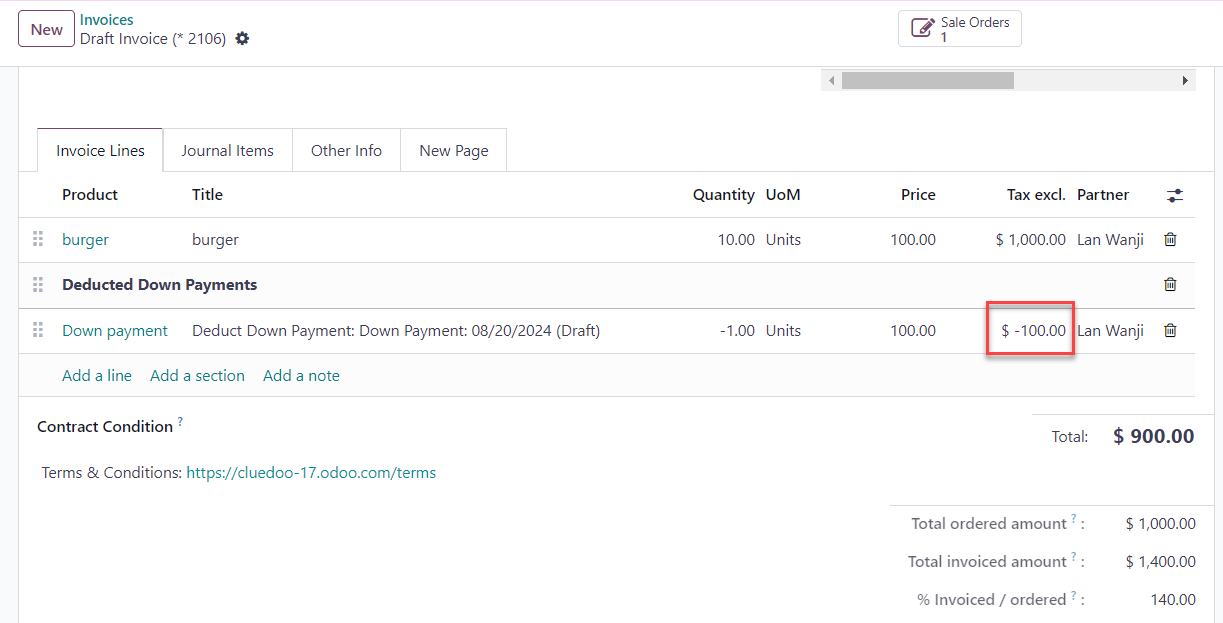



ODOO'S FUNCTION
By default, Odoo deducts down payments all at once. When a regular invoice is generated from a sales order that has a posted down payment, the system automatically subtracts the entire down payment from that invoice.
CLUEDOO'S FUNCTION
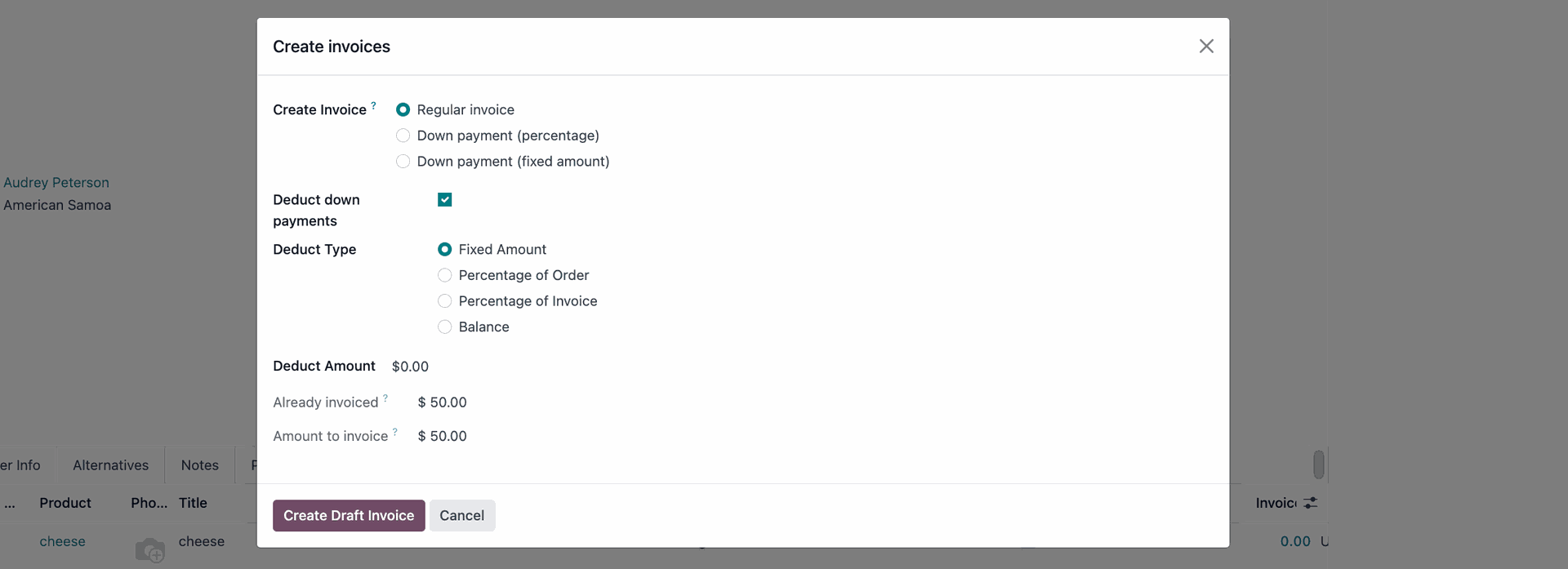
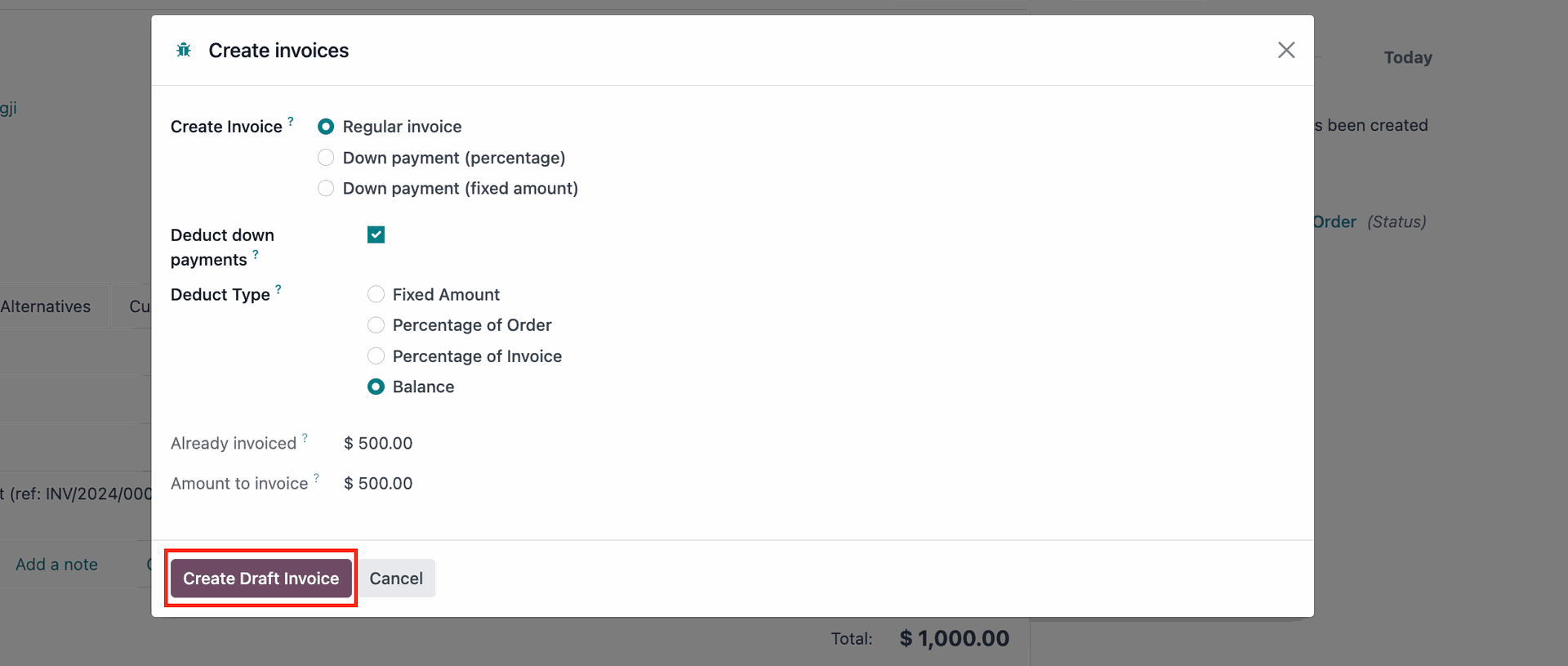
CLuedoo expands the feature so that you have four options to deduct the downpayments:
1️⃣ Fixed Amount: deduct an exact amount to deduct from the total
2️⃣ Percentage of Order: deduct a percentage of the total order amount
3️⃣ Percentage of Invoice: deduct a percentage of the invoiceable amount
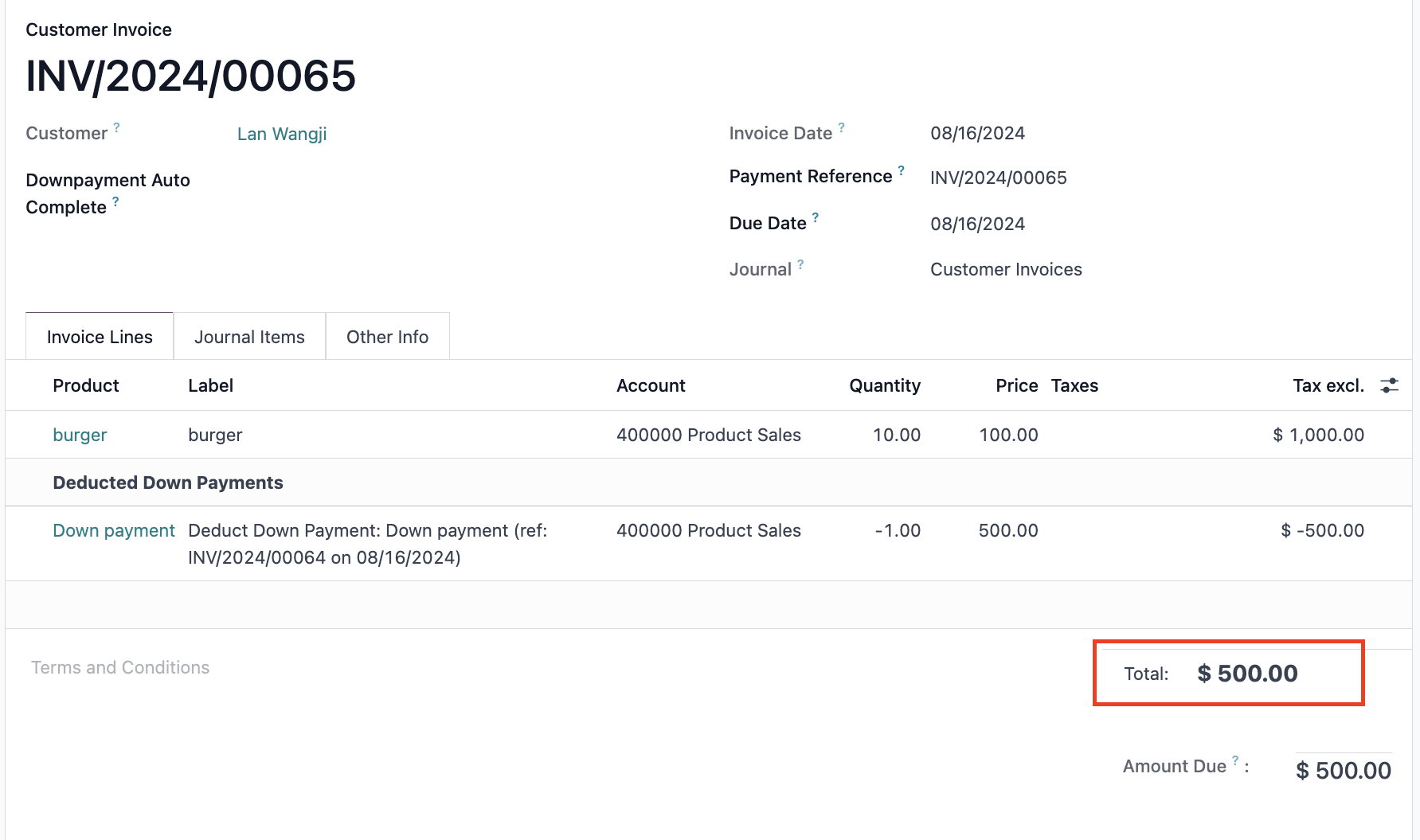
4️⃣ Balance: functions the same as ODS feature, automatically deducting the full amount of any previous down payments from the current invoice.
This new feature provides greater flexibility in managing down payments, allowing users to tailor deductions according to their specific needs.
CONFIGURATION | |
6. Confirm | 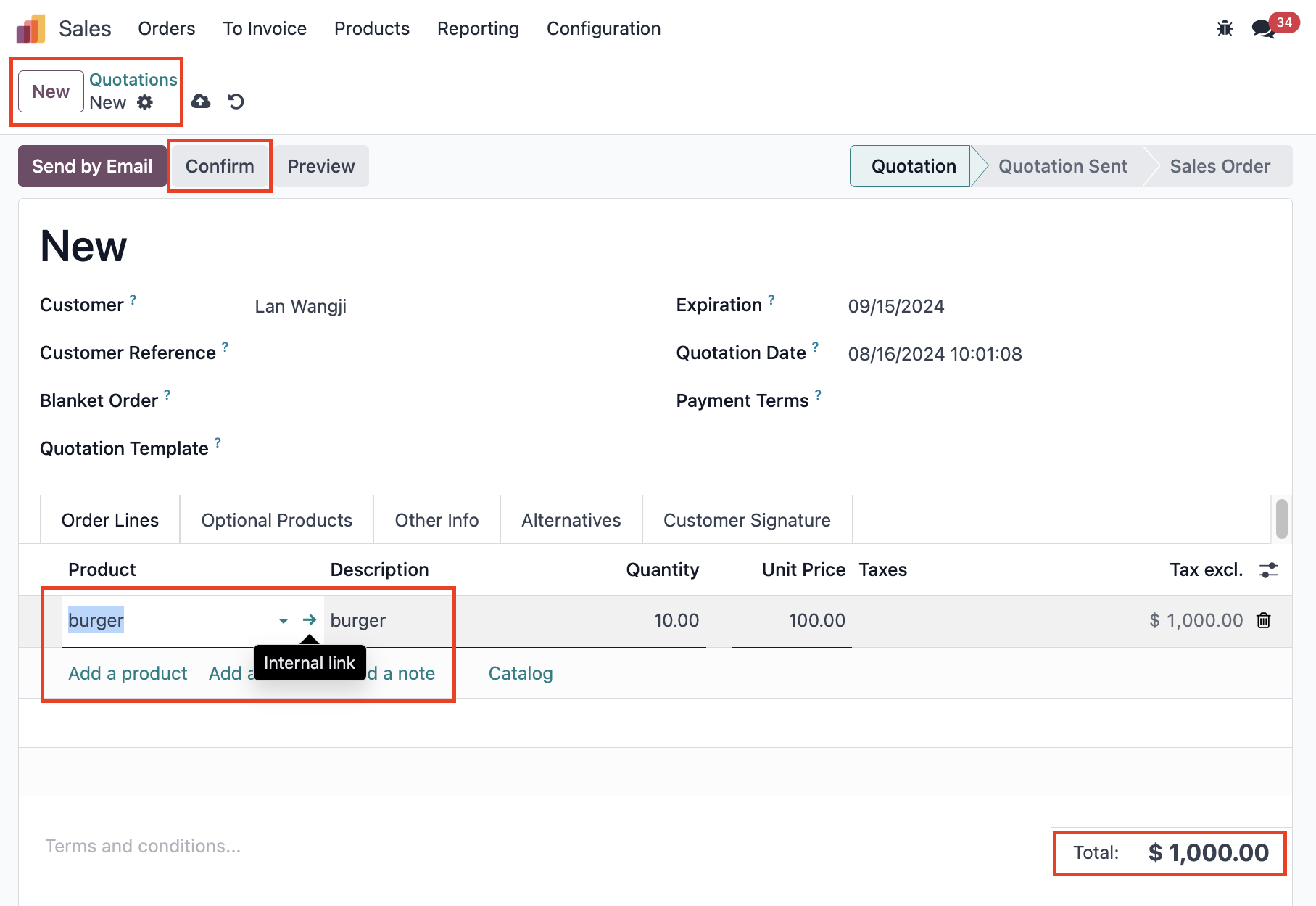 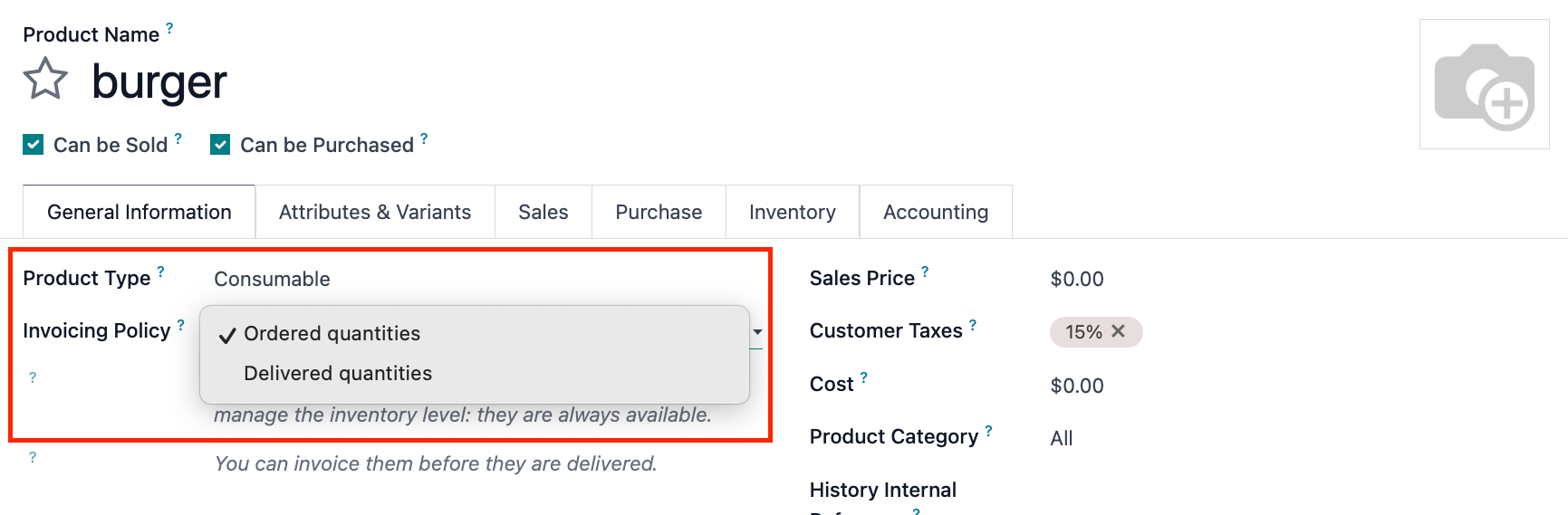 |
USAGE | |
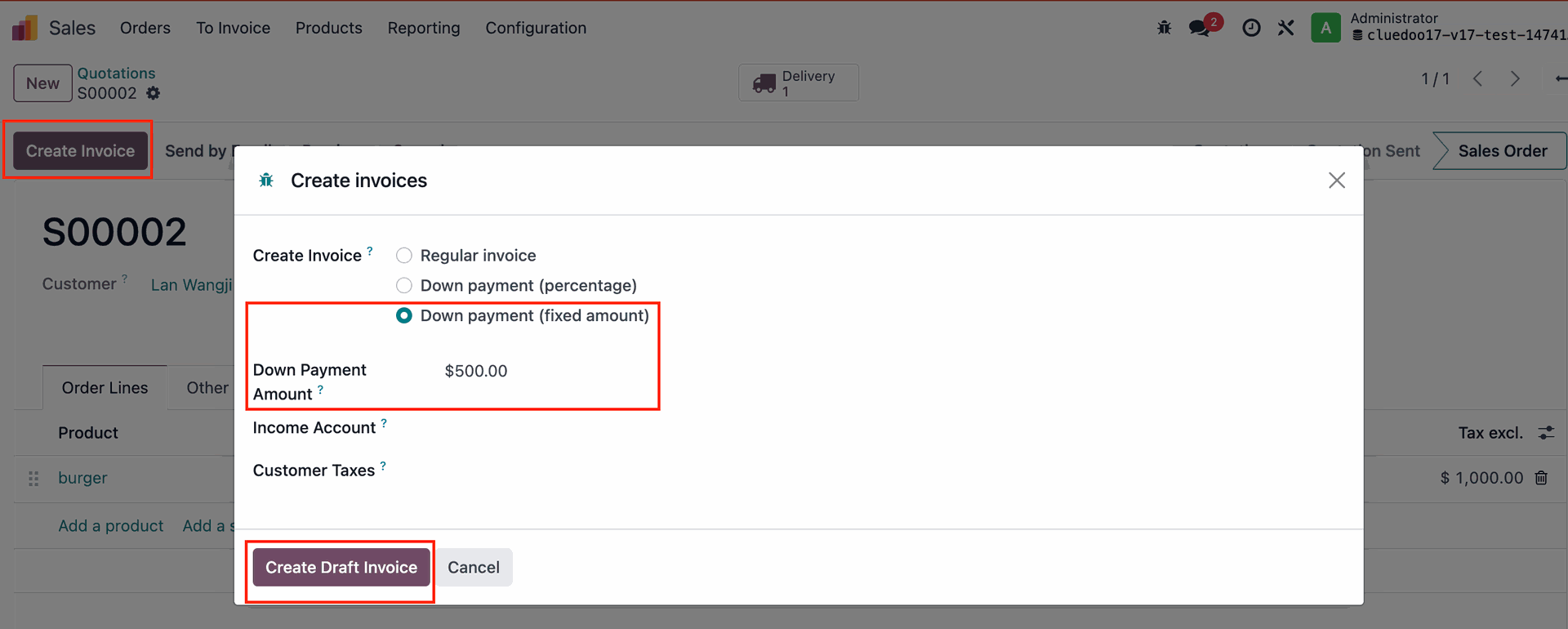
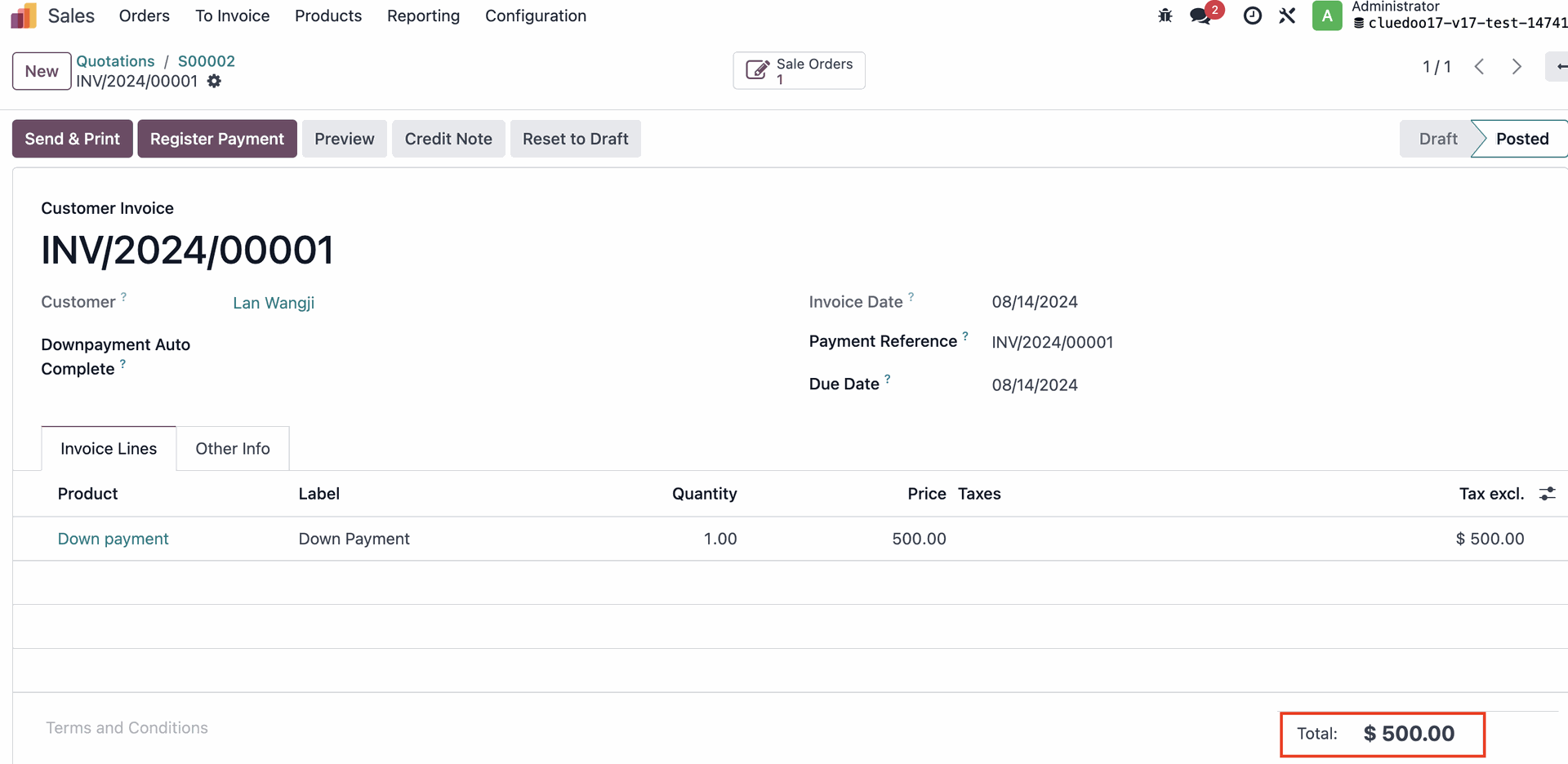
1. Create an invoice for down payments Create Invoice > Choose Down payment > Create Draft Invoice > Confirm Eg: I create a new invoice for a down payment (fixed amount) of $500 |
|
2. Create an invoice for deducting down payments Go back to your SO > Create Invoice >Choose Regular Invoice and tick Deduct down payments checkbox 4 types of Deduct Type appear > Choose one of the options |
|
FIXED AMOUNTChoose any amount that you want to deduct. Note that the amount deducted cannot be greater than the down payment amount > Create Draft Invoice > Confirm | 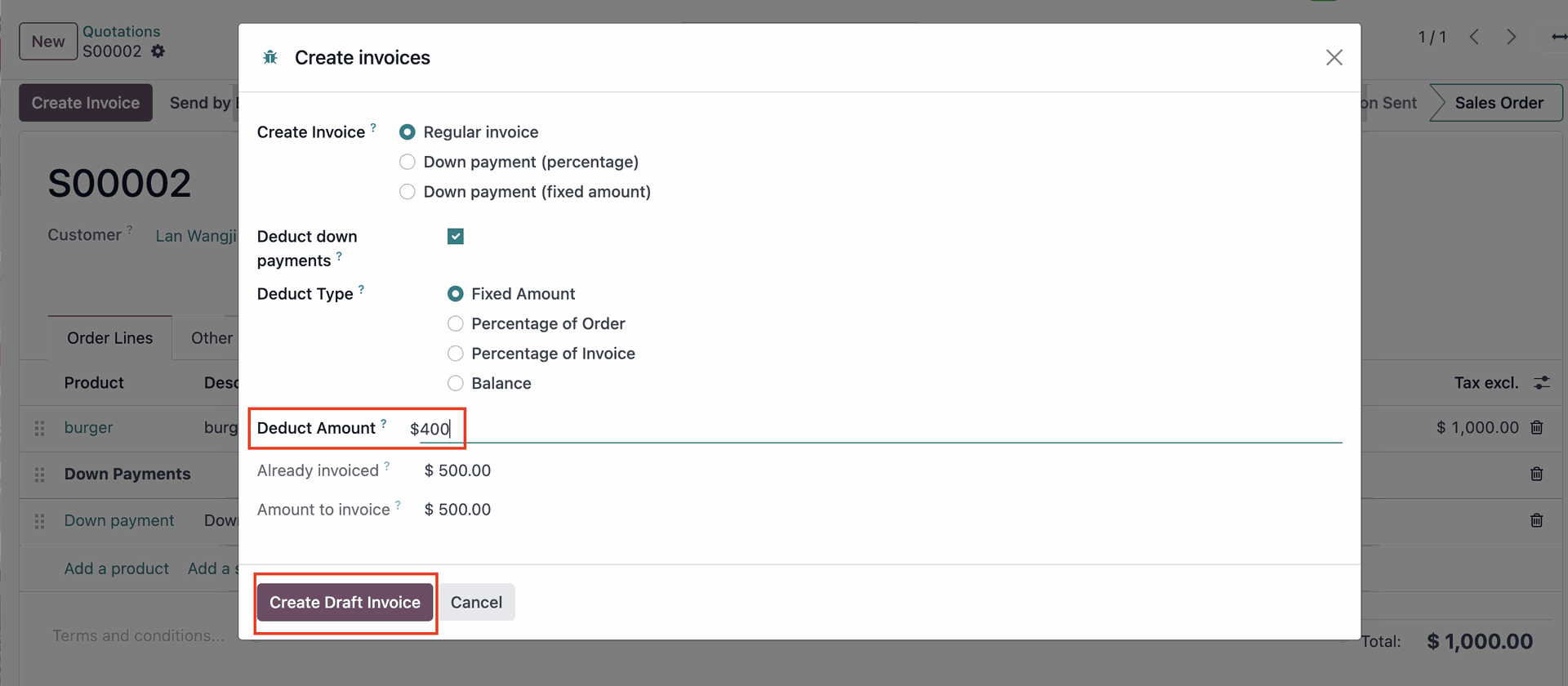 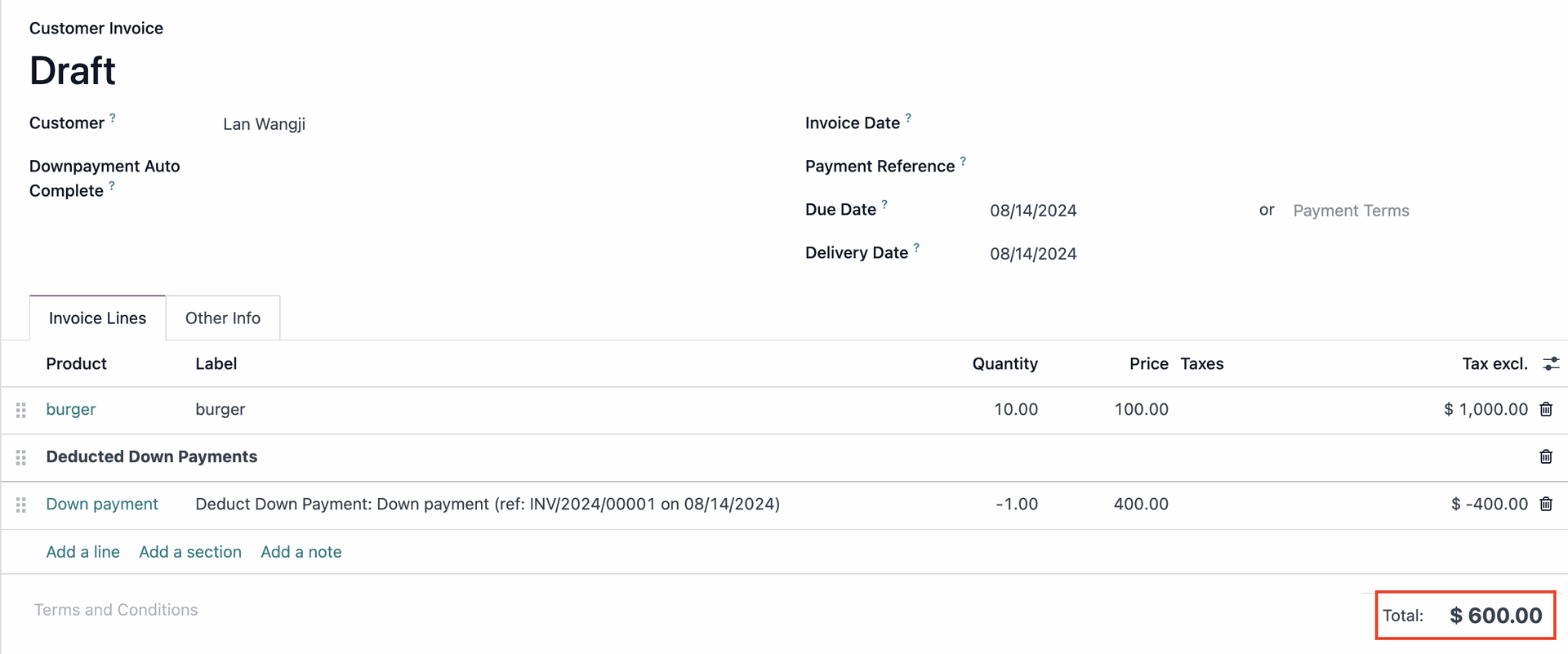 |
PERCENTAGE OF ORDERChoose the percentage of the total order amount that you want to deduct (eg: 10%) > Create Draft Invoice > Confirm | 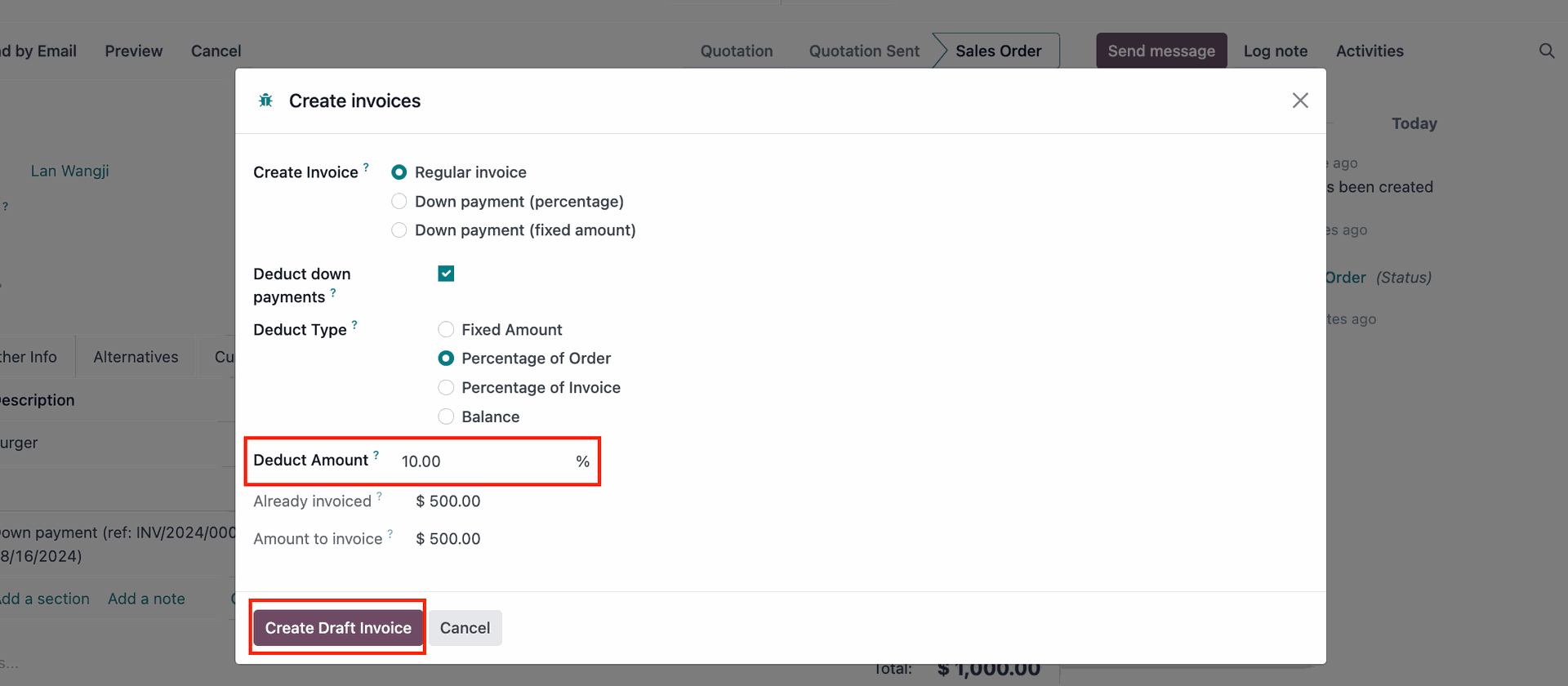 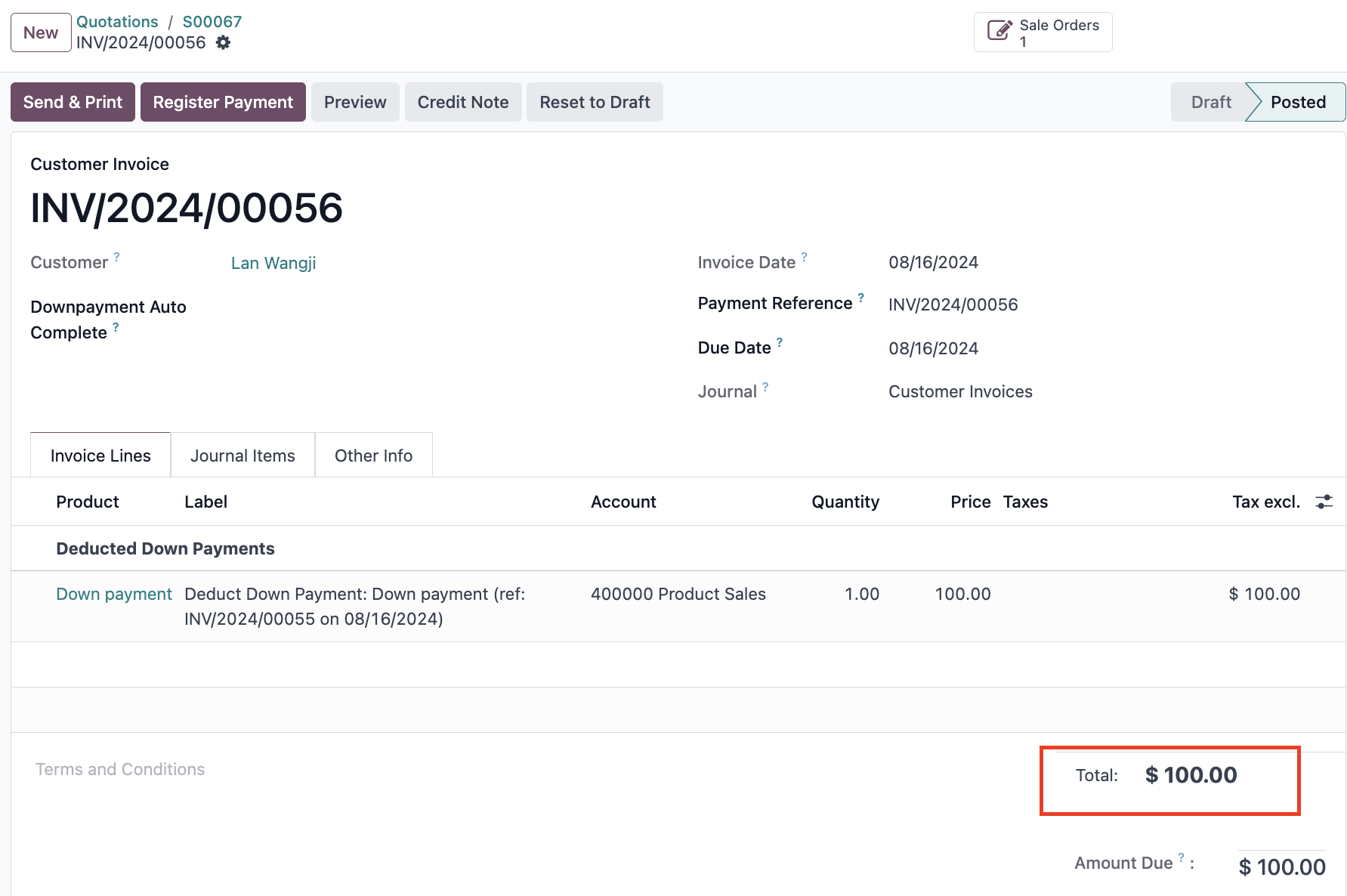 |
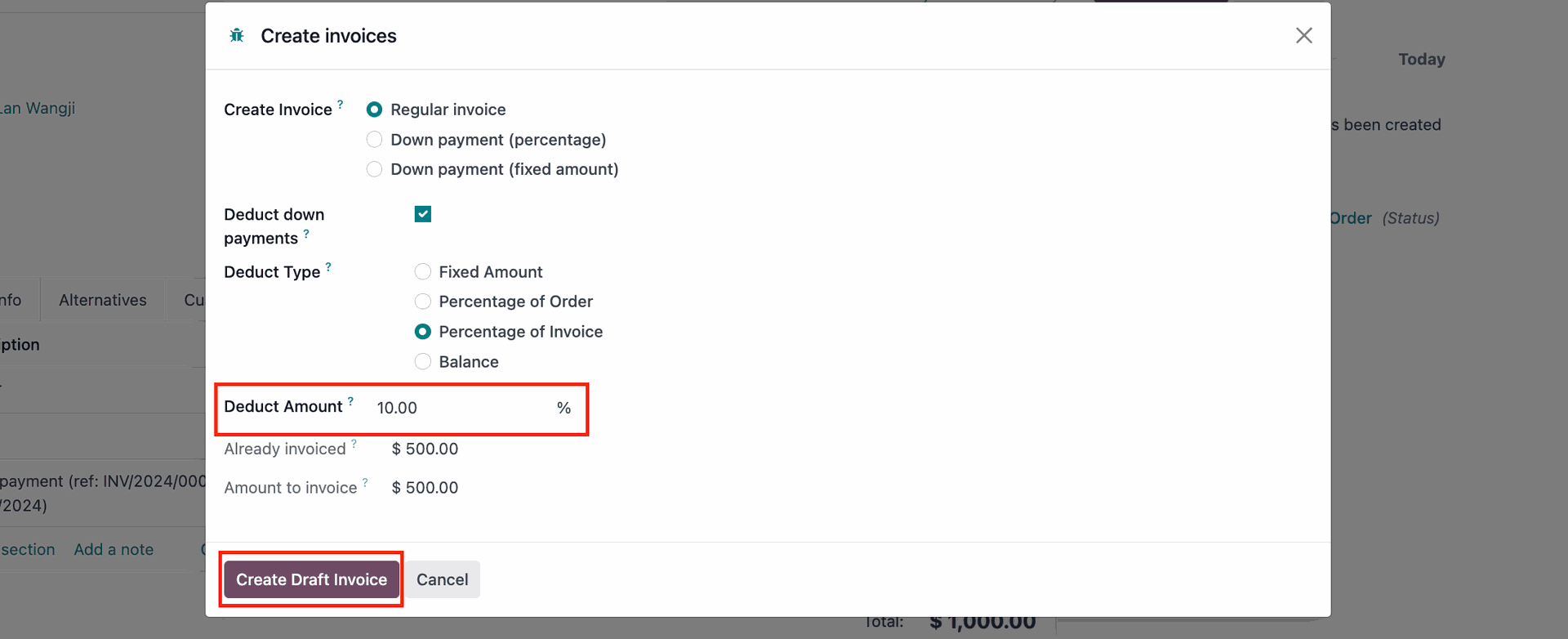
PERCENTAGE OF INVOICEChoose to deduct a percentage of the invoiceable amount (eg: 10%) > Create Draft Invoice > Confirm Notes:
|
|
BALANCEThe system would automatically subtract the total amount of any down payments made previously > Create Draft Invoice > Confirm |
|