ODOO'S FUNCTION
In Odoo, when a product fails a quality check, you must manually create a Repair Order and re-enter the related information. This can be time-consuming and may lead to data entry mistakes or missing links between the Quality Alert and the Repair Order.
CLUEDOO'S FUNCTION
CLuedoo creates a Repair Order directly from a Quality Alert with one click. All relevant information, including the product, variant, lot/serial number, transfer, and tags, is automatically copied to the Repair Order, ensuring accuracy and saving time.
CONFIGURATION | |
1. Create a product that is tracked by Lots/Unique Serial Number. |
|
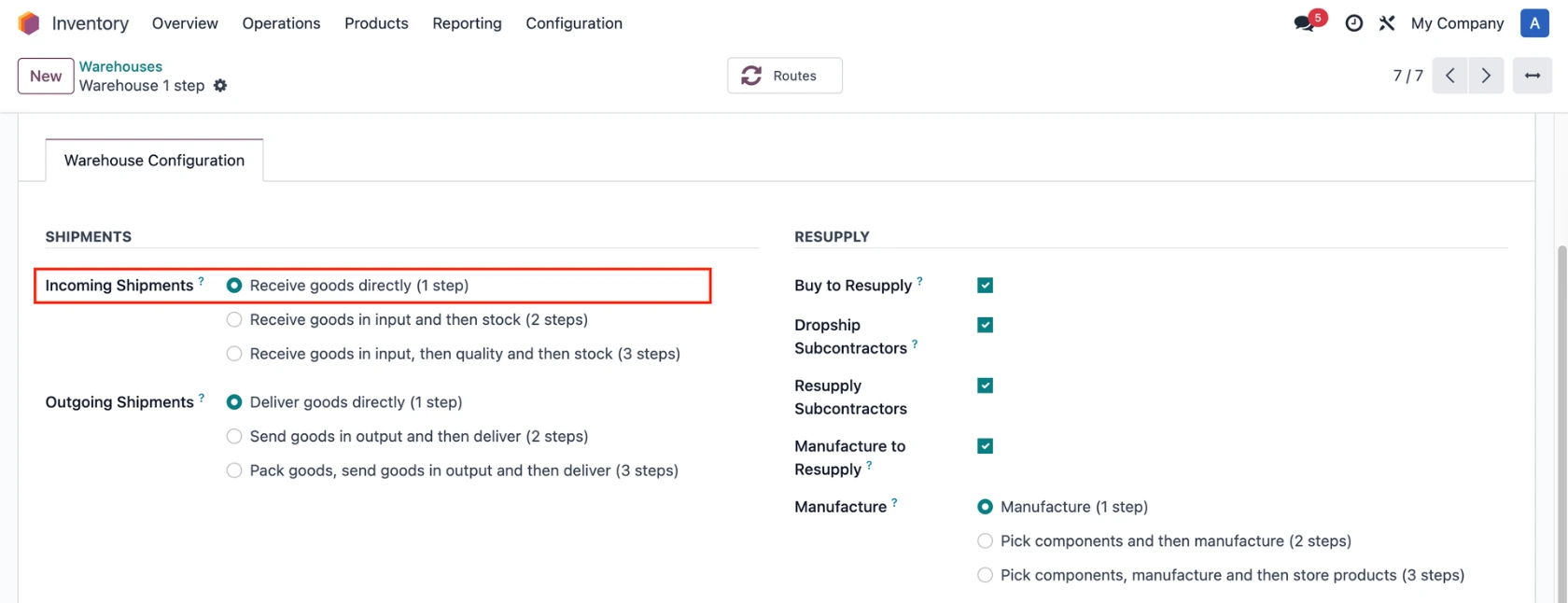
2. Go to Inventory > Configuration > Warehouse Management > Warehouses Choose a warehouse and configure the default Incoming Shipments / Outgoing Shipments / Manufacture. e.g., Receive goods directly (1 step) |
|
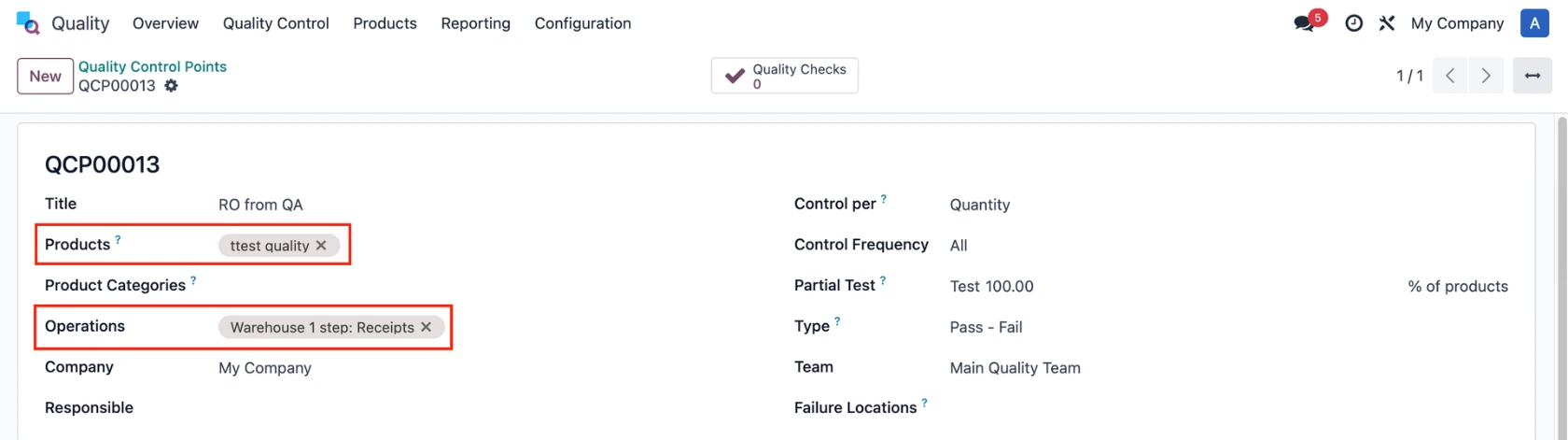
3. Navigate to Quality > Quality Control Points Set up the QCP, add the product in Step 1, and select the appropriate Operations based on the configured routes. |
|
USAGE | |
1. Go to Purchase > Requests for Quotation > Create a new Purchase Order. Add the product > Confirm Order > Click on the Receipt smart button. | 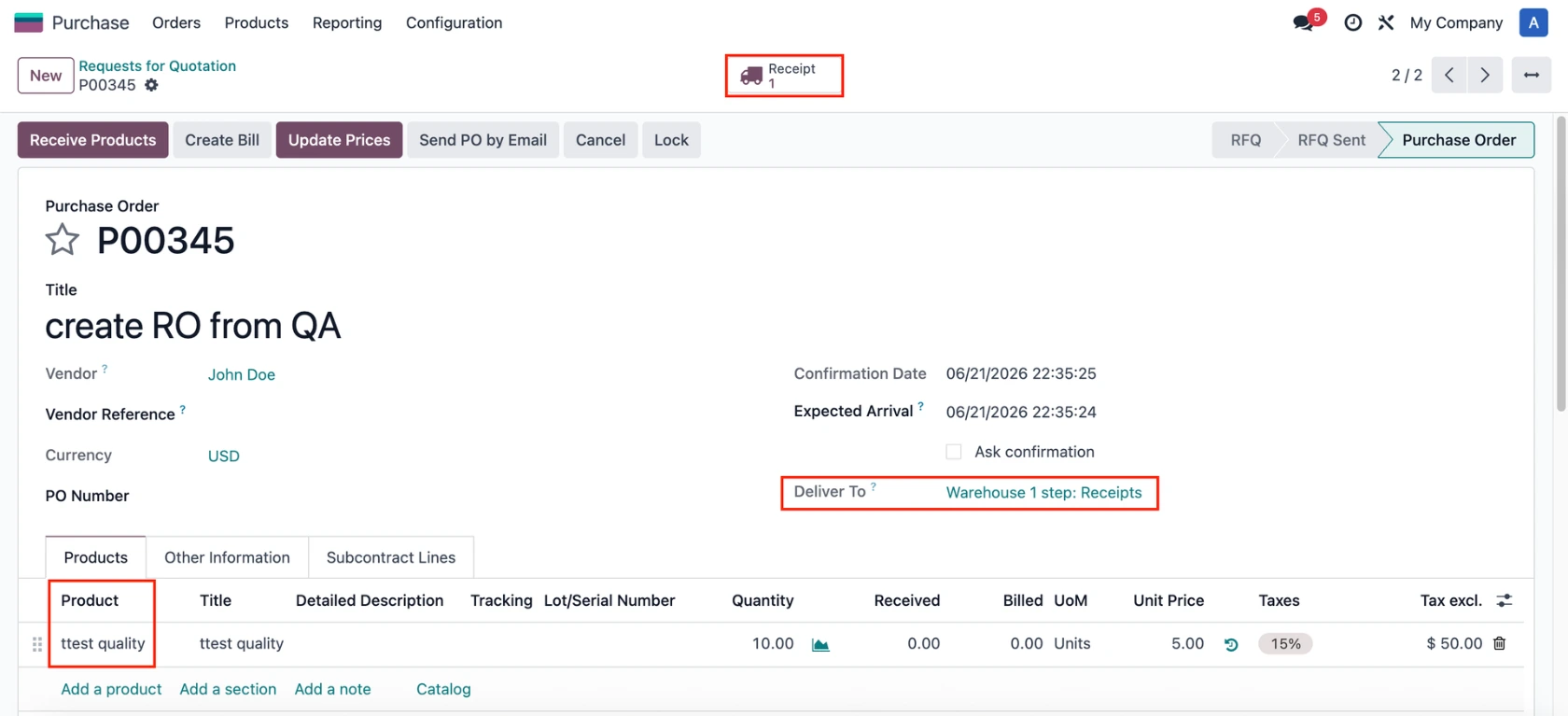 |
2. Assign the L/SN to the product > Do the Quality Checks and create a Quality Alert. | 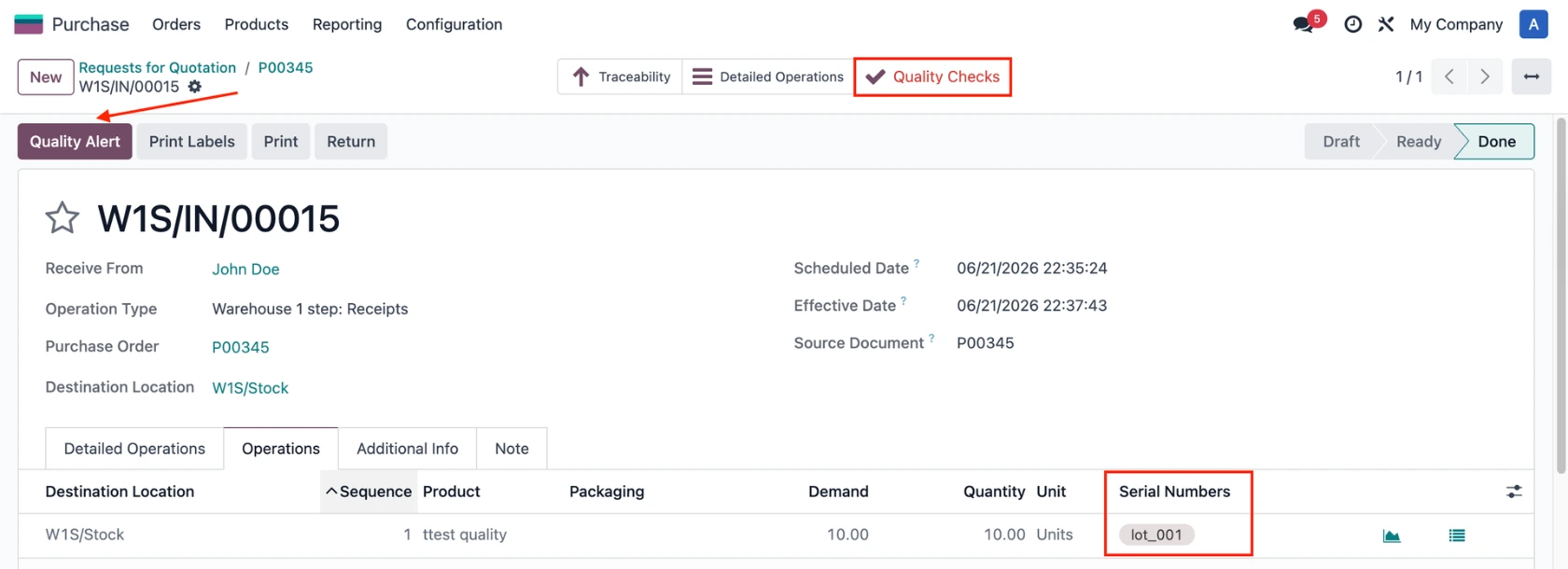 |
3. Fill in the necessary information and click on the Create Repair Order button. | 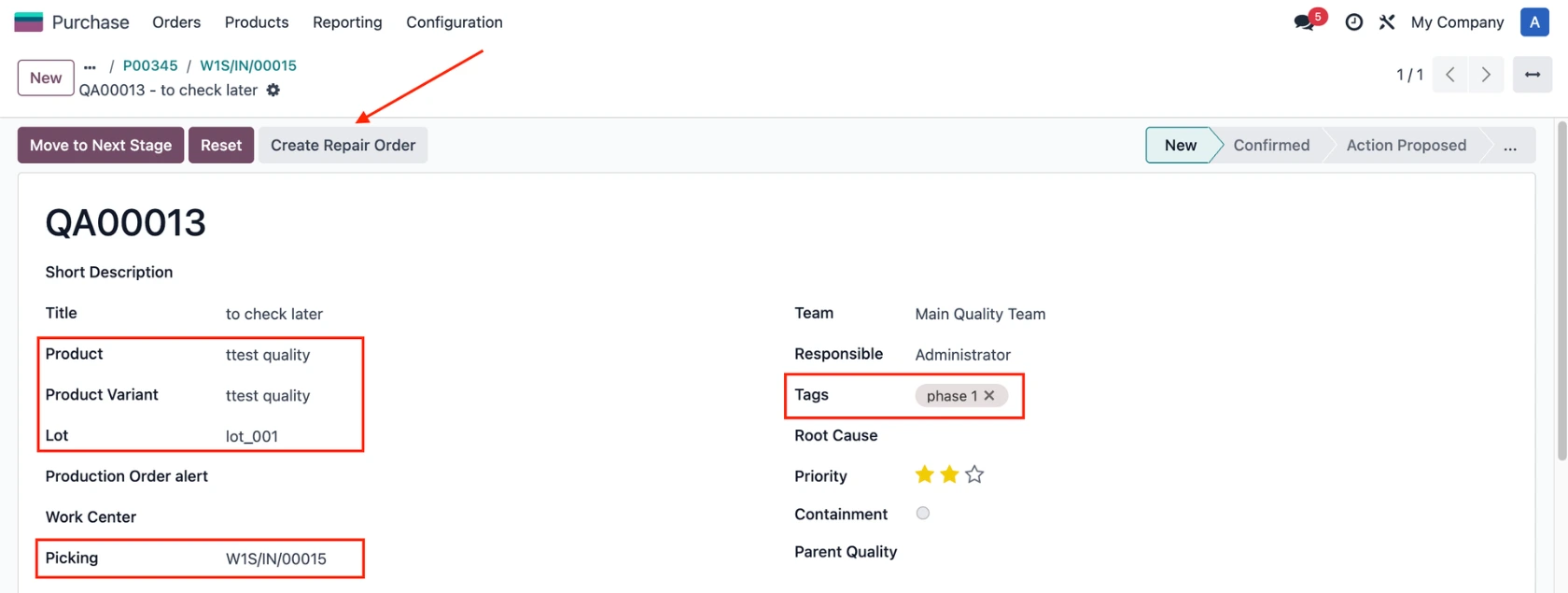 |
The created Repair Order will inherit all the information, and the Quality Alert will also be linked to it. | 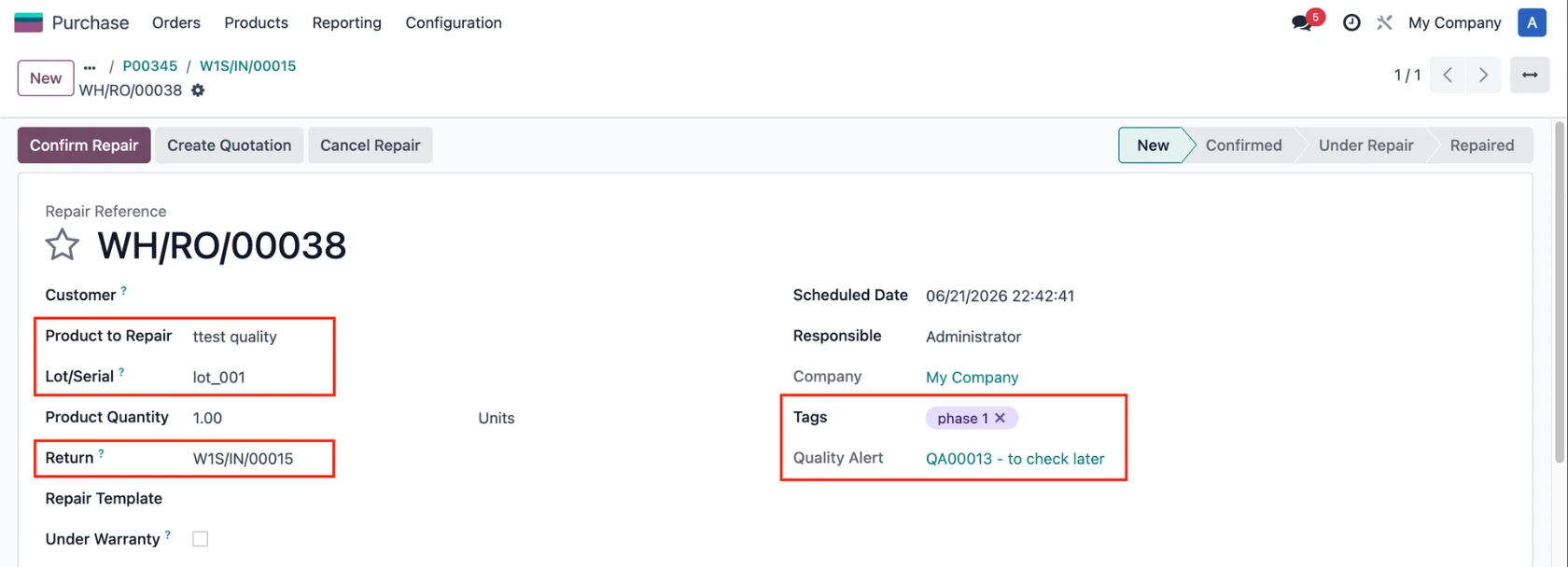 |
4. A Repair Orders button is added to the transfer to provide a link to the associated RO(s). |
|