


STORY BEHIND THE FEATURES
ODOO BEHAVIOUR
Odoo's Project feature gives an overview of the progress and financial status of a project.
CLUEDOO BEHAVIOR
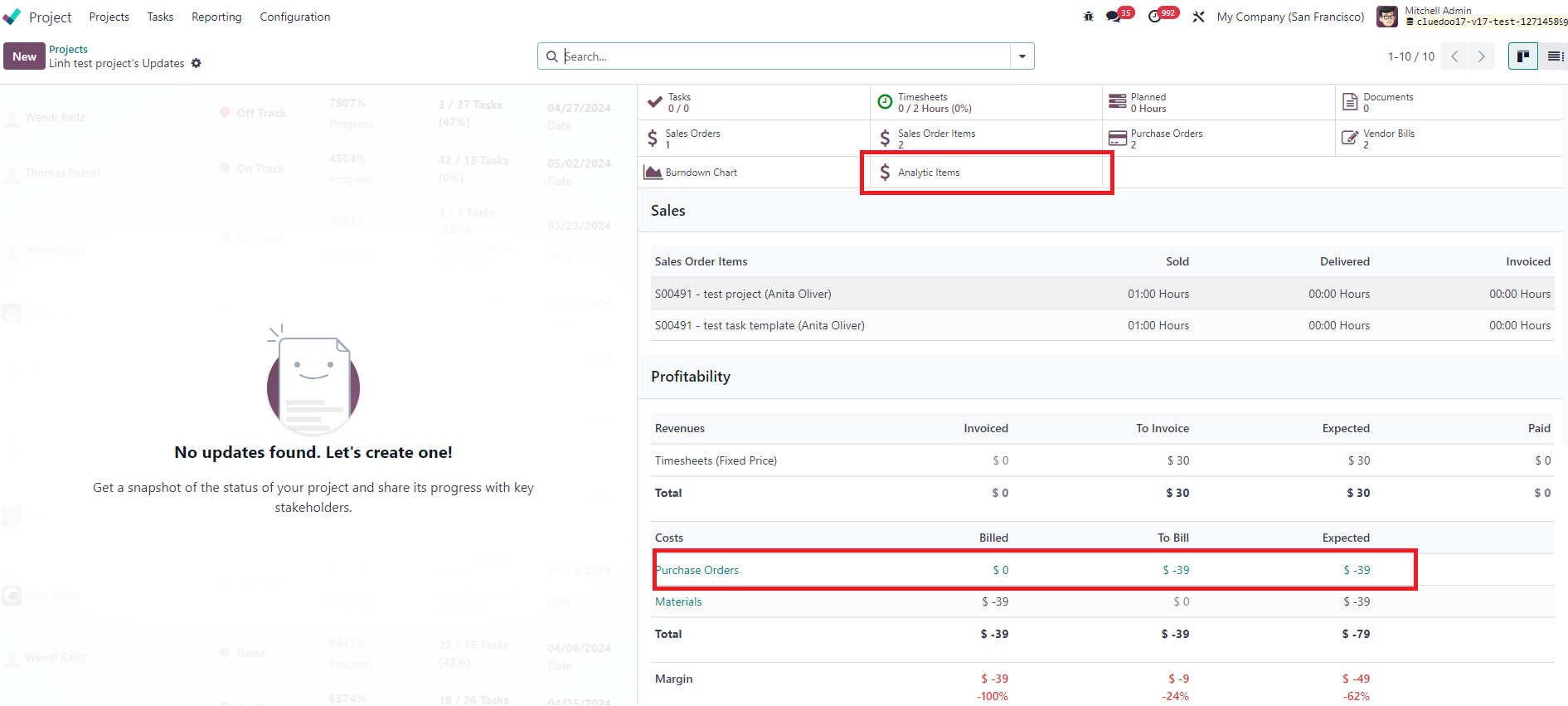
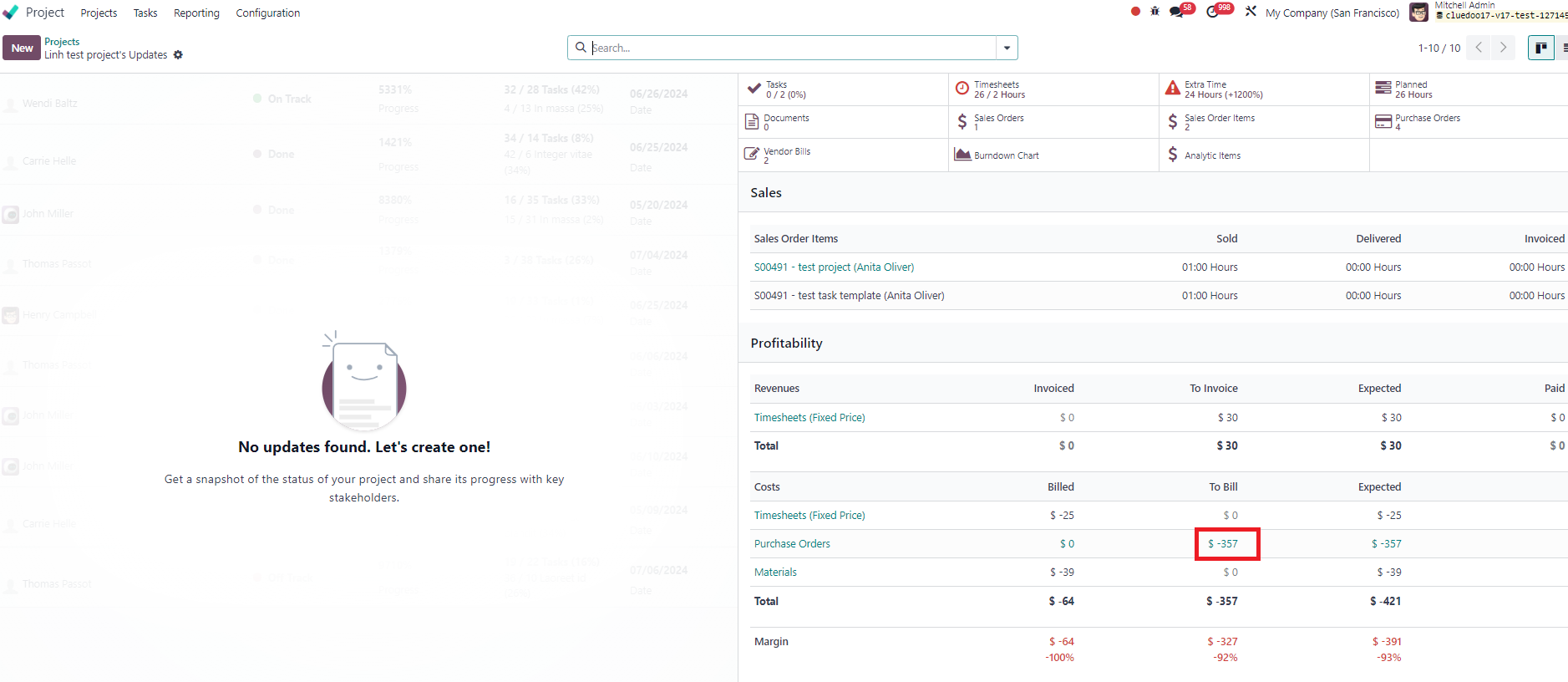
We extend this feature to add smart button "Analytic Items" and clickable invoiced/to invoiced/expected amount of Purchase Orders.
CLUEDOO RECOMMENDATION
Install in 100% of your database as it is a useful tool to manage projects.
RELATED MODULE
HOW TO USE THIS MODULE
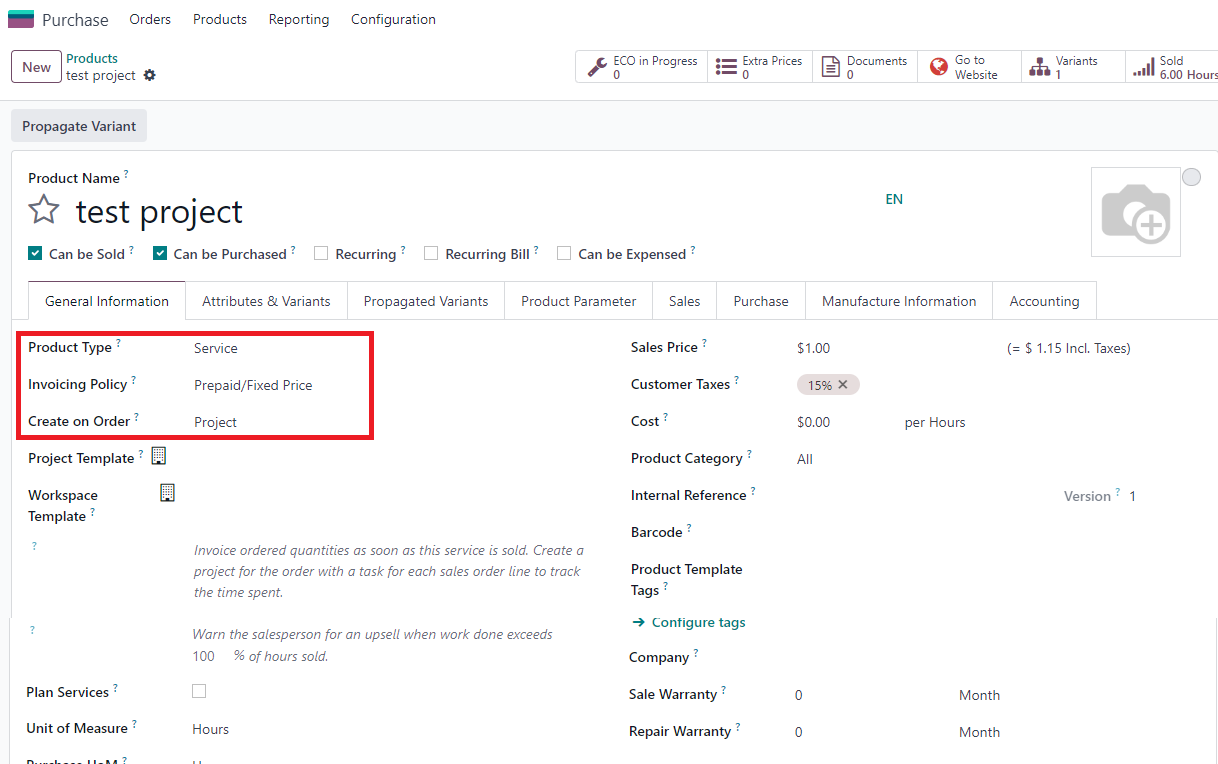
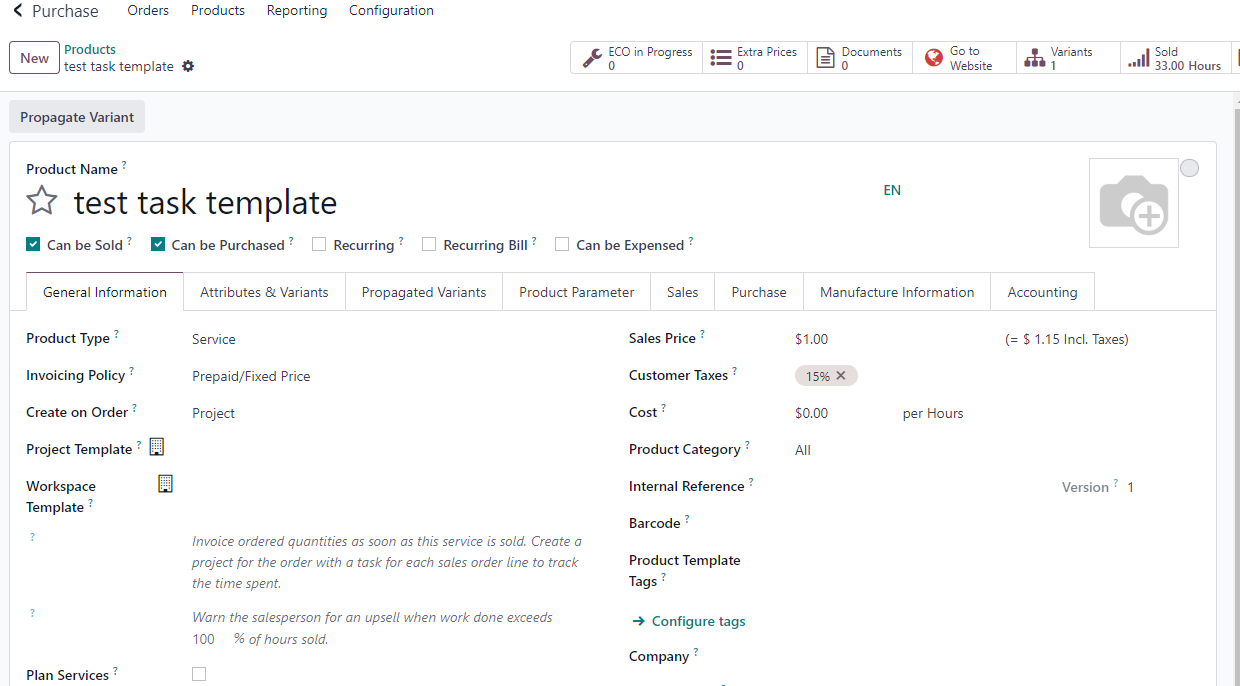
| Add smart button "Analytic Items" and clickable invoiced/to invoiced/expected amount of Purchase Orders 1. Create product with type: Service Create on: Project / Project & Task |
|
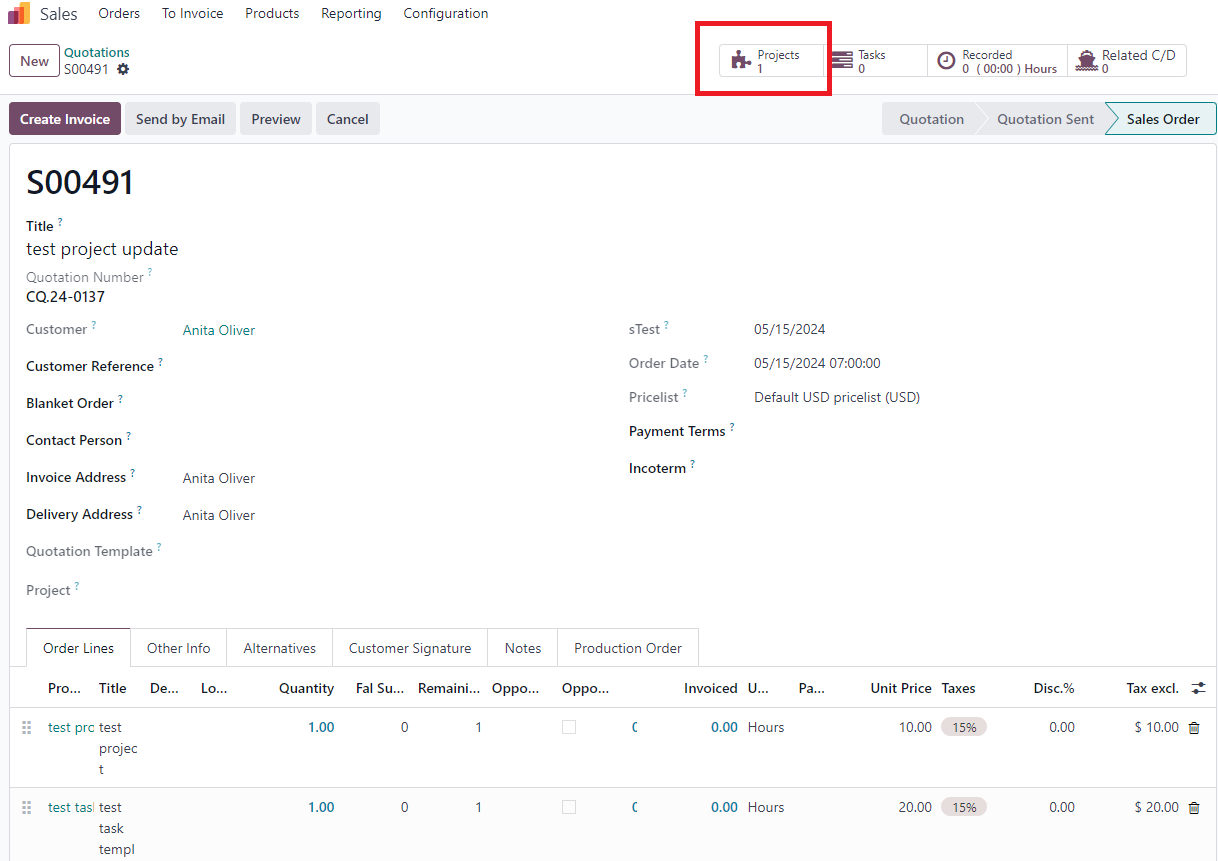
2. Create new SO with these product > Confirm > Project auto created |
|
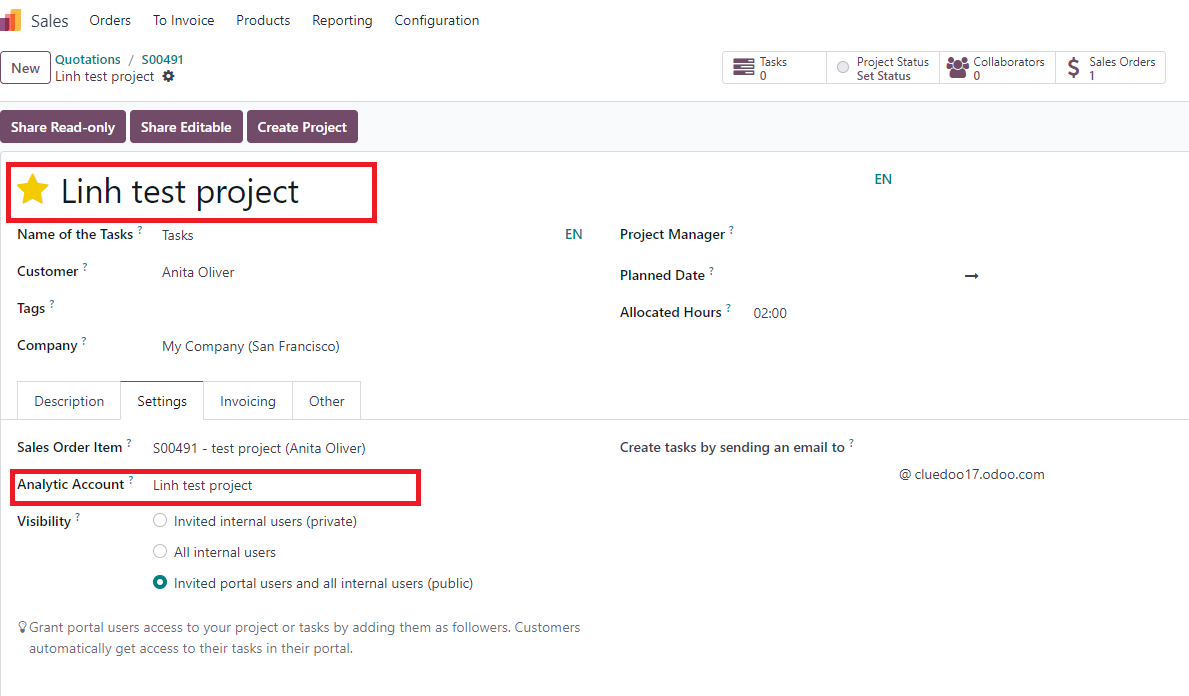
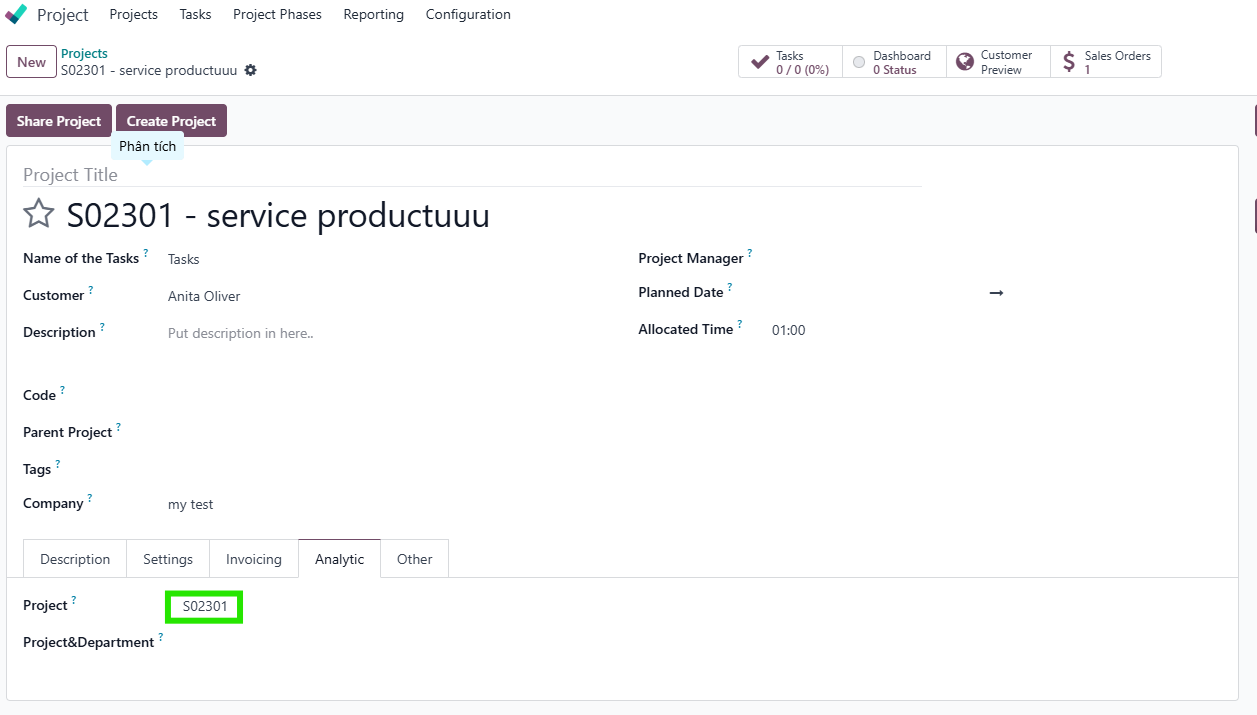
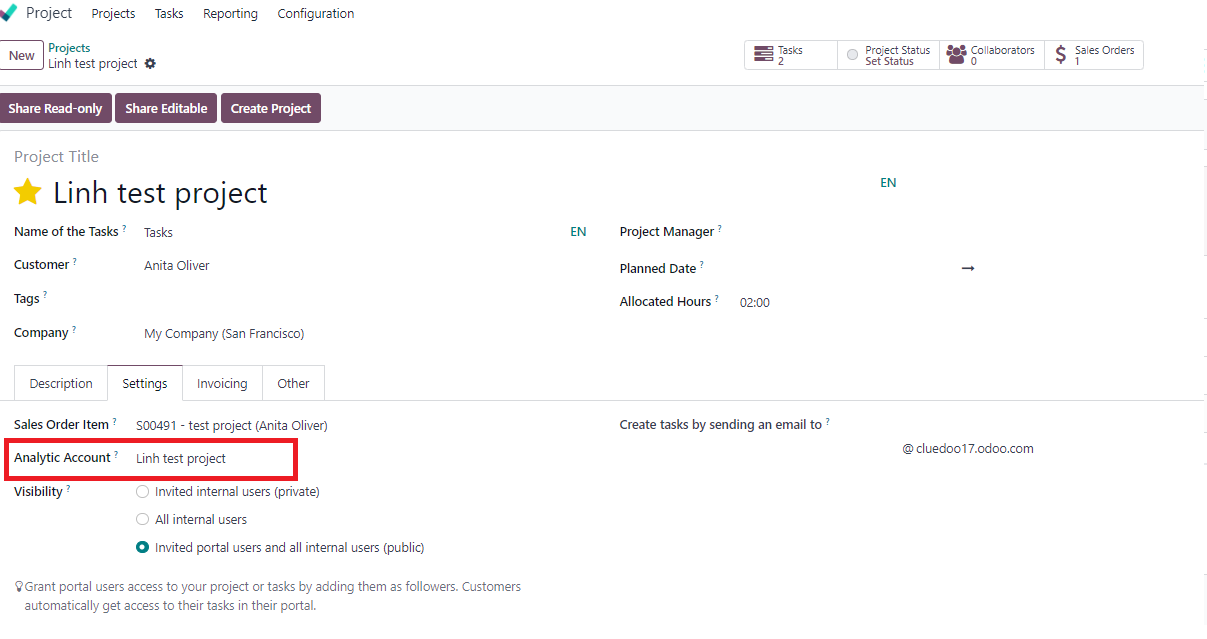
3. Go to project button > Change the name of project if you want > Check Analytic Account For ex: Analytic Account: Linh test project |
|
Note: from v18, moving to page analytics > field project |
|
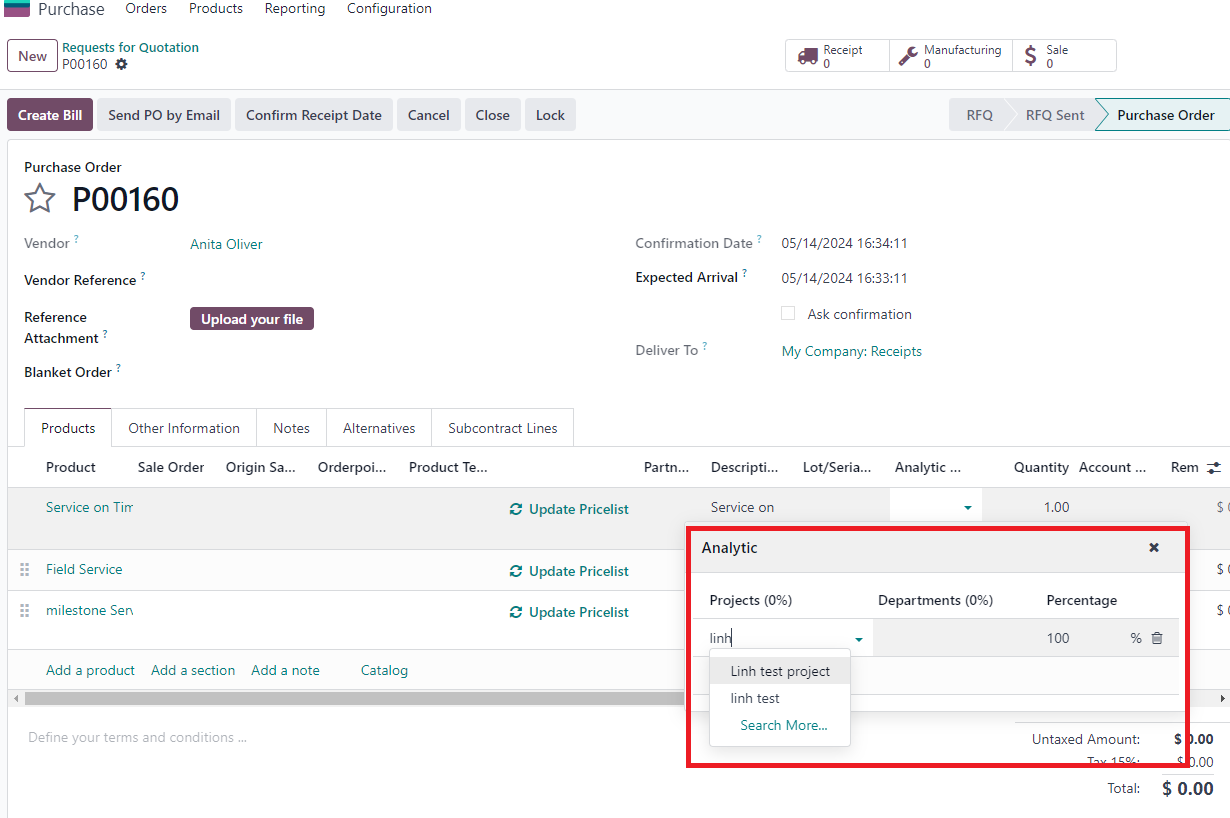
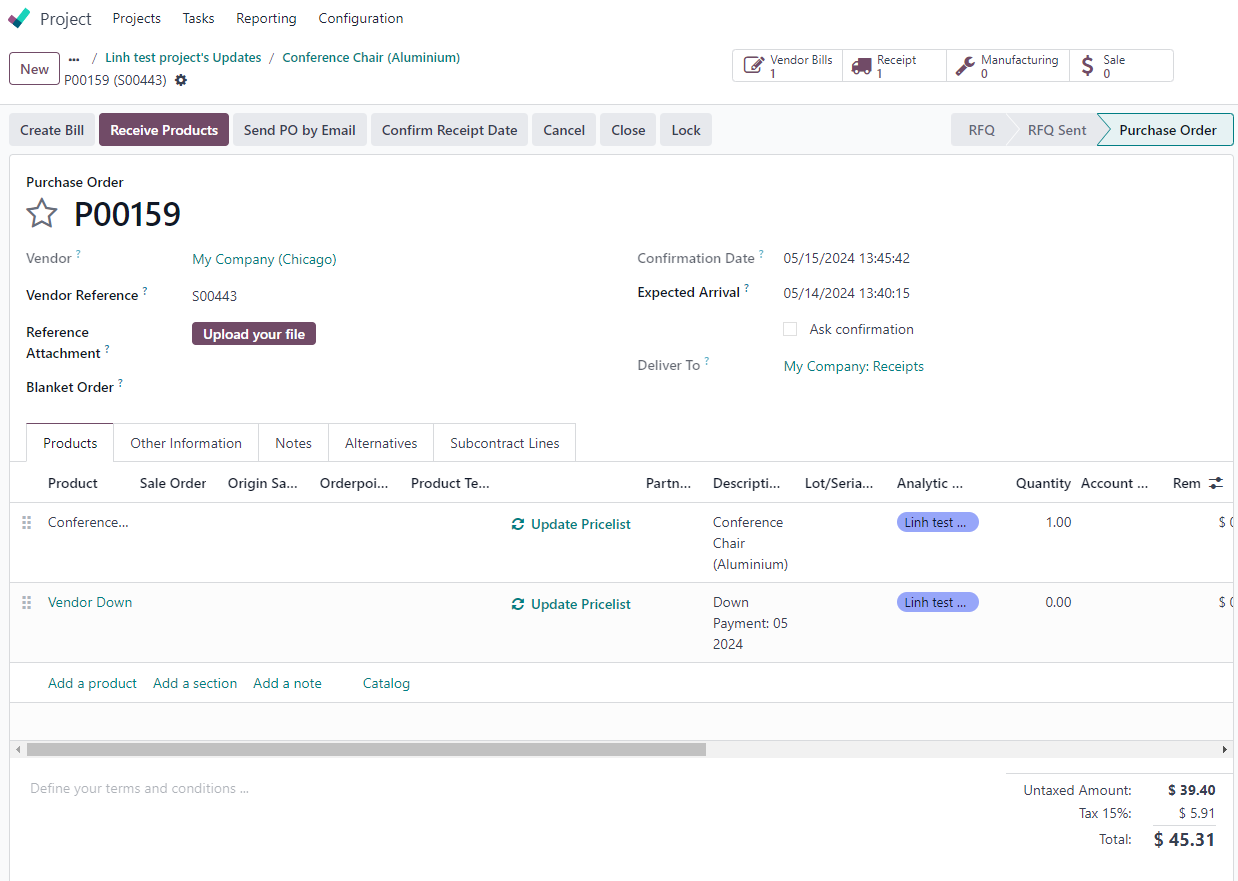
4. Go to Purchase > Add Analytic account to PO you want to link with project > Confirm For ex: I add P00160 and P00159 (with different vendor) to project |
|
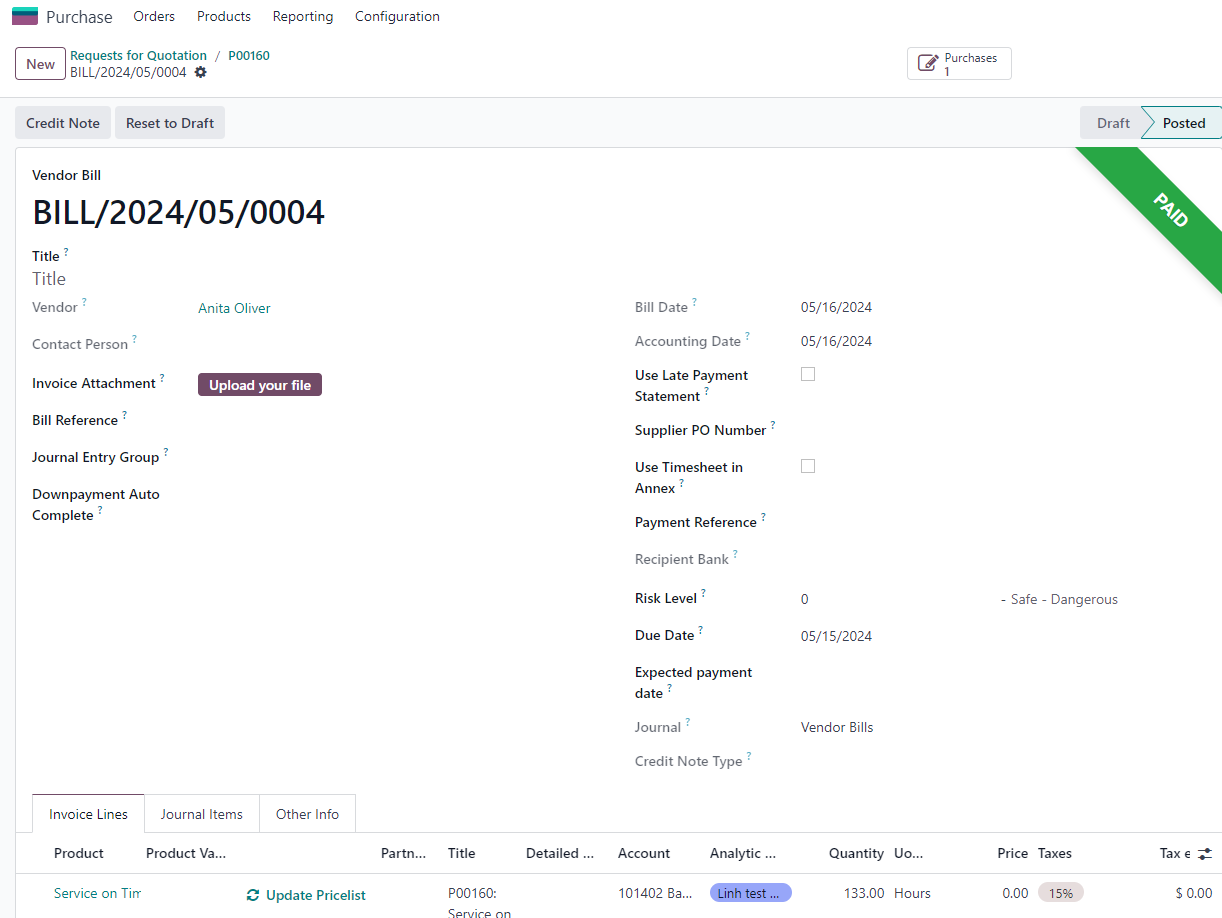
5. Create Bill > Confirm (also with P00159) Note: analytic account automatically linked with Bill |
|
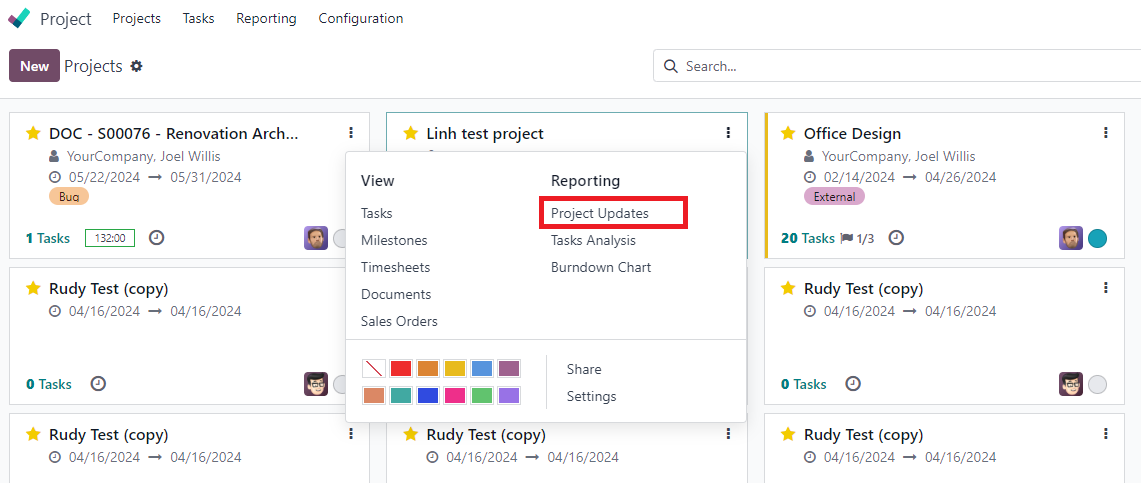
6. Project > Choose project you created > Project Updates |
|
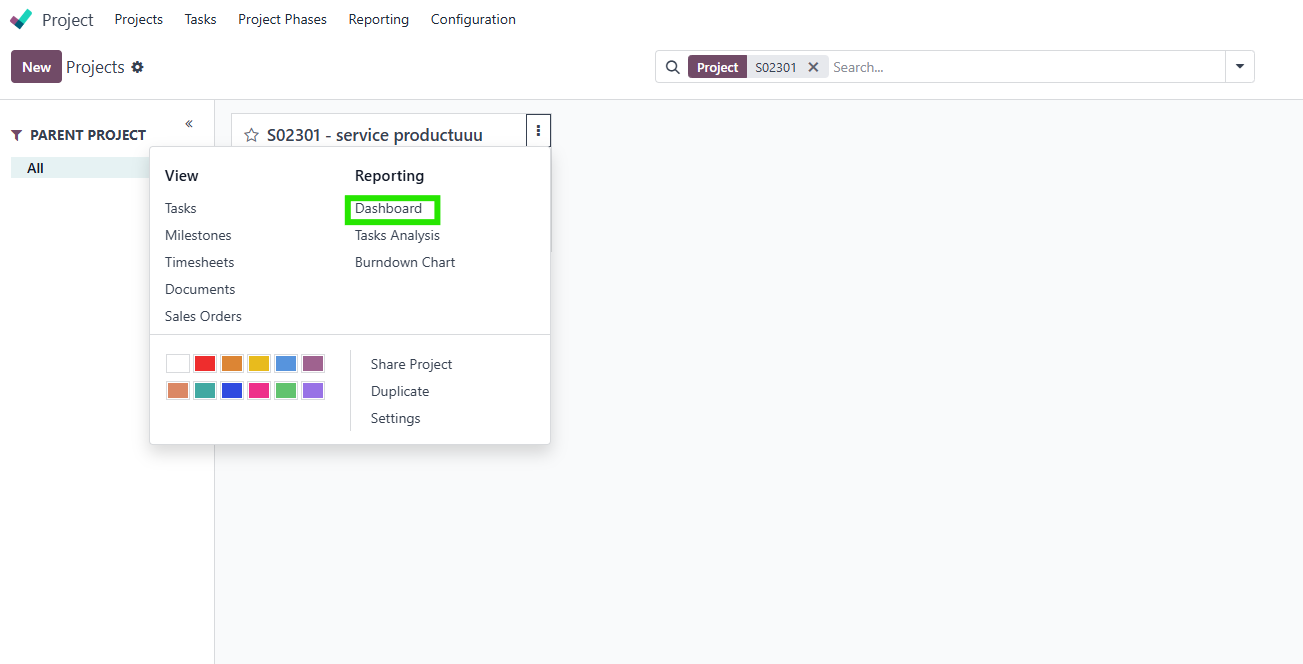
Note: from v18, Project > Choose project you created > Dashboard |
|
7. Check that we have smart button "Analytic items" and also clickable invoiced/to invoiced/expected amount of Purchase Order Note: it's all POL, billed it's you already created the vendor bills / invoiced_qty > 0. To bill it's POL that already received/ qty_to_invoice > 0 |
|
Subtotal With Analytic Distribution 1. Projects > Settings > Setting tab > Set aa for project |
|
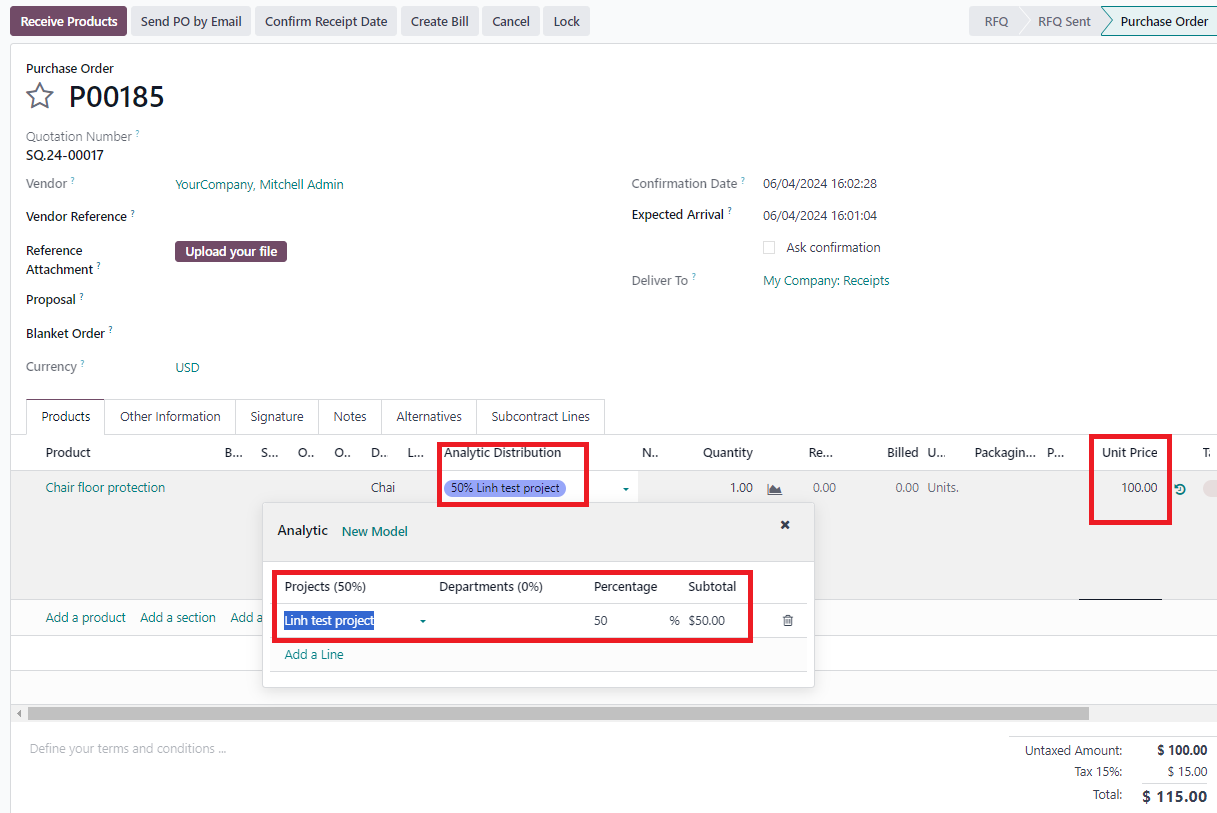
2. Create new PO > Fill Analytic Distributtion in POL > Adjust the percentage and the subtotal will calculate between unit price and percentage > Confirm PO For ex: percentage of aa: linh test project is 50% so the subtotal is 100.50%=50 |
|
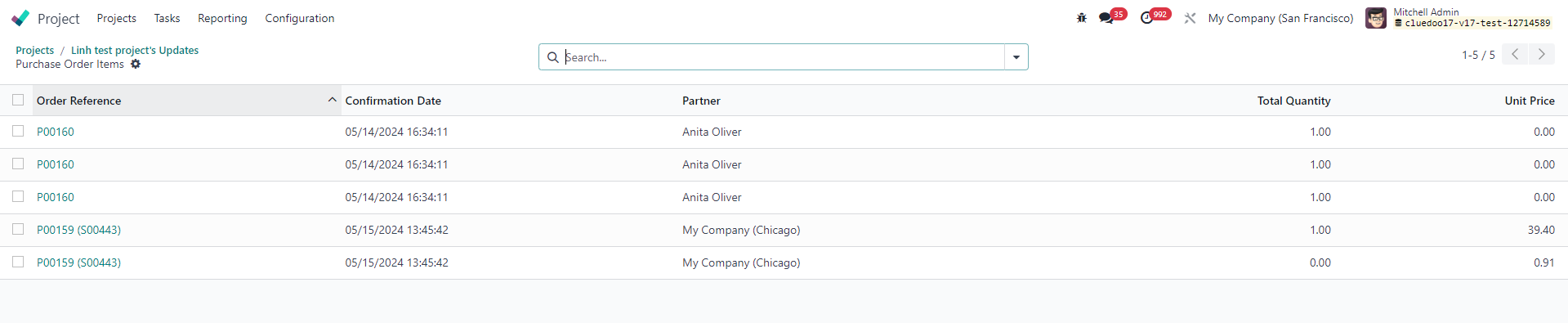
3. Go back to Project > Project Updates > Click on the number of Purchase Orders (It calculated base on Subtotal with analytic distribution) |
|
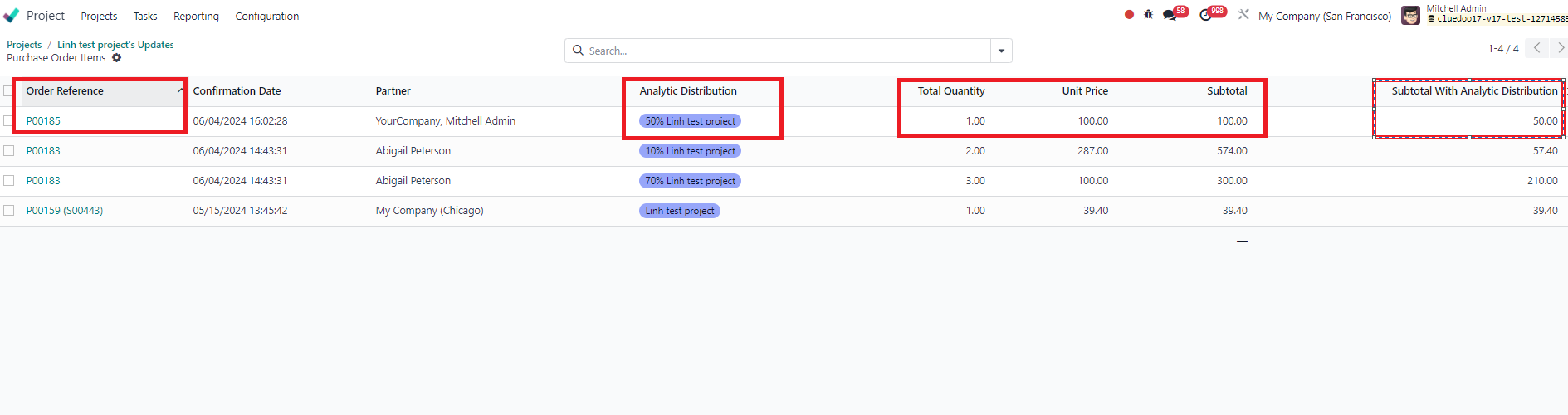
4. Check that new PO automatically added > the column Subtotal with Analytic Distribution exact the same as POL > The total of that columns is the number in column "To invoice" in PO |
|