


ODOO'S FUNCTION
Odoo は、BOM によって駆動される manufacturing orders と、ルーティングによって駆動される work orders の2レベルで生産を管理することを提案します。ただし、Odoo には以下のような制限があります:
- マクロレベル管理用の Production Order レイヤーがない
- MO、sub-MO、WO 全体の可視性が制限されている
- MO から関連する PO への Analytic Distribution の自動伝播がない
- 生産にリンクされた調達コストを追跡するために手動作業が必要
CLUEDOO'S FUNCTION
CLuedoo はユーザーが以下を可能にする追加レベルを追加します:
- グローバル計画と調整のための Production Order レイヤーを追加
- 完全な生産内訳と依存関係の明確な視覚構造
- MO から PO へ Analytic Distribution を自動的に伝播
- 分析精度を改善し、手動データ入力を削減
- MO/MPS/Replenish の自動確認
Go to Manufacturing > Operations > Production Order > Select "Create Manufacturing Orders" or "Create MO" to create a new manufacturing order. We can also assign a date for the production order by clicking "Assign Date". |  |
Besides the manufacturing order, the production order also records the Sub Manufacturing Order. Confirm the Production Order> We can see the number of manufacturing order and sub-manufacturing order that are created from the production order. |
|
We can also split the manufacturing order by using the "Split Manufacturing Order" button and the Confirm. The sub-manufacturing order and transfer are split as well. |
|
Create a new MO, fill in the information, and the Analytic Distribution. |  |
Go to the purchase order, and we will see that the analytic distribution is propagated. |  |
***Warning:Odoo v13 introduces the notion of MTO Check the stock. So if the required quantity is less than the quantity on hand, no other action (create Production Order/Purchase Order) will be triggered. This method works only if the reservation management is working properly. If we want to always trigger the next action, we should change the supply method to "Trigger Another Rule" only. |
|
AUTO CONFIRMATION |
|
Automation Confirm for Manufacturing Order Go to Sales > Create Sales Order with MTO product If the tickbox is unchecked, the MO created will be in the Draft state |
|
If the tickbox is checked, the MO created will be in the Confirmed state |
|
MO is linked to SO by the Manufacturing smart button |
|
AUTOMATION CONFIRM FOR MPS | |
Go to Manufacturing > Master Production Schedule > Choose a product > Order |
|
|
|
AUTOMATION CONFIRM FOR REPLENISH | |
Go to Inventory > Procurement > Replenishment > Choose a product to order |
|
The MO created will be in the Draft state if the tickbox is unchecked and in the Confirmed state if the tickbox is checked. |
|
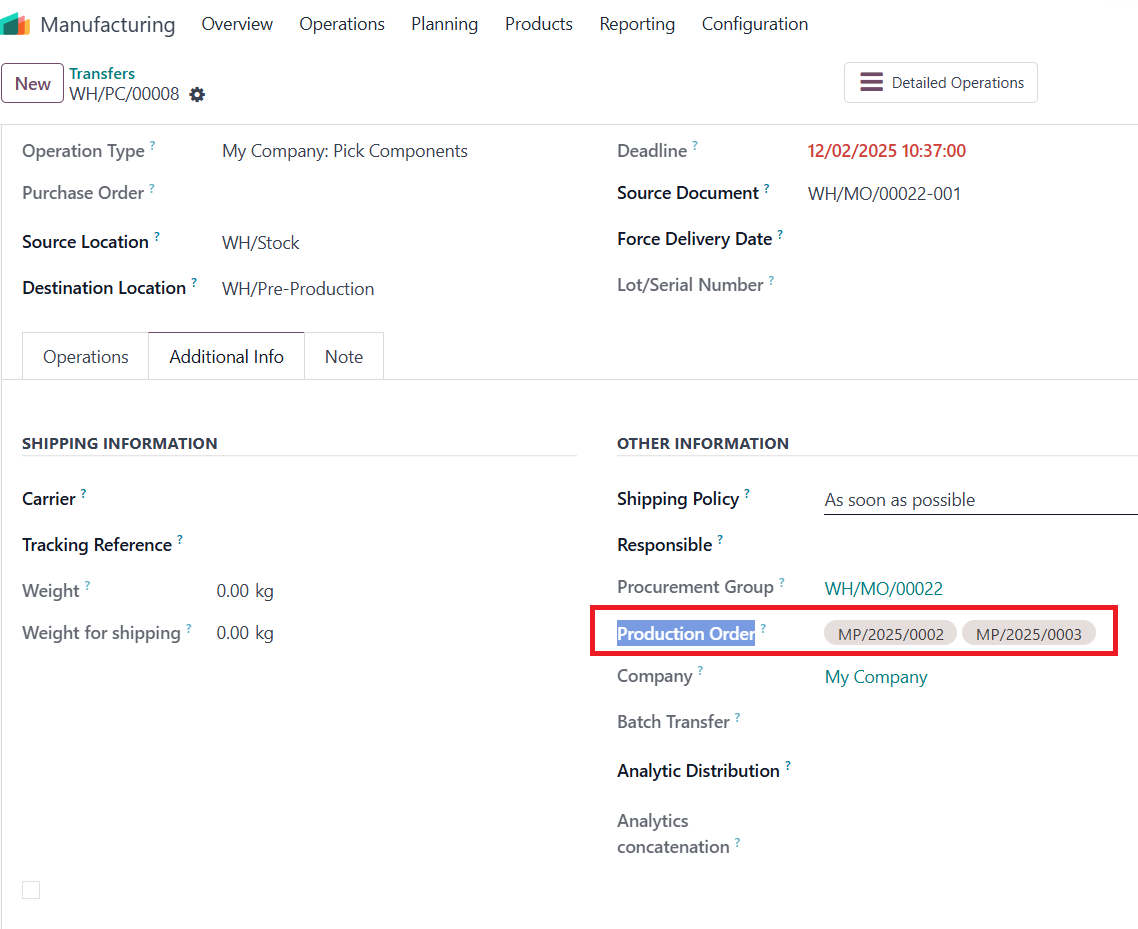
In stock picking list view, Production Order column will show all the Production Order related to transfer |
|