


ODOO'S FUNCTION
Odoo proposes to manage production with 2 levels: manufacturing orders, driven by the BOM, and work orders, driven by the routing. However, Odoo has some limitations, such as:
- No Production Order layer for macro-level management
- Limited visibility across MOs, sub-MOs, and WOs
- No automatic propagation of Analytic Distribution from MO to related PO
- Manual effort required to track production-linked procurement costs
CLUEDOO'S FUNCTION
CLuedoo adds an extra level when users can:
- Add a Production Order layer for global planning and coordination
- Clear visual structure of full production breakdown and dependencies
- Automatically propagate the Analytic Distribution from MO to PO
- Improve analytic accuracy and reduce manual data entry
- Auto-confirm for MO/MPS/Replenish
Go to Manufacturing > Operations > Production Order > Select "Create Manufacturing Orders" or "Create MO" to create a new manufacturing order. We can also assign a date for the production order by clicking "Assign Date". |  |
Besides the manufacturing order, the production order also records the Sub Manufacturing Order. Confirm the Production Order> We can see the number of manufacturing order and sub-manufacturing order that are created from the production order. |
|
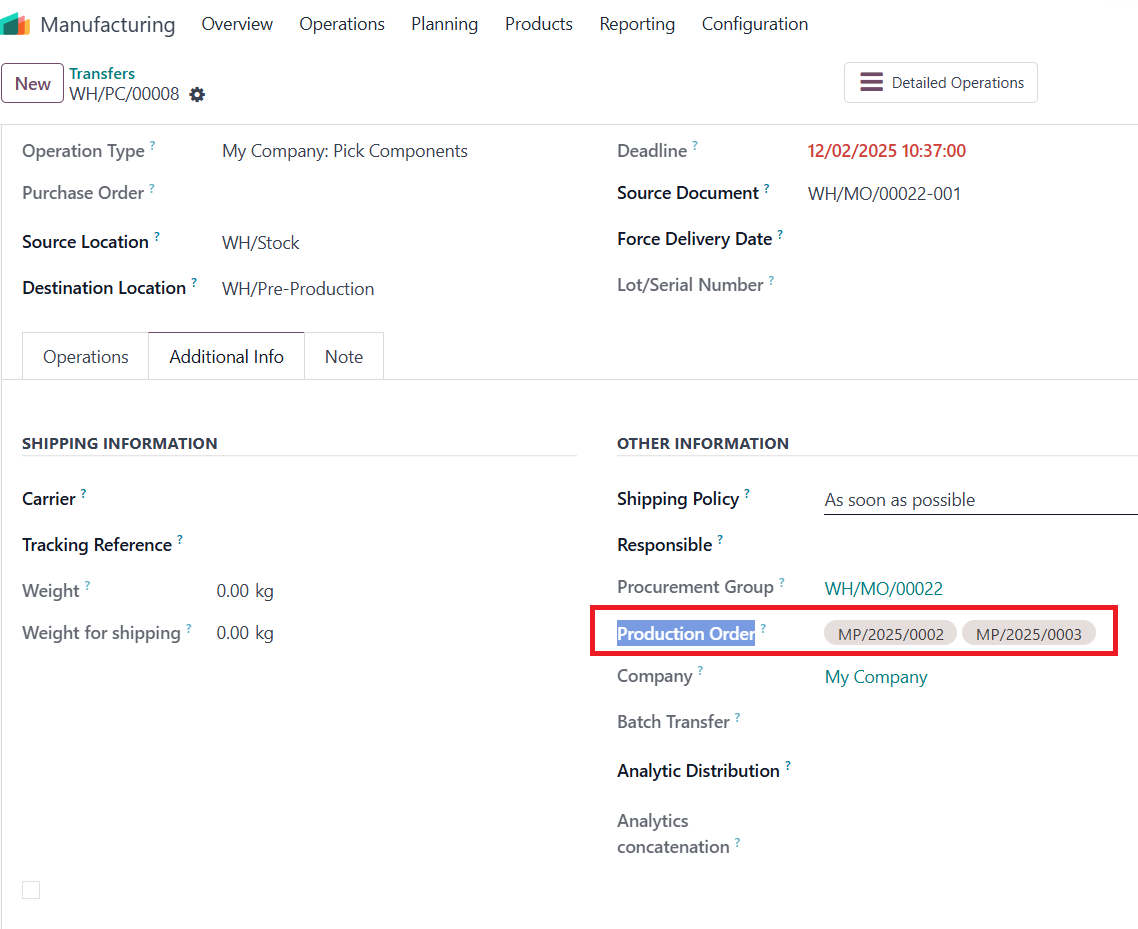
We can also split the manufacturing order by using the "Split Manufacturing Order" button and the Confirm. The sub-manufacturing order and transfer are split as well. |
|
Create a new MO, fill in the information, and the Analytic Distribution. |  |
Go to the purchase order, and we will see that the analytic distribution is propagated. |  |
***Warning:Odoo v13 introduces the notion of MTO Check the stock. So if the required quantity is less than the quantity on hand, no other action (create Production Order/Purchase Order) will be triggered. This method works only if the reservation management is working properly. If we want to always trigger the next action, we should change the supply method to "Trigger Another Rule" only. |
|
AUTO CONFIRMATION |
|
Automation Confirm for Manufacturing Order Go to Sales > Create Sales Order with MTO product If the tickbox is unchecked, the MO created will be in the Draft state |
|
If the tickbox is checked, the MO created will be in the Confirmed state |
|
MO is linked to SO by the Manufacturing smart button |
|
AUTOMATION CONFIRM FOR MPS | |
Go to Manufacturing > Master Production Schedule > Choose a product > Order |
|
|
|
AUTOMATION CONFIRM FOR REPLENISH | |
Go to Inventory > Procurement > Replenishment > Choose a product to order |
|
The MO created will be in the Draft state if the tickbox is unchecked and in the Confirmed state if the tickbox is checked. |
|
In stock picking list view, Production Order column will show all the Production Order related to transfer |
|