



ODOO'S FUNCTION
Odoo provides advanced access rights management per user. It's flexible, however complex to mange for the key user because everything is done on the form view and needs to be checked one by one.
CLUEDOO'S FUNCTION
Cluedoo introduces an editable tree view to easily manage main access rights with a view of all users.
For v18 and earlier 1. Go to Settings → Users & Companies → Users list view → Click Filter Icon Then a list setting will appear | 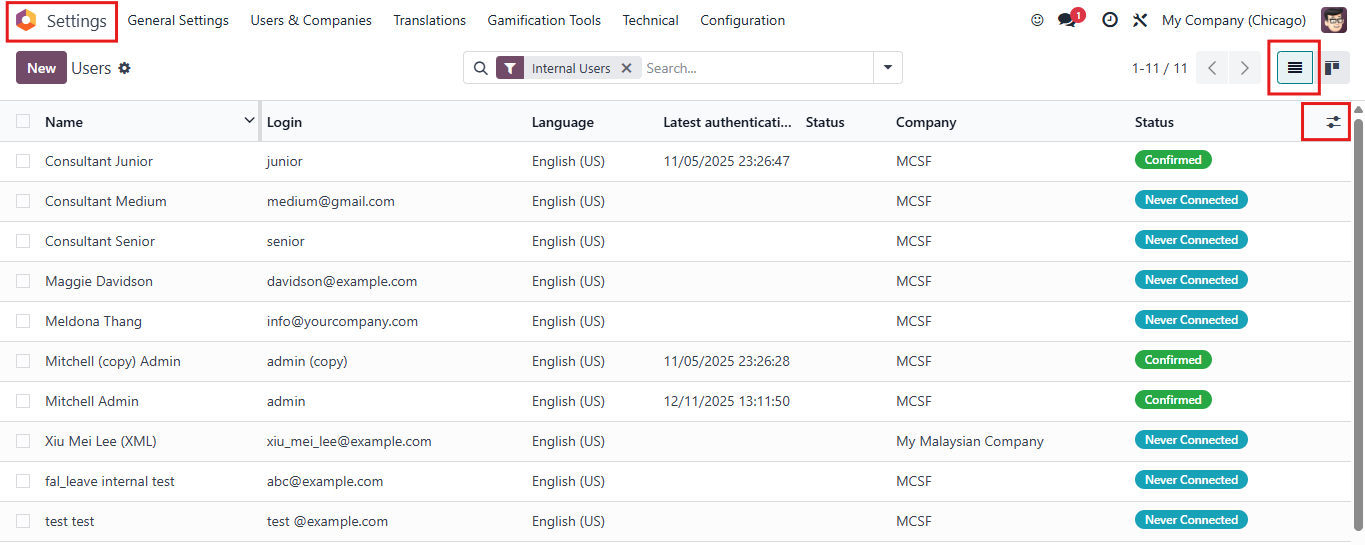 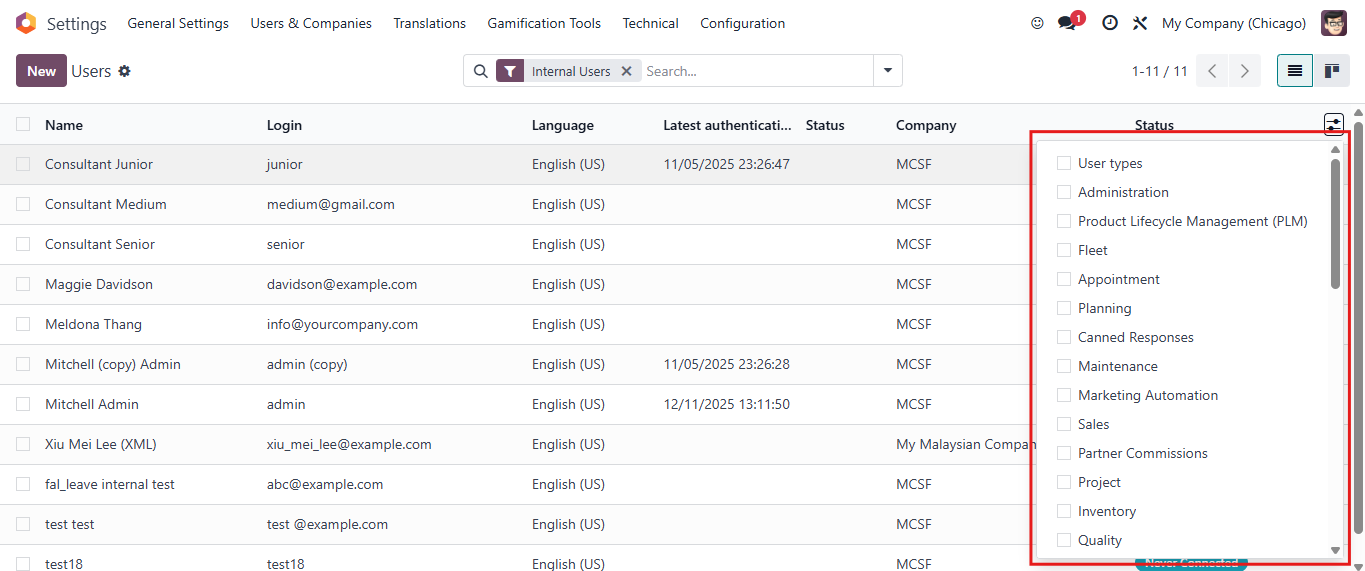 |
2. Choose the access right you want to change, then a column will be added in User Line |  |
3. Choose all users that you want to mass edit access right. Then go to the access right cell of one of selected user. Choose the right you want to change to. A pop-up Confirmation will appear > click Confirm For example: I want to change access right in Sales of 3 user Consultant Senior, Maggie Davidson, Meldona Thang to User: Owns Documents Only In the Sales cell of Maggie Davidson, I choose User: Owns Documents Only | 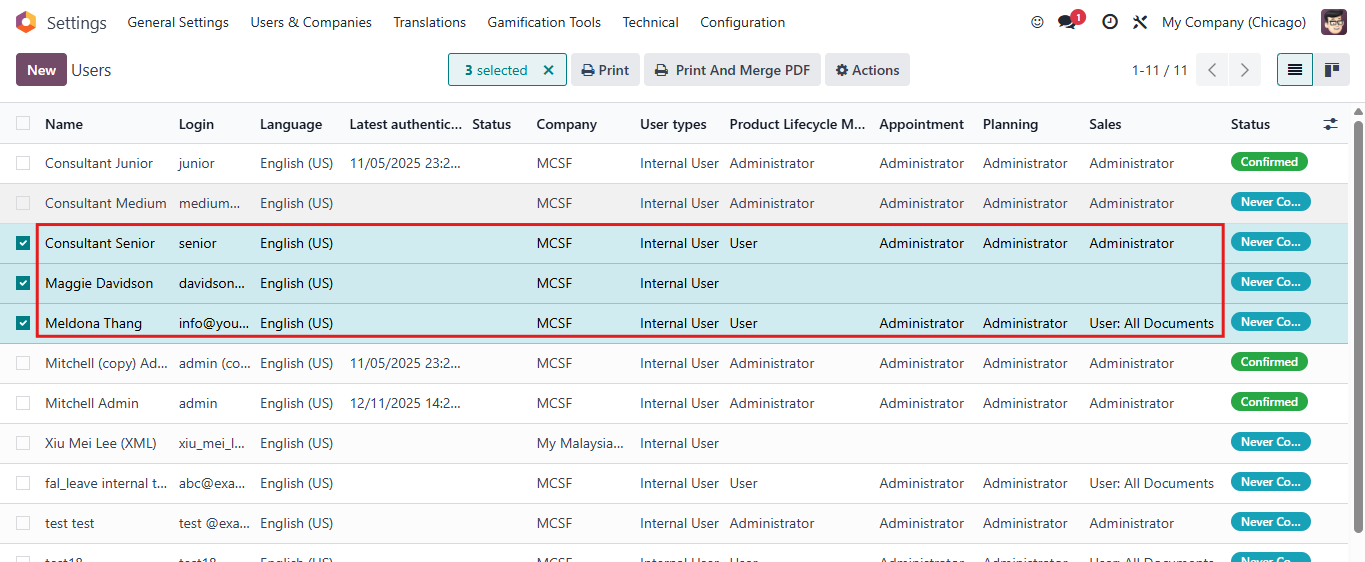 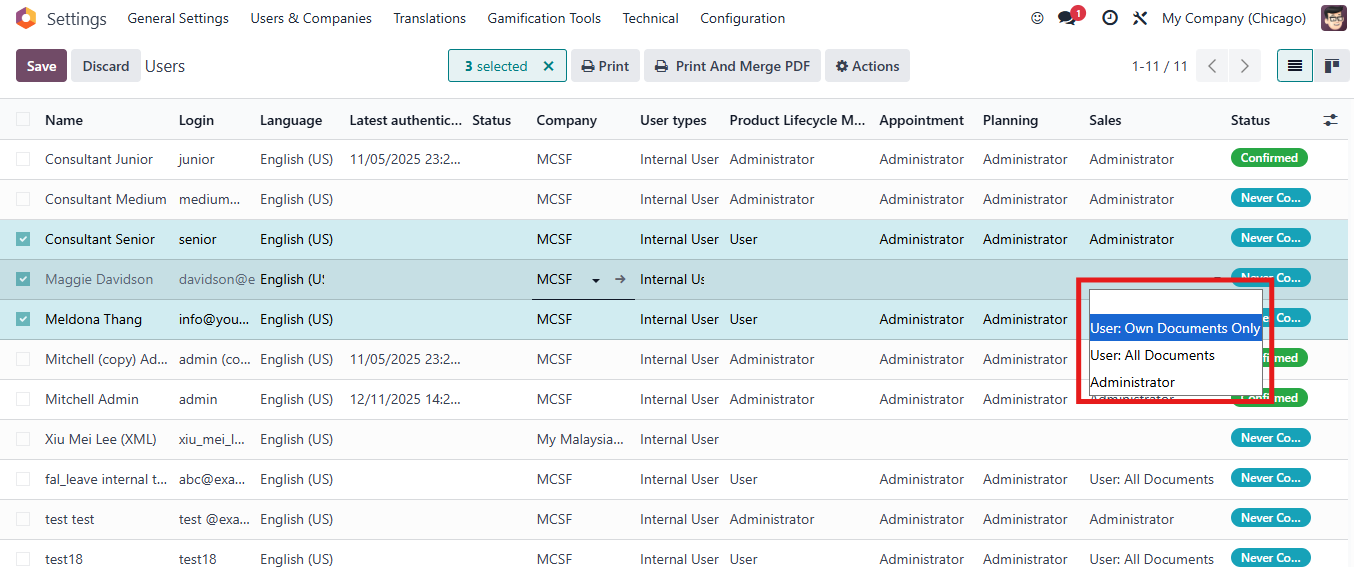 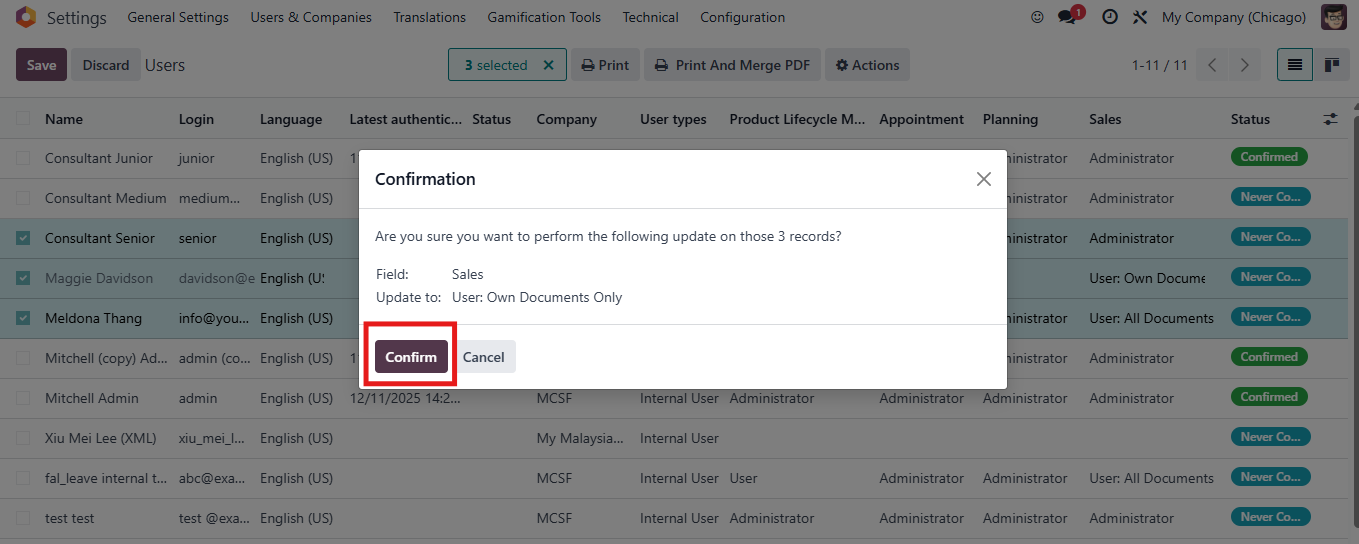 |
Then all access right of all the selected user is edited | 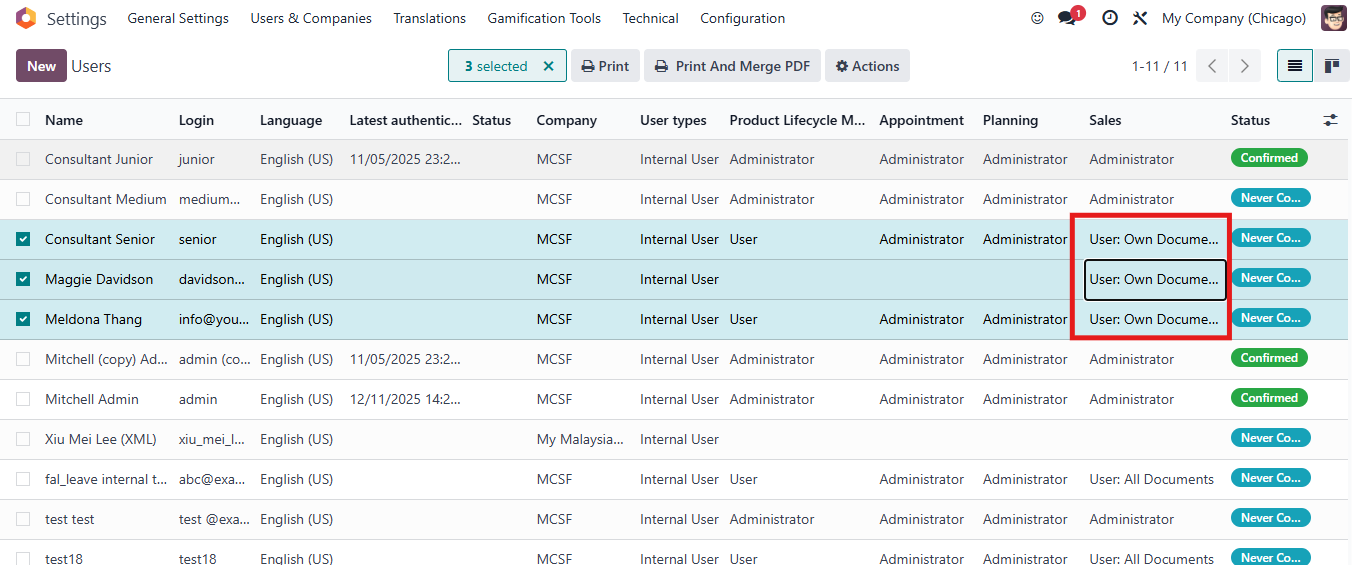 |
For v19 1. Go to Settings → Users & Companies → Users list view Choose users you want to mass edit access rights | 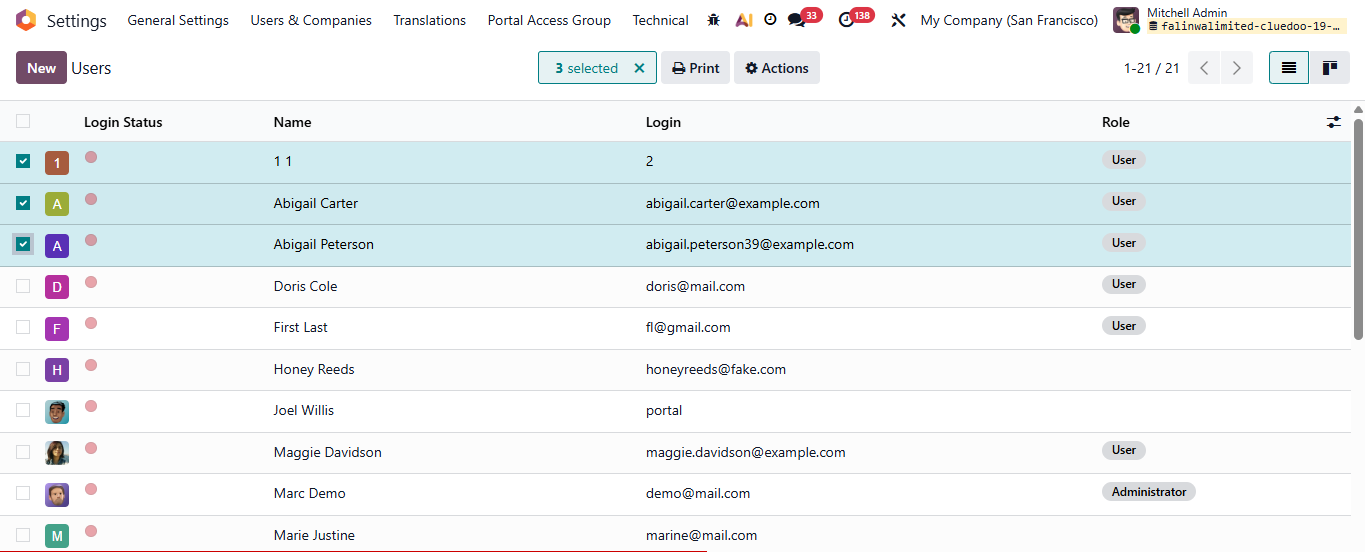 |
2. Click Button Actions → Access Groups (Multi) Then Access Groups wizard will appear Change the access right of these users → Click Apply | 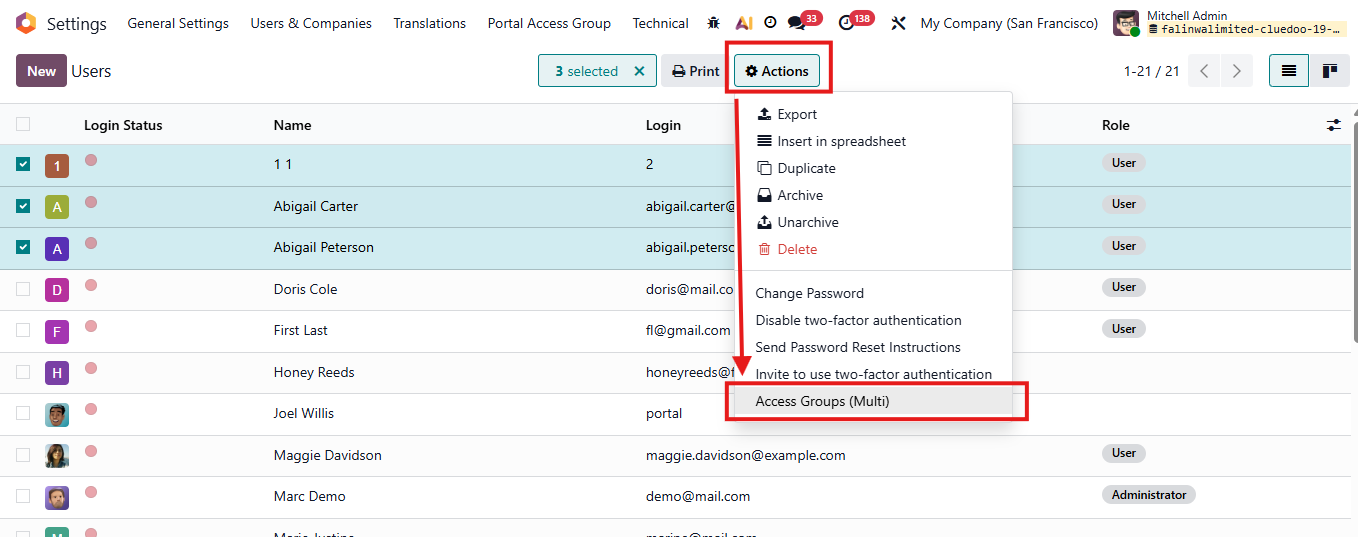 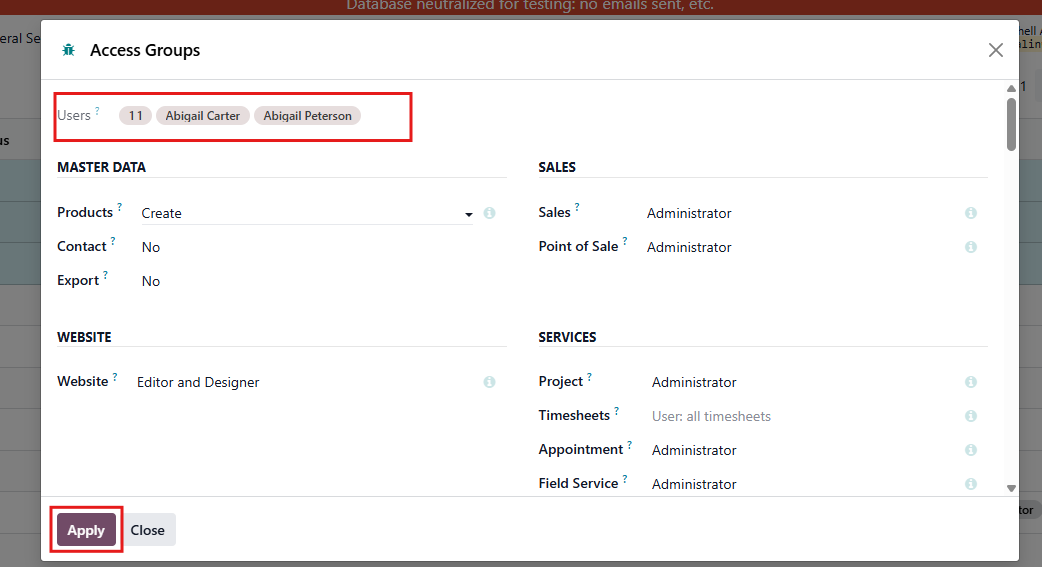 |
Note: in v19, you can also mass editing extra rights | 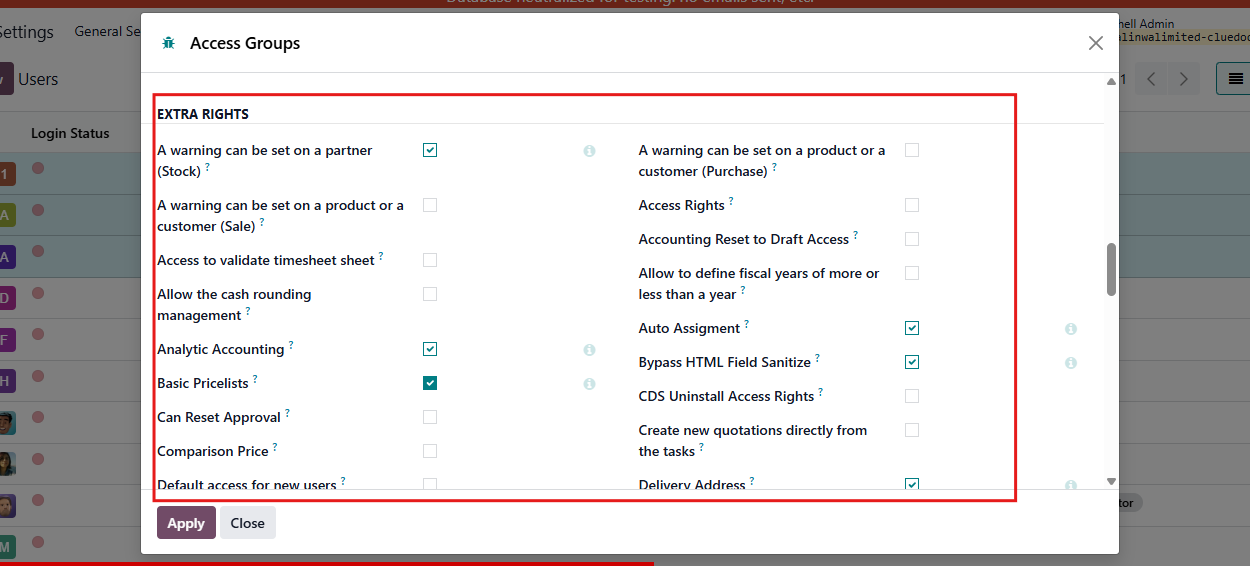 |
Or can mass editting extra rights on this directly menu. |
|
For this case, must select the record first -> then select the checkbox. |
|

