


STORY BEHIND THE FEATURES
ODOO's FUNCTIONS
Odoo proposes a full asset engine, oriented to new assets, but does not give a lot of flexibility to integrate the old assets into the system.
CLUEDOO's FUNCTIONS
Cluedoo studied all the limitations of Odoo's existing functions to launch a modified asset module and add more flexibility and features:
- Multi-Confirm asset: Confirms your 3000 historical assets in just one click (as opposed to 3000 individual clicks).
- Asset sequence: Easily tracks your assets.
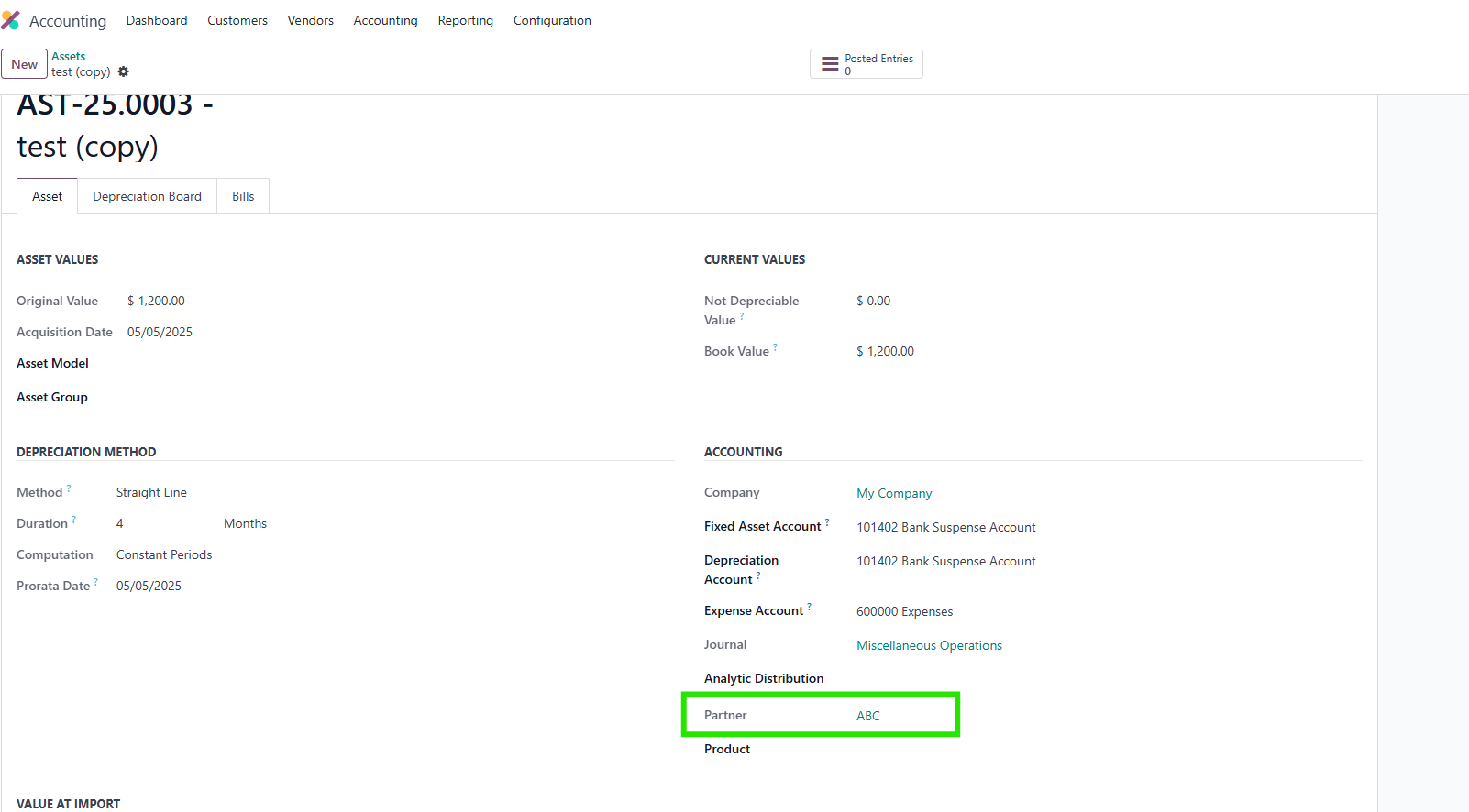
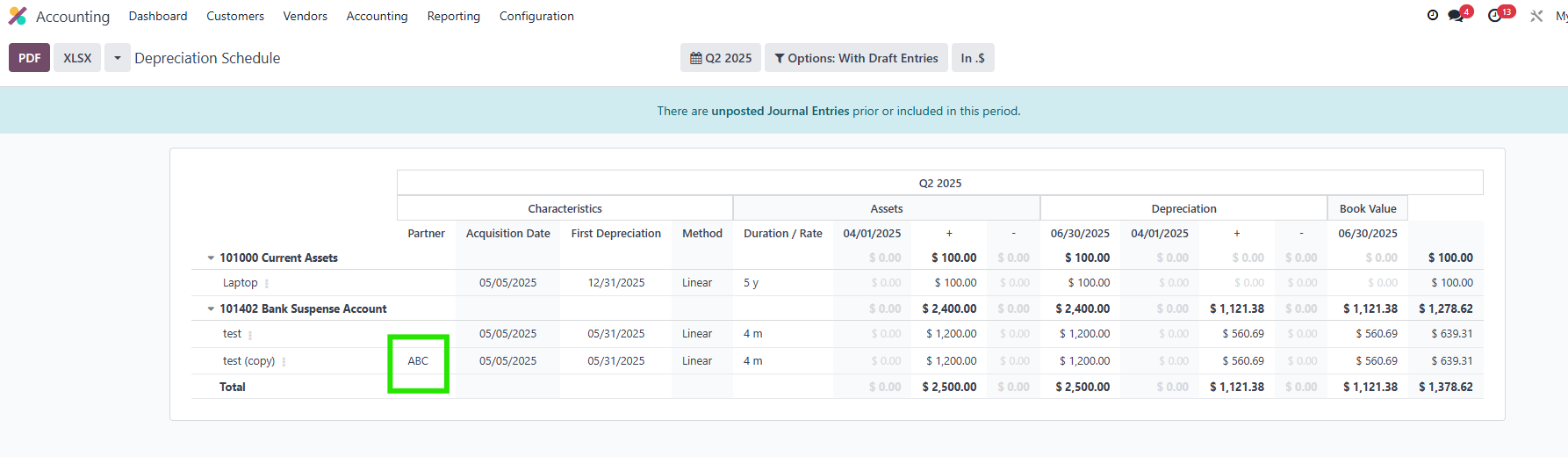
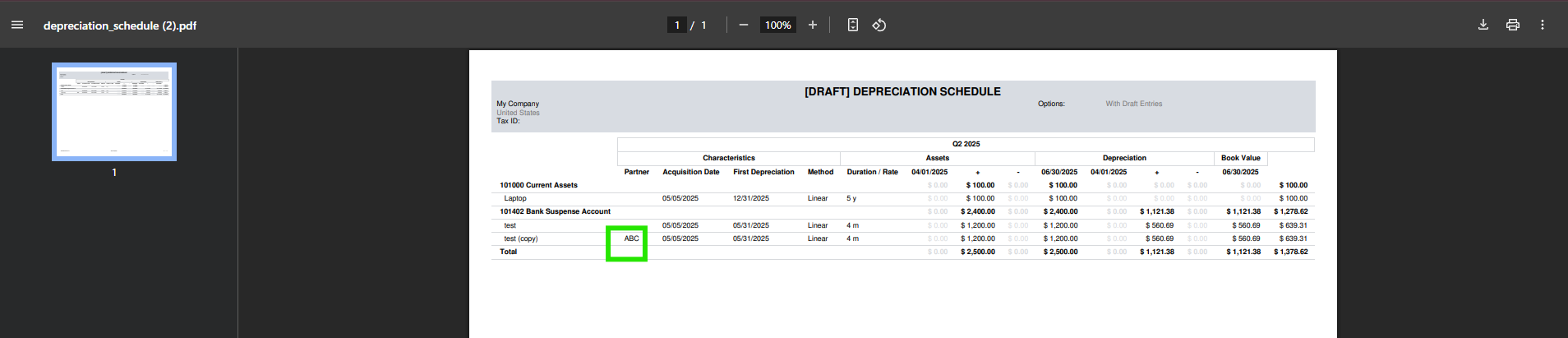
- Partmer column in Depreciation Schedule report: Easily tracks your partner.
MODULE +
Gives more flexibility to manage your assets, especially the transition between your old system and your new system. This is incredibly important for audits on your accounting.
BUSINESS CASE
A Go-Live needs to be done for a company with 3000 assets, however, you have a strict accounting firm that does not want any change in the depreciation of historical assets. This will be no problem to manage with Cluedoo, as you can make your Go-Live in 2 weeks.
CLUEDOO RECOMMENDATION
Install on 100% of your database using Asset modules.
OUR FEATURES AS SOLUTIONS
Multi Confirm Asset
Auto Compute Asset Closing Date
Second Depreciation Date
Separate/Combine Asset from Vendor Bills
Partmer column in Depreciation Schedule report
HOW TO USE THIS MODULE?
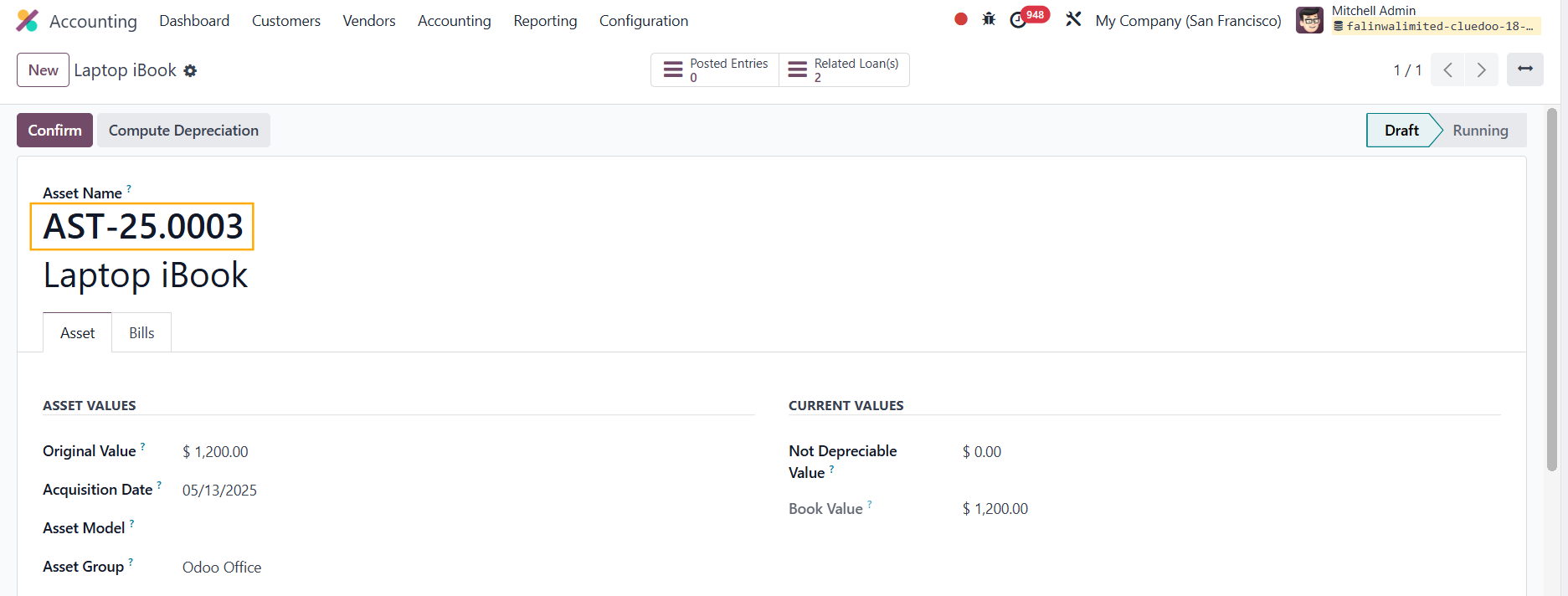
ASSET NUMBER (fal_asset_sequence)
MULTI-CONFIRM ASSET (Removed in v17 onwards)
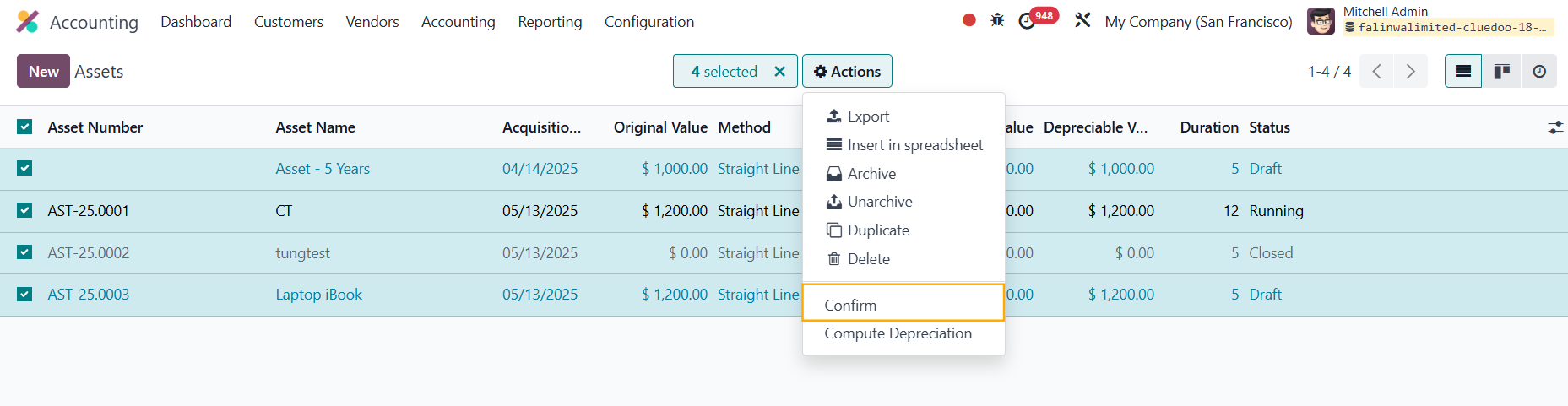
Go to Accounting → Accounting → Management → Assets. Check all the assets that need to be confirmed. Then, click on "Action" and select "Multi Confirm Asset".
Note: From v17, this function is available in Odoo Standard

AUTO COMPUTE & SECOND DEPRECIATION DATE (Removed in v16 onwards)

MANAGE ASSET: SEPARATE, COMBINE, DEFAULT (Removed in v16 onwards)
1
First, create an Asset Model.
Then, choose how you want to manage the asset (Manage Asset).
- Separate: i.e.: Purchase 5 units of Product A and 3 units of Product B; this will create 8 Assets.
- Combine: i.e.: Purchase 2 units of Product A and 2 units of Product B. Add another 1 unit of Product A and this will create 2 Assets.
- Default: i.e.: Purchase 2 units of Product A and 3 units of Product B. Add 3 units of Product A and this will create 3 Assets.
You should also choose the Analytic Account.

A. SEPARATE UNIT


B. COMBINE


C. DEFAULT

ASSET MODEL ON VENDOR BILL LINE

PARTNER COLUMN ON DEPRECIATION SCHEDULE REPORT (fal_asset_to_journal_items)
If you add Partner in Asset, it also appears in the depreciation schedule report and its PDF
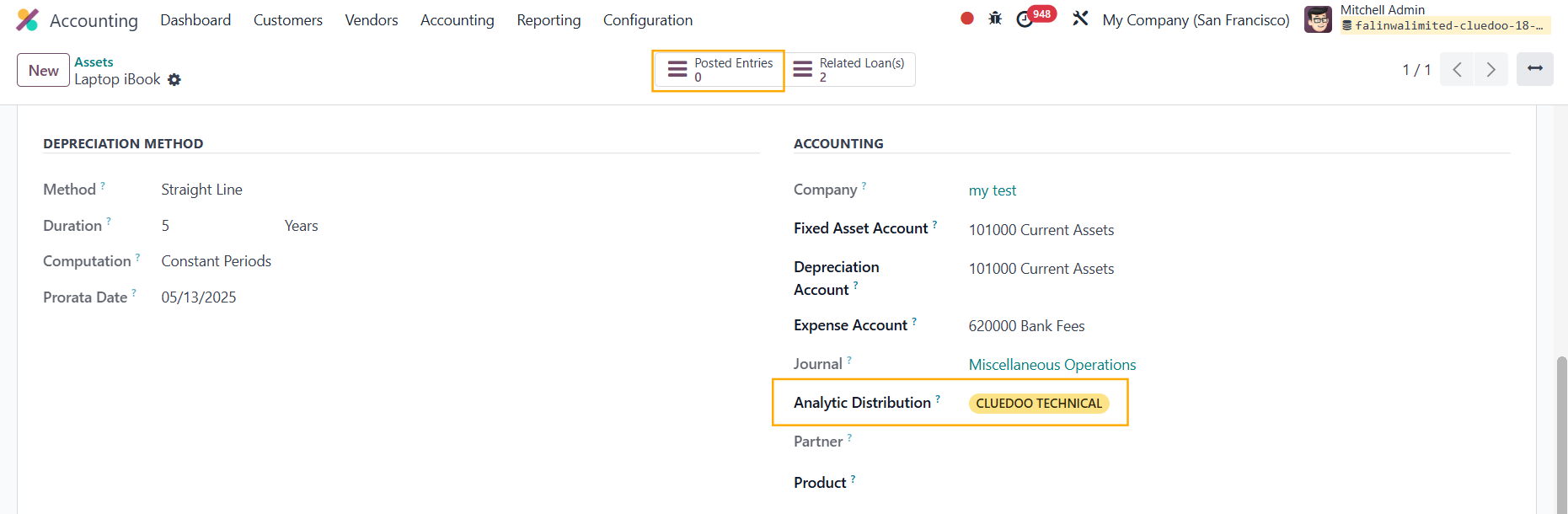
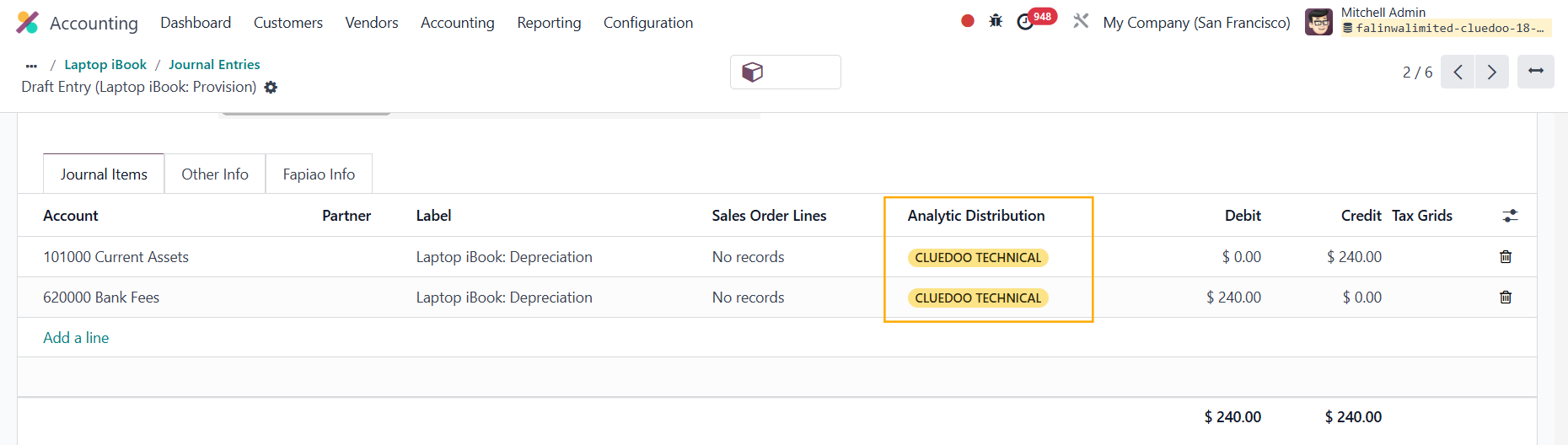
ANALYTIC DISTRIBUTION FROM ASSET TO JOURNAL ITEMS