


ODOO'S FUNCTION
When invoicing a service based on timesheets, Odoo automatically invoices all recorded hours from the sales order without allowing you to select specific timesheet lines. You cannot choose which hours to invoice or edit timesheets after invoicing.
CLUEDOO'S FUNCTION
CLuedoo enhances flexibility in invoicing timesheets with the following features:
1️⃣ Create invoices first (from sales order, prepaid package, etc.) and add timesheet lines afterward
2️⃣ Select exactly which hours to invoice, with the ability to set a custom coefficient per line
3️⃣ Edit timesheets after invoicing
4️⃣ Print invoices with a detailed timesheet annex for full transparency with customers
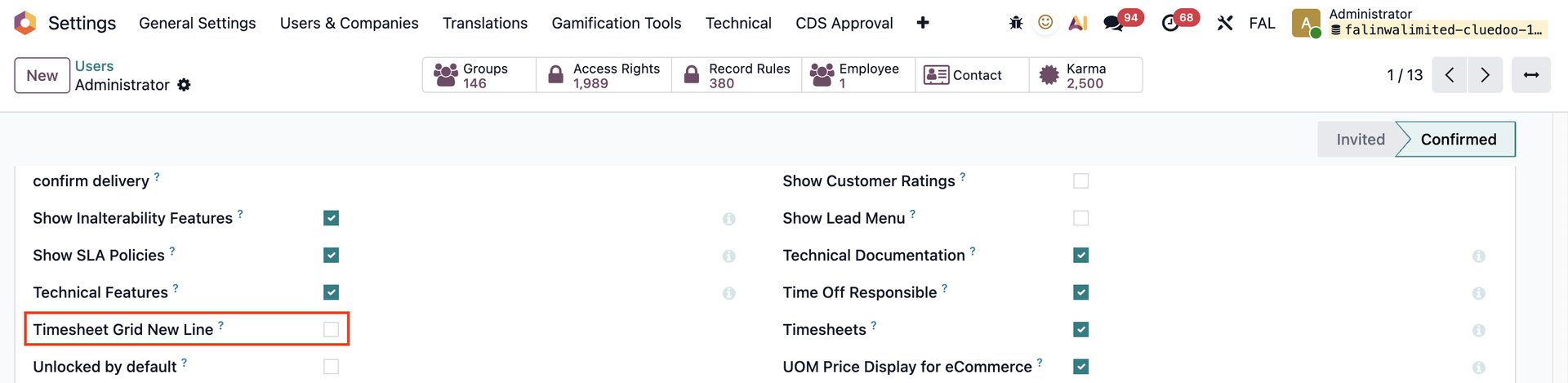
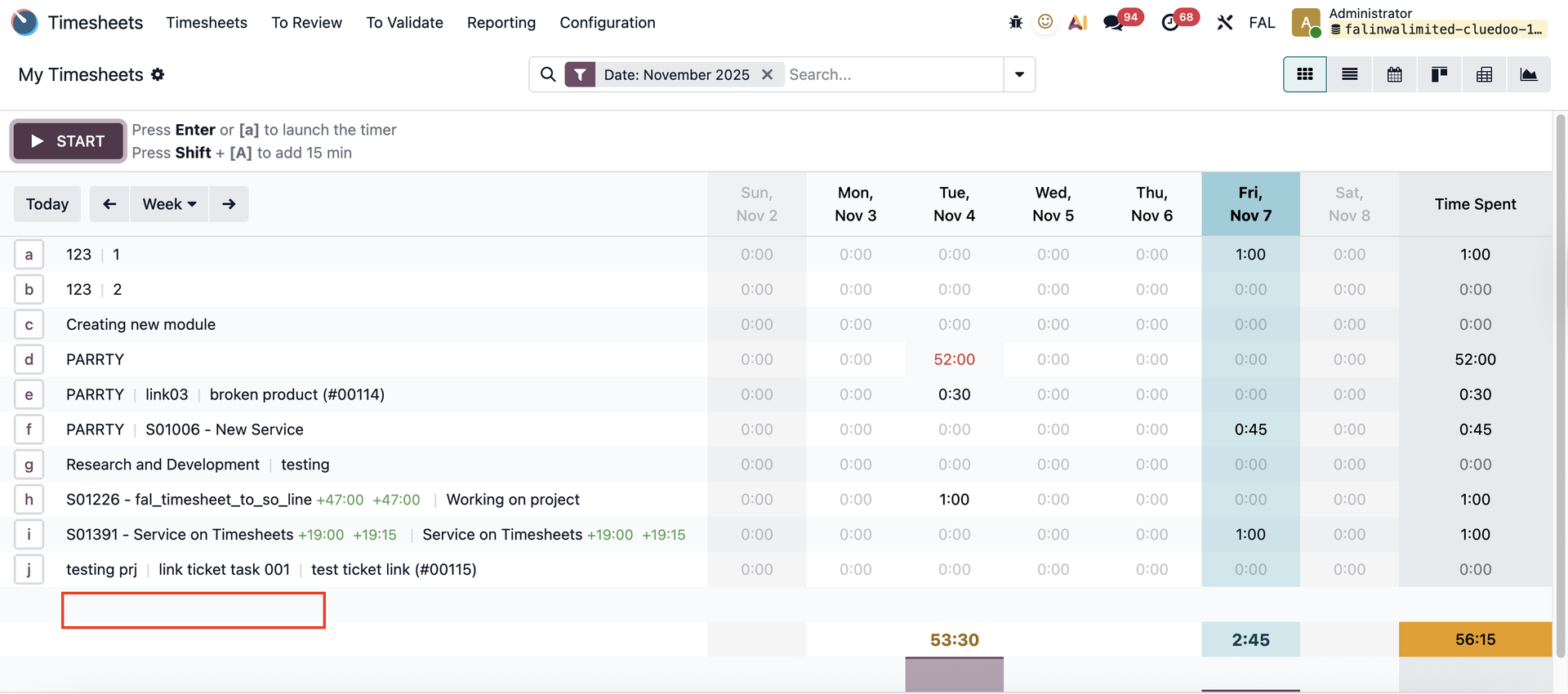
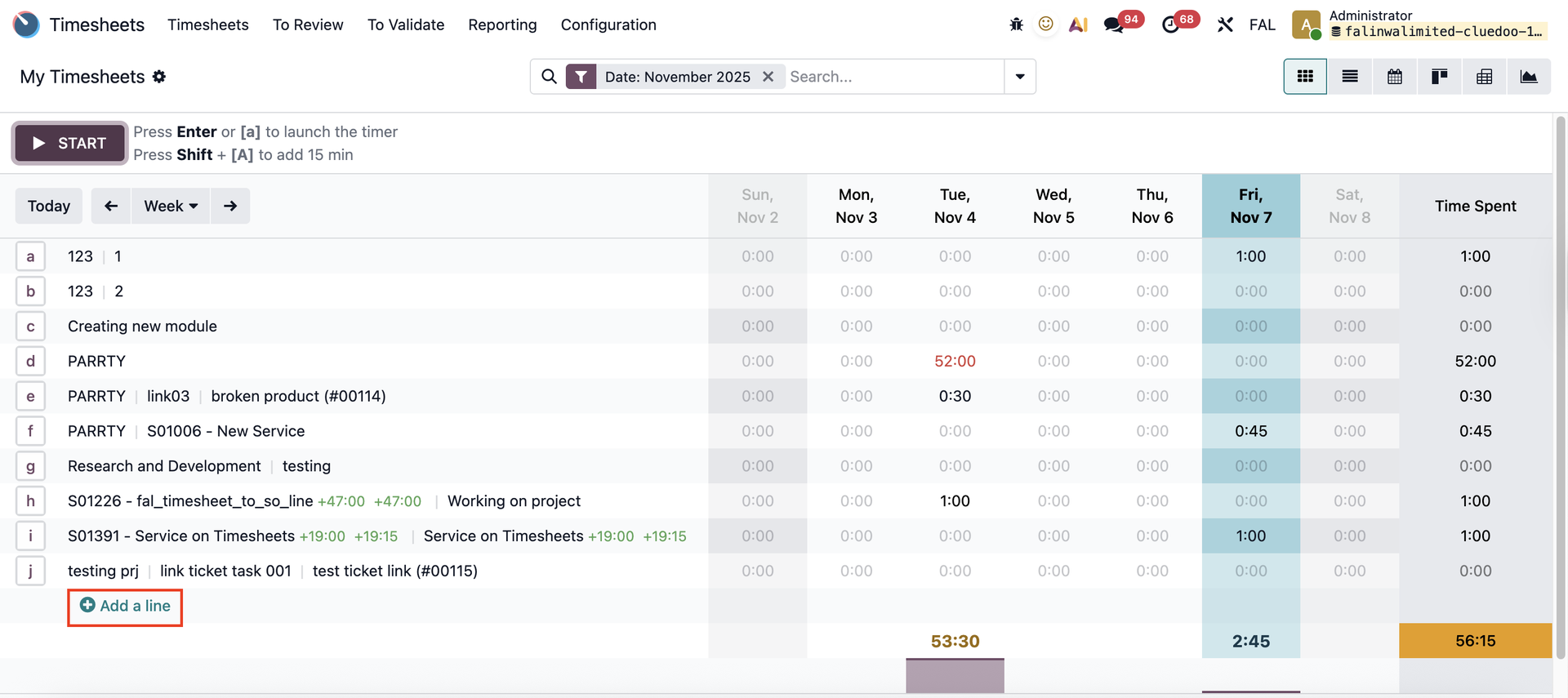
5️⃣ Control the visibility of the “Add a line” button in the Timesheet grid view via a checkbox in User Settings
1. Select Timesheet on InvoiceOn the Invoice form view, we have the Timesheet Lines for Annex tab. We can add timesheet lines directly from the invoice by clicking Select Timesheet, with the option to select any lines, not limited to invoiceable ones. | 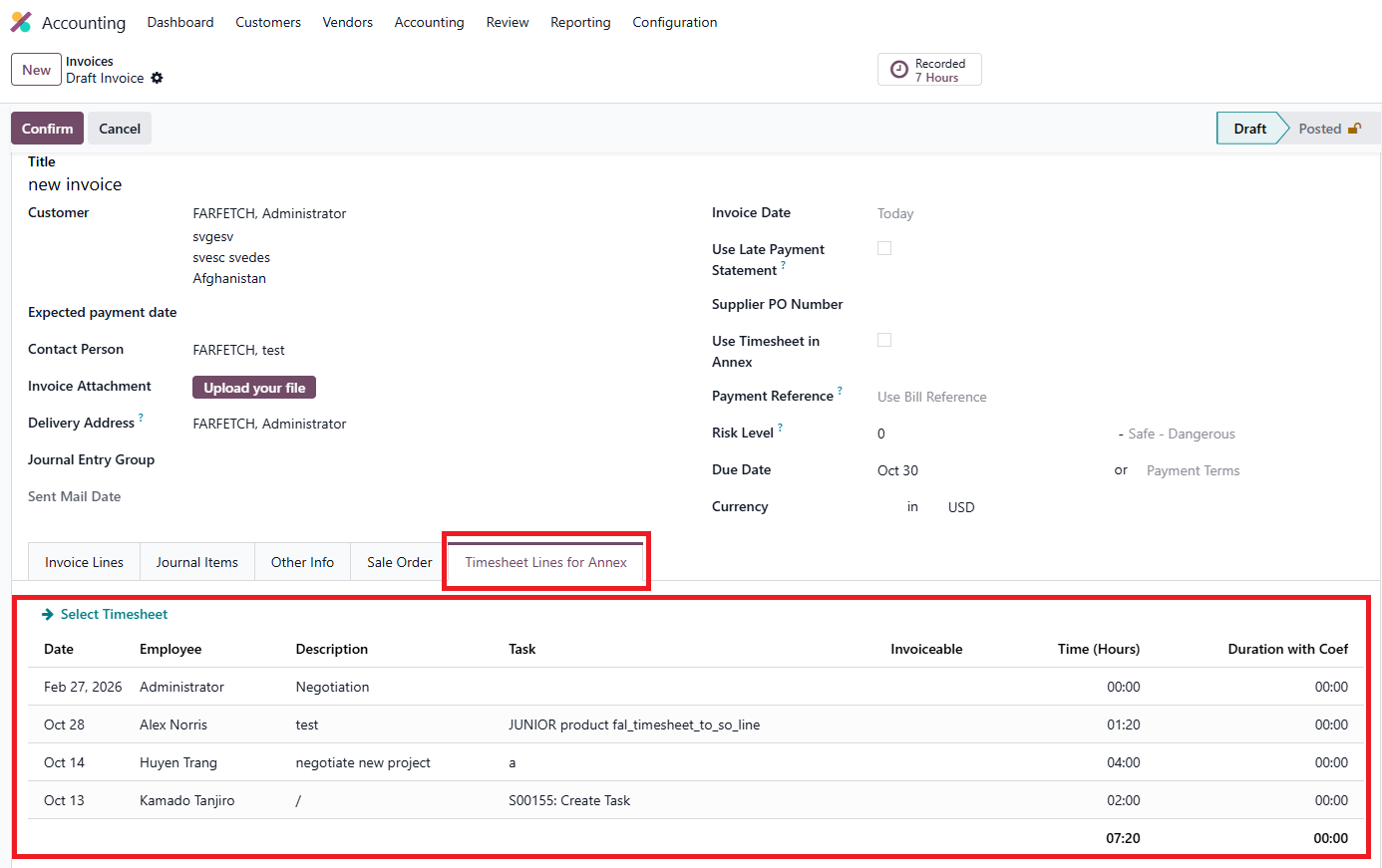 |
2. Print Invoice with Timesheet AnnexTick Use Timesheet in Annex, and the invoice will be printed with the timesheets in annex. | 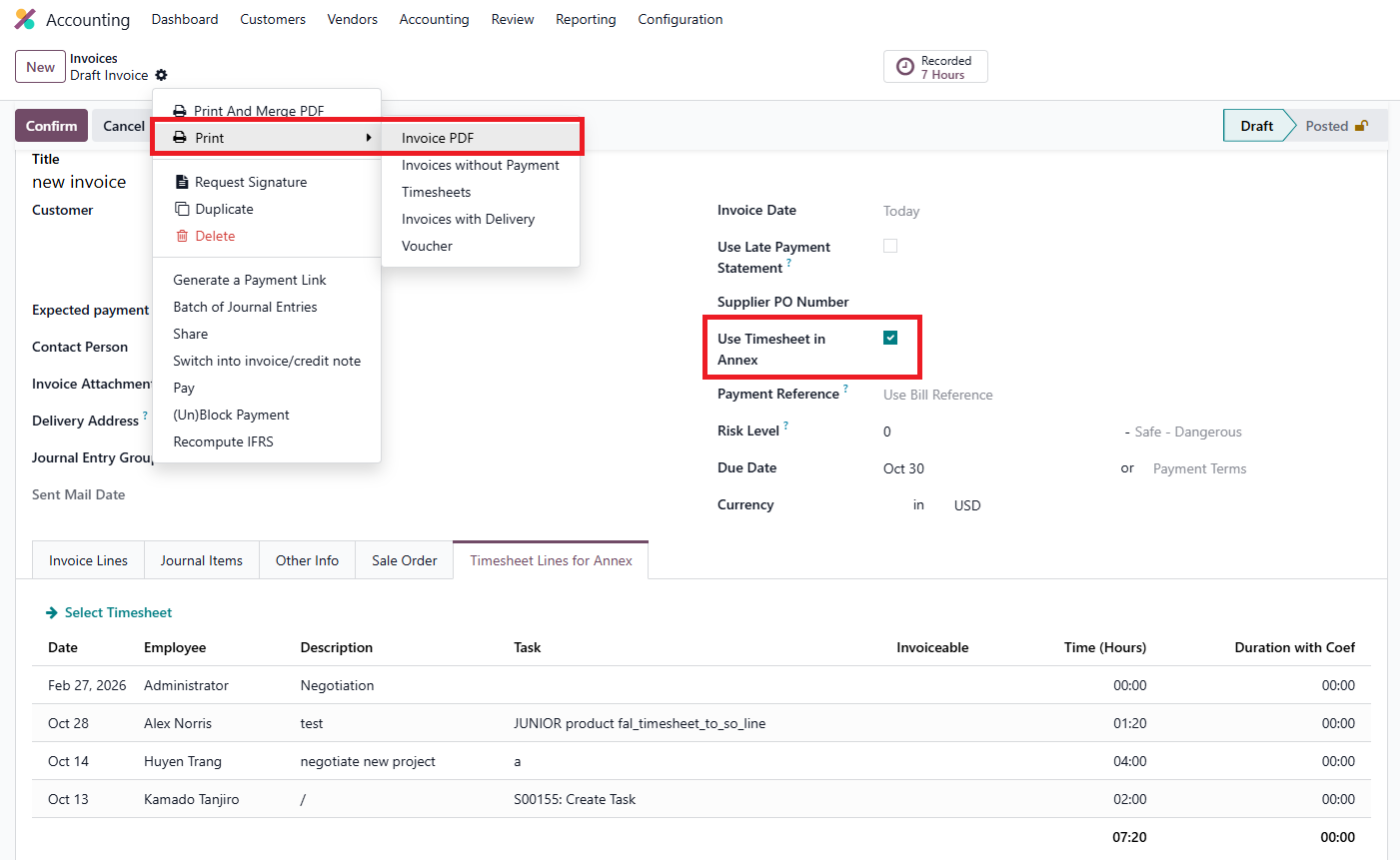 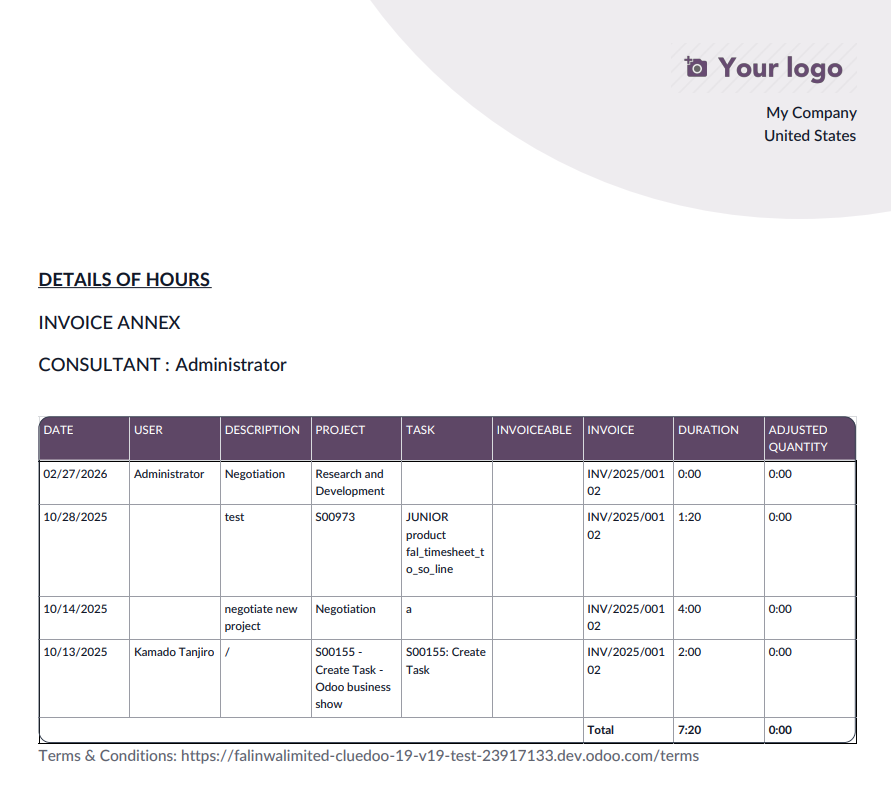 |
3. Set Invoiceable and Coef on TimesheetWe can set the Invoiceable and Coef in a timesheet line, and it will affect the Duration with Coef. The Coef (%) field directly adjusts the number of hours to be invoiced from the related timesheet. e.g., if you log 1 hour and set the Coef to 50%, the Duration with Coef (the billable time) will be 0.5 hour. |  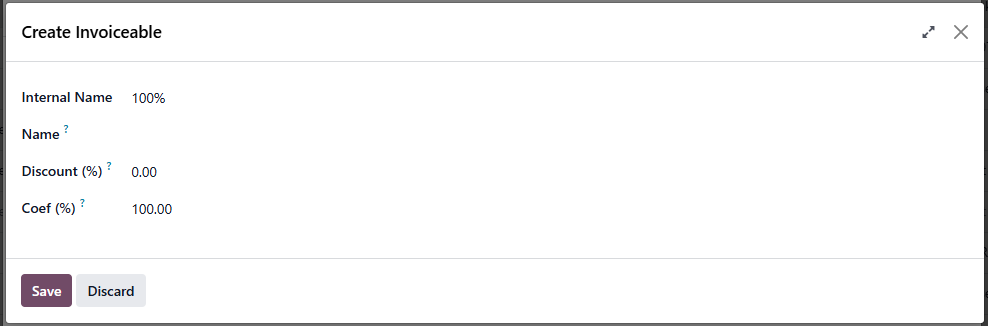 |
4. Create Invoice from TimesheetSelect invoice, click Actions → Create Invoices and the timesheet will be automatically linked to an invoice | 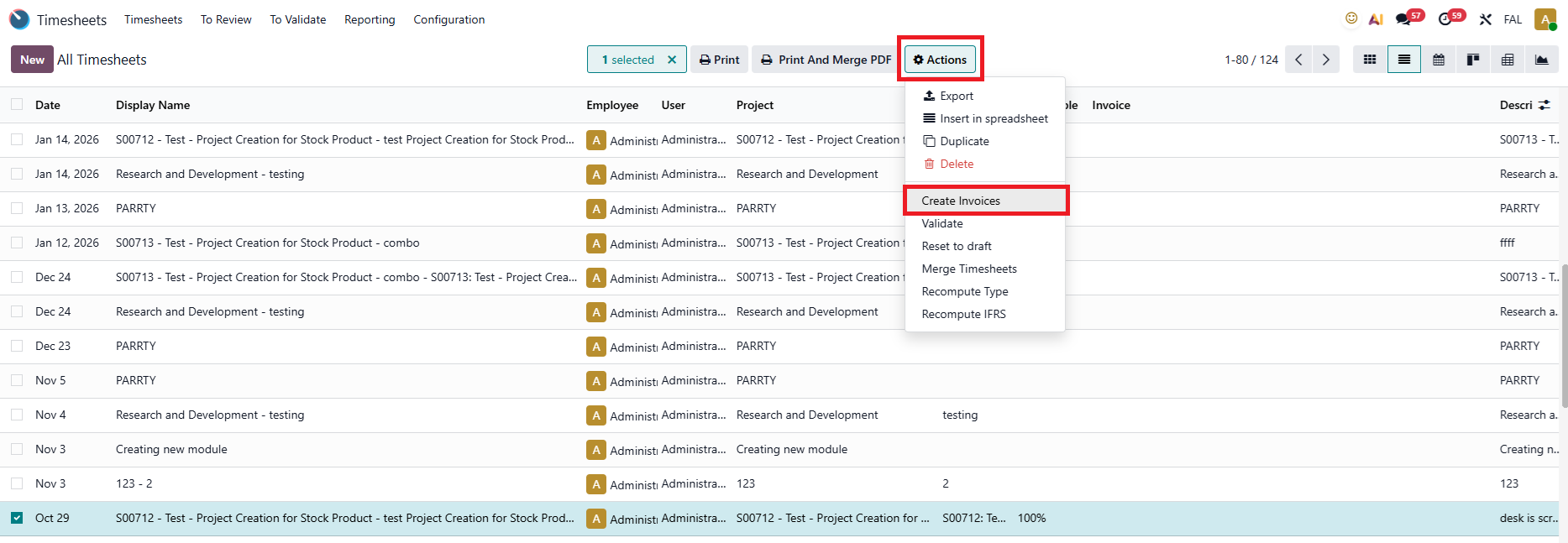 Pop-up asking for confirmation 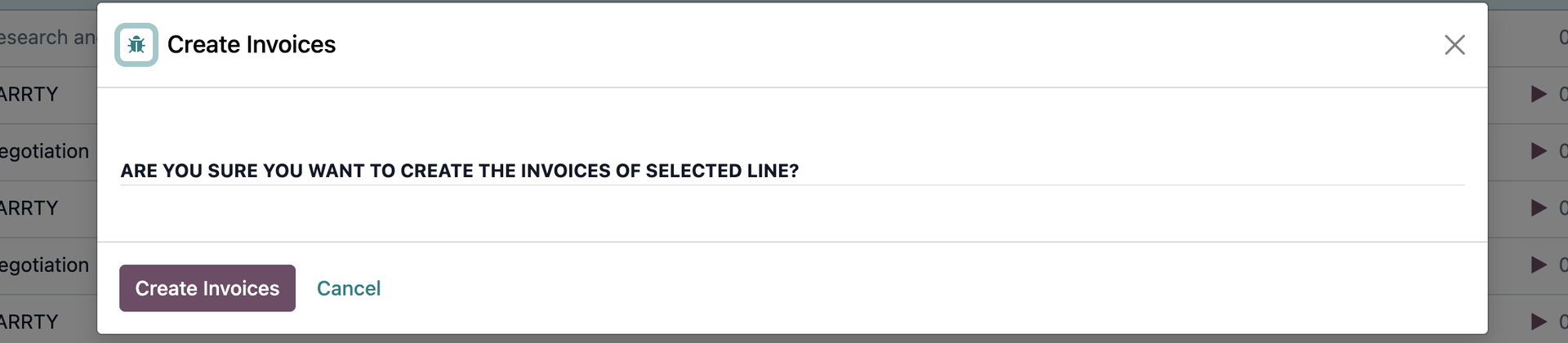 Result 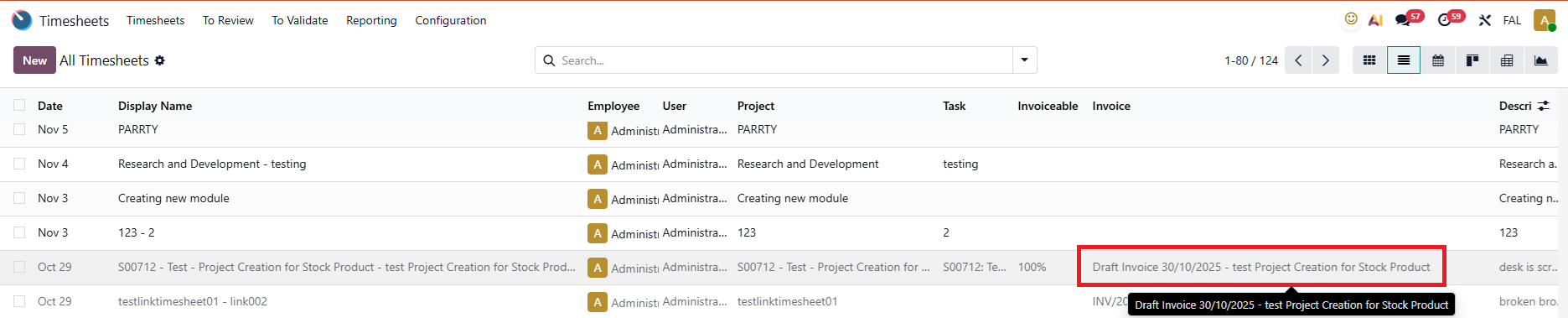 |
5. Remove Invoice from Invoiced timesheetAfter the invoice is posted, you can remove it from the timesheet line and freely edit other fields in the line. | 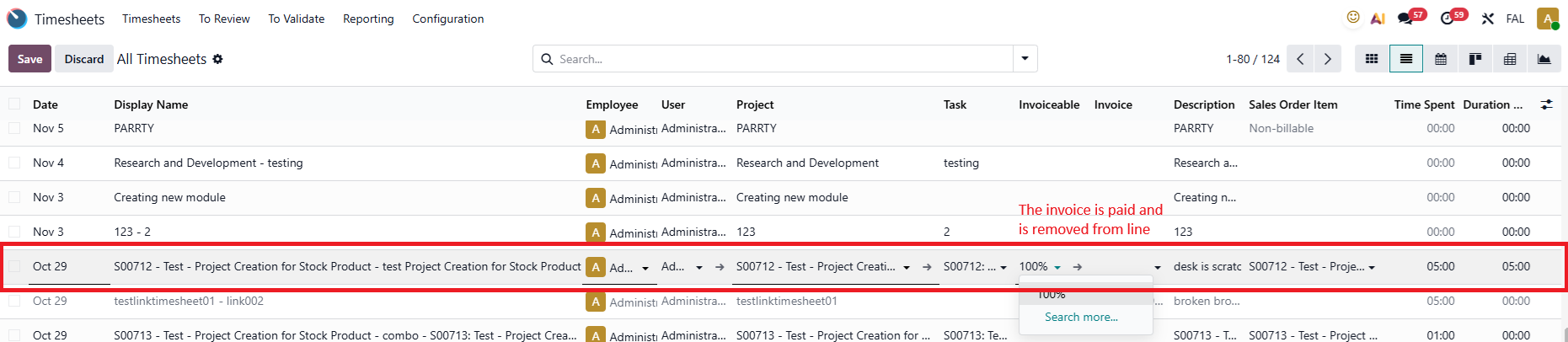 |
6. "Timesheet Grid New Line" optionIn the User Settings, there is a Timesheet Grid New Line checkbox.This checkbox is used to control the visibility of the “Add a line” button in the Timesheets grid view. |
Unchecked
Checked (ODS)
|