


ODOO'S FUNCTION
Odoo allows scanning serial numbers during stock operations, but when scanning multiple serial numbers quickly, all may appear together in the search bar. This can make it unclear which serial number is currently being processed.
CLUEDOO'S FUNCTION
Cluedoo changes the scanning behavior so that only one serial number is shown and processed at a time, even when scanning multiple units in succession. This improves clarity and helps prevent confusion or duplication during barcode operations.
1. Go to Inventory > Products > Lots/Serial Numbers > New to create a new lot/serial number or choose an existing one > Fill in Product (e.g. Apple Pie) | 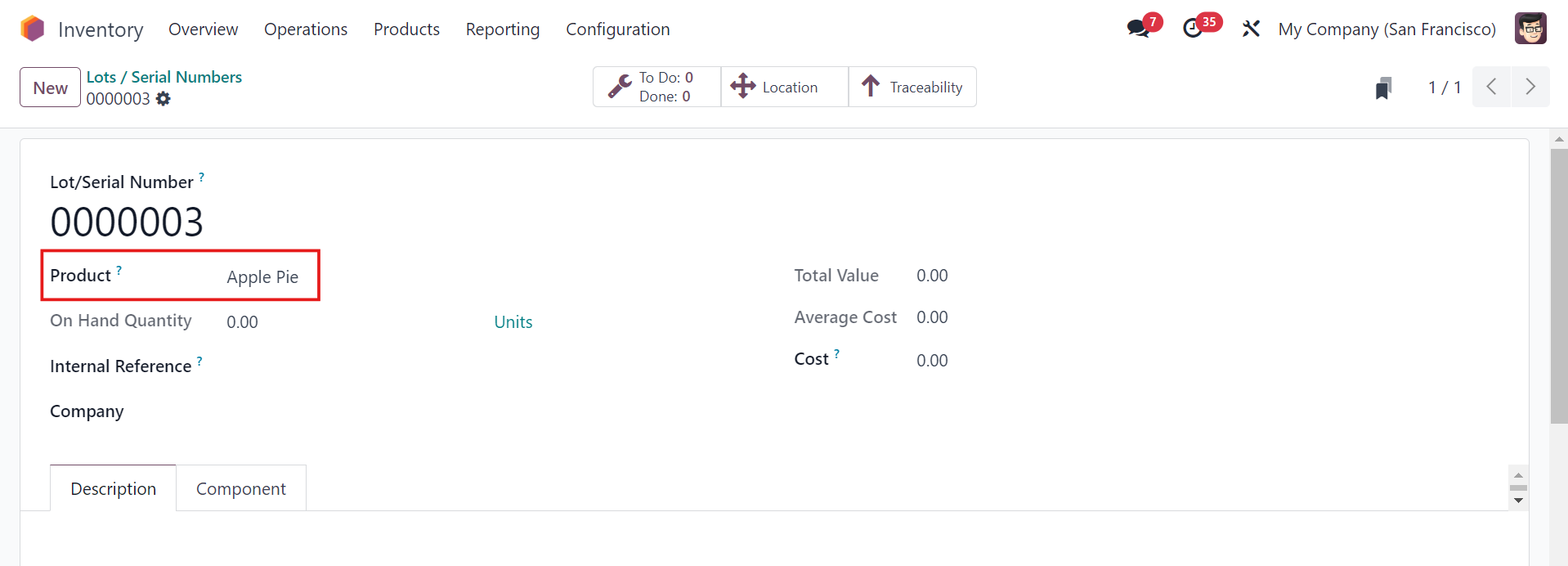 |
2. Go to the internal link of the product > On Hands > New and fill in the Lot/Serial Number that you just created/chose Note: Make sure that the Product Type is Goods and On Hand Quantity is not 0 | 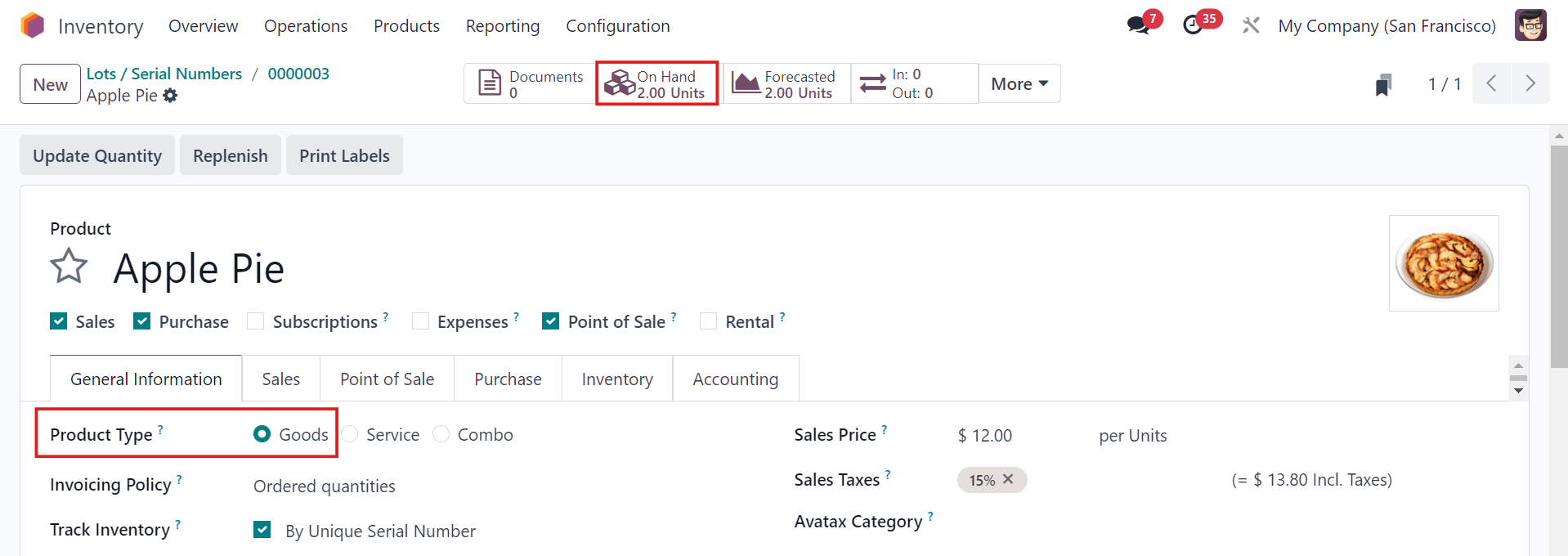 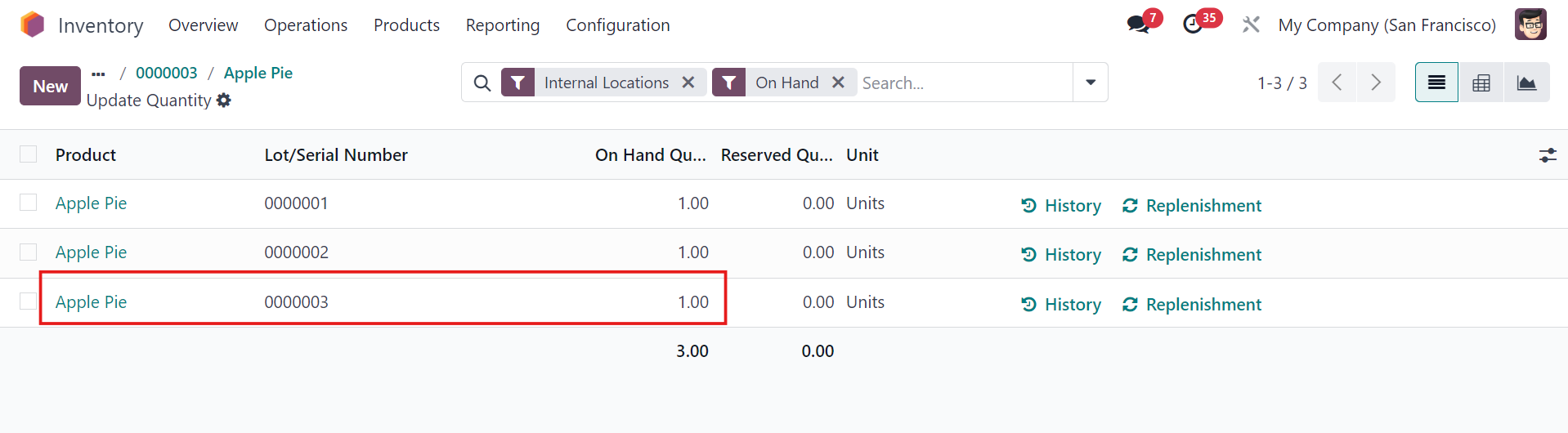 |
3. Head back to Lots/Serial Numbers > Location to make sure the product is already there |  |
4. Go to Barcode > Scan the product's barcode > The product's Lot/Serial Number will automatically appear. | 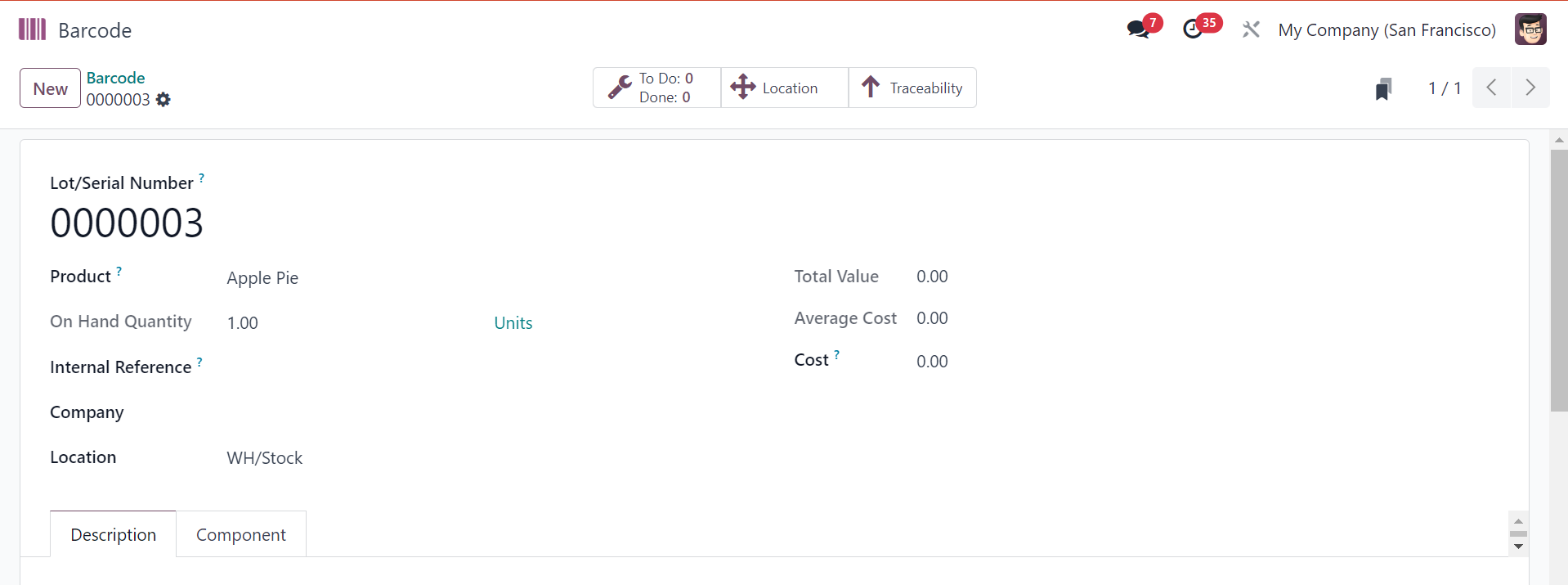 |
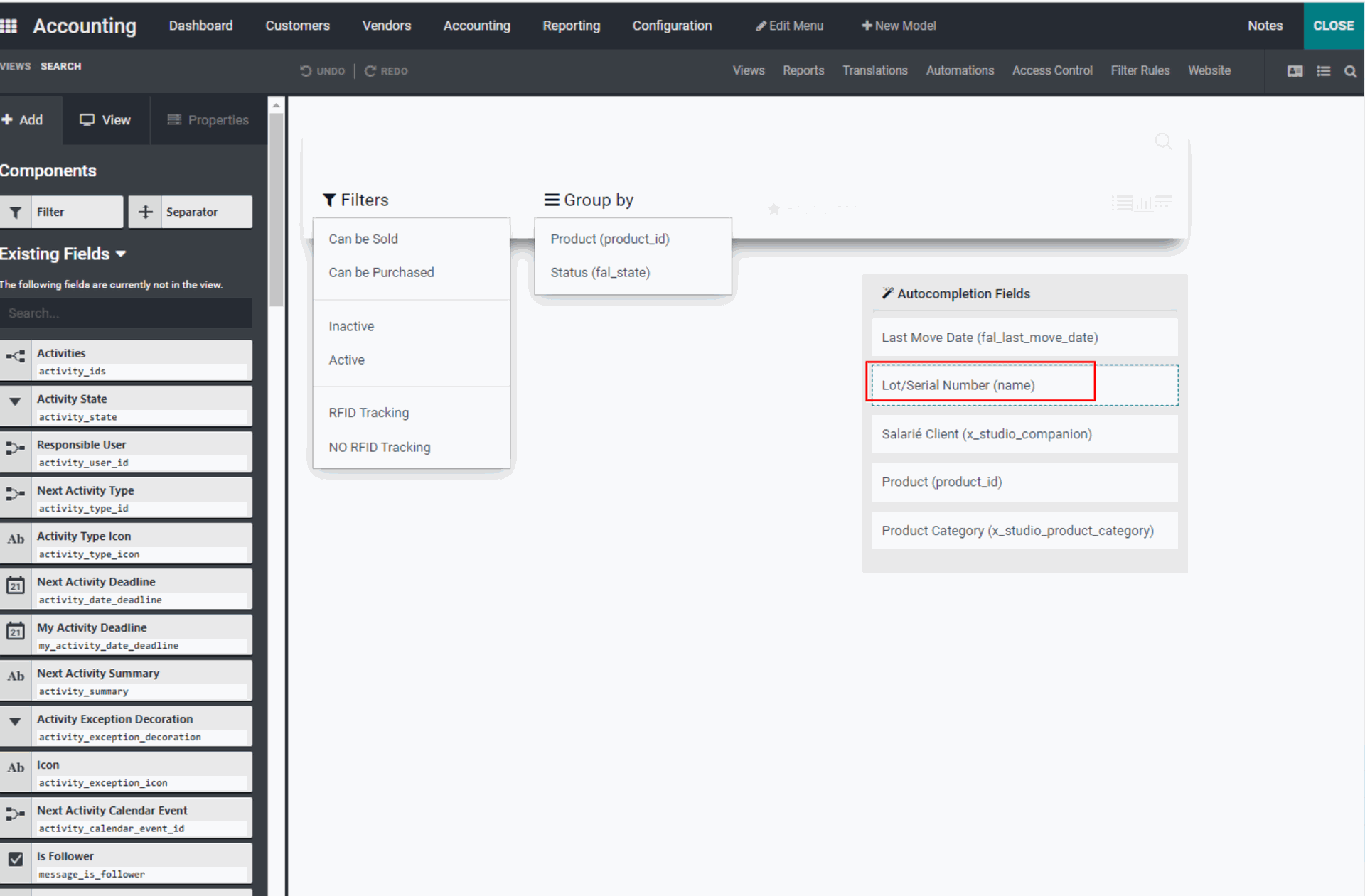
5. Go to Lots/Serial Number and scan a barcode/lot/serial number. In the search bar, every time we scan, the SN that we scan will appear. It does not behave like ODS which if we scan 2 SNs, 2 SNs will show up in the search bar. With our module, only 1 SN will show up. And there will be sound too every time we successfully scan the SN. Note: When we scan SN, don't put the cursor in the search bar. And also make sure that the first field in the search bar is the name (technical name of the field is name) and not other field. Otherwise, it won't work. |
|