


STORY BEHIND THE FEATURES
ODOO BEHAVIOUR
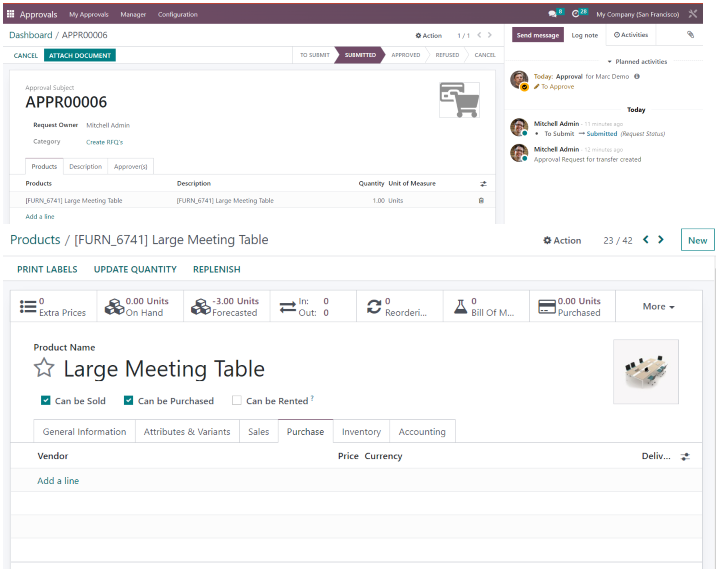
Odoo introduces "Create RFQ's" feature on Approvals. It is easy to set approvers (authorizers) and manage procurement requests from different departments to the procurement department. However, it blocks the ability to create an RFQ after approval if there is no predefined vendor for requested products. Moreover, in Odoo, when creating a request for quotation (RFQ) through Approvals, users can add a product and enter a custom description. However, after the approver reviews and approves the request, upon generating the RFQ, the custom description disappears and is replaced by the product's default description from the product master data.
CLUEDOO BEHAVIOUR
Cluedoo enhances Odoo's features by:
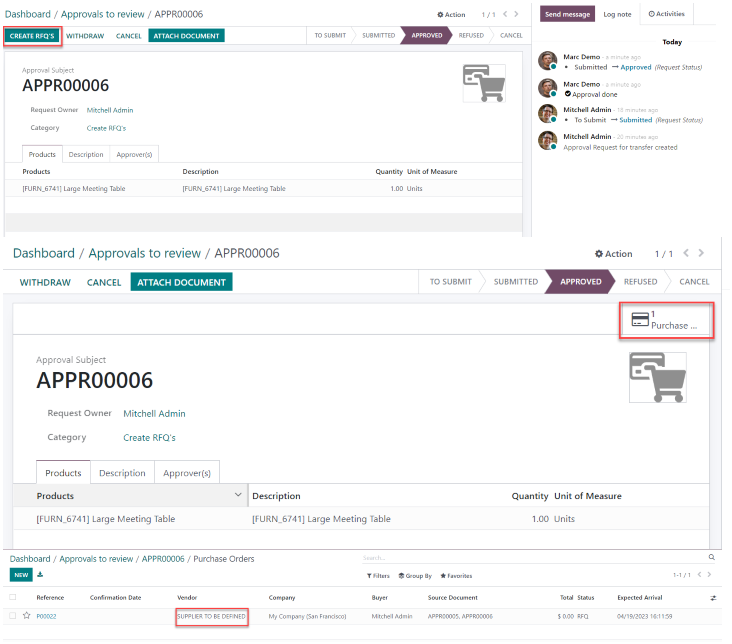
- Removing the Block: Enabling a "Supplier to be defined" option for cases where vendors are unavailable, allowing RFQs to be created even without a predefined vendor.
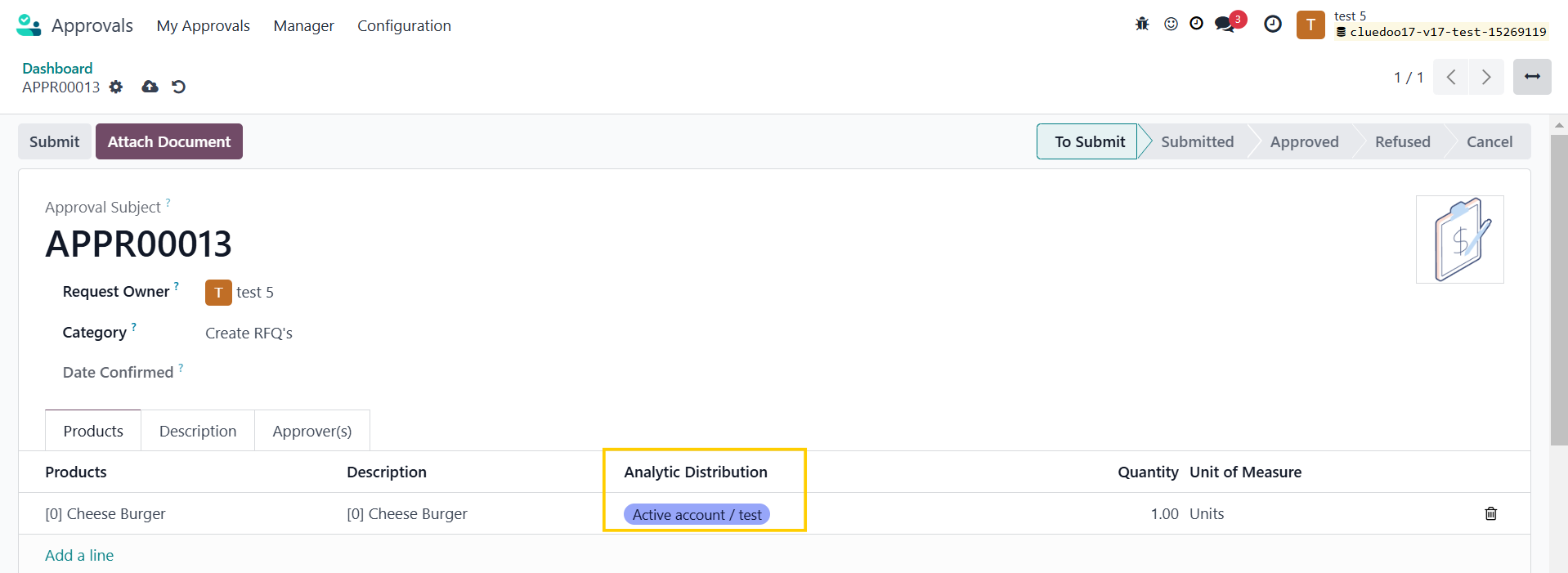
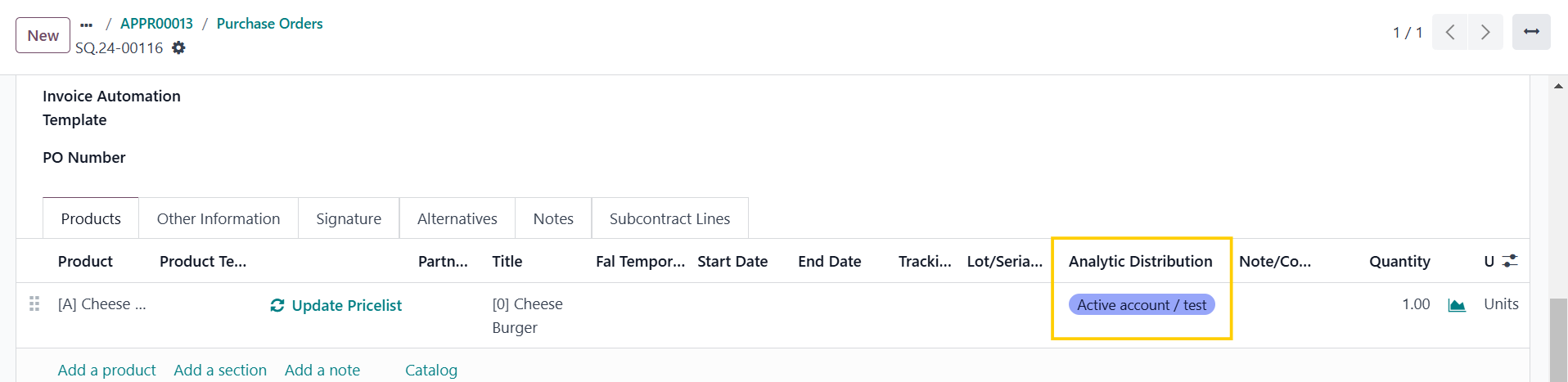
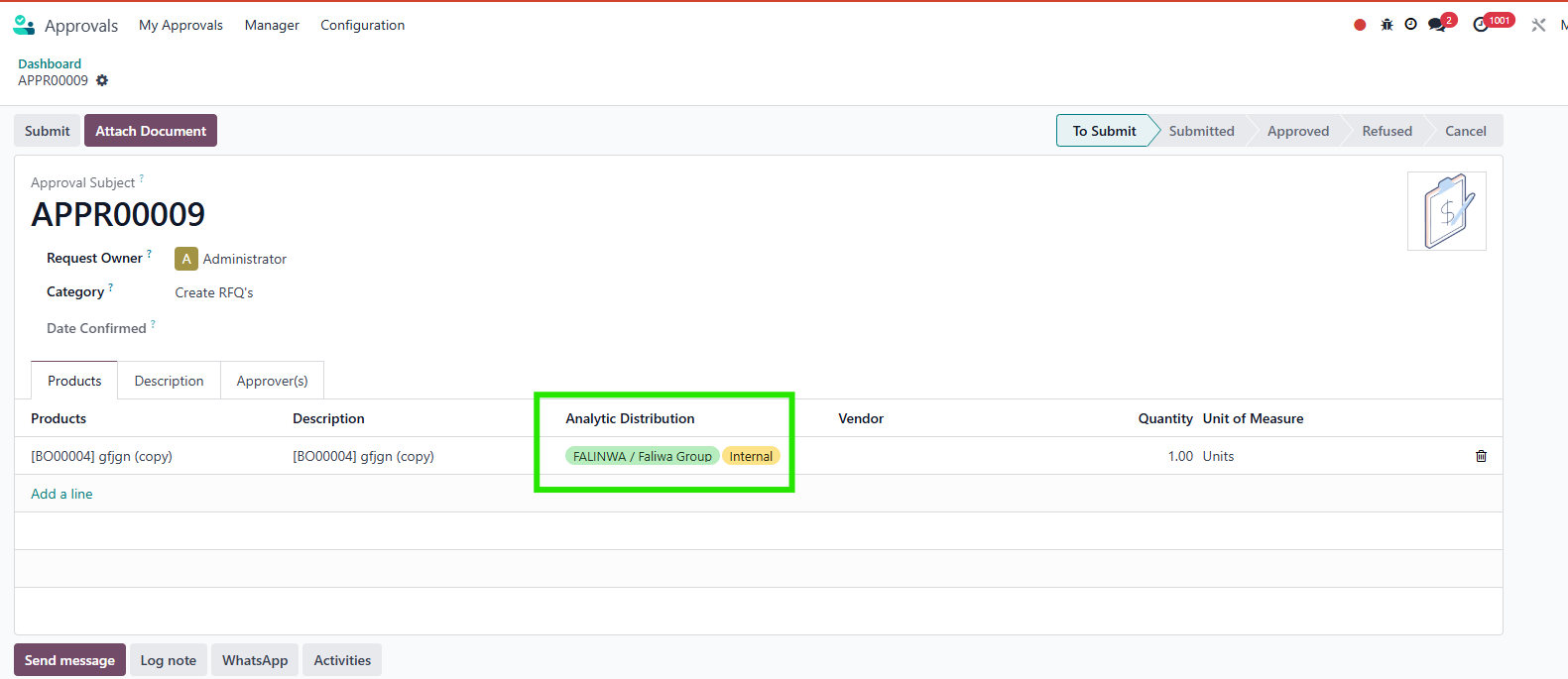
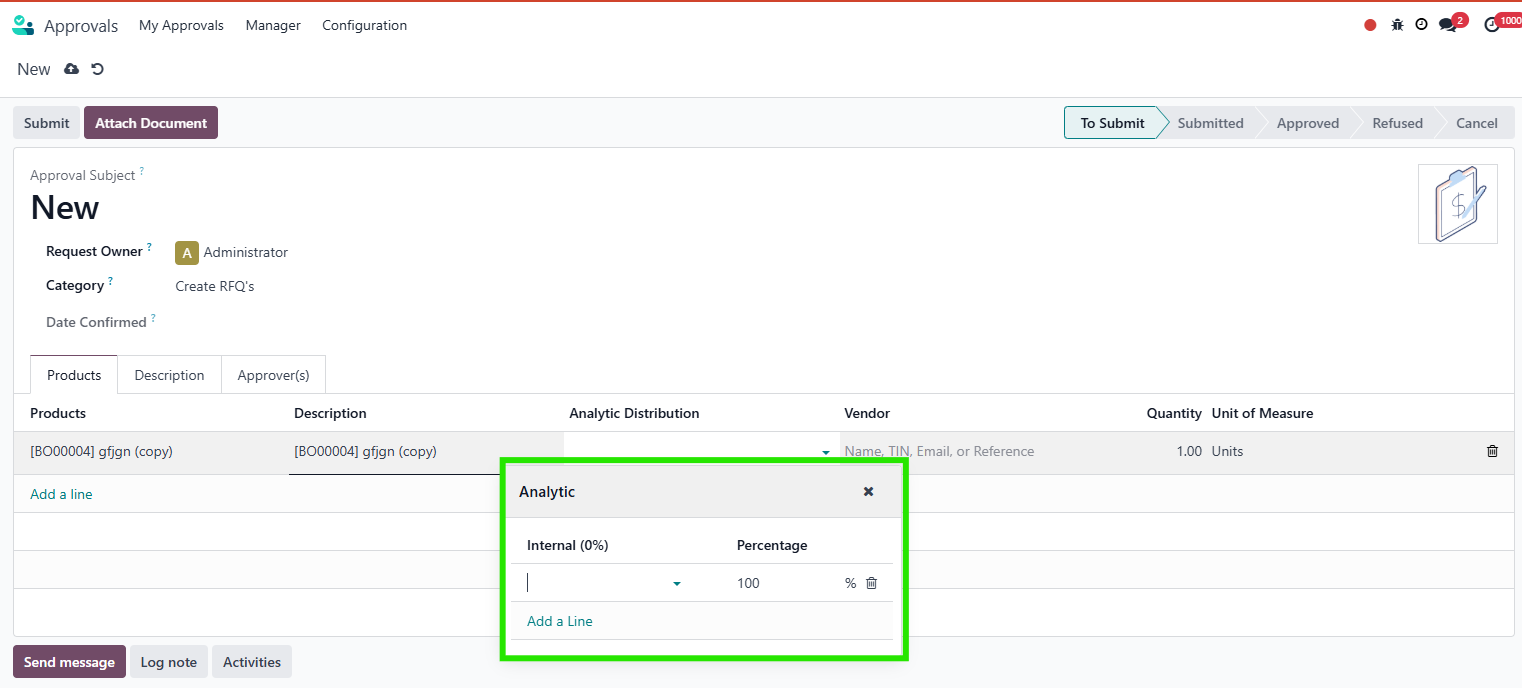
- Adding Analytic Distribution: Introducing Analytic Distribution in the Create RFQs process, which is inherited in Purchase Order lines for better cost tracking and analysis.
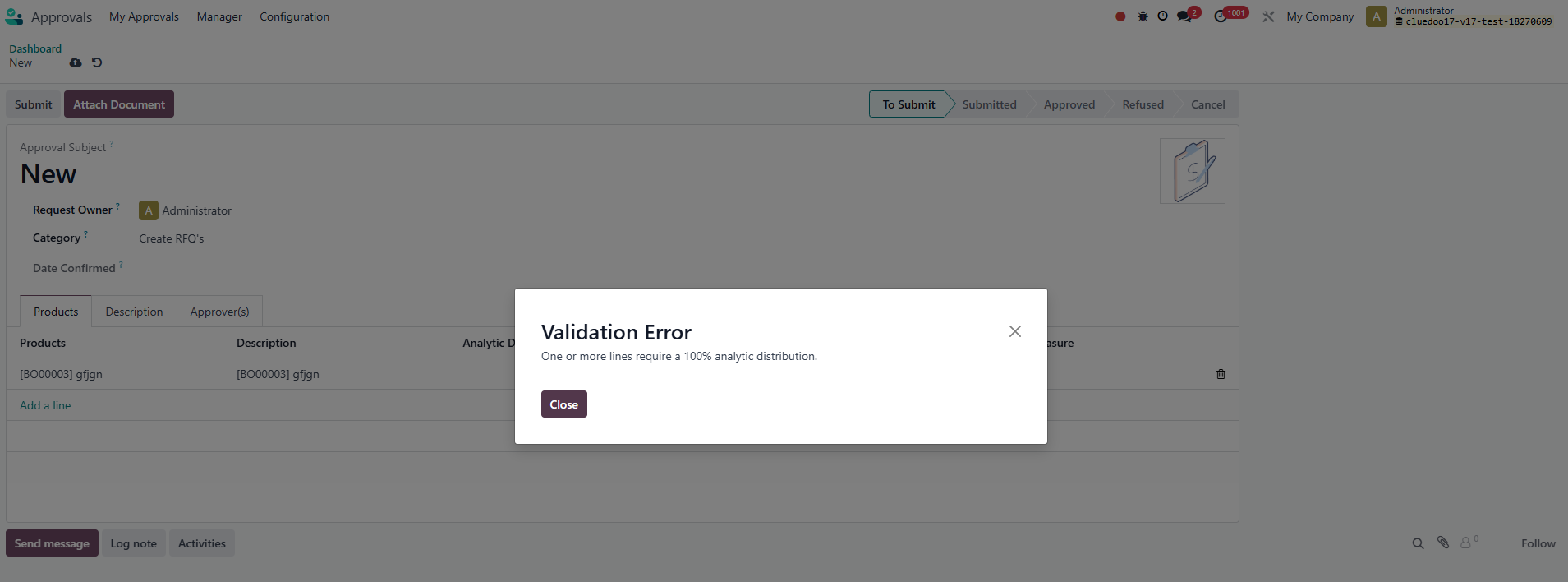
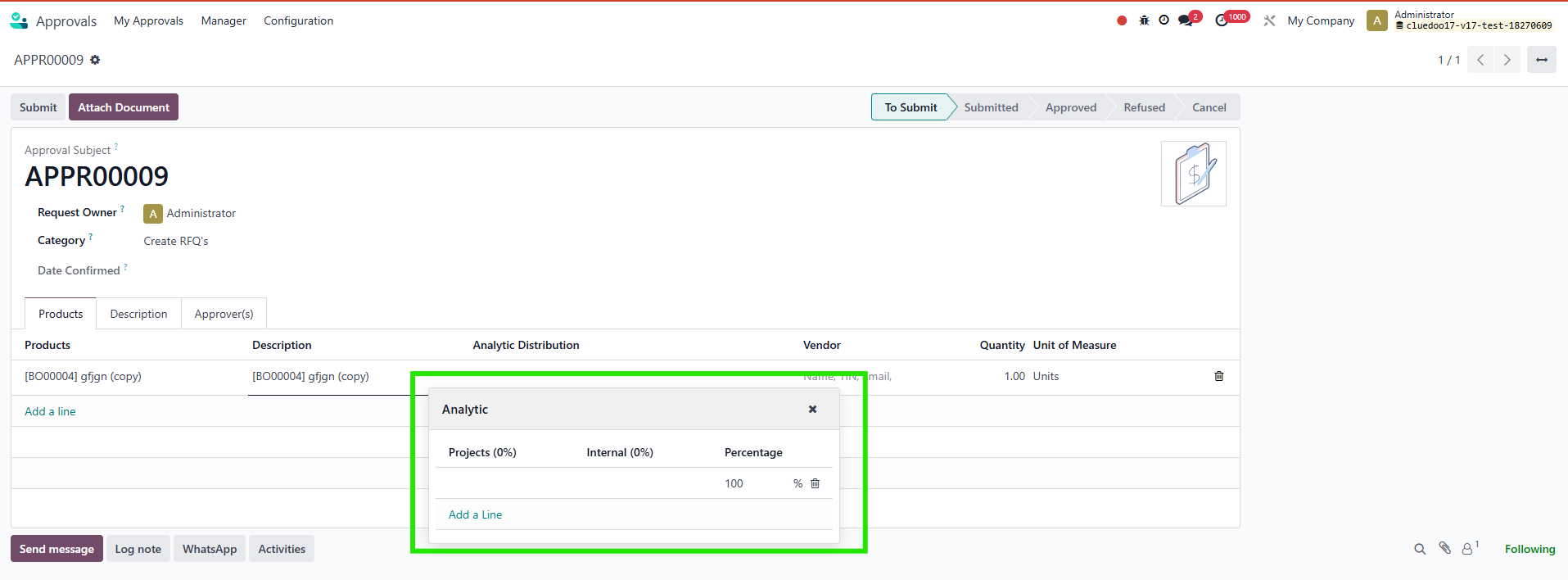
- Applicability Selection in Analytic Plan for Approval Purchase: Providing the ability to select and apply specific analytic plans during the approval process, ensuring accurate budget allocation and financial tracking from the procurement request stage.
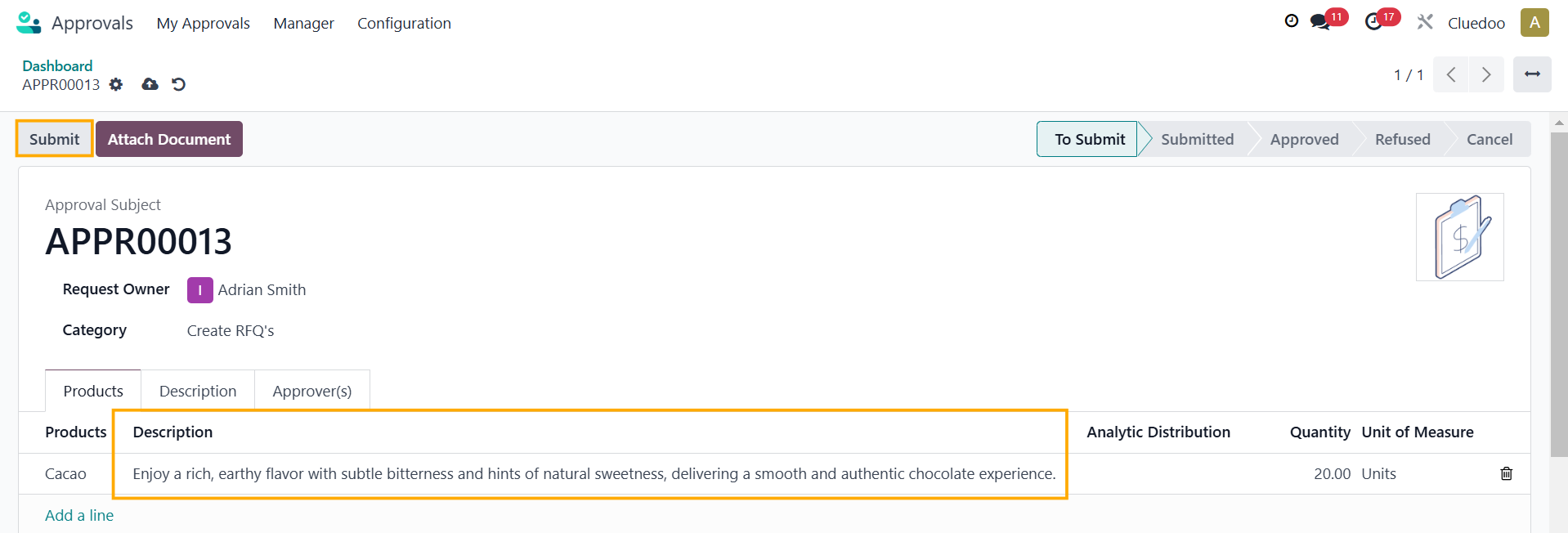
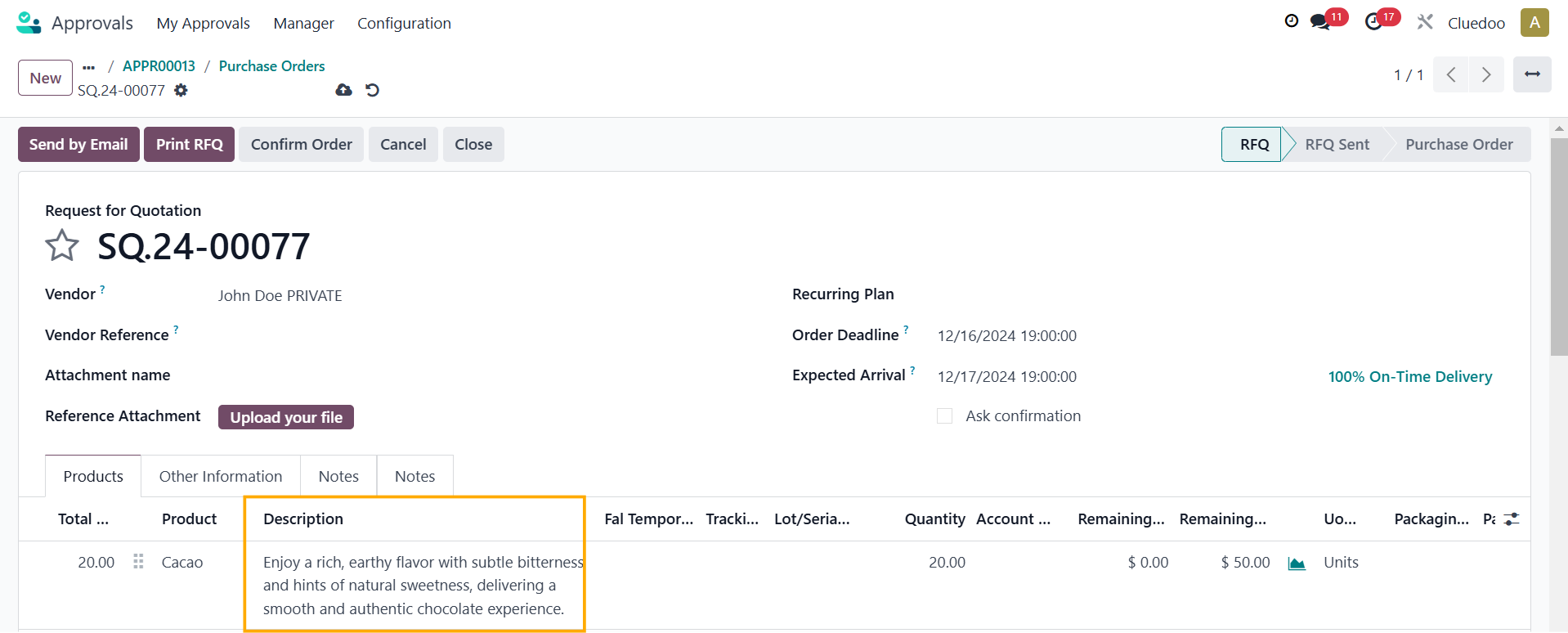
- Transfer Description from Approvals to RFQ: ensure any custom product description entered during the Approvals process is seamlessly transferred to the generated RFQ
- Buyer field and RFQ Created/Done status
CLUEDOO RECOMMENDATION
Install on 100% of your database as a useful tool for streamlining the procurement process.
OUR FEATURES AS SOLUTIONS
Enable the ability to create an RFQ from approval without an available vendor
Applicability Selection in analytic plan for Approval Purchase
Transfer Description from Approvals to RFQ
Buyer field and RFQ Created/Done status
\t\t\t\t\t\t\t\t\t\t HOW TO USE THIS MODULE
SUPPLIER TO BE DEFINED
| |
2. Upon approval, the approver clicks the "Create RFQ's" button. A draft purchase order will automatically generate with "Supplier to be defined" as the Vendor. | |
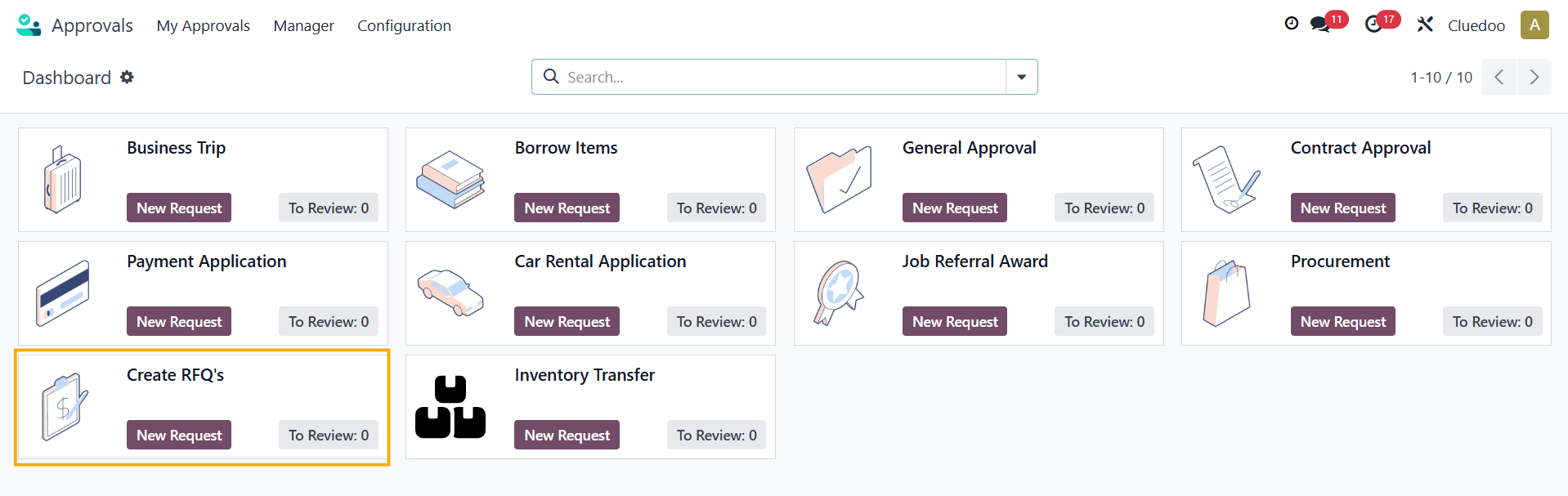
ADD ANALYTIC DISTRIBUTION IN "CREATE RFQ'S"1. On the user profile: - Approvals > Create RFQ's > New Request > Fill in the information and add Analytic Distribution > Submit Remember to add the Approver(s) as well |
|
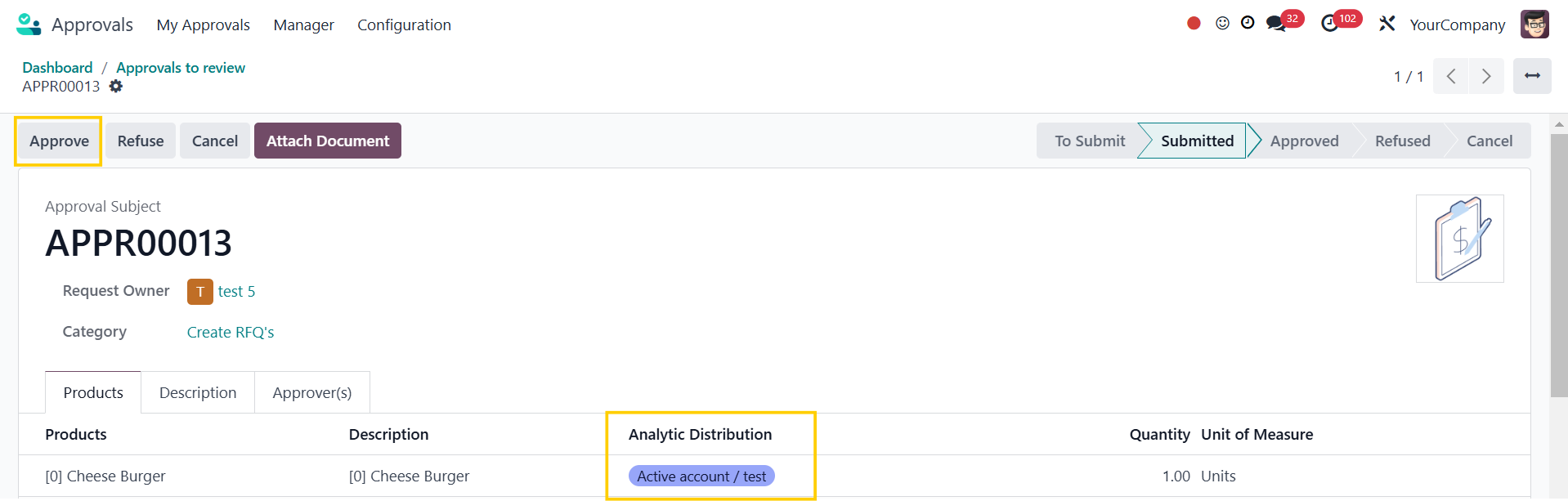
2. On approver's profile: Approvals > Create RFQ's > To review > Choose the request that you want to approve > Approve |
|
You can create a draft PO by clicking Create RFQ's after it has been approved > Analytic Distribution will be inherited in the PO lines Alternatively, you can go to the user profile > Approvals > My approvals > My requests > Approved > Choose the ones you want to create a draft PO > Create RFQ's |
|
APPLICABILITY1. Go to Analytic Plan > choose Projects > you can change the applicability for using the analytic plan of the domain Approval Purchase. Note: If you set Default Applicability, then it'll automatically apply to all the models unless you set it differently for specific model(s) | 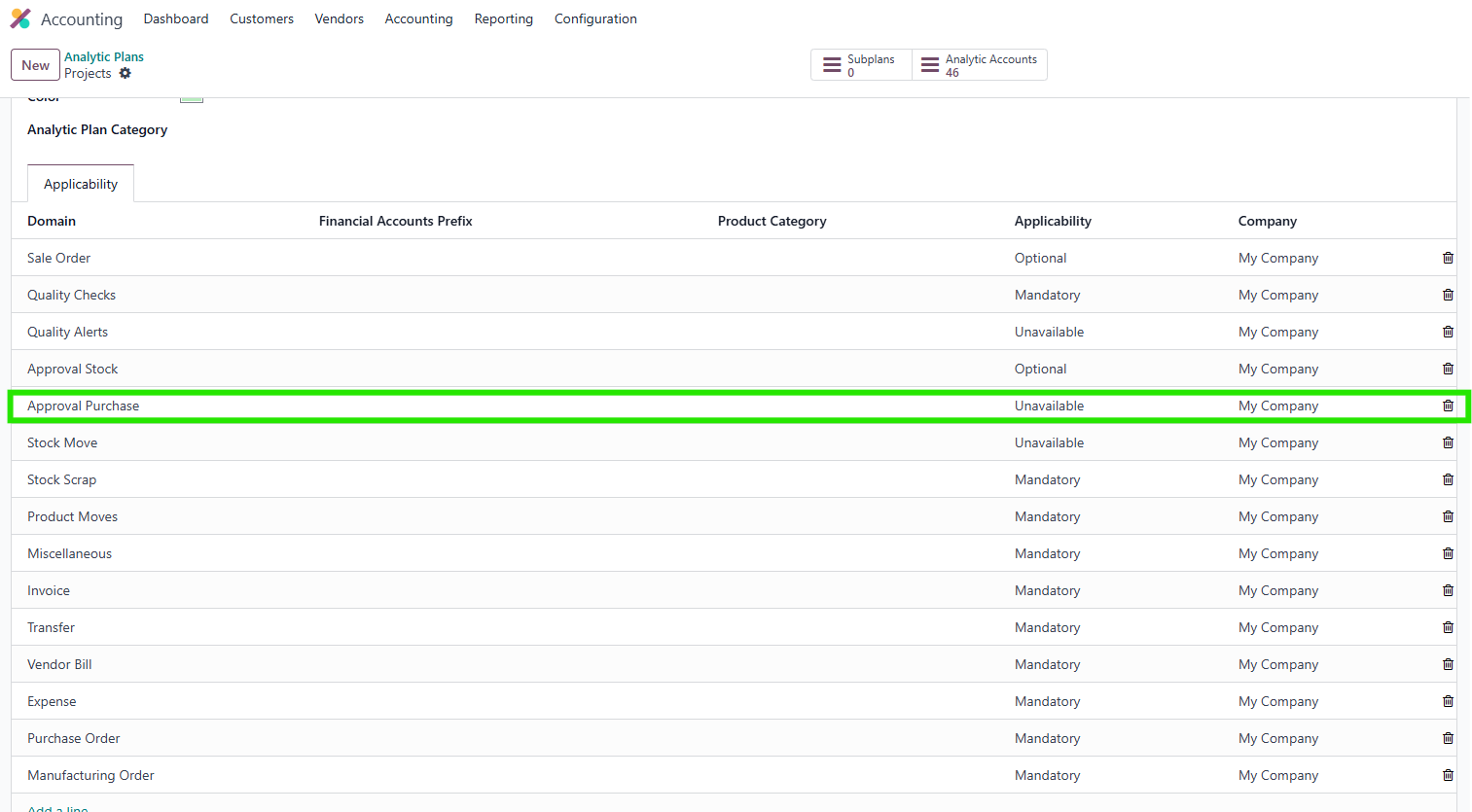 |
2. Go to Approvals > Create new request on Create RFQ's |
|
2.1 If you choose applicability = mandatory for Approval Purchase, you will have to choose Projects in Analytic Distribution before saving. Following that, the workflow will resume normally. |
|
2.2. If you choose applicability is optional for Approval Purchase you can choose Projects or not in Analytic Distribution before saving. |
|
2.3. If you choose applicability is unavailable for Approval Purchase, you cannot choose Projects in Analytic Distribution. |
|
DESCRIPTION PROPAGATIONOn the user's dashboard Go to Approvals > Create RFQ's > New Request > Fill in the necessary information and add a description to the product > Submit |
|
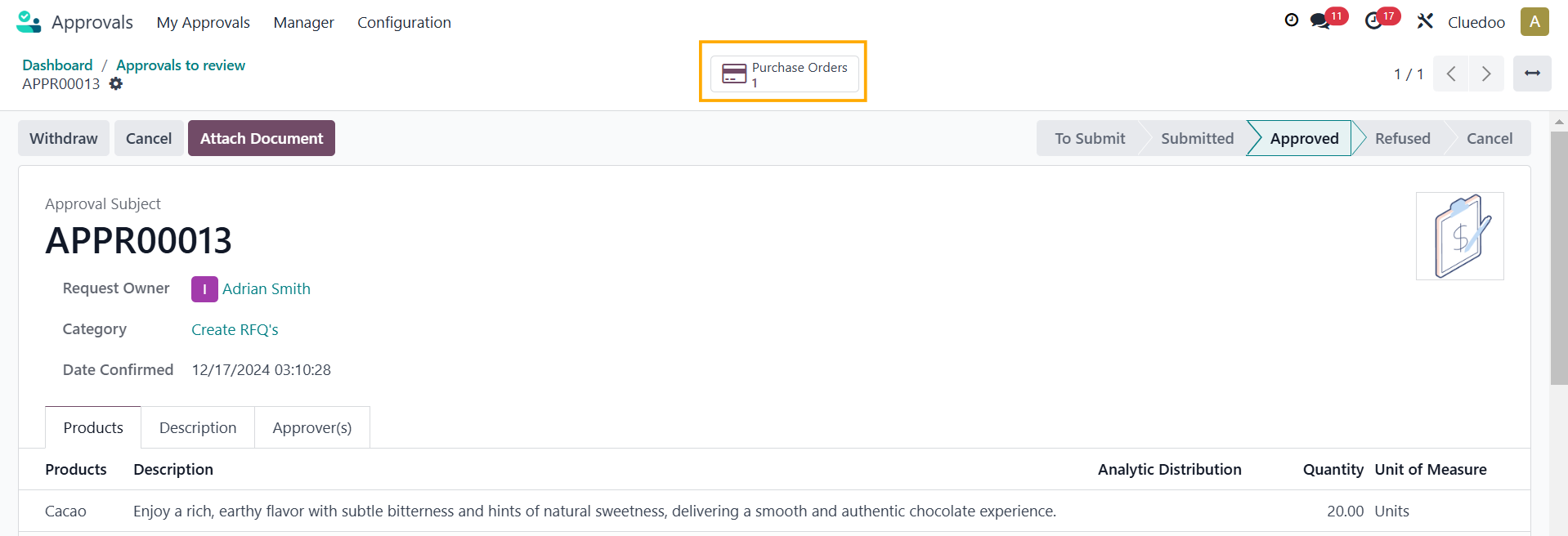
On the approver's dashboard Go to Approvals > Create RFQ's/To review OR Manager/Approvals to Review > Choose the one(s) you want to review > Approve > Create RFQ's > A Request for Quotation has been created |
|
The description that you add in Approvals is inherited in RFQ |
|
DESCRIPTION ENGINE SAME AS IN POIf your product has an Internal Reference and a Purchase Description | 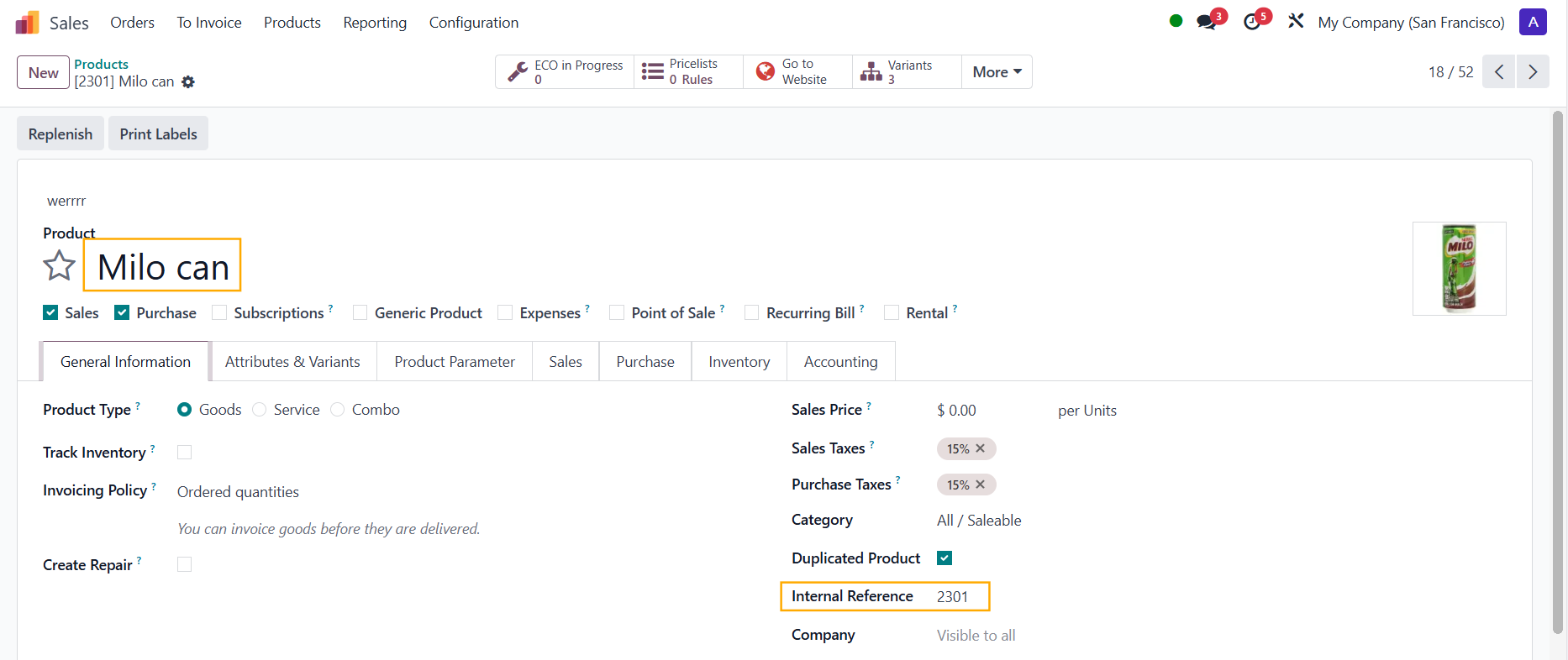 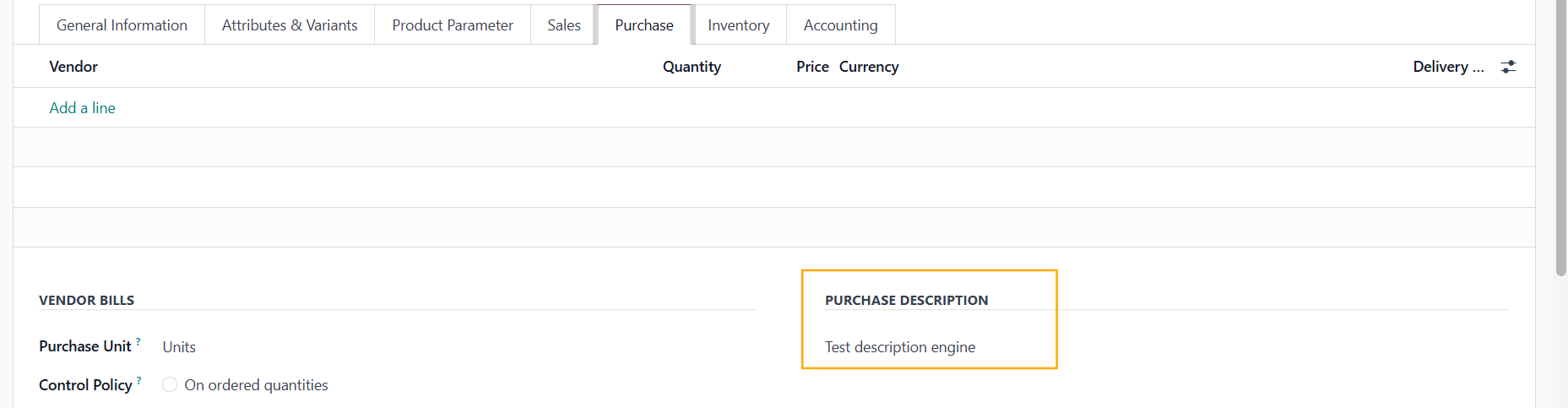 |
When you create an approval, the Description field will show [Internal Reference] Product Name + Purchase Description, as in Purchase Order | 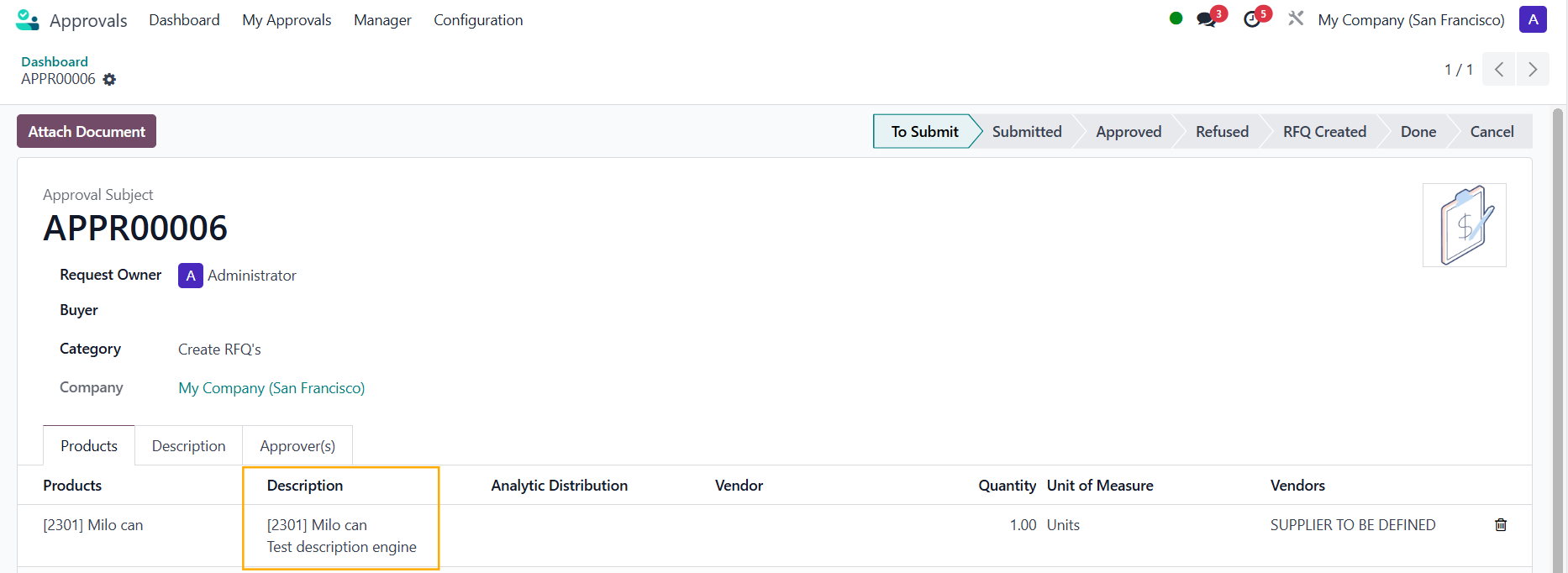 |
BUYER IN APPROVALS AND "RFQ CREATED" STATUS
| 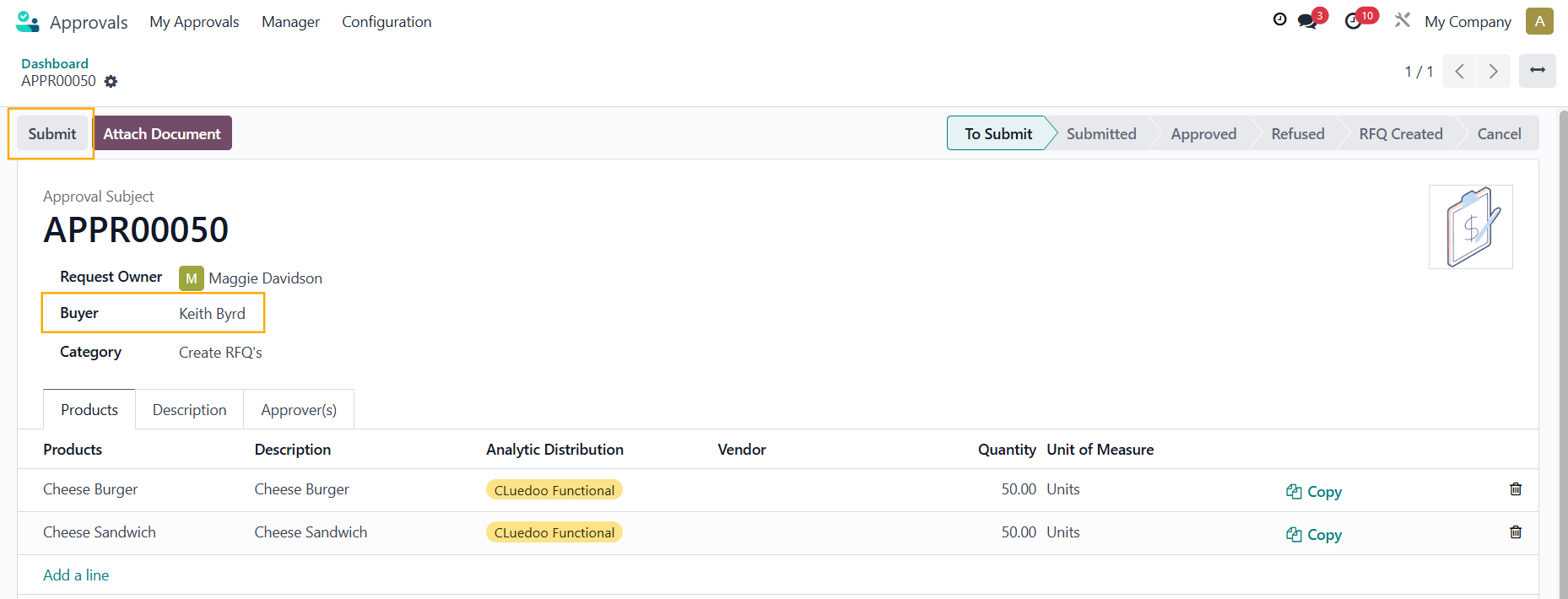 |
2. After the Approver approves the request > Create RFQ's | 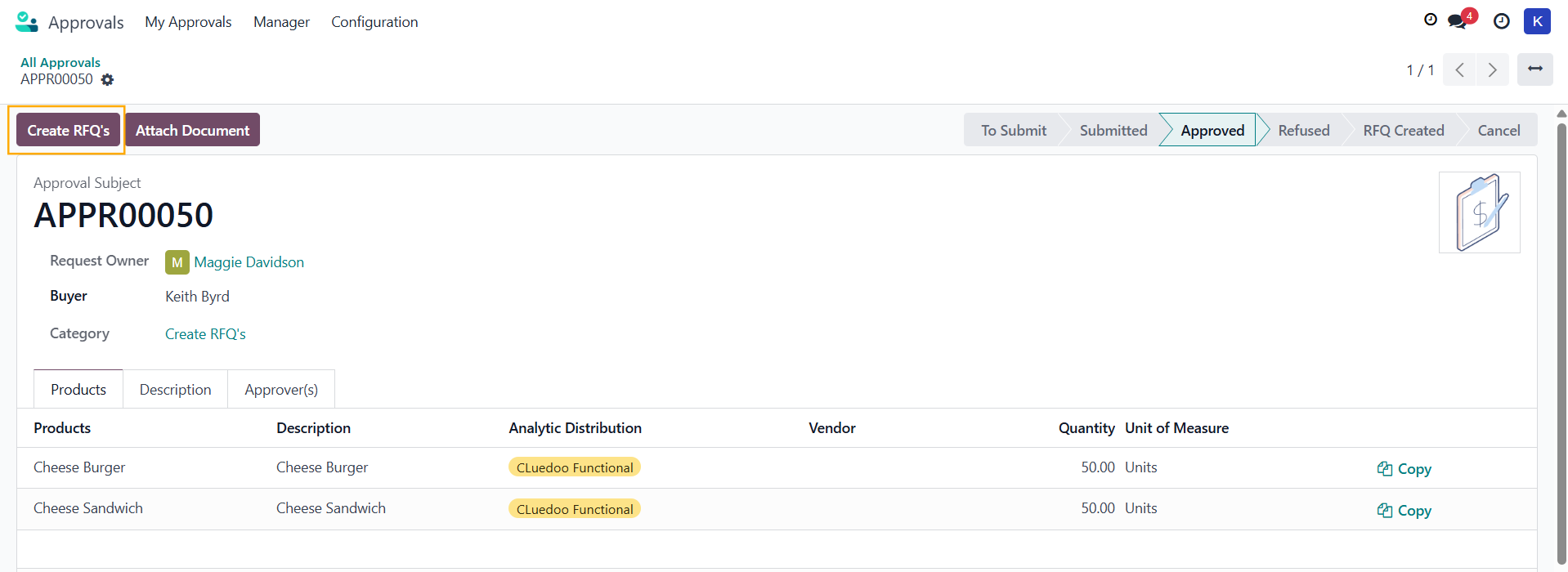 |
3. An RFQ will be created and the status will change to RFQ Created | 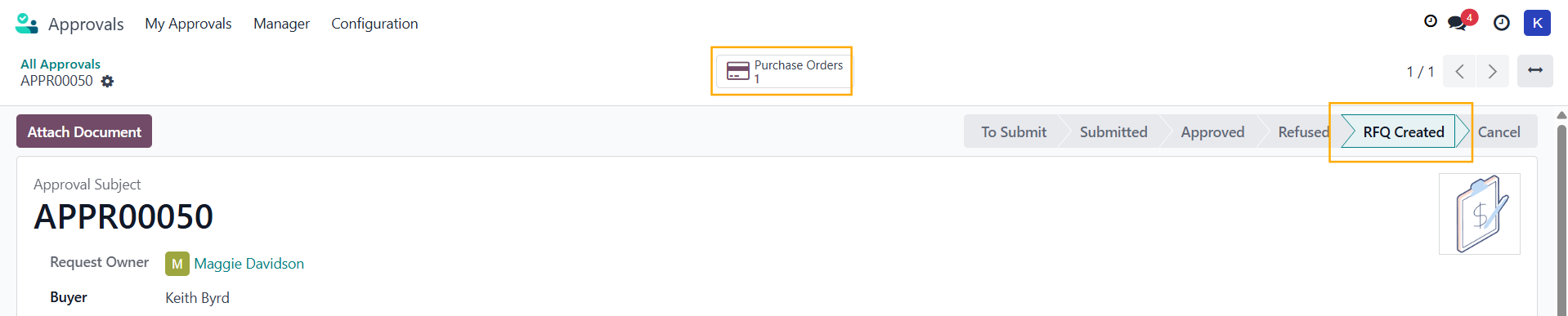 |
We have a Done status that can be managed manually | 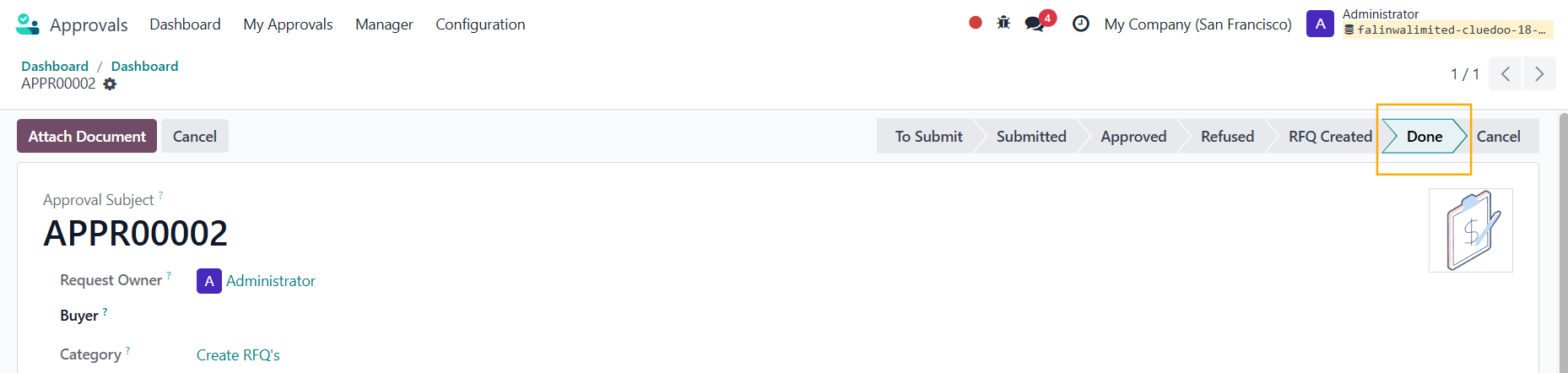 |
4. You can also Group by Buyer, so it is easier to sort |  |