


ODOO'S FUNCTION
Standard Odoo utilizes a built-in engine to display a vendor pricelist within the BoM Overview. However, this selection is locked, preventing users from manually changing or adjusting the vendor directly from this screen.
CLUEDOO'S FUNCTION
CLuedoo leverages the standard Odoo engine to show vendor pricelists but introduces essential flexibility, allowing you to manually change the vendor selection on the fly. Furthermore, it enriches the BoM Overview by directly displaying the vendor's Minimum Order Quantity (MOQ) alongside the Unit Price for complete cost visibility.
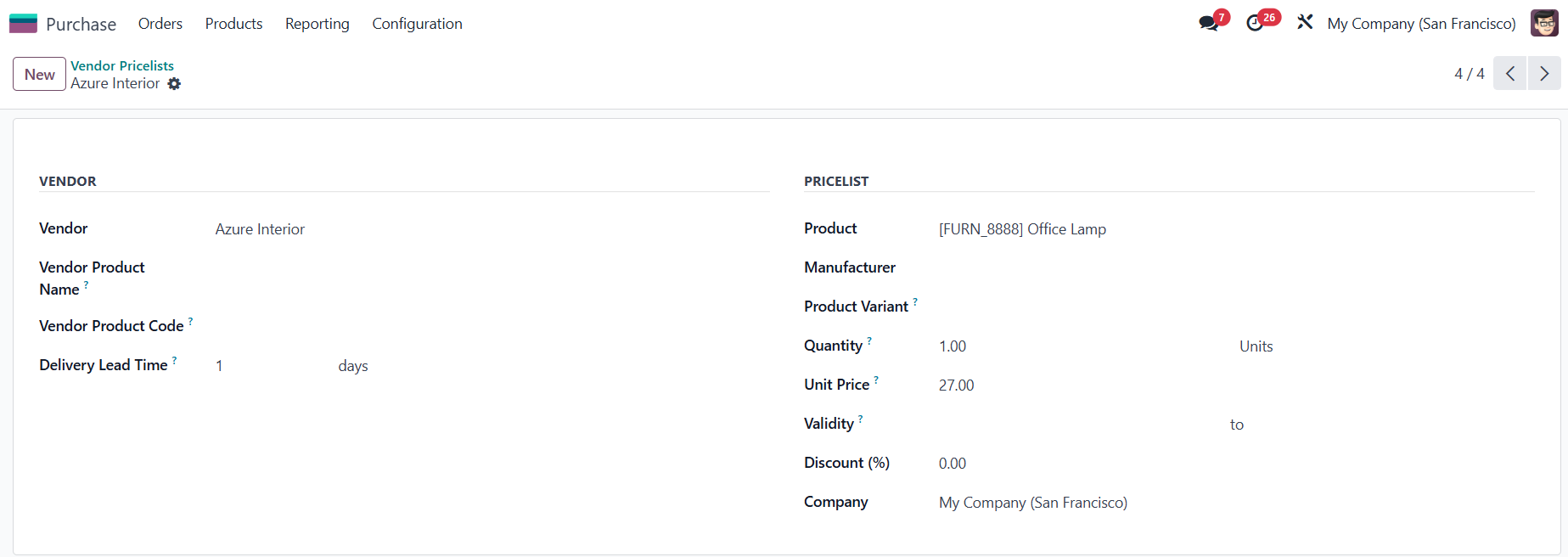
1. Go to Purchase > Configuration > Vendor Pricelists > Set up price list for a product |
|
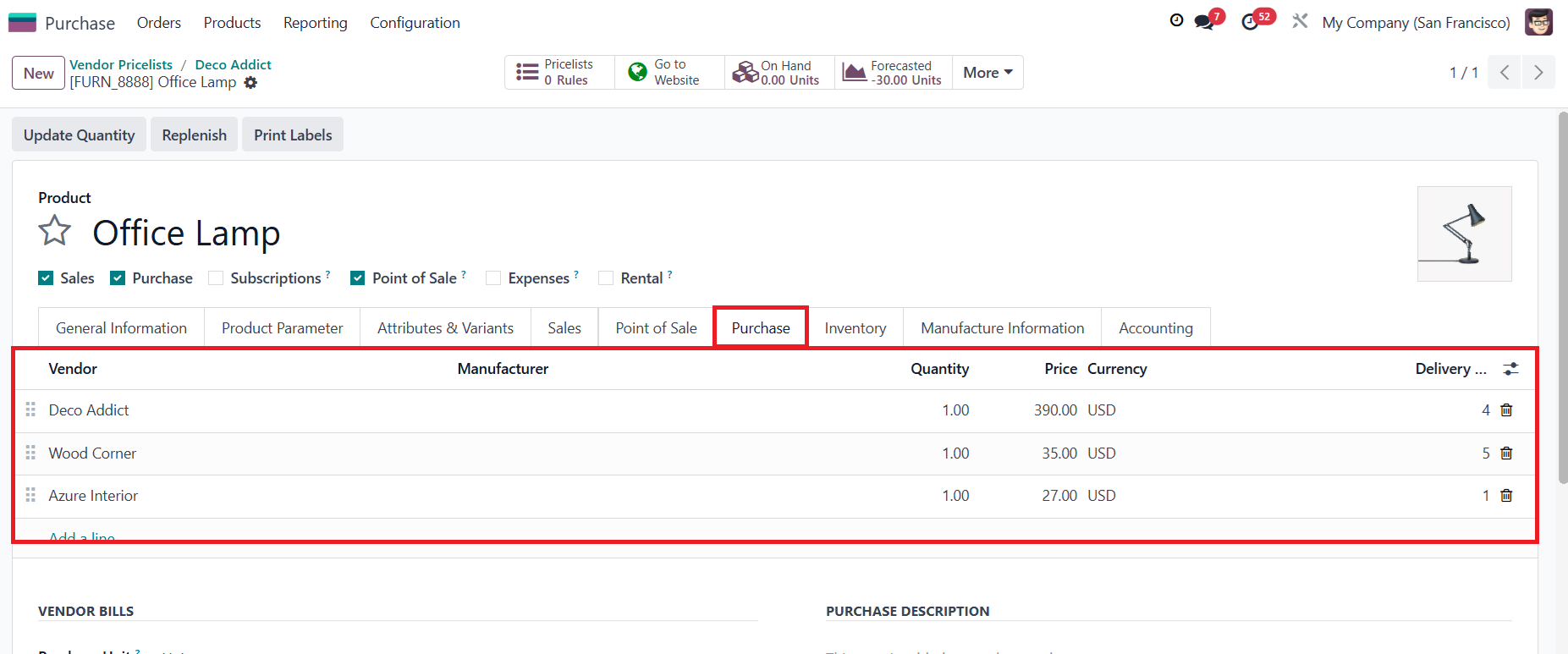
Or you can go to the Product form and set it up directly from the Purchase tab You can add a Manufacturer to the vendor if the vendor outsource the production to another manufacturer. |
|
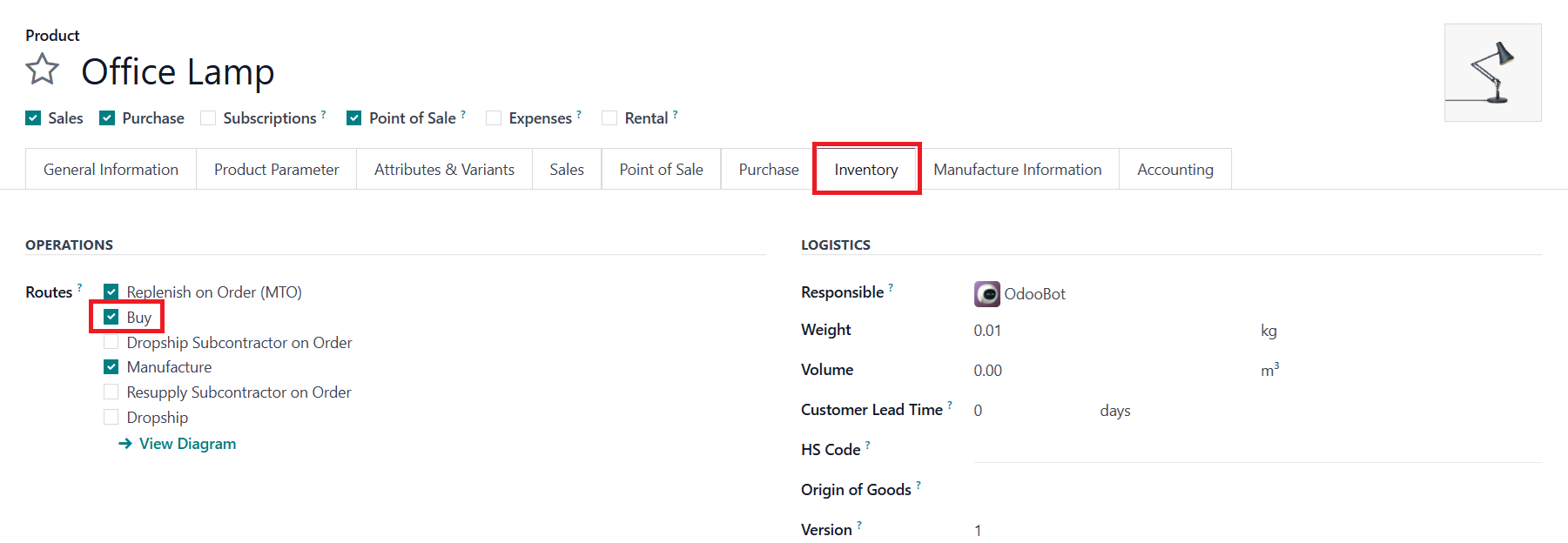
2. Set the route for the product to include the Buy route. |
|
3. Click on the Bill of Materials smart button, then create a new one and set up the components. The BOM Type is Manufacture this product, or Subcontracting. | 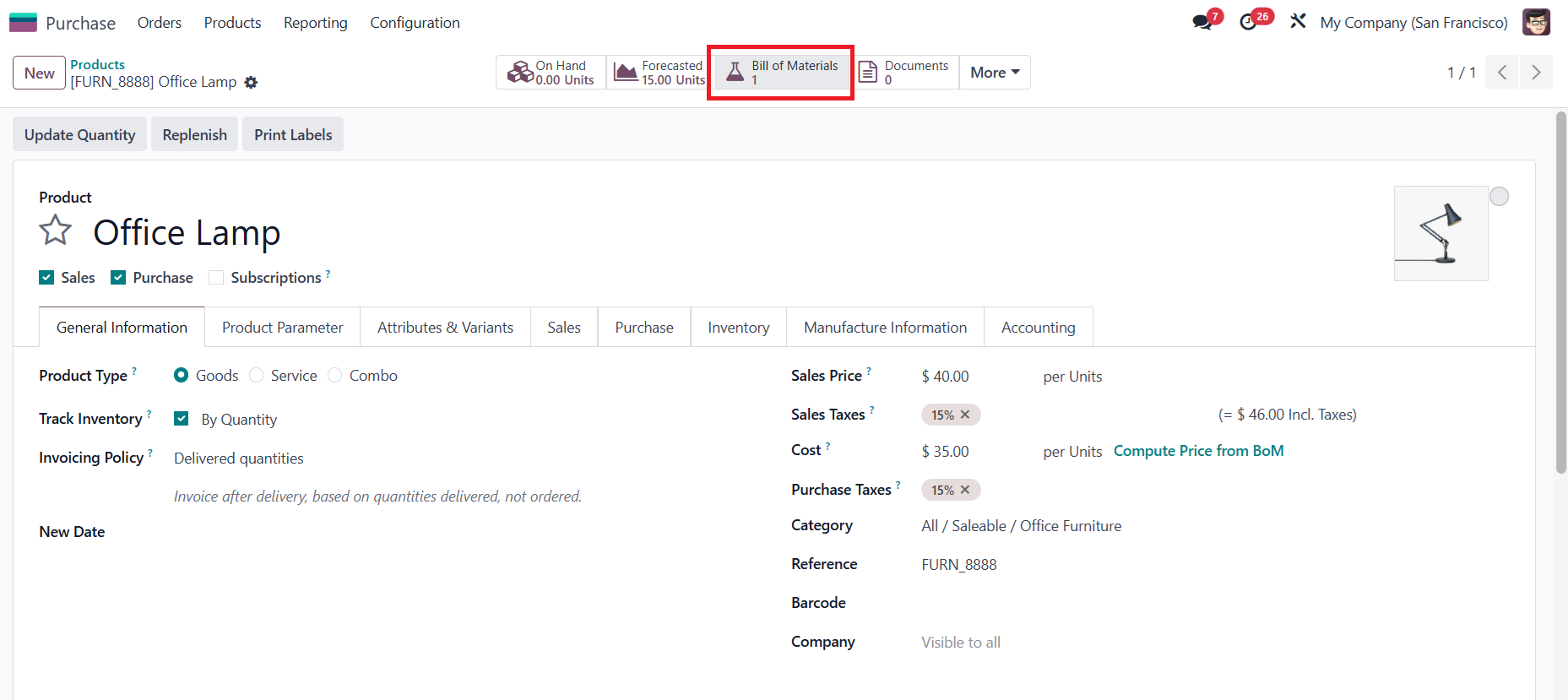 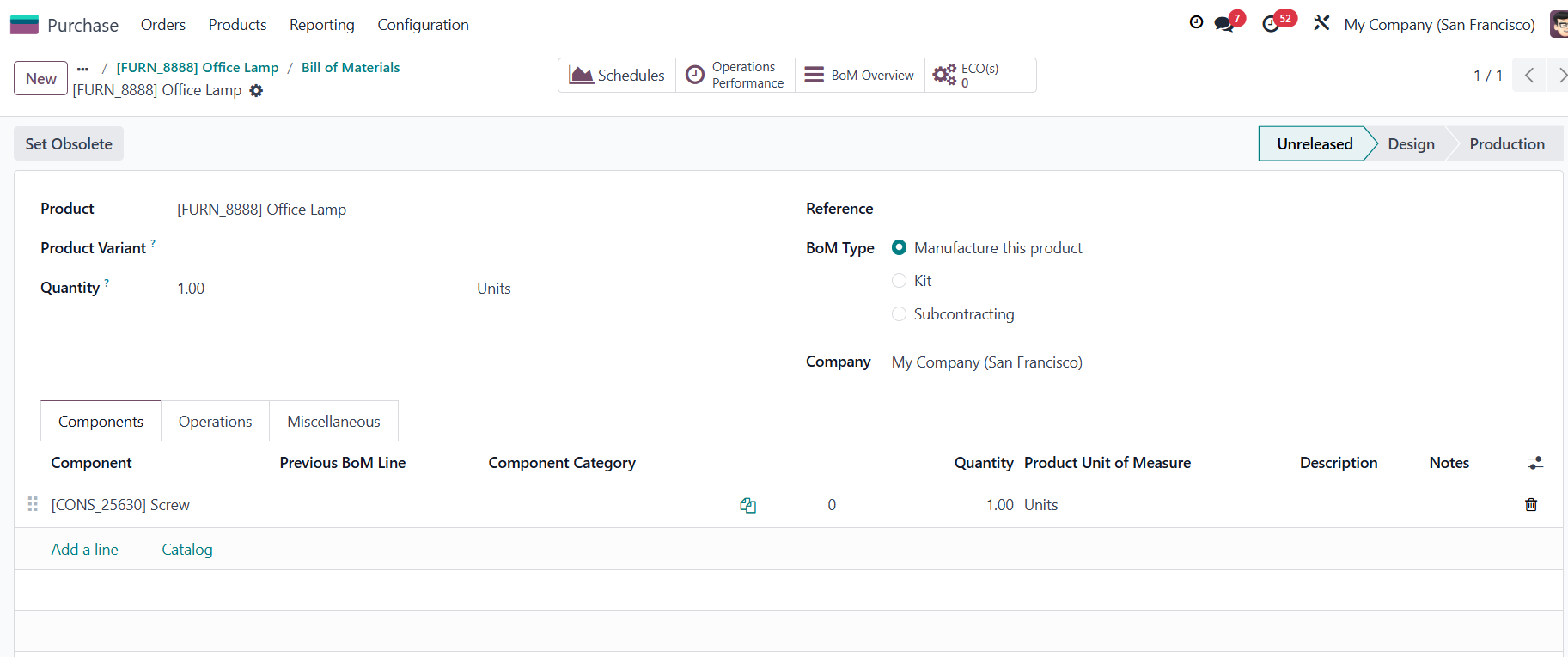 |
4. Click on the BoM Overview smart button | 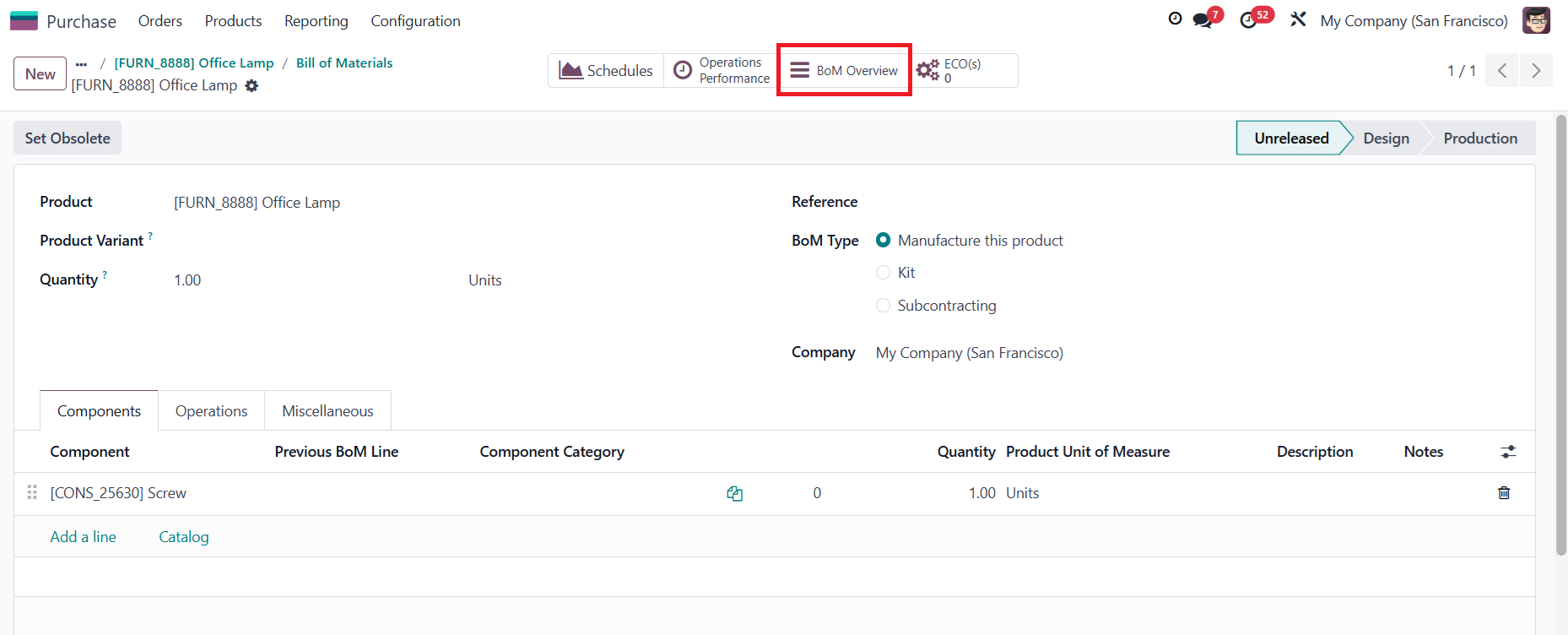 |
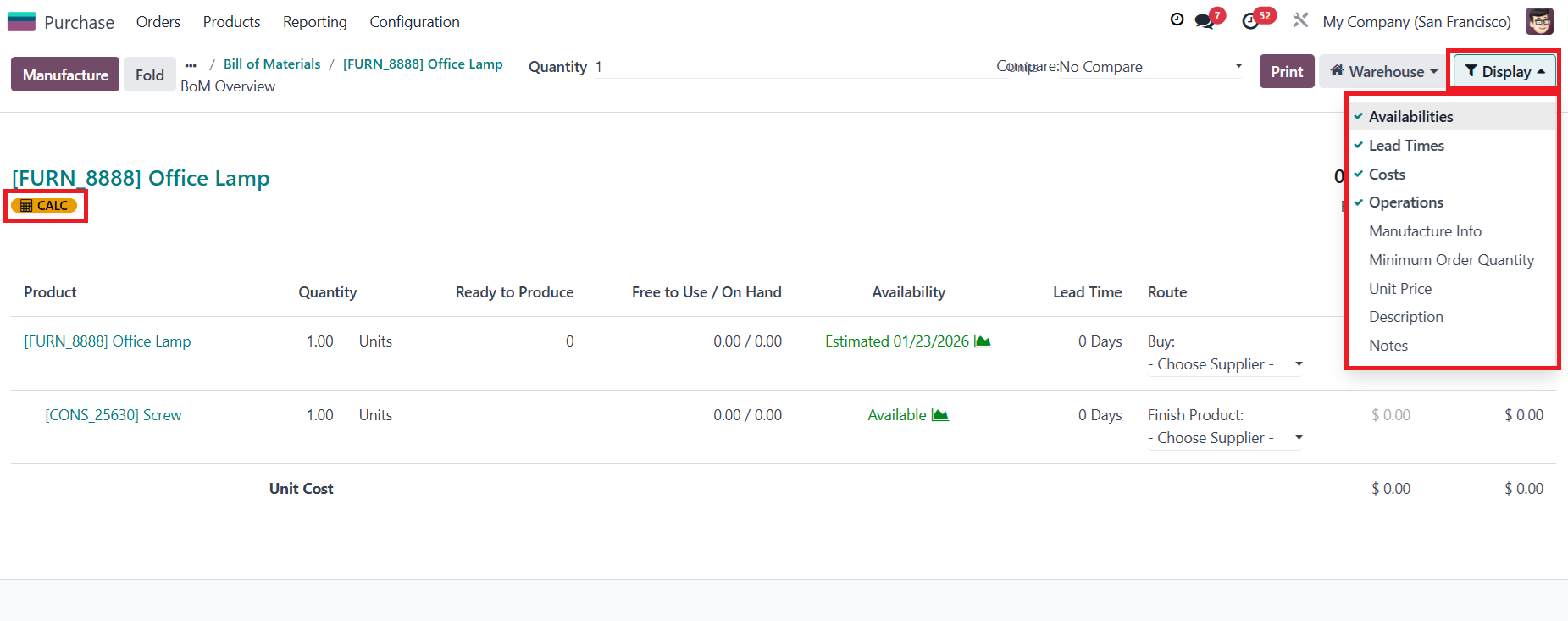
5. The supplier/vendor for the product will be automatically selected in the Route column (based on ODS engine), with the ability to change later if needed. Notes:
| 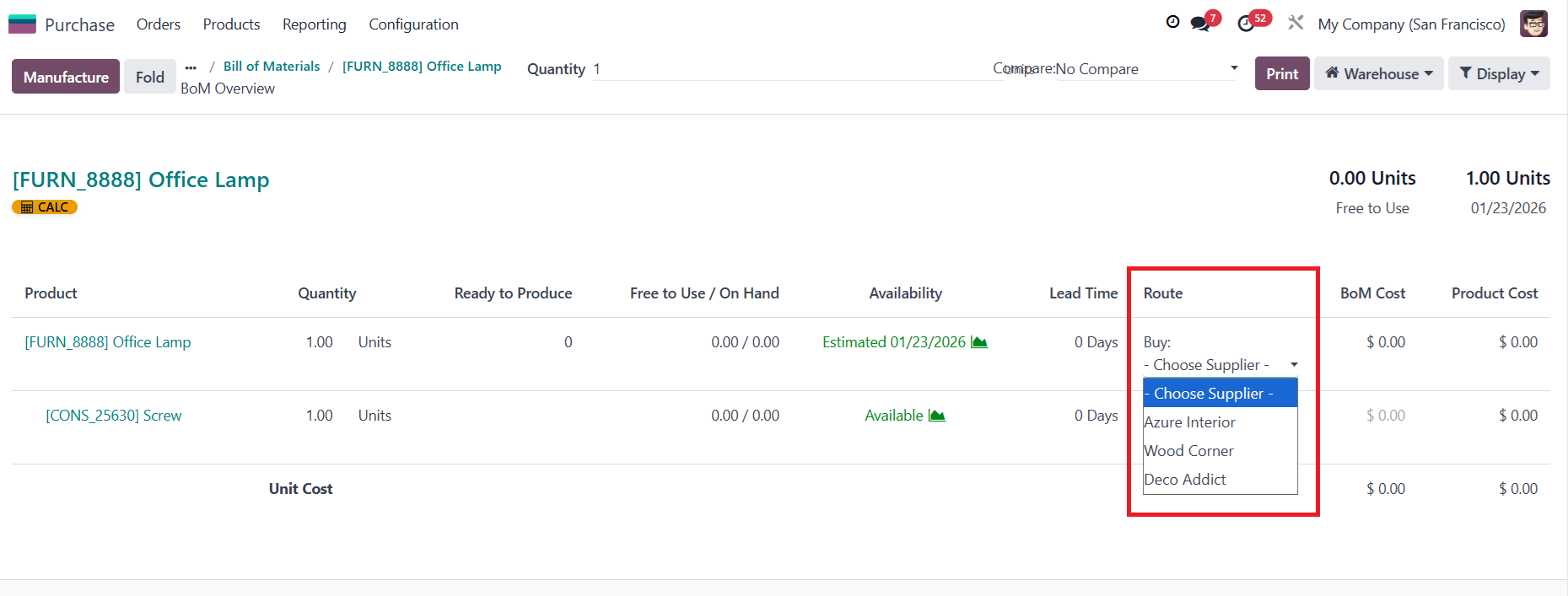 |
6. The module also provides additional display options (MOQ, Unit Price) to give you an overview of the BOM. Click on the CALC button to recalculate the cost for the product.
|
|