


ODOO'S FUNCTION
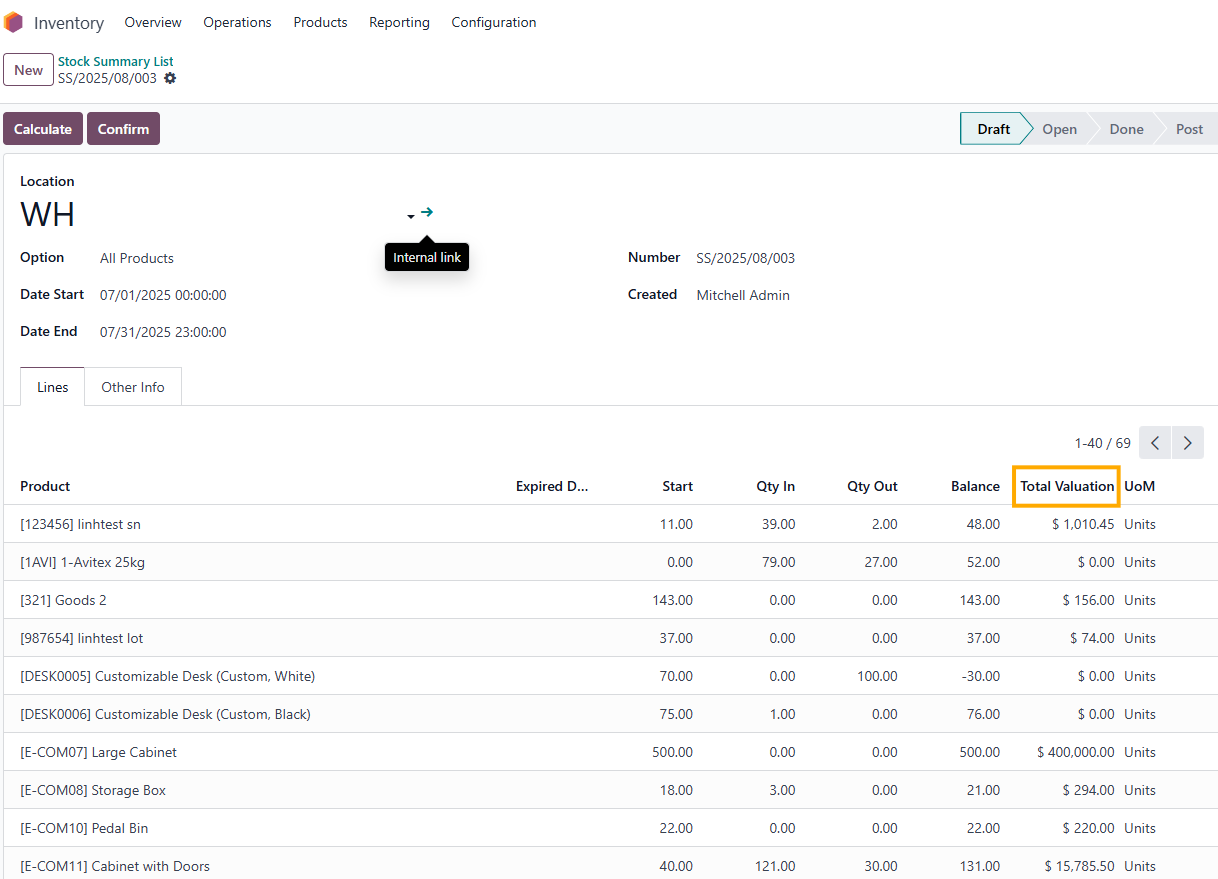
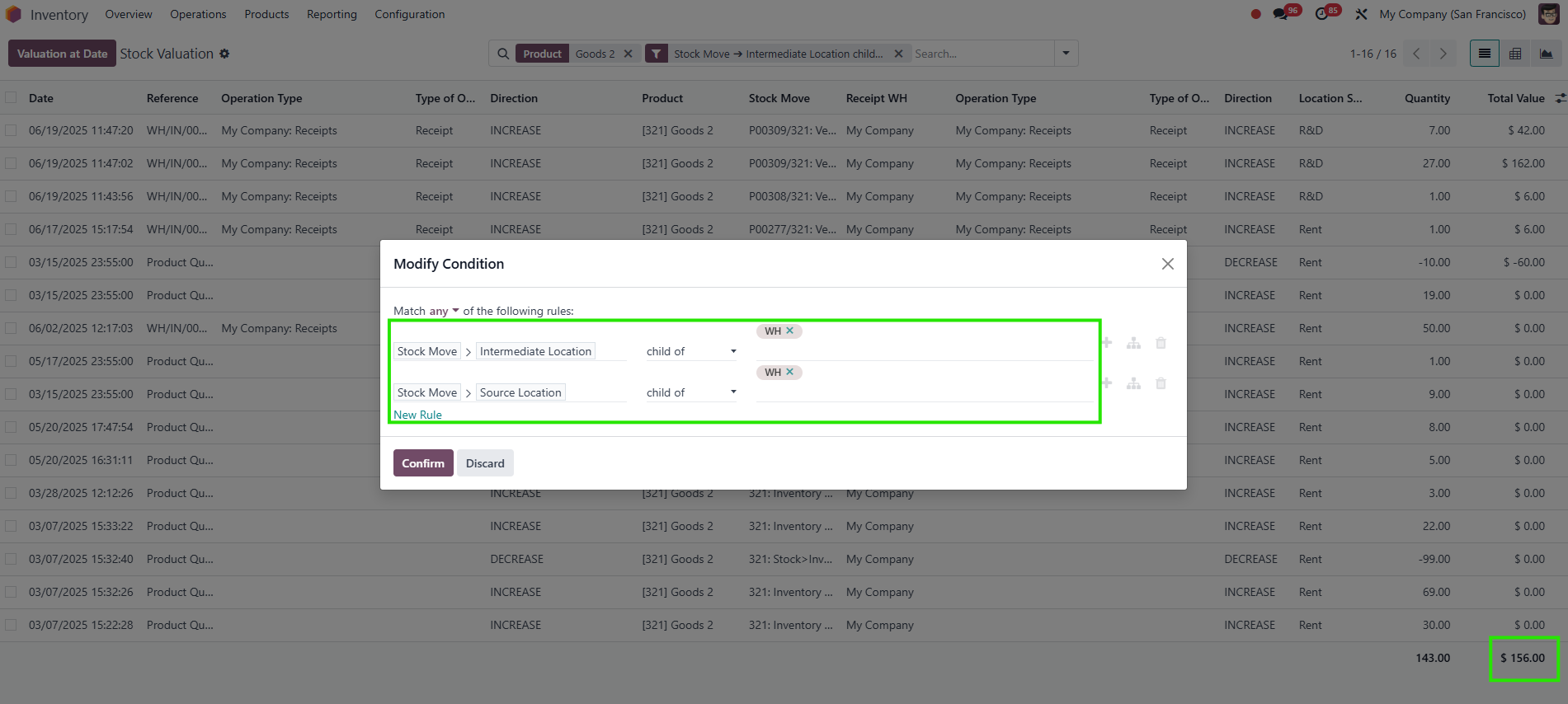
By default, Odoo’s Inventory module provides stock valuation reports to track the value of products in specific locations, but it does not offer a dedicated Stock Summary List interface for creating or customizing lists that calculate the Total Valuation of products, including all child locations. Users must manually configure filters or reports to aggregate stock values across parent and child locations, and the valuation process is not streamlined into a single action like a Calculate button.
CLUEDOO'S FUNCTION
The CLuedoo Stock Summary Valuation module enhances Odoo’s Inventory module by introducing a streamlined interface for calculating and viewing stock valuations:
1️⃣ Provides and calculates the Total Valuation of products with a single Calculate button in Stock Summary List.
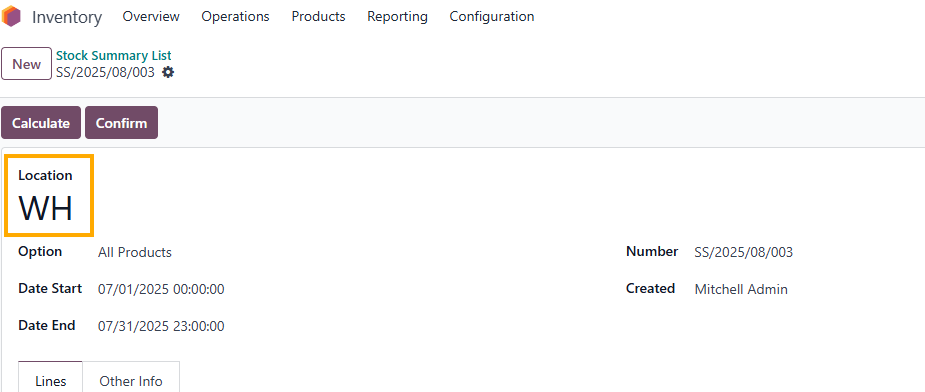
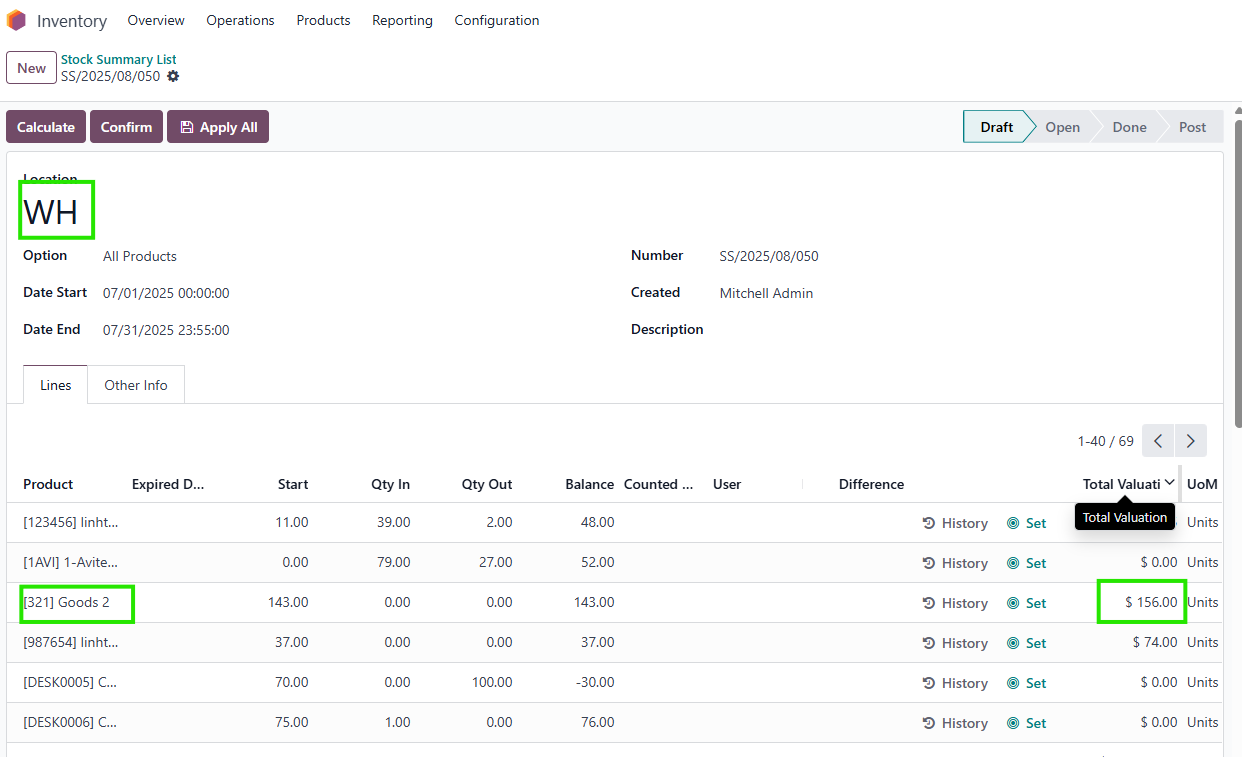
2️⃣ Automatically includes all child locations when calculating the Total Valuation for a chosen location, ensuring comprehensive coverage.
3️⃣ Updates stock valuation dynamically upon clicking Calculate, reflecting accurate values based on current and historical data.
1. Go to Stock Summary List > Create or choose a new list > Fill information > Click Calculate > You will see a Total Valuation of each product |
|
Notes:
|
|
|
|
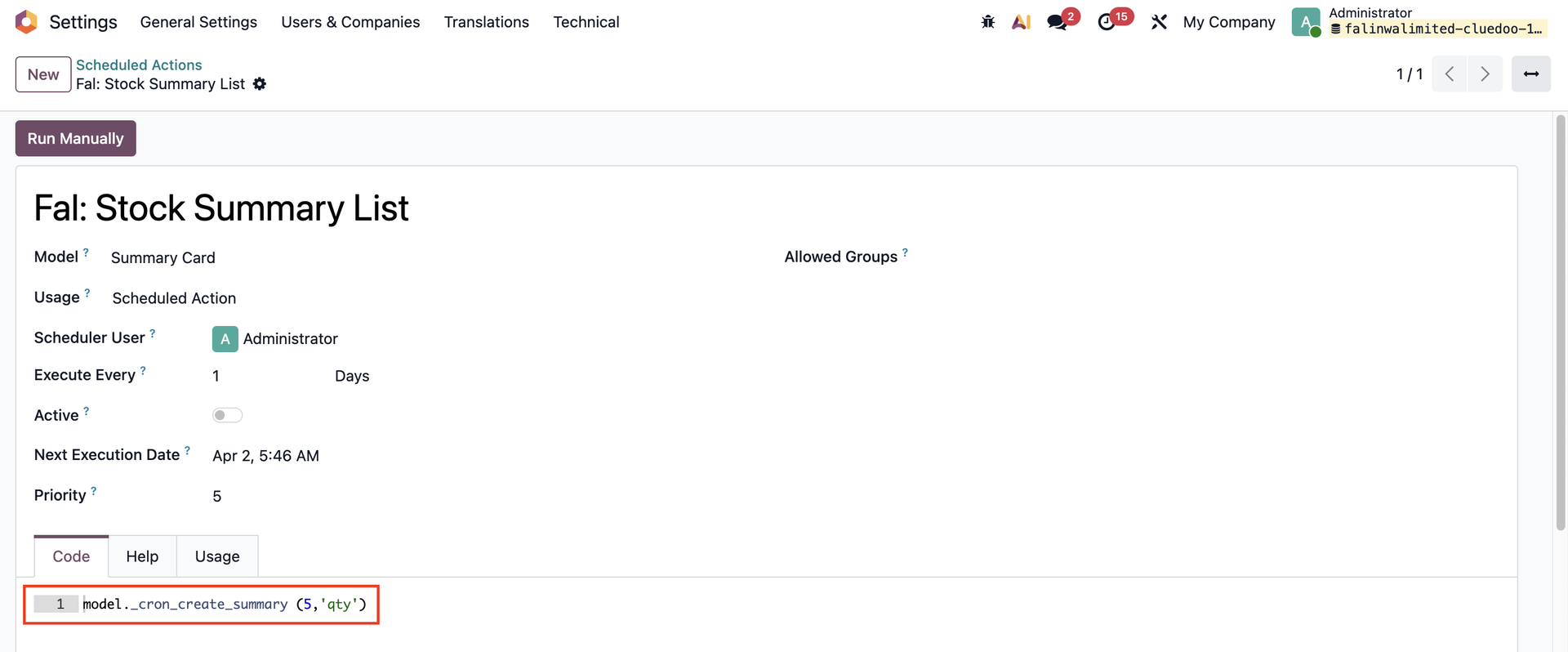
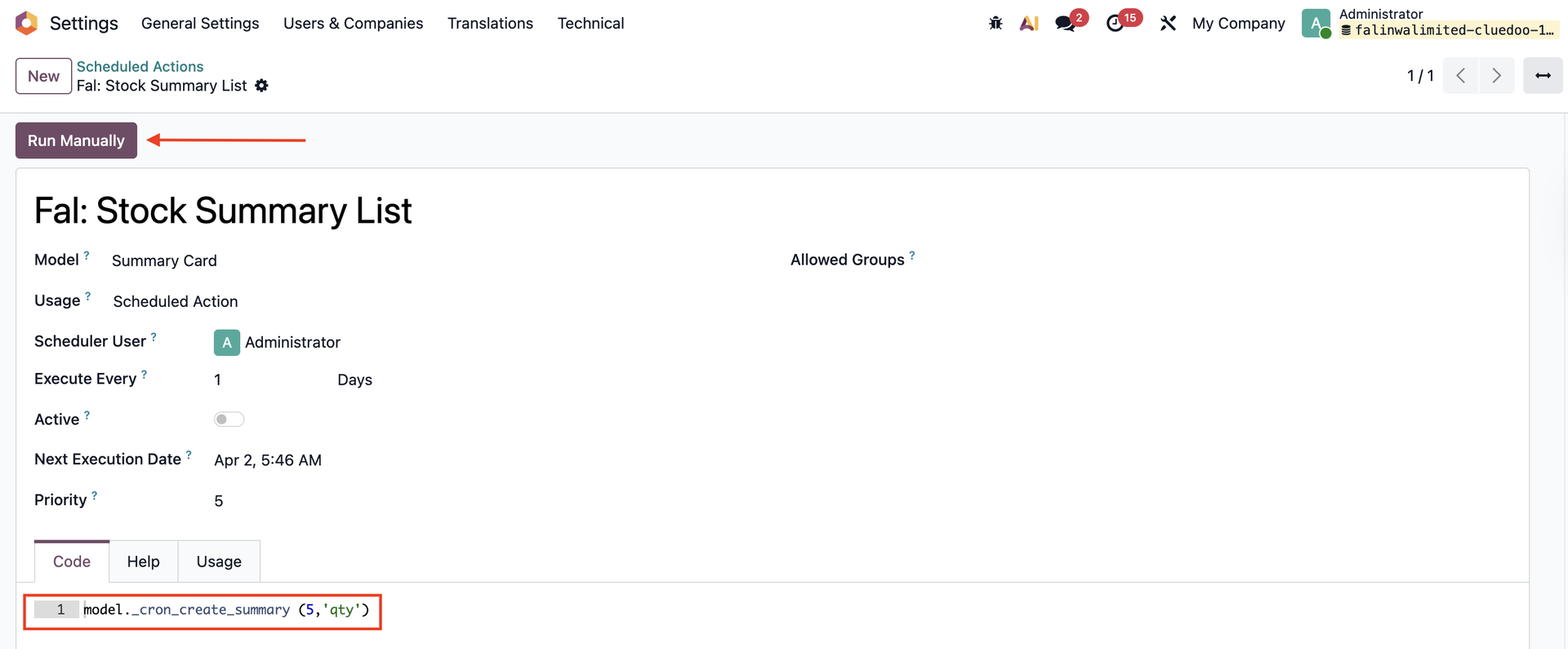
SCHEDULED ACTION TO UPDATE STOCK SUMMARY1. Go to Settings > Scheduled Actions > Search for Fal: Stock Summary List This SA is archived by default. |
|
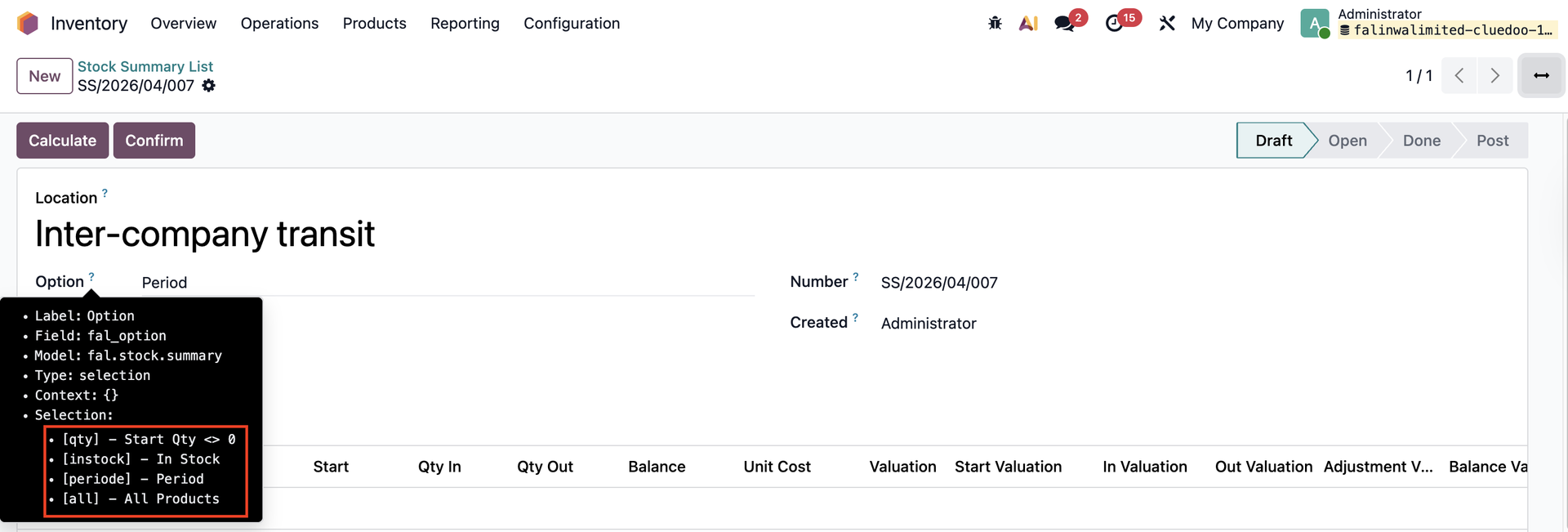
2. Scroll down to the Code tab, where you can configure which location and option the stock summary list will apply to. The code follows this format: model._cron_create_summary (location id, 'option')
|
|
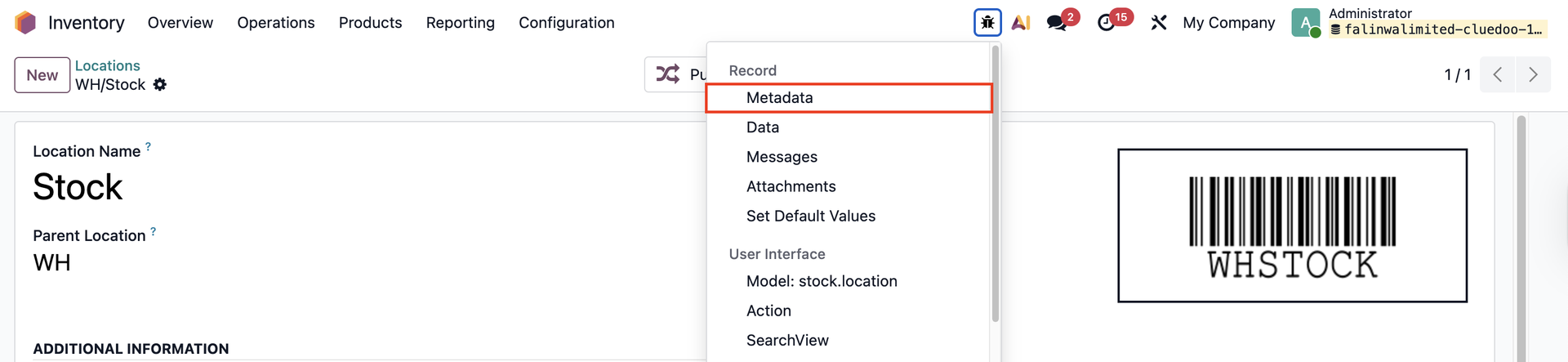
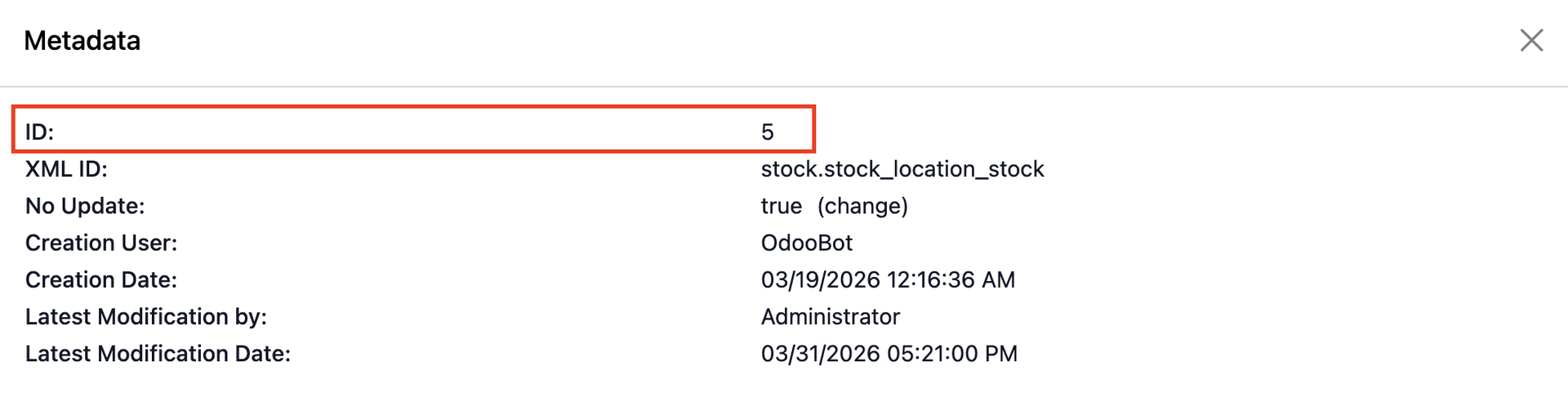
HOW TO FILL THE CODETurn on Debug or Developer mode.
|
|
|
|
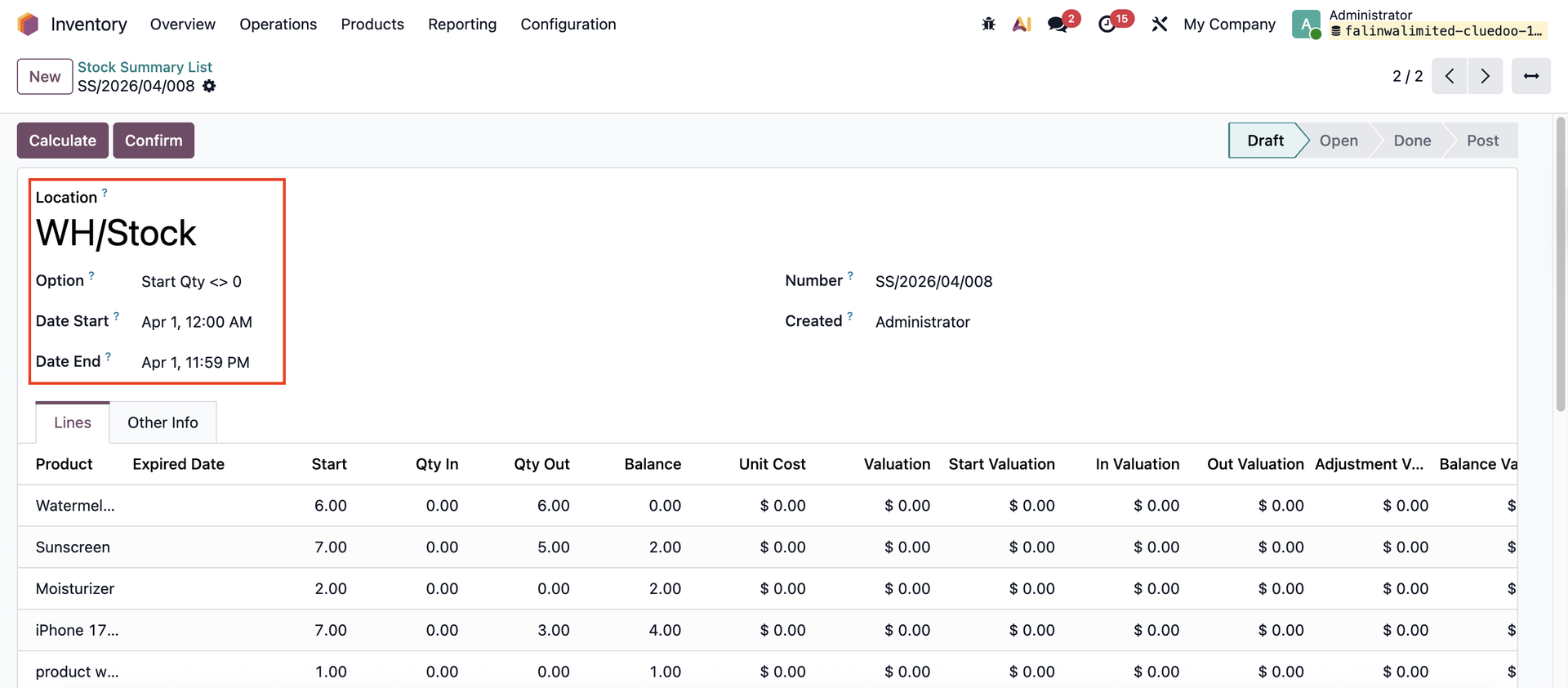
For example, if you want to create a Stock Summary List every day for location WH/Stock (ID: 5), with the start quantity different from 0 (option: qty), then the code is: Click Run Manually |
|
A Stock Summary List will be automatically created in Draft, with the correct Location, Option, Date Start, and Date End. |
|