



STORY BEHIND THE FEATURE
ODOO BEHAVIOR
In Odoo, the Forecasted Report provides a general overview of product stock over time. However, it lacks:
A status field on stock locations (e.g., New, Hospital, R&D, etc), so users cannot categorize or filter inventory based on location state.
A time-based filter that restricts the displayed stock levels to a specific date range. The report shows cumulative forecasted quantities without the ability to isolate a defined period for planning or reporting purposes.
All locations and forecasted data are shown in a uniform color, with no visual distinction between location statuses.
CLUEDOO BEHAVIOR
CLuedoo enhances the Forecasted Report with two major functionalities:
1️⃣ Location State/Status Management
- Adds a new Status field on each Location (e.g., New, Hospital, Second Hand, etc.)
- When viewing the Forecasted Report, products are color-coded by their location’s status, allowing users to visually distinguish stock depending on location conditions
- A new status filter lets users narrow down the report to specific types of locations (e.g., show only "Hospital" stock)
2️⃣ Date-Range Filtering
Introduces a date filter that limits the forecasted stock display to a defined period, making it easier for planners to focus on expected stock movements within a specific window
These improvements make the Forecasted Report far more actionable, visual, and aligned with real-world operational needs.
CLUEDOO RECOMMENDATION
Install on 100% of your database.
OUR FEATURES AS SOLUTIONS
Location Status & Period Filtering in Forecasted Report
HOW TO USE THIS MODULE
1. Go to Inventory > Configuration > Locations, you can see the column State | 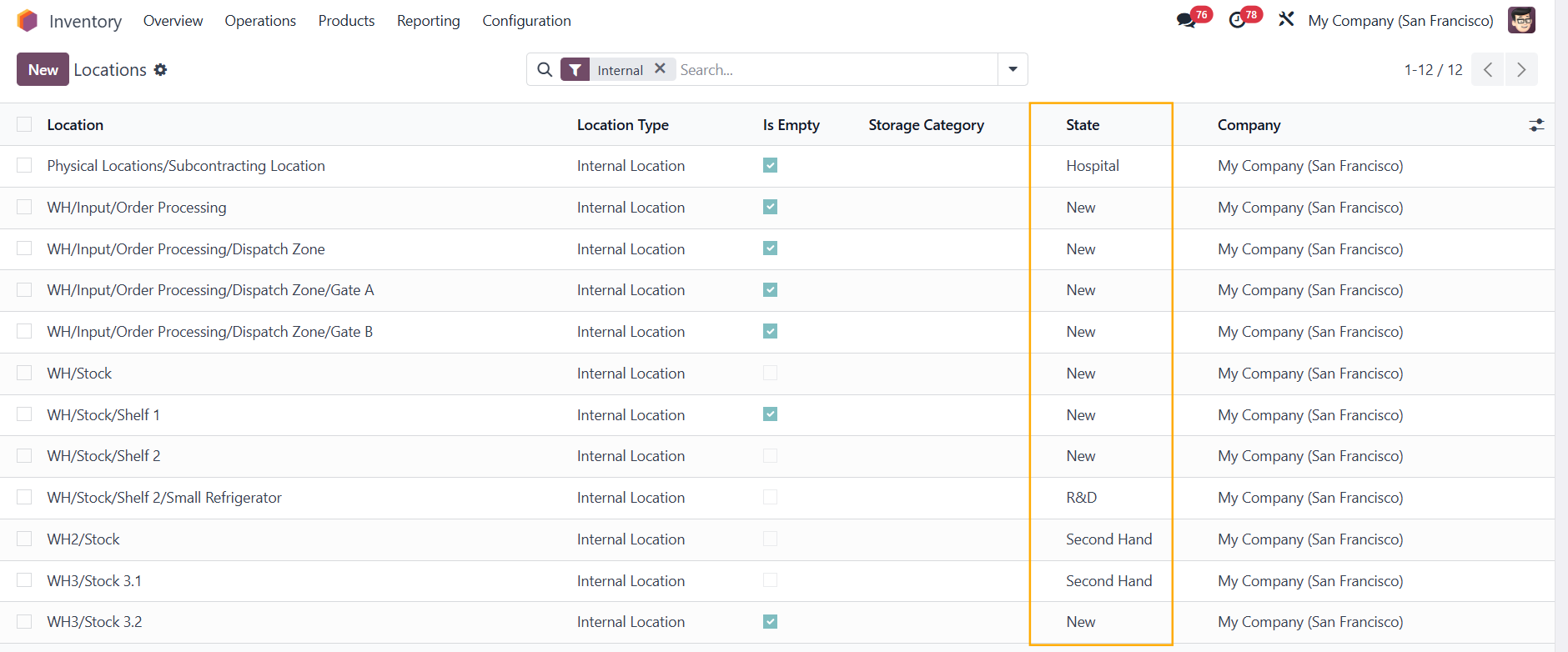 |
In the location itself, you can manage the state at the top right corner | 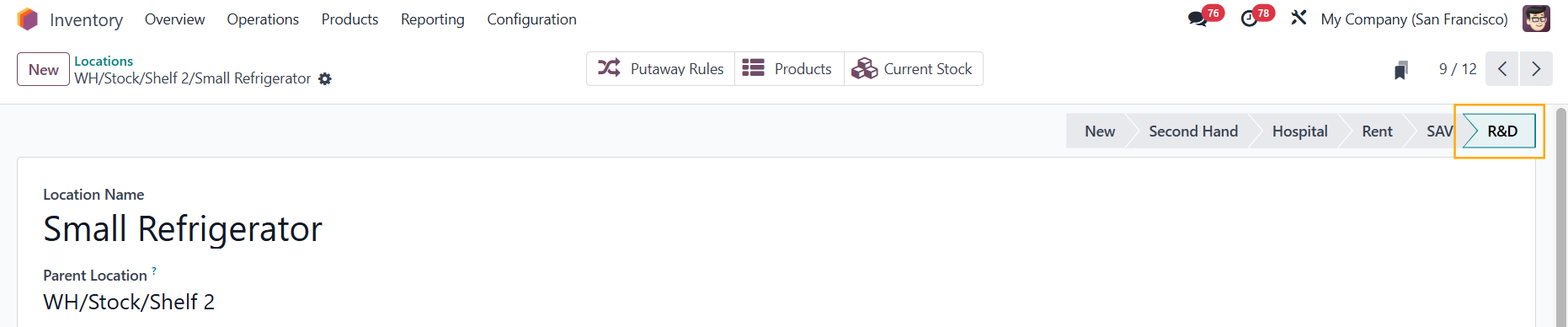 |
2. Create stock moves with different Destination Locations > Go to the product form > Forecasted smart button to check the Forecasted Report > We have Location Status and Date Filter Each location status will be shown in different colors; you can choose to see one or more statuses. | 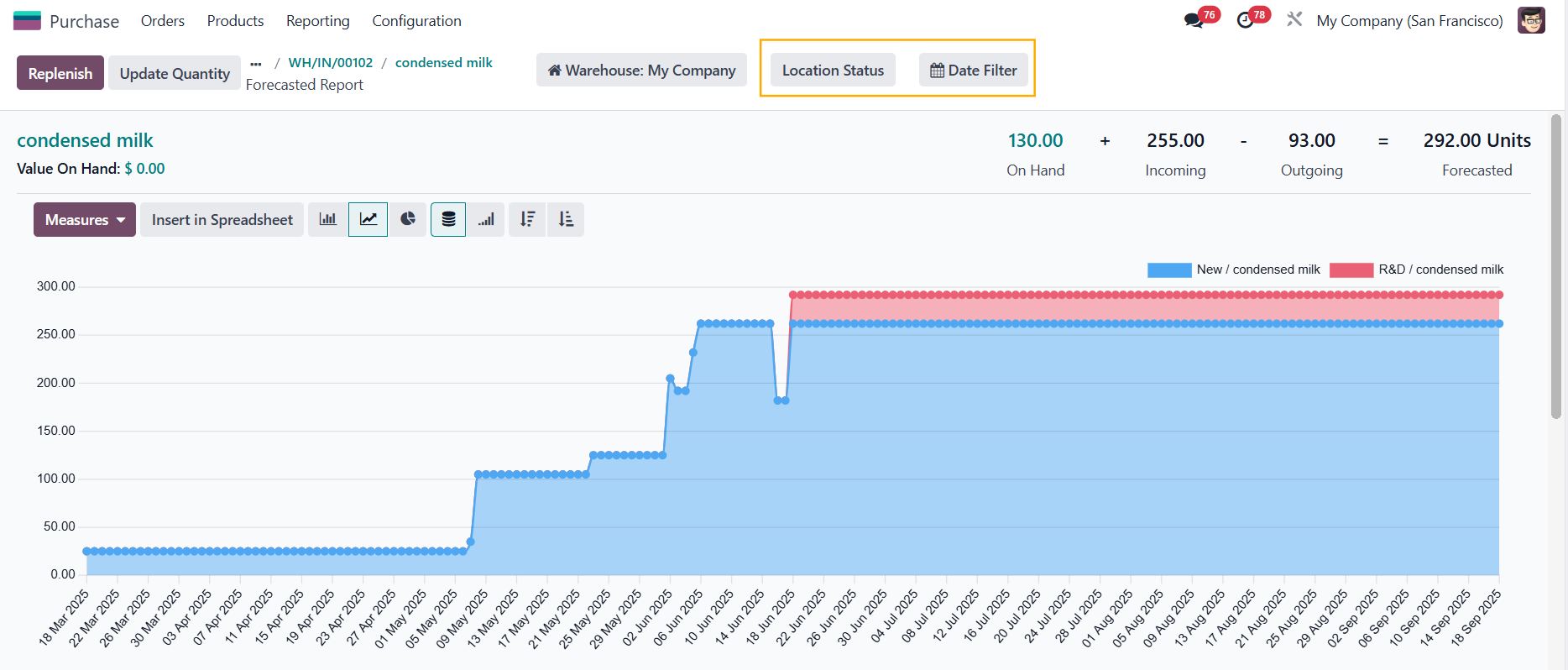 |
3. You can choose the period in which you want to show the forecasted stock | 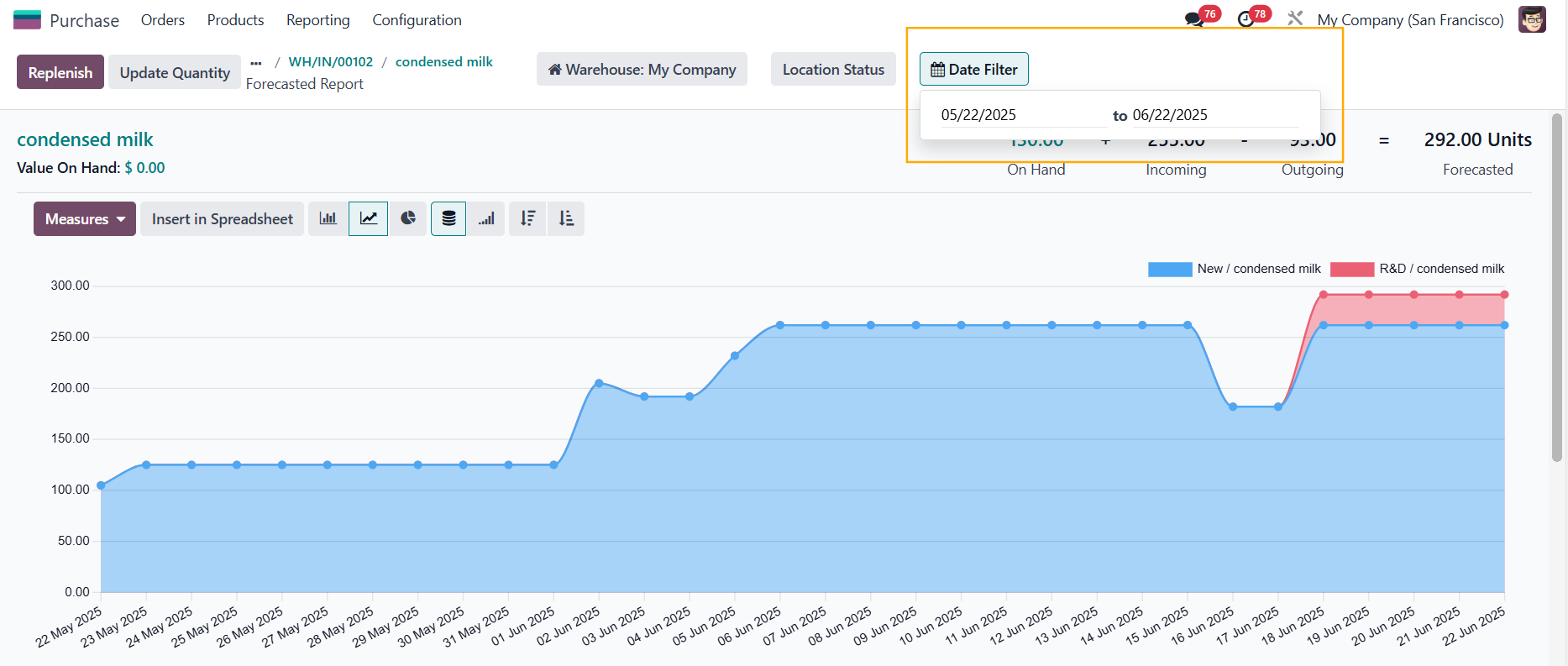 |