


STORY BEHIND THE FEATURES
ODOO BEHAVIOR
Odoo Standard includes a reservation method in the delivery operation type, ensuring stock is allocated efficiently. It allows automatic, scheduled, or manual reservations, preventing overselling and optimizing inventory management
CLUEDOO BEHAVIOR
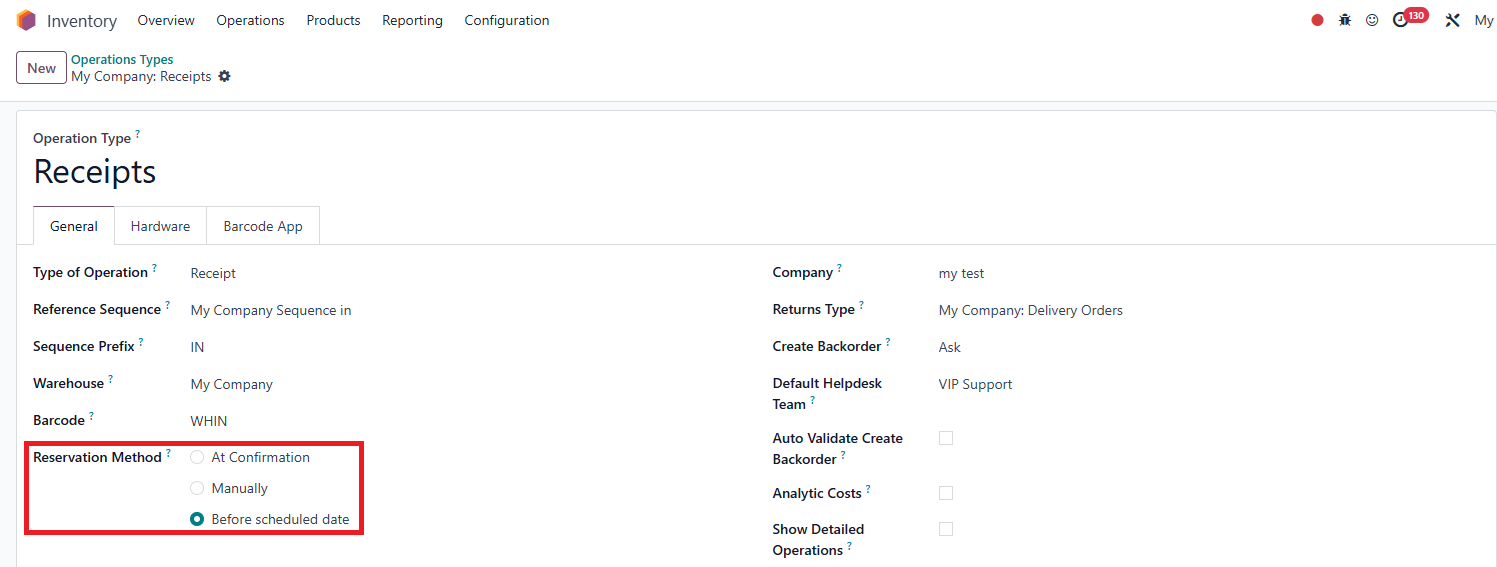
CLuedoo adds the reservation method in the receipt operation type, allowing businesses to better control incoming stock allocation
CLUEDOO RECOMMENDATIONS
\tInstall on 100% of the database.
HOW TO USE THIS MODULE ?
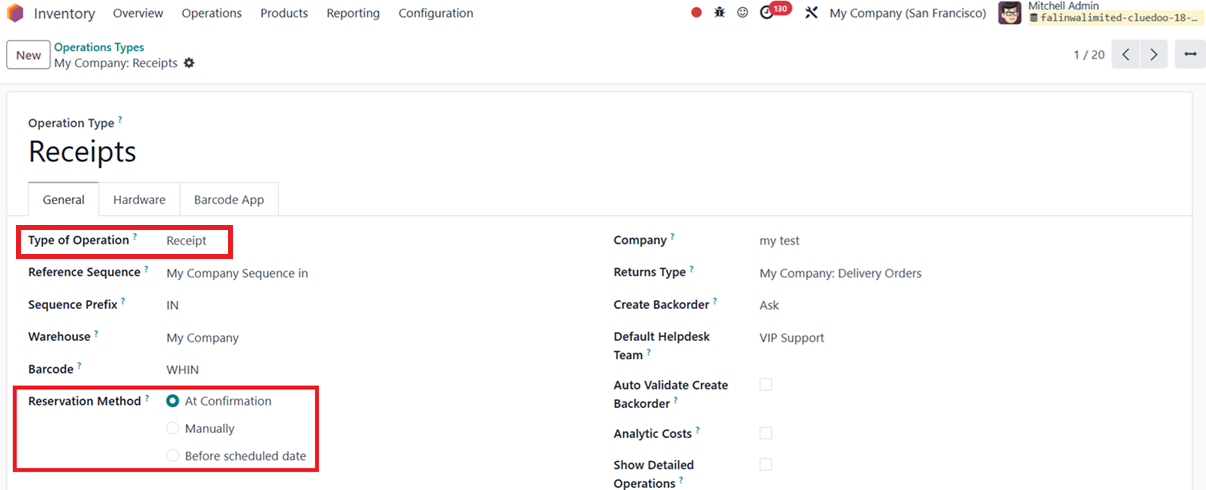
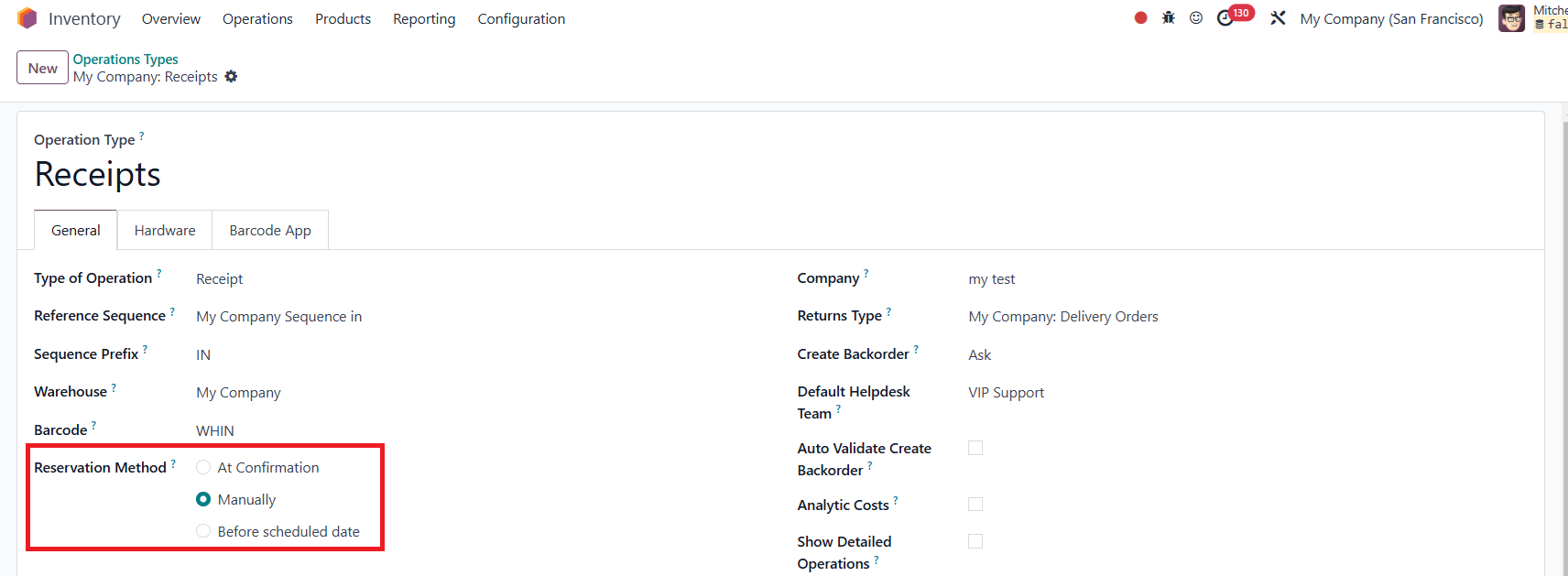
Step 1 :In Operation Type Receipt, we have the reservation Method |  |
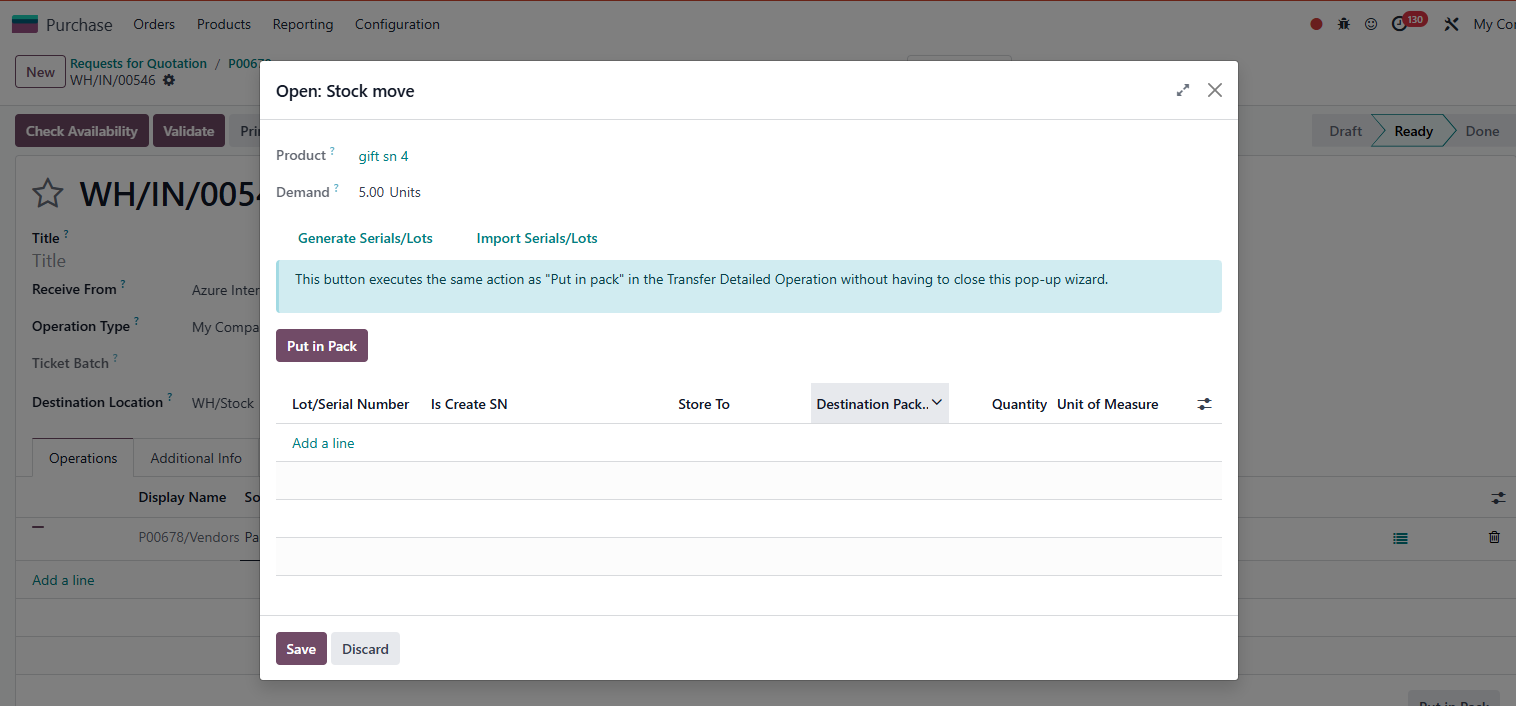
Step 2 :Create a Receipt transfer and choose the product with tracking by Serial Number. If we choose the reservation method Manual, Odoo won't generate the lines automatically in detailed operation. Usually, the number of lines is based on the number of quantity demand. |
|
Update v18 At Confirmation1Go to Inventory > Operation Types > Receipts > Reservation Method: Choose At Confirmation |
|
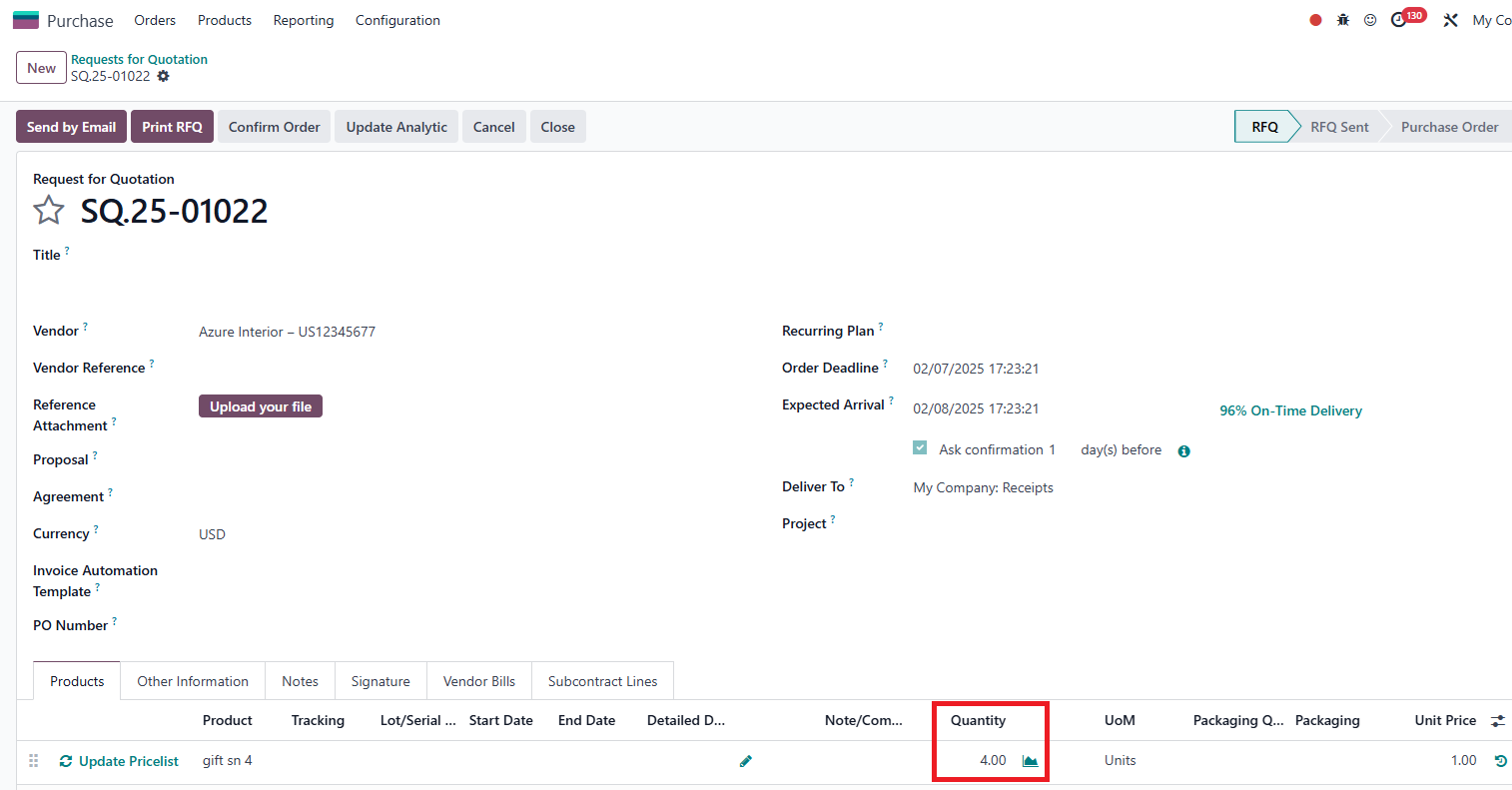
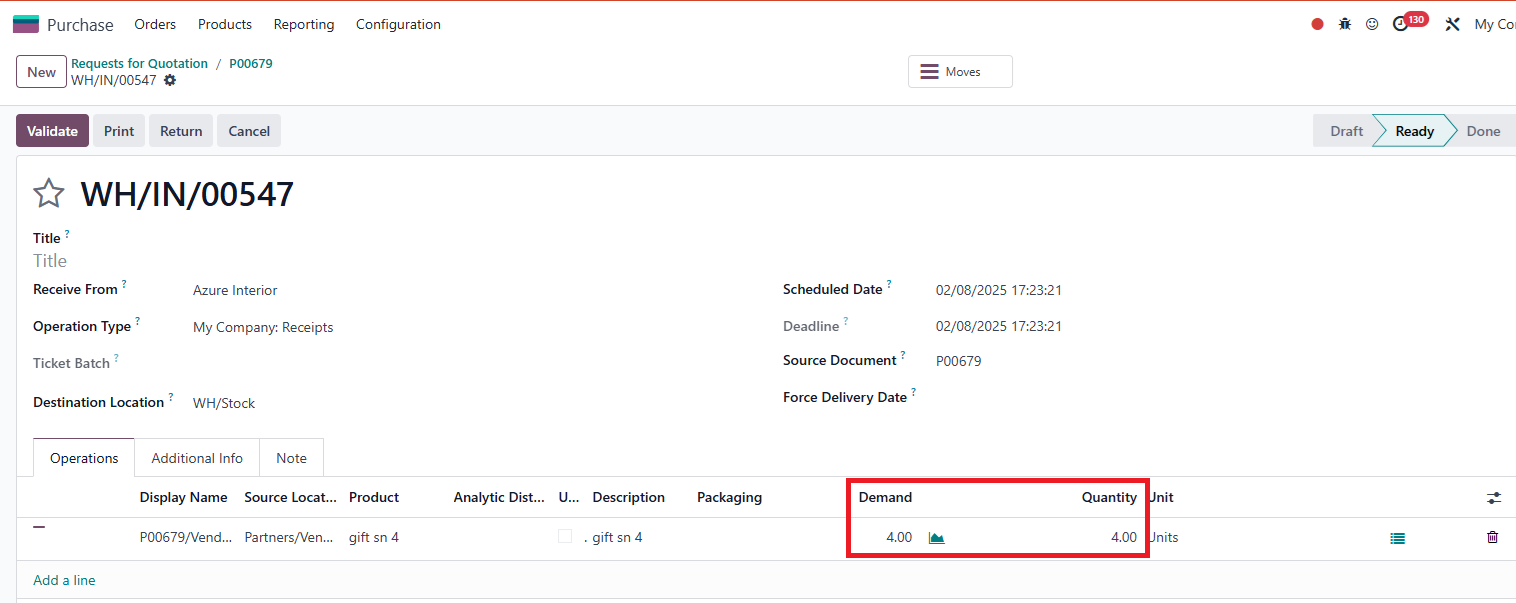
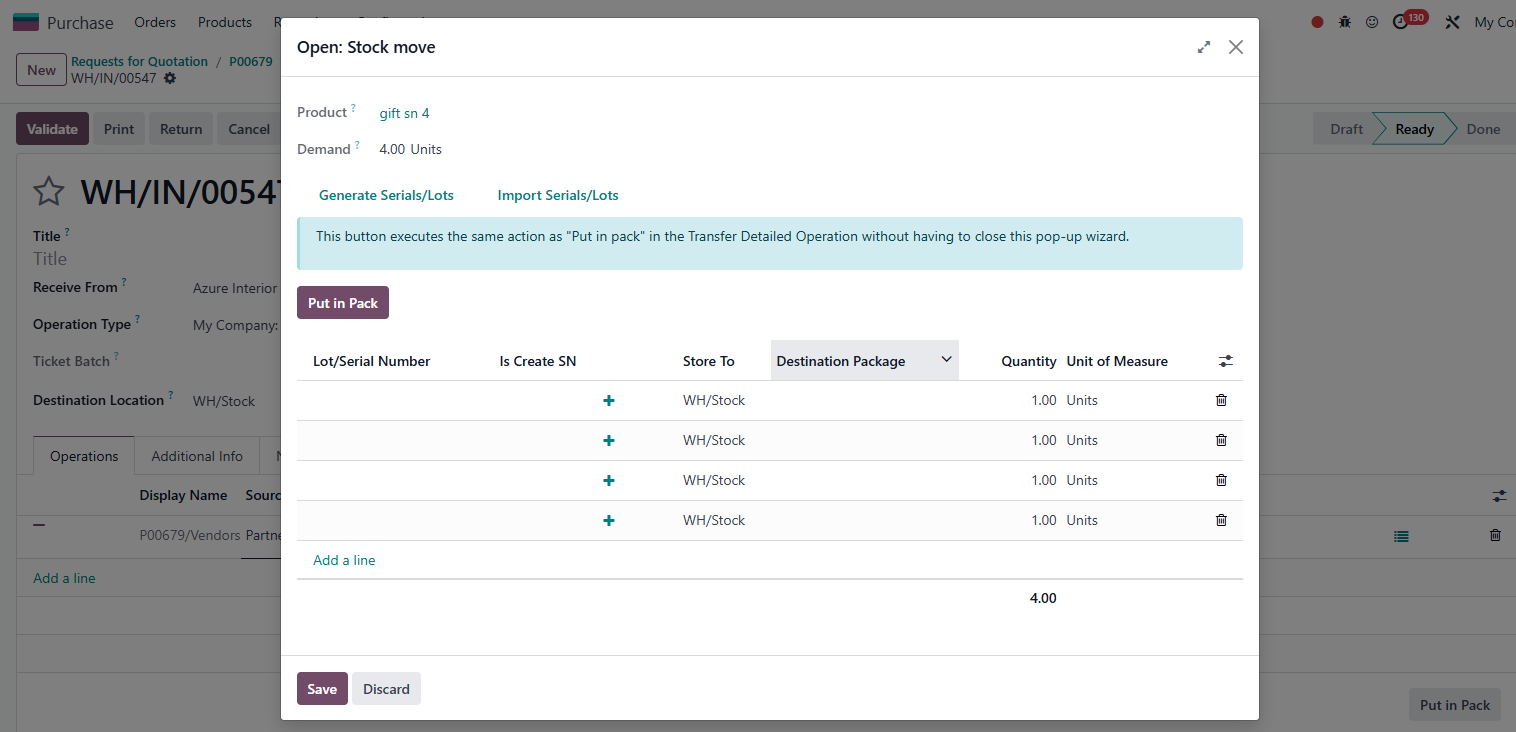
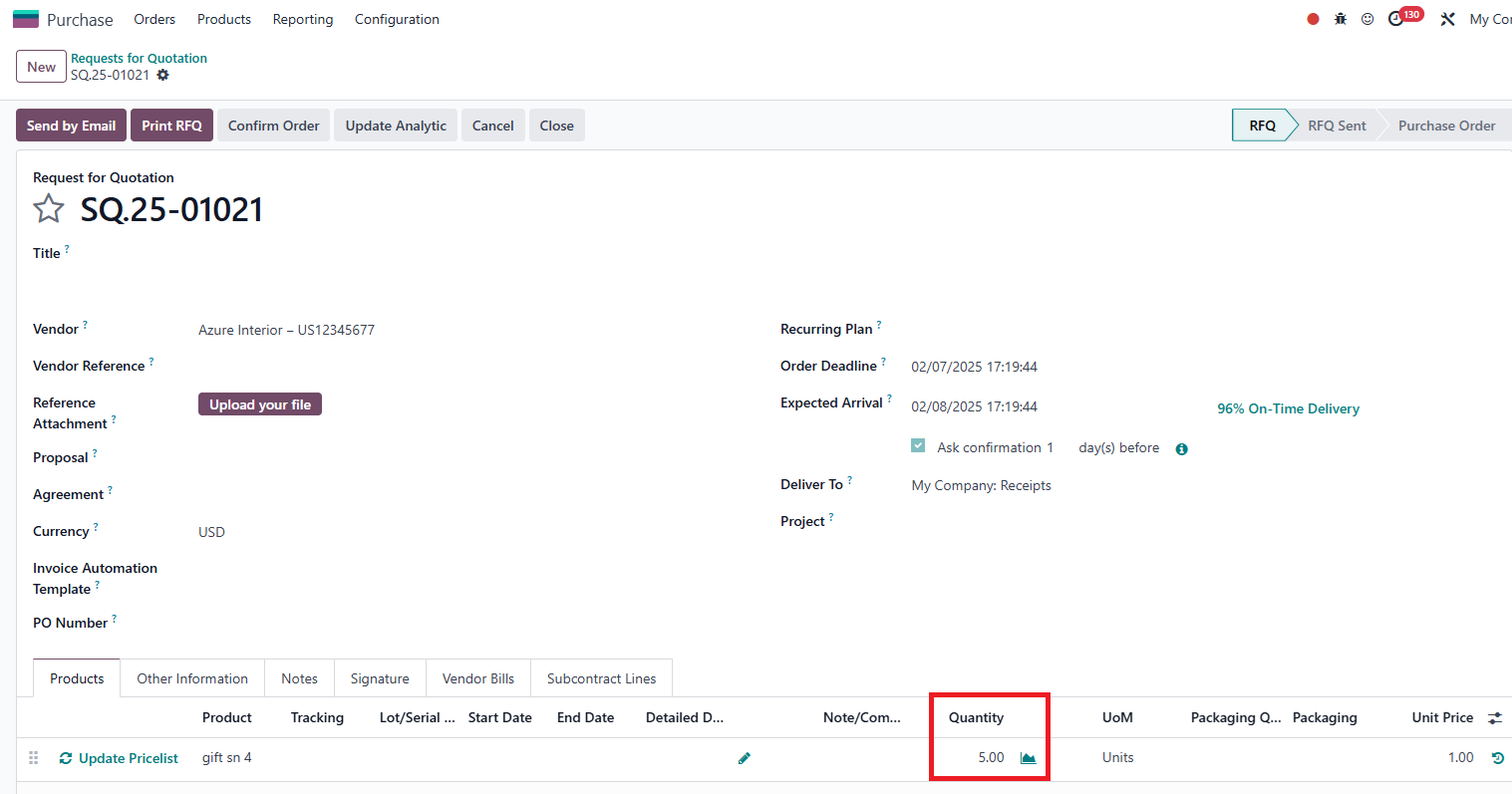
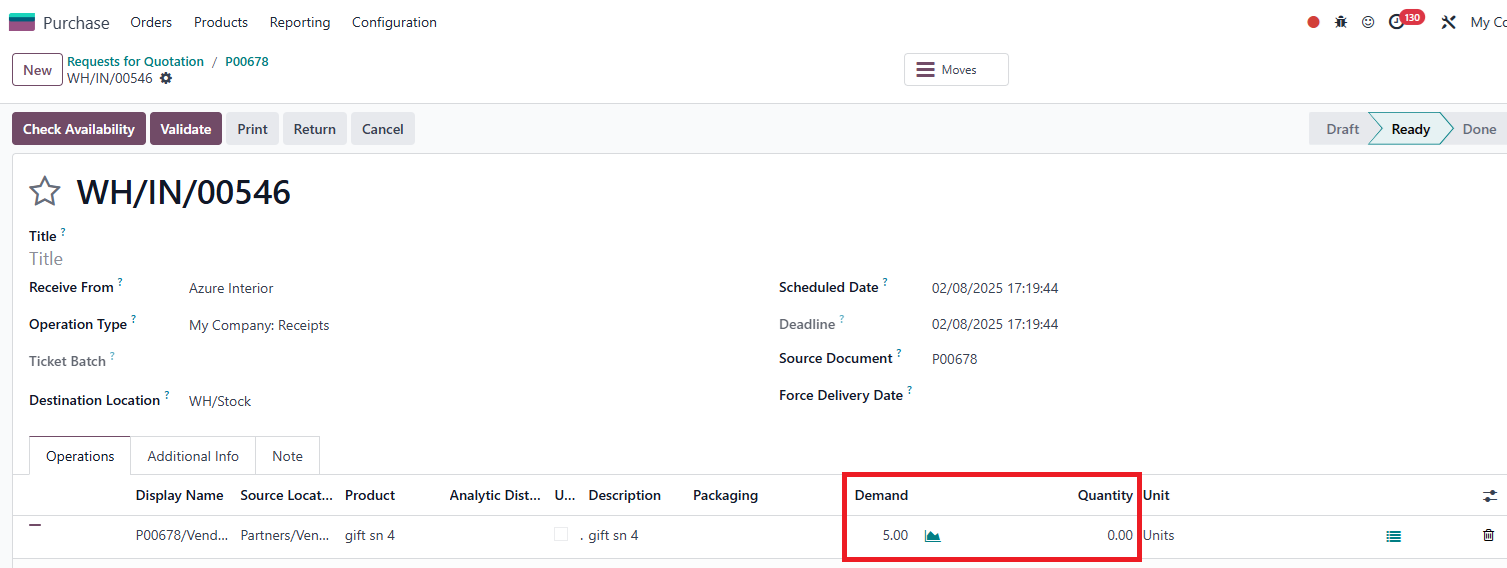
2Go to Purchase > Create a Purchase Order with storable products > Confirm > Move to the Receipt > We can see that the Quantity is automatically updated to match the Demand and in the Stock Move pop-up, there are lines automatically created with a number equal to the Quantity EX: I added a product tracked by Serial Number to this reception |
|
Manually1Go to Inventory > Operation Types > Receipts > Reservation Method: Choose Manually |
|
2Go to Purchase > Create a Purchase Order with storable products > Confirm > Move to the Receipt > We can see that the Quantity is 0 by default and in the Stock Move pop-up, no lines are automatically created |
|
Before scheduled dateIn version 18, Before Scheduled Date is functioning the same way as At Confirmation
|
|