



ODOO'S FUNCTION
Odoo offers types and tags in order to manage Helpdesk tickets. However, it lacks a feature to create or manage tickets in batches.
CLUEDOO'S FUNCTION
CLuedoo introduces ticket batch management with the ability to:
1️⃣ Create tickets first then group them into a batch, or create a batch first and add ticket lines
2️⃣ Select a partner in the batch and apply a domain filter on Serial Numbers
3️⃣ Manage all linked tickets directly from the batch
Step 1: Go to Helpdesk.
|  |
Step 2: Create a new ticket batch by going to Ticket Batch → New.
|  |
Step 3: Fill in the required information. Now, to add tickets to the batch, we can do one of two ways:
Note:
| 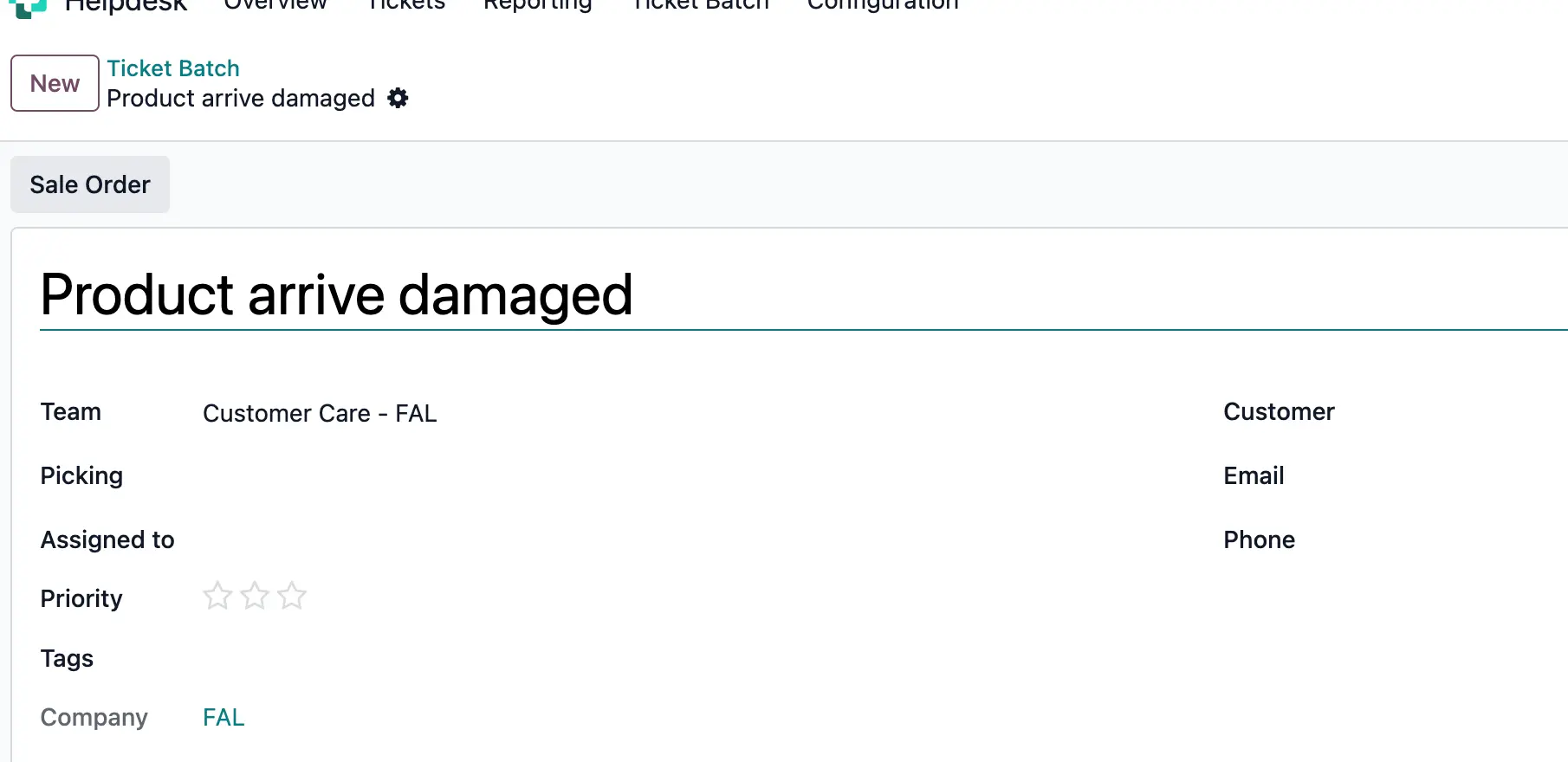 |
A warning pops up if tickets from different teams added to the batch |
|
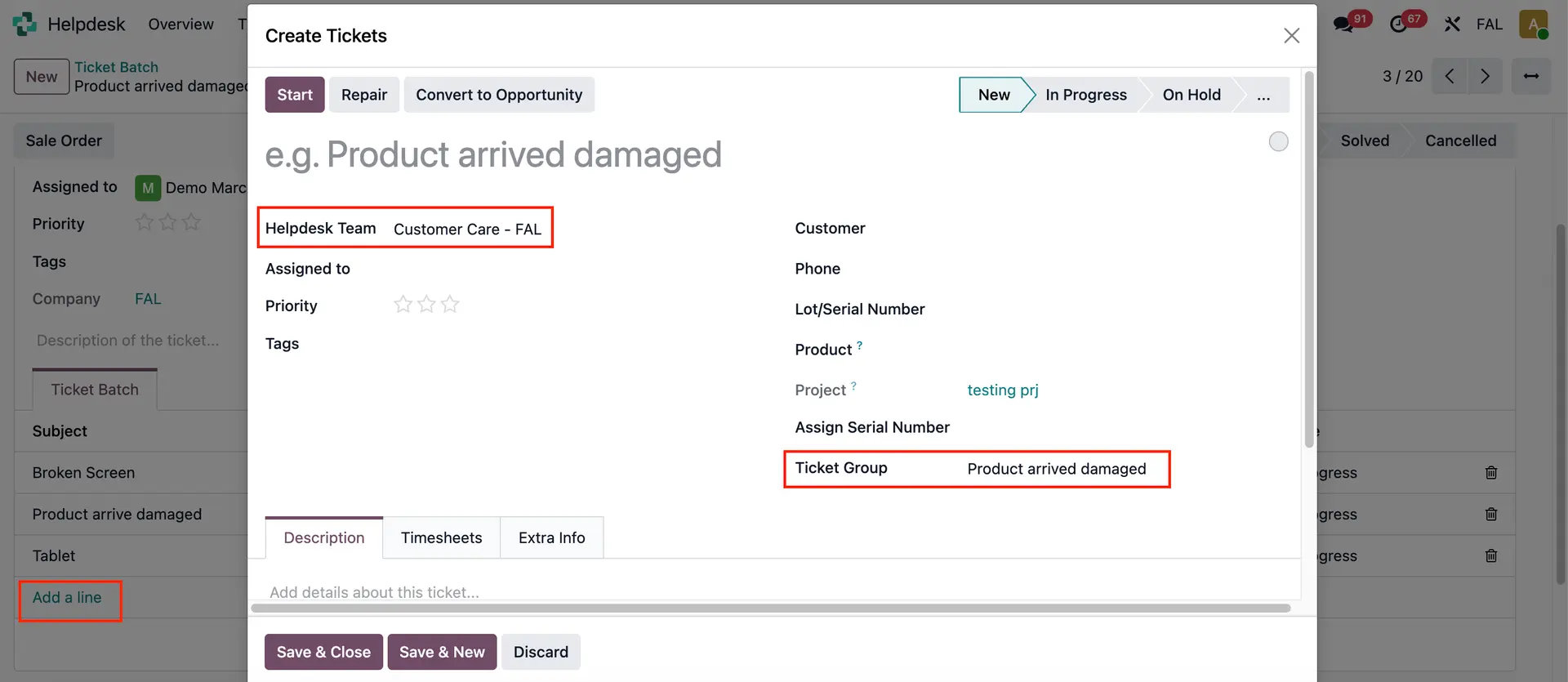
Step 4a: Create a new ticket and add it to batch:
You can see Helpdesk Team and Ticket Group (Batch) have been pre-filled. Click on Save.
|  |
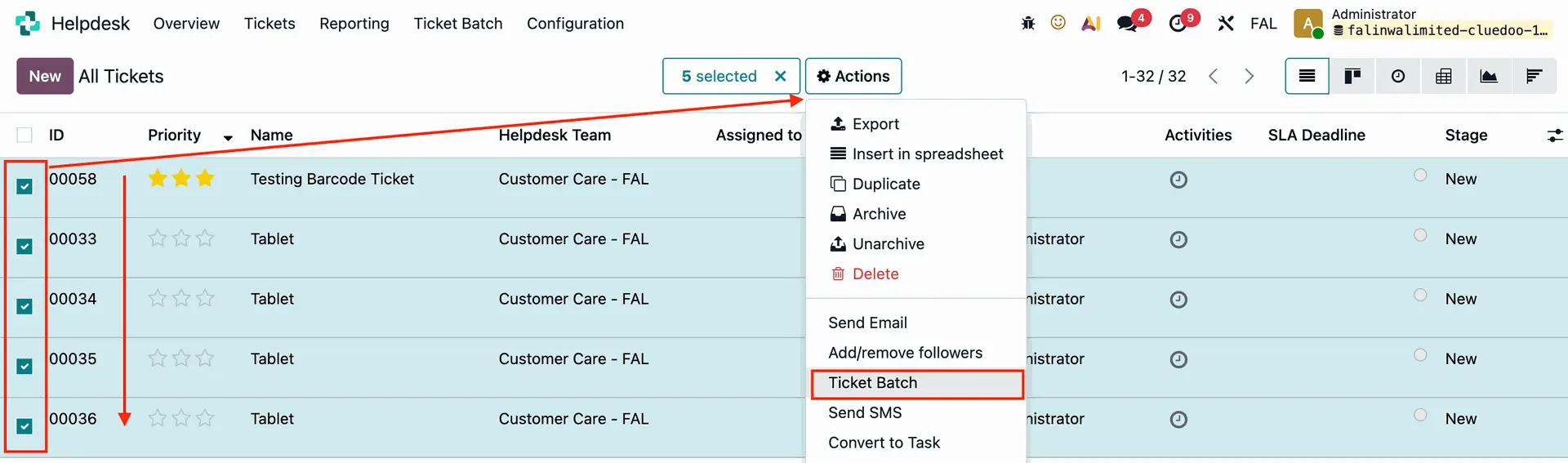
Step 4b: Add existing tickets from the ticket menu to a batch: Go to Tickets → All Tickets (or My Tickets). Select the tickets you want. Click on Actions → Ticket Batch.
|  |
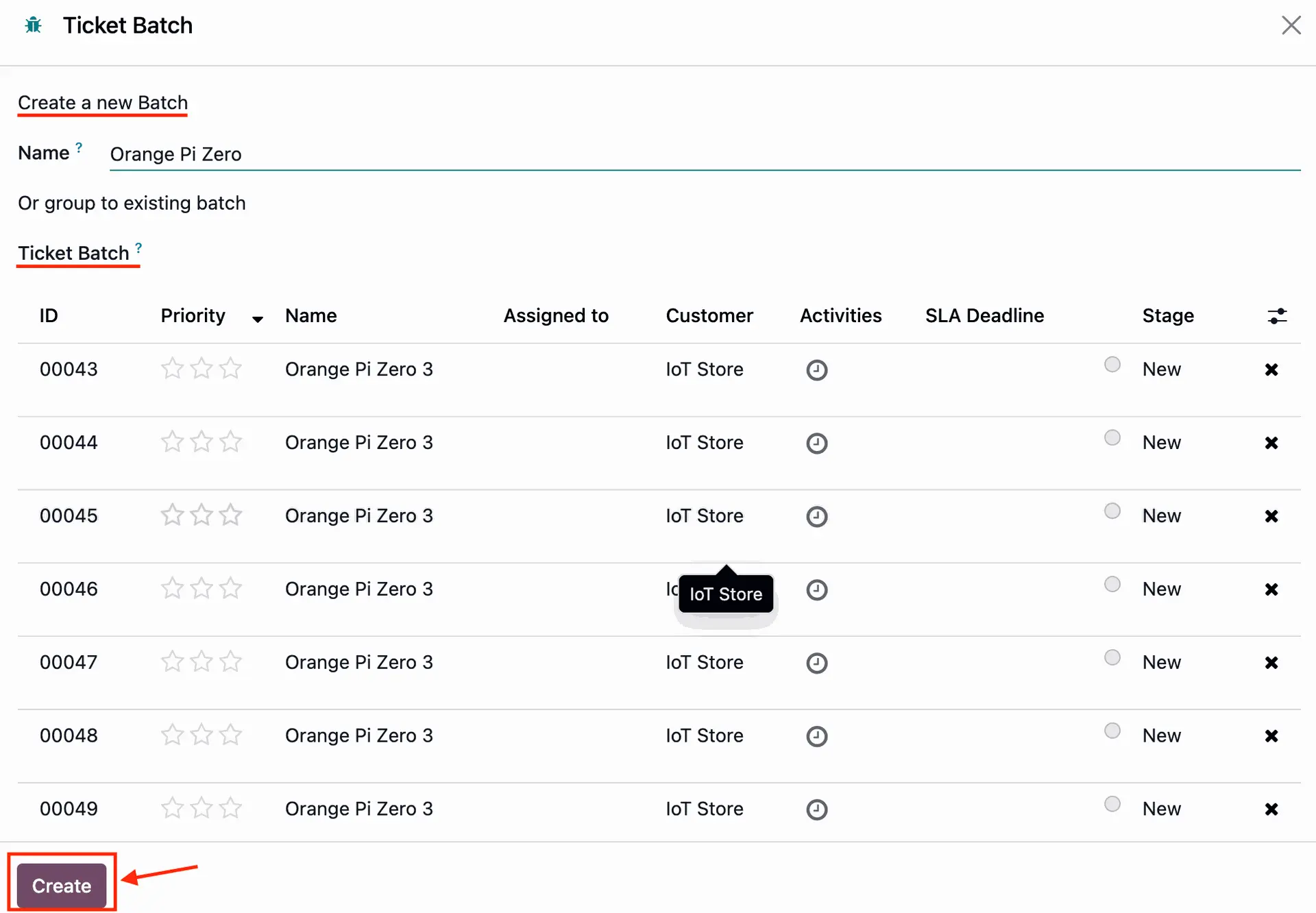
Step 5: Make a new batch, or add to existing batch.
Click on Create.
|  |
Result: The batch will group all related tickets
| 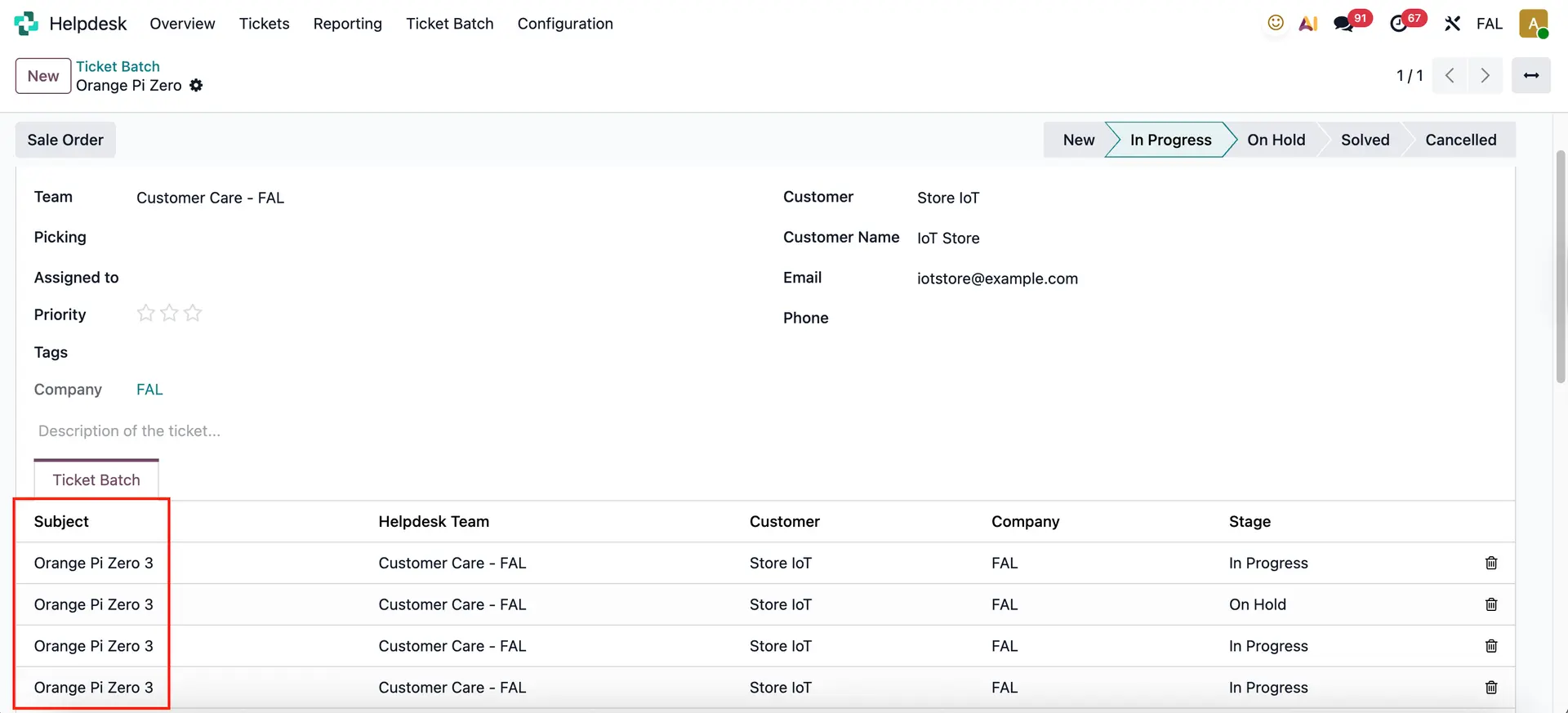 |
You can also add log notes/ schedule activities in helpdesk ticket batch
| 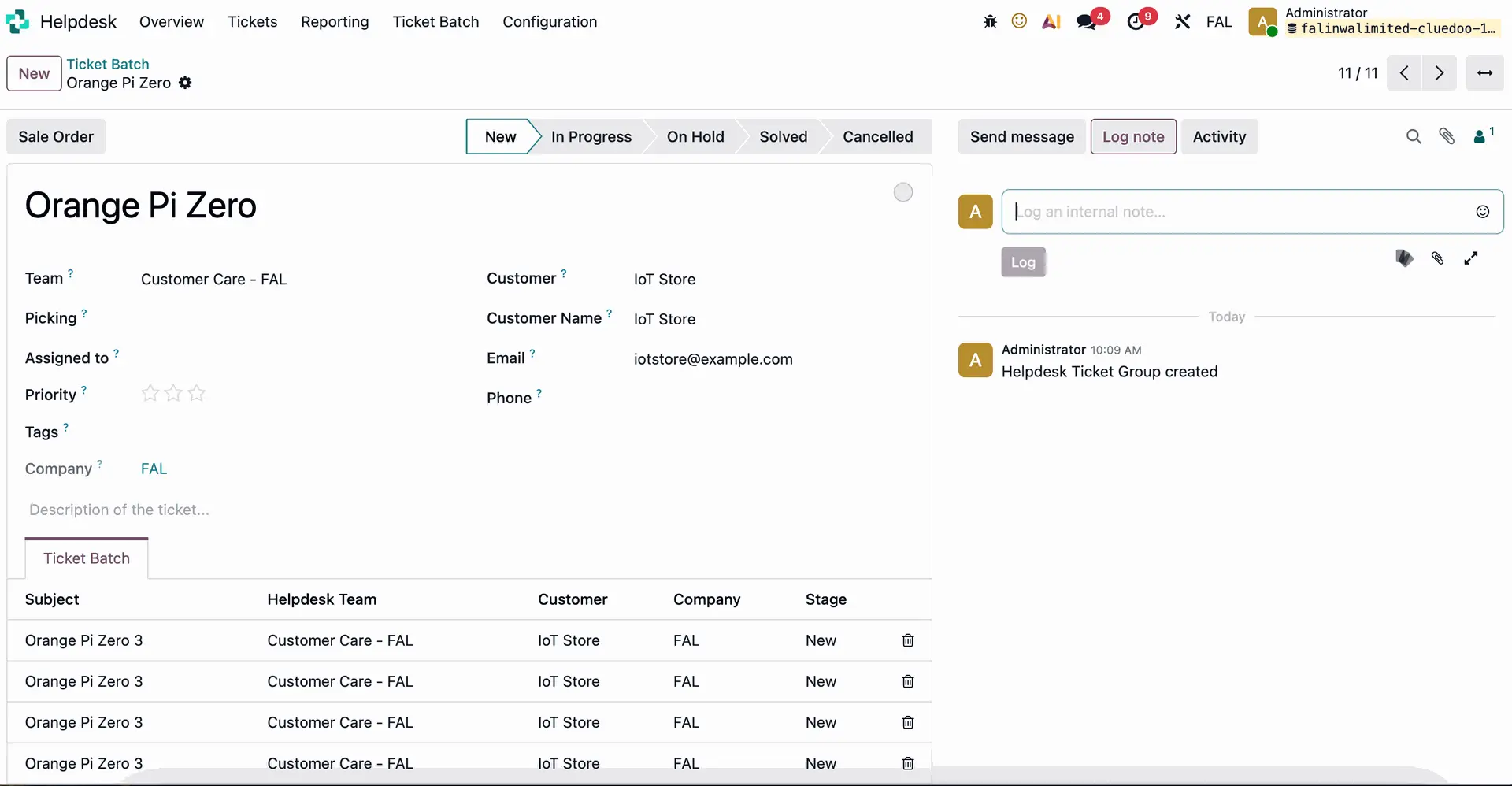 |
MASS STAGE CHANGEYou can update the stage of all tickets by changing the batch stage, while still keeping the flexibility to modify each ticket’s stage individually. | 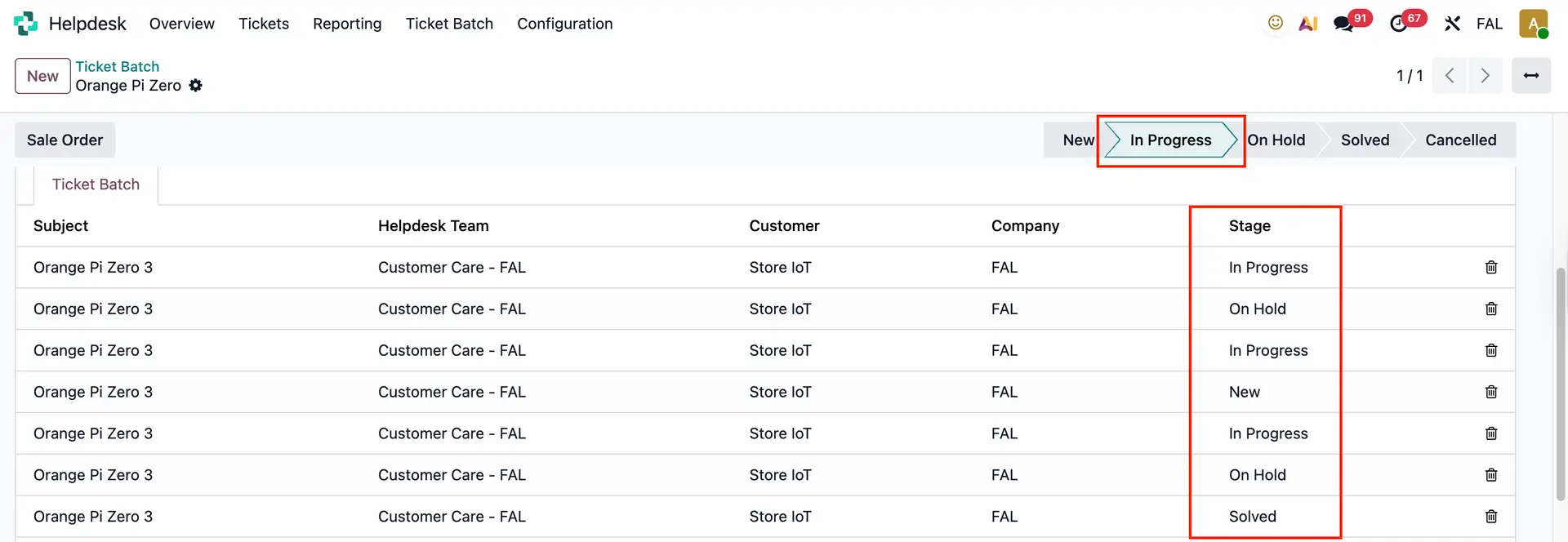 |
LOT/SERIAL NUMBER ON TICKETLot/Serial Number and Product fields are available on "Add new ticket" wizard | 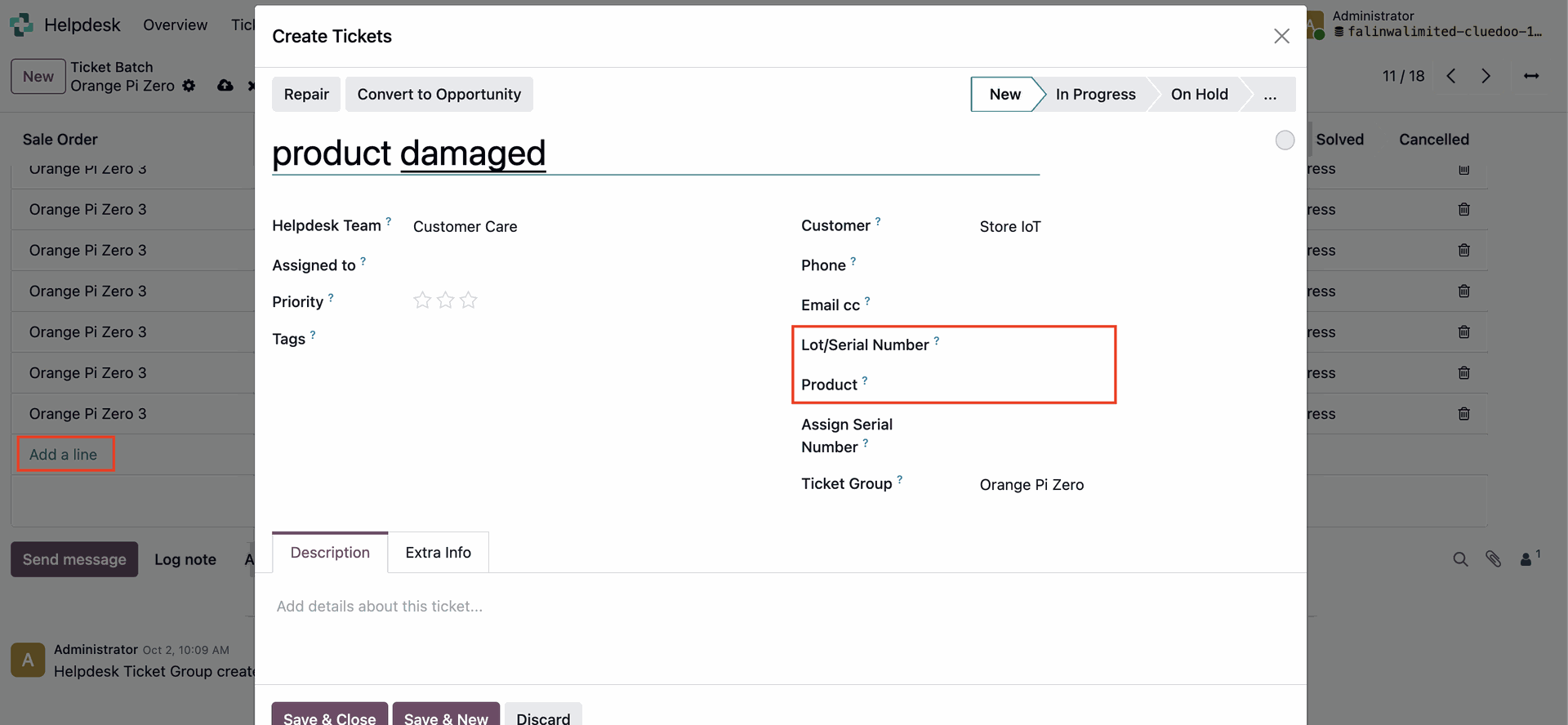 |
The Product field is restricted to show only products delivered to the customer | 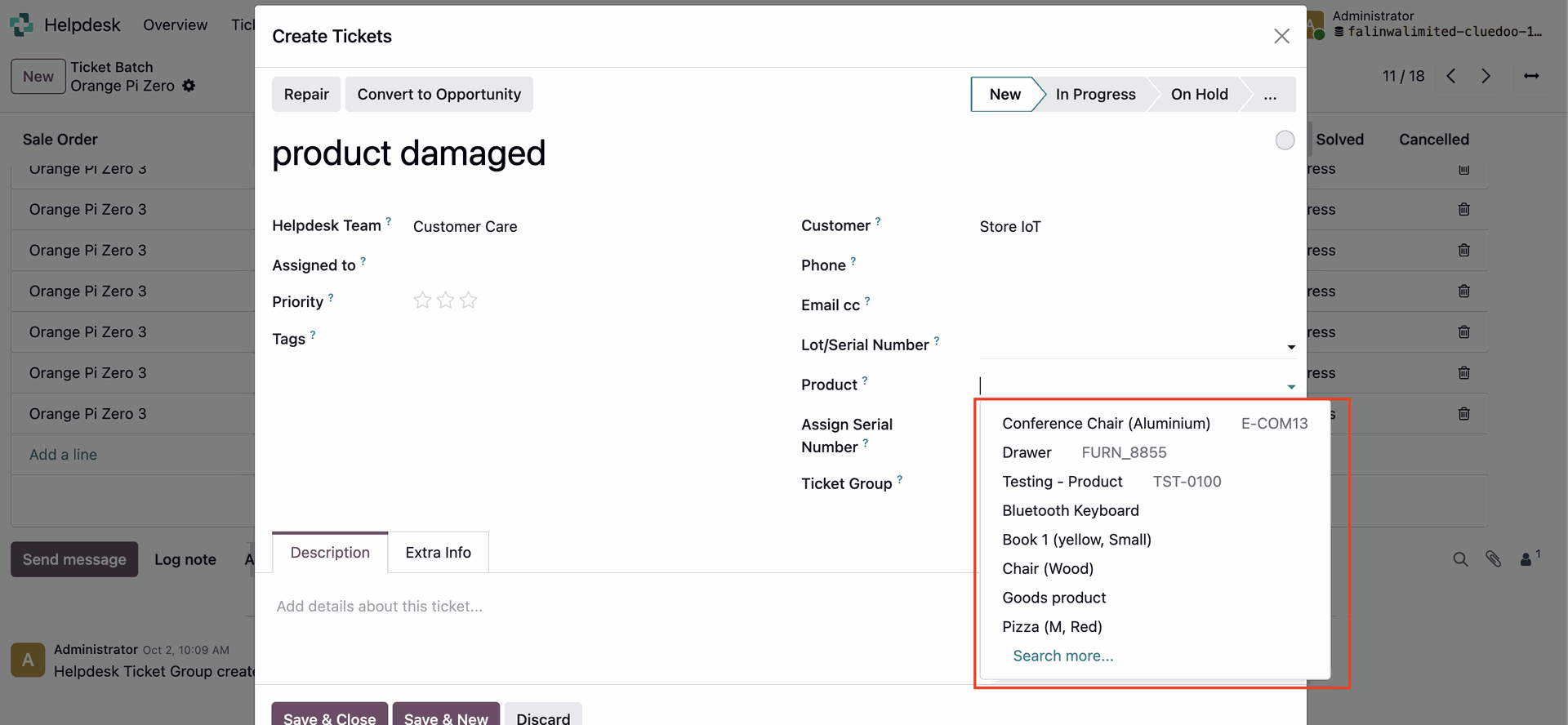 |
After selecting the product, you can then choose the corresponding L/SN. | 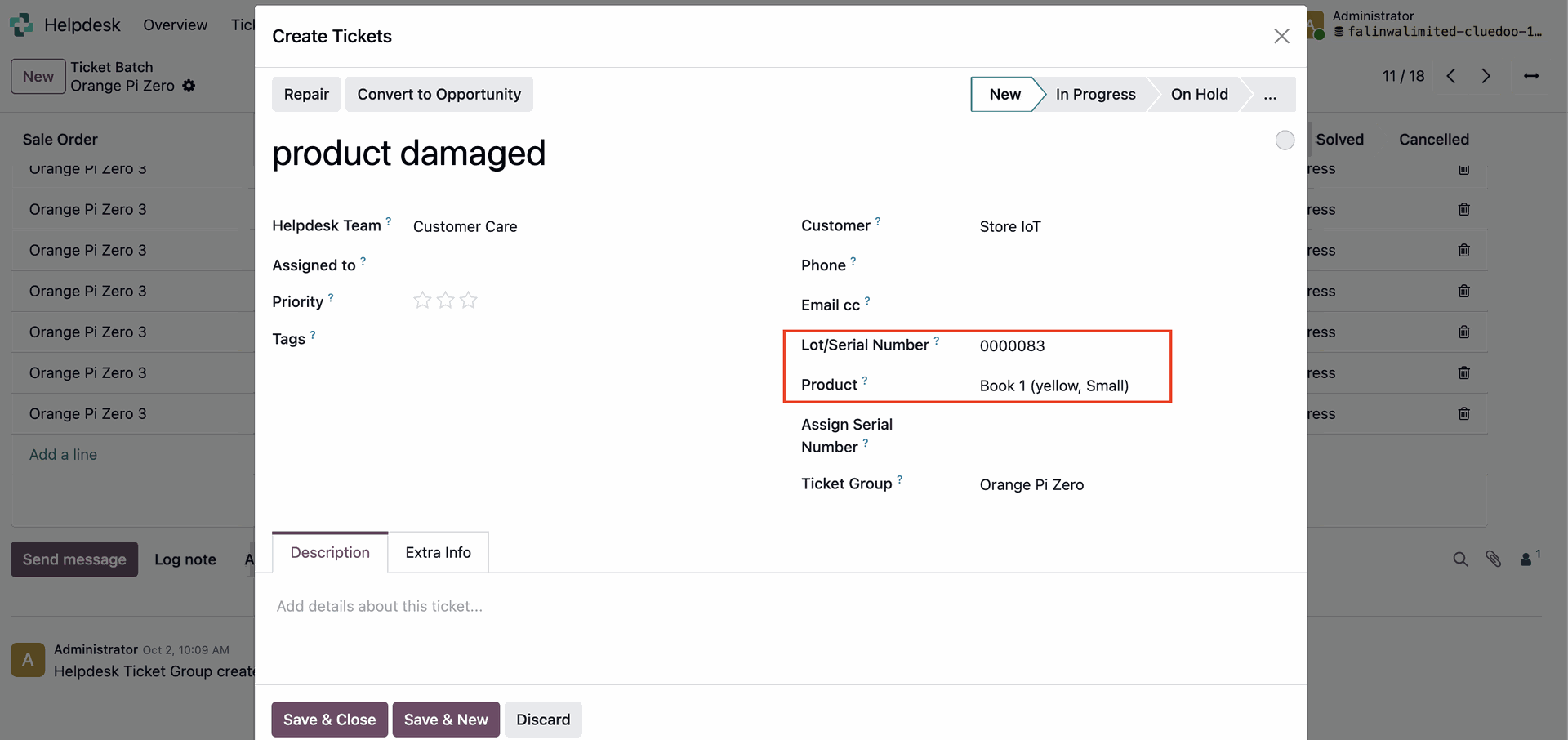 |
