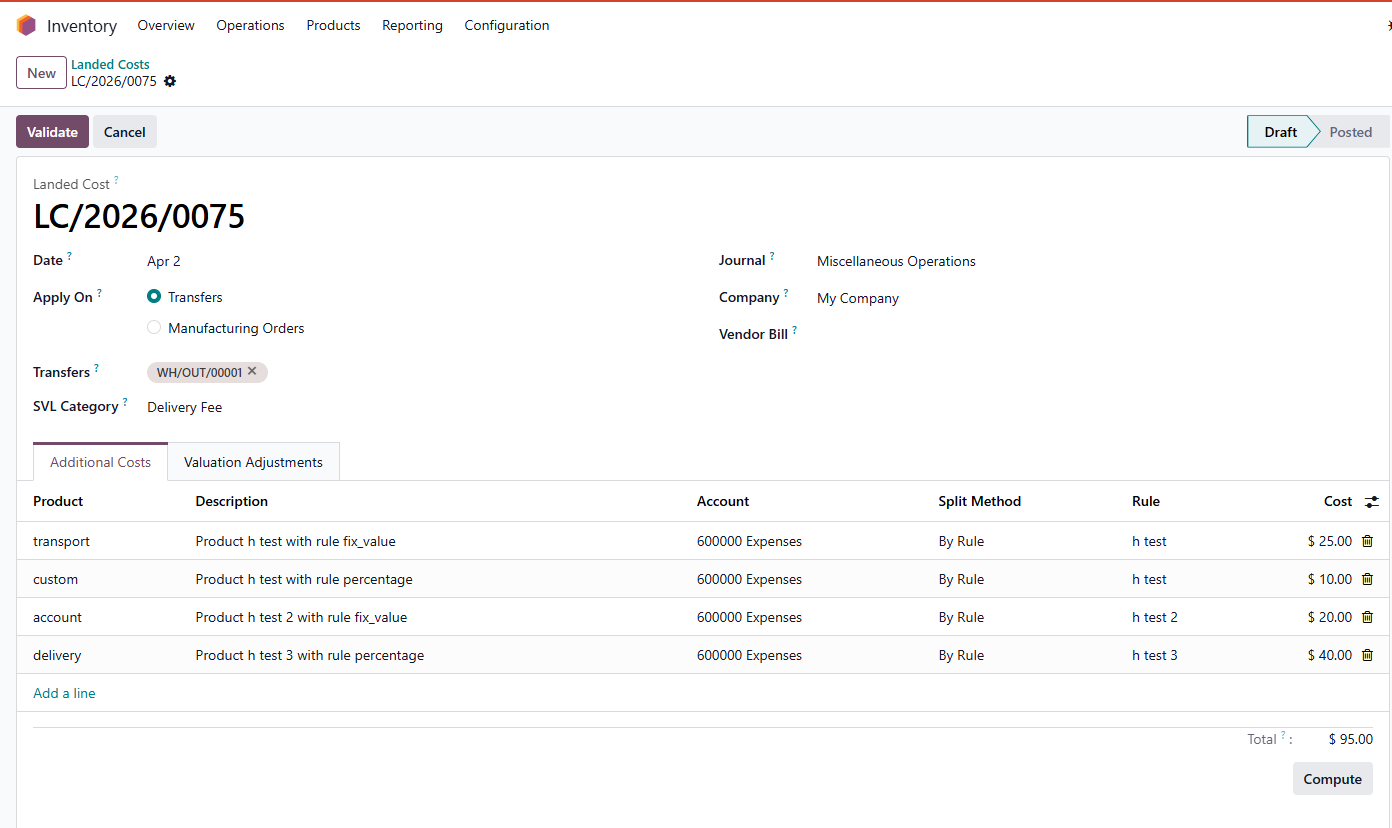



ODOO'S FUNCTION
CLUEDOO'S FUNCTION
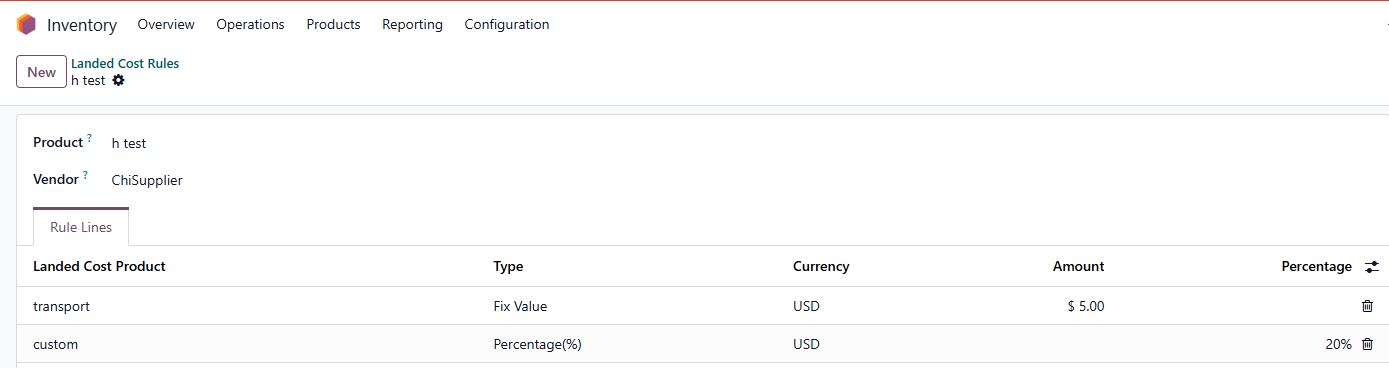
Cluedoo introduces a new object: Landed Cost Rule, allowing predefined rules by product and vendor.
1️⃣Rules can be configured as a fixed value or a percentage of the product’s valuation.
2️⃣When the incoming shipment is validated, the system automatically creates a Landed Cost record.
3️⃣Additional cost lines are filled based on the predefined rules, and amounts are computed automatically.
This ensures consistency, accuracy, and saves time for repetitive and rule-based landed cost scenarios.
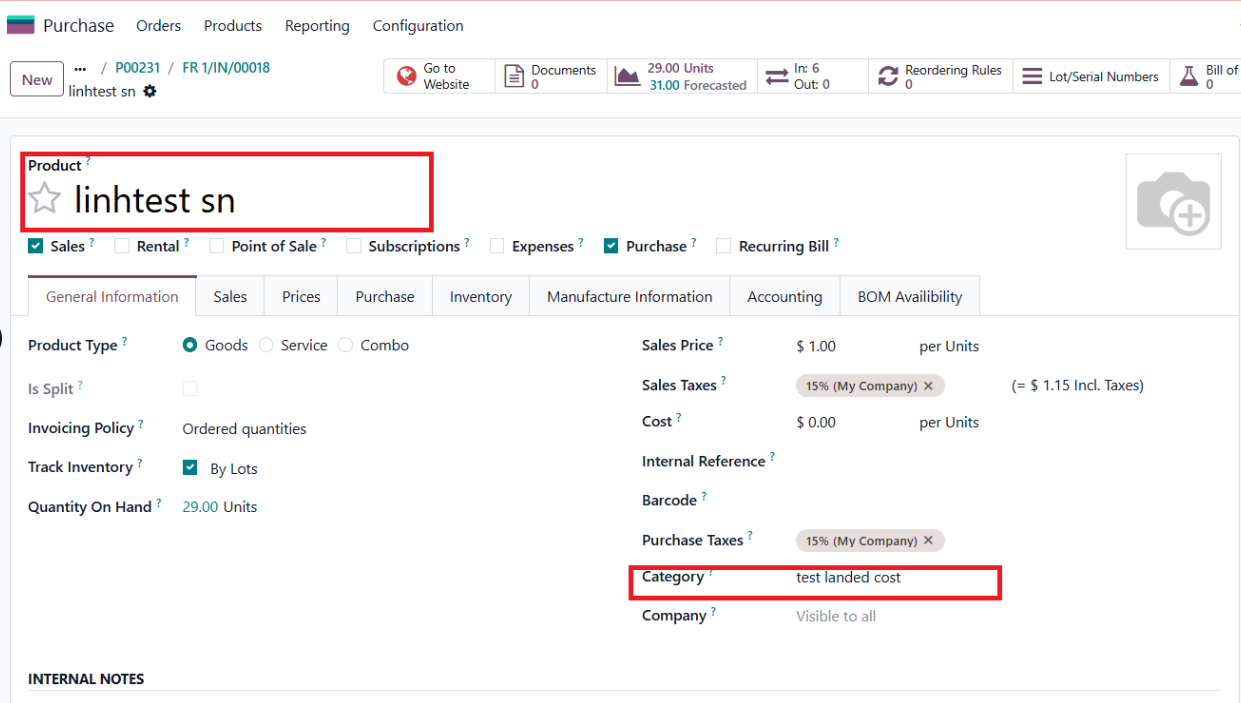
Go to Inventory > Landed Cost Rule > Create or choose a product > Set rule for your product | 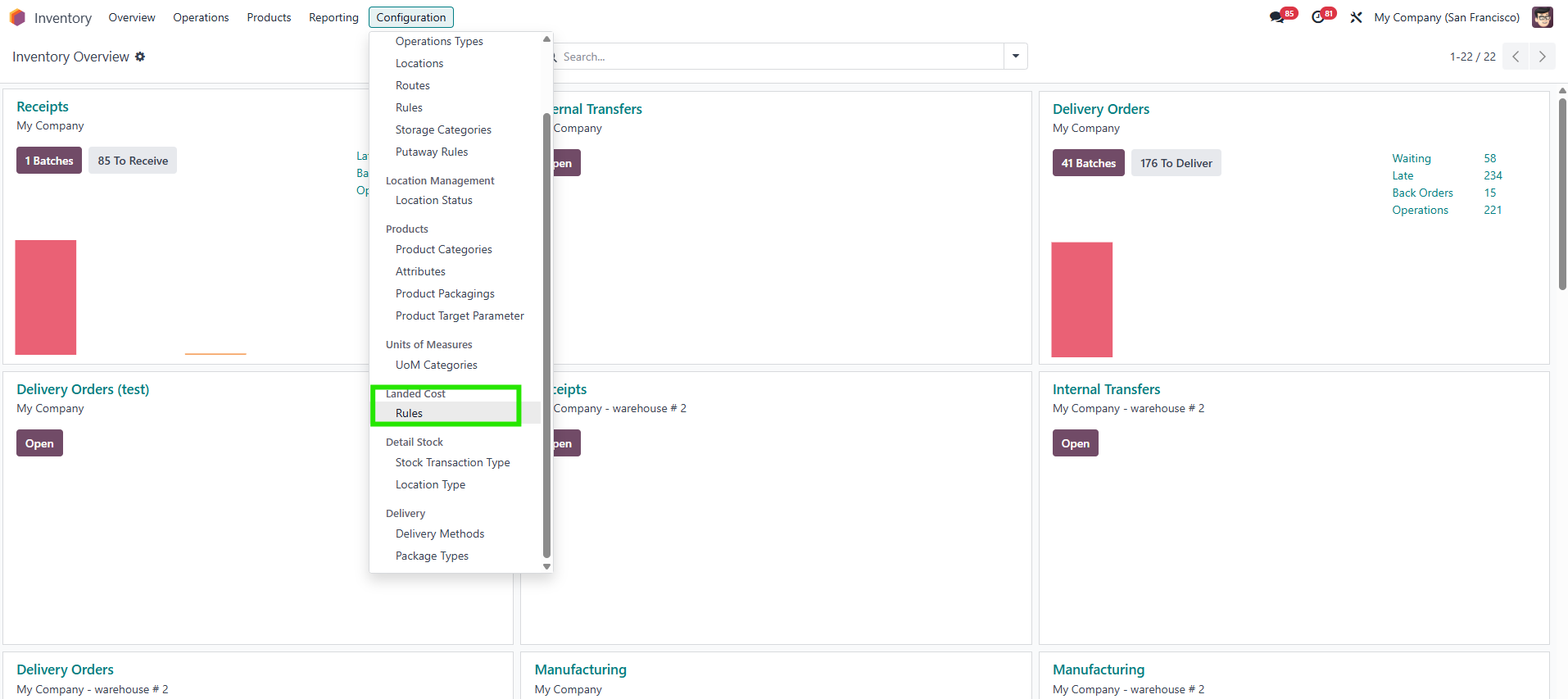 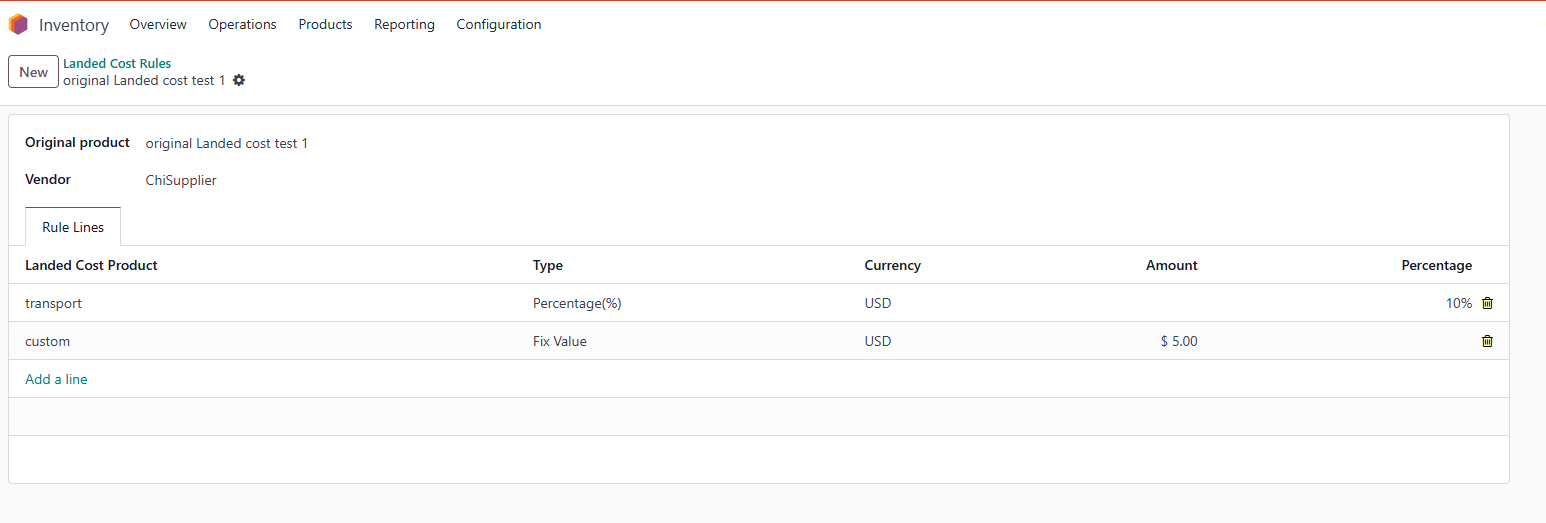 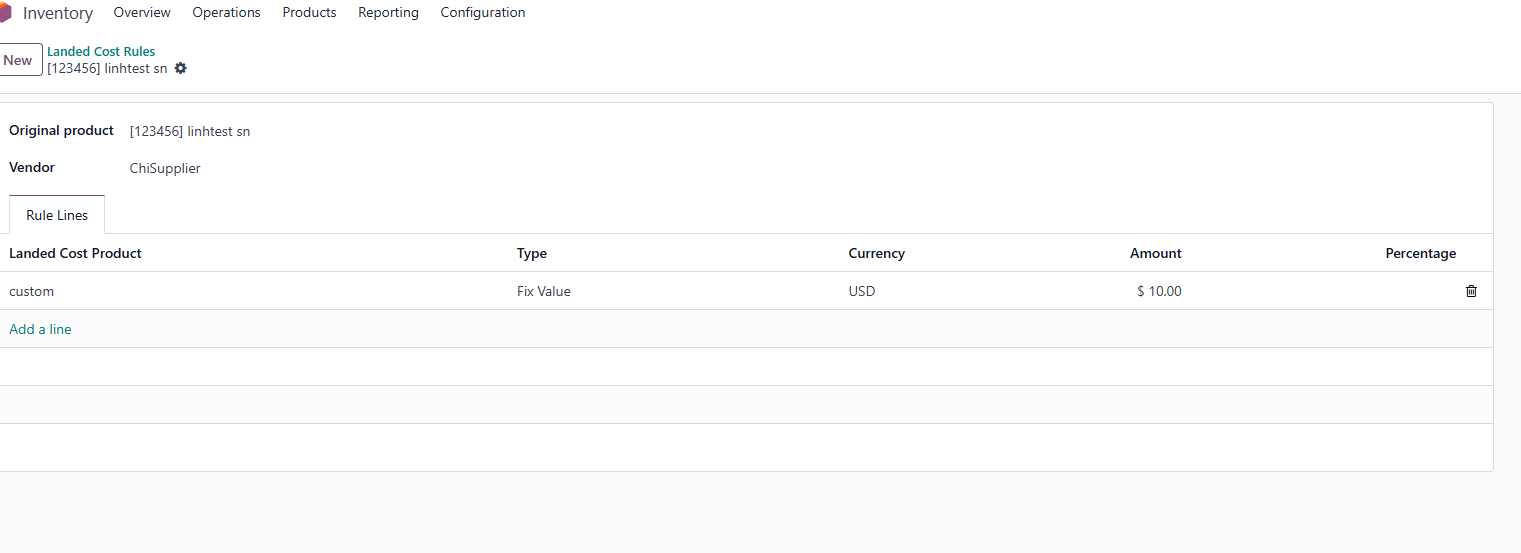 |
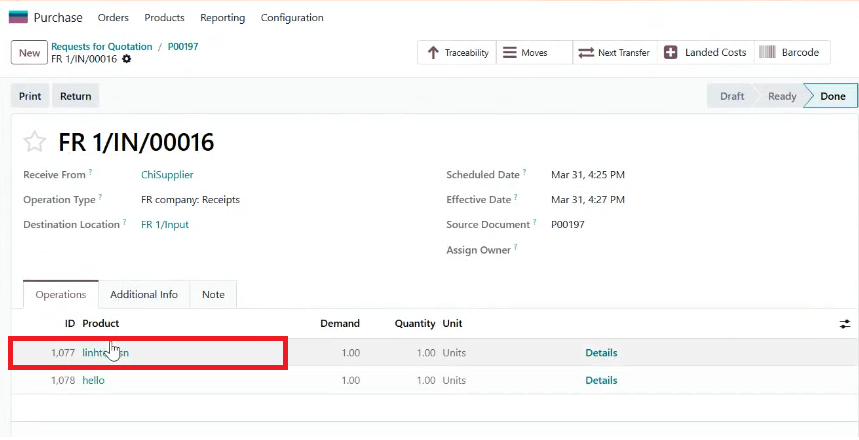
2. Create a PO with the same product and vendor > check and validate transfer | 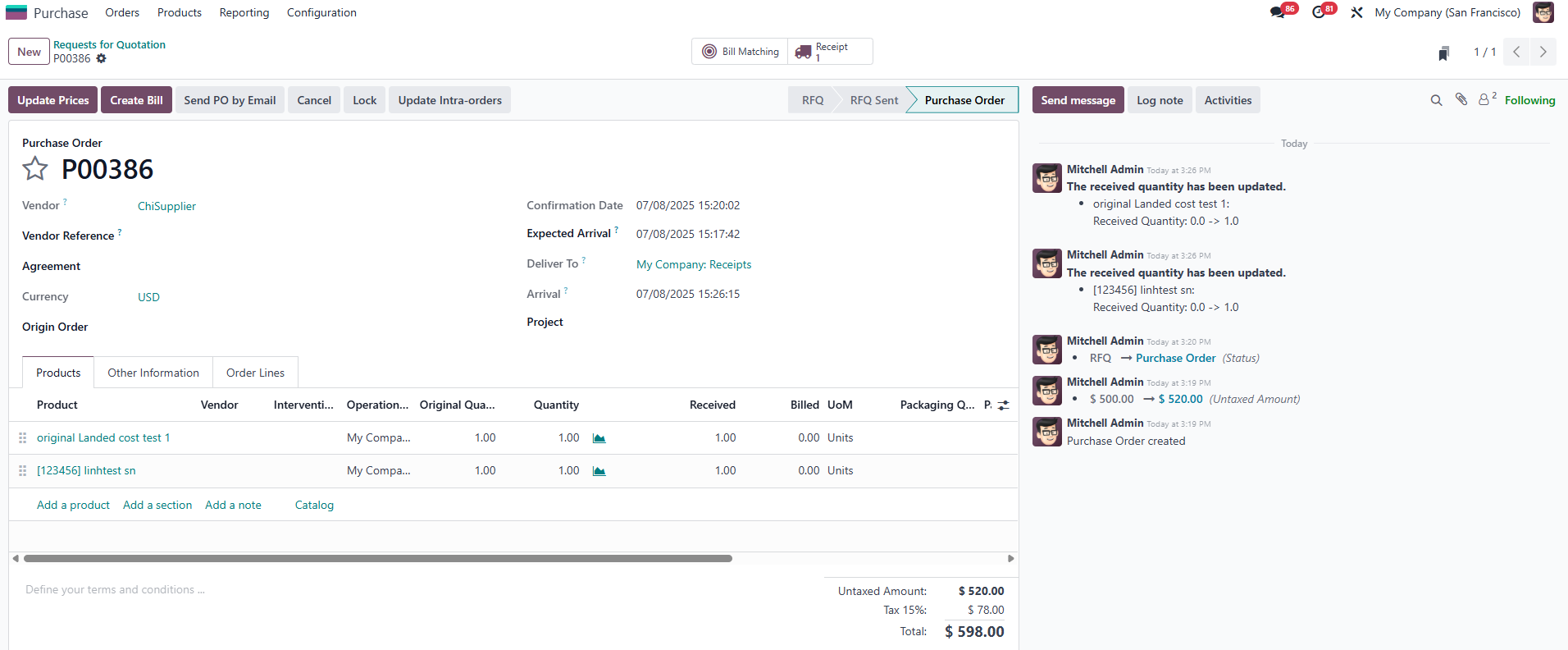 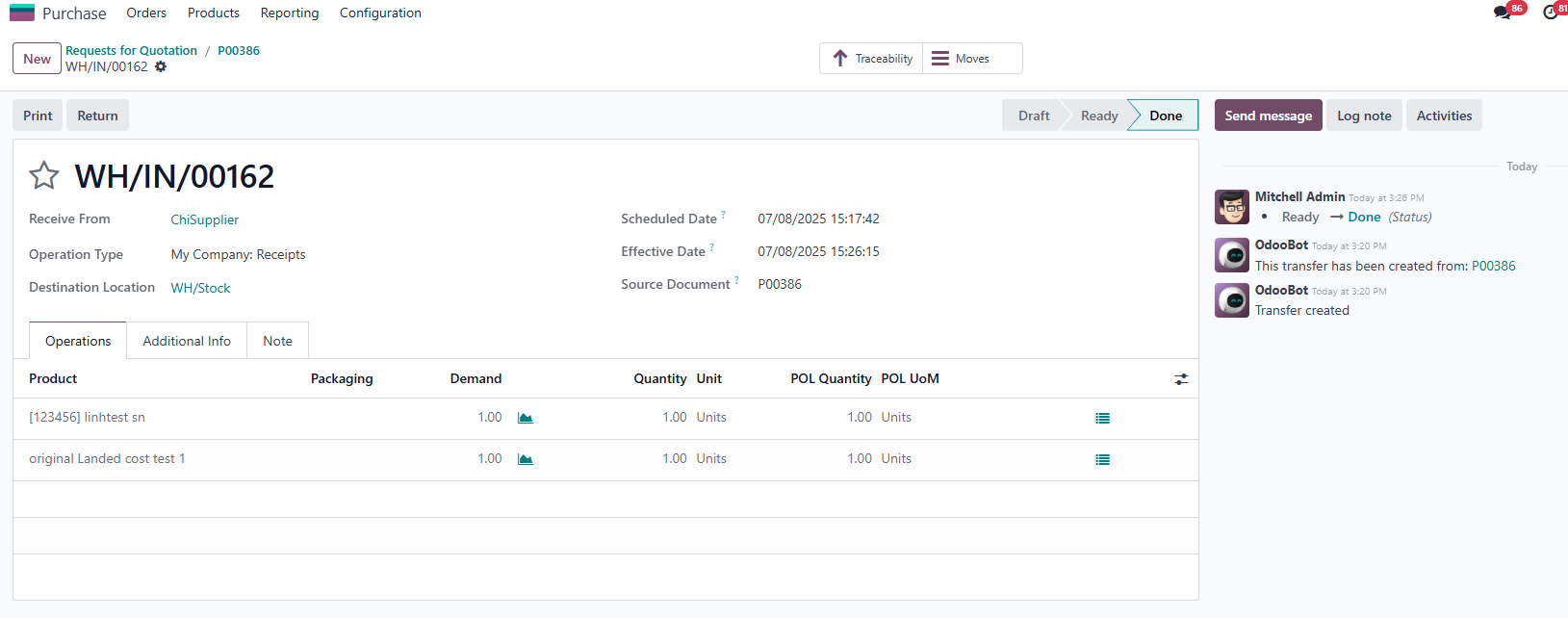 |
Note: Total amount for each line (custom/transportation/storage) = total from related stock valuation layers of that transfer * % In case the rule type is a fixed value, the landed cost will be calculated by multiplying the fixed amount from the rule by the product quantity For ex: Additional Landed Costs (50) = original value (500) * 10% of original value (Percentage in Landed Costs Rule) | 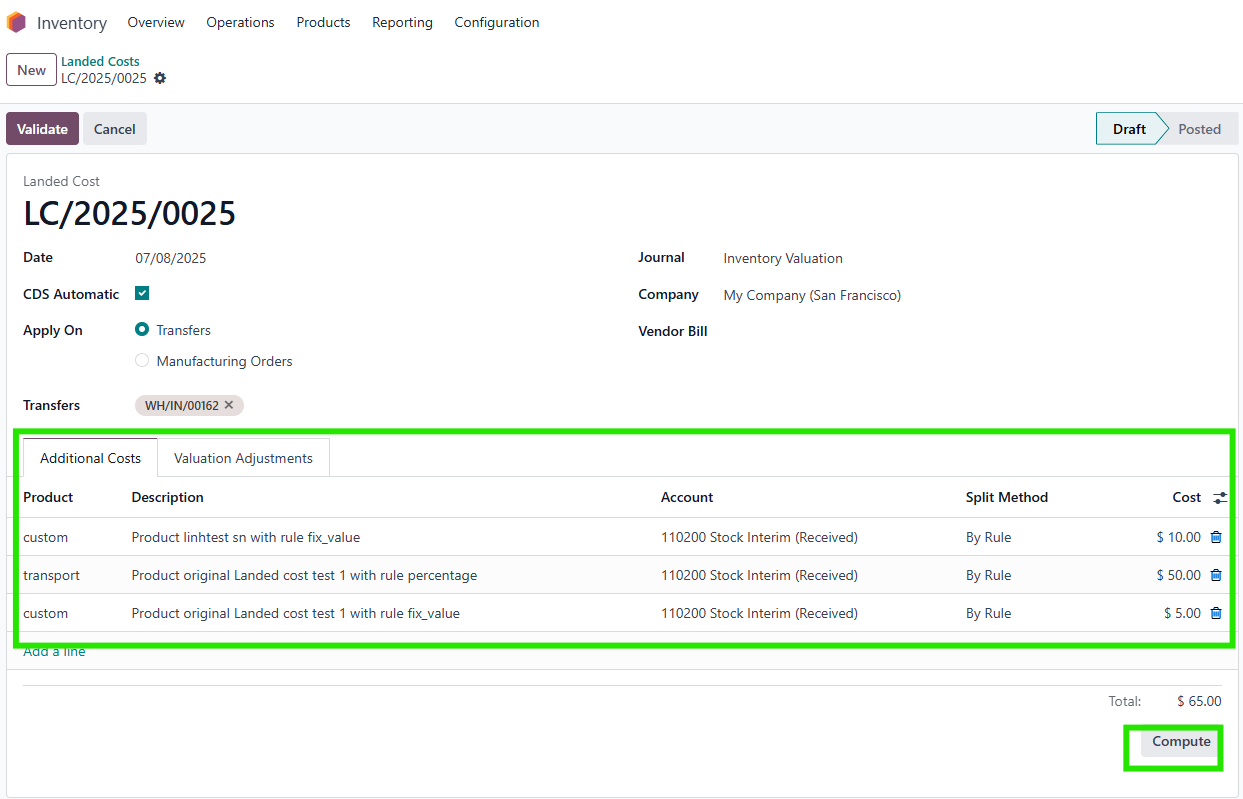 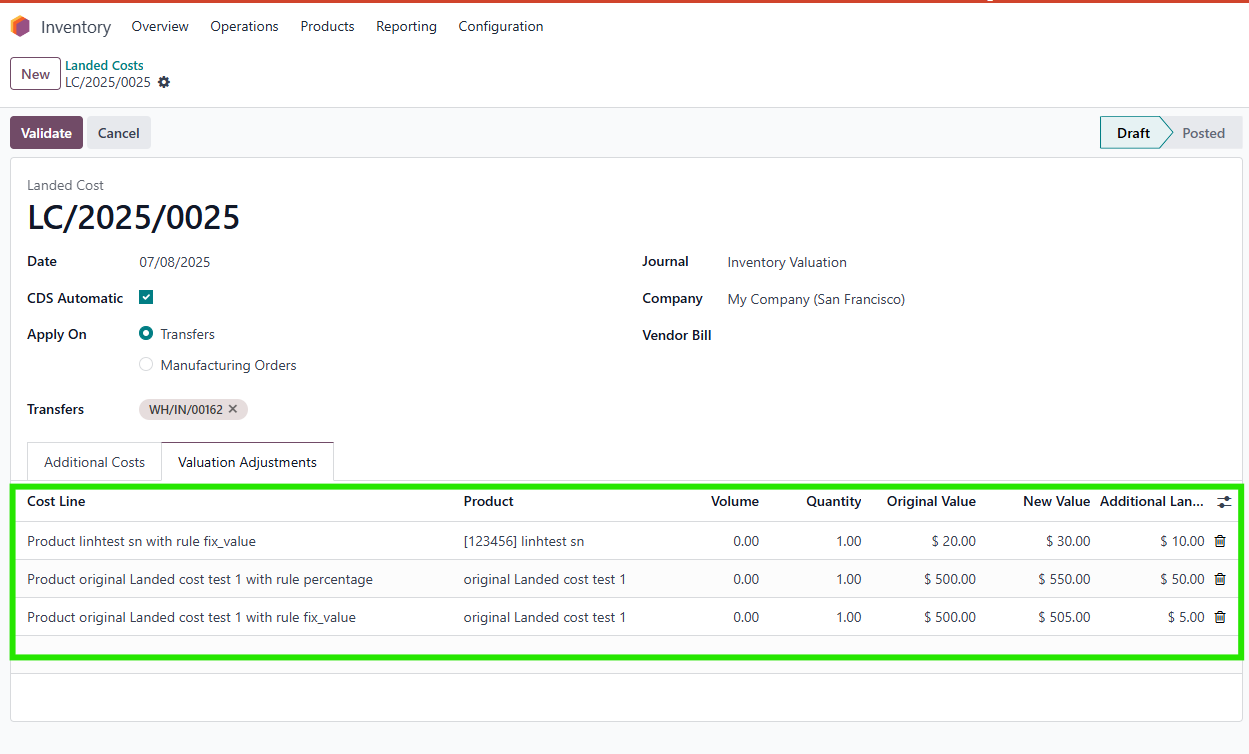 |
4. There is an automated action named Create Landed Cost in order to create landed cost from a transfer that is already in the Done state | 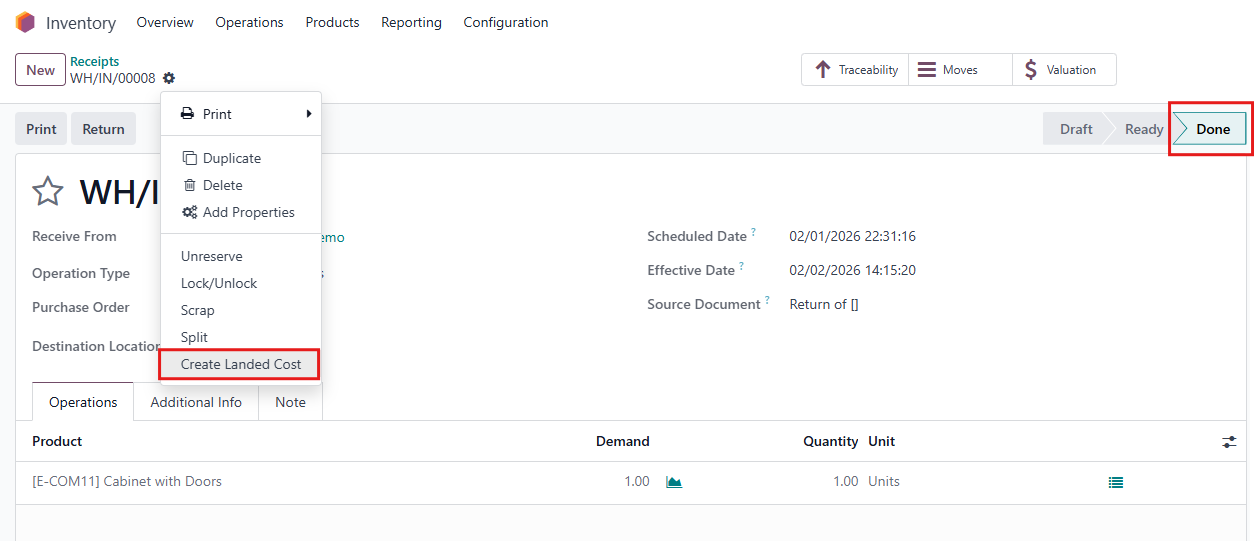 |
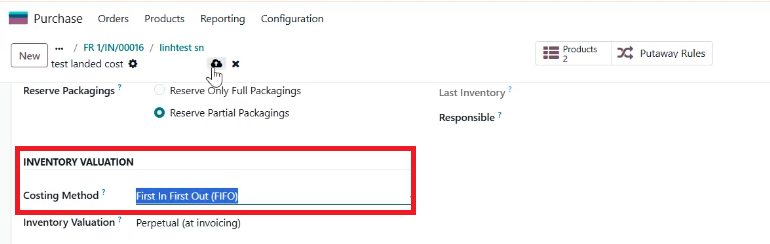
Additional note: To successfully validate the Landed cost (Landed cost can only be applied for products with automated inventory valuation and FIFO or avarage costing method) |
|
4. After click on the button "Create landed cost " in step 3, go to Inventory > Landed Cost to check if the landed cost is successfully created yet. ==> Rule for calculating the sub cost:
For example: htest has 2 rules: transport (fix value) = 5, custom (percentage) = 20% . In PO, set quantity for htest = 5, unit price = 10 Results: In LC,
==> Rule for calculating total cost = sum of all additional costs |
|