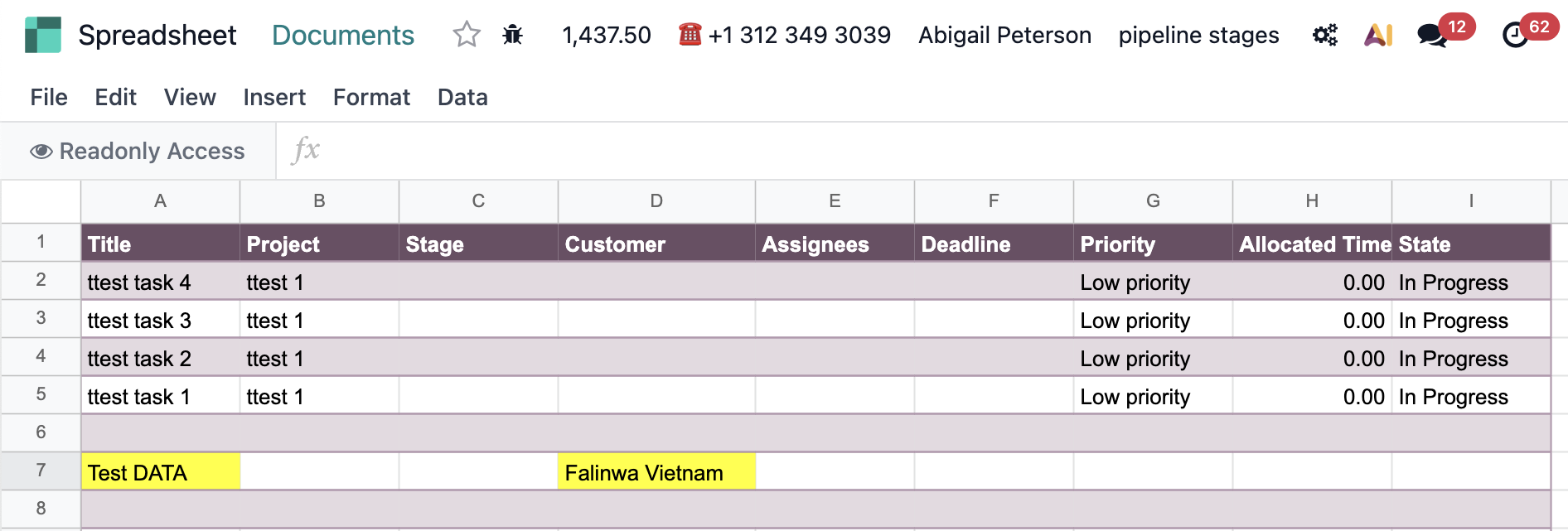
ODOO'S FUNCTION
In Odoo, project dashboards are built using backend code. If a project manager wants to change the layout, add a new chart, or customize the view for a specific client, they need technical coding skills. Because it is so inflexible, most teams find the standard dashboard too difficult to use for everyday project tracking.
CLUEDOO'S FUNCTION
CLuedoo replaces complex code with familiar, Excel-style spreadsheets.
1️⃣ Project Spreadsheet: When you start a new project, the system automatically generates a fully customizable spreadsheet ready for your data.
2️⃣ Frozen Project Spreadsheet: When you need to report on a project's progress, you can instantly generate a "frozen" copy of your spreadsheet. This creates a secure, read-only snapshot of your data at that exact moment, which is perfect for keeping accurate historical records that cannot be accidentally changed later.
PROJECT SPREADSHEET | |
1. Go to Settings > Technical > Spreadsheet > Project Spreadsheets We have a new menu for the spreadsheet templates. | 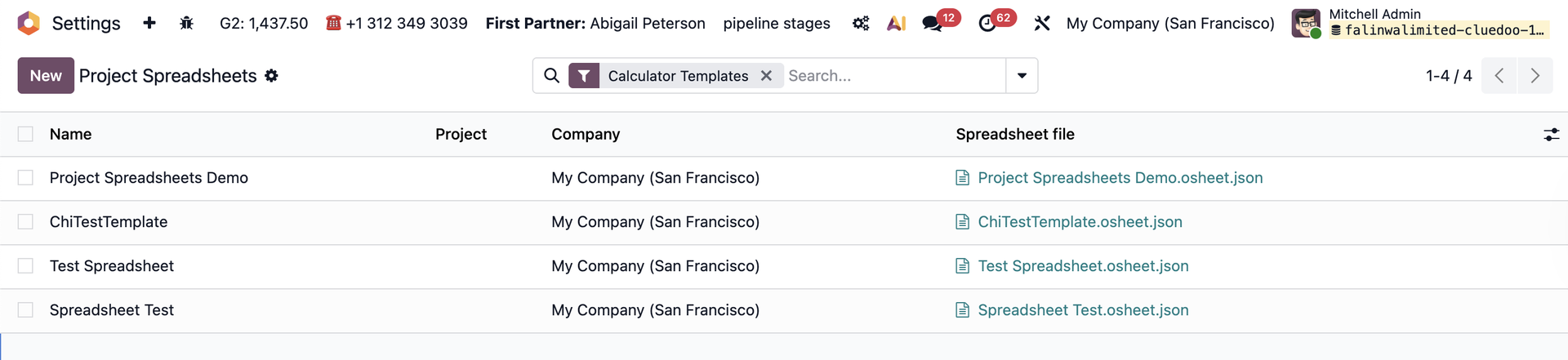 |
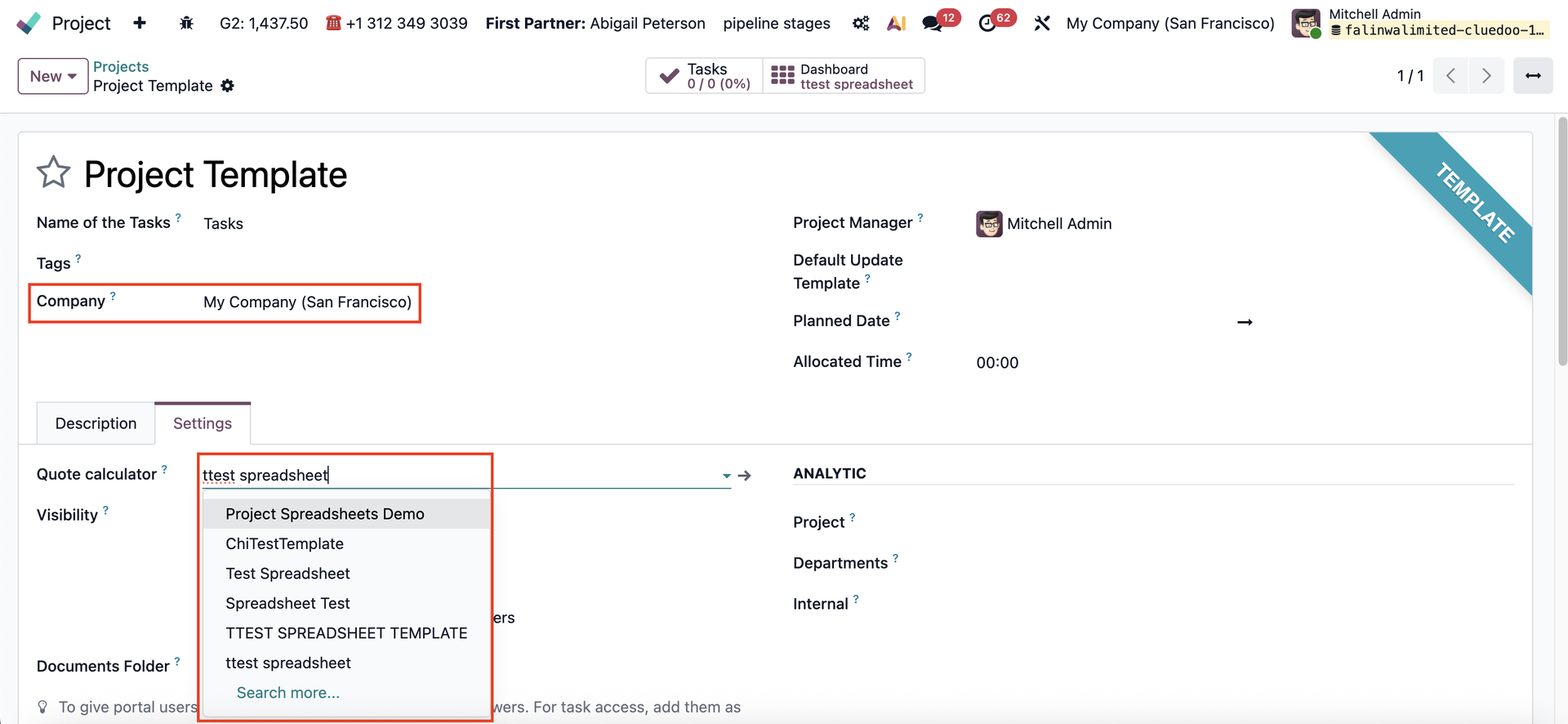
Go to Project and create a new project template or choose an existing one. Under the Settings tab, you can create and edit a new project spreadsheet. This spreadsheet template will be automatically added to the Project Spreadsheets menu. | 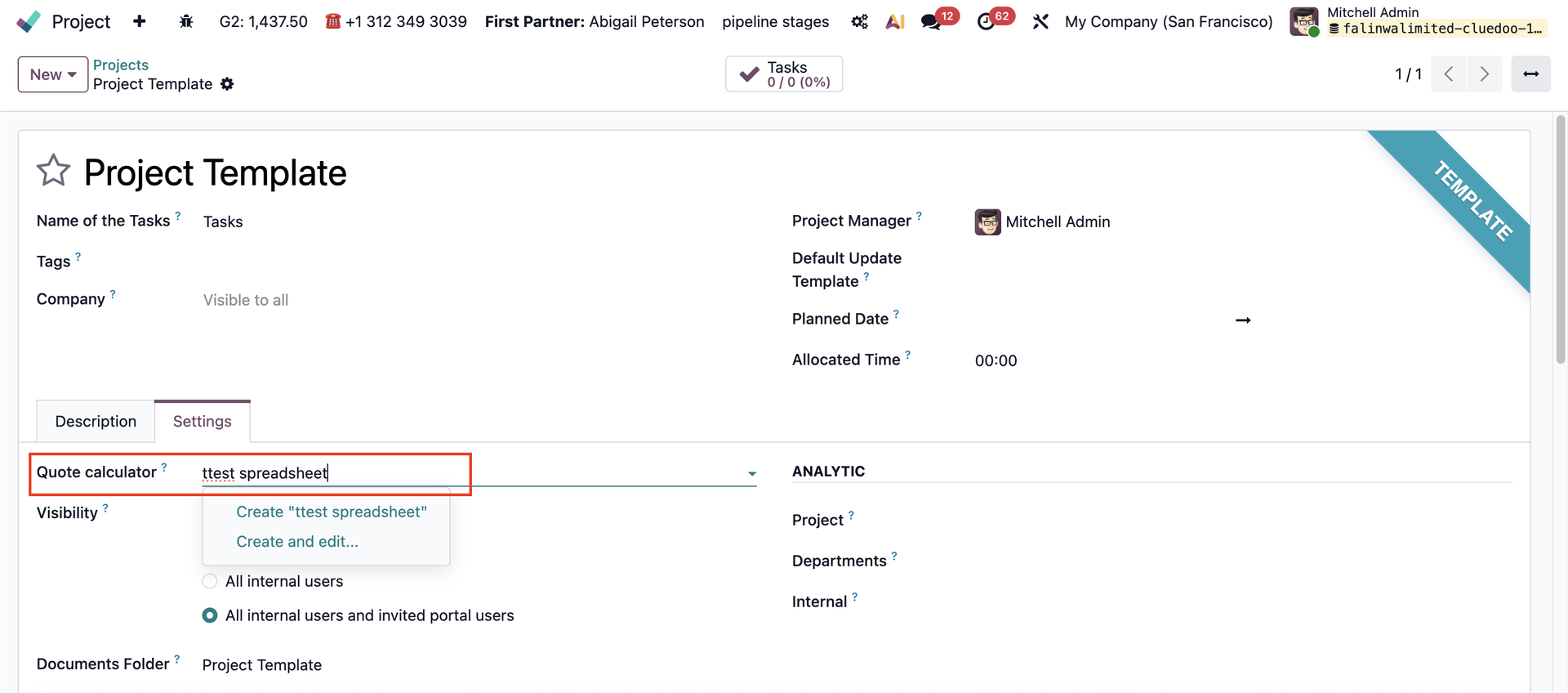 |
Note: If you want to choose an existing spreadsheet template, remember to fill in the Company. |
|
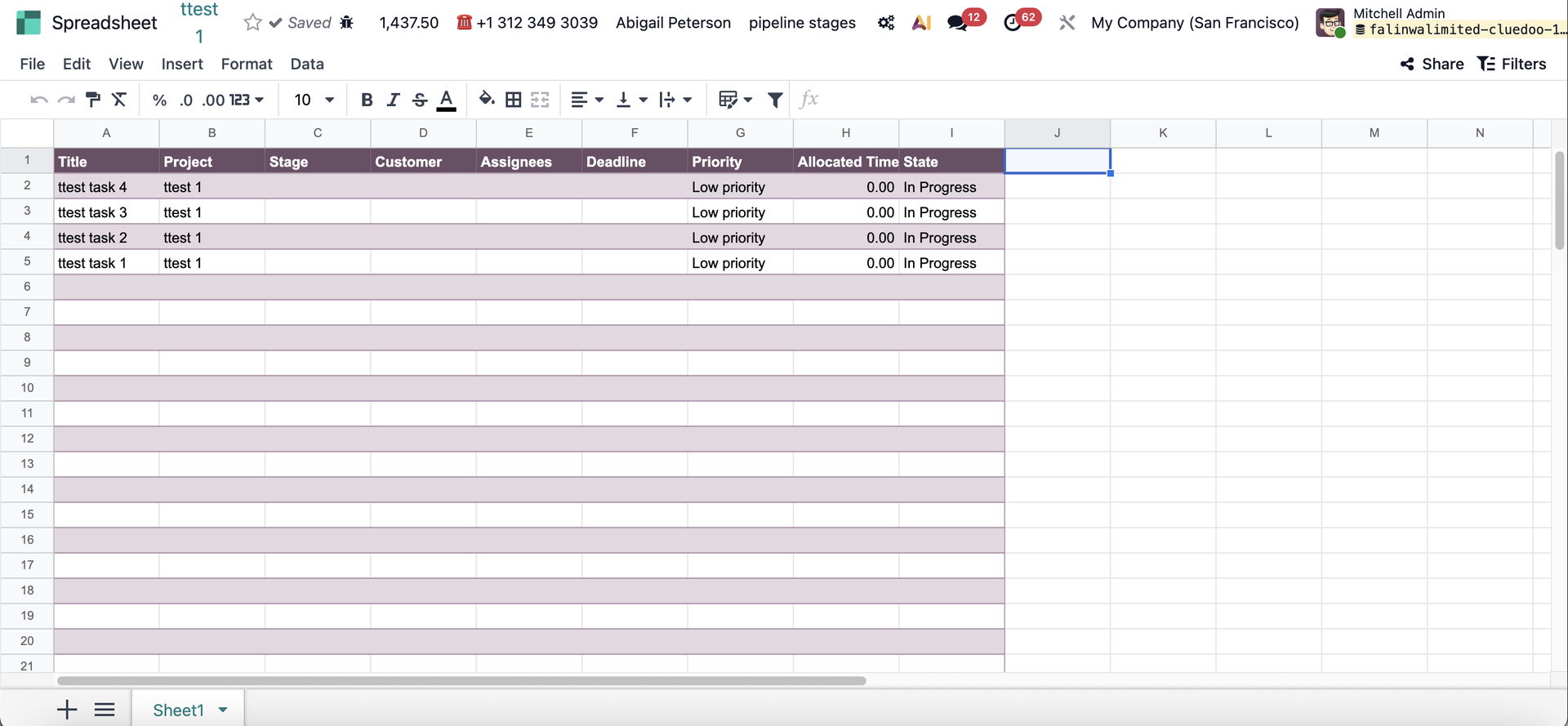
The spreadsheet template will include a list of the tasks from all the projects. | 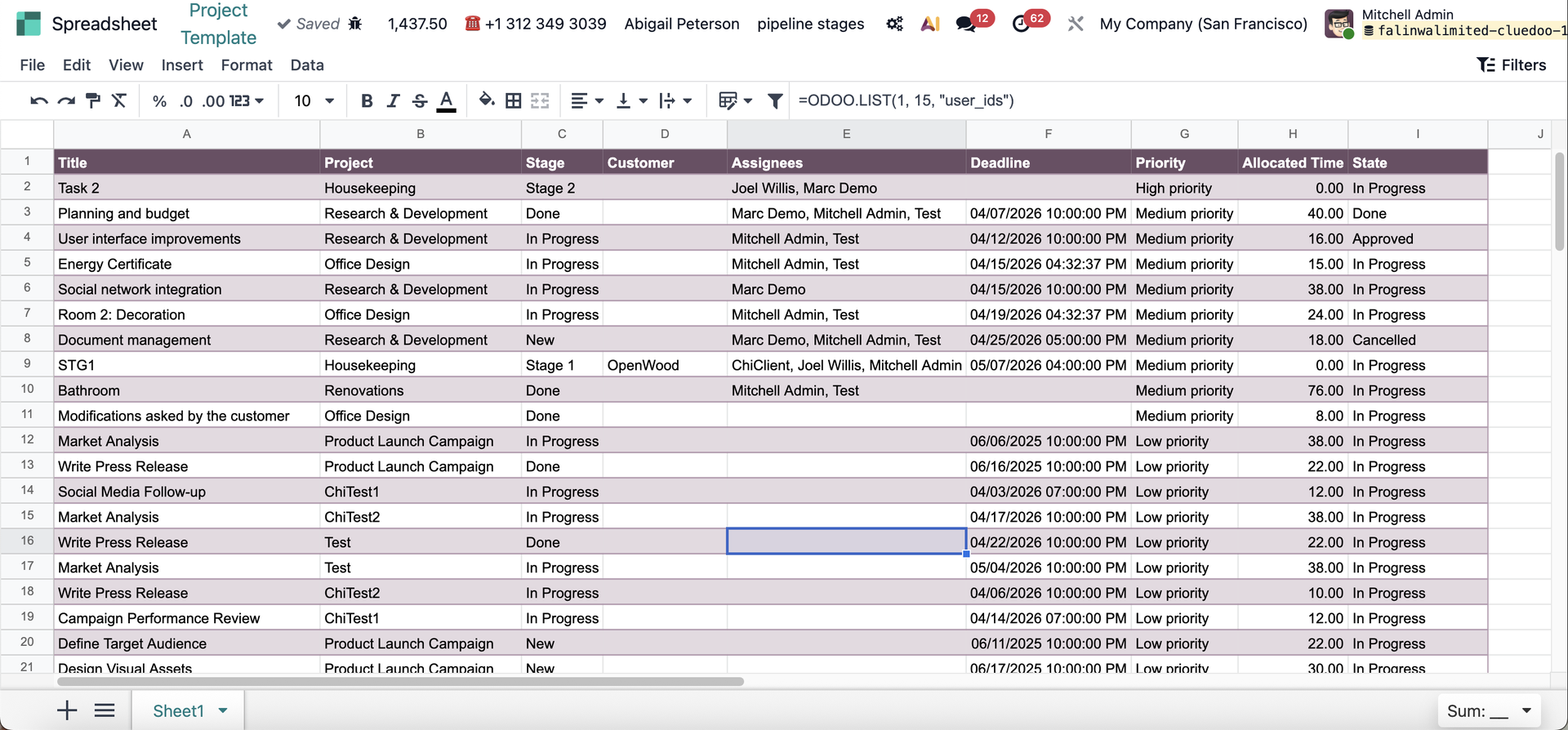 |
You can add a filter so that it shows the list of all the tasks in certain projects only. | 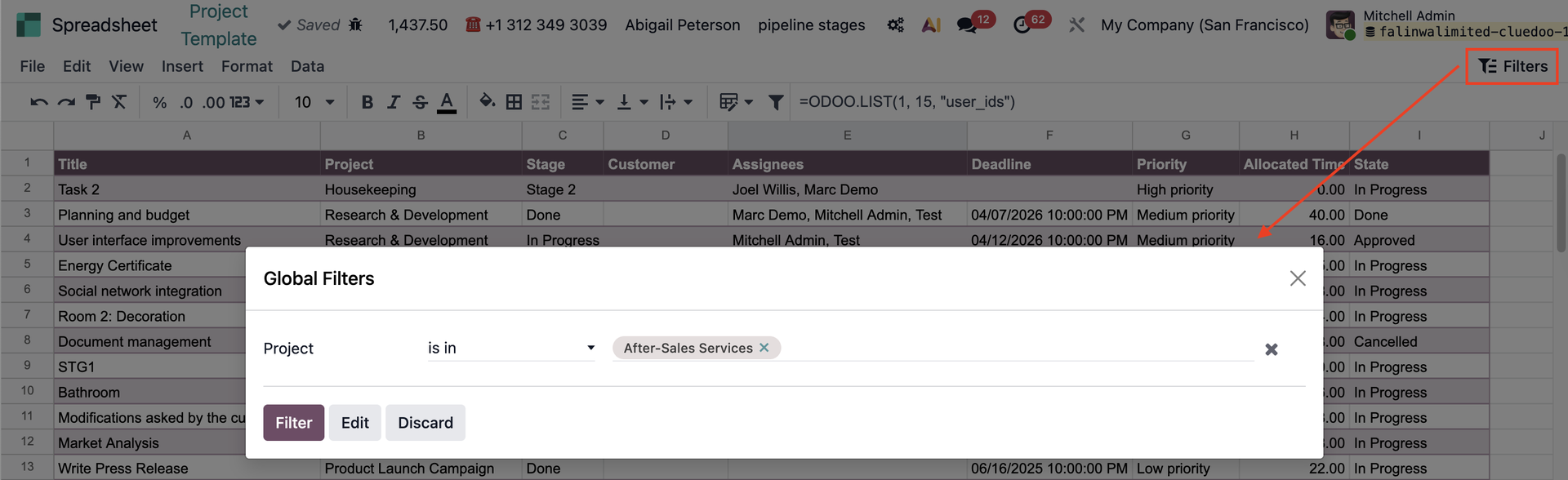 |
Whenever a user creates a new project using the project template above | 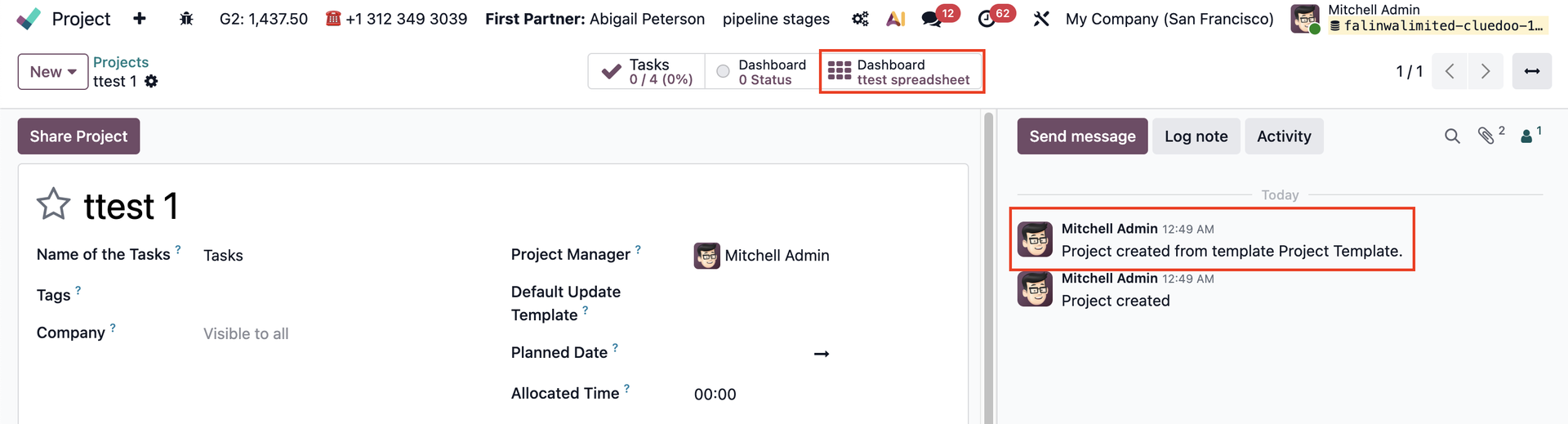 |
the system automatically generates a fresh, fully customizable spreadsheet for that specific project, based on the spreadsheet template. |
|
FROZEN PROJECT SPREADSHEET | |
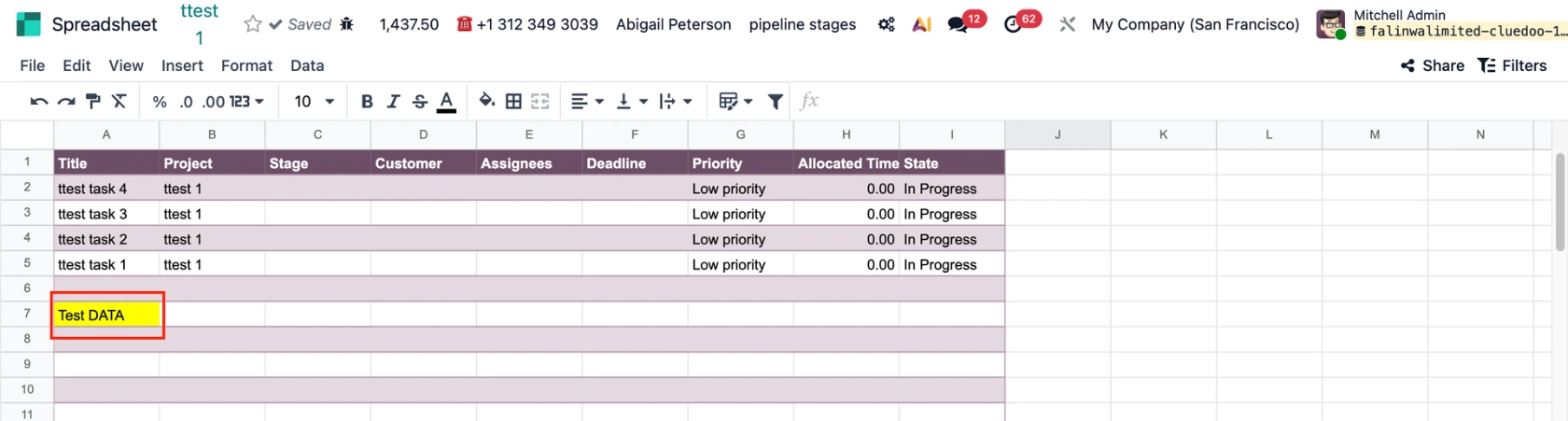
Make a few changes and save/close the spreadsheet. |
|
On the project, click the Dashboard smart button. |
|
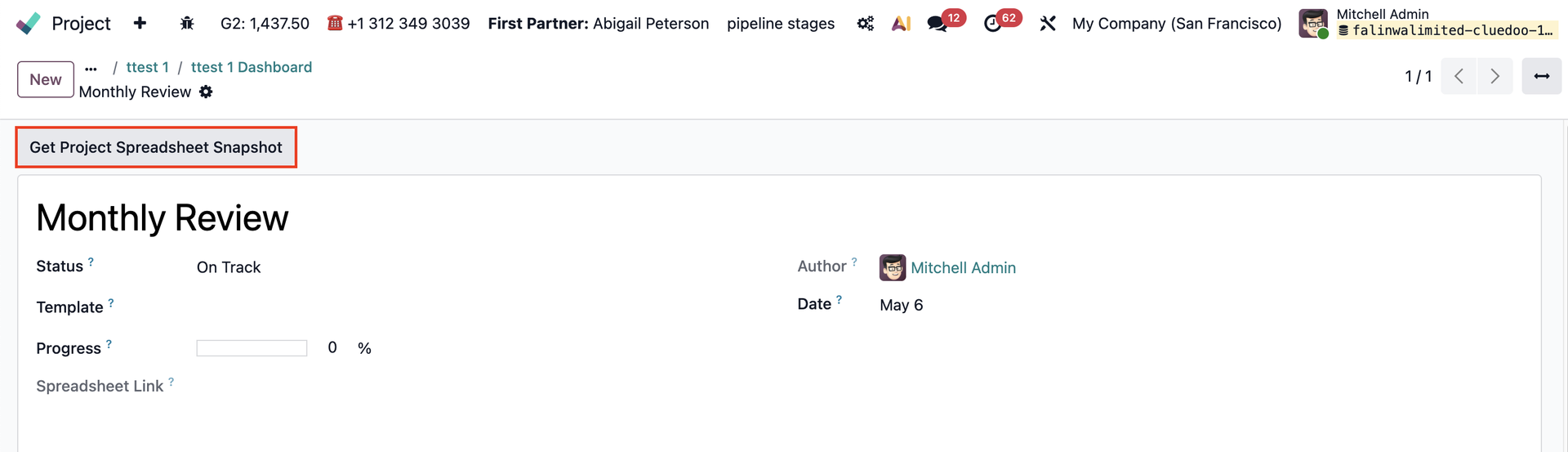
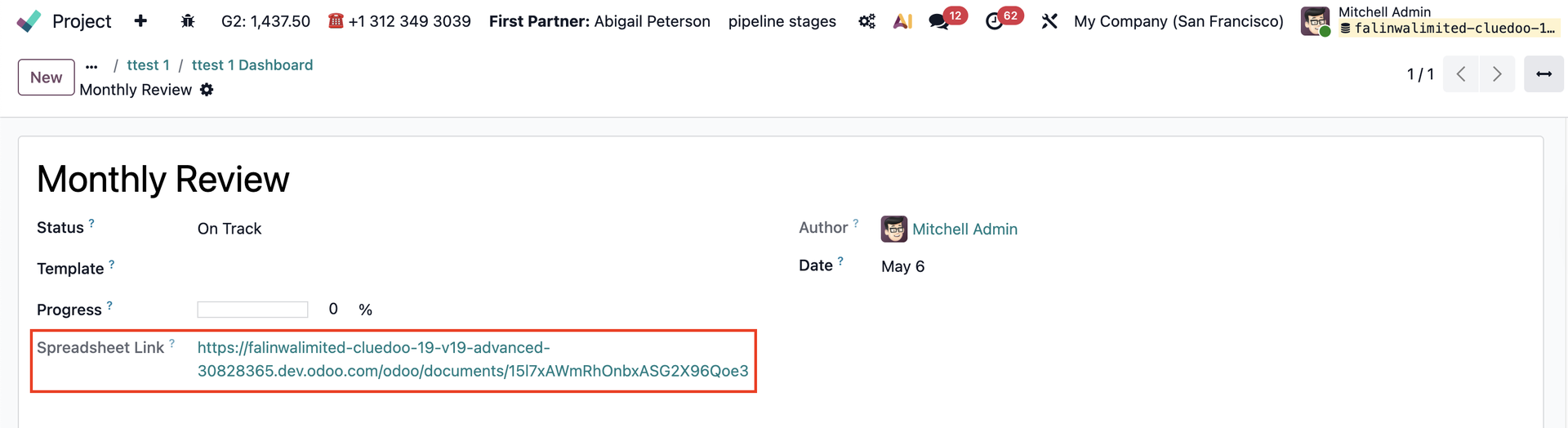
Create a project update. e.g., Monthly Review |
|
Open the project update and click Get Project Spreadsheet Snapshot. |
|
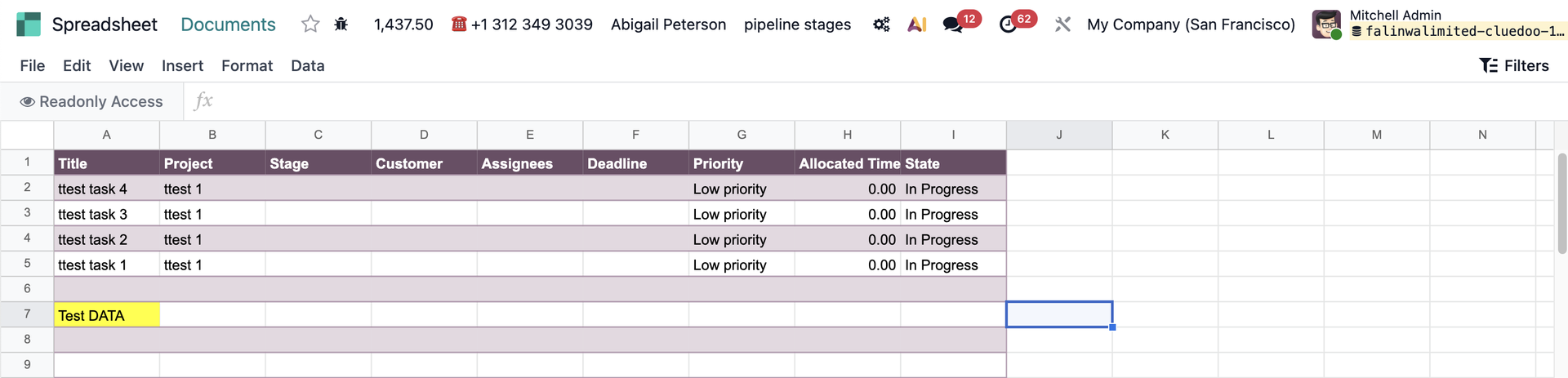
A Spreadsheet Link will be created. Click the link to open the newly generated "frozen" spreadsheet. |
|
The spreadsheet is read-only (frozen in time). |
|
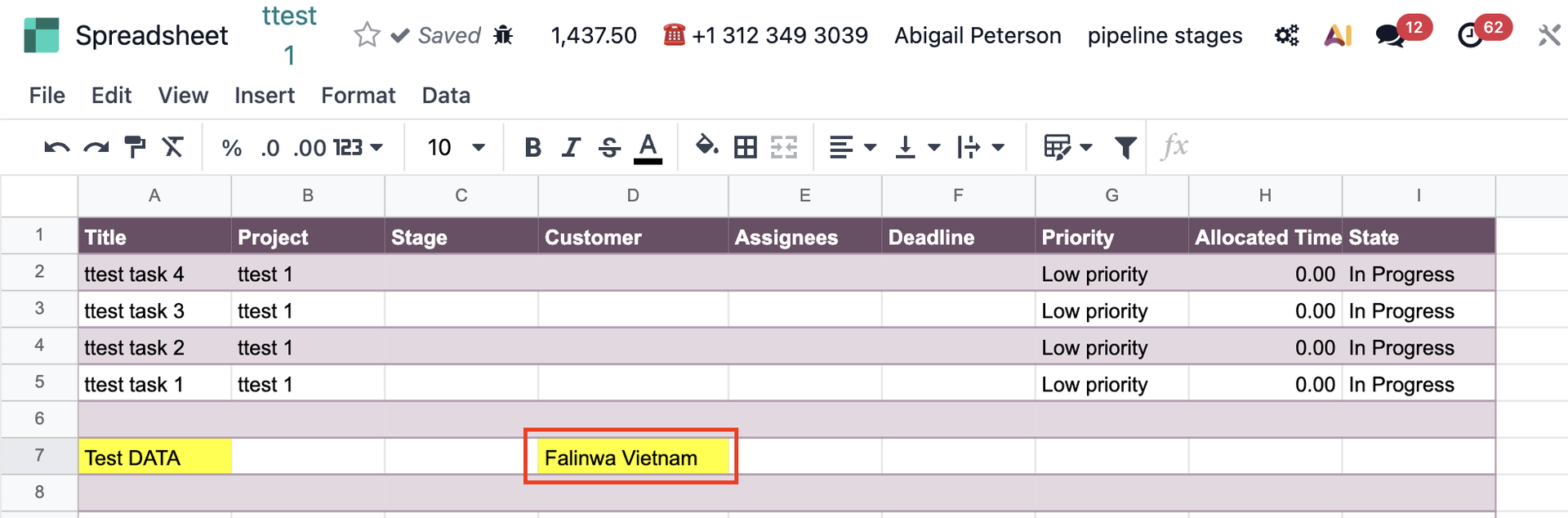
Go back to the live spreadsheet and make some changes again. The frozen spreadsheet in project update Monthly Review will not change. It remains exactly as it was when you clicked the button. |
|
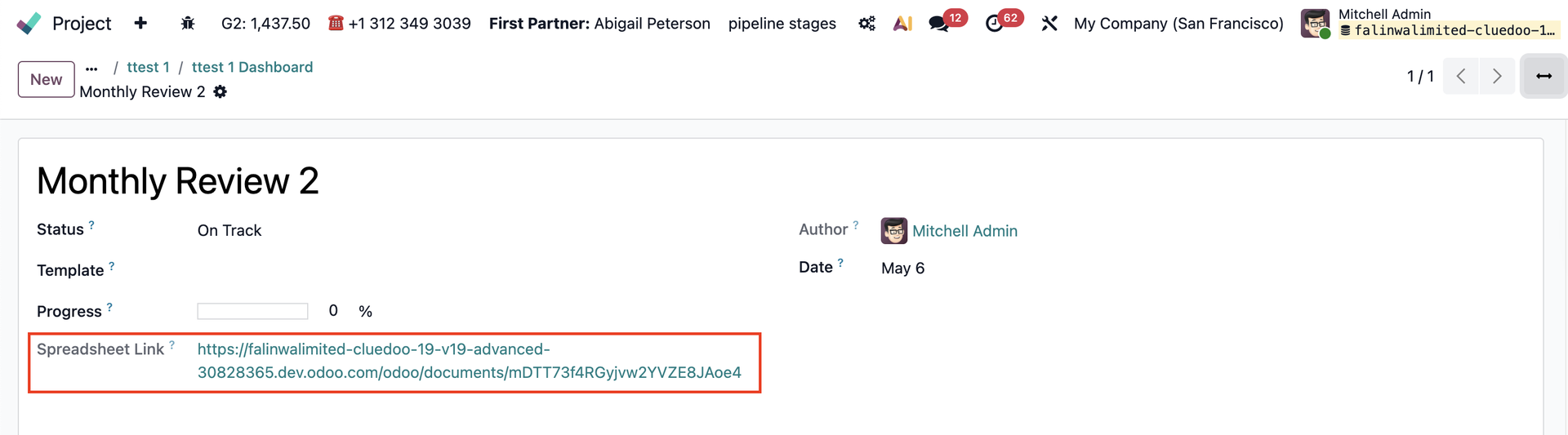
However, if you create a new project update and get the frozen link. e.g., Monthly Review 2 |
|
The new frozen spreadsheet will get the changes. |
|