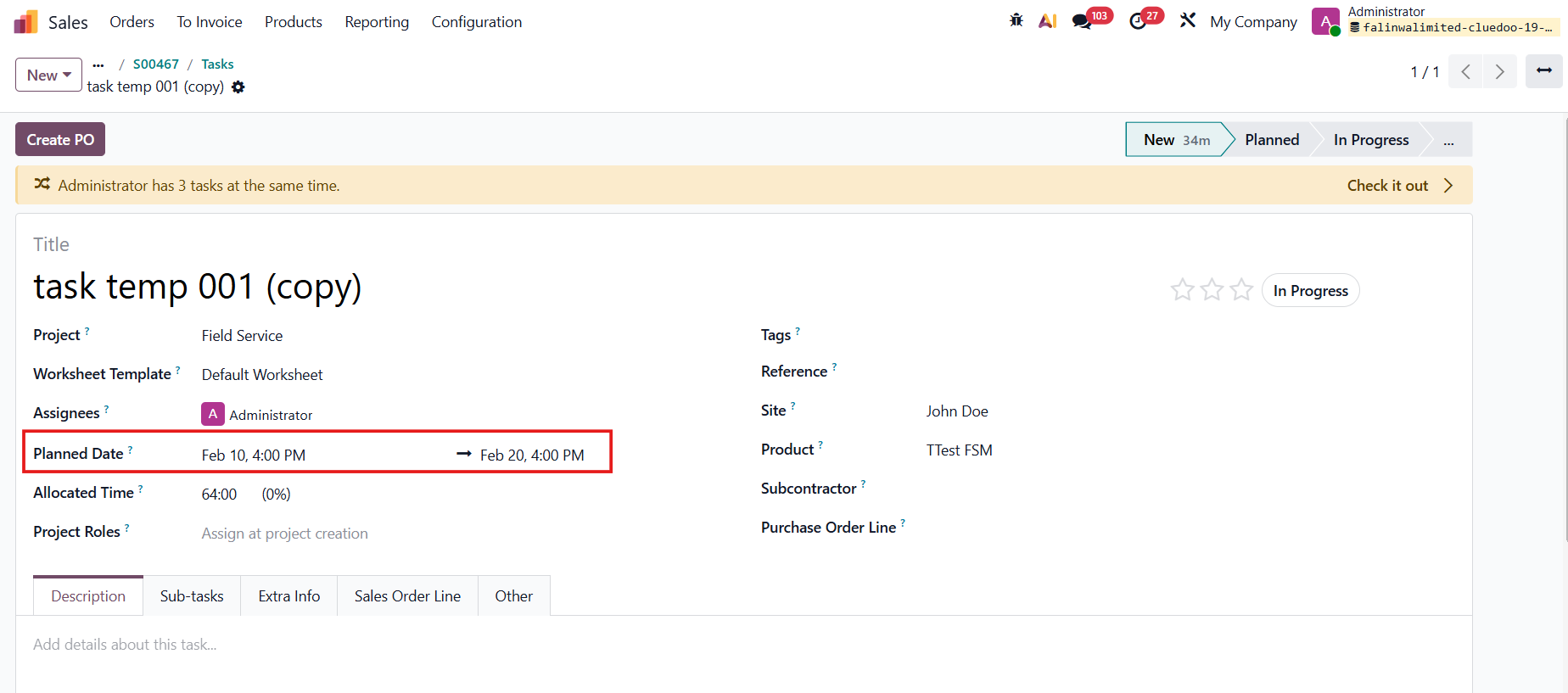



ODOO'S FUNCTION
In Odoo, for Field Service (FSM) tasks, both the Start Date and End Date are mandatory fields. This requirement ensures proper display and consistency in the Gantt view, where task scheduling depends on defined time ranges. Without both dates, the system cannot correctly position tasks within the planning timeline.
CLUEDOO'S FUNCTION
CLuedoo improves Site and Date management for FSM tasks:
1️⃣ Site Management: When creating FSM tasks from Sales Order lines, the system automatically retrieves the delivery address from the Sales Order and populates it into the “Site” field of the generated task.
2️⃣ Date Management:
- A standard duration can be defined directly on the Task Template.
- On the FSM task, when an End Date is entered, the system automatically computes the Start Date using the formula: Start Date = End Date − Task Duration.
- Users still retain the ability to manually override the computed Start Date if necessary, allowing operational flexibility.
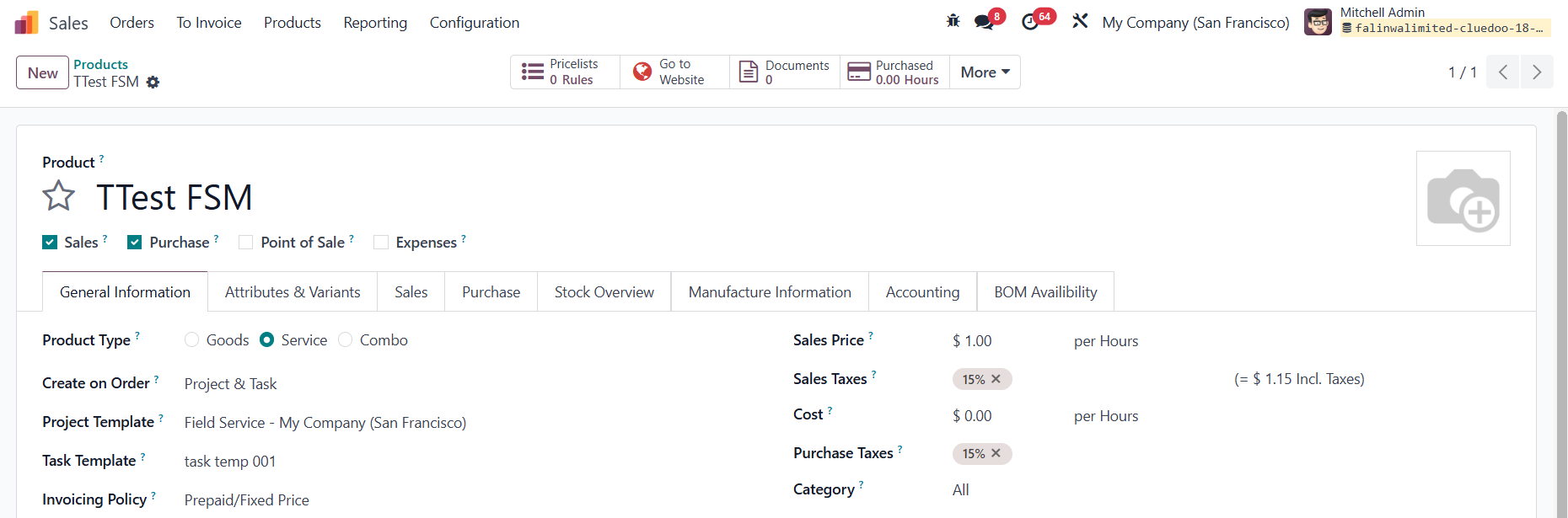
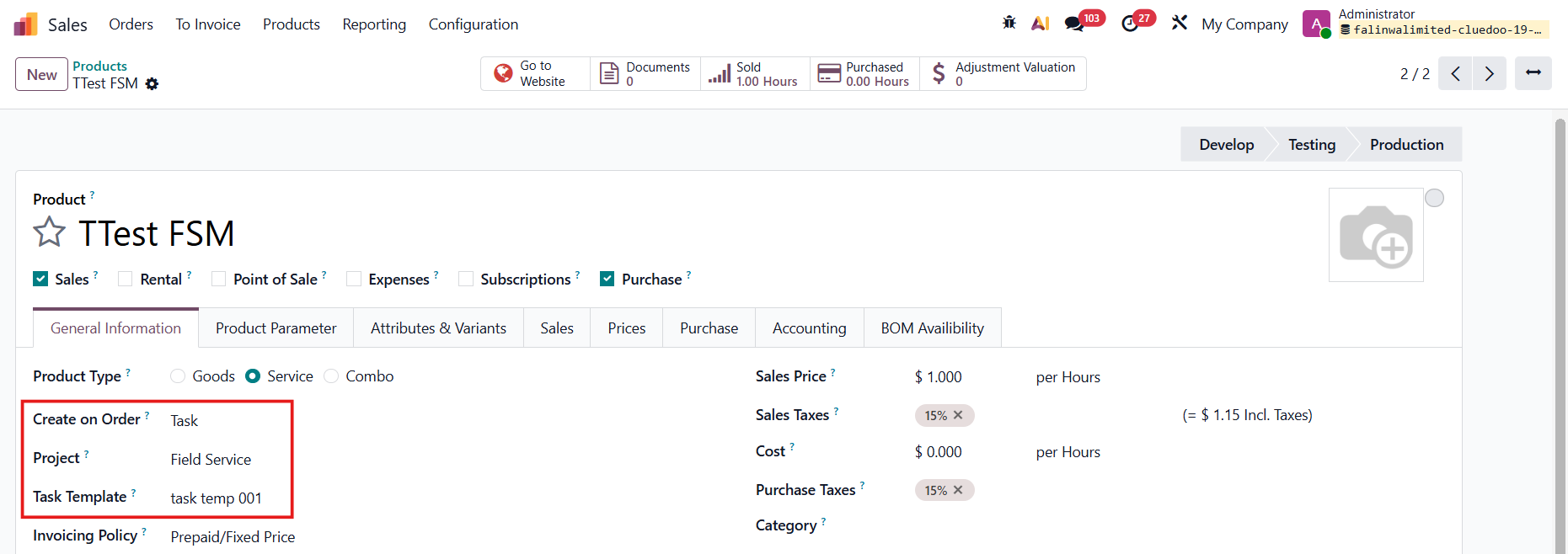
Go to Products > Create a new product > Fill in the details > Save Under the General Information tab, make sure to set:
|  |
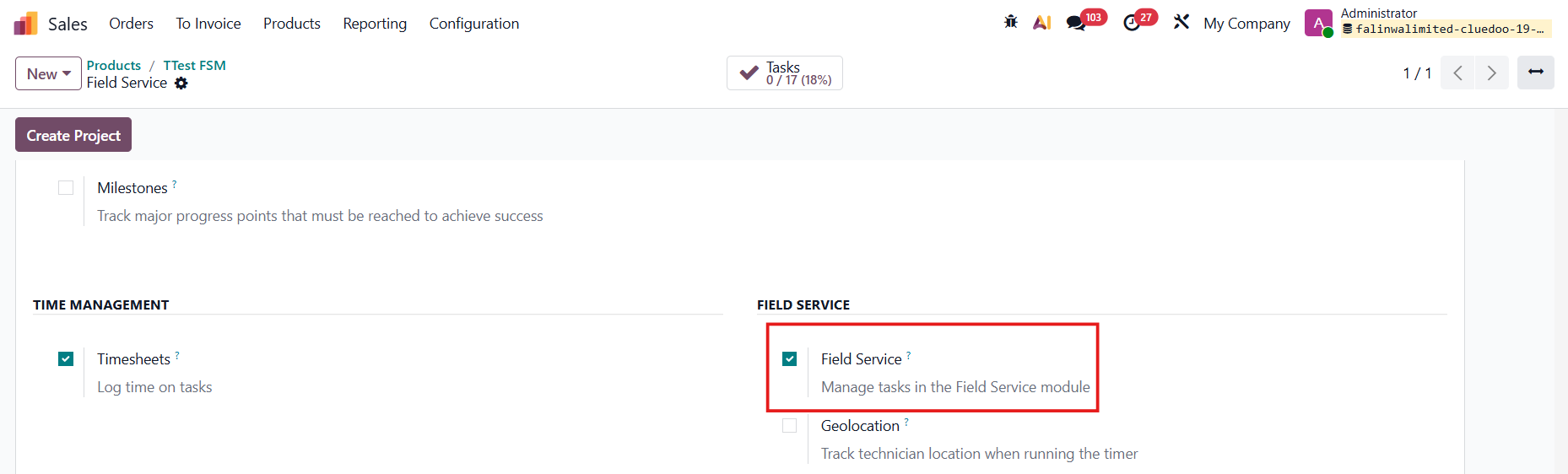
Notes:
|  |
|  |
| In the Task Template, remember to set the Duration days and choose the Product. | 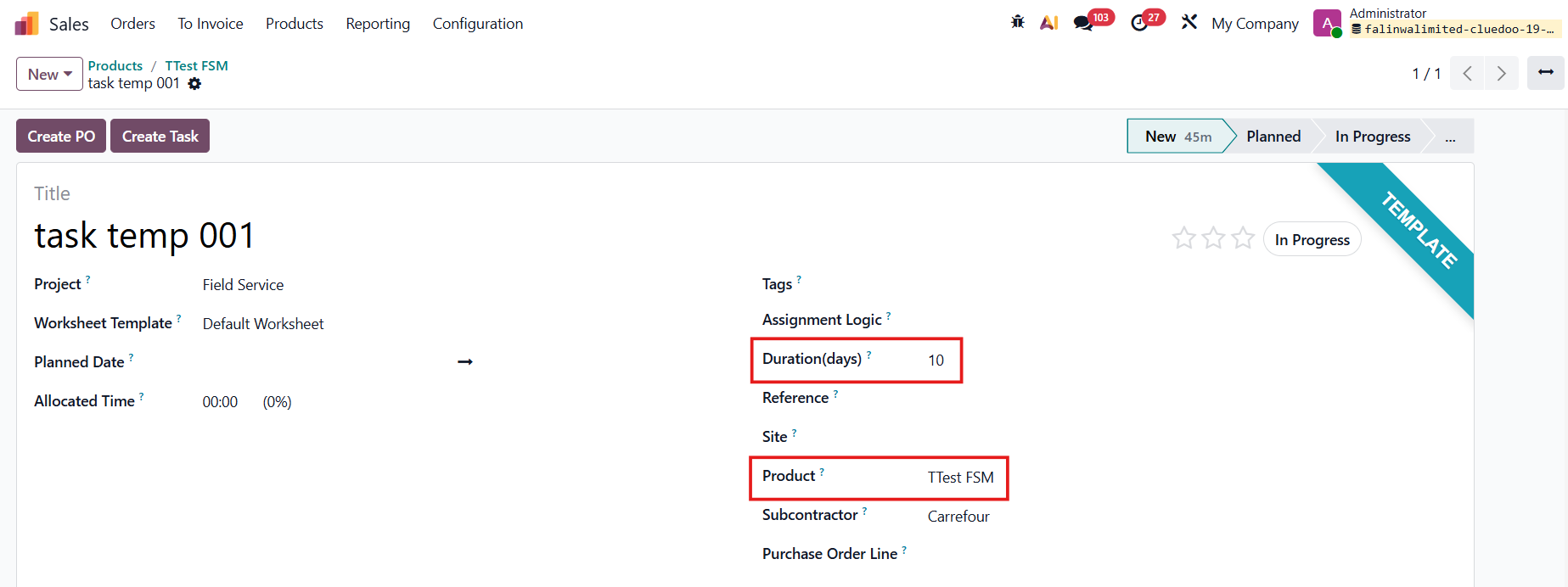 |
SITE MANAGEMENTGo to Sales > Order > Create a new quotation > Fill in the details The Intervention Address is taken from the Delivery Address of the Customer. Confirm Order. | 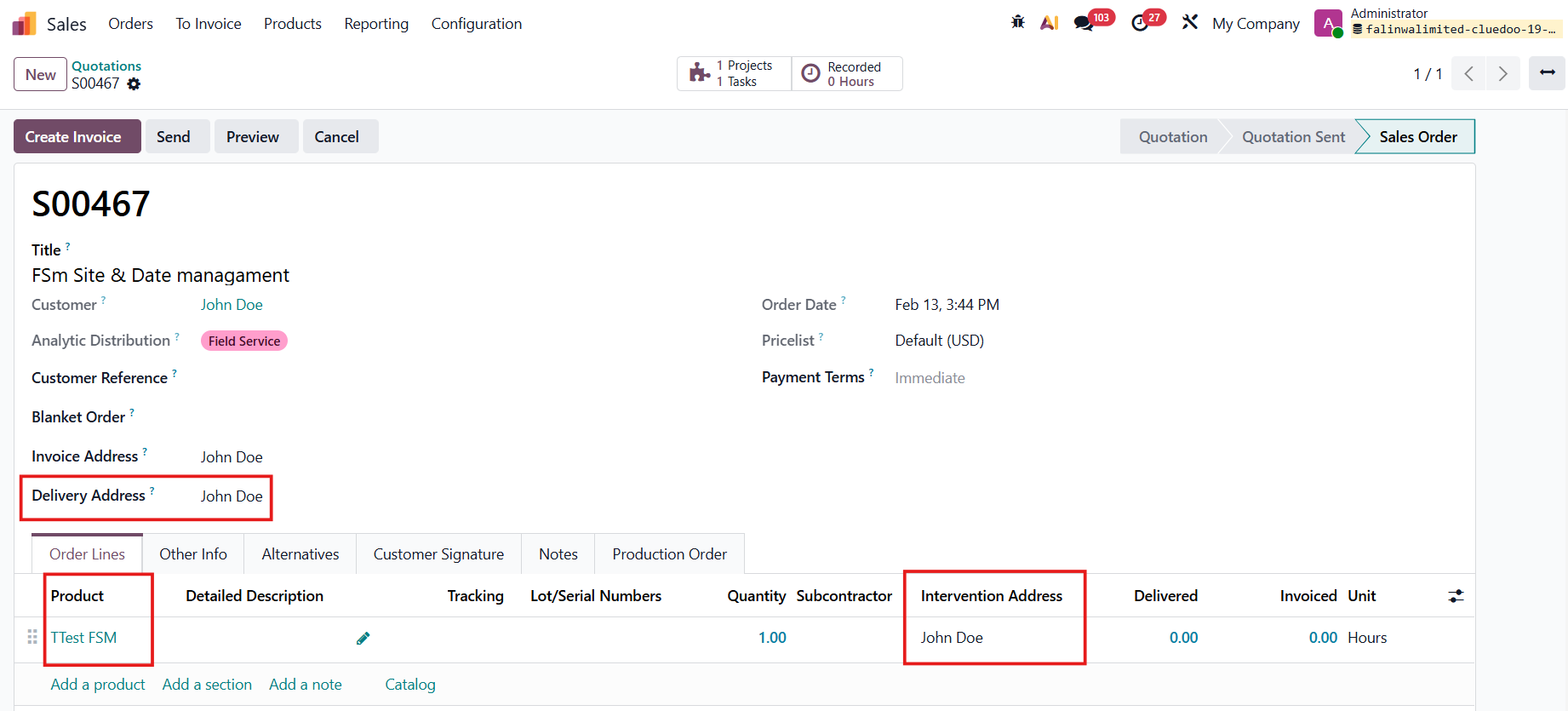 |
After the SO is confirmed, click on the smart button Tasks at the top, and you can see the Site (taken from the Intervention Address) and the Product fields are auto-filled and inherited from the SO. | 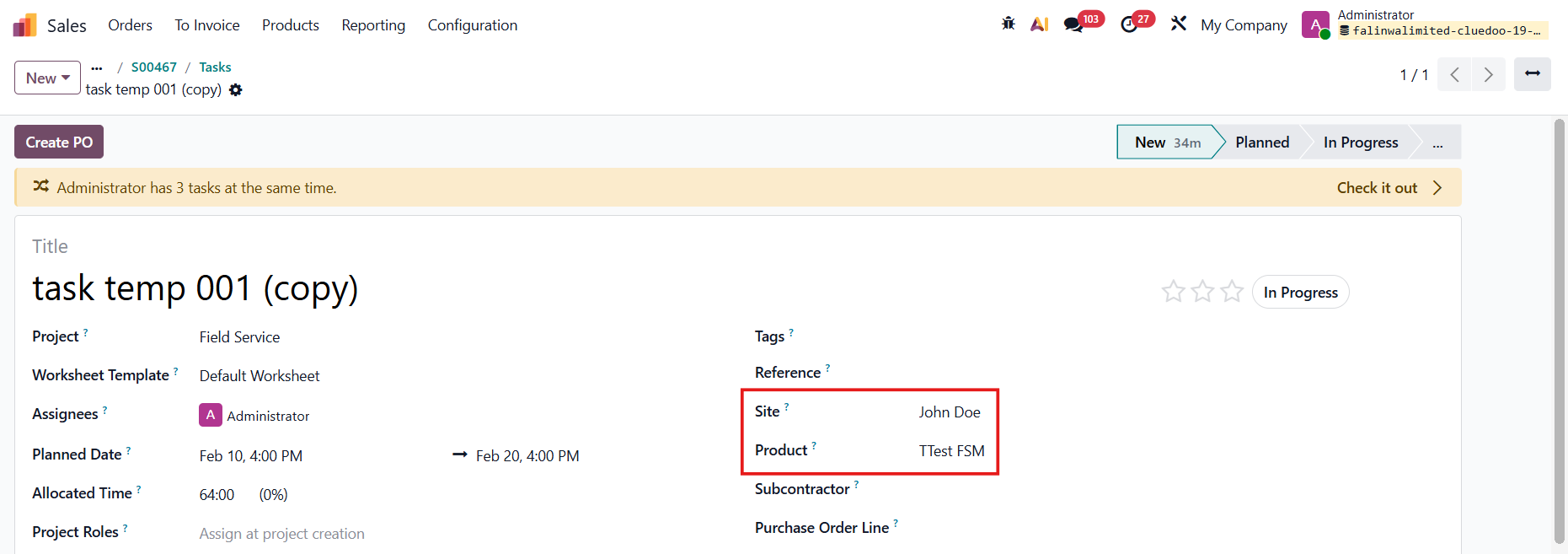 |
DATE MANAGEMENT
For example, I set the end date on Feb 20 and my duration on the task template is 10 days, the start date is automatically filled, which is Feb 10.
|
|