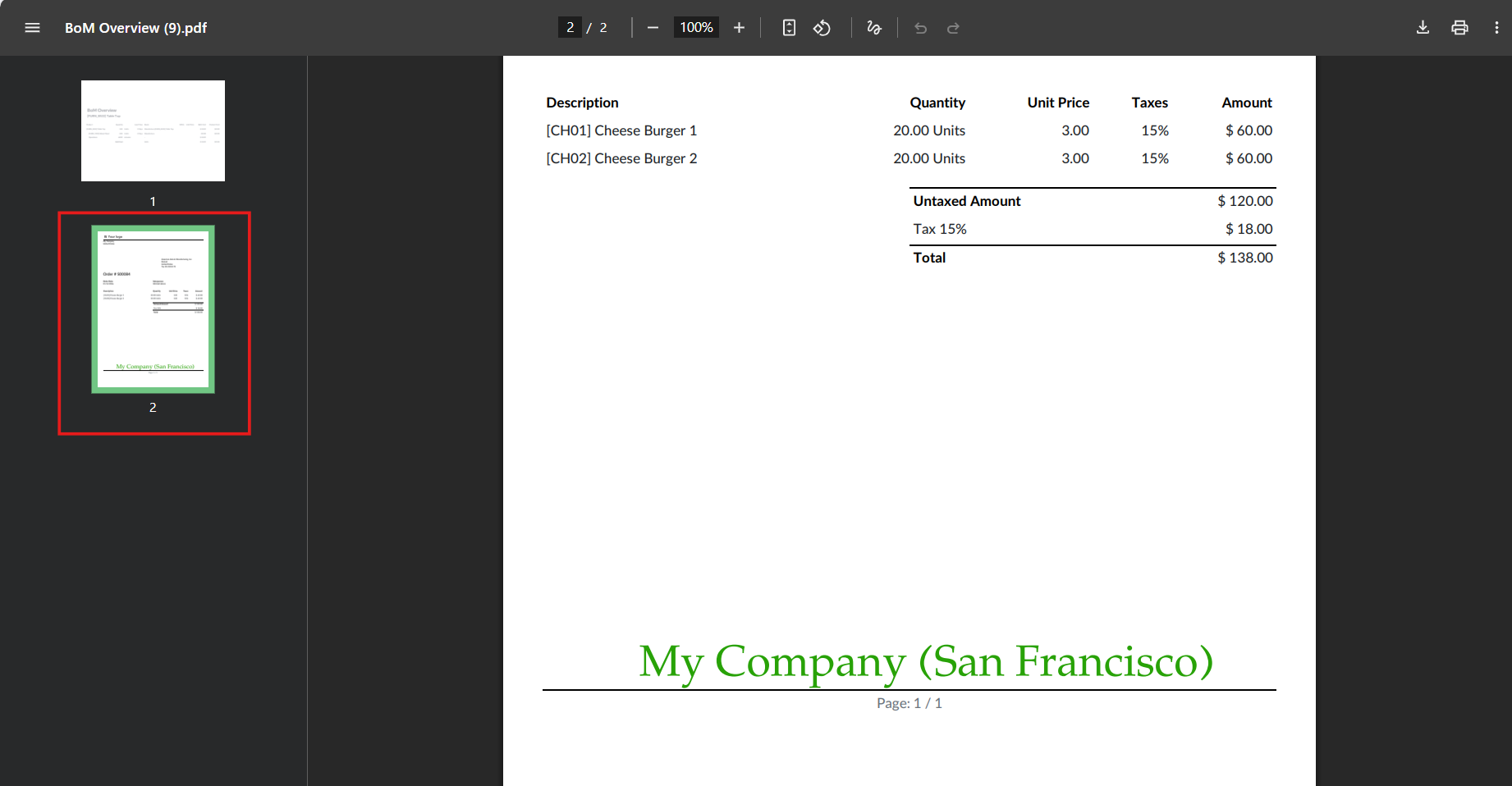



ODOO'S FUNCTION
In Odoo, drawing items in reports requires users to modify report templates using XML code or to use the limited drag-and-drop features in the report designer. This process is rigid, as field placements are static and require technical knowledge to adjust.
CLUEDOO'S FUNCTION
CLuedoo Drawing Template feature allows users to customize the layout and appearance of Odoo reports in a simple and flexible way, without technical development.
1️⃣ Flexible Layout Management: Users can create a drawing template and modify report layouts directly from the interface. Fields can be easily moved, resized, or rearranged.
2️⃣ Real-Time Adjustments: Any change made to the template is immediately visible in the report preview. This allows users to quickly test different layouts and make adjustments in real time, reducing trial-and-error and configuration delays.
3️⃣ Reusable Across Reports: Once finalized, a drawing template can be attached to any existing Odoo (ODS) report. This enables consistent formatting and design across multiple documents without needing to recreate layouts each time.
1. Go to Settings > Users > Activate the Drawing User access right for a user | 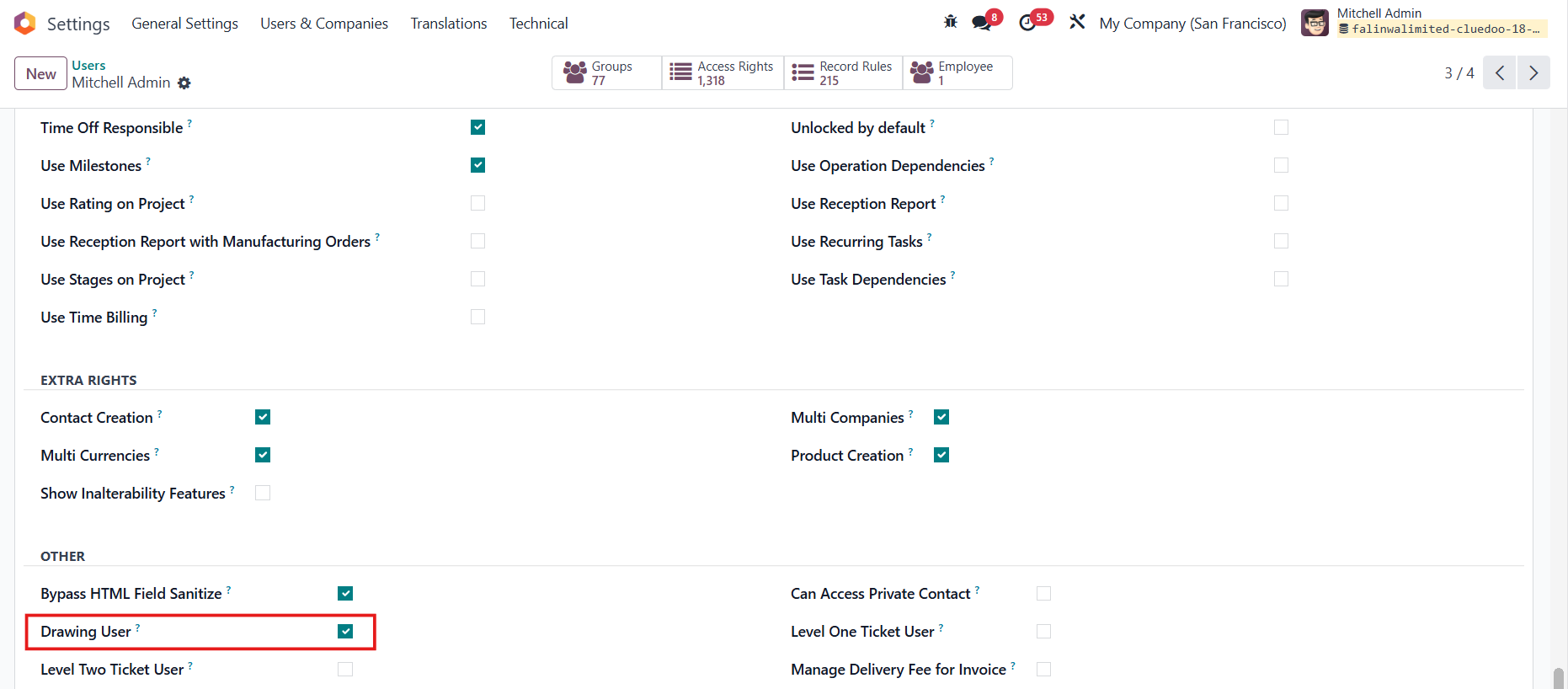 |
2. On the Drawing app, create a Drawing Template. We have two options to edit the report:
|  |
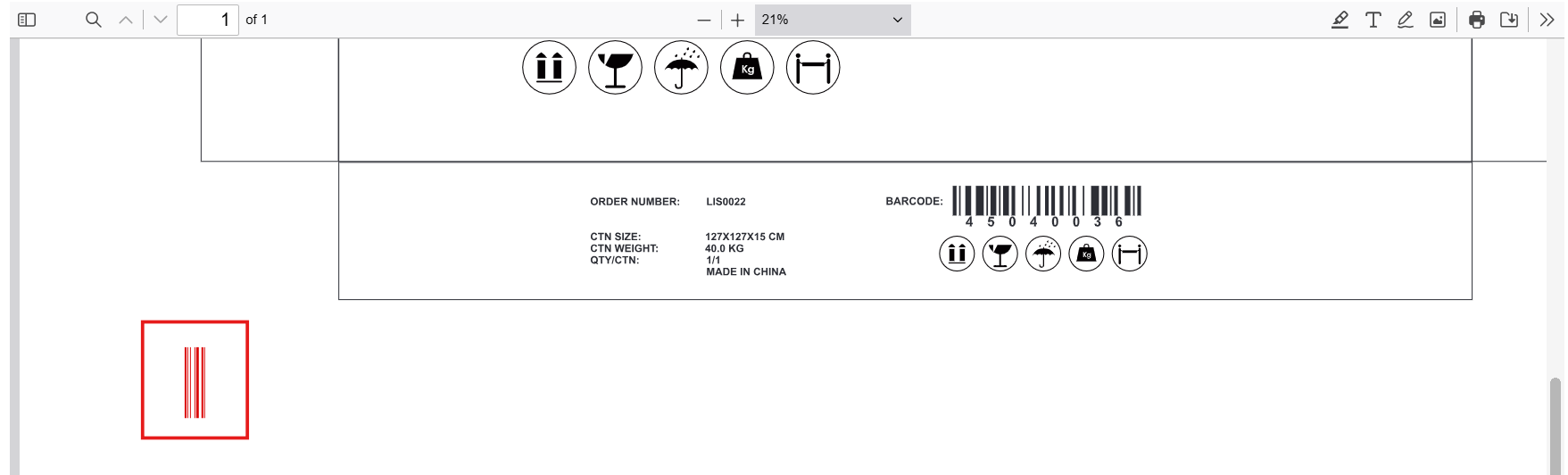
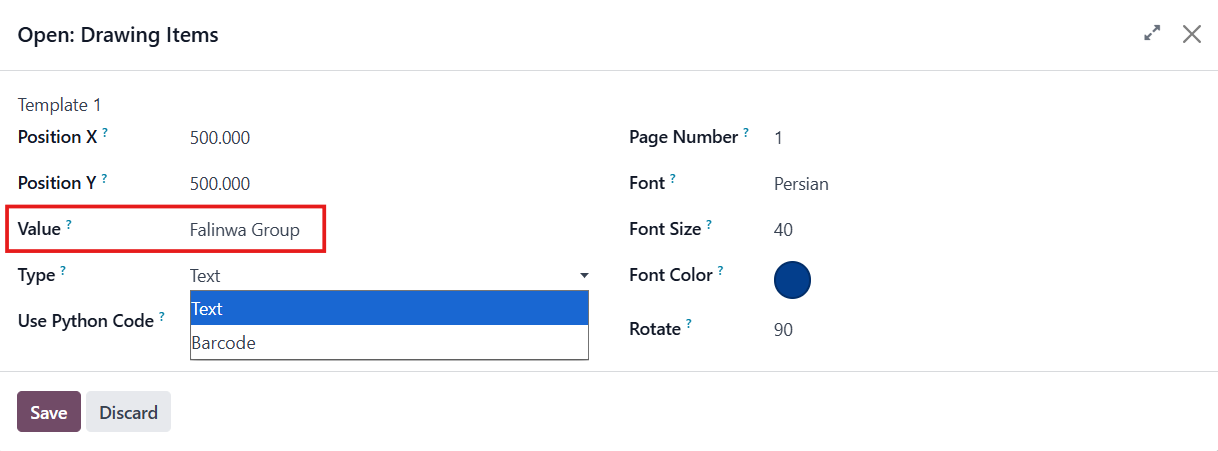
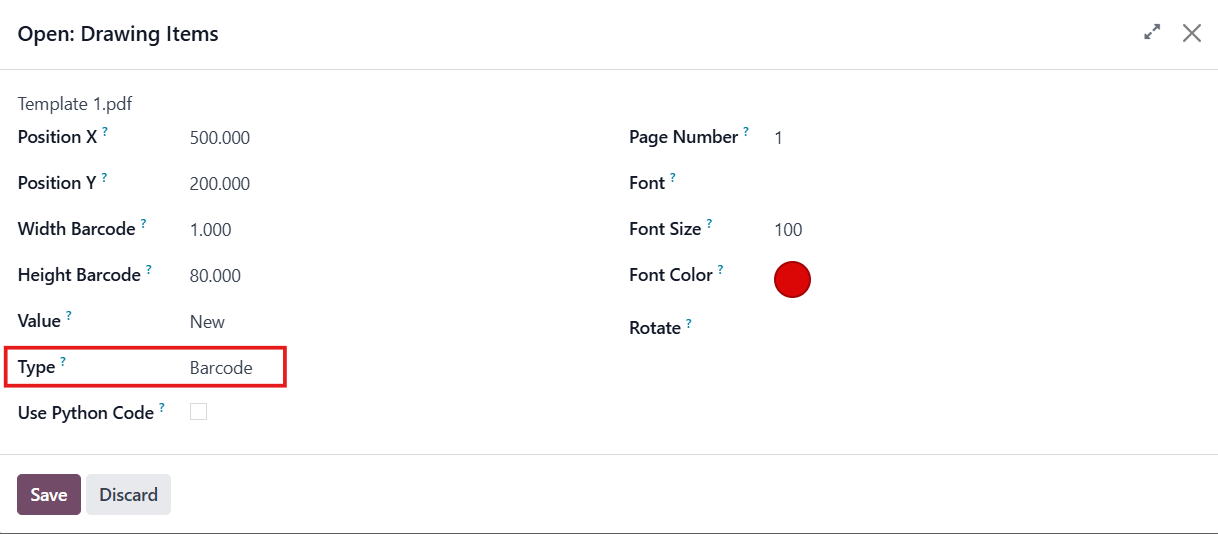
VALUE1. On the Value field, we can add text to be placed on the report. Set the positions, font size, font color, rotate, etc., There are 2 types:
|   |
2. Click Preview to see the placement of the value on the report. | 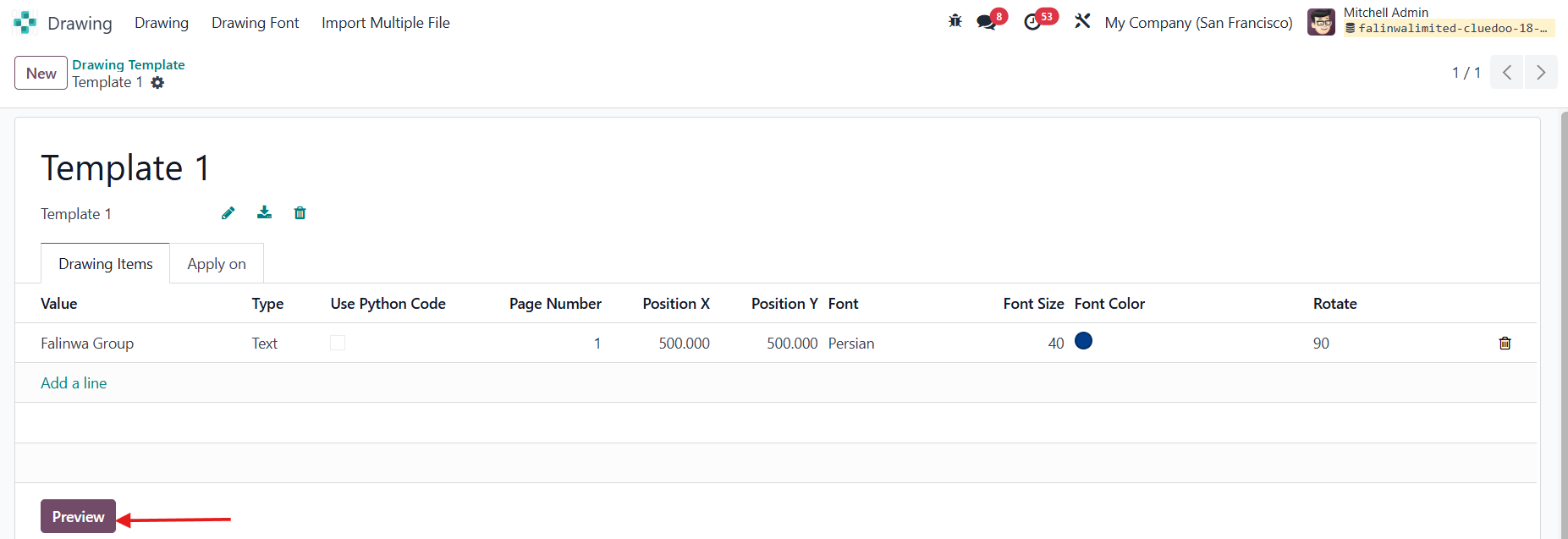 |
Text
Barcode
| |
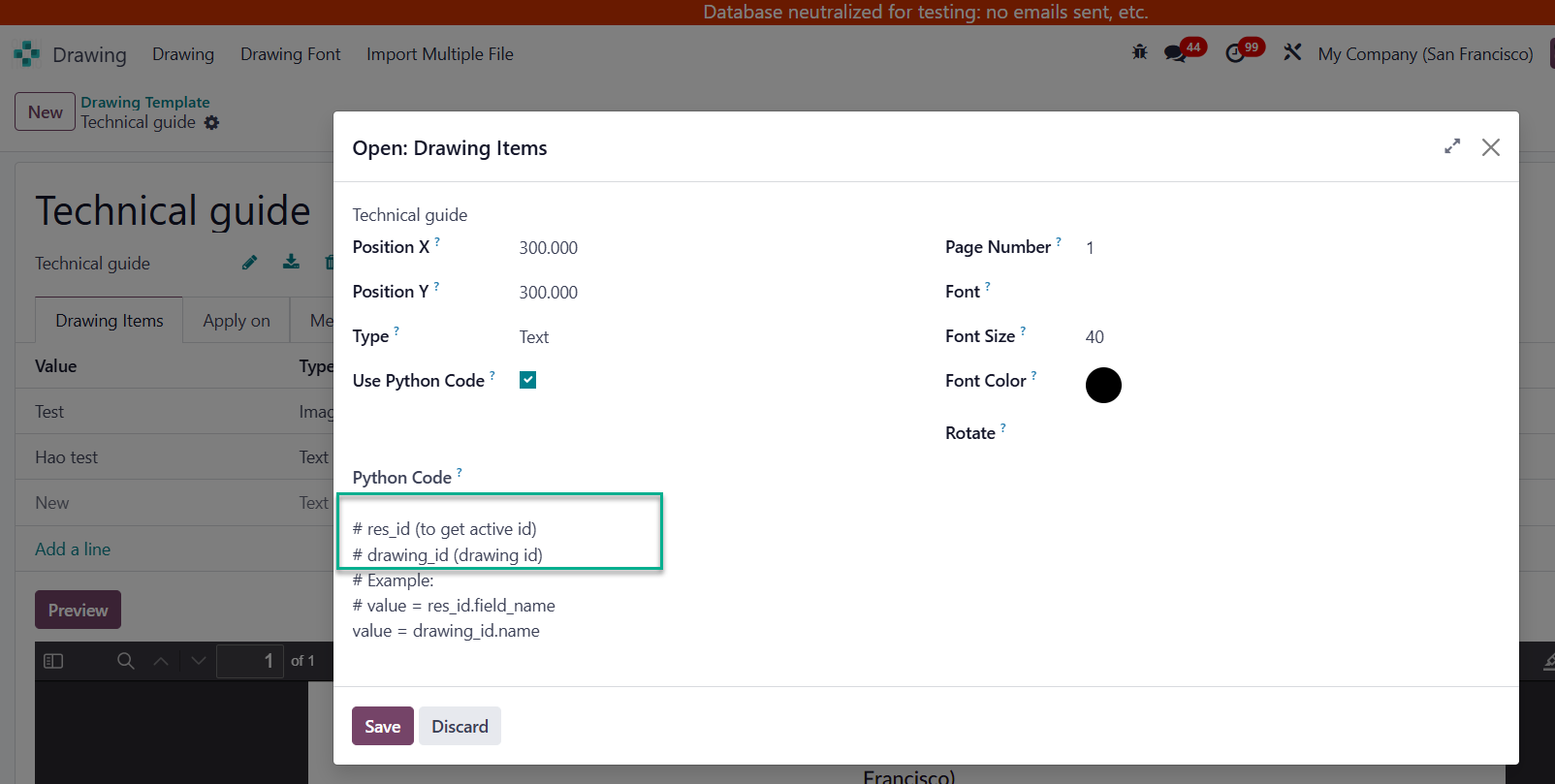
PYTHON CODECheck Use Python Code and write the Python code to show the field on the report. |
|
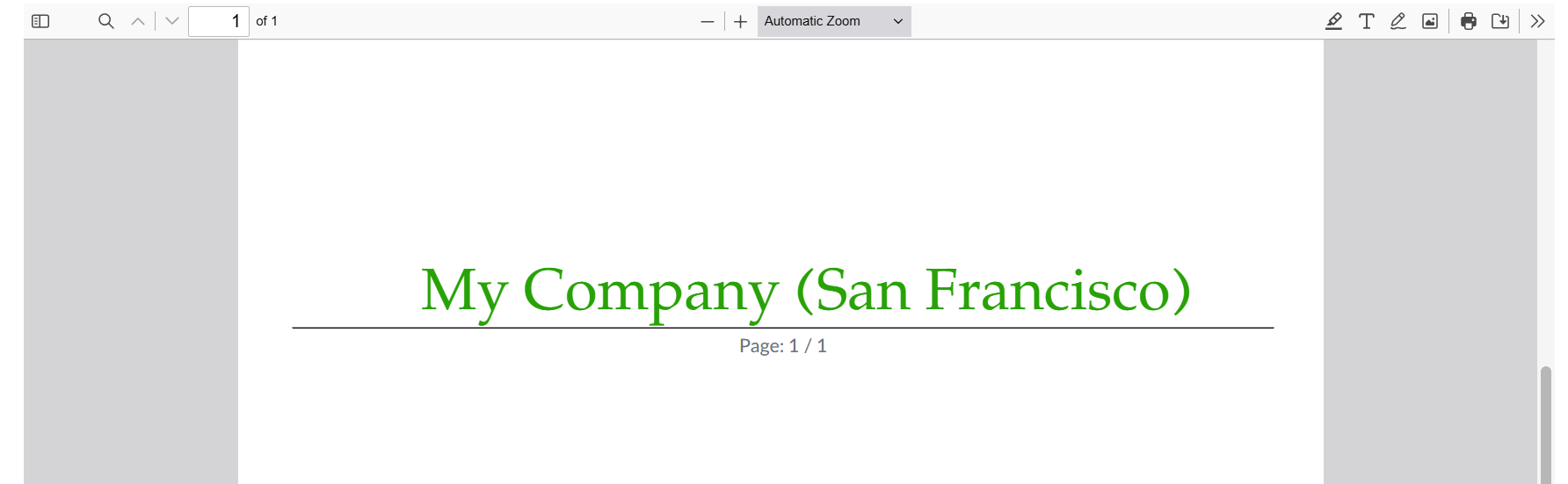
Preview of the report. |
|
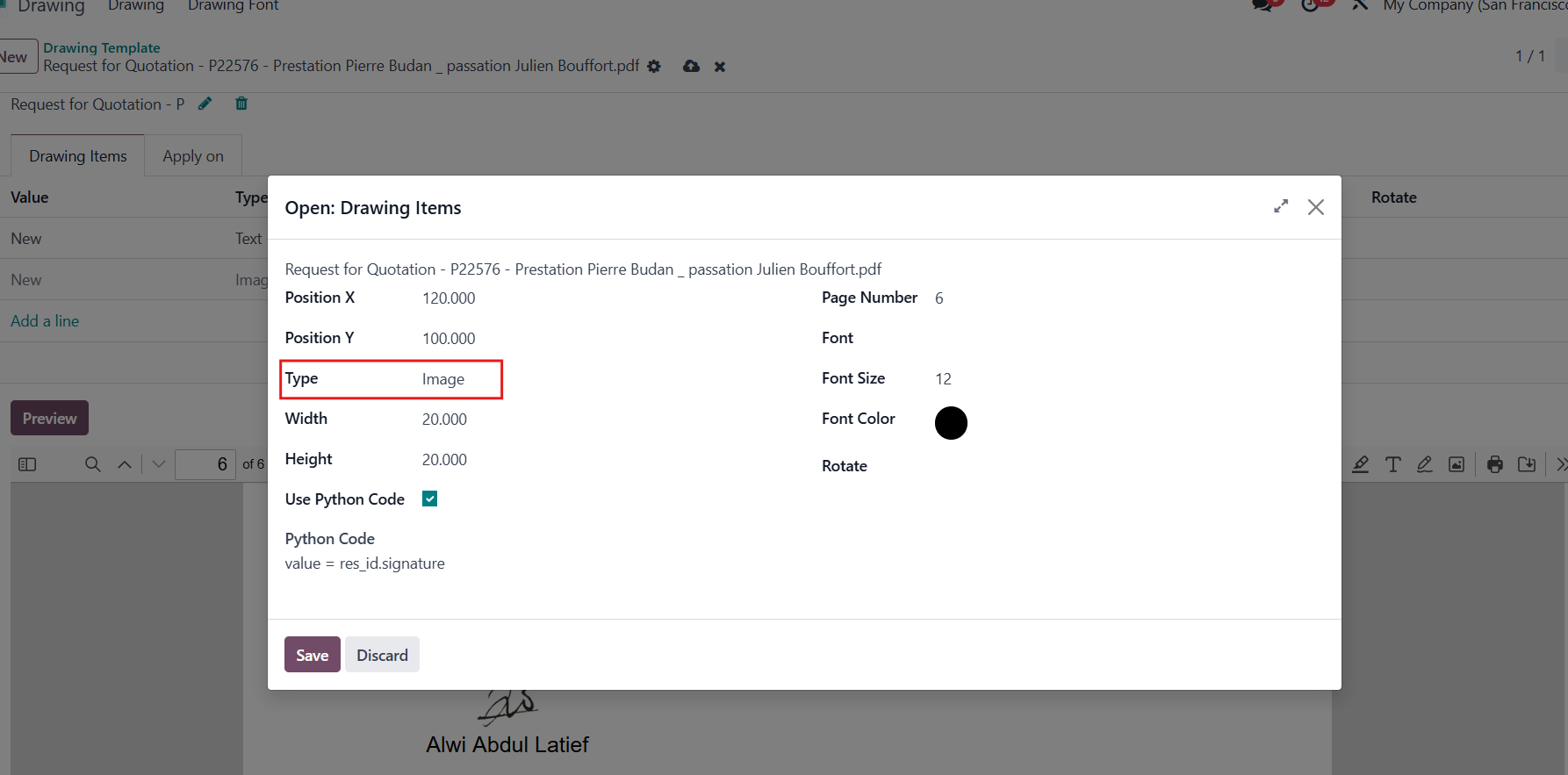
IMAGE In v18, we have an option to add image to the drawing. With using the python code value = res_id.signature, we can now add the image of signature to the drawing when signing through the portal. |
|
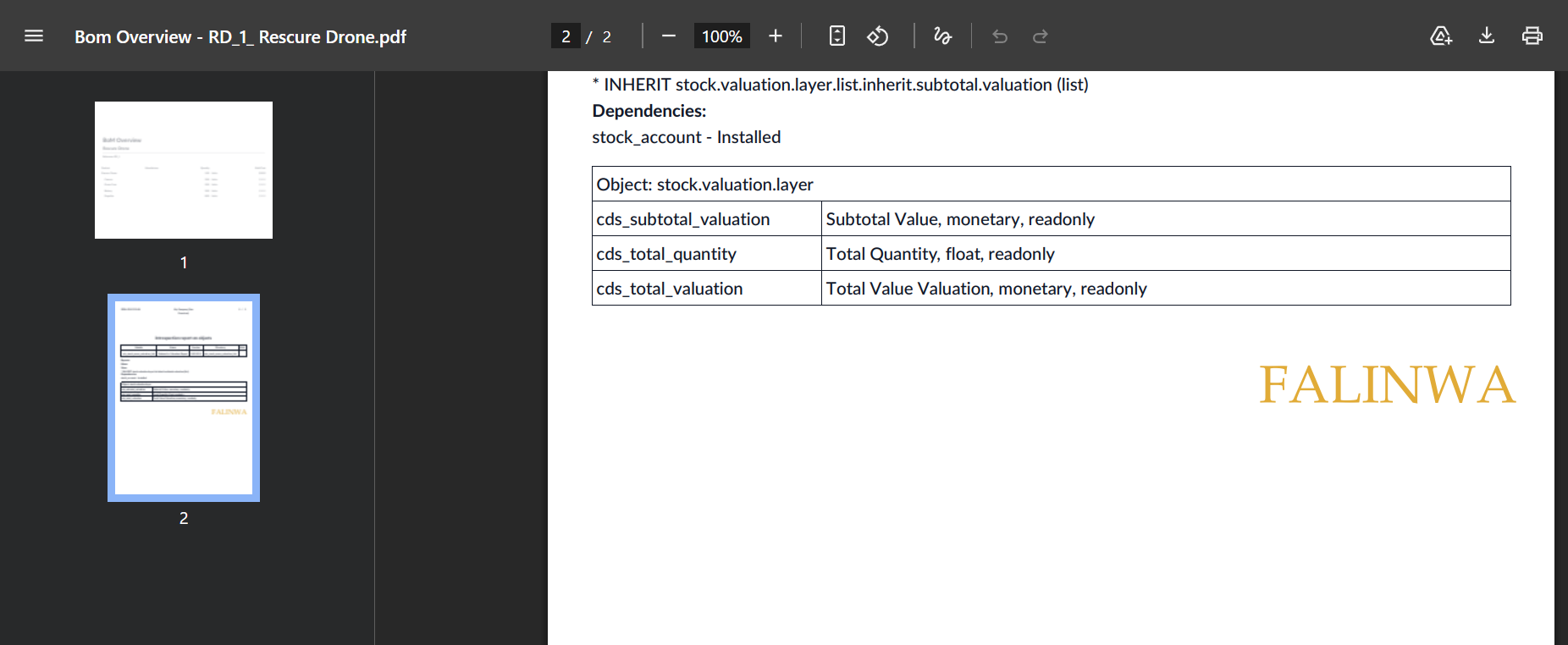
ATTACH TO ODOO REPORTSWe can apply the drawing template to a report. e.g., BoM Overview Note: Enable the Print Only Drawing if you do not want to use the ODS report but the drawing template instead. |  |
When printing the report, the attachment of the drawing template will also be added to the PDF report. |
|
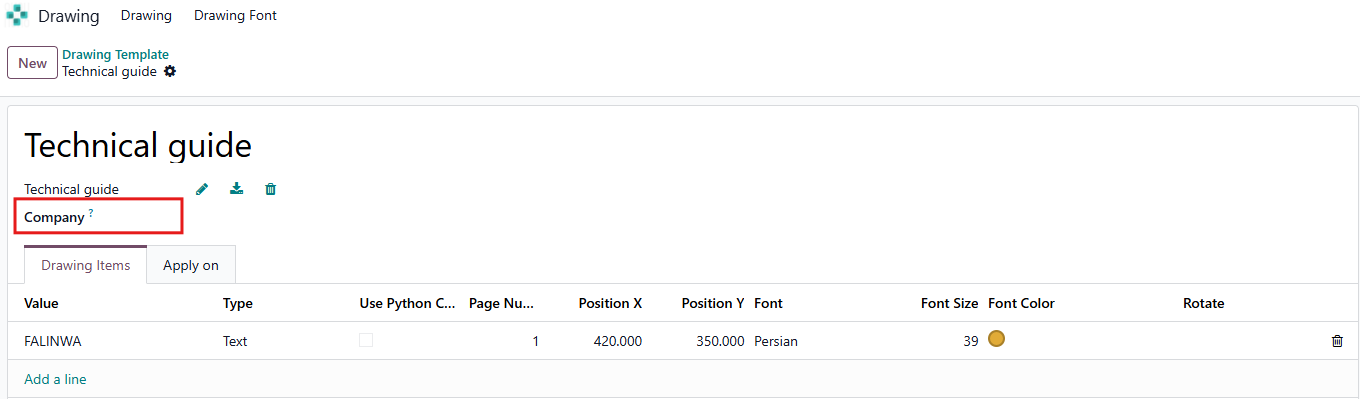
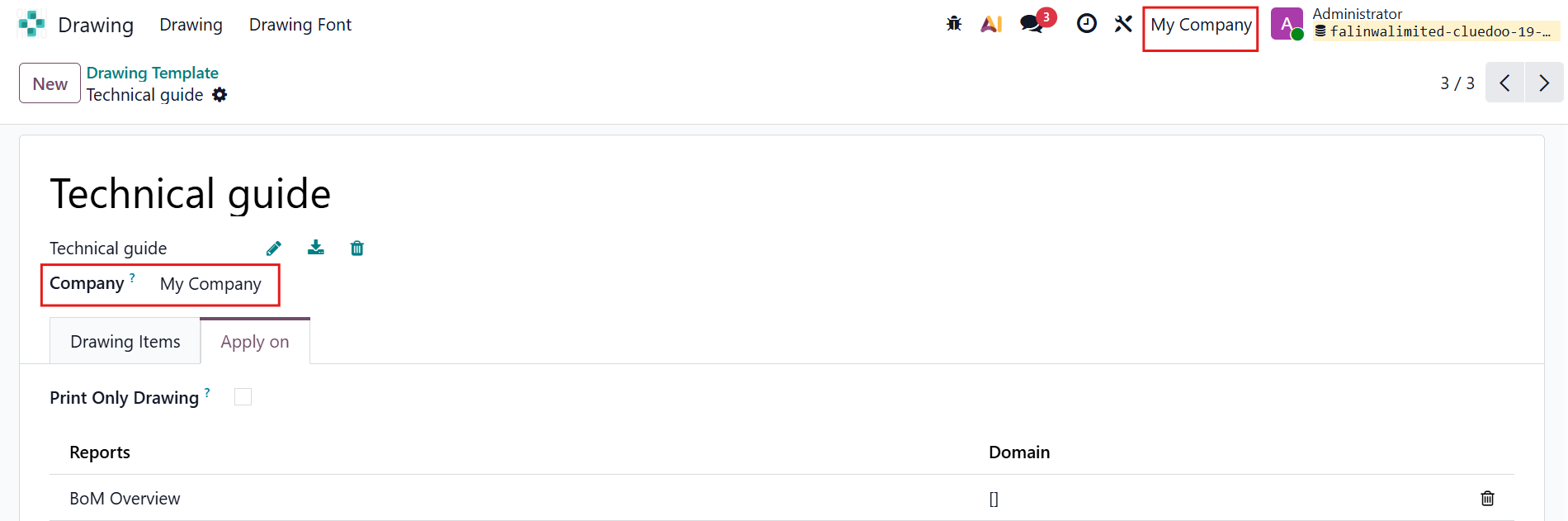
Notes: From v19, a new Company field has been added to the drawing template:
|
|
|
|