


ODOO'S FUNCTION
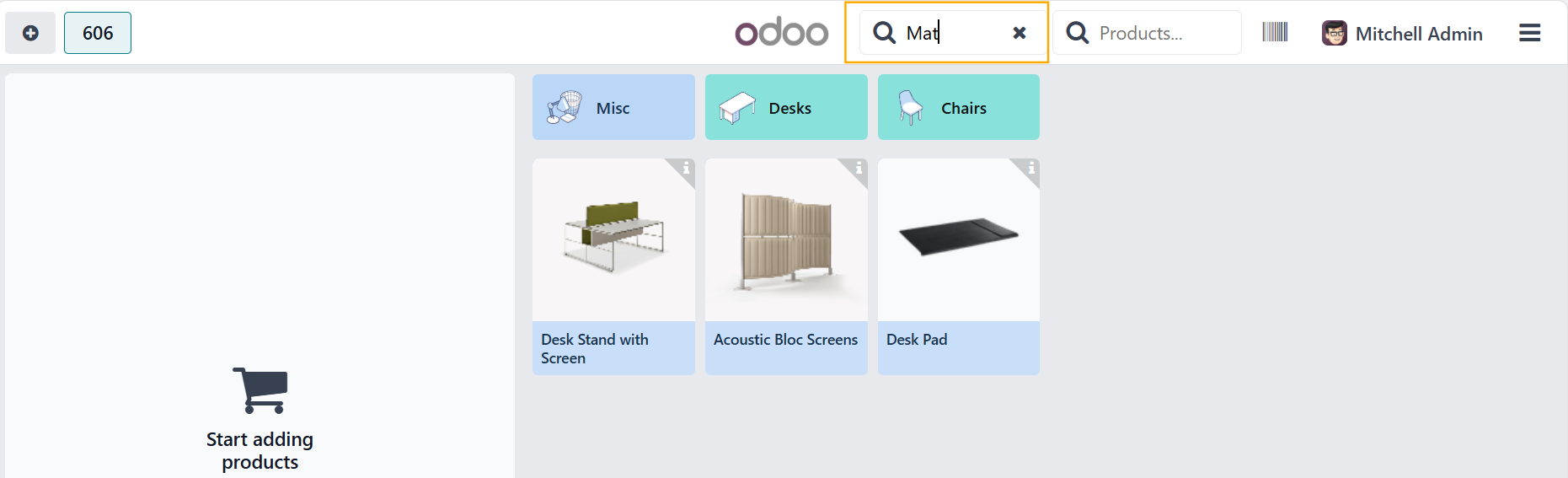
In POS, users can only search products by name using the standard search bar. There is no option to filter or search by product brand/manufacturer.
CLUEDOO'S FUNCTION
1️⃣ New Manufacturer search bar in POS
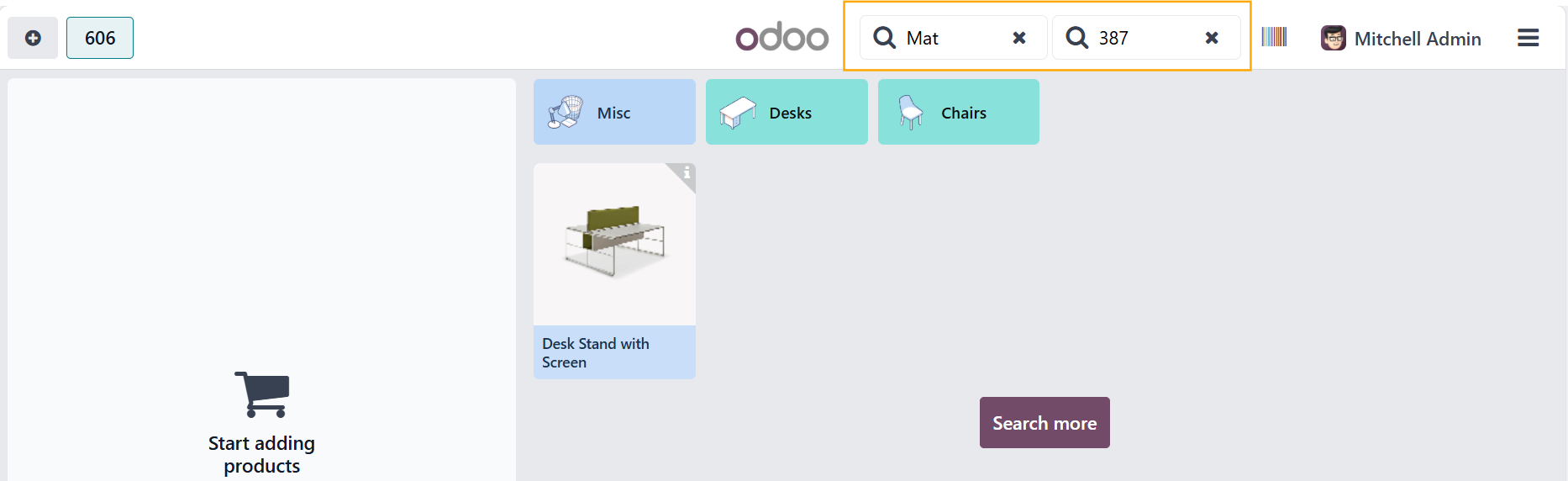
- Adds a separate search bar in the POS interface for searching by manufacturer/brand.
- When a user searches using this bar, the product list dynamically updates to show only products from the selected manufacturer/brand.
2️⃣ Combined Search Behavior
Users can:
- Search by manufacturer/brand only (via the new search bar), or
- Search by product name (via the default POS search bar), or
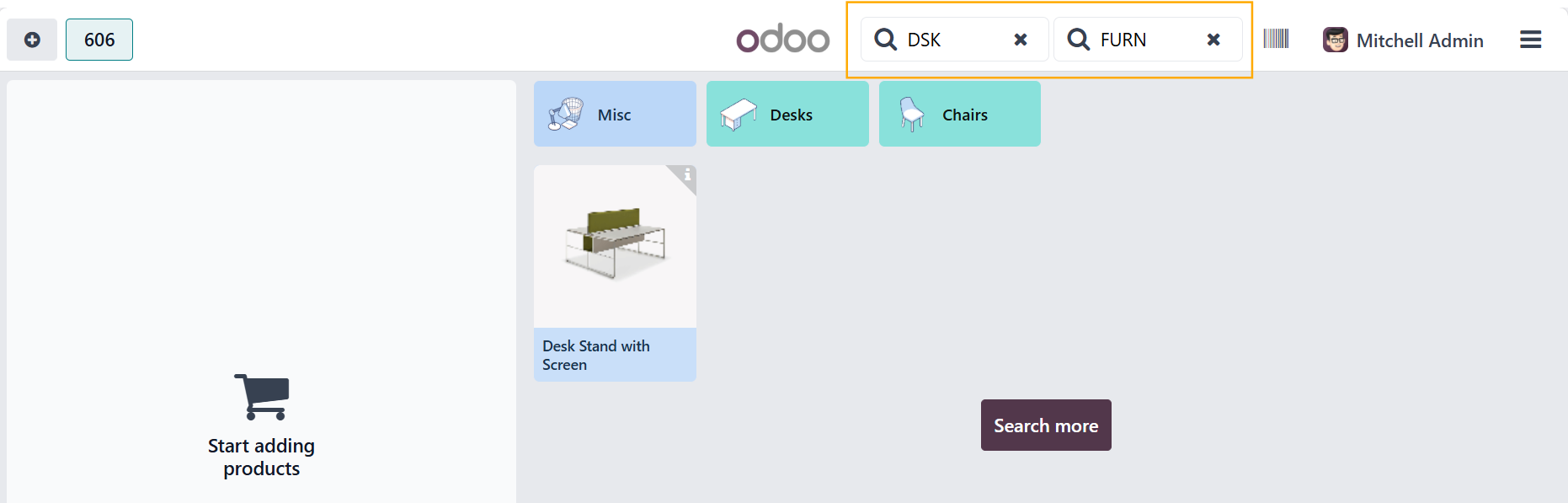
- Combine both (filter by manufacturer/brand first, then search for product name).
1. Go to Point of Sale > Dashboard > Choose one and open | 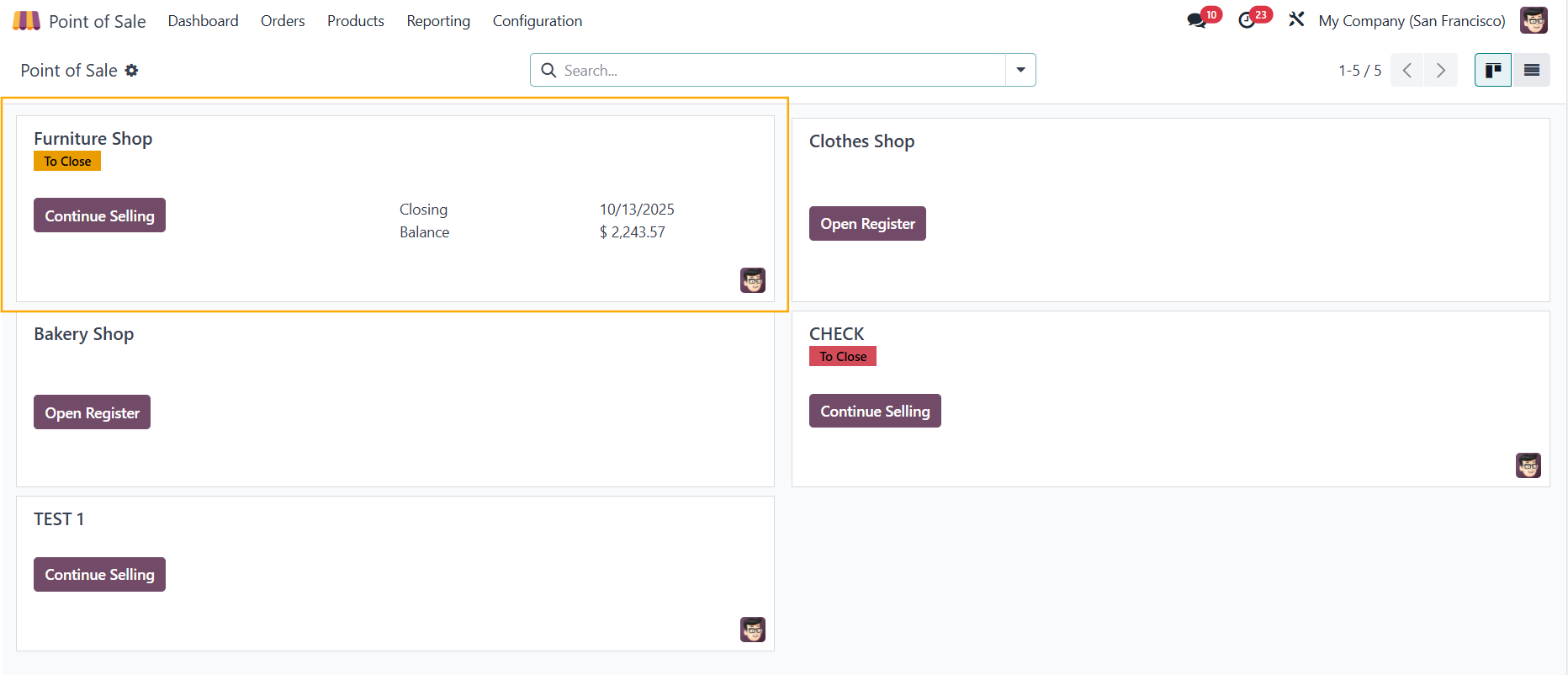 |
2. An additional search bar for Manufacturer is added next to the search bar for products Users can search by manufacturer only, product only, or both together. e.g., Step 1: The cashier selects “Nike” in the Manufacturer search bar → POS only displays Nike products. Step 2: The cashier types “Air” in the product search → only “Nike Air” items are shown.
|
|
3. Fill in the information in the search bar |
|
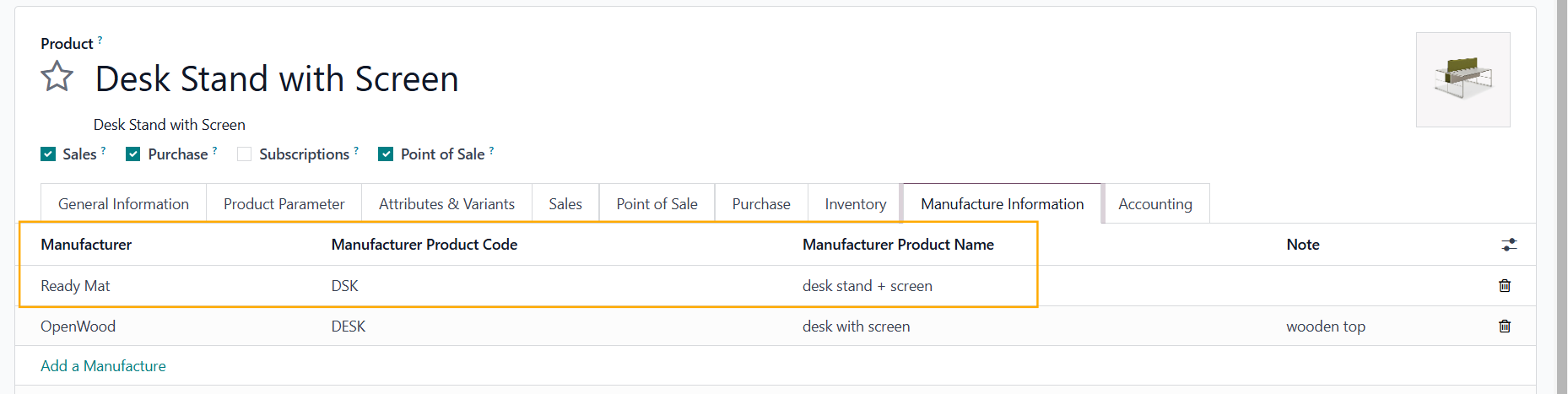
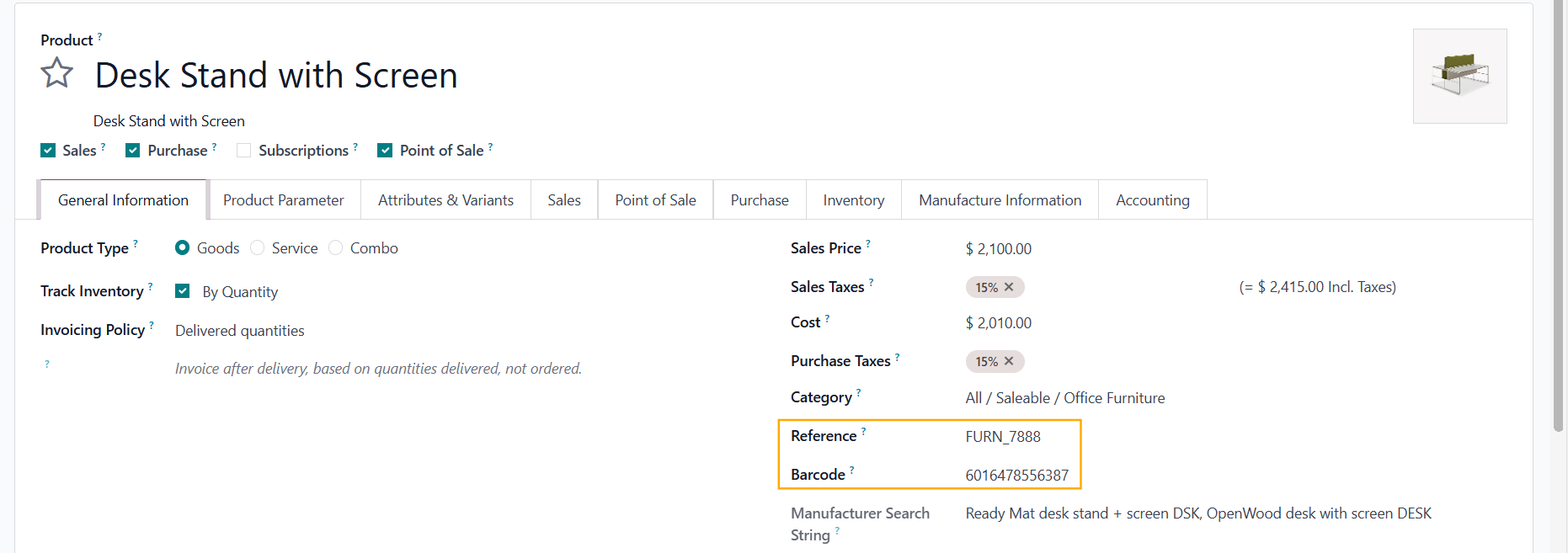
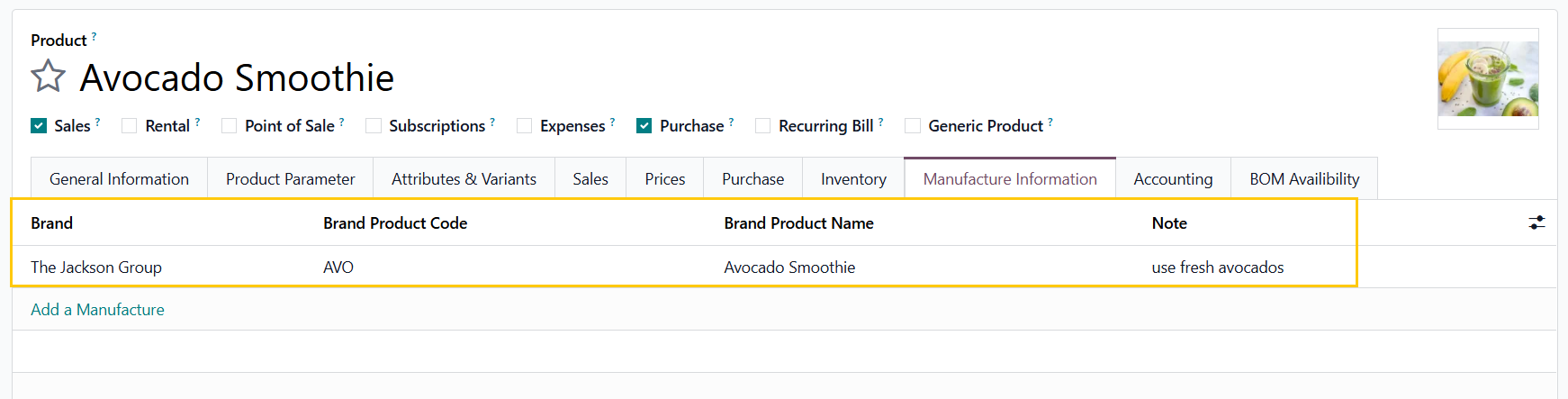
The new Manufacturer search bar in POS allows users to find products using any of the first three fields in the Manufacture Information tab: Manufacturer, Manufacturer Product Code, or Manufacturer Product Name. The Products search bar in POS allows users to find products using the fields Reference and Barcode in product template Note: From v19, typing the Barcode in the search bar does not allow you to find a product |
|
Note: From V19, Manufacturer is changed to Brand to fit more industries |
|