


ODOO'S FUNCTION
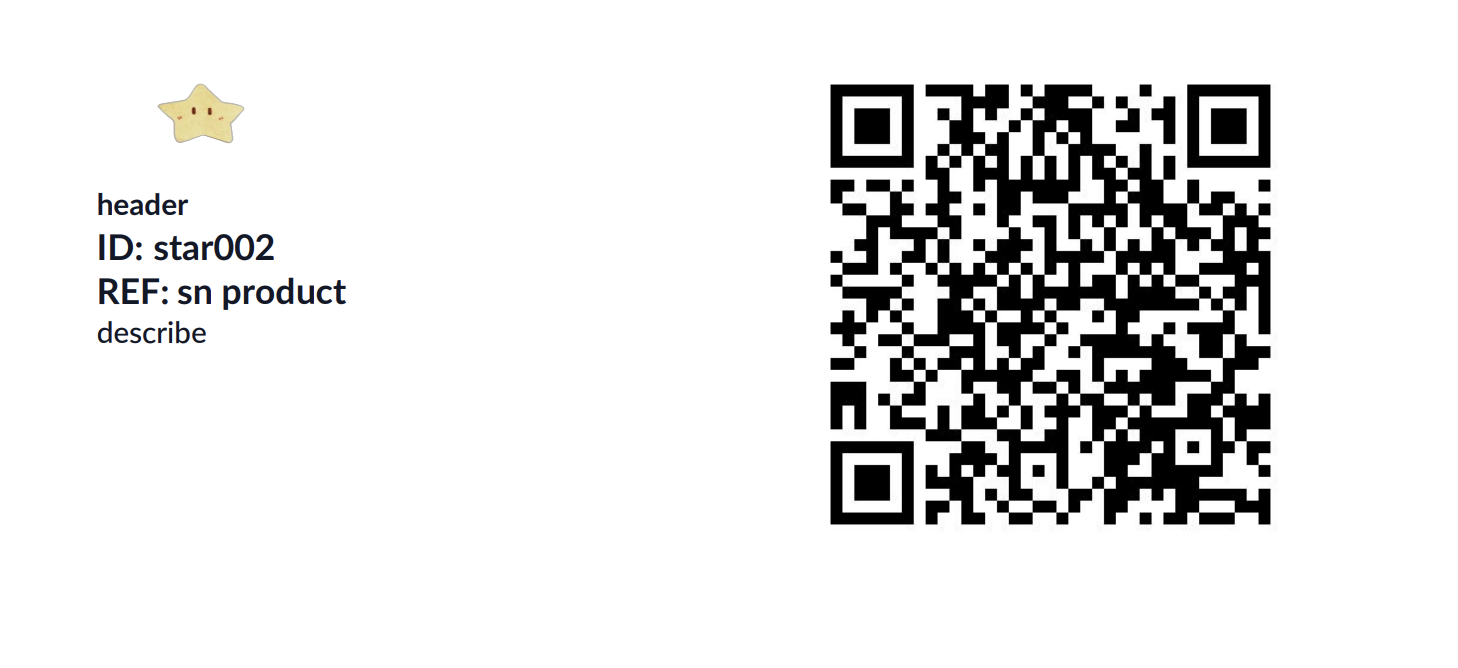
Odoo manages the serial number but does not propose a simple sticker format to be printed on the final product with the serial number, company info, fixed info and with a barcode or QR code format according to your needs.
CLUEDOO'S FUNCTION
If you use a serial number, you certainly need to put a serial number sticker in classic - barcode/ QR-code format on all your finished products. Cluedoo proposes standard stickers format and proposes to print them from one stock move or from a list of stock moves if you prefer to make a mass printing.
1. Go to Settings → Companies → Report Configuration tab. We can upload an image, add header, description, website, and producer name of the sticker. | 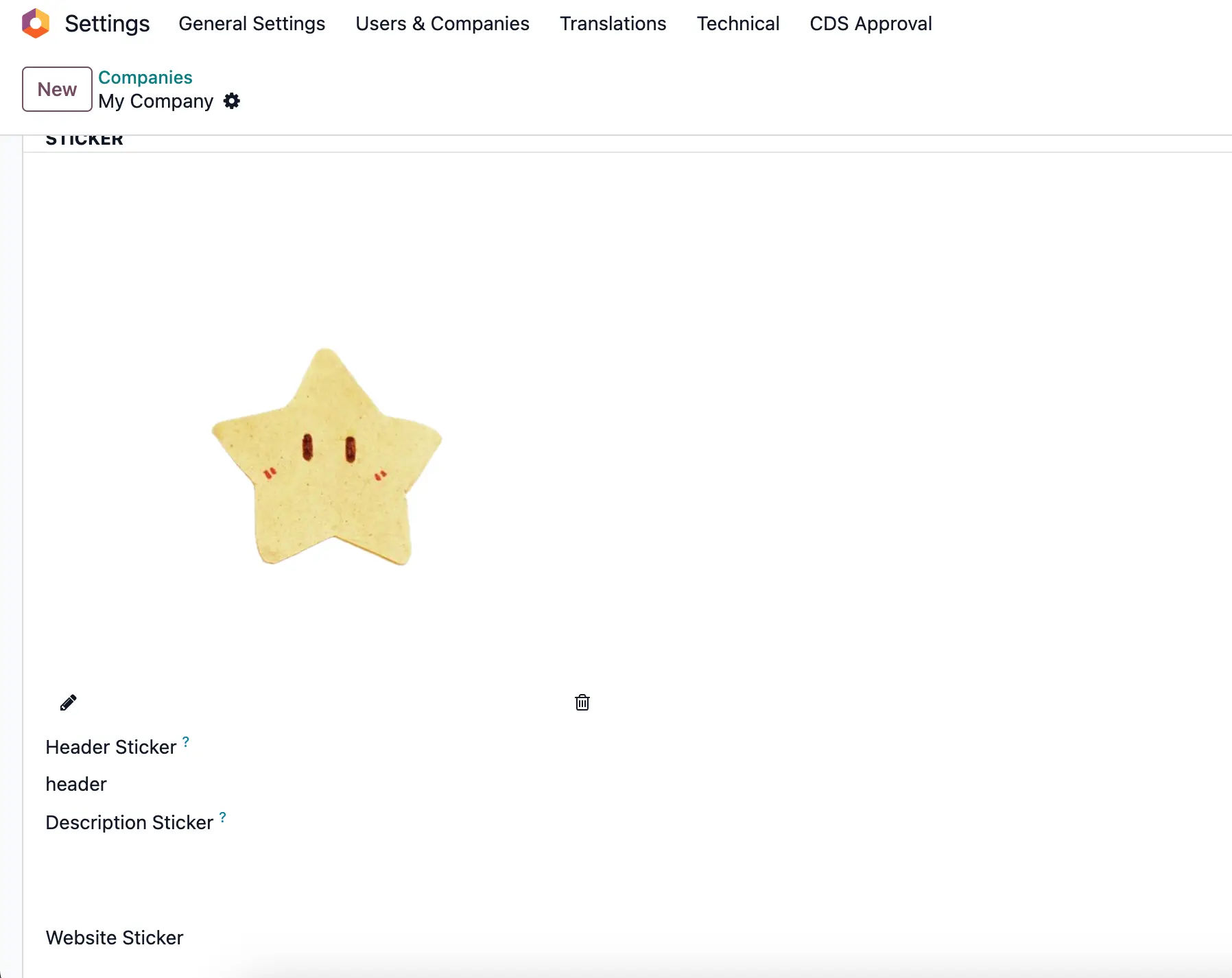 |
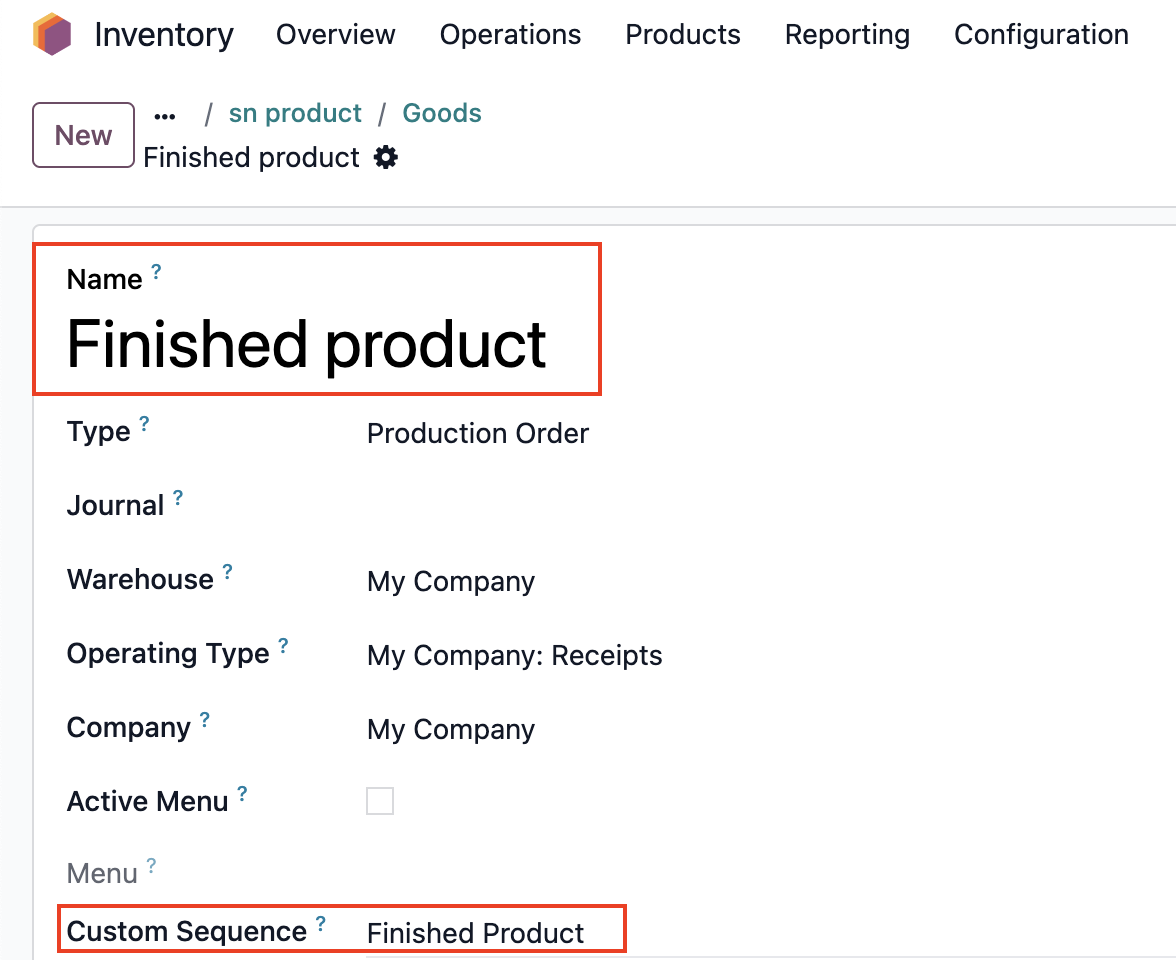
2. On Product Categories, select Finished Product in Order Type. The sticker can only be printed if it's finished product. | 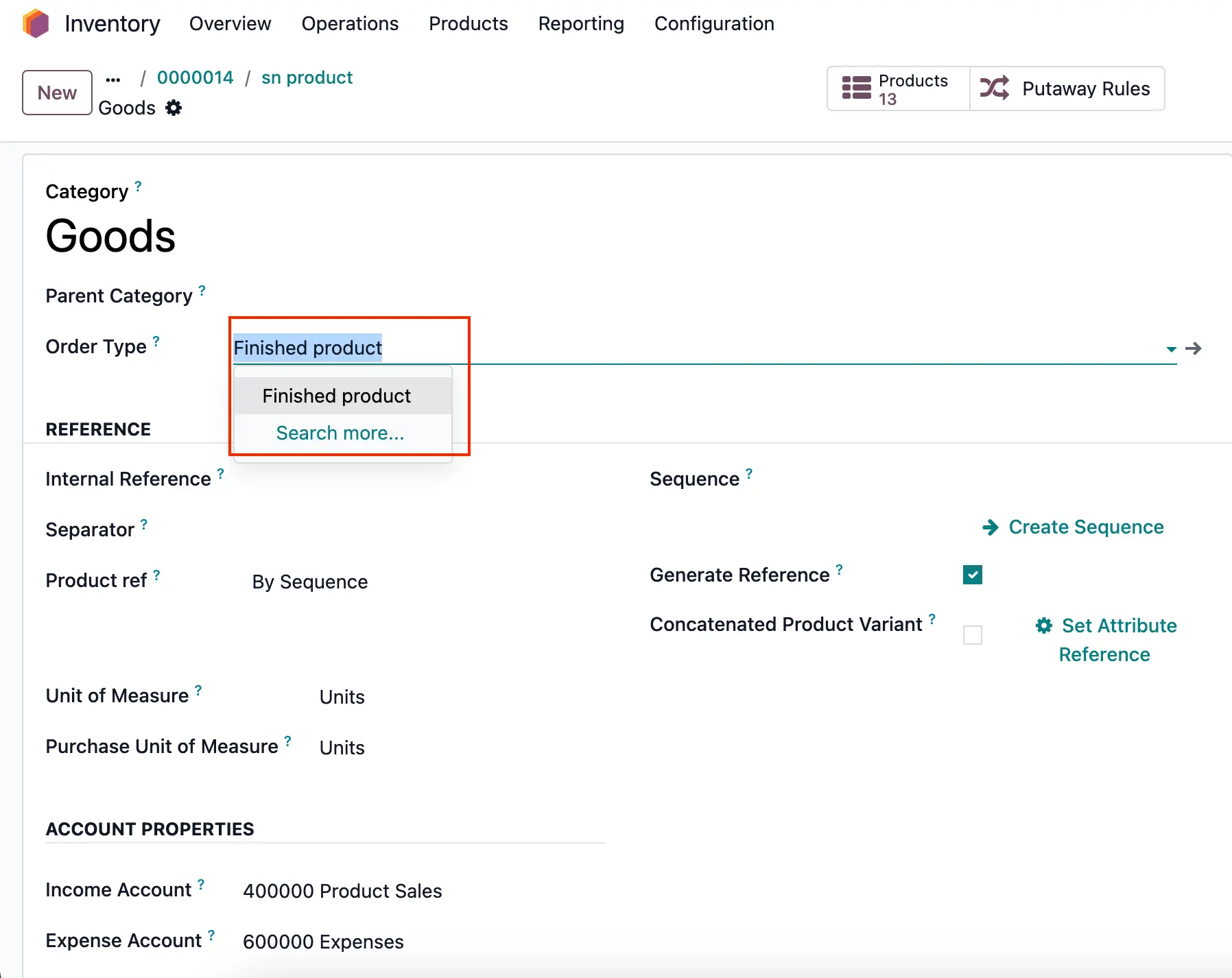 |
|  |
PRINT ON TRANSFER We can print sticker on transfers | 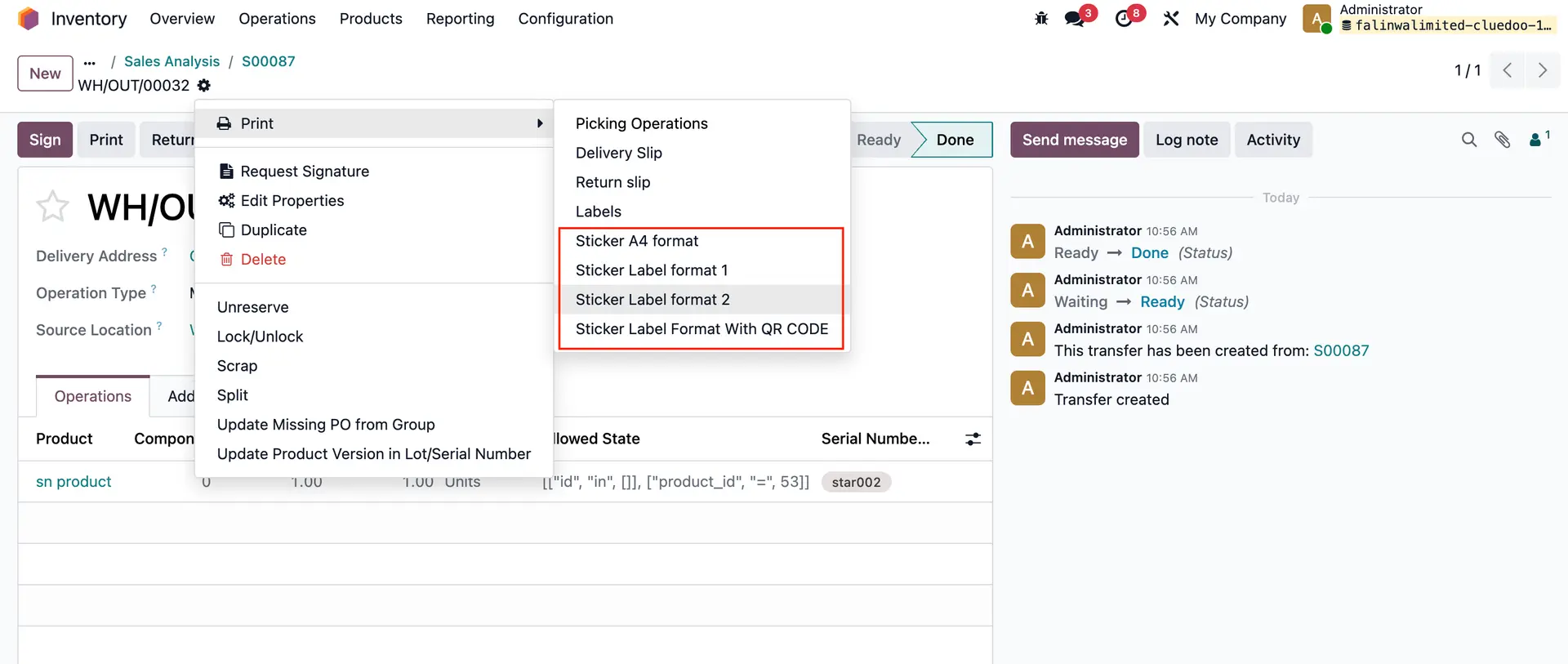 |
PRINT ON LOTS/SERIAL NUMBERS The sticker is available as well on lots/serial numbers | 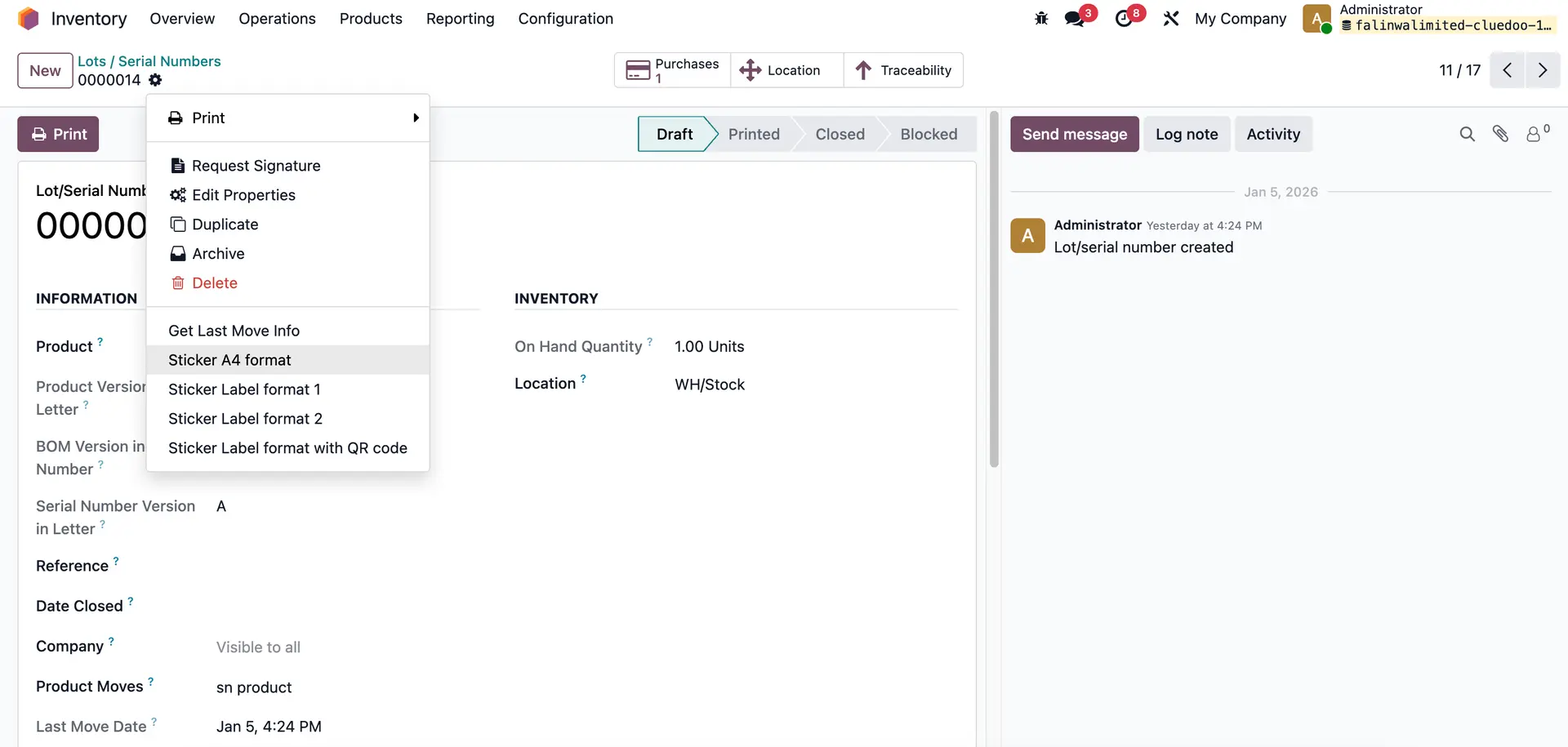 |
| PRINTING RESULT EXAMPLE STICKER A4 FORMAT The number of the sticker based on the quantity on the transfer | 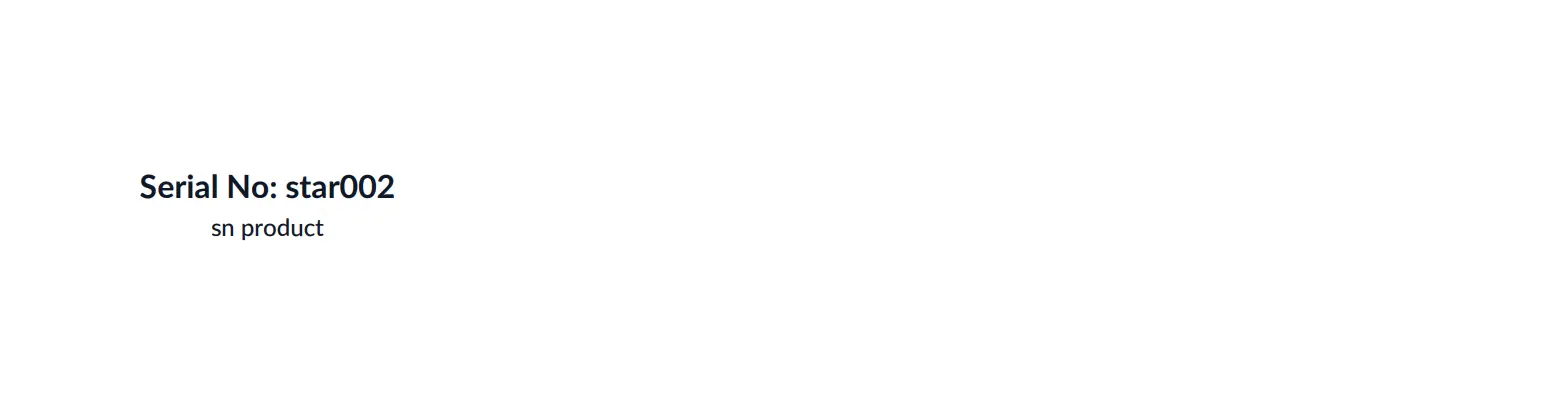 |
STICKER LABEL FORMAT 1 | 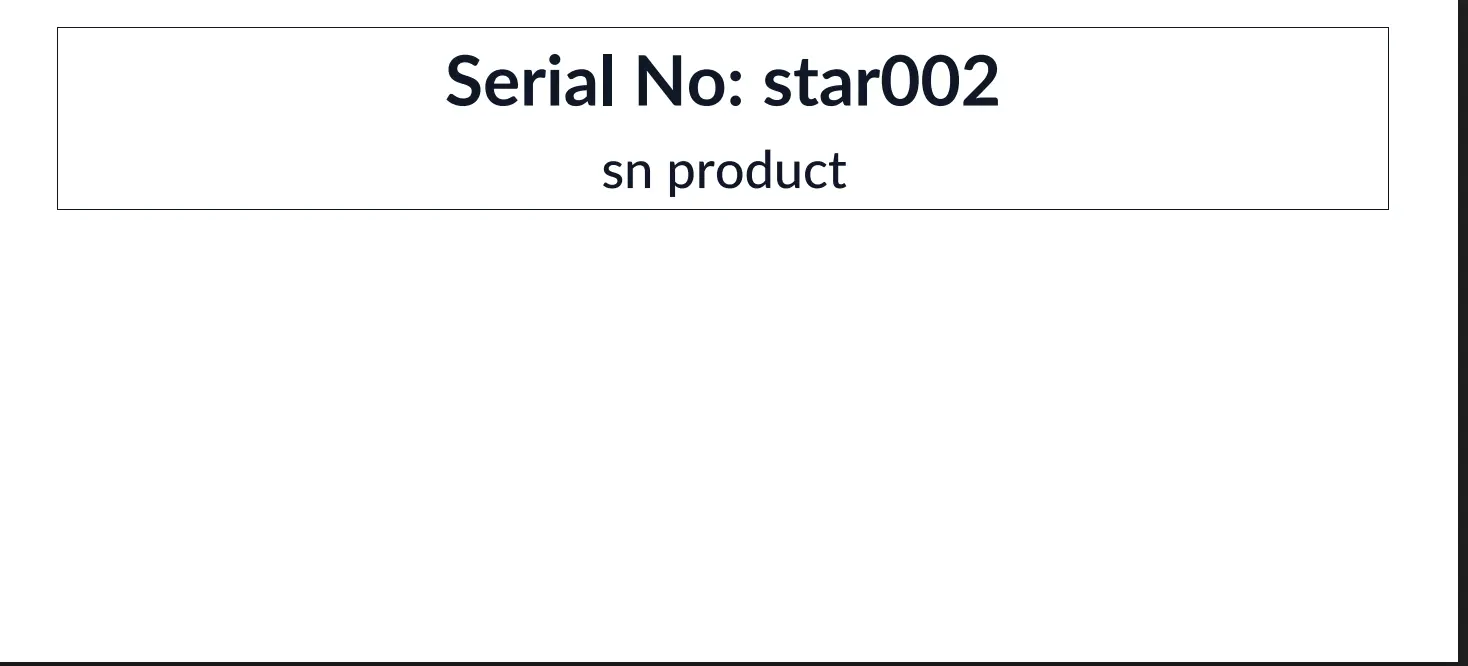 |
STICKER LABEL FORMAT 2 |  |
STICKER LABEL FORMAT WITH QR CODE |
|