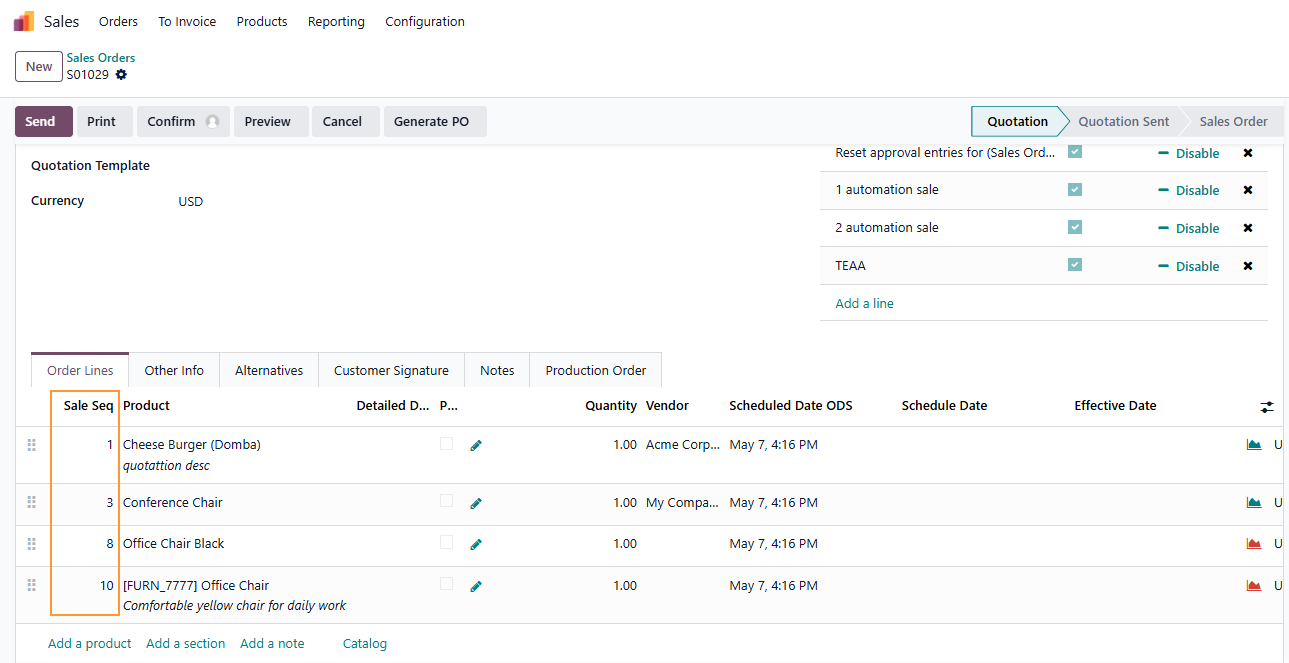



ODOO'S FUNCTION
Odoo does not provide line numbering for Sales or Purchase Order lines, making order forms less convenient to present or print.
CLUEDOO'S FUNCTION
CLuedoo adds automatic line numbering to Sales and Purchase Orders, which is then carried over to Reports, Transfers and Invoices/Bills.
1. Go to the Sales/Purchase module > Create a new SO/PO > Add products to order line, and the numerical sequence will automatically appear. | 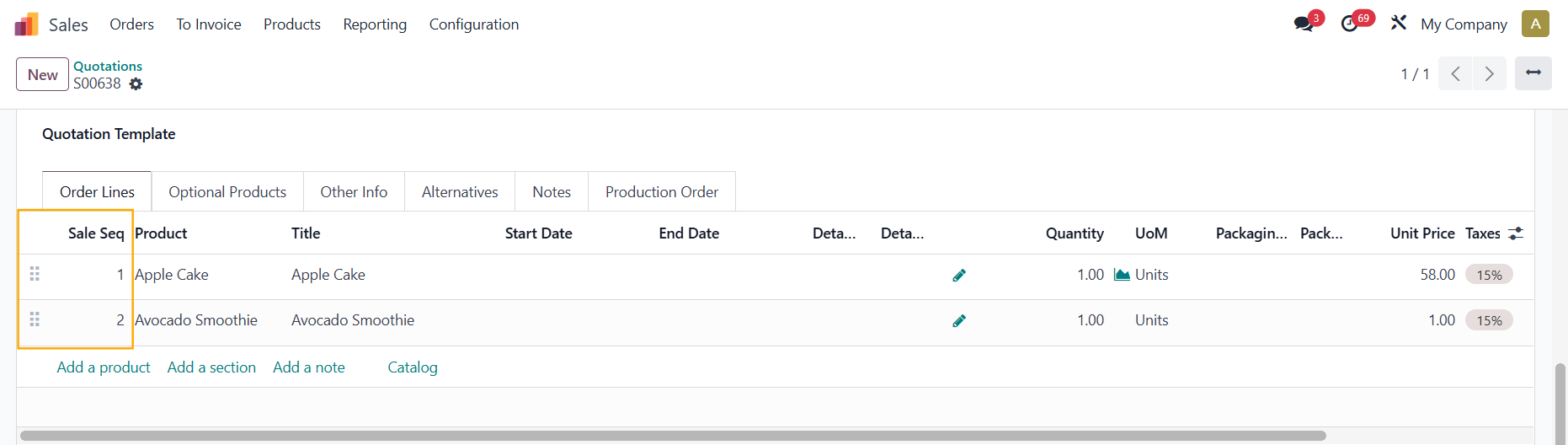 |
Note: The sequence will only counts the order lines; sections and notes are excluded | 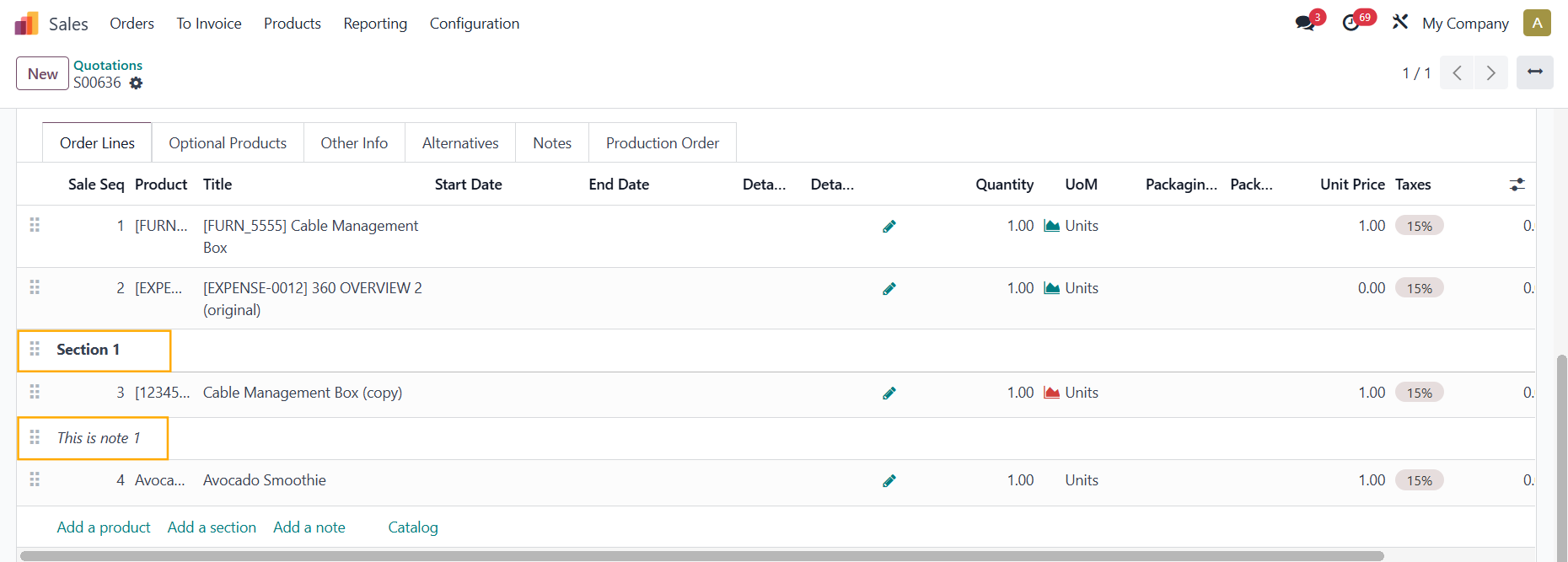 |
When you drag and drop the order lines > the sequence will be automatically updated e.g., Avocado Smoothie was in sequence 4, when I drag it to the first line, the sequence becomes 1 | 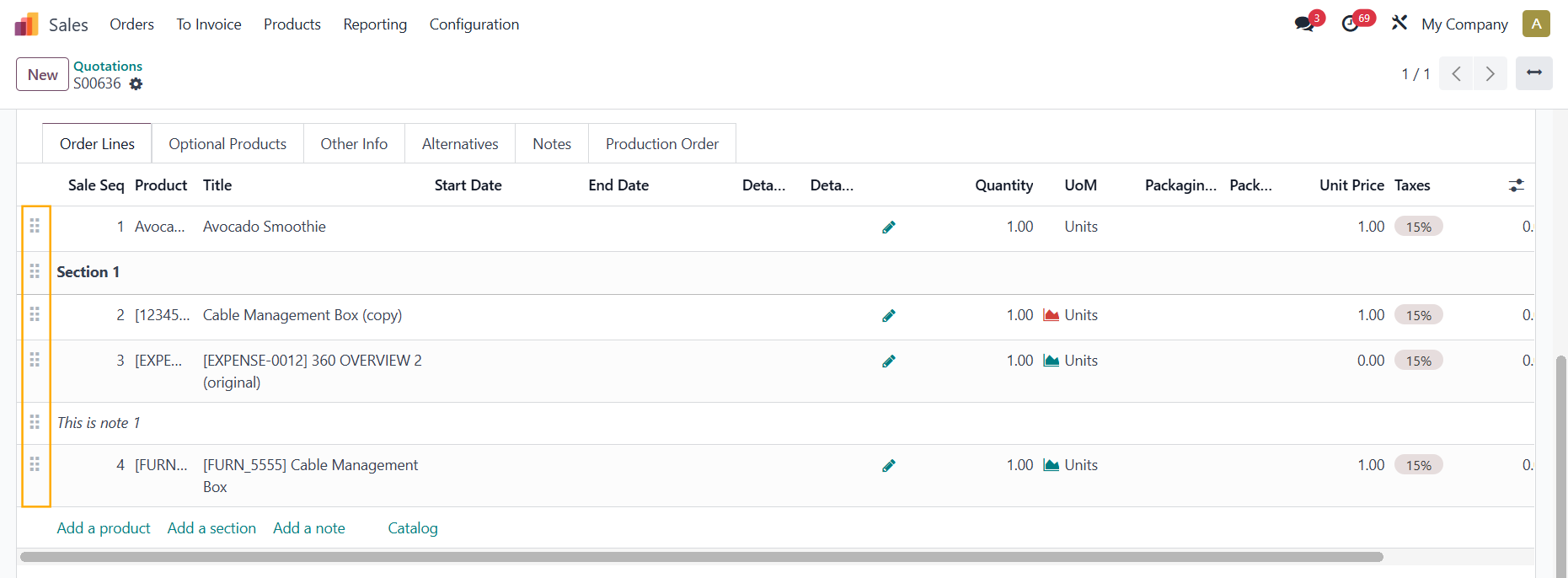 |
2. The sequence (without the sections/notes) will be inherited to the transfer. If you add additional SOL/POL after the order has been confirmed, the sequence will also be inherited to the transfer. | 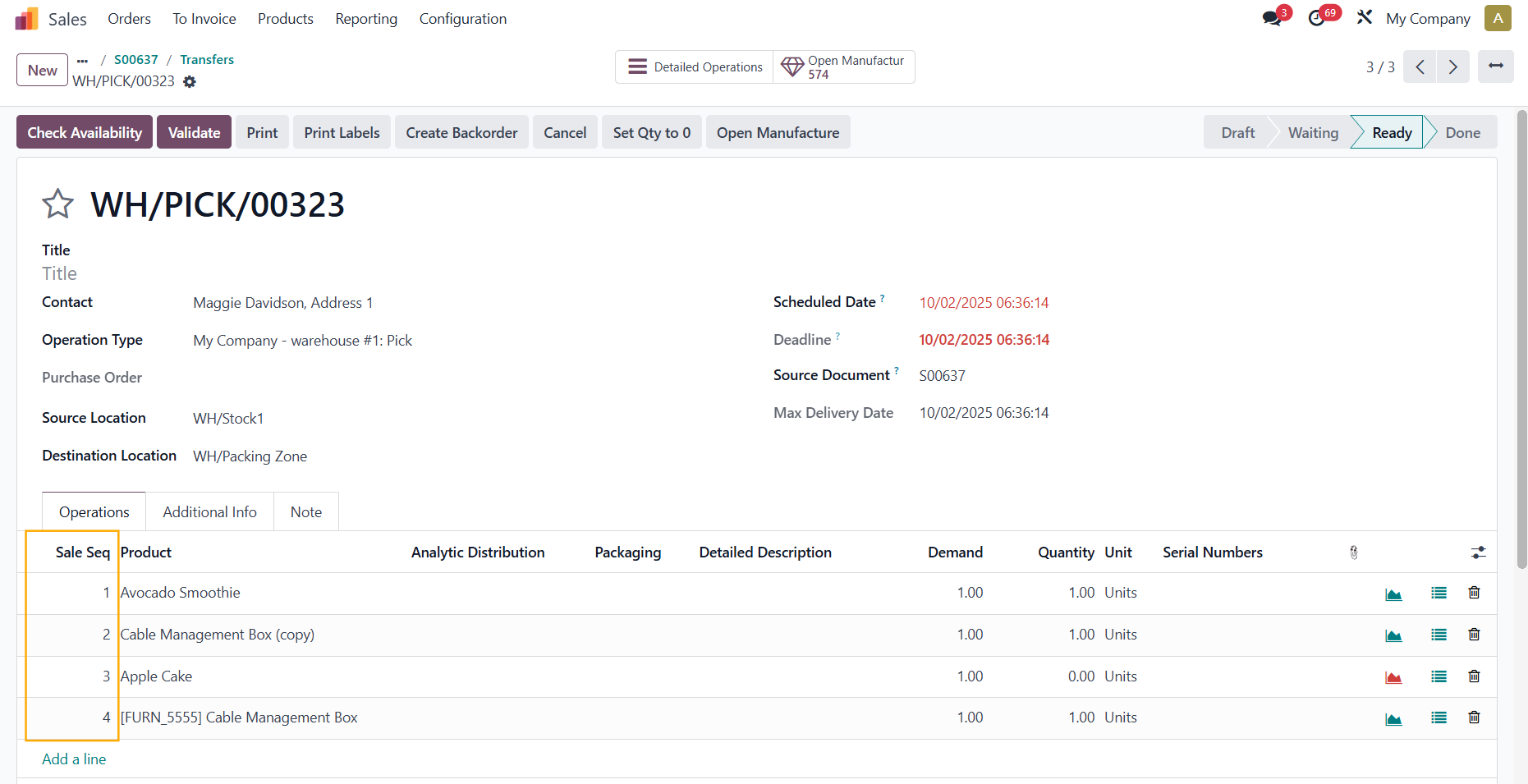 |
3. The sequence (including sections and notes) will also appear on the print out | 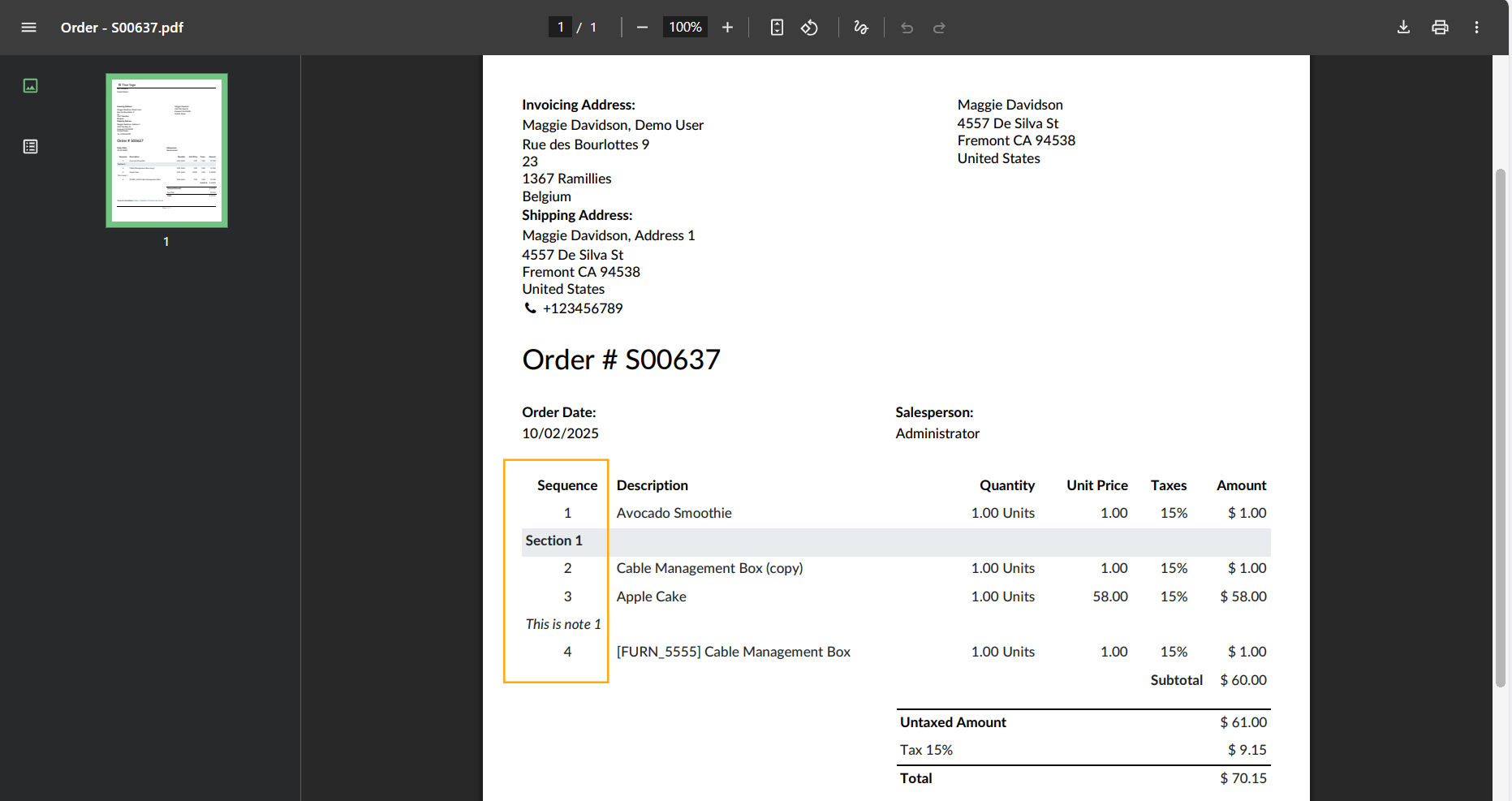 |
And on the Invoice/Bill Note: ODS only takes the sections in bills and not notes | 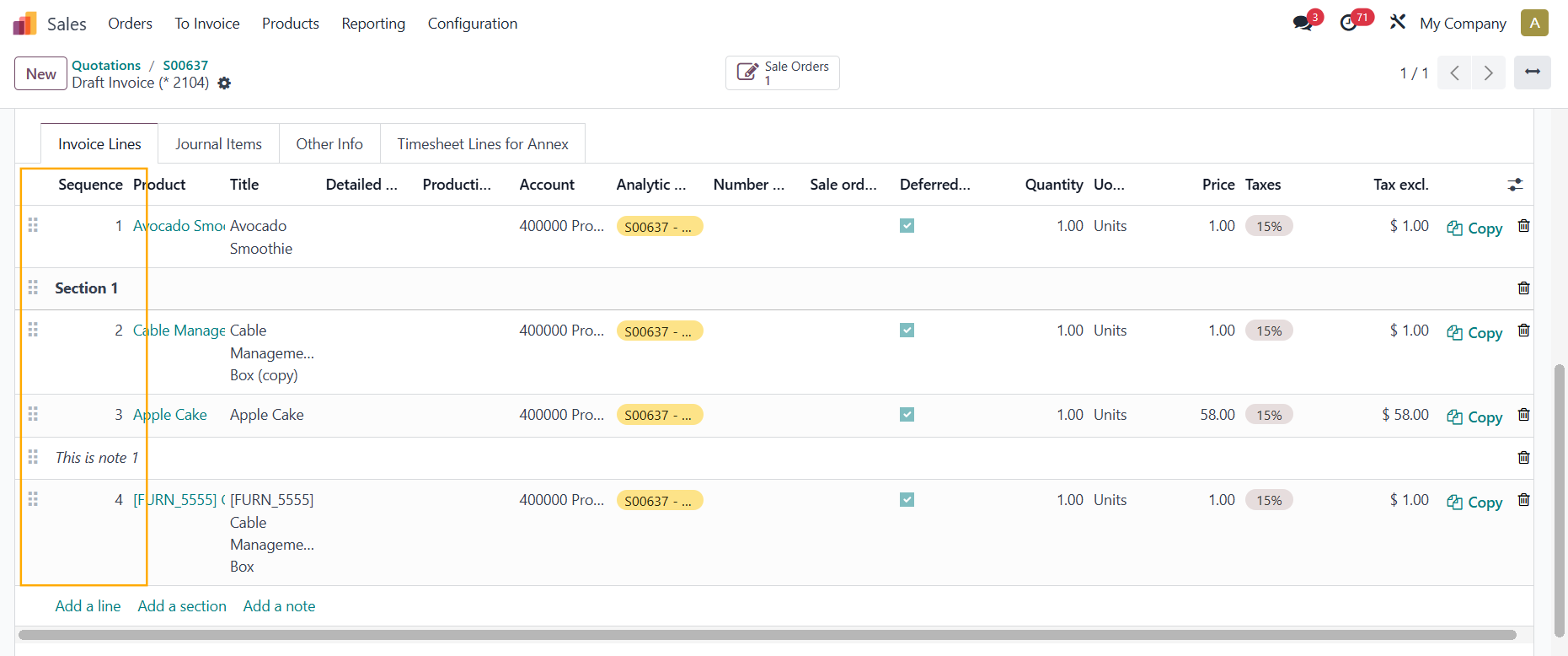 |
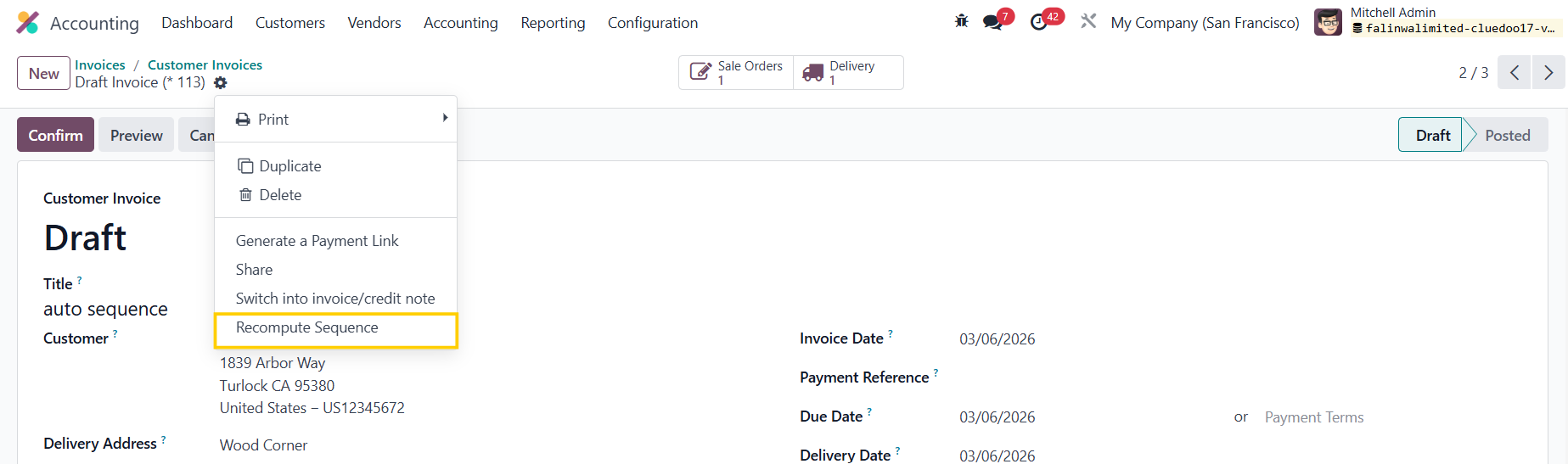
4. If you merge several invoices into one, you can use the server action Recompute Sequence to update the new sequence. |
|
FOR KIT PRODUCTS1. Set up a kit product | 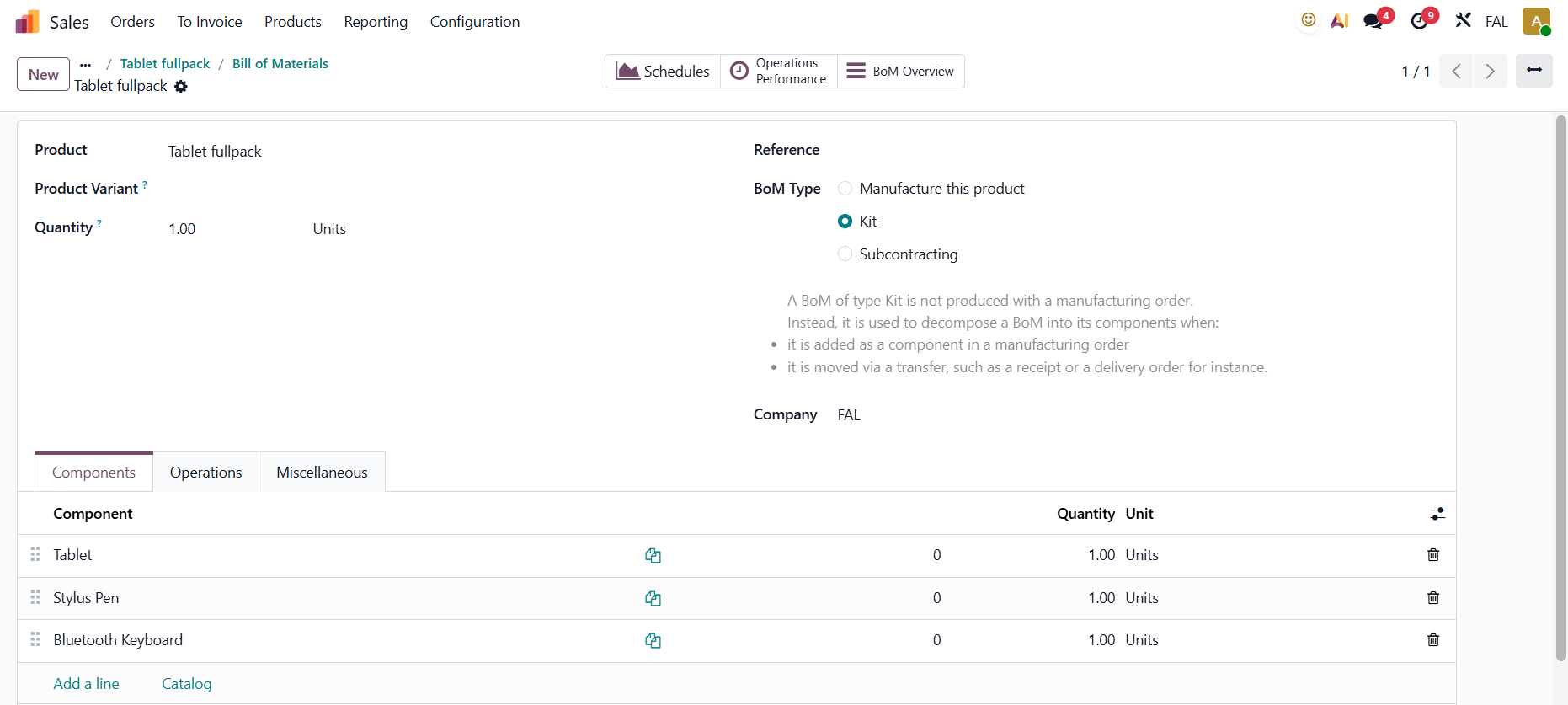 |
2. Create an order with this kit product > Confirm | 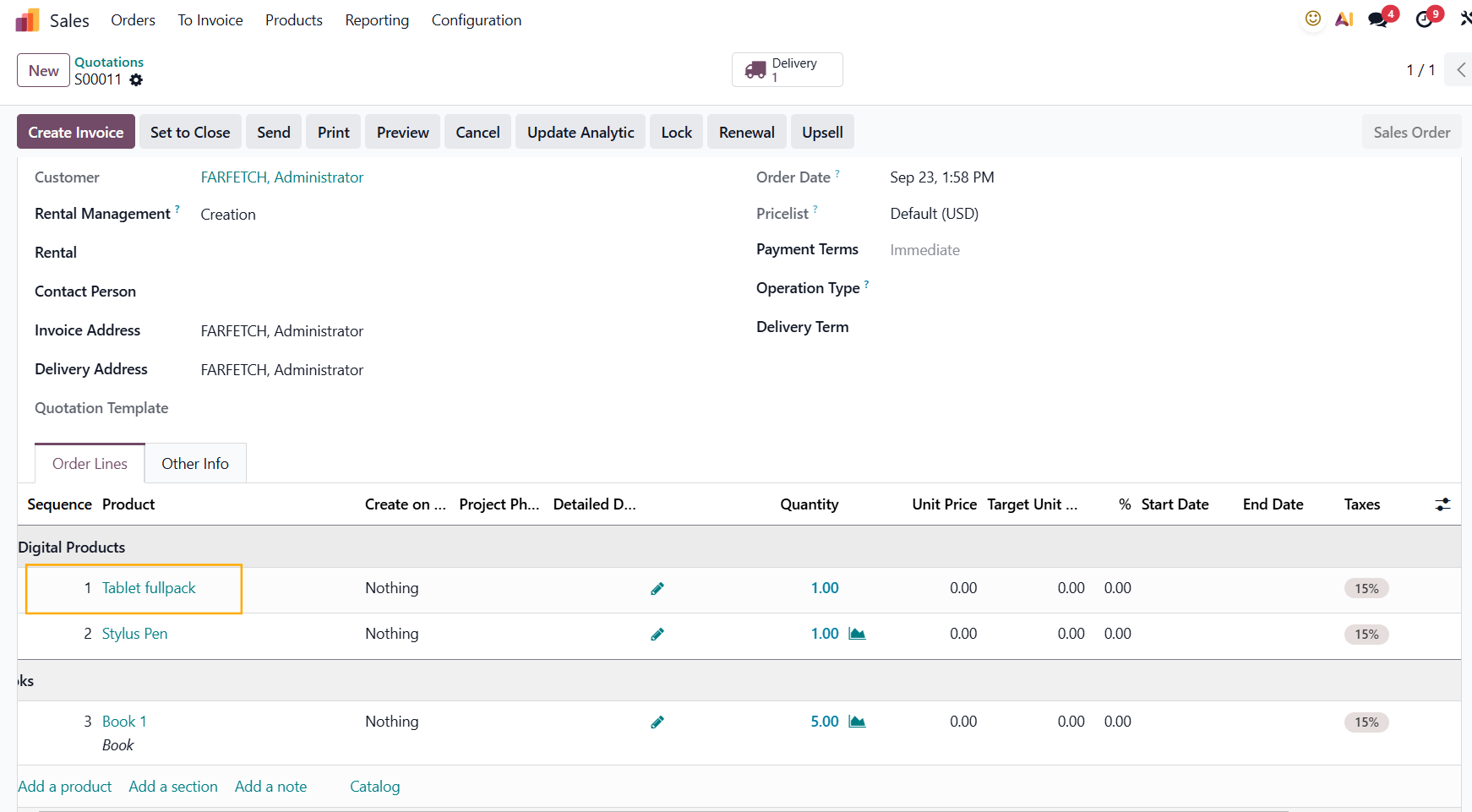 |
3. On the transfer, you will see that all the lines containing the components of the kit product will have the same sequence | 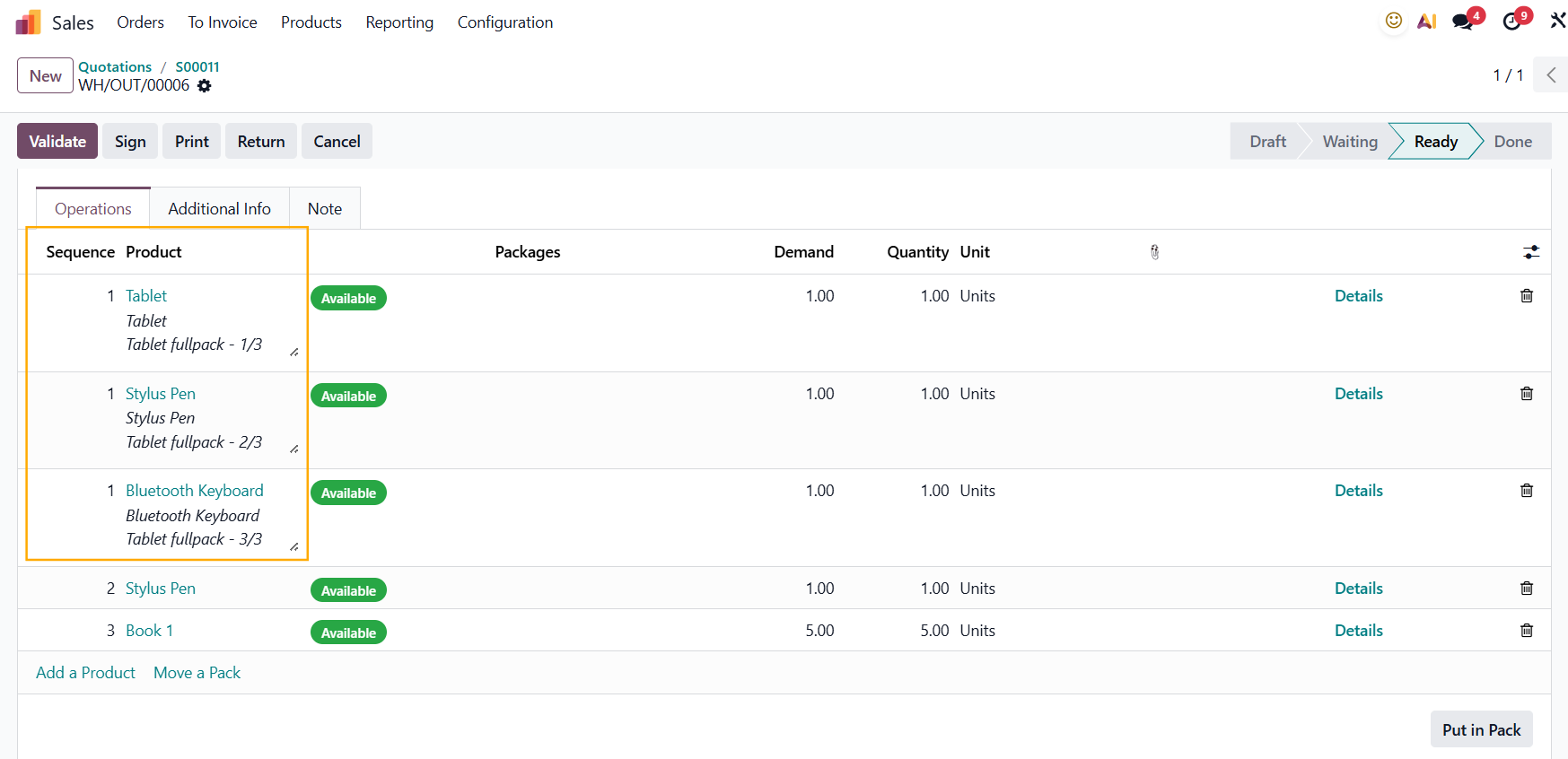 |
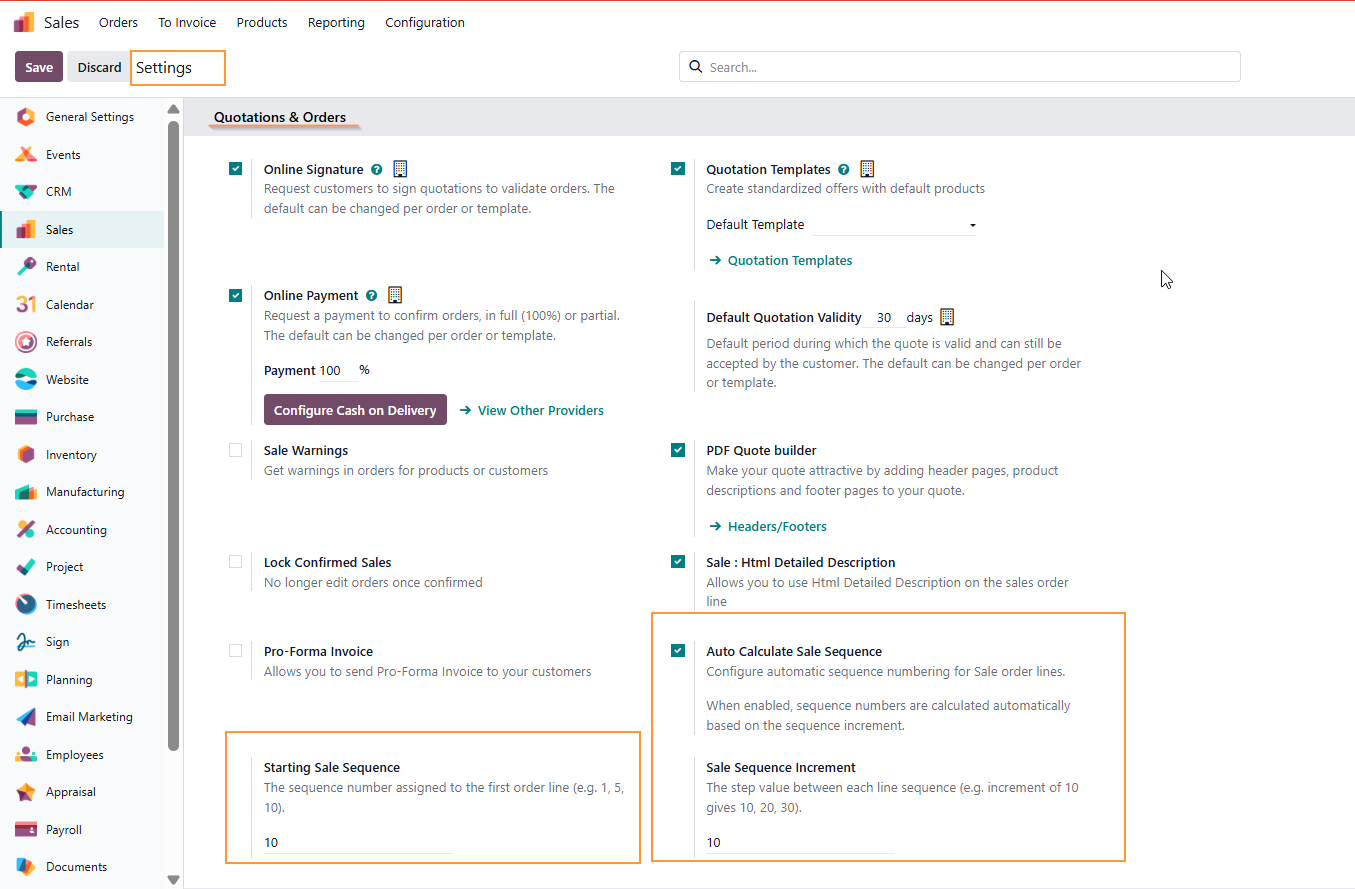
SEQUENCE INCREMENT1. User can set up increment step in Sales Orders' sequence. Go to Sales > Configuration > Settings > In Quotations & Orders section
|
|
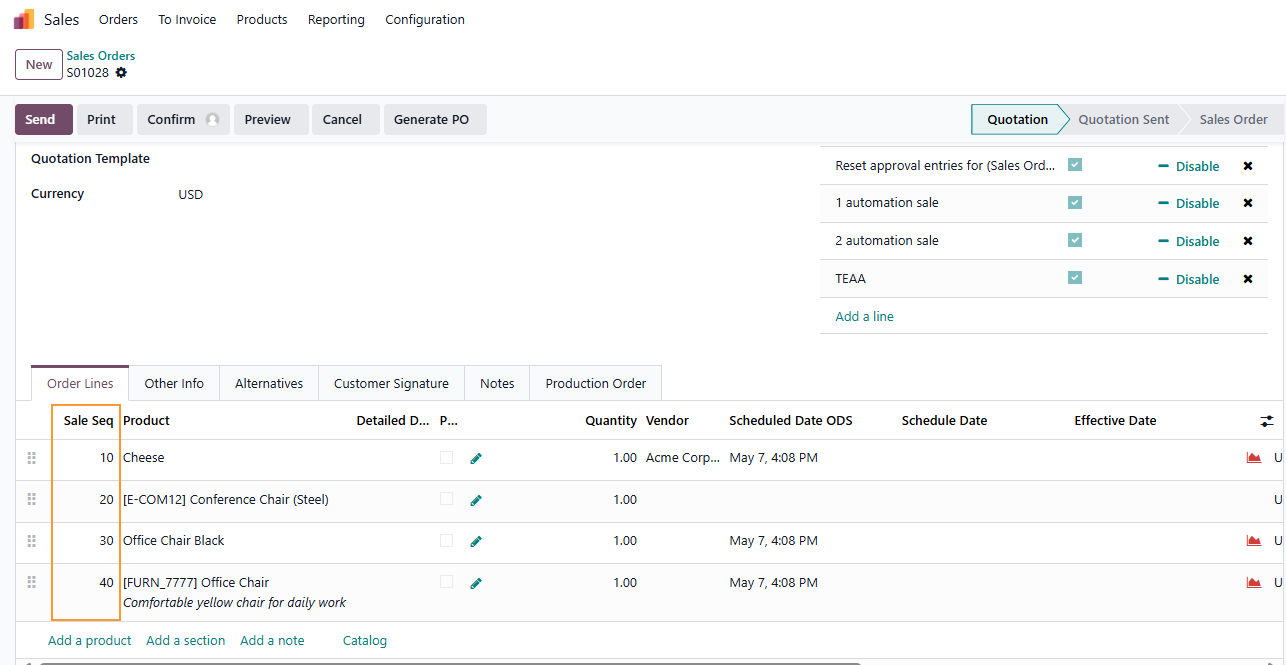
2. Create a Sales Order > Add products. The "Sale Seq" column will auto-number the lines based on your configured starting number and increment step. |
|
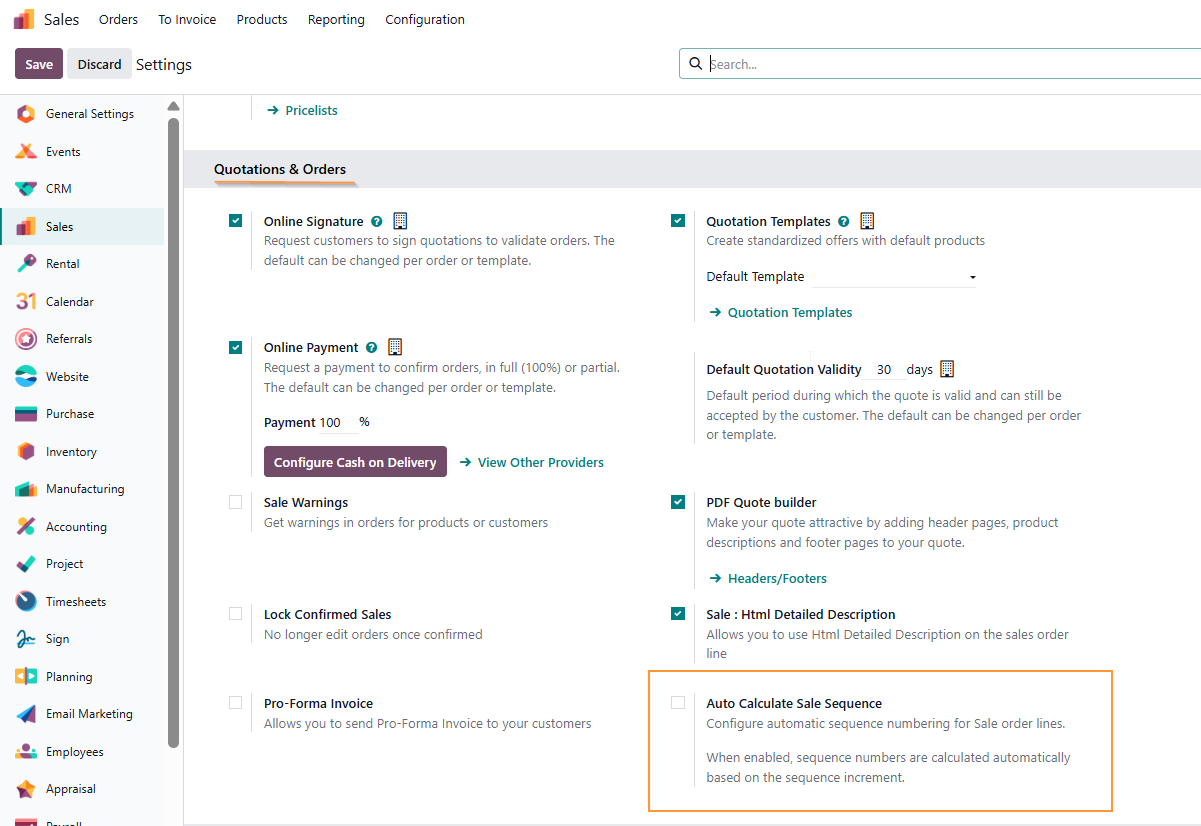
MANUAL SET SEQUENCE1. If user untick the checkbox "Auto Calculate Sale Sequence" in Sales' Settings and Save |
|
2. Create a new Sales Orders > Add products. Result: Sequence will automatically be set initialy (increment of 1: 1,2,3,4...) and can be modified manually. |
|