


Skip to Content

Sales split transfer based on Schedule Date

This module enables assigning distinct scheduled delivery dates to individual products within the same sales order.
128.87 € 128.87 € (Tax excluded)
US$ 150.00 (Tax excluded)

  • Versions
Terms and Conditions
30-day money-back guarantee
Shipping: 2-3 Business Days


ODOO'S FUNCTION

Normally in Odoo, an entire sales order shares a single delivery date. If a customer buys multiple products that need to be delivered on different days, it is difficult and inflexible to schedule them separately within the same order. 


CLUEDOO'S FUNCTION

Cluedoo makes it easy to set different delivery dates for each product within the same sales order.

  • How it works: You can choose a specific delivery date for each item directly on the sales screen.

  • Smart Automation: When you confirm the order, the system automatically splits the shipment. It creates separate delivery tickets for the warehouse based on the dates you selected. (This works perfectly even if your warehouse uses advanced 2-step or 3-step packing processes).

  • The Benefit: Your sales team can flexibly promise different delivery dates to the customer, and the warehouse team knows exactly what to ship and when - all managed from a single order!

Transfers splitted based on date


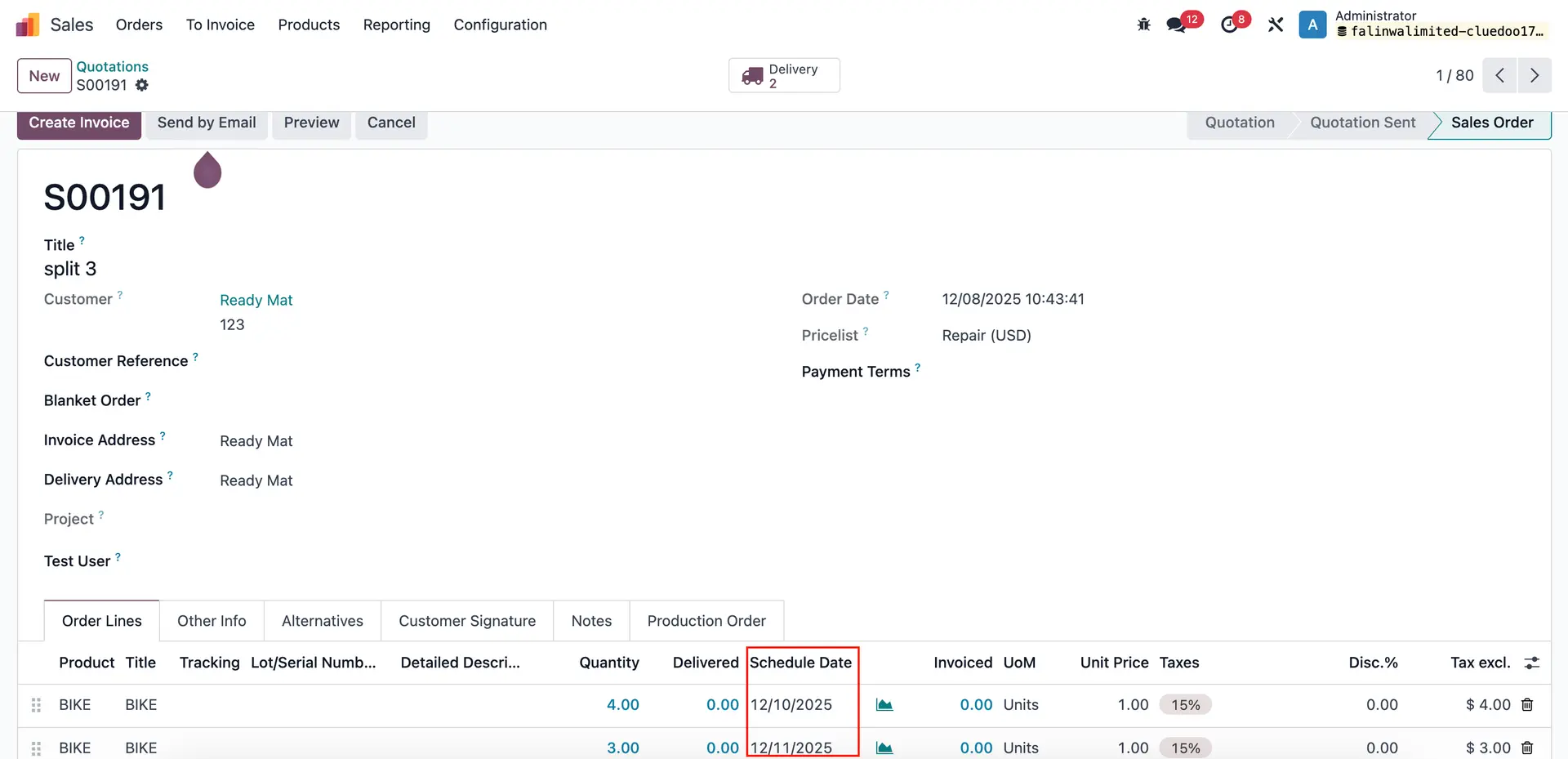
1. Create a Sales Order

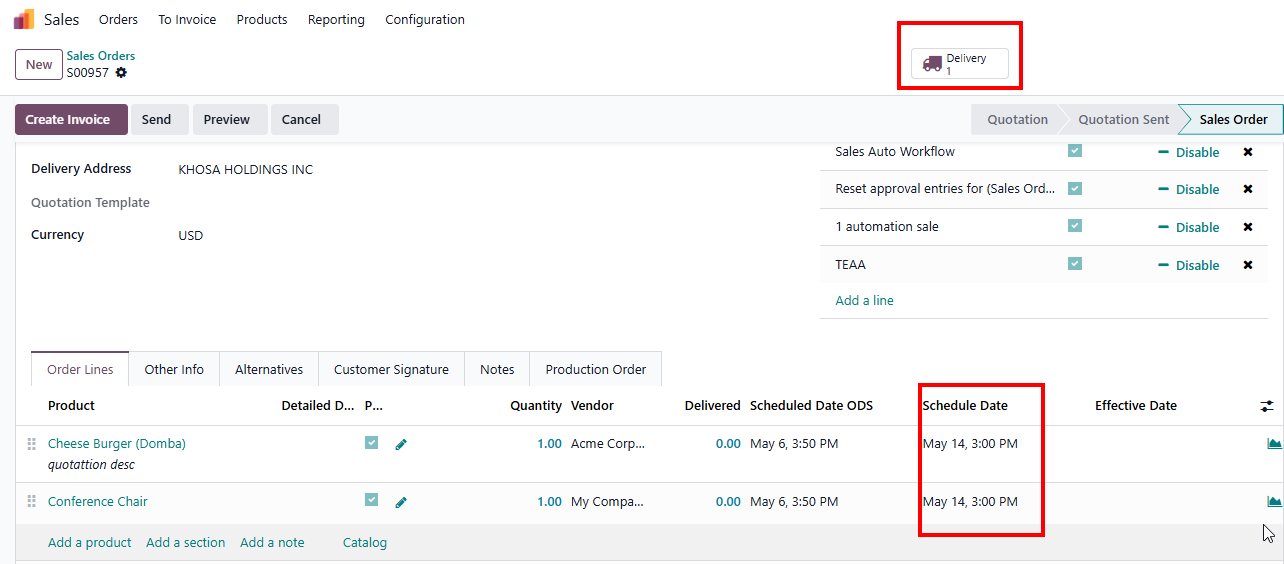
We can assign different Schedule Date(s) for each product > Confirm Order.


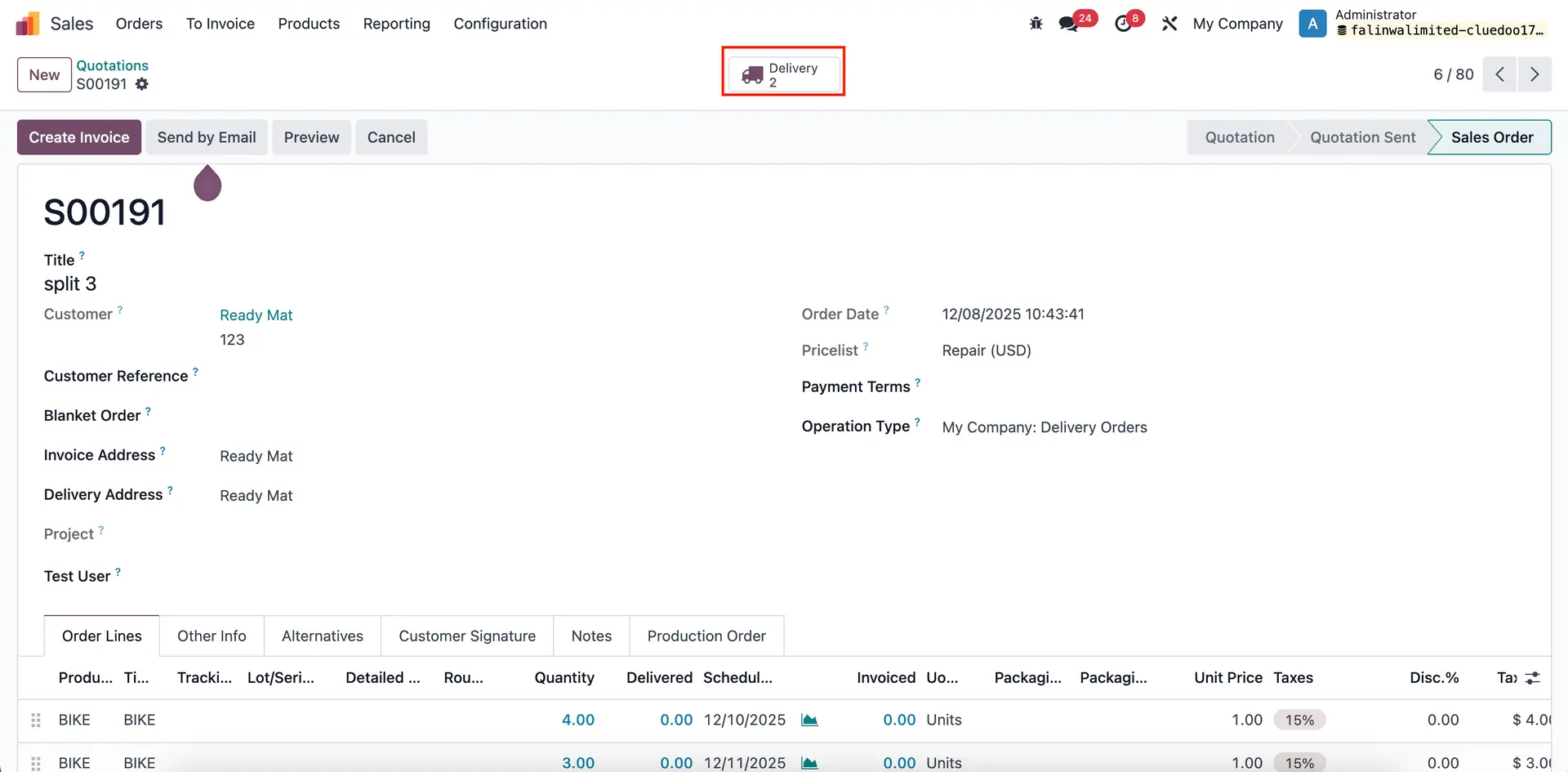
2. Click on the Delivery smart button

Result2 separate deliveries have been created.


Updated change in SO's Schedule Date

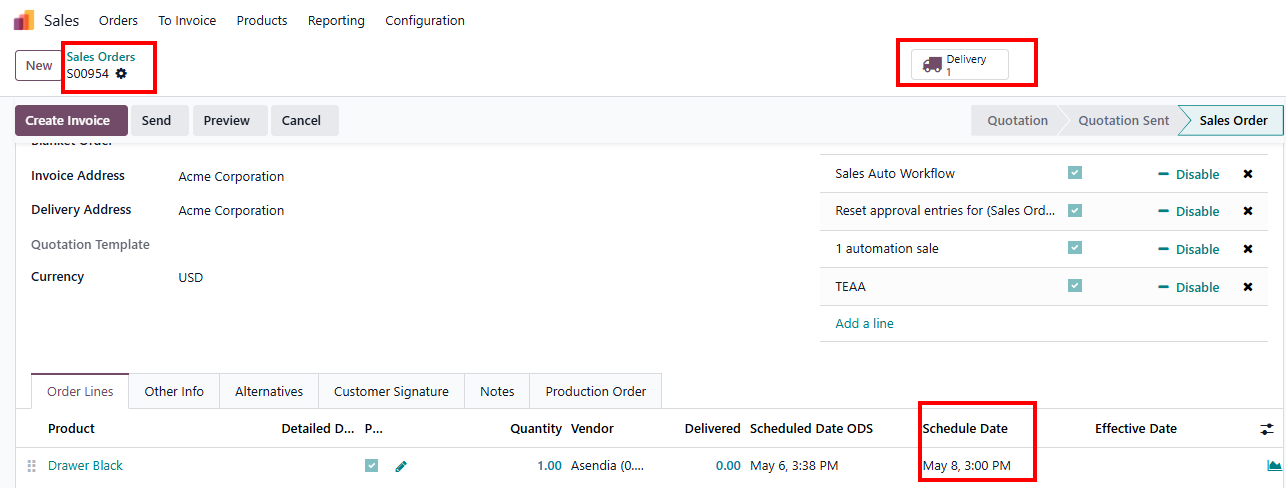
1. Action: Changed the Scheduled Date on the SO Line.

  • Go to Sales > Create a new Sales Orders > Fill Schedule Date field > Confirm SO > Delivery created.
  • Change the Schedule Date in Sales Orders' lines to another date then Save.

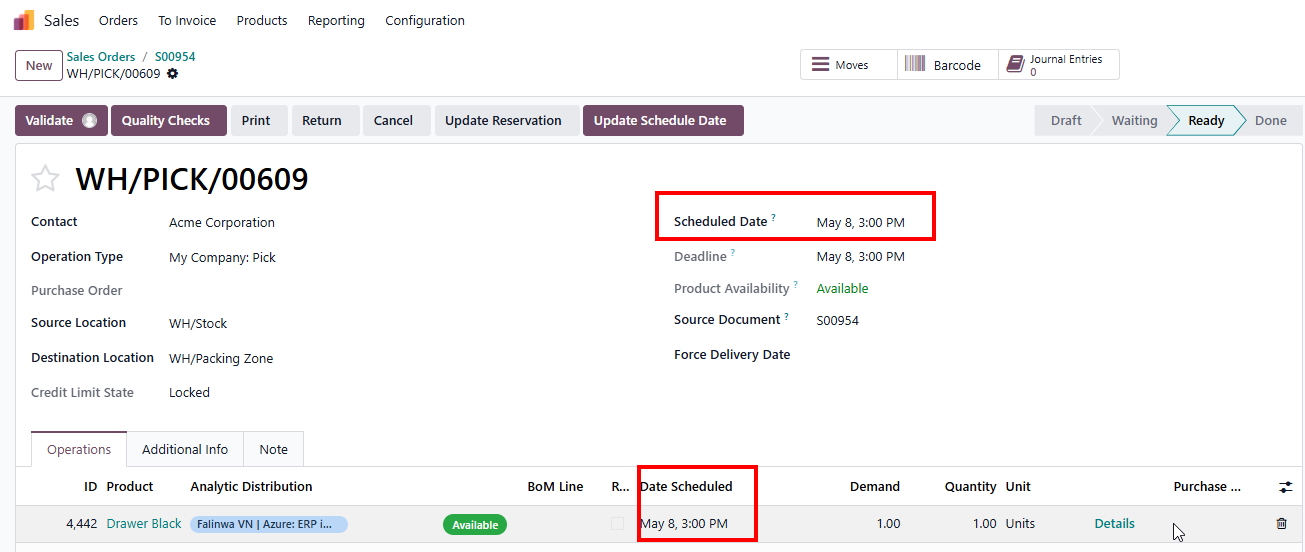
Result:  

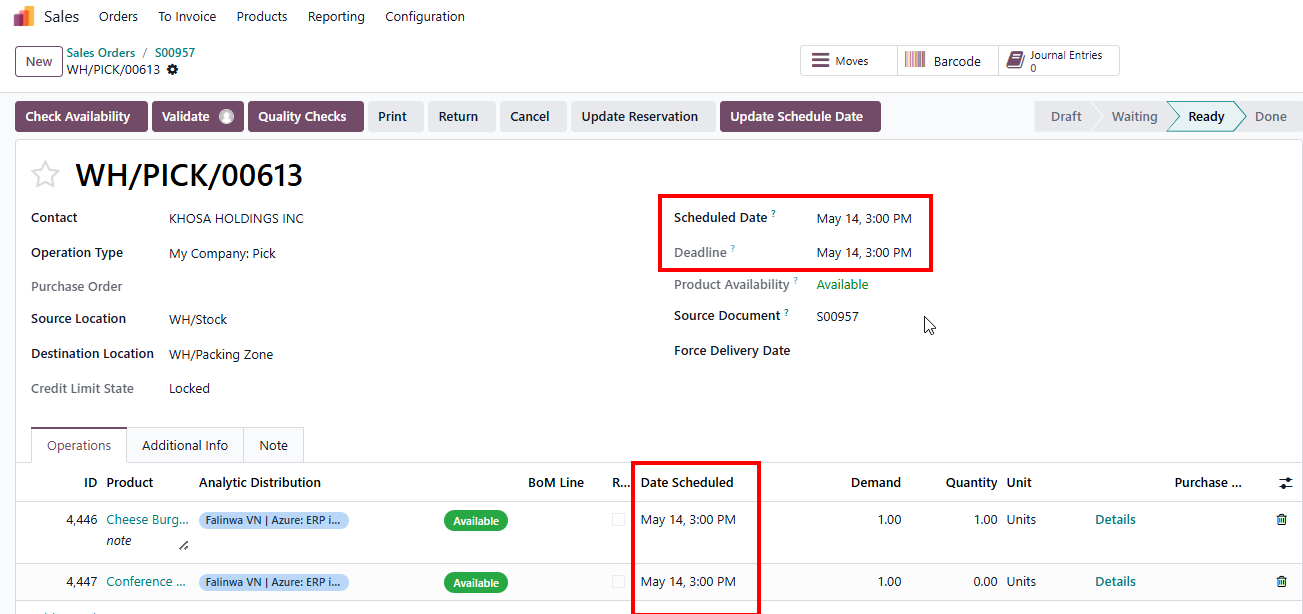
  • The Scheduled Date in the Transfer Header was updated automatically.
  • The Date Scheduled in the Operations tab was updated accordingly.

2. For Sales Orders with at least 2 products with the same Schedule Date >  Sales Orders only create 1 delivery.

If the user changes the Schedule Date of only one product.

Result:

  • The Schedule Date of this product will be changed as well in the stock move lines
  • The Schedule Date of other products will not be affected (stayed the same)
  • The Schedule Date in the Transfer will auto follow the earliest date among all move lines and no further transfers created.

Change in transfer if quantity changes

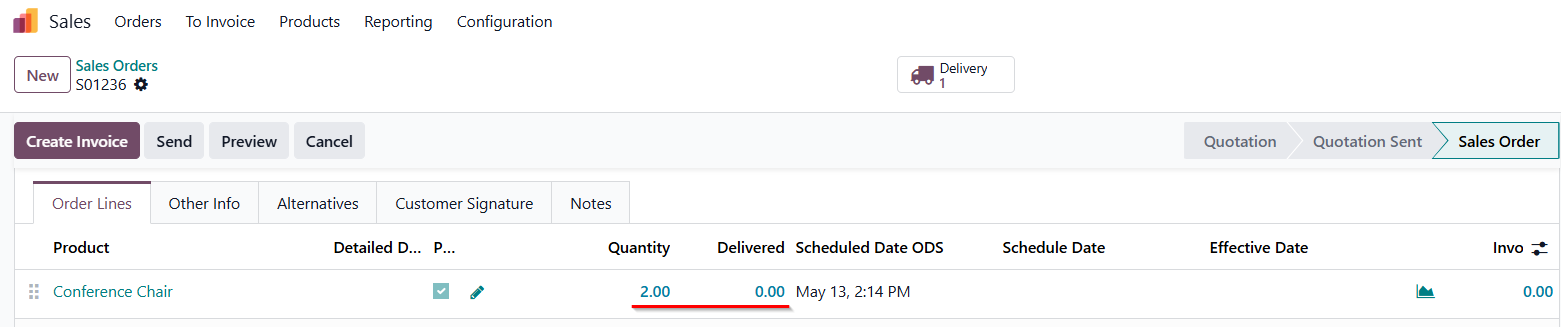
1. For orders with 1 product only

  • If the user changes the quantity in SO to a positive quantity > The new quantity will be auto updated in the transfer


  • If the user changes the quantity from a positive number to 0 > The transfer will be cancelled.

  • If the user changes the quantity from 0 to a positive number > A new transfer will be created. 

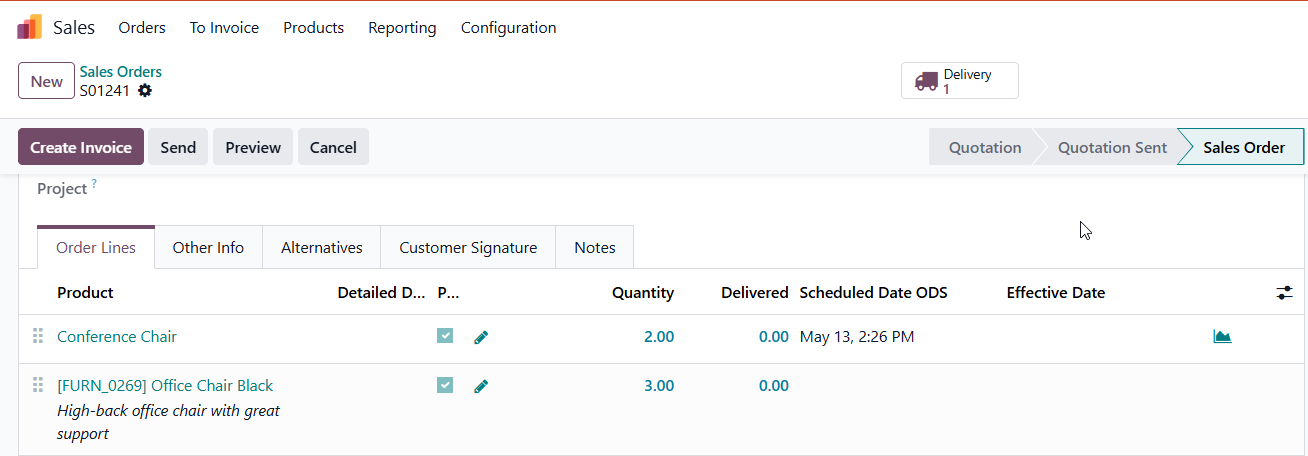
2. For orders with more than one product

  • If the user changes the quantity of these products to positive number > These changes will be auto-updated in Transfer

  • If the user changes the quantity of one product to 0 
    > The transfer auto-updates the quantity of this product only, did not cancel transfer 

  • If the user changes the quantity from 0 back to a positive quantity 
    >  The quantity will be updated in the transfer