



ODOO'S FUNCTION
In Odoo, Monthly Recurring Revenue (MRR) is recorded only at the actual event date, such as when an invoice is generated or a subscription is renewed. However, Odoo does not provide a built-in way to forecast future MRR. Users can only view past and current MRR values, making it difficult to anticipate revenue fluctuations, upcoming renewals, or potential churn.
CLUEDOO'S FUNCTION
CLuedoo improves Odoo’s MRR management by allowing users to manually forecast MRR-related events. Two smart buttons—Forecast New and Forecast Churn—enable users to log upcoming subscription events.
- Forecast New: Used to manually register a future MRR increase (e.g., new subscription activation).
- Forecast Churn: Used to manually log an expected subscription cancellation.
- When clicking either button, a pop-up appears to select the event date when the change is expected to happen.
Additionally, Cluedoo introduces a Log Type to differentiate between ODS and forecasted data.
This feature allows businesses to plan more effectively by simulating different revenue scenarios while keeping actual MRR data separate from forecasts.
1. Go to Subscriptions > Create a new subscription > Fill in the information and remember to set the Recurring Plan and Subscription Start Date You will see 2 buttons: Forecast New and Forecast Churn appear | 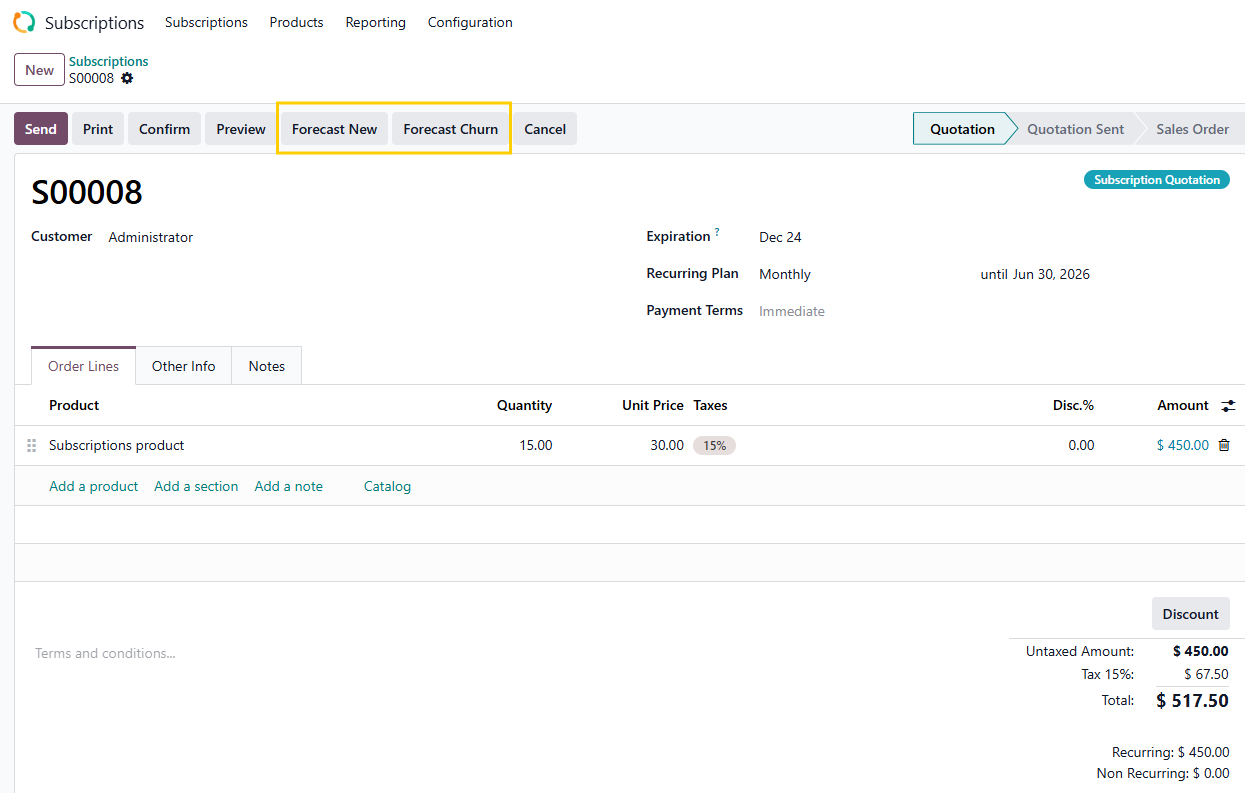 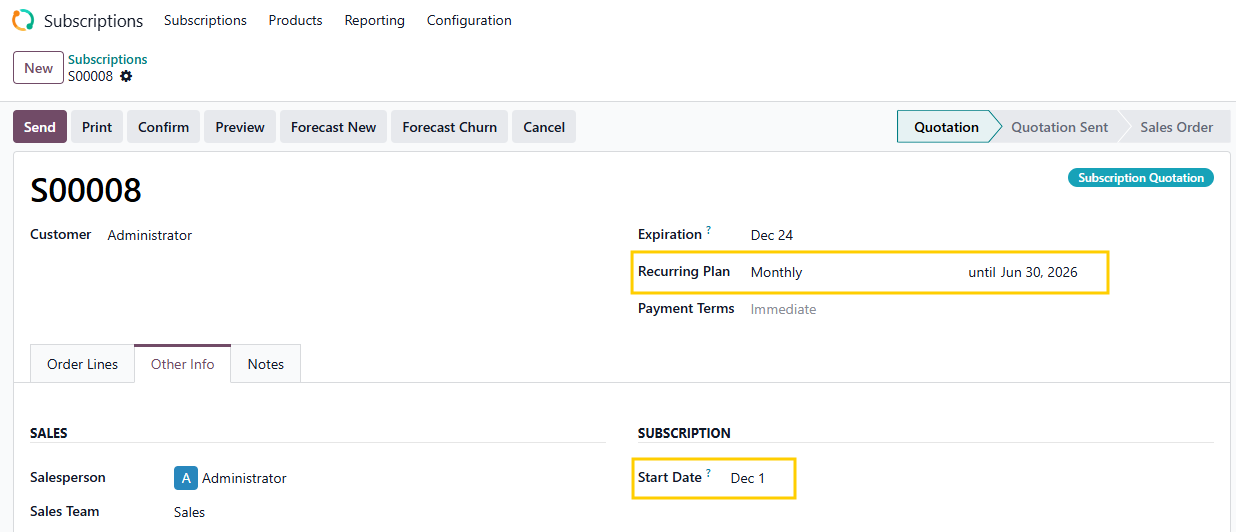 |
2. Click on Forecast New > A pop-up shows up and you can choose the expected Event Date for this subscription > Create Log | 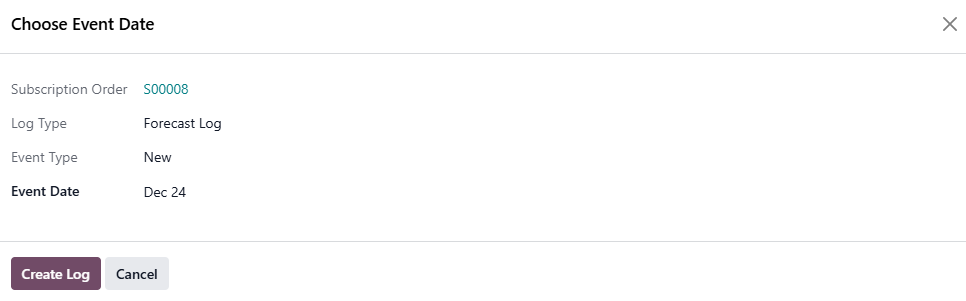 |
It will trigger a Forecast smart button with details about the Log Type and Type of event. If a new Forecast New is created, the new one will overwrite the old one. | 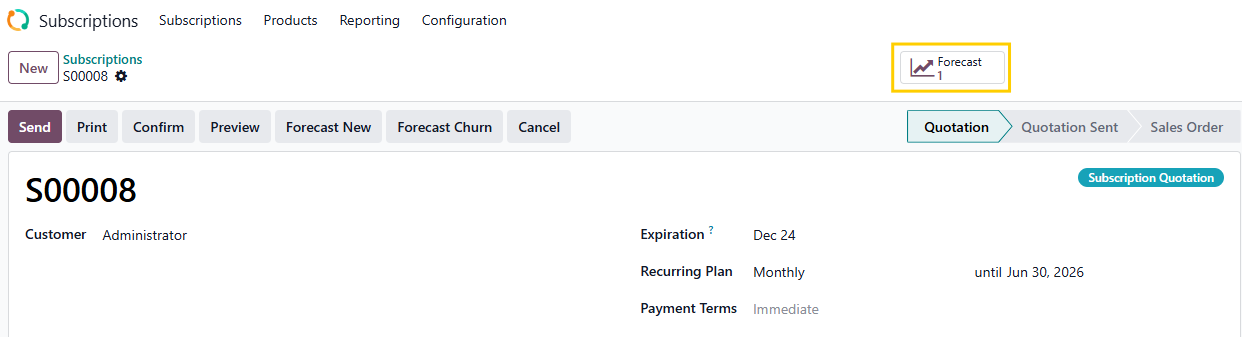  |
3. If you confirm the subscription > The event will move to the MRR smart button and Forecast New will disappear. Note that The Log Type switched from Forecast to ODS and the Event Date will be Subscription Start Date. | 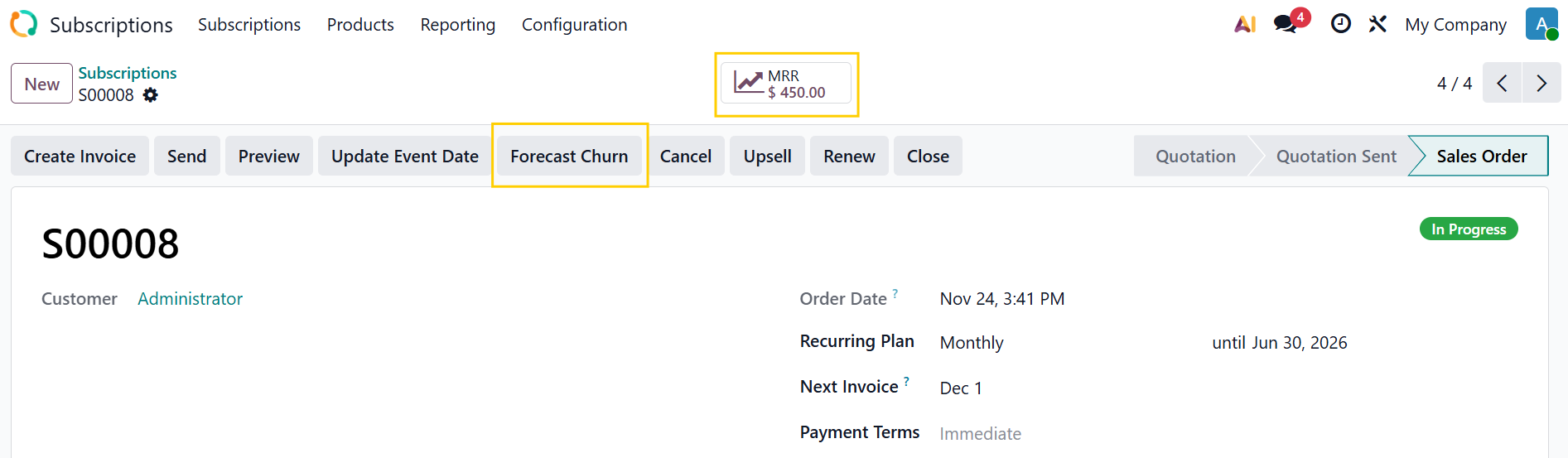  |
4. Create Invoice > Confirm > Back to the Subscriptions
|  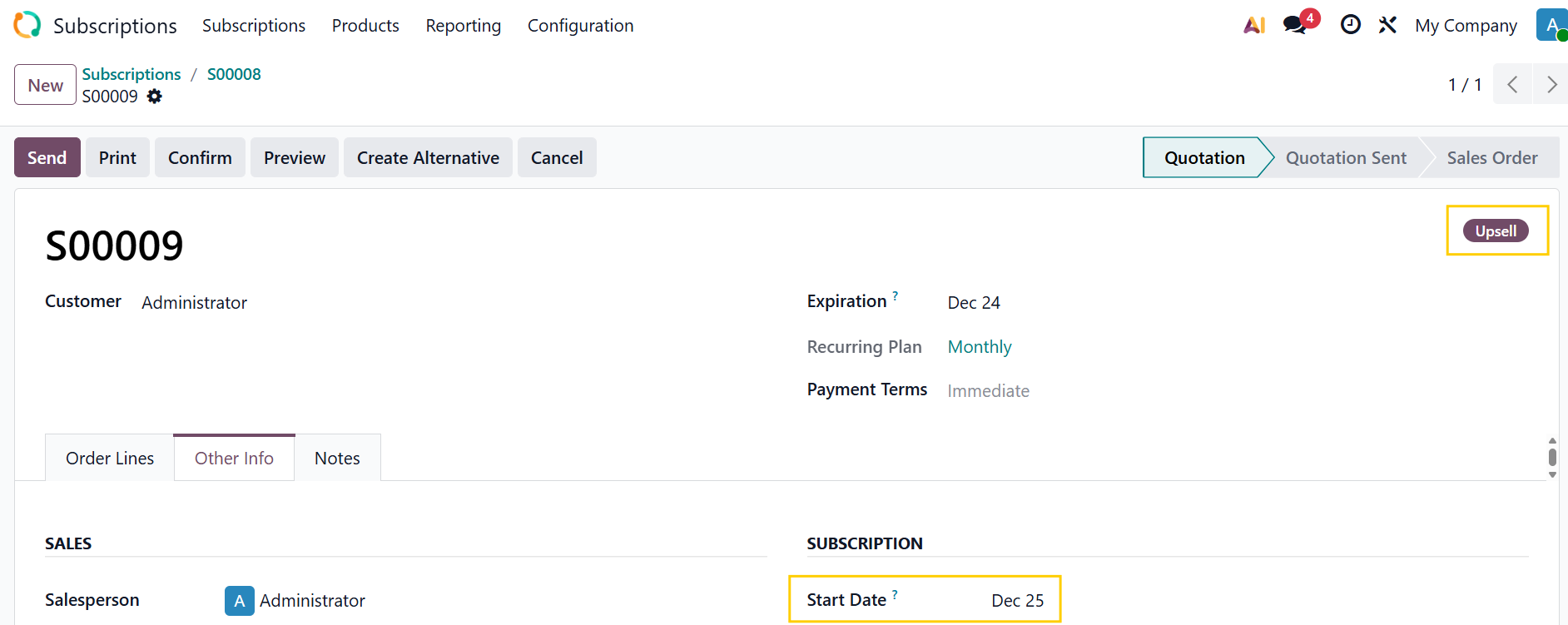 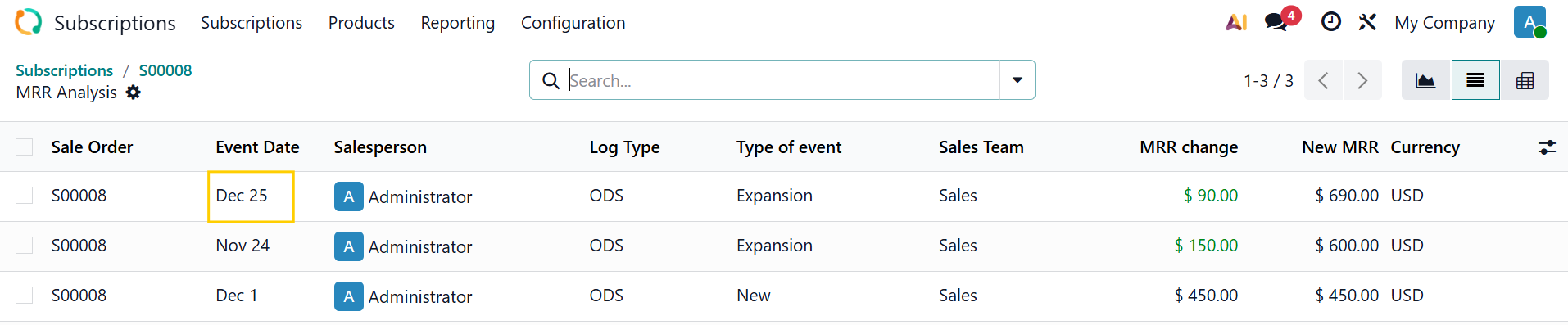 |
5. Go back to the subscriptions > Choose Forecast Churn and select the Event Date > It will show up in the Forecast smart button Note: You can also choose Forecast Churn even when you have not invoiced yet. | 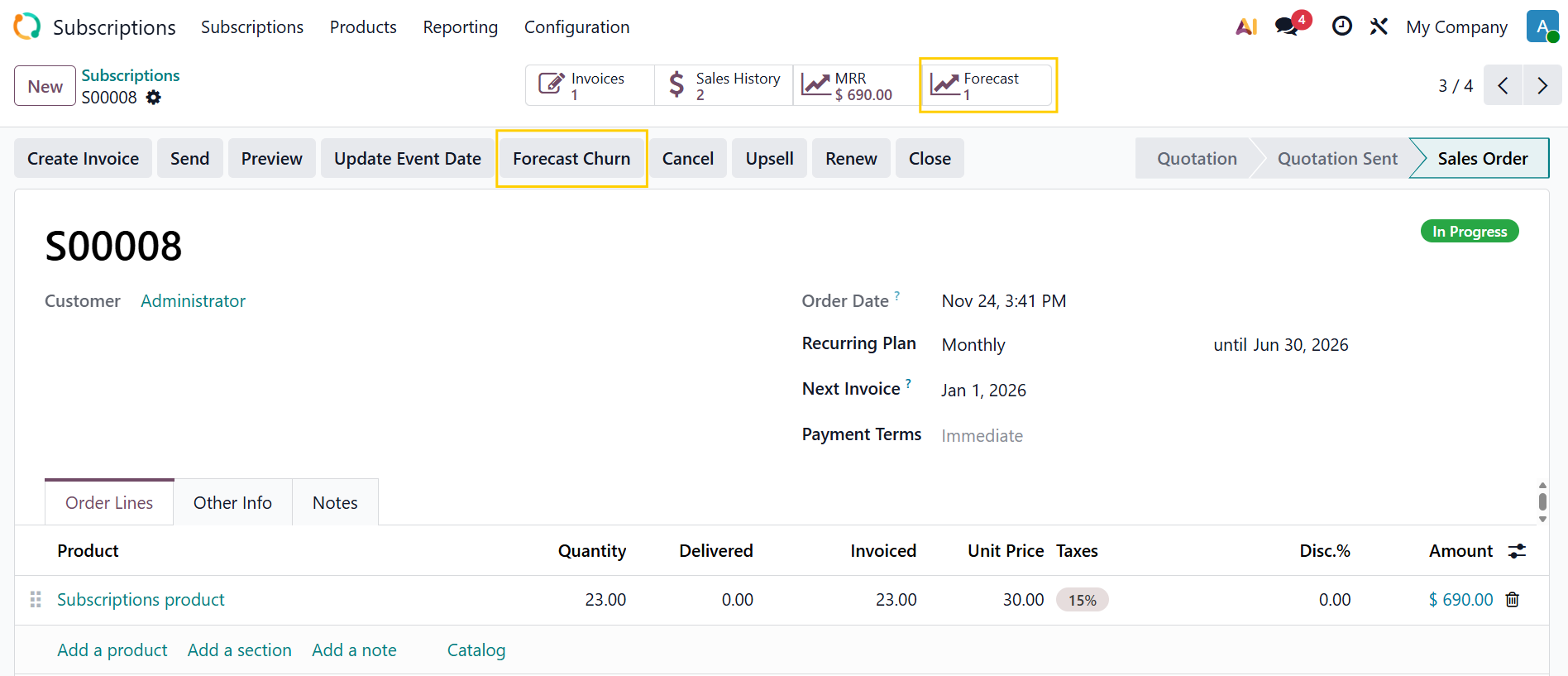  |
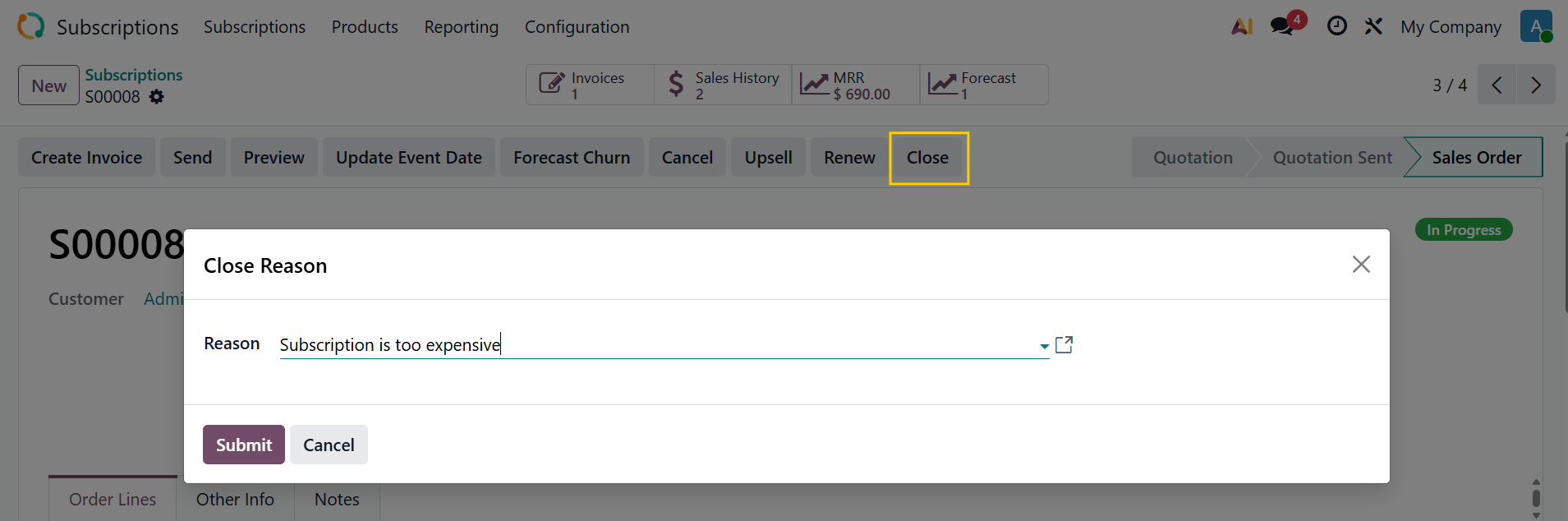
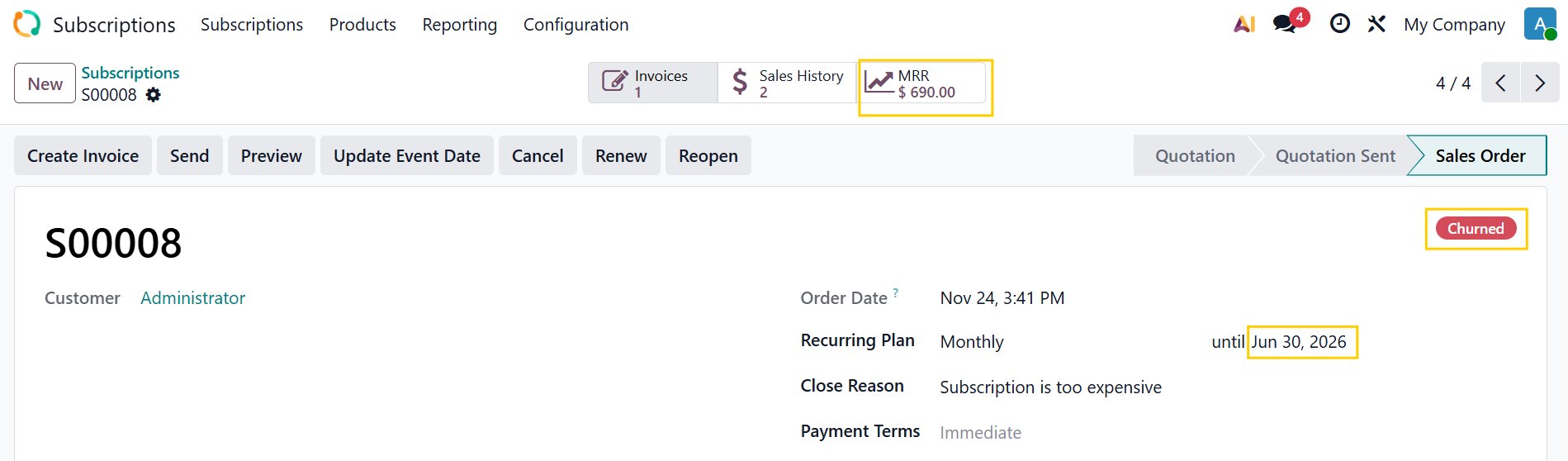
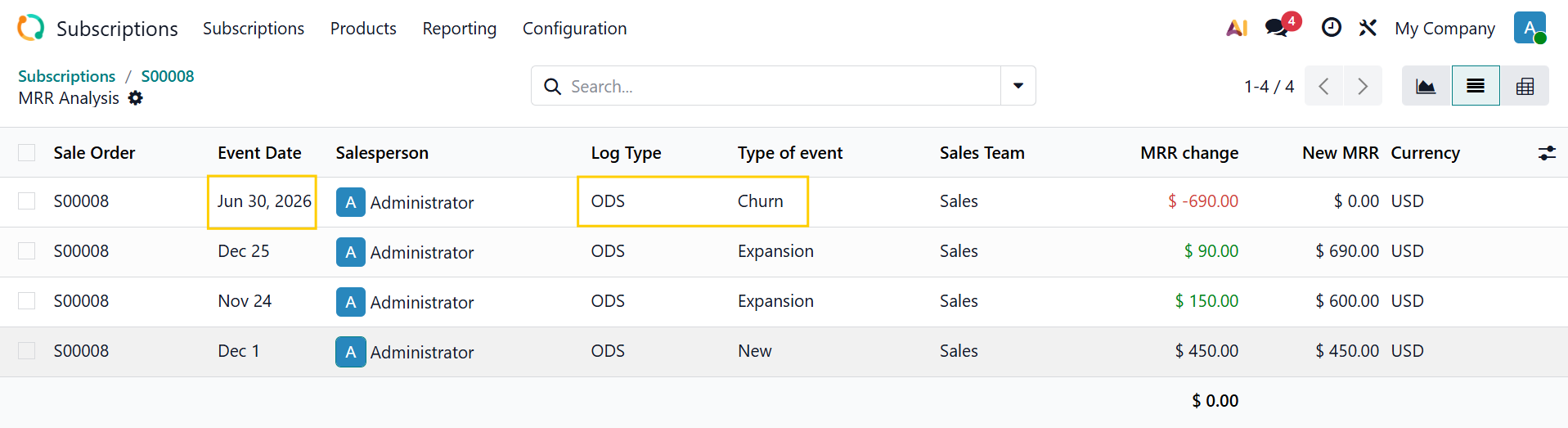
6. When you close the subscription and it is officially churned > The Forecast will be deleted and the event will be recorded in MRR Note that
|    |
Note that you can use the "Update Event Date" button for updating event date for start/end date to update the related date in sale.order.log | 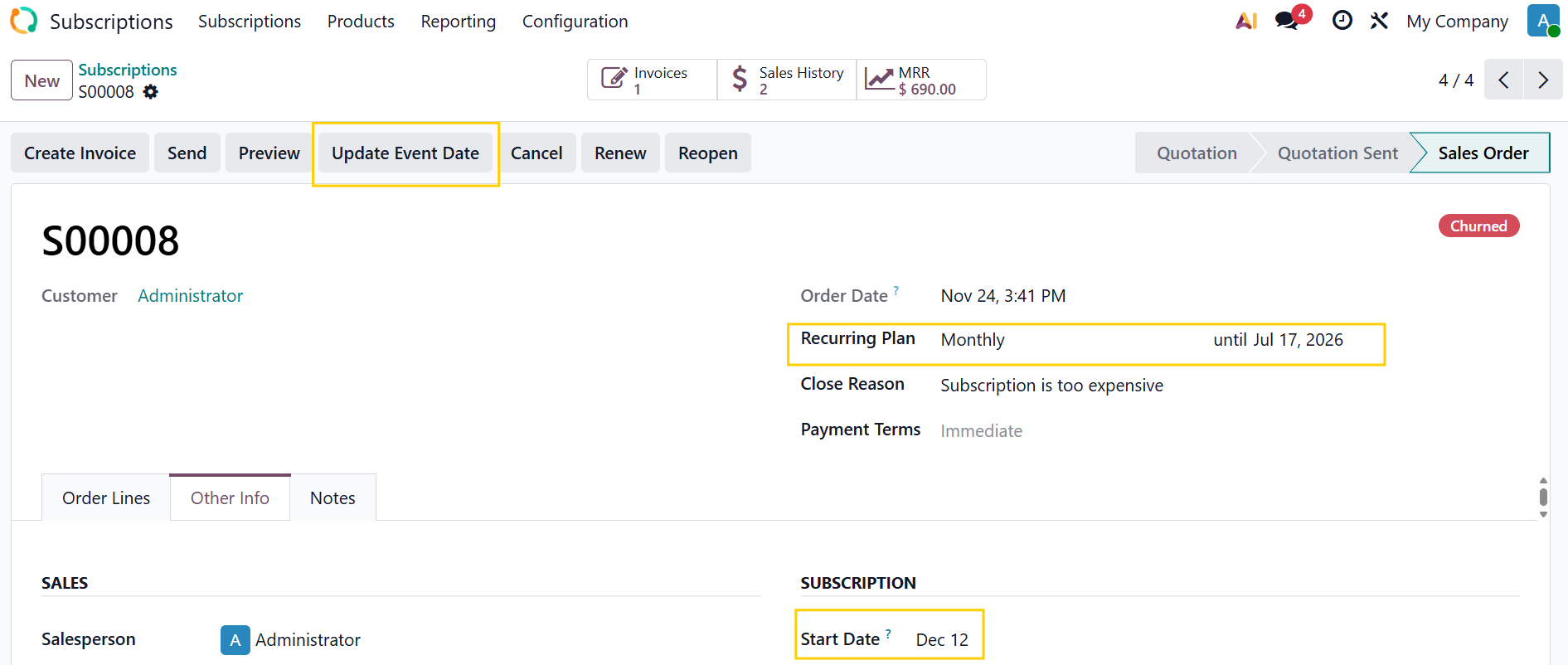 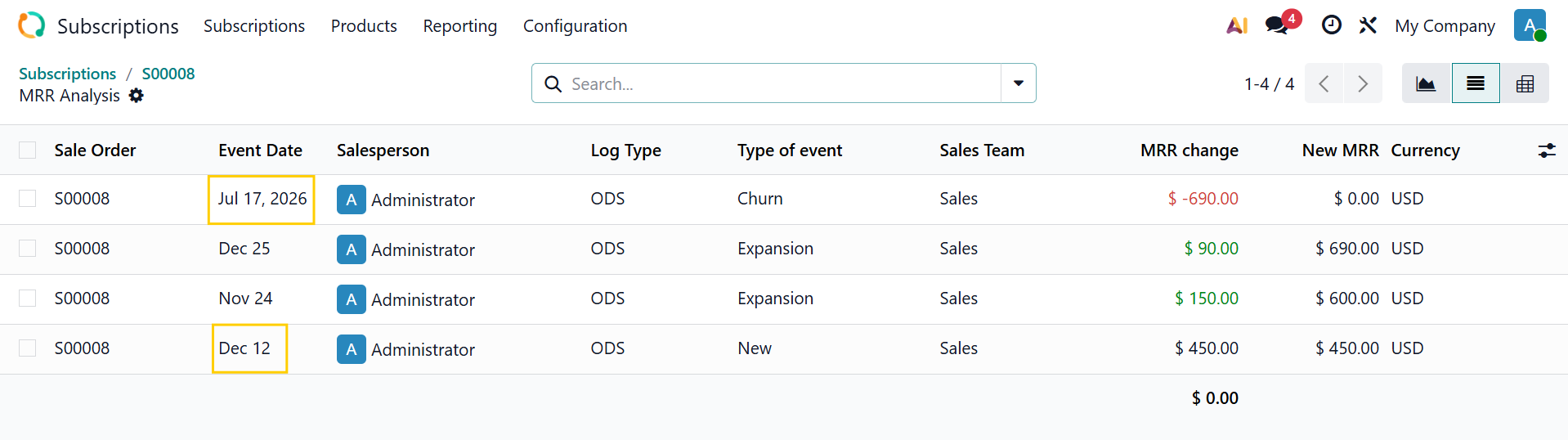 |
7. In Subscriptions > Reporting > MRR Breadown > It will show all the events including the forecasted ones |  |