


STORY BEHIND THE FEATURE
ODOO BEHAVIOR
In Odoo, when a subscription is renewed, any discounts applied to the original subscription are not automatically carried over. This means users must manually reapply the discount each time a subscription is renewed, which can lead to inconsistencies, errors, and increased administrative work. Moreover, Odoo only shows the amount per period in the Sales Order lines without considering the full duration of the subscription.
CLUEDOO BEHAVIOR
CLuedoo enhancements:
1️⃣ automatically includes discounts from the original subscription in the renewal
This ensures consistency in pricing, reduces manual adjustments, and streamlines the renewal process by maintaining the same discount structure as the initial subscription.
2️⃣ adds committed quantity and committed amount columns based on the subscription end date and number of periods, with a total committed table at the end
CLUEDOO RECOMMENDATION
Install on 100% of your database.
OUR FEATURES AS SOLUTIONS
Include discounts from the original subscription to the renewal
Total Commitment
HOW TO USE THIS MODULE
DISCOUNTS FROM ORIGINAL SUBSCRIPTION1. Create a new subscription > Choose the product(s) and fill in the Discount % > Confirm > Create Invoice | 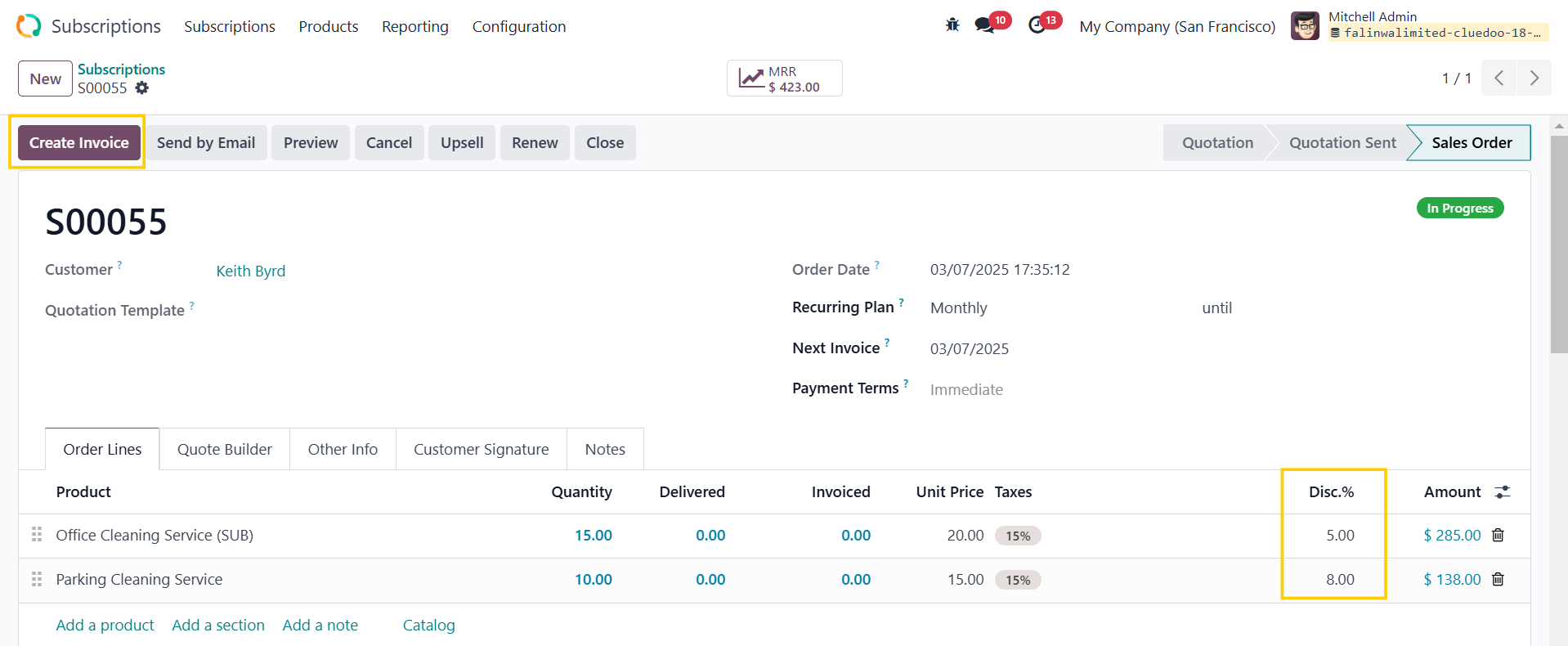 |
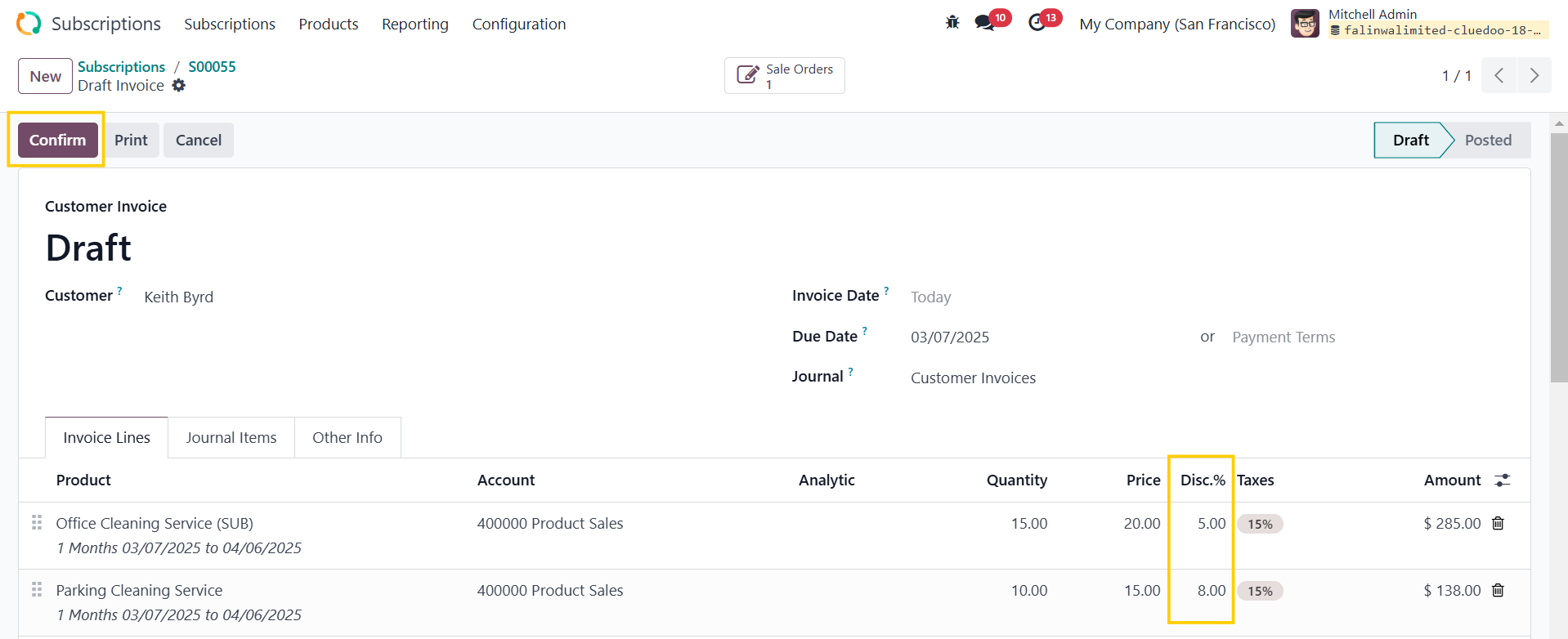
2. Go to the draft invoice > Confirm |
|
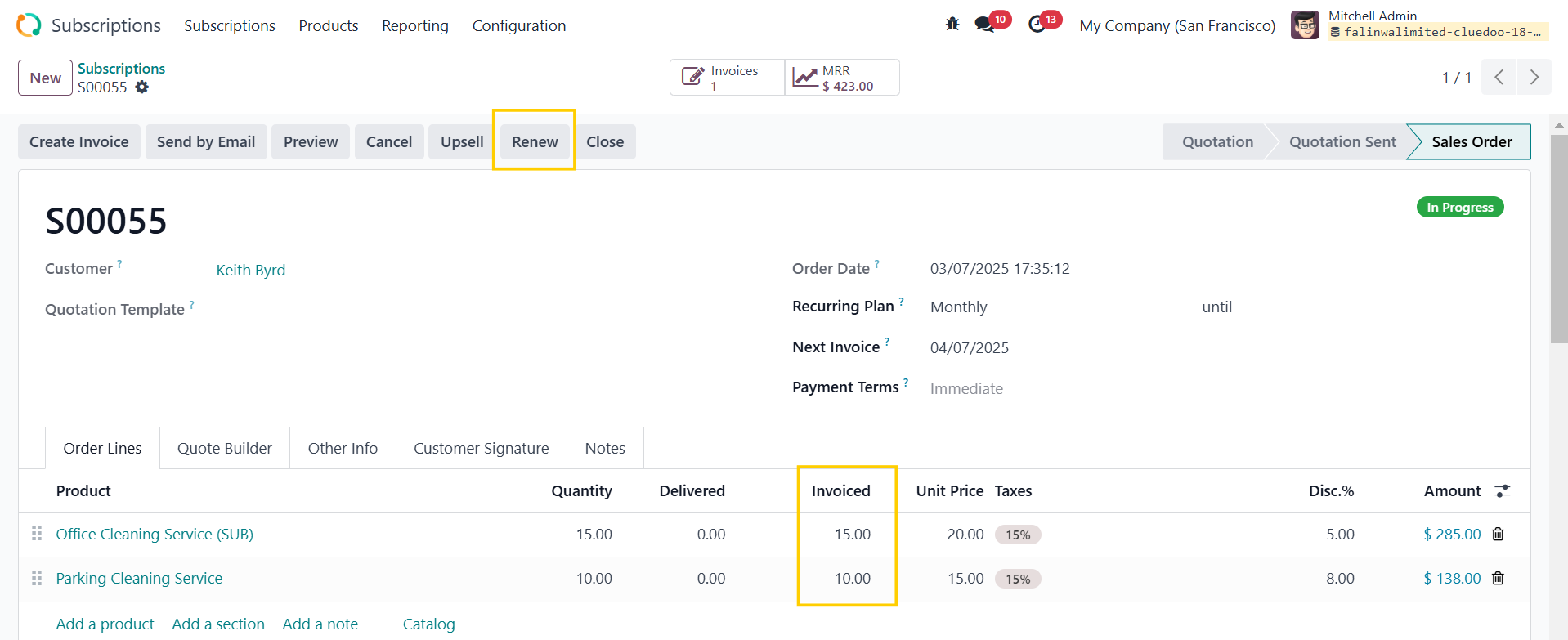
3. Head back to the subscription > Renew |
|
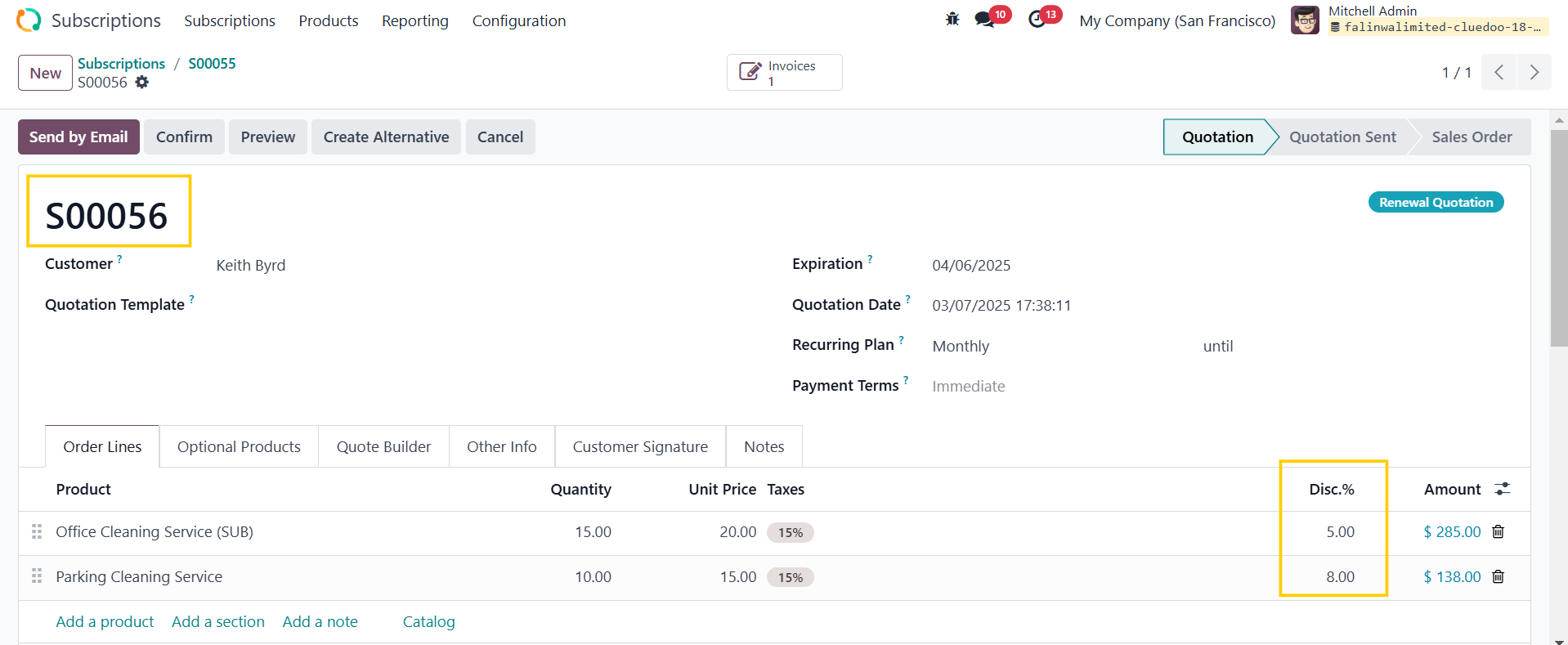
You will see that a renewal has been created with the same discount information as the initial subscription. |
|
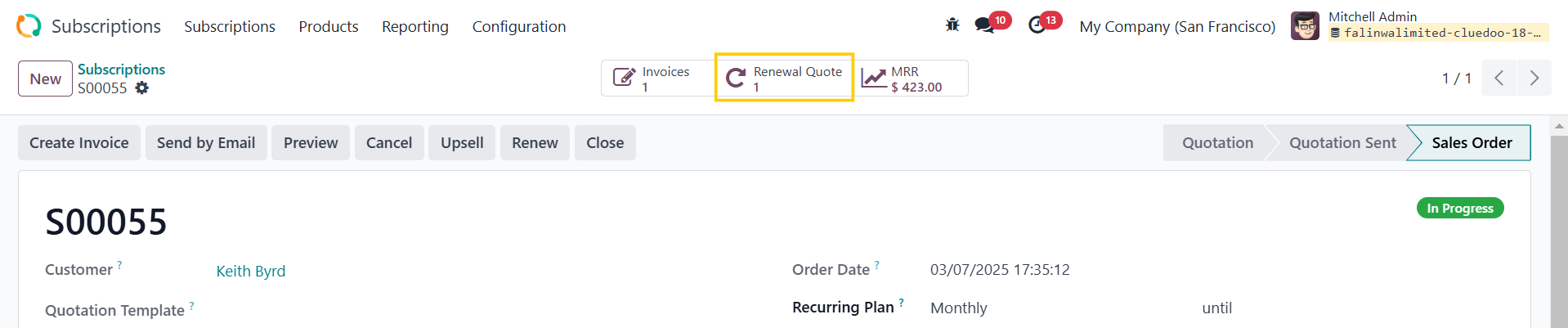
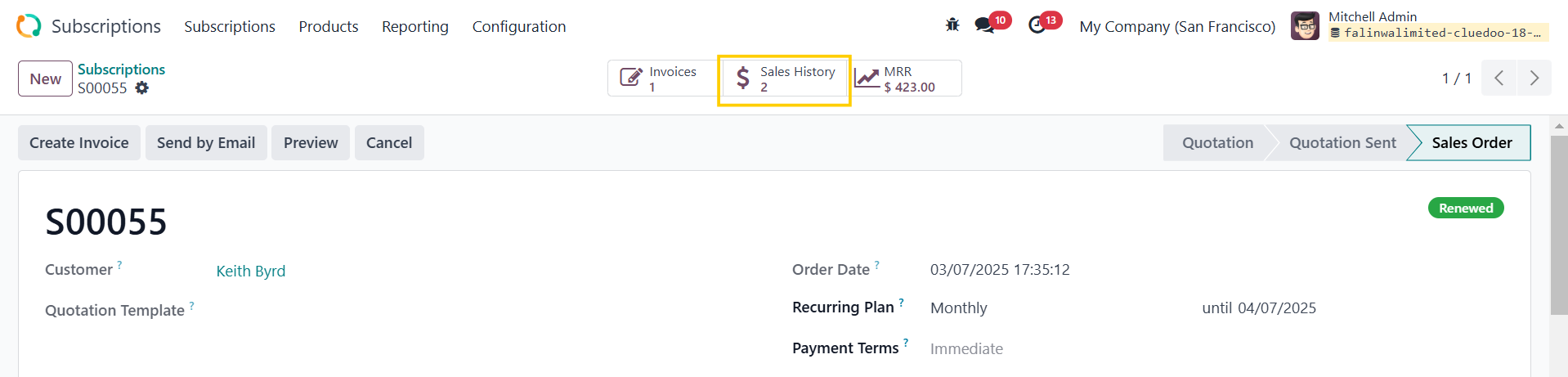
4. Go back to the original subscription, a Renewal Quote smart button appears |
|
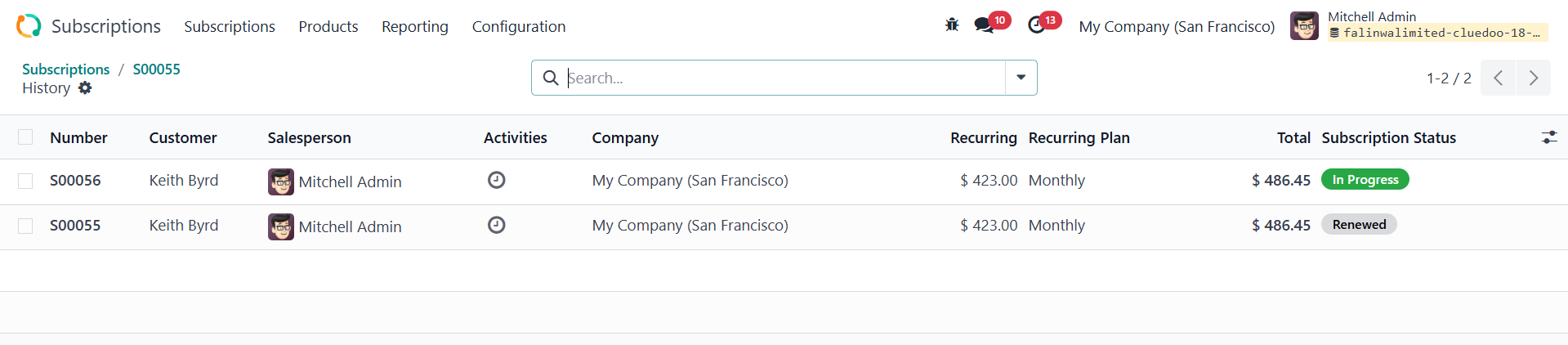
5. If you confirm the renewal, it will change to Sales History in the original subscription |
|
6. You can also check the subscriptions in Sales Orders |
|
TOTAL COMMITMENTGo to Subscriptions and create a new one > Fill in the necessary information Choose the Start Date in the Other Info tab For End Date:
In the Order Lines, we have 2 new columns:
e.g., ODS Quantity [3]*Number of Periods [5] = 15
e.g., ODS Amount [450]*Number of Periods [5] = 2250 | 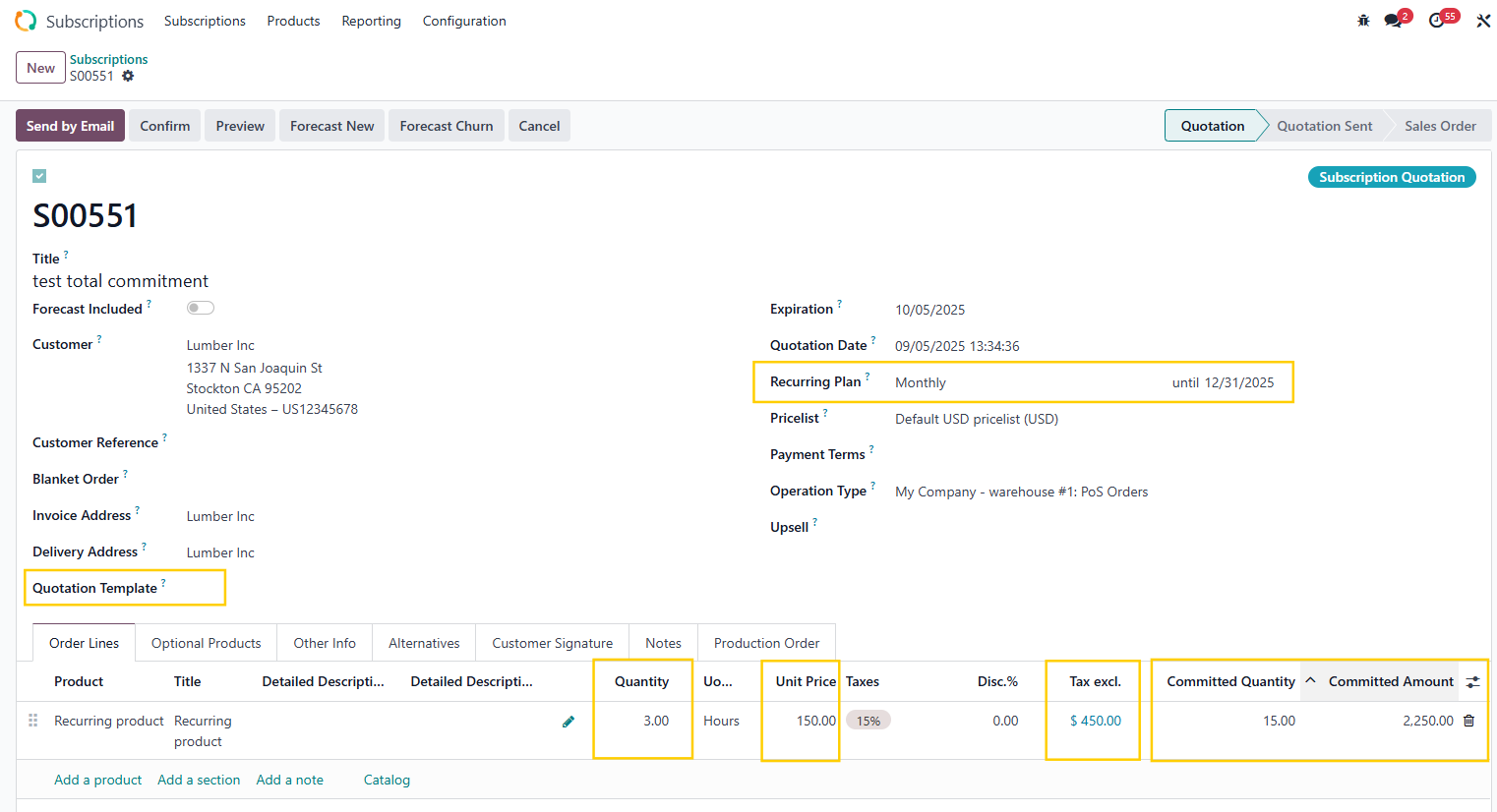 |
Note:
e.g., Start Date = 1 Aug 2025, End Date = 31 Dec 2025 Billing Period for Recurring Plan = 1 month --> Number of Periods = 5
| 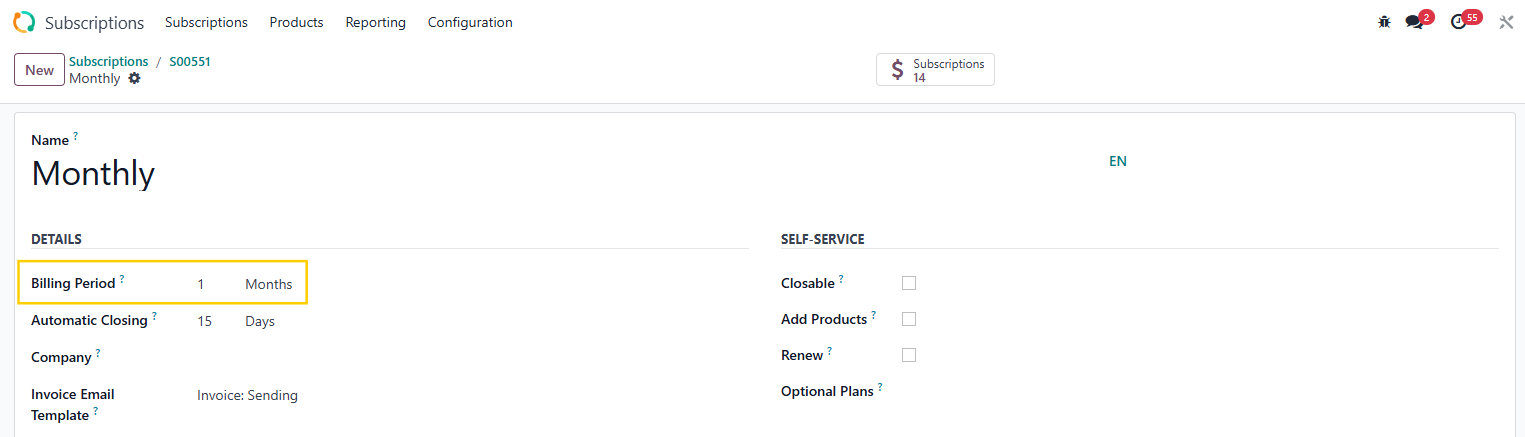 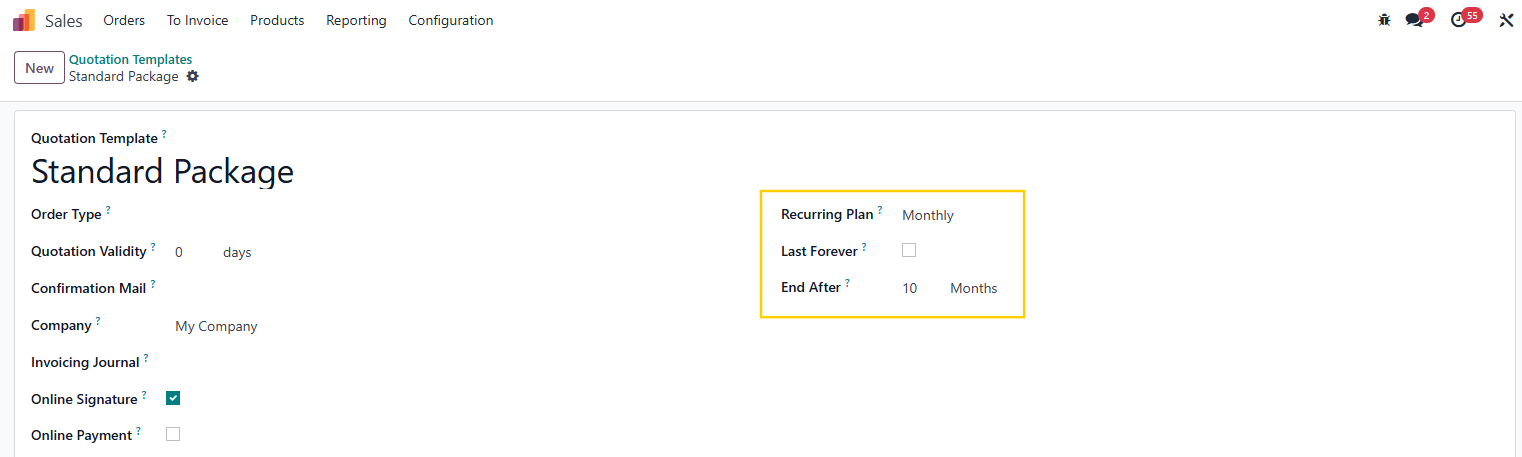 |
We have a Total Committed field at the end of the subscription to show the total subscription amount for the whole period | 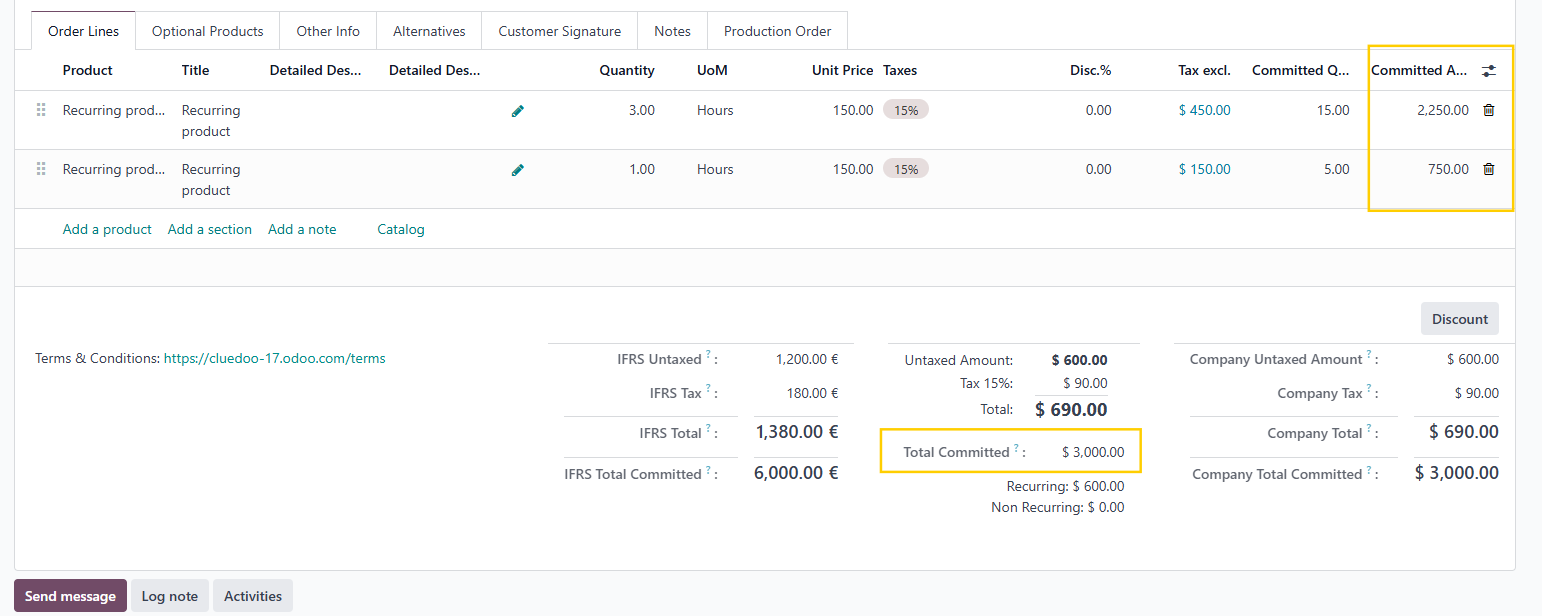 |