



ODOO'S FUNCTION
In Odoo, there is no connection between Quality and Bill payment. Even if a Purchase Order has open Quality Alerts or pending Quality Checks, the accountant can still proceed with the vendor bill payment without restriction.
CLUEDOO'S FUNCTION
CLuedoo enhances Odoo by bridging the gap between Quality Control and Bill Payment processes:
1️⃣ Propagate Quality Alerts to Bills: Automatically link Quality Alerts from Purchase Orders to Bills, ensuring visibility of quality issues throughout the payment process
2️⃣ Smart Buttons for QA/QC: Add smart buttons on POs and Bills to easily access directly from the respective forms
3️⃣ Stored fields for QA and QC in PO and Bill
SMART BUTTONS FOR QA AND QC ON PO1. Go to Quality > Quality Control > Control Points and create a new QCP > Fill in the necessary information | 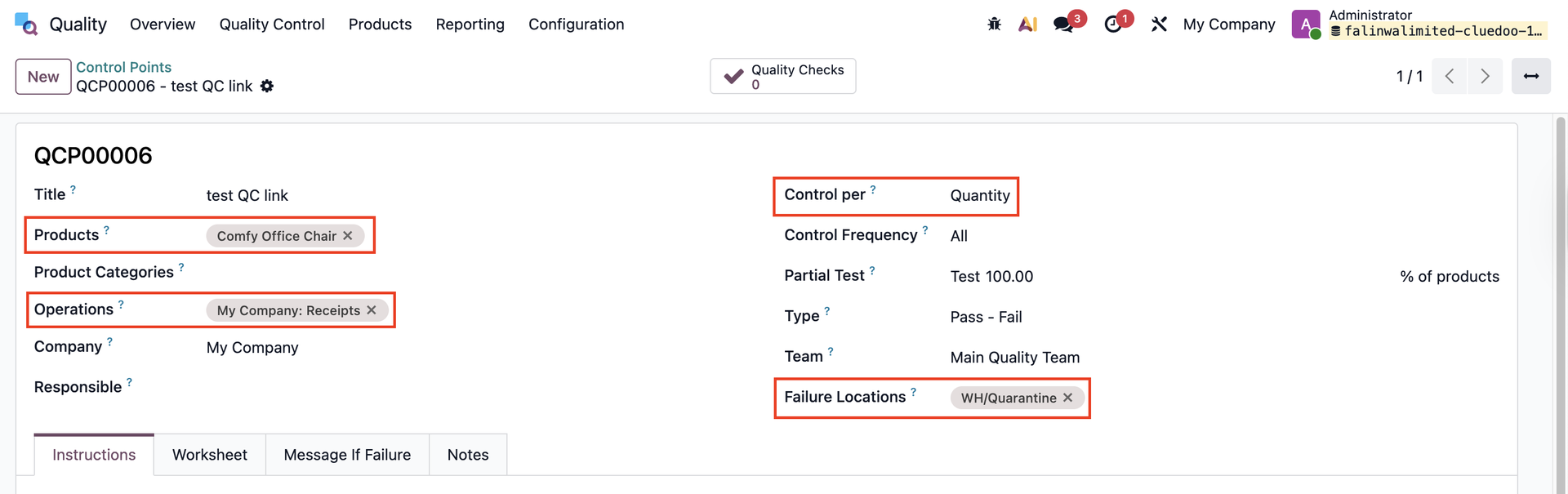 |
2. Create a Purchase Order > Add the product that has been set in the QCP > Confirm Order > You will see a QC smart button on the PO form that links to all the Quality Checks of the product You can do the QC directly from this smart button without going to the transfer. | 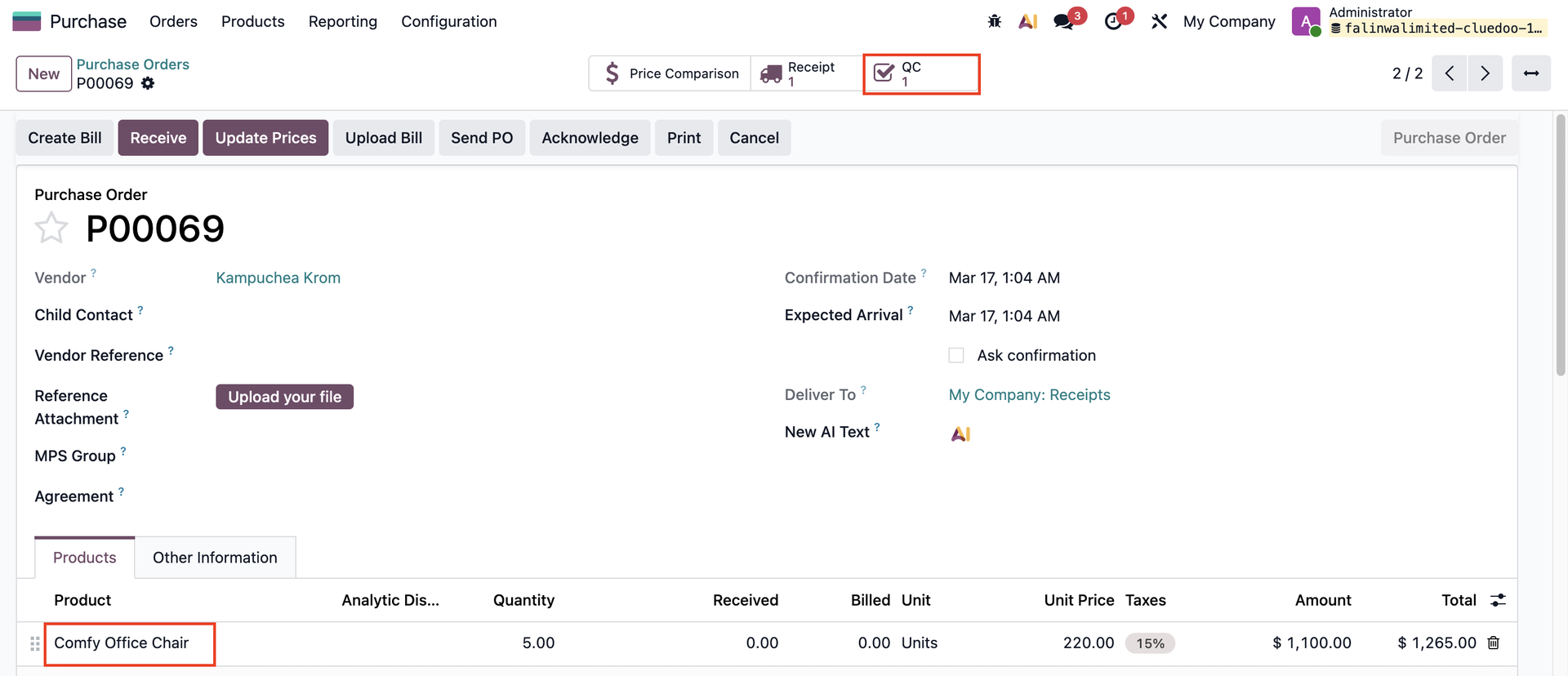 |
3. Do the QC > Create a Quality Alert > You will see a QA smart button on the PO form | 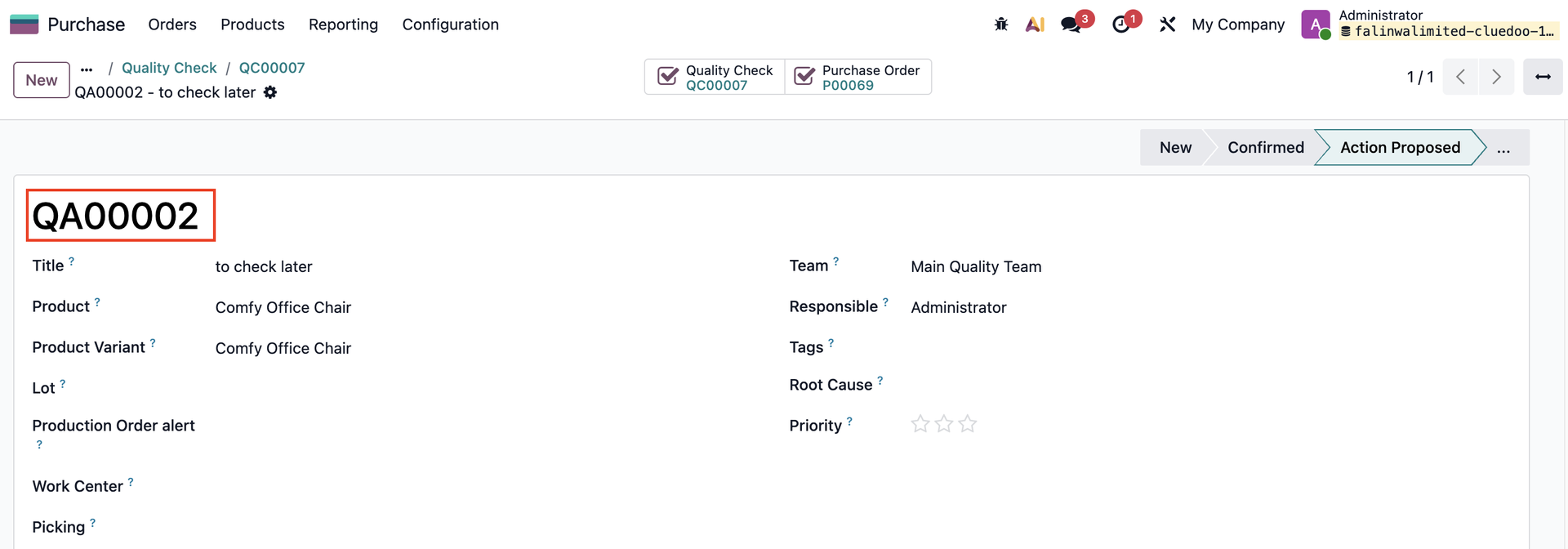  |
4. Go to Receipt and Validate the transfer | 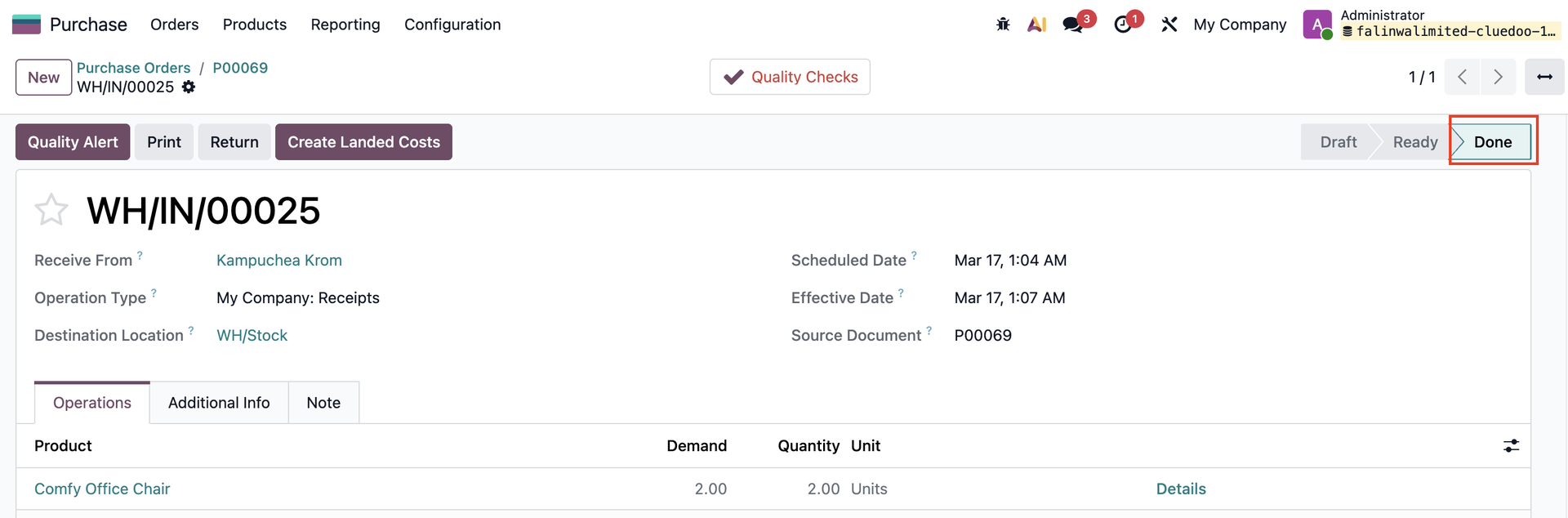 |
5. If you create a backorder, all the new QAs and QCs will be linked via the smart buttons as well |  |
PROPAGATE QA AND QC TO BILLSCreate a Bill from the PO, all the QAs and QCs from the PO will be inherited to Bills via the same smart buttons. | 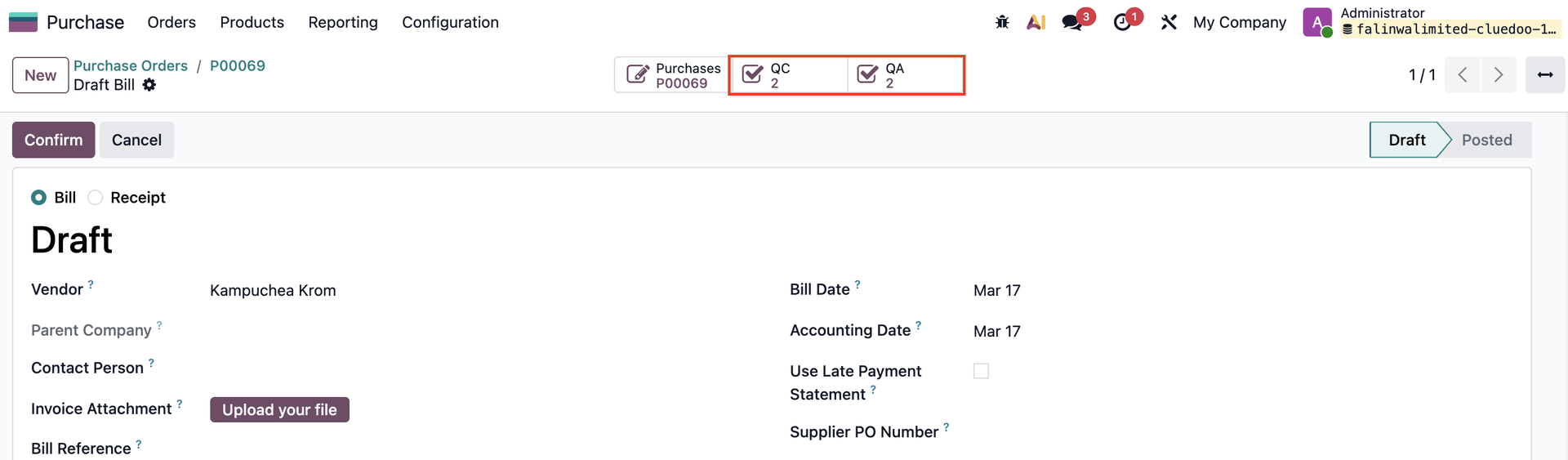 |
STORED FIELDS FOR QA AND QC ON PURCHASE ORDERS AND BILLSAll the QAs and QCs will be shown under the Other Information tab in the PO. | 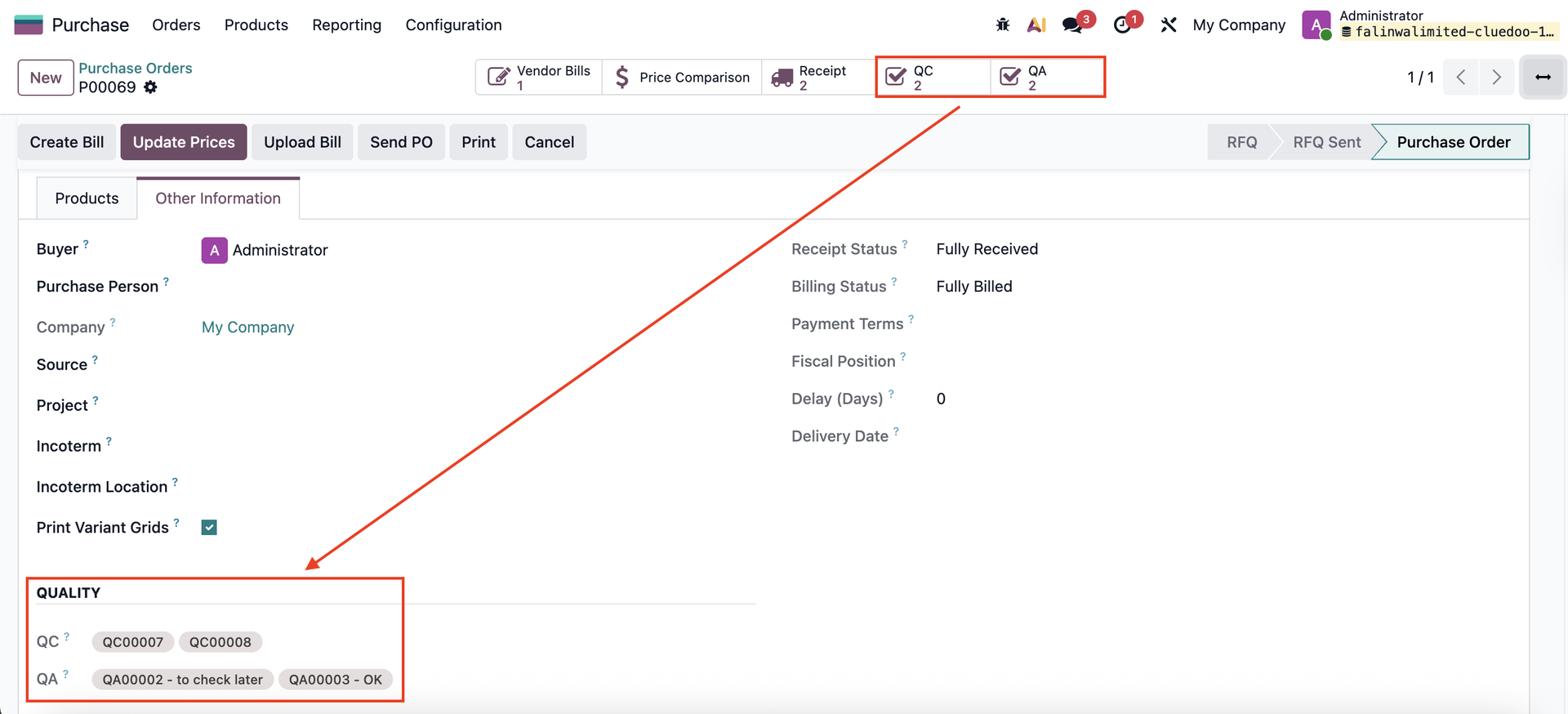 |
All the QAs and QCs will be shown under the Other Info tab in the Bill | 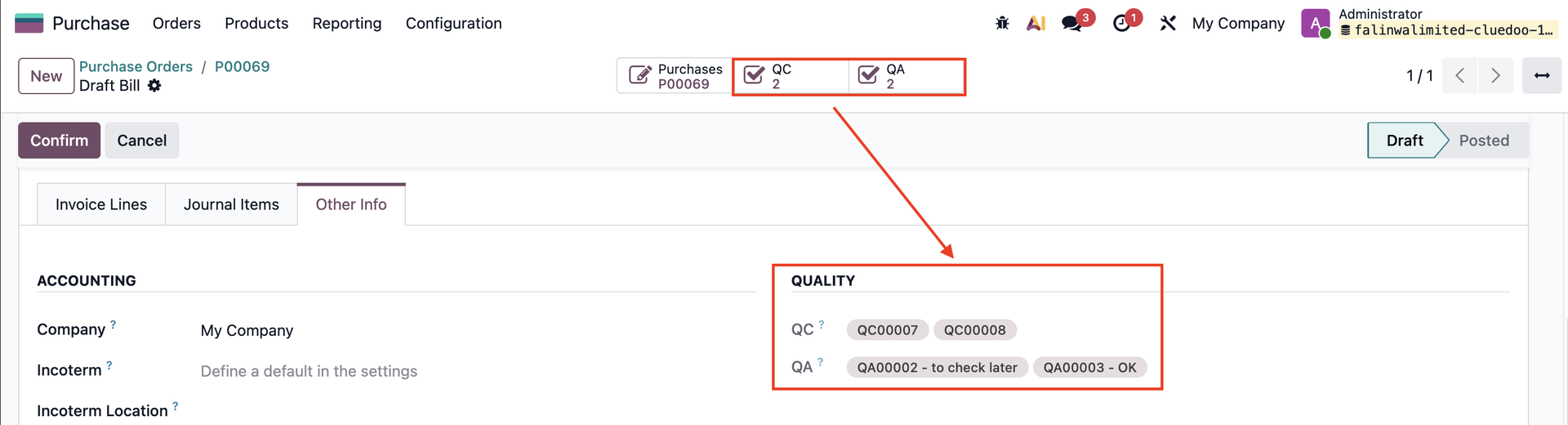 |
APPROVAL RULES ON BILLSWith the QA and QC fields available on the bill, you can configure an approval rule in Studio to lock the bill’s payment if there is any open Quality Alert linked to the related Purchase Order. |