


STORY BEHIND THE FEATURE
ODOO BEHAVIOUR
By default, Odoo defines the sales price at the product template level. All product variants inherit the same price. If a company wants to manage different prices for different variants, it must use pricelists and cannot set variant-specific prices independently from the template.
CLUEDOO BEHAVIOUR
Cluedoo introduces a new configuration at the product category level, allowing users to unlink variant prices from the template. This enables assigning different sales prices directly to product variants. Additionally, from the pricelist, users can push prices to the product variant level using a dedicated "Update Price" action or edit it directly.
COMPARISON: ODOO AND CLUEDOO
Odoo:
- Sales price is linked to the product template.
- Product variant prices can only be managed through pricelists.
- No direct price editing on the variant level without affecting the template.
Cluedoo:
- Sales price of product variants can be linked to either the template or pricelist, configurable via product category
- Allows direct price definition per variant
- Enables pushing prices from the pricelist to the product variants
BUSINESS CASE
This module is ideal for businesses offering products with multiple variants that differ significantly in cost or value (e.g., different sizes, materials, or features). With CLuedoo, pricing managers can manage each variant precisely, ensure price consistency, and reduce errors during sales operations.
OUR FEATURES AS SOLUTIONS
Unlink the sales price in product variants and product
Pricelist → Product Variants sales price update
HOW TO USE THIS MODULE
OUR FEATURES AS SOLUTIONS
Unlink the sales price in product variants and product
Pricelist → Product Variants sales price update
HOW TO USE THIS MODULE
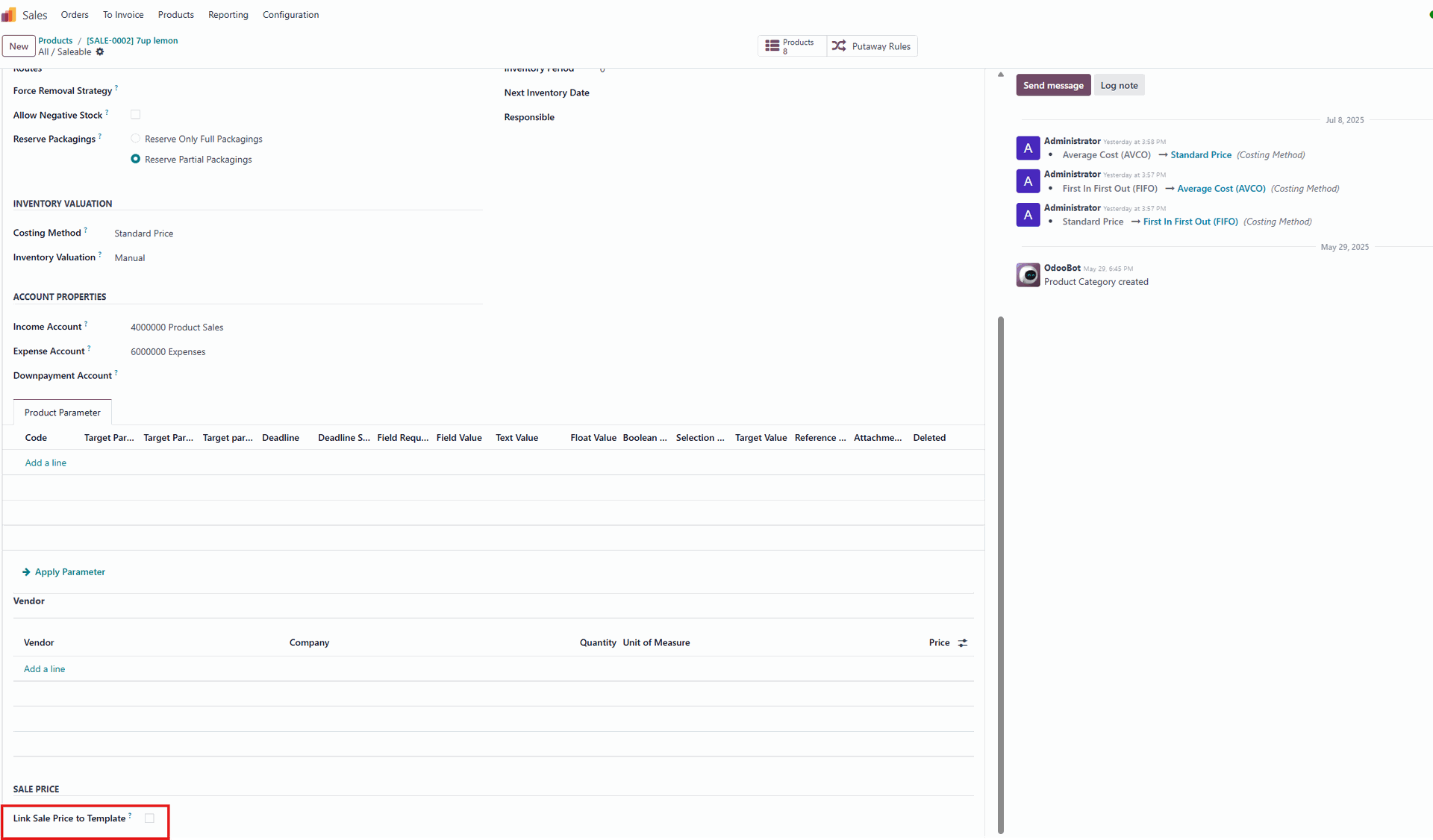
1. Go to a product's Product Category and look for the checkbox named Link Sale Price to Template. Make sure this box is unchecked. Note: If you check the Link Sale price to Template in Product Category > it will follow the Odoo principle:
|
|
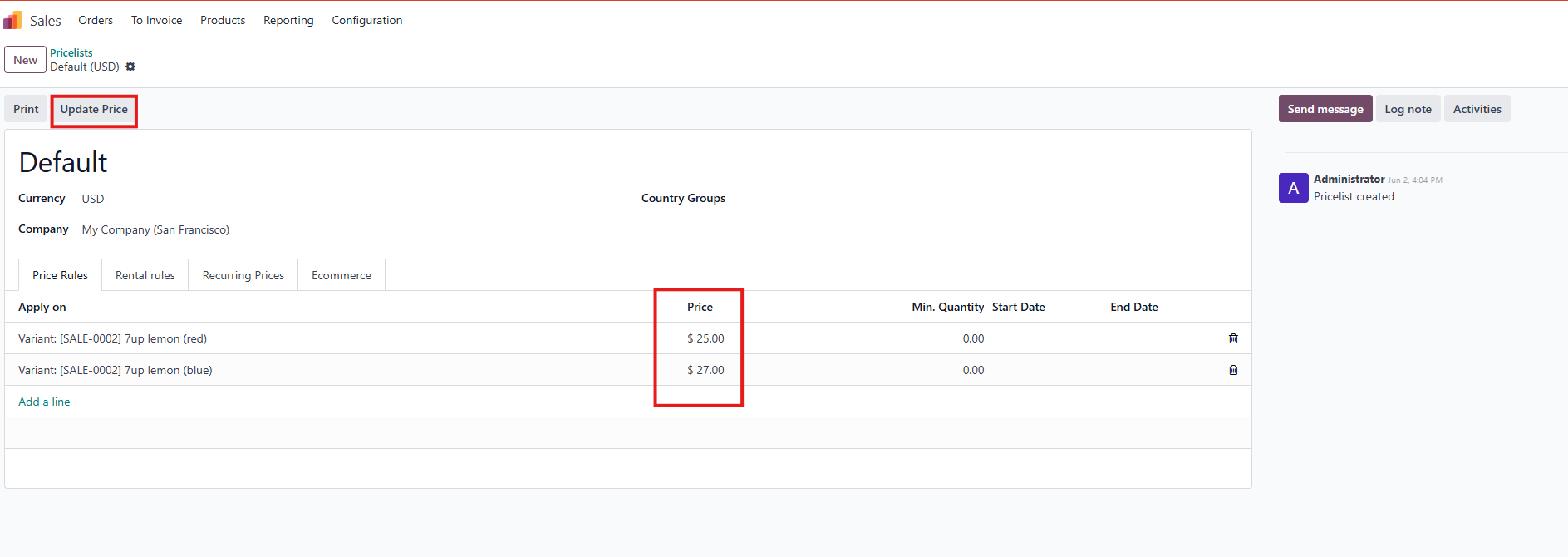
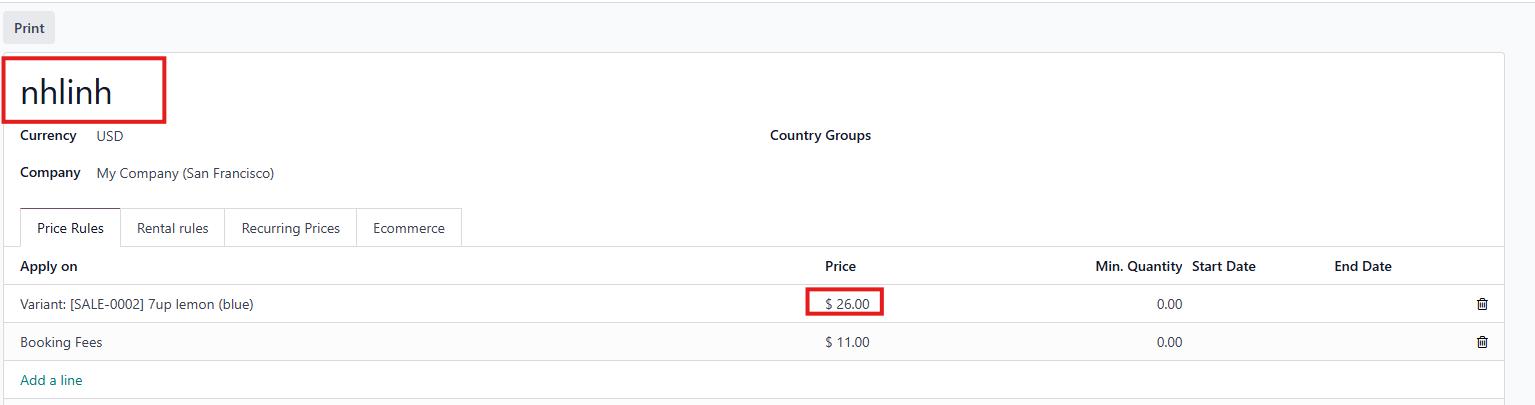
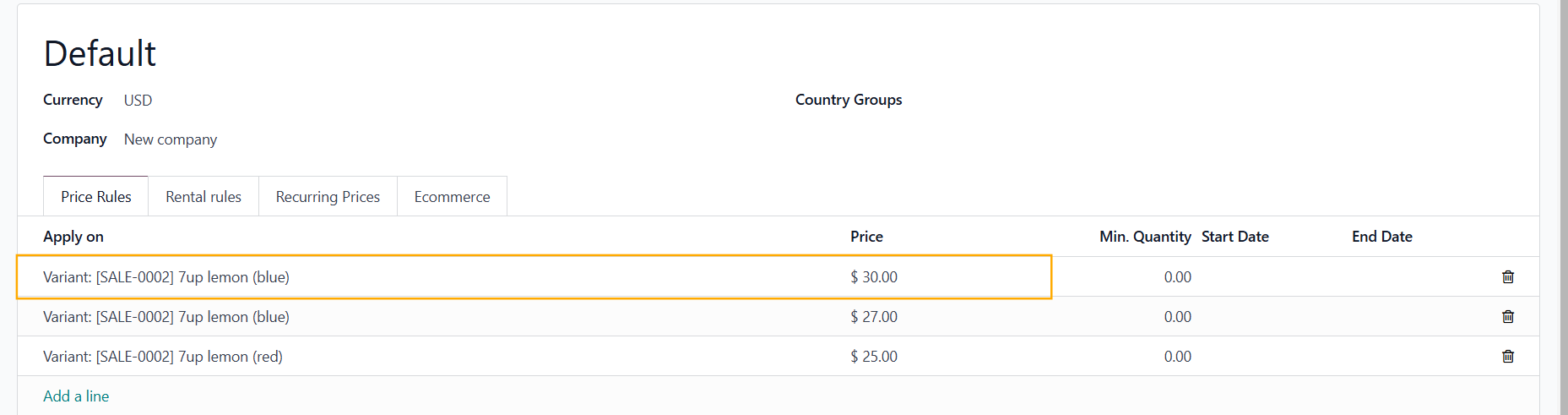
2. Go to Pricelists > Create new Price Rules for the product variants and set min quantity (sales price of the product variants will always takes from the Pricelists regardless of the min quantity) > Update Price > The Sales Price of the product variants will be the same as the price in the price rules. |
|
Note: If the variants have an Extra Price > after you update the price from the Pricelist > the Sales Price of the variants = the price you set in the Pricelist + Extra Price |   |
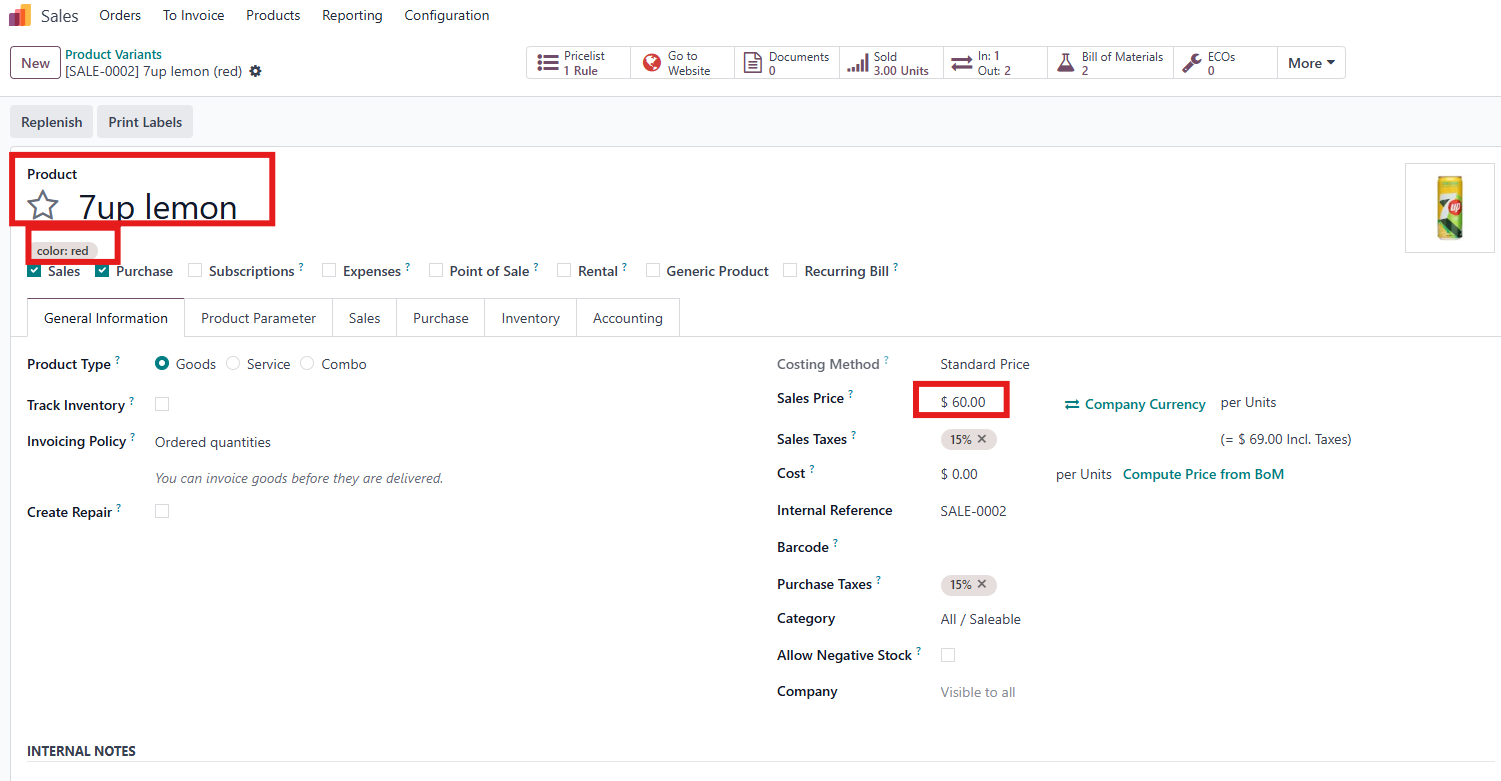
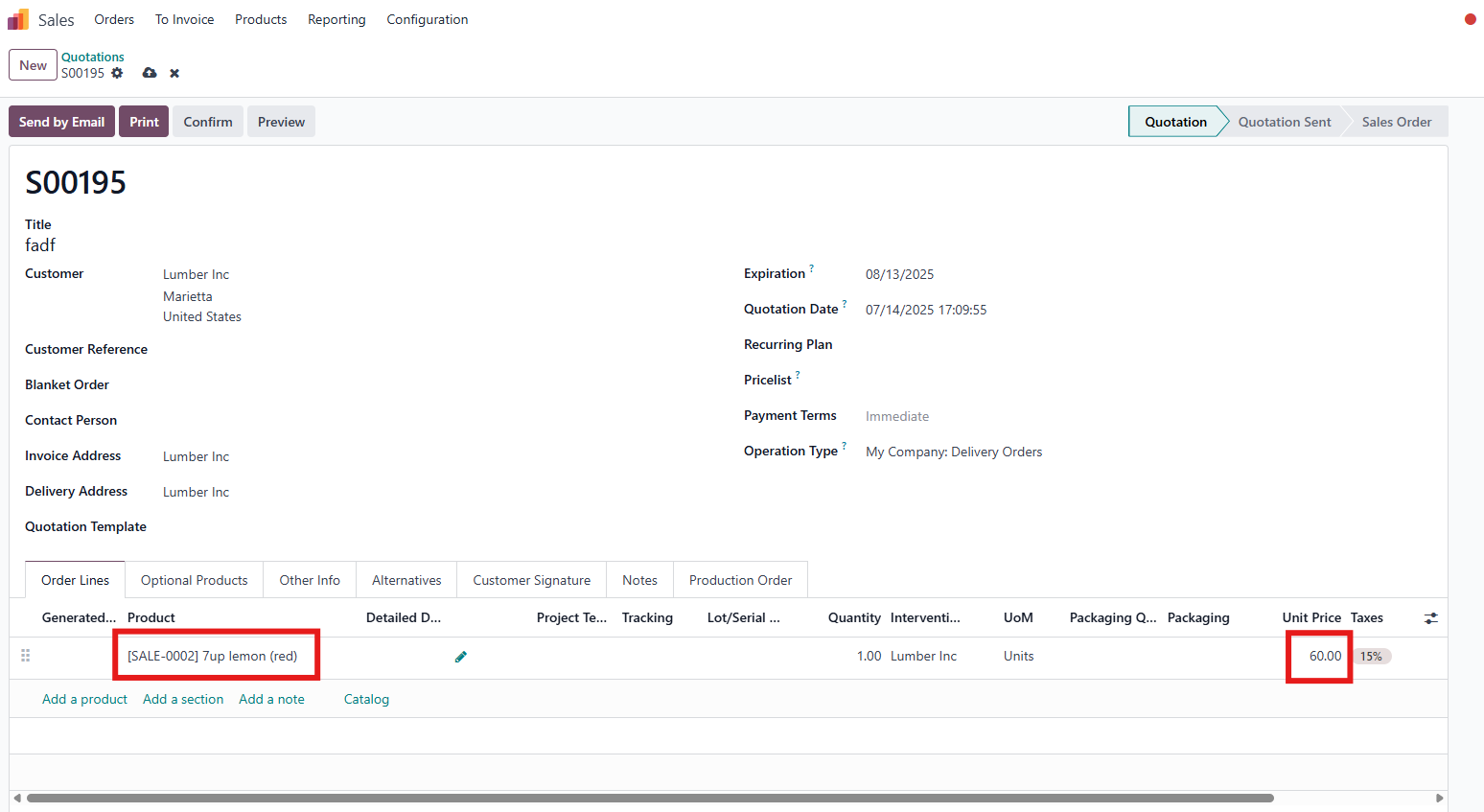
3. Now, the Sales Price of the product variants could be different from the sales price of the product template. | 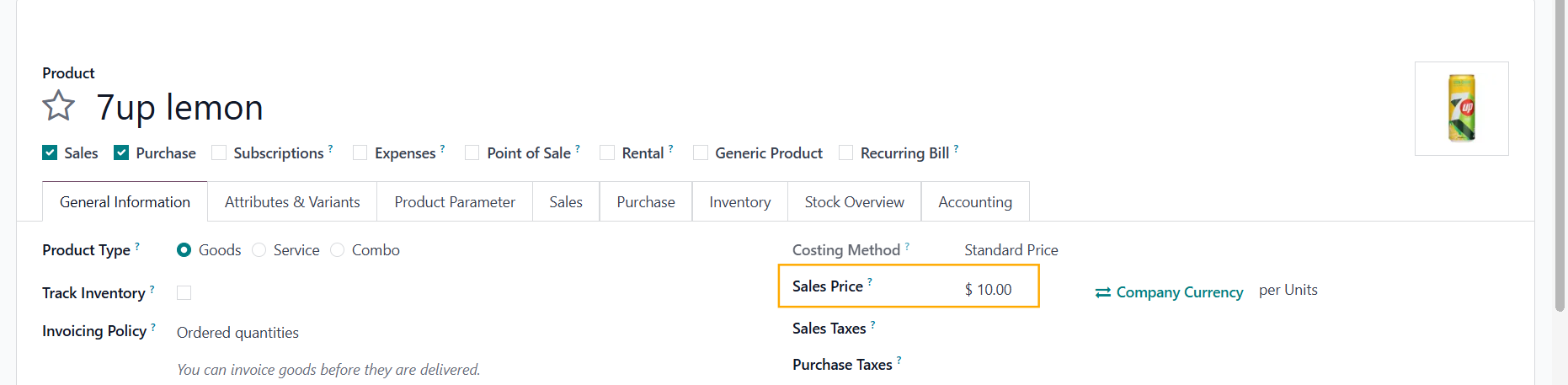  |
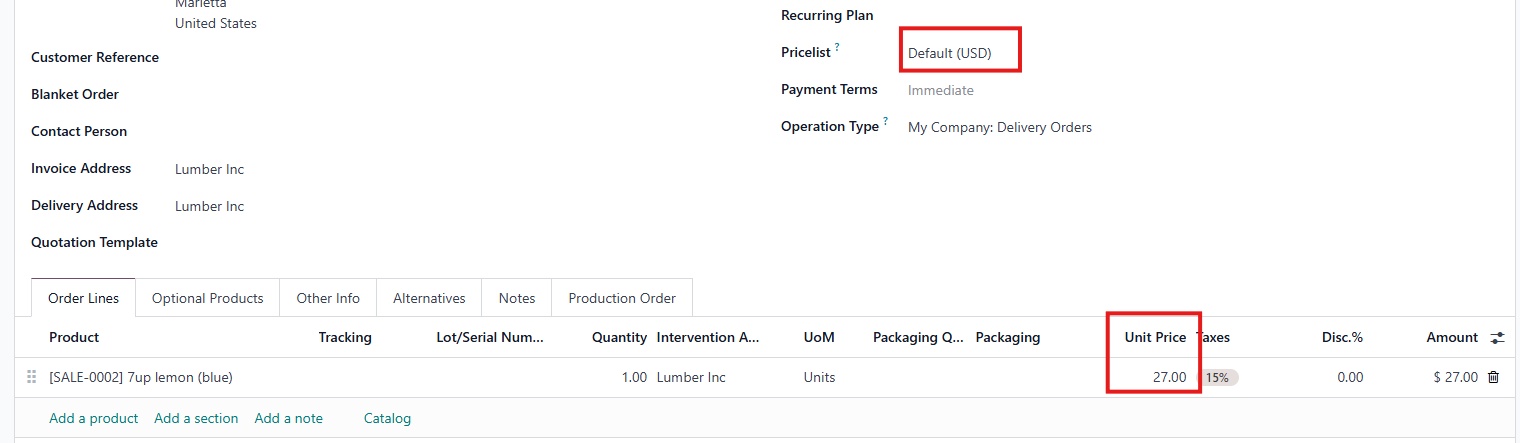
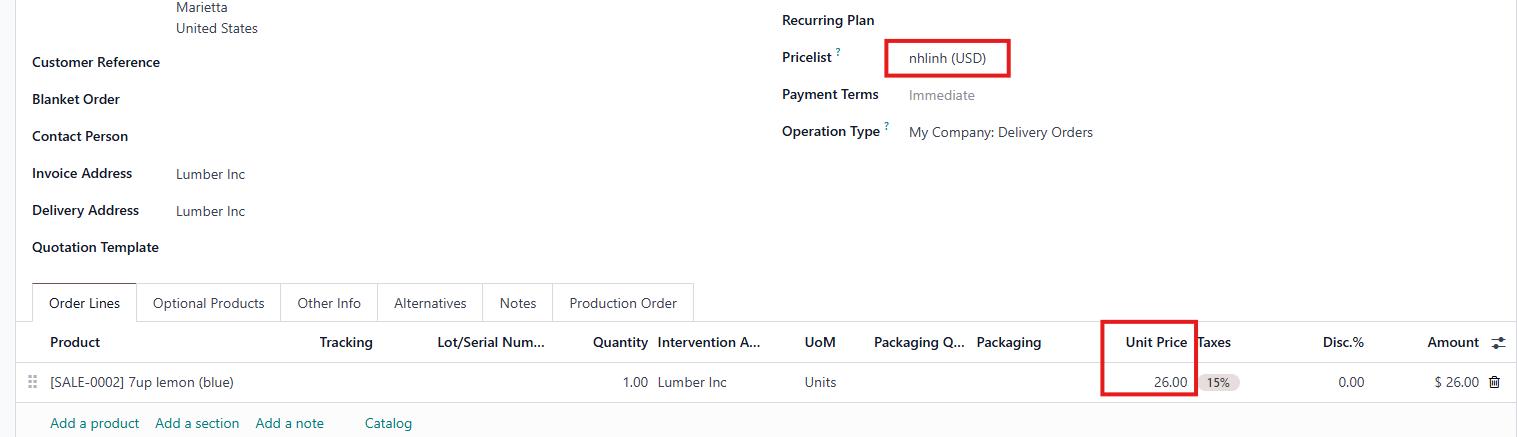
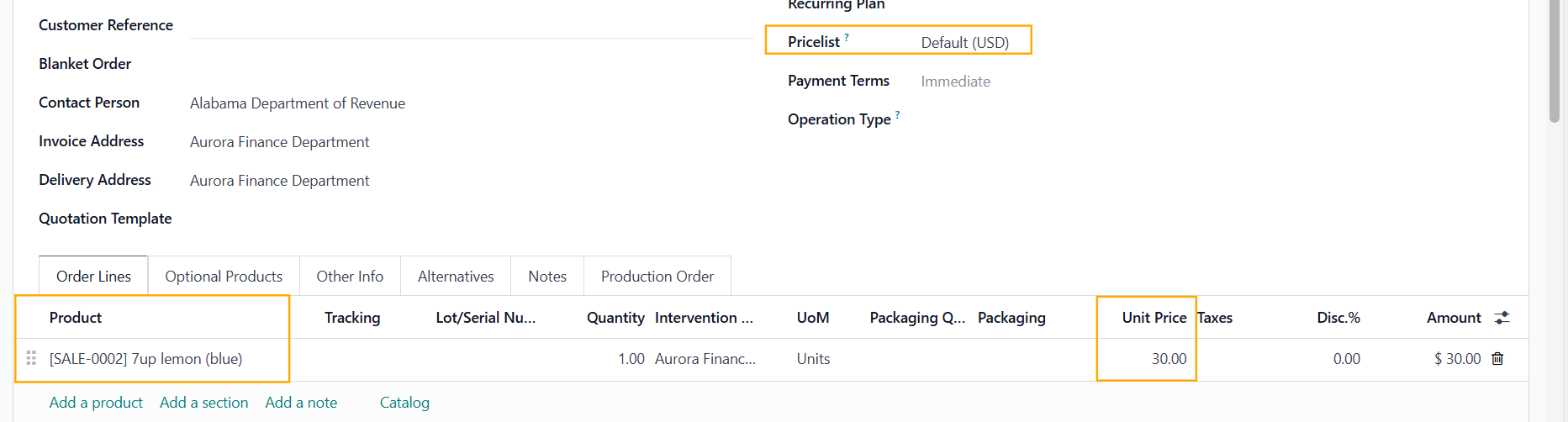
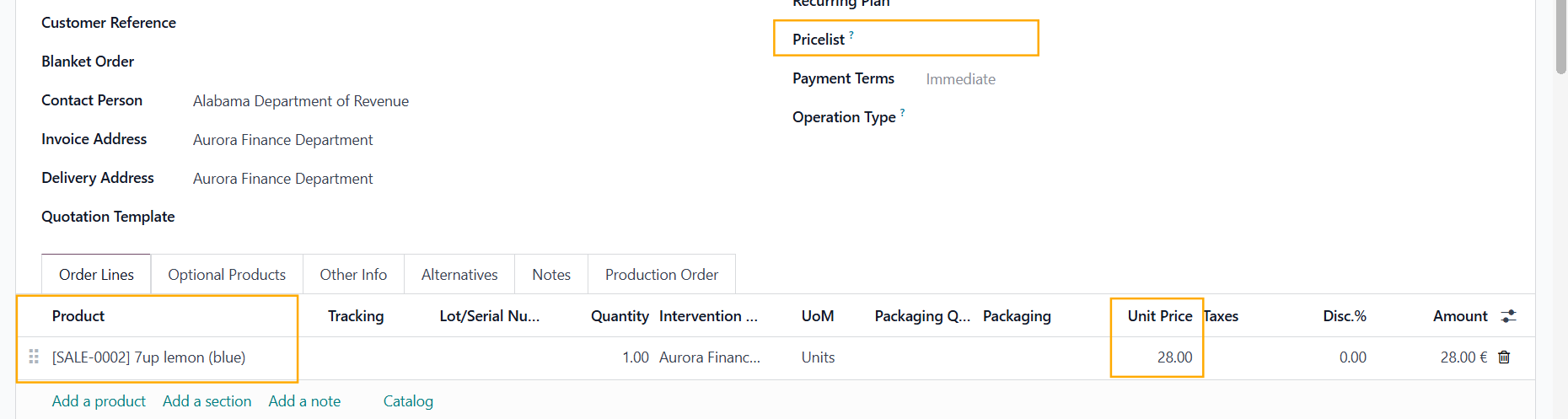
4. Go to Sales Orders > Create new SO with the product variant(s) and choose a Pricelist > the unit price of variant(s) will be updated according to the Pricelist Note:
|
|
|   |
|   |
|    |