



ODOO'S FUNCTION
HS Codes (Harmonized System Codes) are critical for customs documentation, invoicing, and logistics compliance. In many cases, products belonging to the same category share the same HS Code. Manually entering the HS Code at the product level in Odoo can be tedious and error-prone, especially when managing large catalogs.
CLUEDOO'S FUNCTION
1️⃣ Adds the ability to set an HS Code directly at the product category level.
2️⃣ Automatically applies the category HS Code to products and related documents (invoices, deliveries).
3️⃣ Reduces manual work and standardizes HS Code assignment.
1. On Product Categories, you can input an HS Code. Note: Ensure that developer mode is activated to debug technical information (e.g., label, model, etc.), as it's essential for report setup in Odoo Studio. | 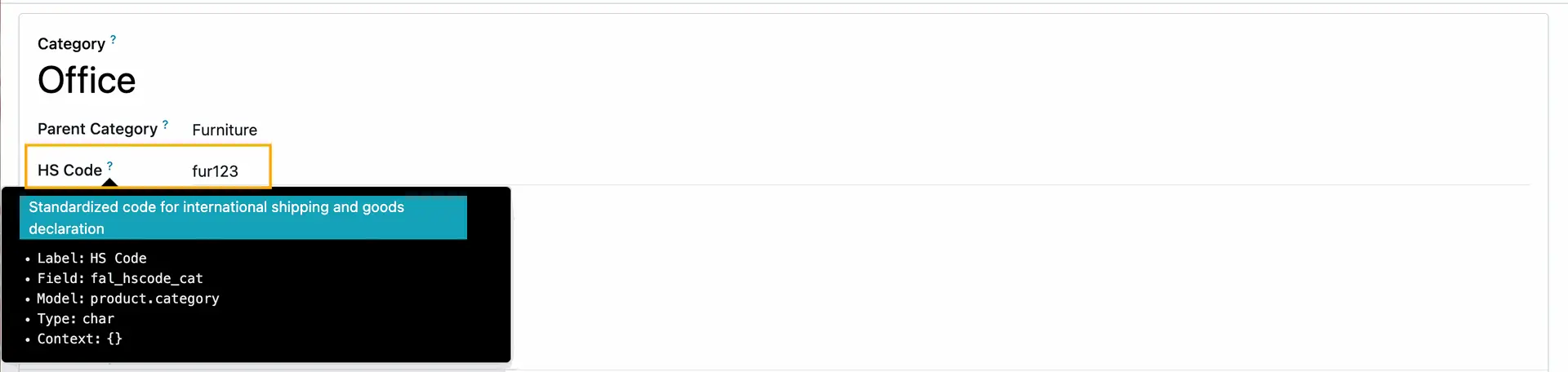 |
Make sure the product is included in the category for which the HS Code has been set. | 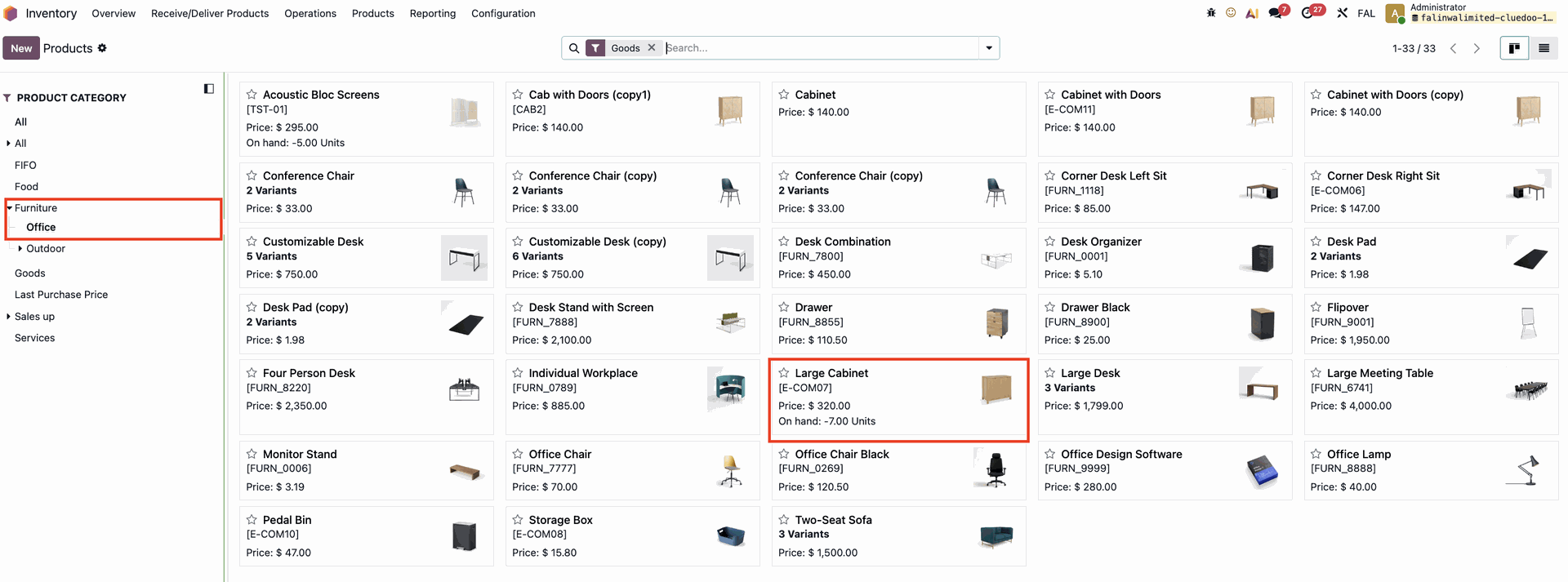 |
2. Create a Purchase Order with the product > Open Studio > Reports > Choose a report (here I choose the Purchase Order report) Add a new field on the product matrix block > fill in the necessary information > Save e.g.,
Note: You can print the HS Code on any report (such as sales orders, purchase orders, delivery orders, invoices, bills, etc.) using Studio. | 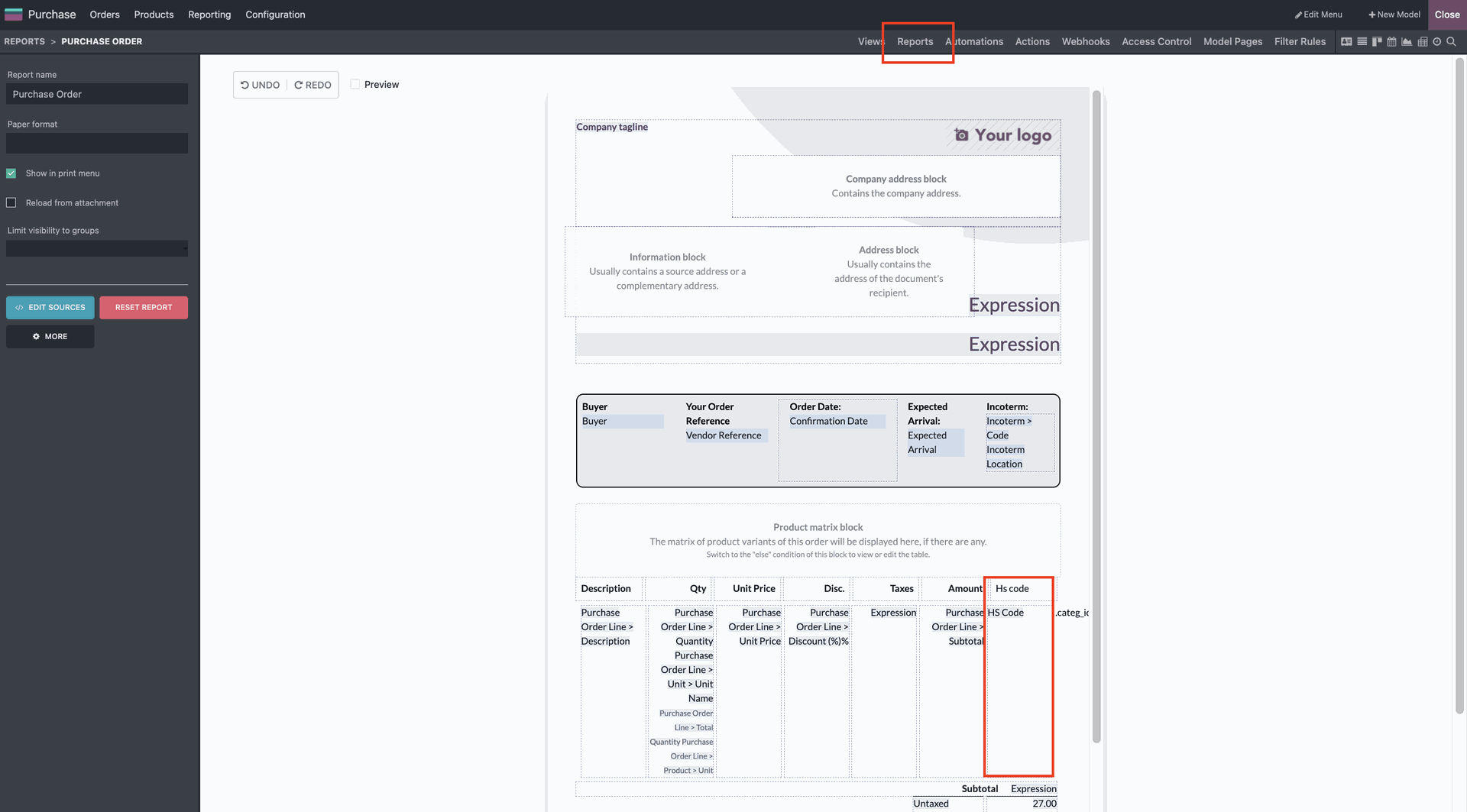 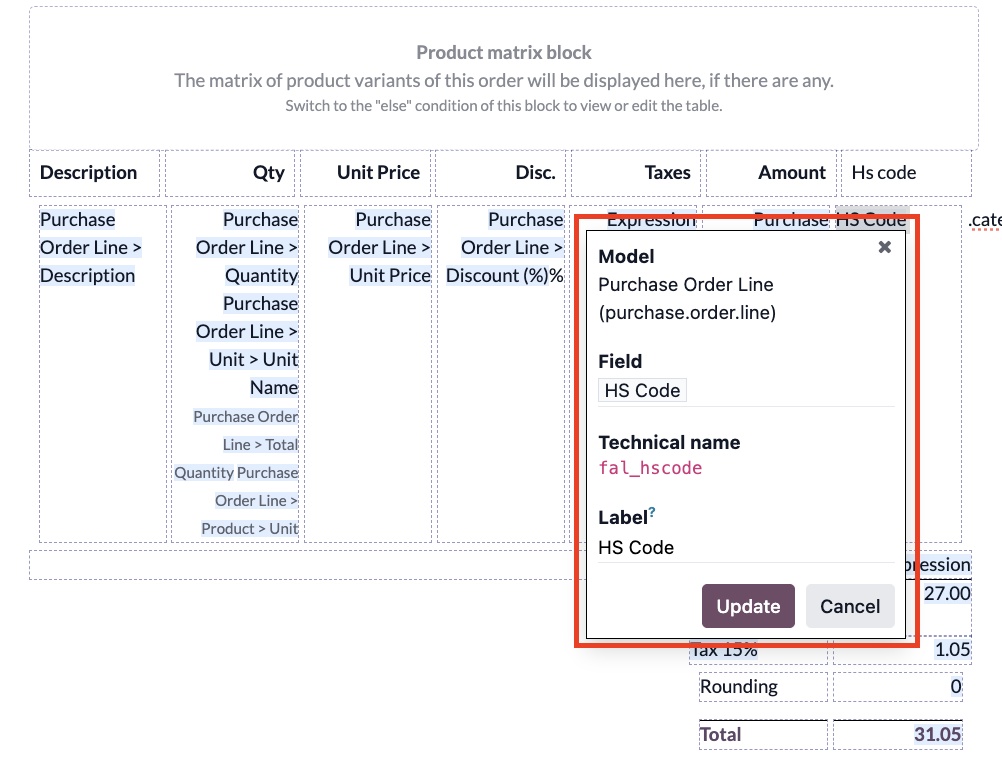 |
3. Confirm the purchase order > Print | 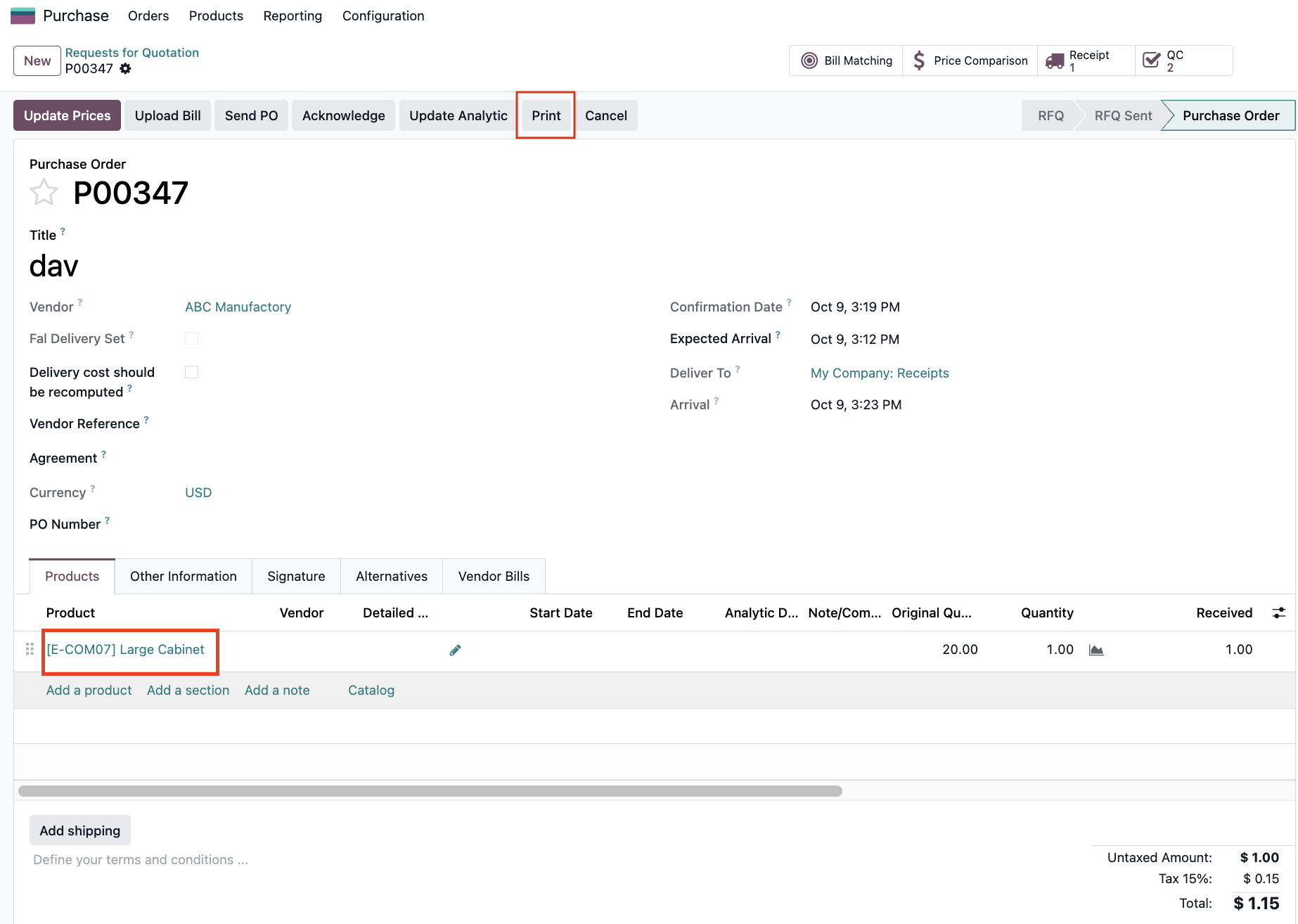 |
The Purchase Order printout will show the HS Code defined on the product category | 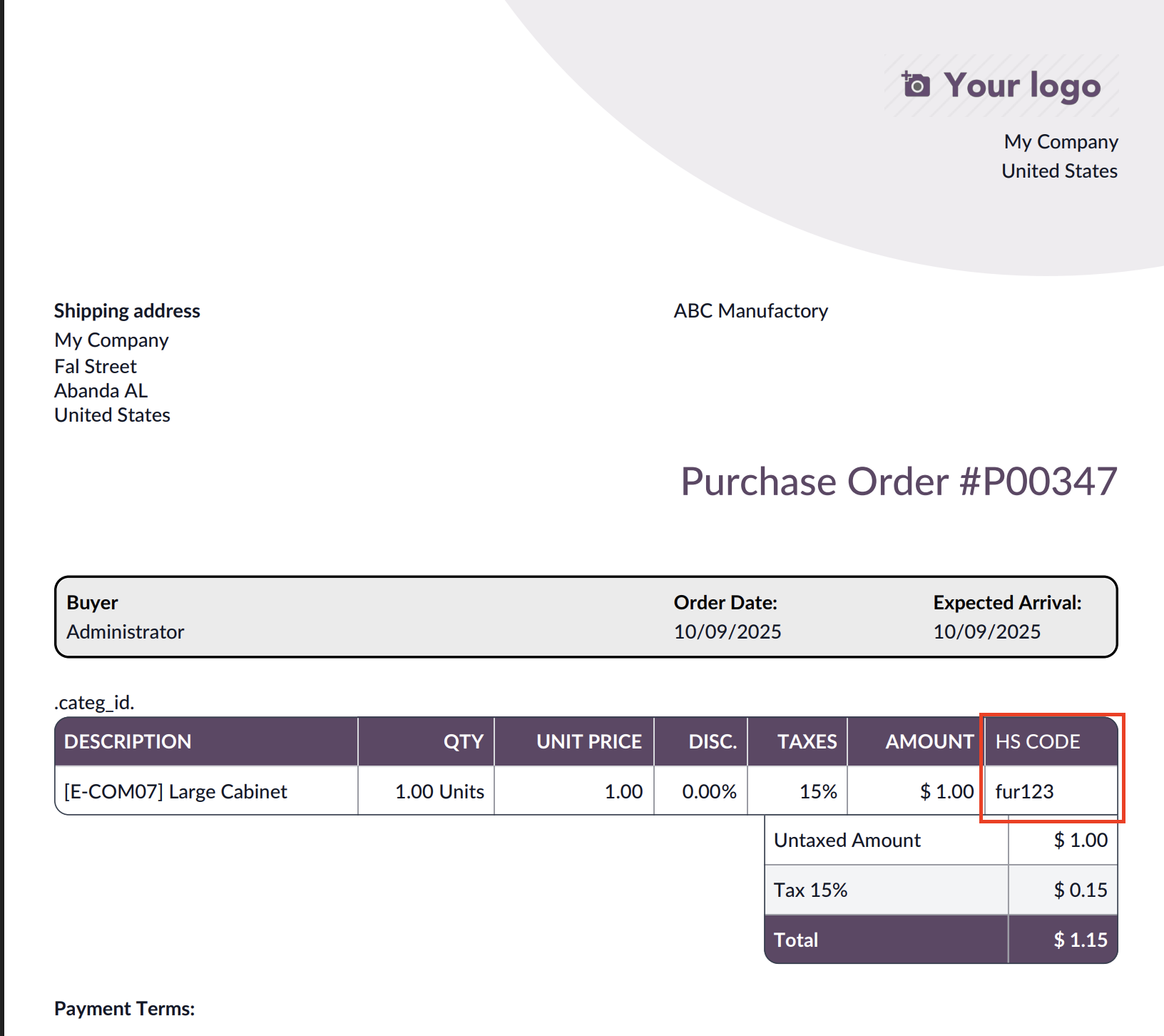 |