



ODOO'S FUNCTION
Odoo offers flexible product and customer management for sales operations. However, it does not include a mechanism to link product availability or approval to specific customers, which limits control in regulated or customer-specific environments
CLUEDOO'S FUNCTION
CLuedoo introduces a qualification system that allows companies to define which products are approved for which customers. It restricts the sale of unqualified products, ensuring alignment with customer agreements or compliance standards.
1Create the Product Stages. | 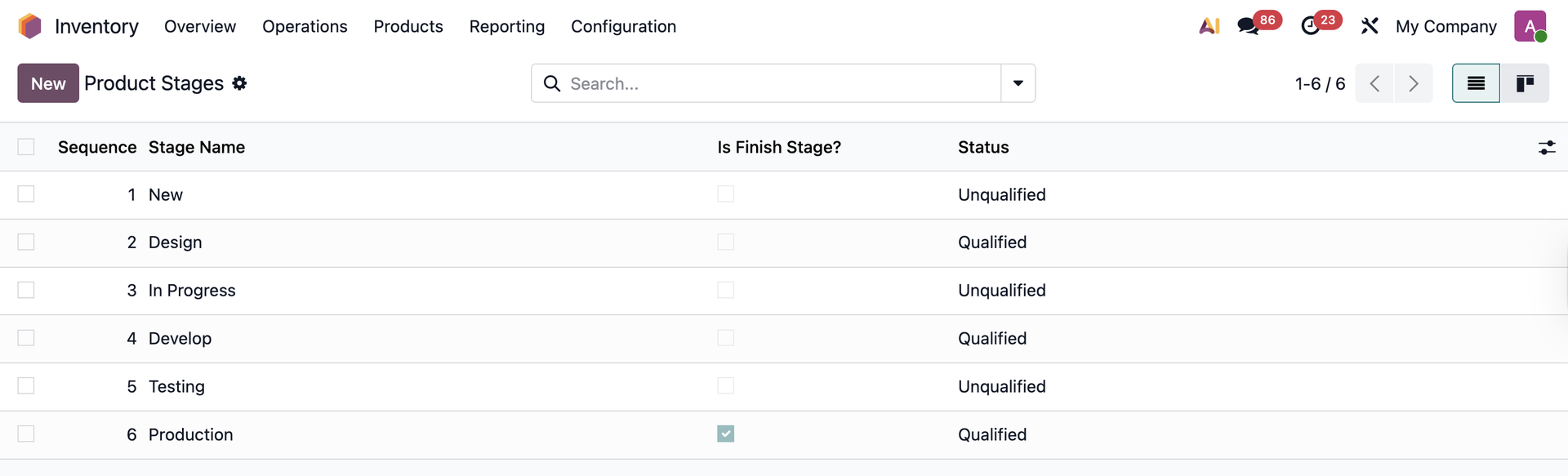 |
Note: For stages that have Qualified Status, you need to get the Product Qualificator access rights to move to this stage on the product form. | 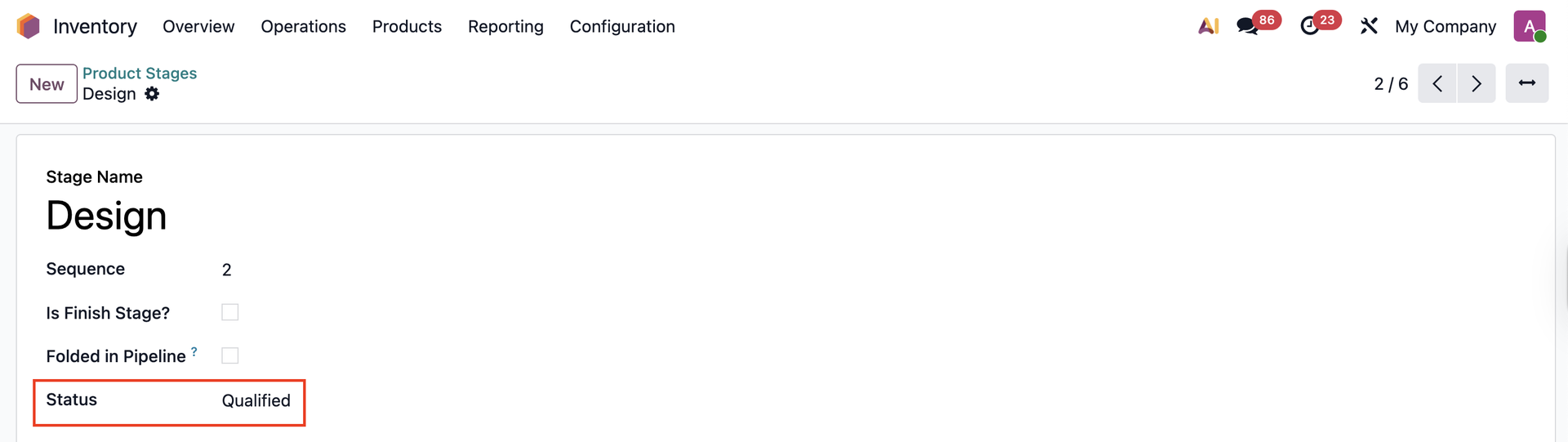 |
2Set the stages in Product Category > Apply Stages. All the products in that category will have the same stages. | 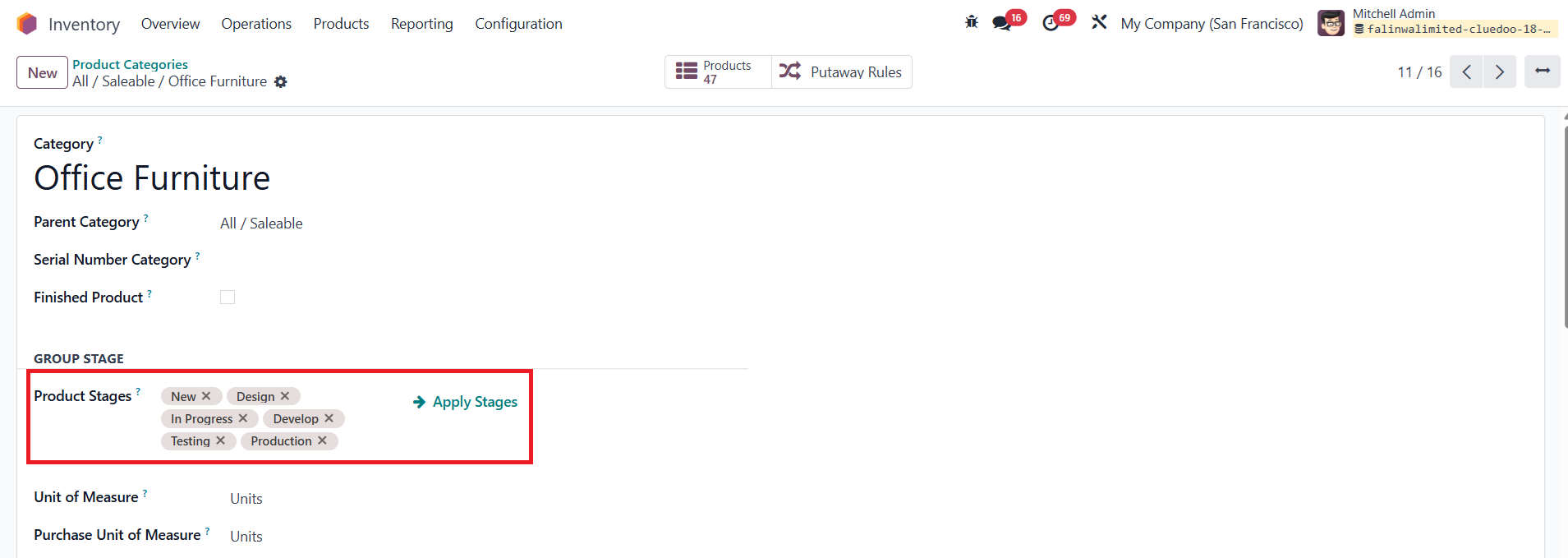 |
3To qualify the product. We must grant the user access rights as Product Qualificator. | 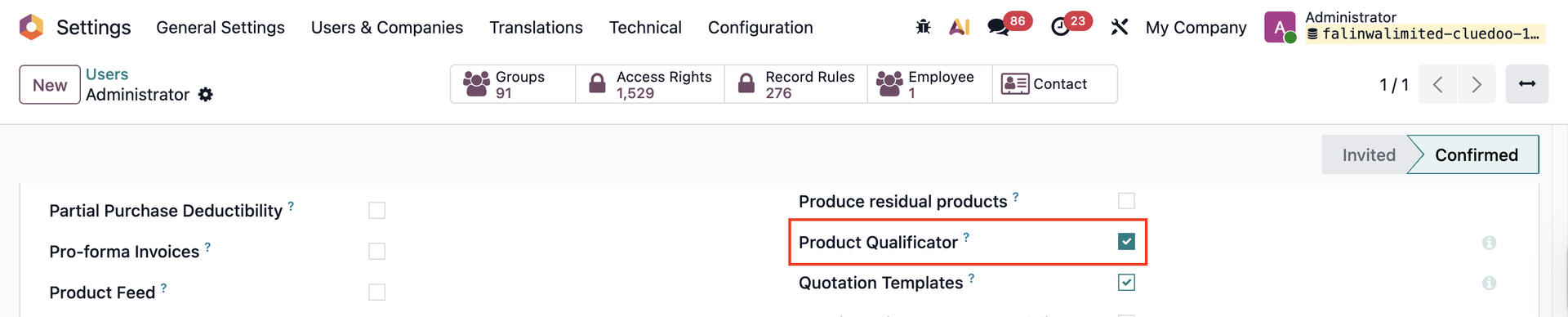 |
4In the product, we can see the stages and move freely between them. Note that for the Qualified stages, we can move to these only if the product has a green dot and we have access rights as Product Qualificator. |  |
Note: A Validation Error will appear when trying to move to the Qualified stage if the product's status is To Qualify (Grey dot) or Unqualified (Red dot) |  |
5The product's status will be synchronized to its variants as well |   |
6If you get the Product Qualificator access right, you also see 2 buttons:
|  |
6.1 Set QualifiedThis button is used for moving between Qualified stages, following the Forward order of the Sequence e.g., If the Current Stage is New and then you keep clicking on the Set Qualified button on the Product Form, the Stage Movement will be: New > Design > Develop > Production 6.2 Set UnqualifiedThis button is used for moving between Unqualified stages, following the Backward order of the Sequence e.g., If the Current Stage is Production and then you keep clicking on the Set Unqualified button on the Product Form, the Stage Movement will be: Production > Testing > In Progress > New | 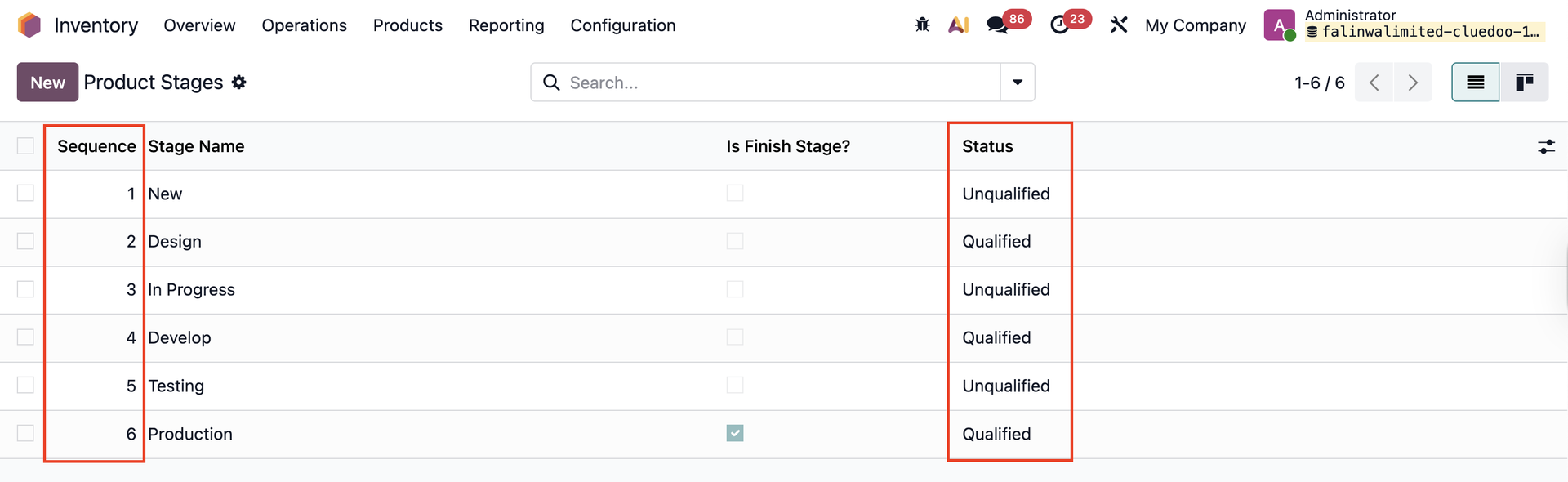 |
6.3 Set Qualified/ Unqualified on the List ViewInstead of changing the stage on the product form, you can also do this on the List view, helping you change the stage of selected products at the same time | 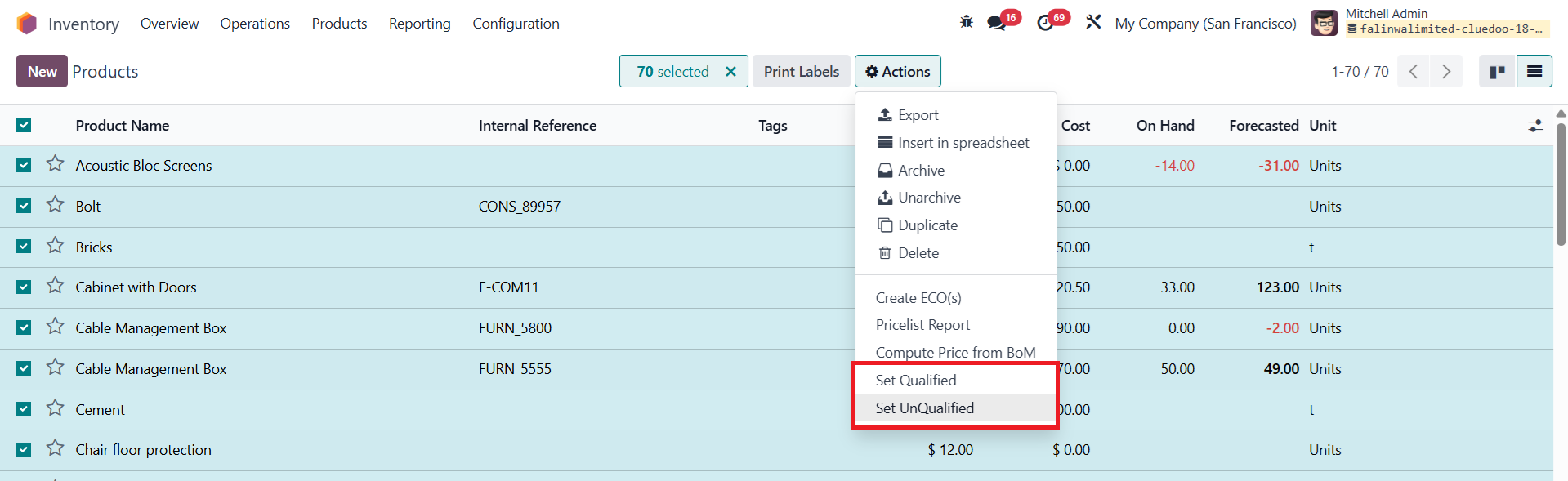 |