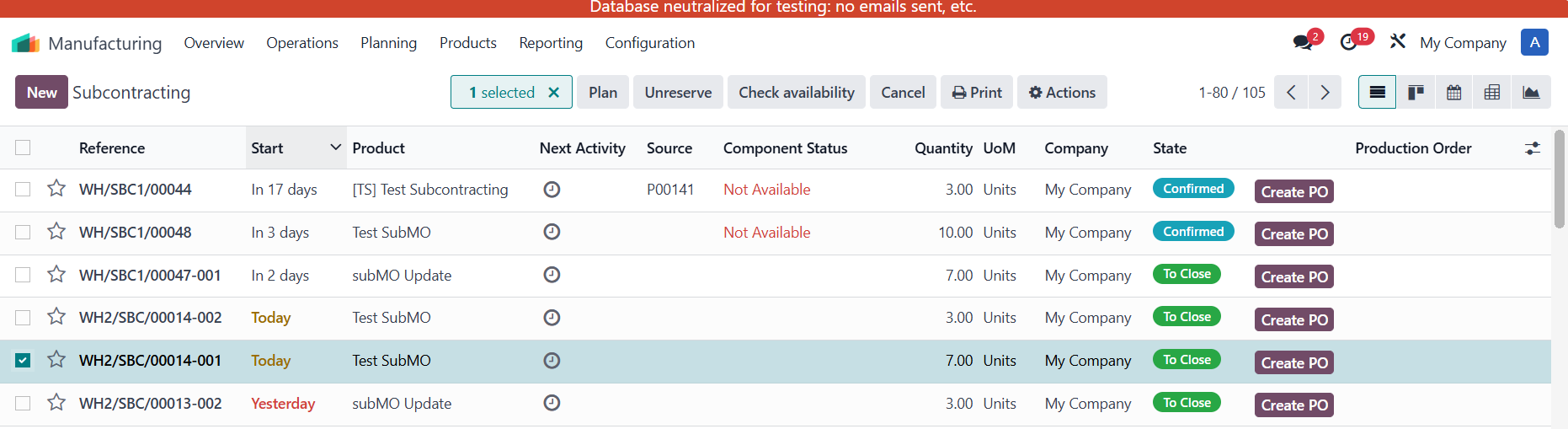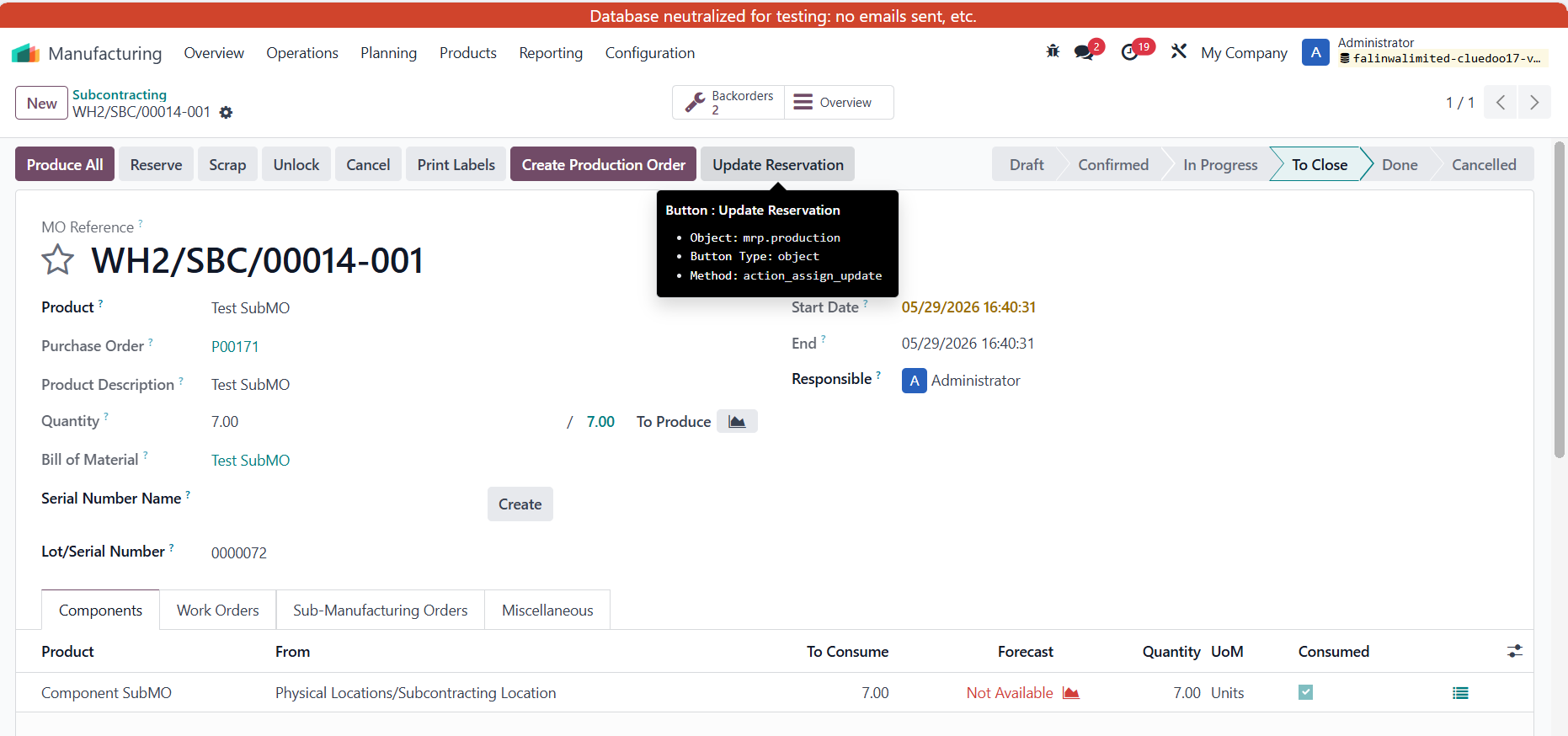
ODOO'S FUNCTION
In Odoo, when a Manufacturing Order (MO) is already in progress, or when there are related stock pickings completed after the work order has started, Odoo does not allow quantities to be reserved. As a result, components may not be fully reserved on the MO, which can prevent the MO from being finalized.
CLUEDOO'S FUNCTION
CLuedoo allows users to update reservations even when the Manufacturing Order or SubMO is in progress. The purpose of this module is to add a feature that ensures all required components are fully reserved before the MO, subMO is closed, without disrupting the operators’ manual work.
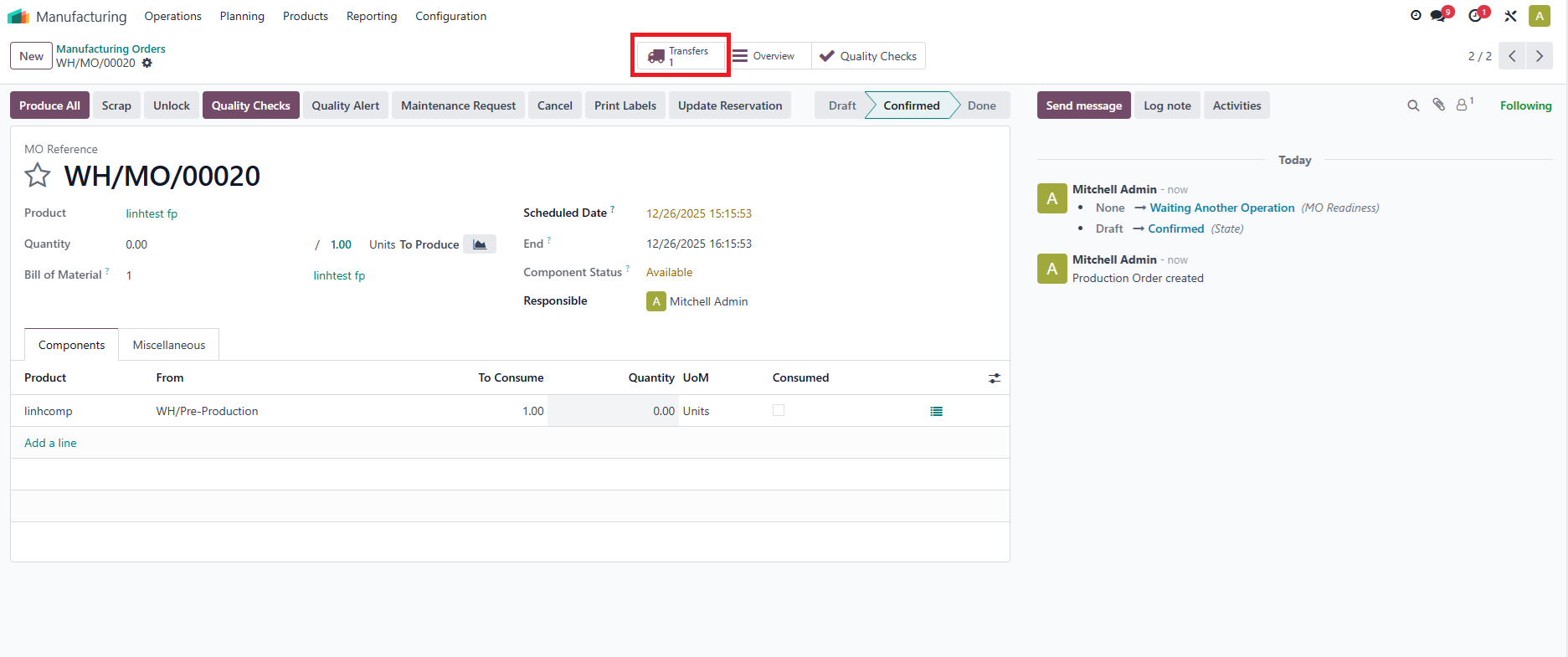
Manufacturing Orders (MO)1. Go to Manufacturing Orders (MO), create a new MO, then confirm it. For an MO that has a related picking, you will see a Transfers smart button appear. If the MO does not have a related picking, Odoo will reserve the quantity as normal.
|  |
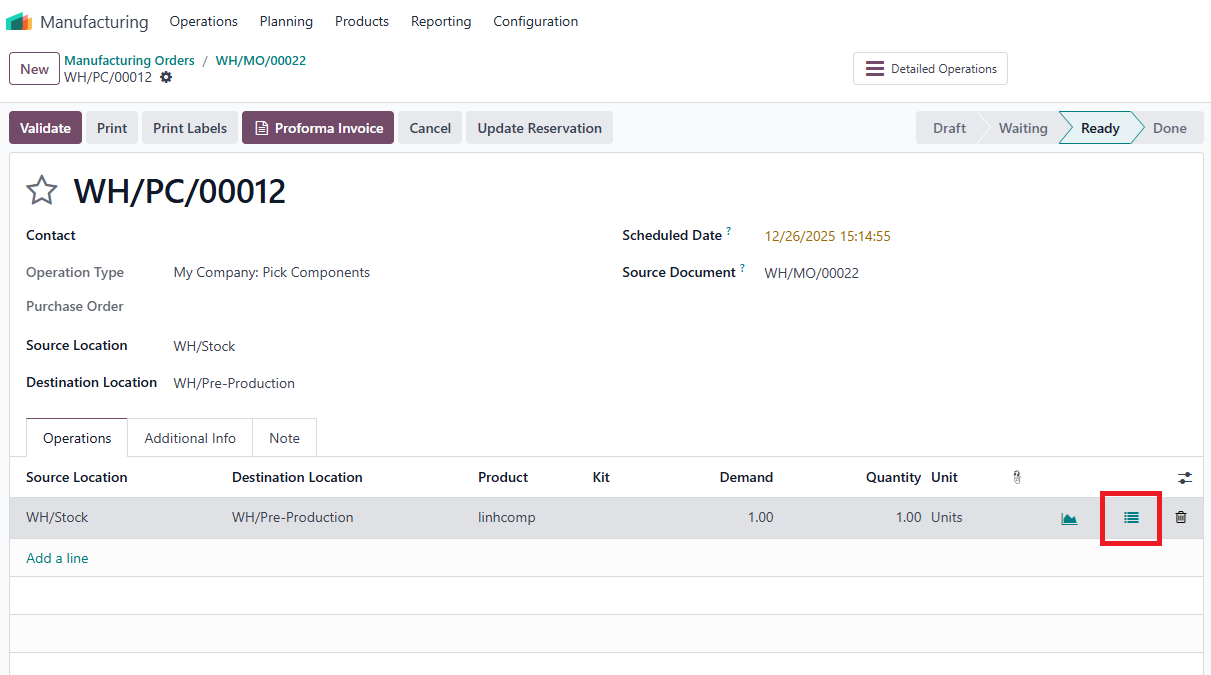
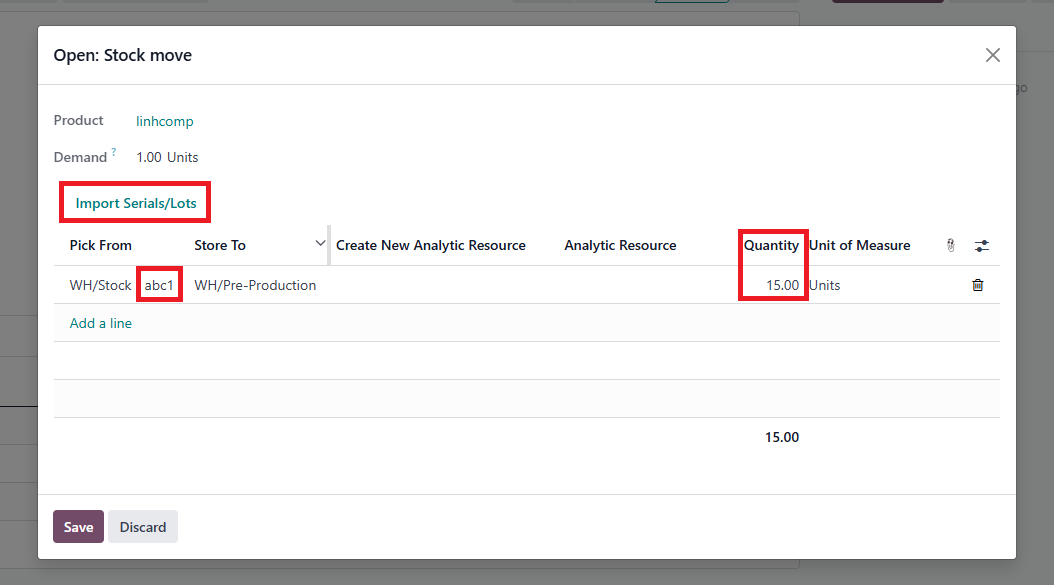
2. Click the three stripes icon to open the stock move If your product has no tracking, you can directly enter the received quantity. My product is tracked by lots, so I need to enter the lots for it
|   |
3. Validate the picking | 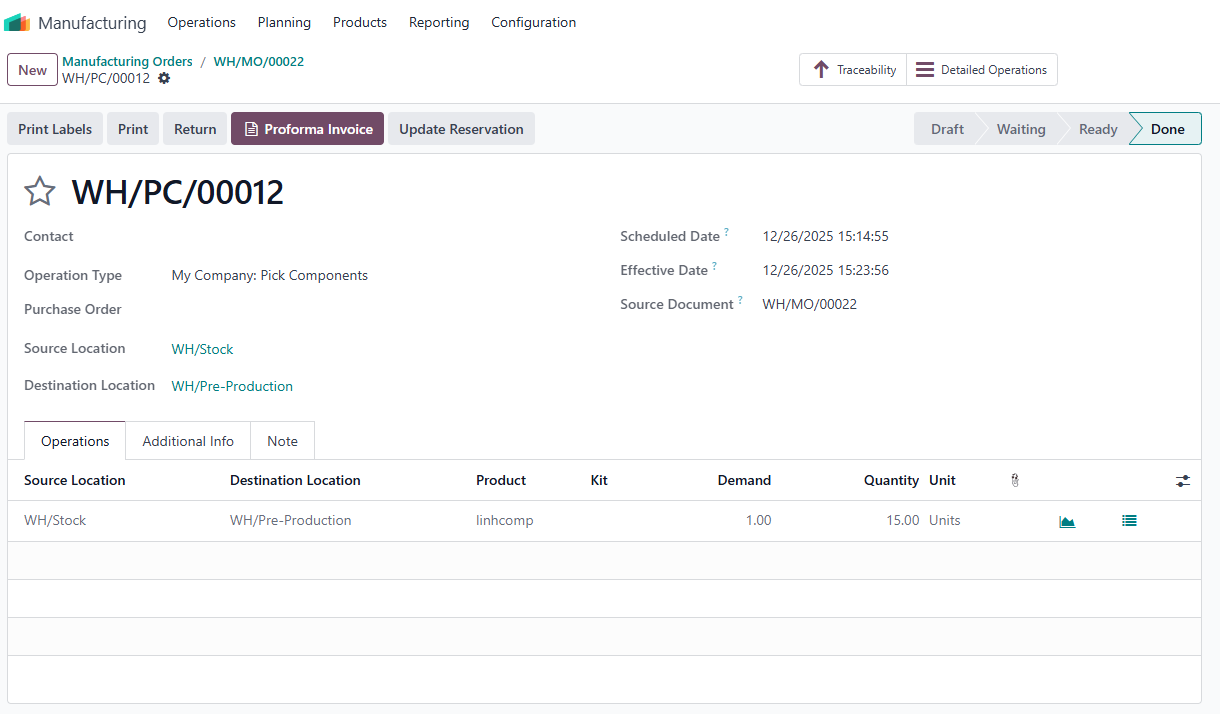 |
4. Go back to the MO and click the Update Reservation button. The received component quantity will be updated. It will take the full quantity from the picking, even if the quantity in the related picking is different from the demand. | 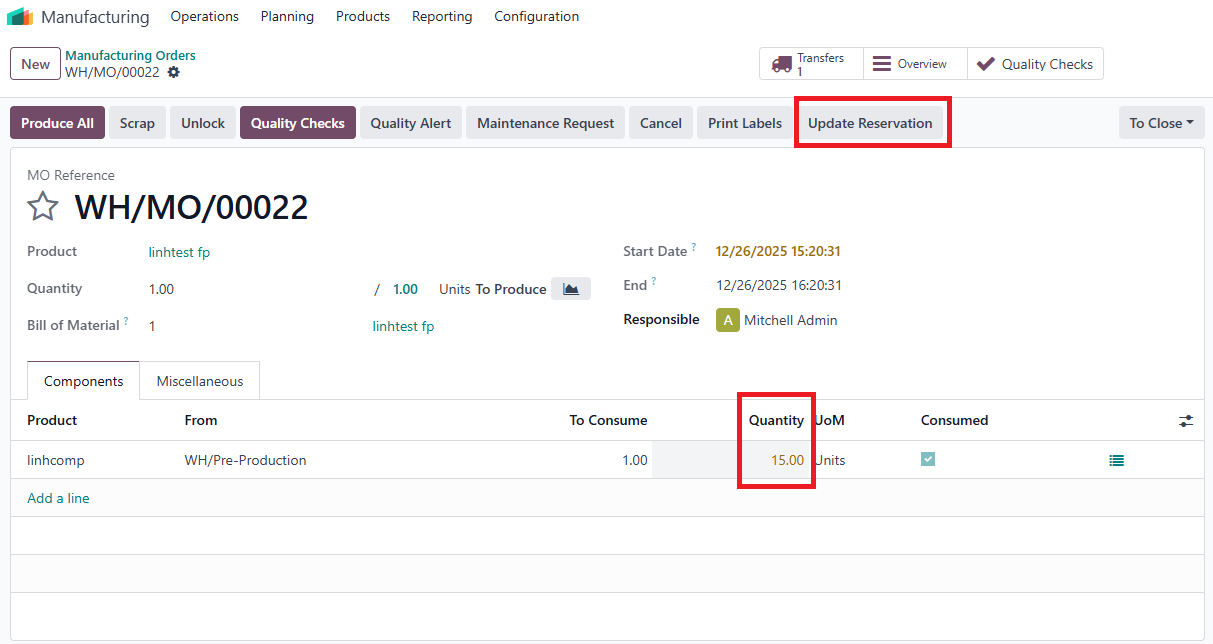 |
5. You can process and confirm the MO as usual | 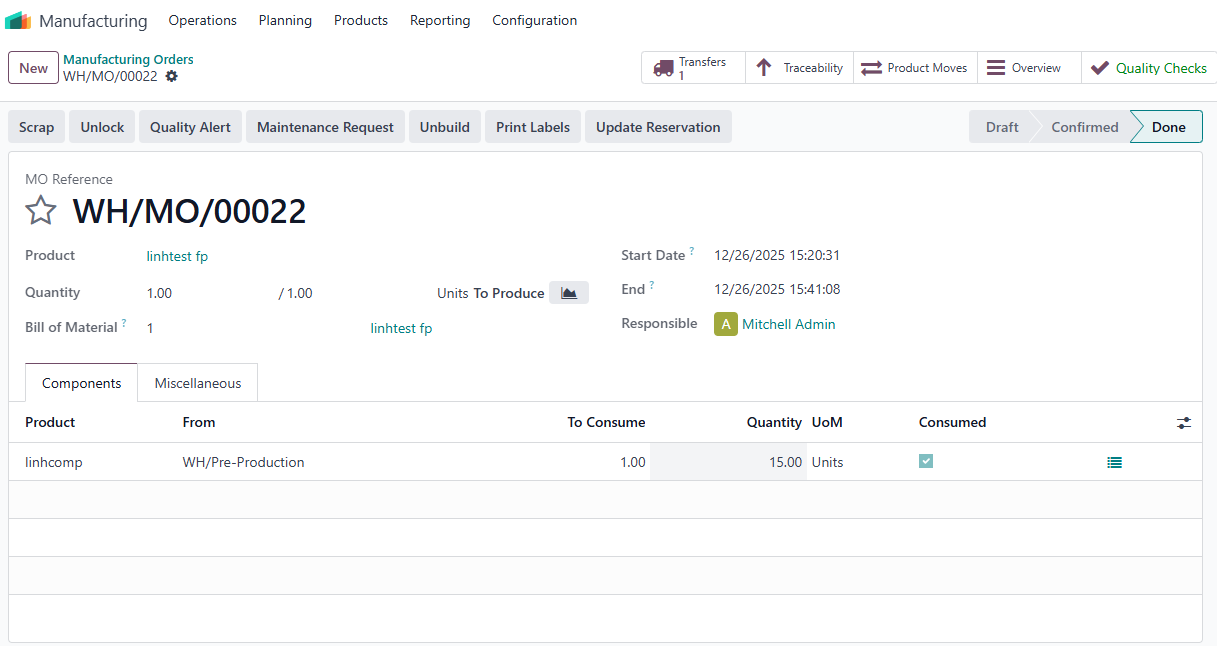 |
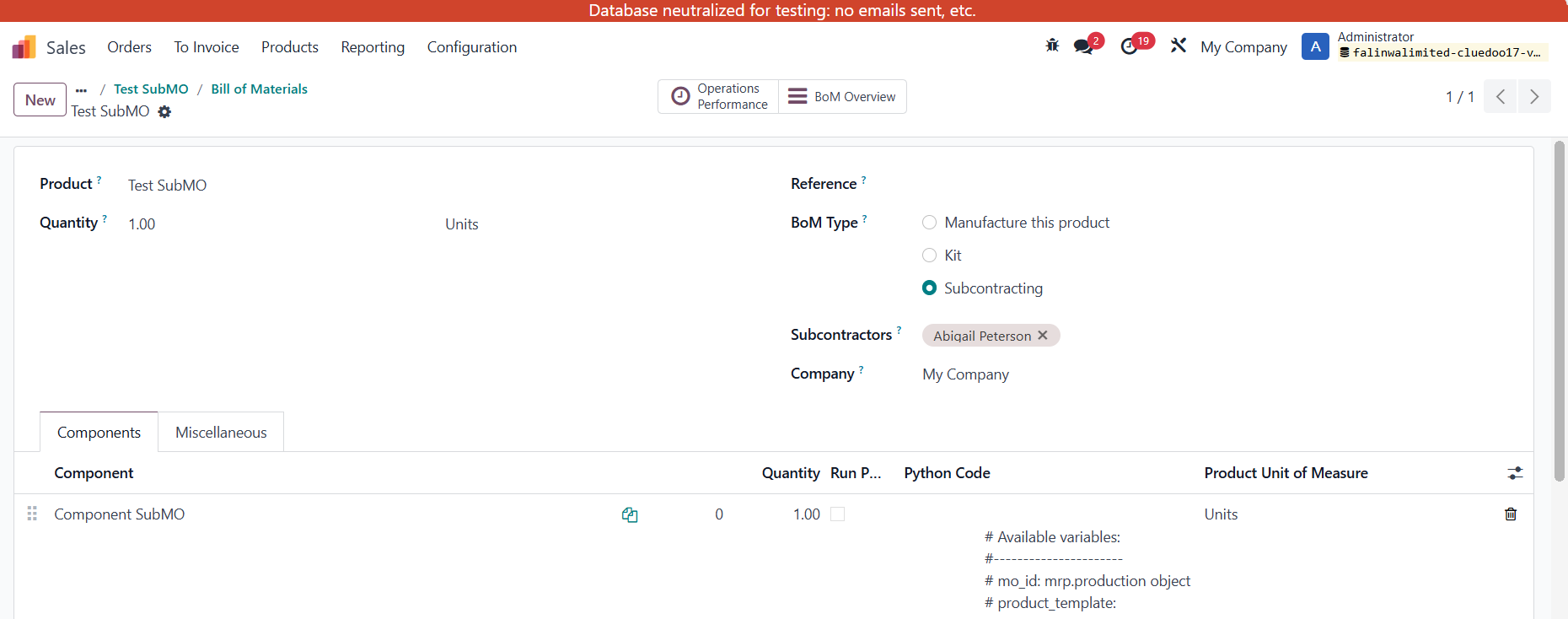
Subcontracting MO | |
|
|
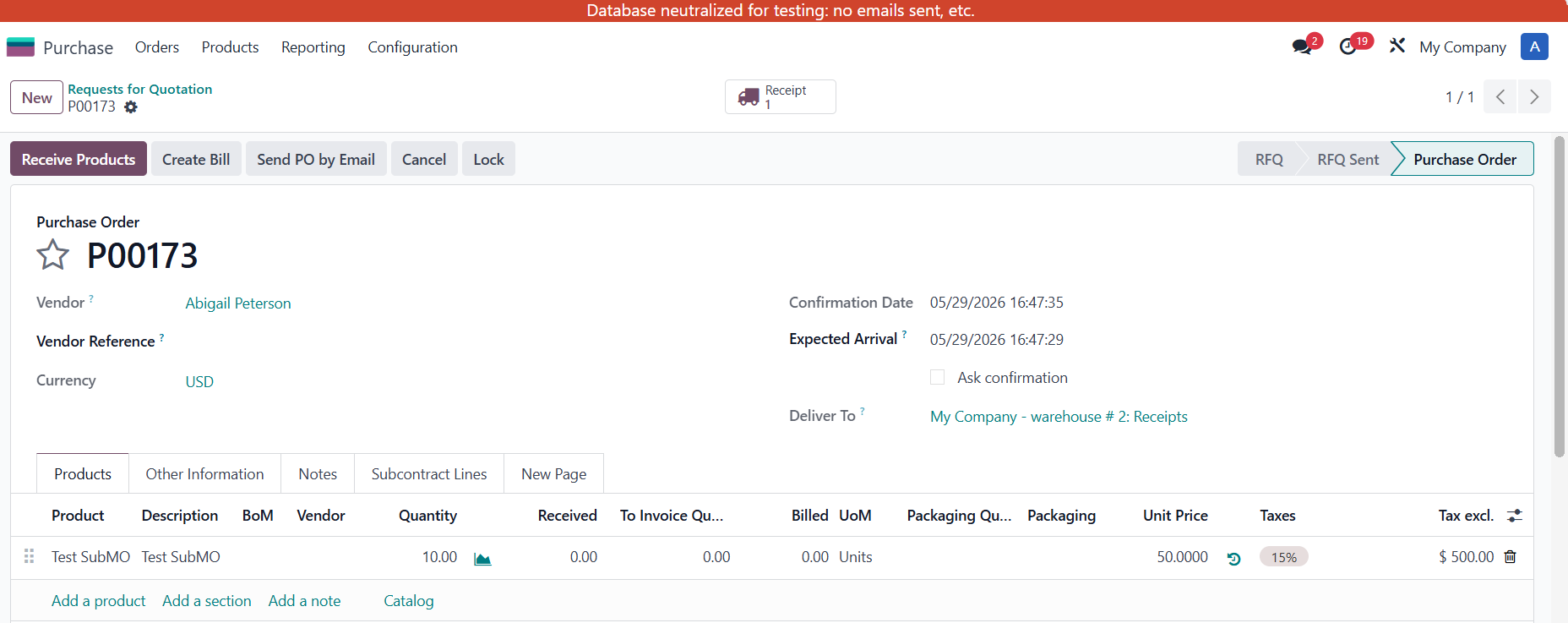
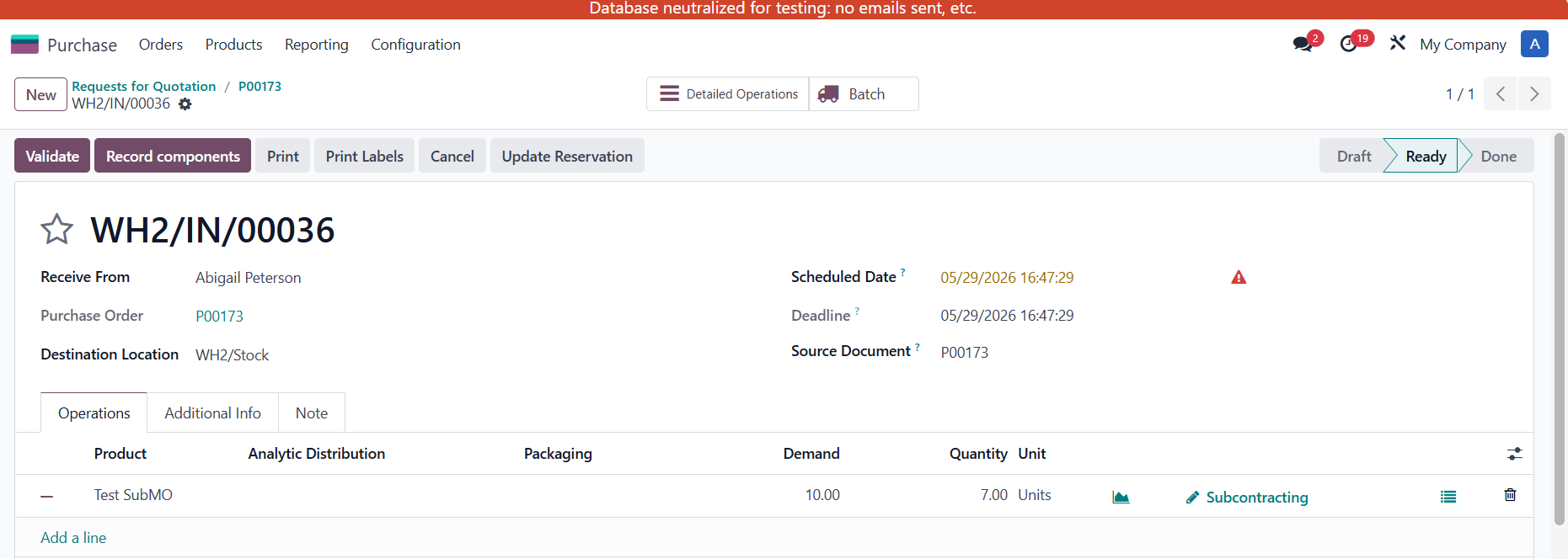
2. Create and confirm a new Purchase Order (PO) > Go to Receipt and Add received quantity.
|
|
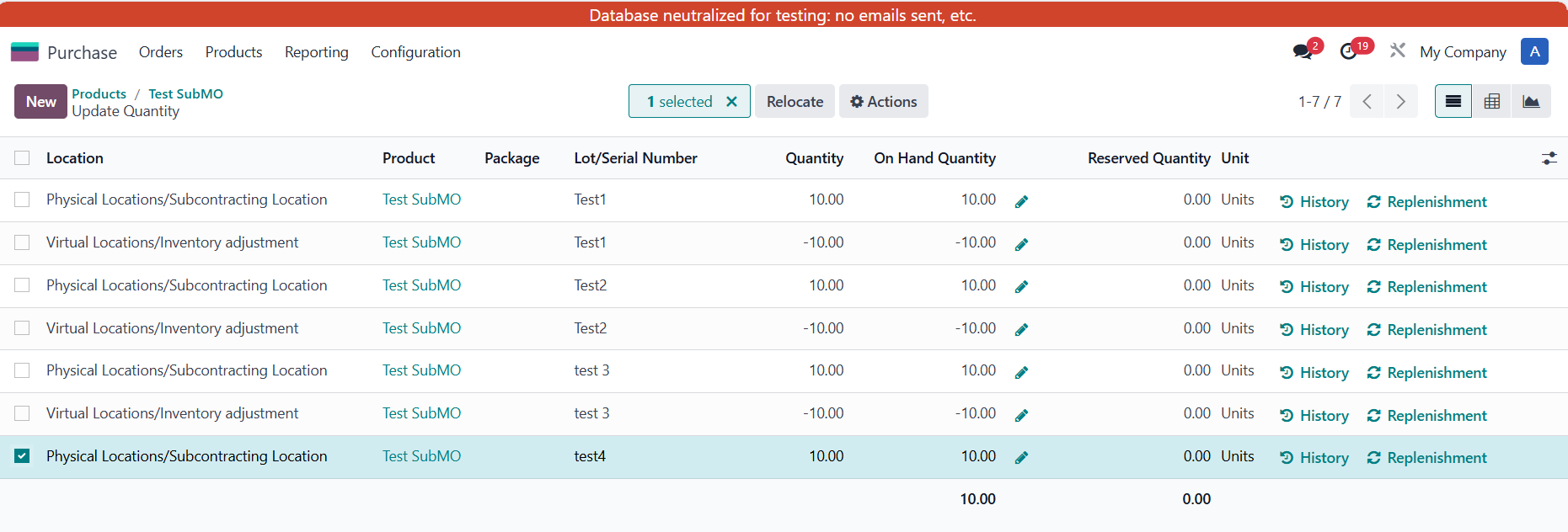
3. Check Component On-Hand and Assign Lot Go to the component's On-Hand Quantity and verify that it is currently 0. Create a new on-hand quantity for this component and assign a specific Lot Number. |
|
4. Go to Manufacturing > Subcontracting > a subcontract order is created > click ' Update Reservation' => The system will instantly reserve the required quantity from the component's available on-hand stock. |
|
5. The system automatically assigns the correct Lot Number to the components. Verify the successful reservation and lot assignment inside the Subcontracting Wizard and the Subcontracting Details directly from the PO receipt. |