


ODOO'S FUNCTION
In Odoo standard, manufacturing orders (MOs) with serial number (SN) requirements must be confirmed and assigned individually. There is no built-in functionality to mass-confirm multiple MOs or bulk-assign serial numbers across work orders, making the process time-consuming for high-volume production environments.
CLUEDOO'S FUNCTION
CLuedoo enhances MO management by introducing mass operations for serial-tracked manufacturing:
1️⃣ Mass Confirm: Confirm multiple manufacturing orders simultaneously from list view.
2️⃣ Mass SN Assignment: Bulk-assign serial numbers to work orders across selected MOs.
1. Go to Manufacturing > Create a Manufacturing Order with a product tracked by lot/serial number | 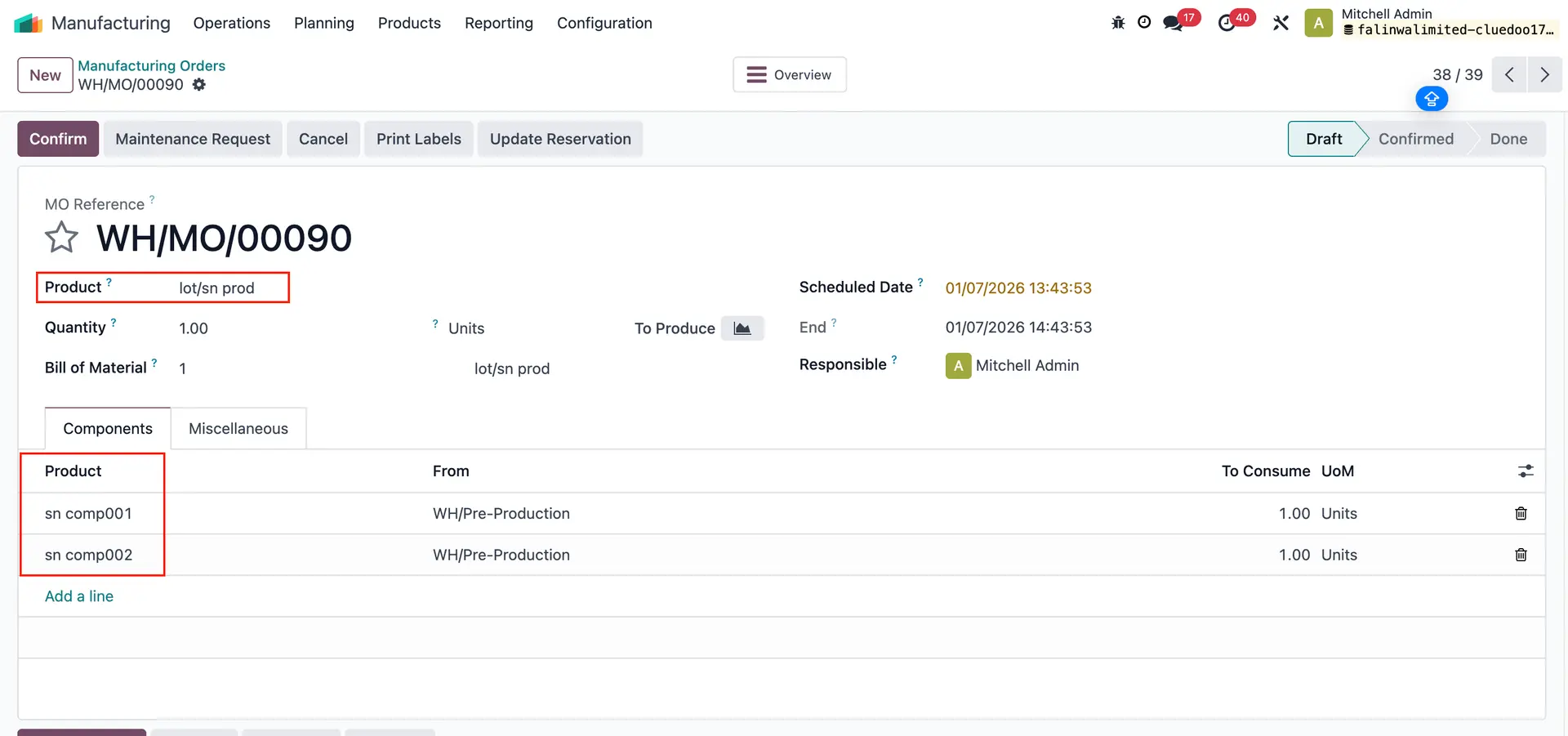 |
2. Go to list view > Choose multiple draft MOs > Click on Mass Generate SN > A wizard pop up will appear > Click on Generate Serial Numbers > Assign SN to Manufacture order. | 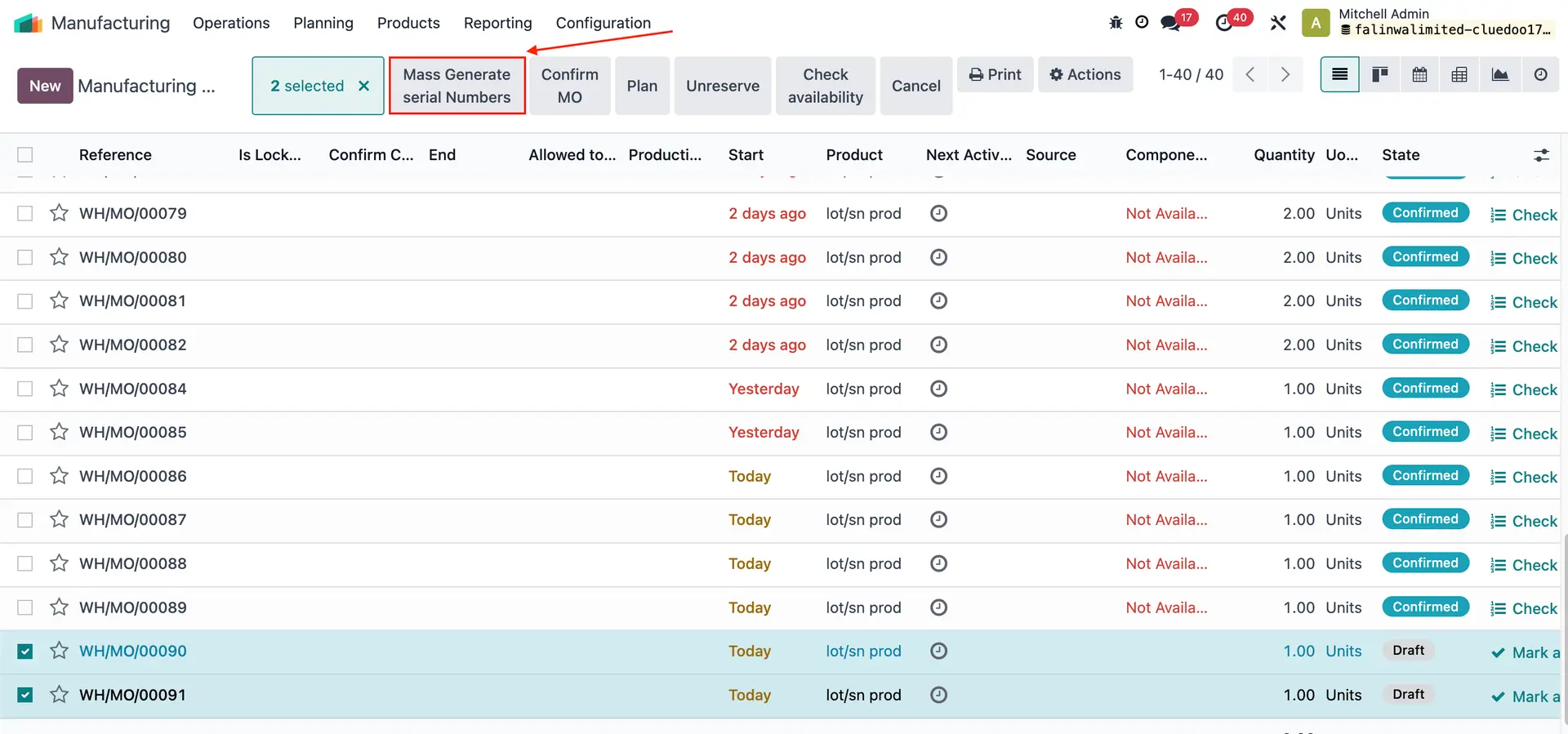 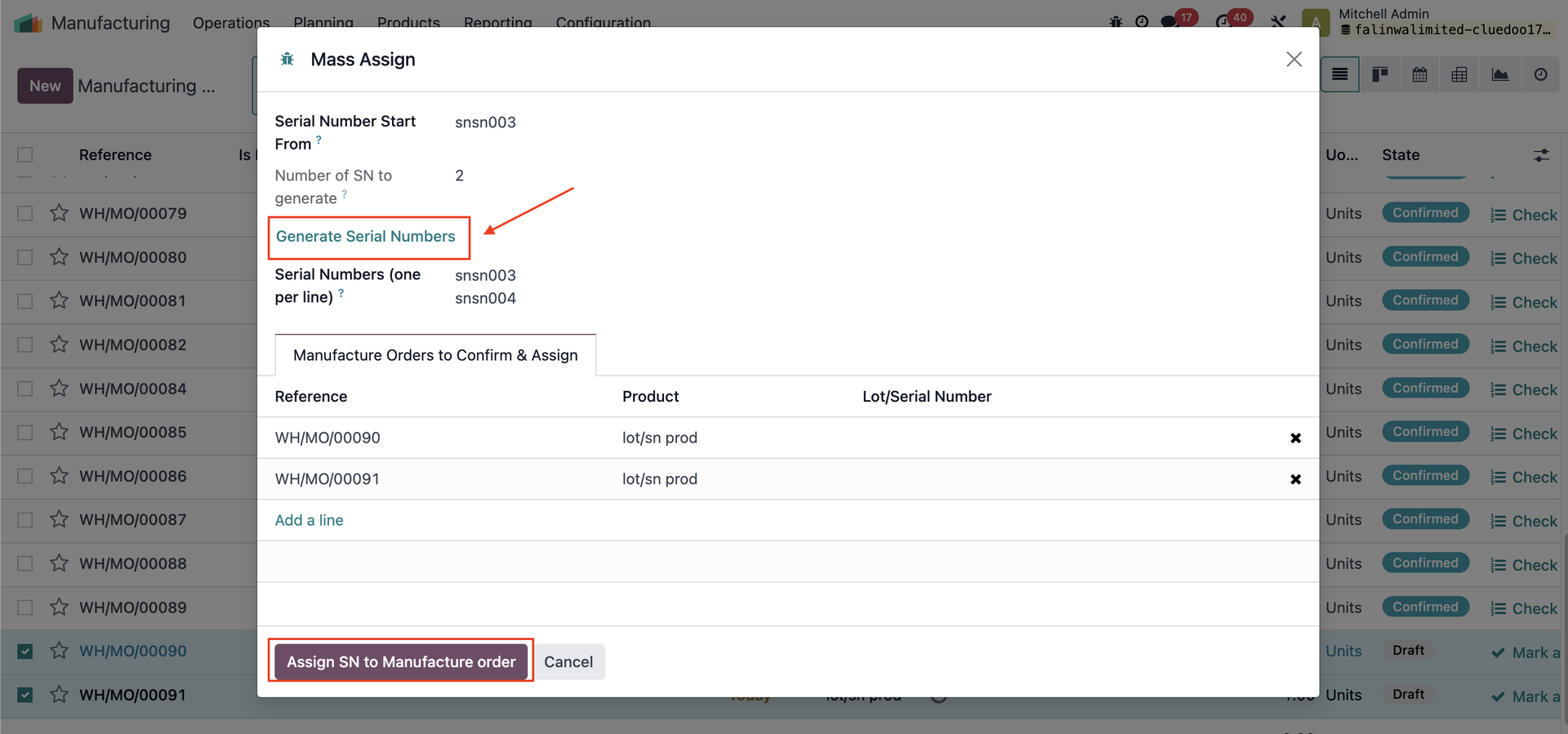 |
3. On list view, choose the draft MOs and click on Confirm MO > The MOs will change to Confirmed | 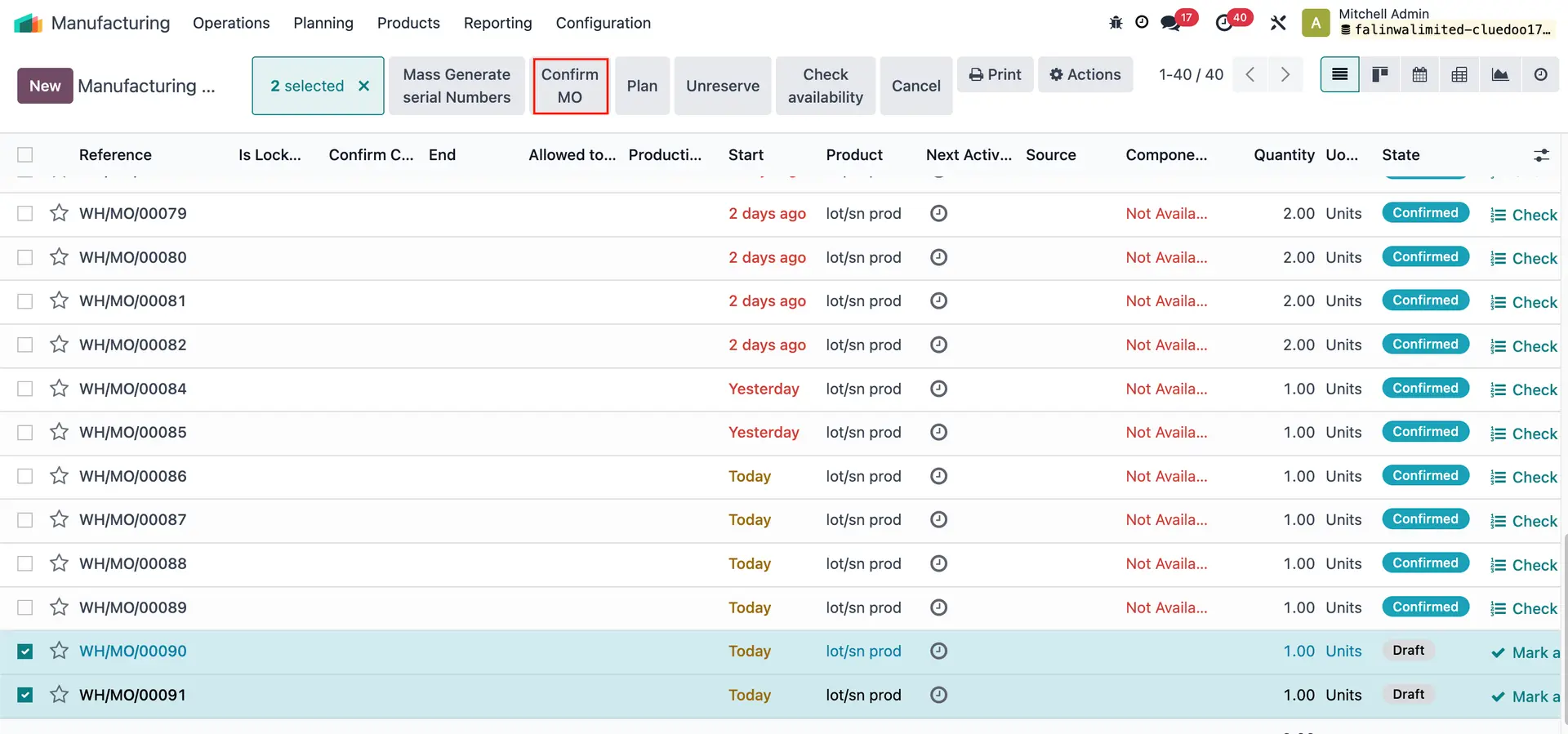 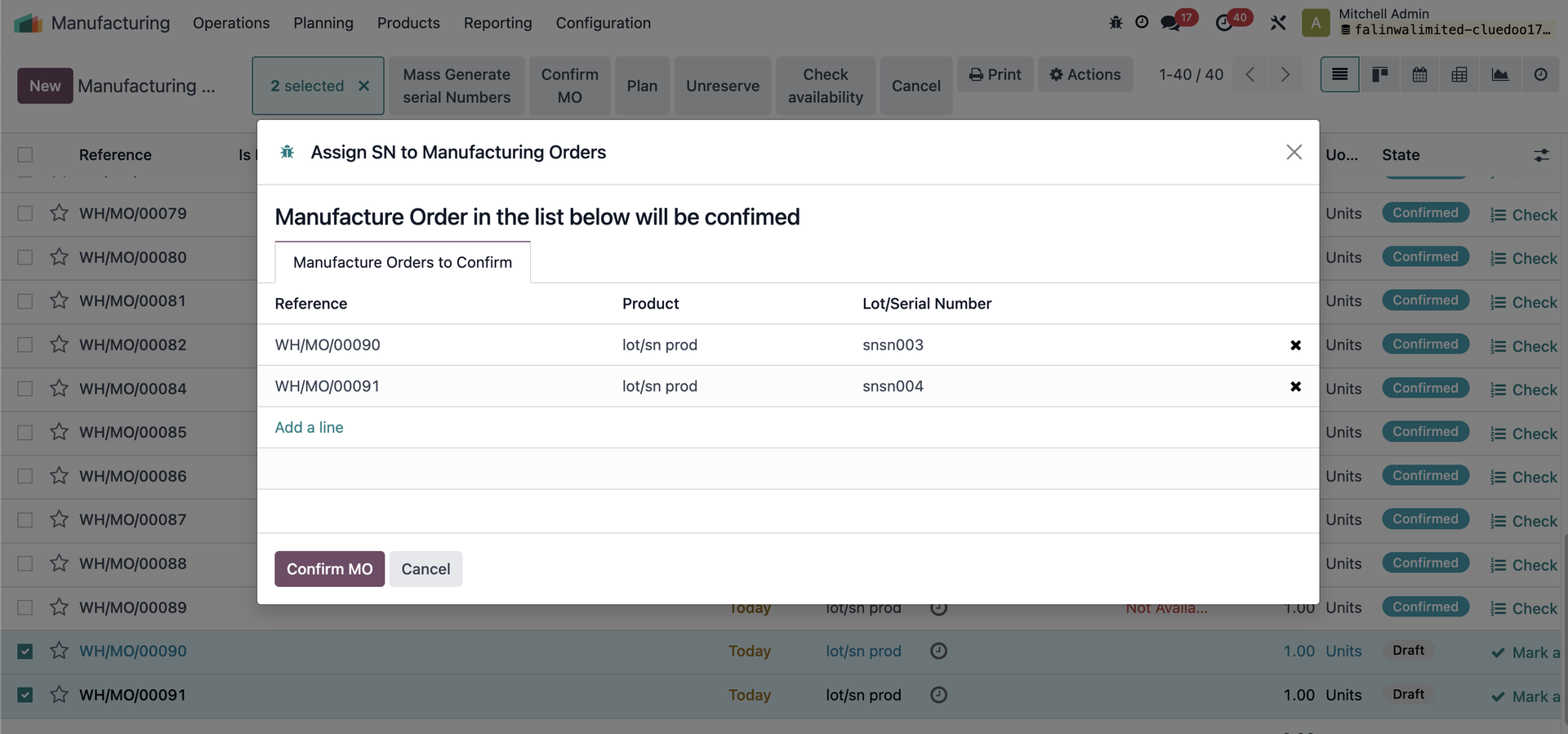 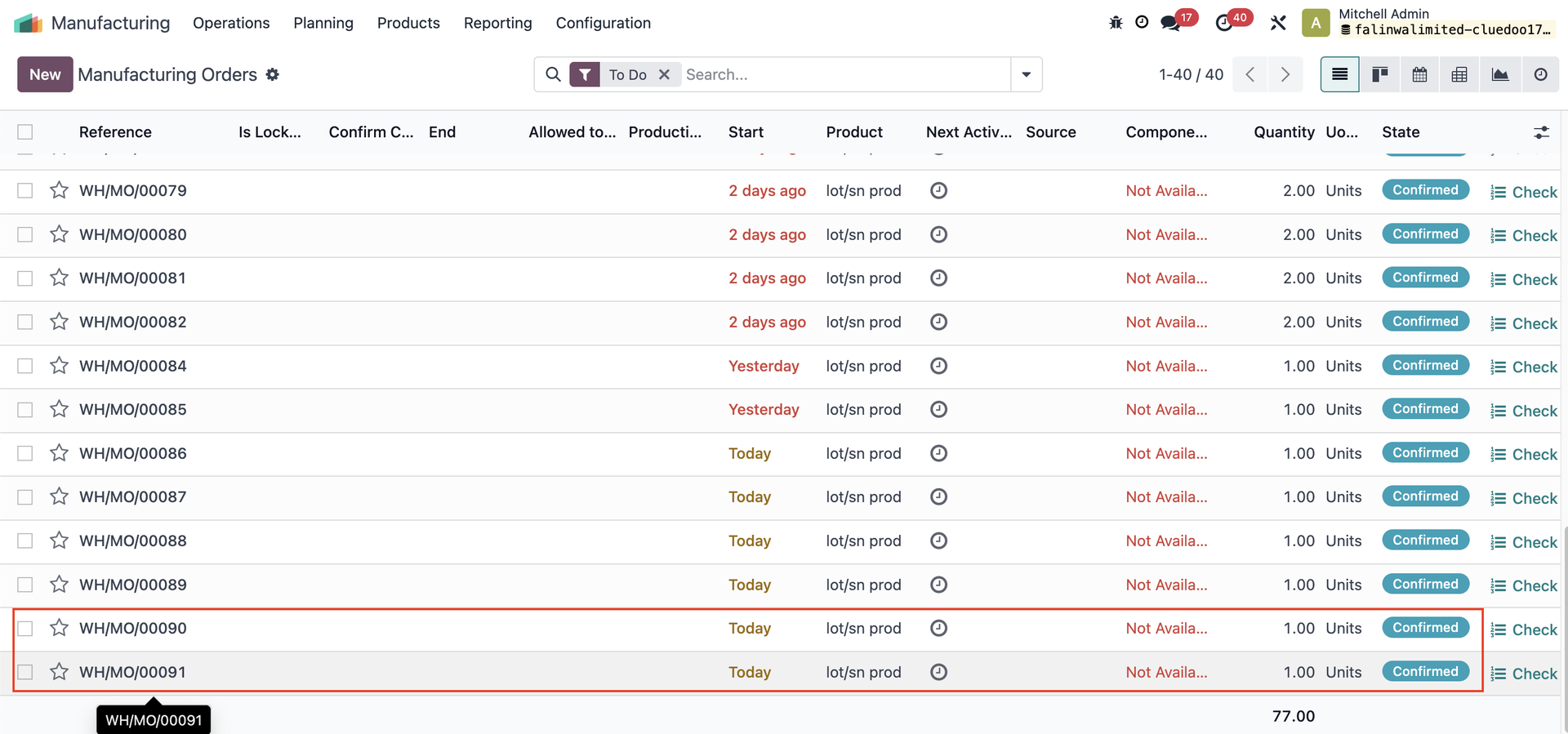 |
We can see the SNs assigned earlier on the MOs. | 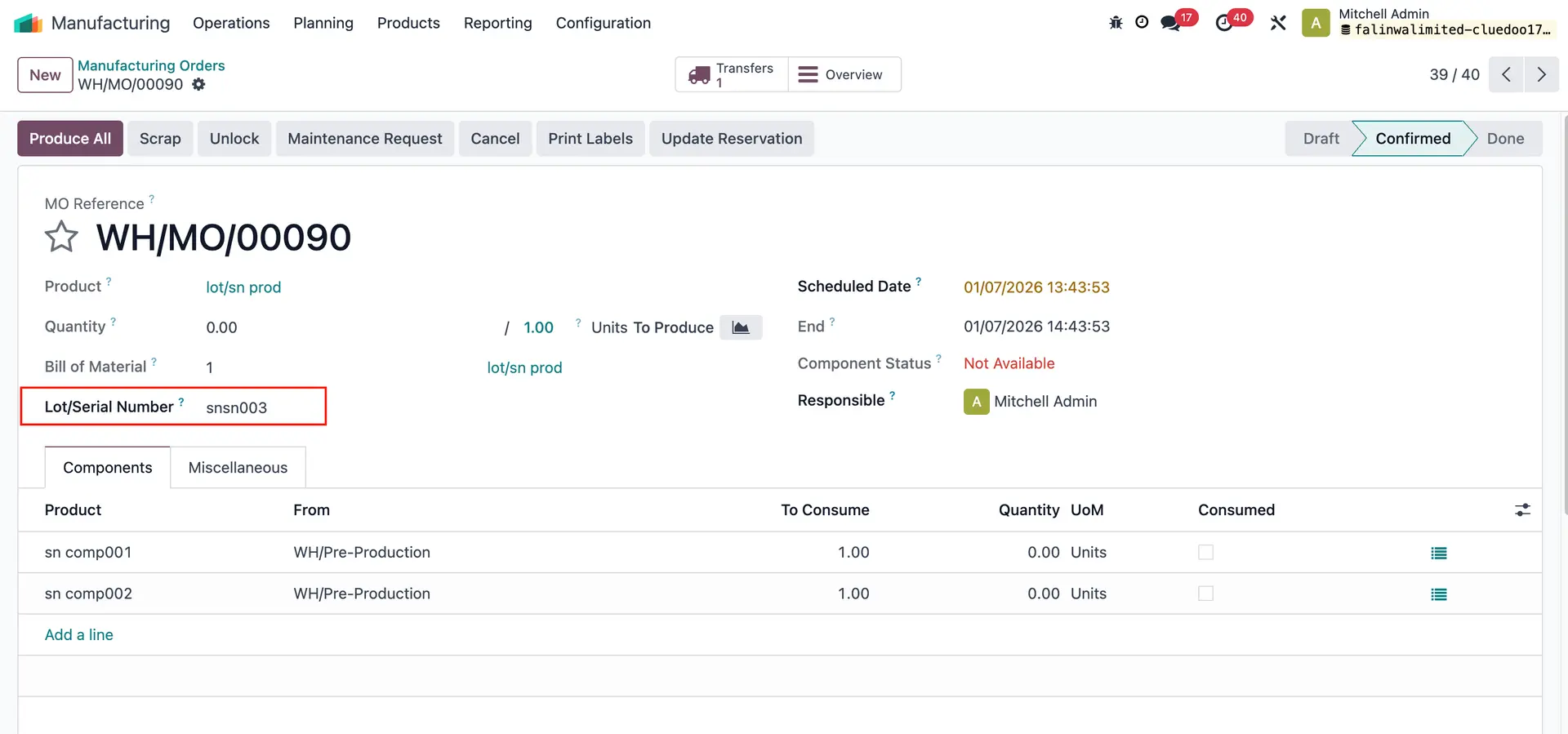 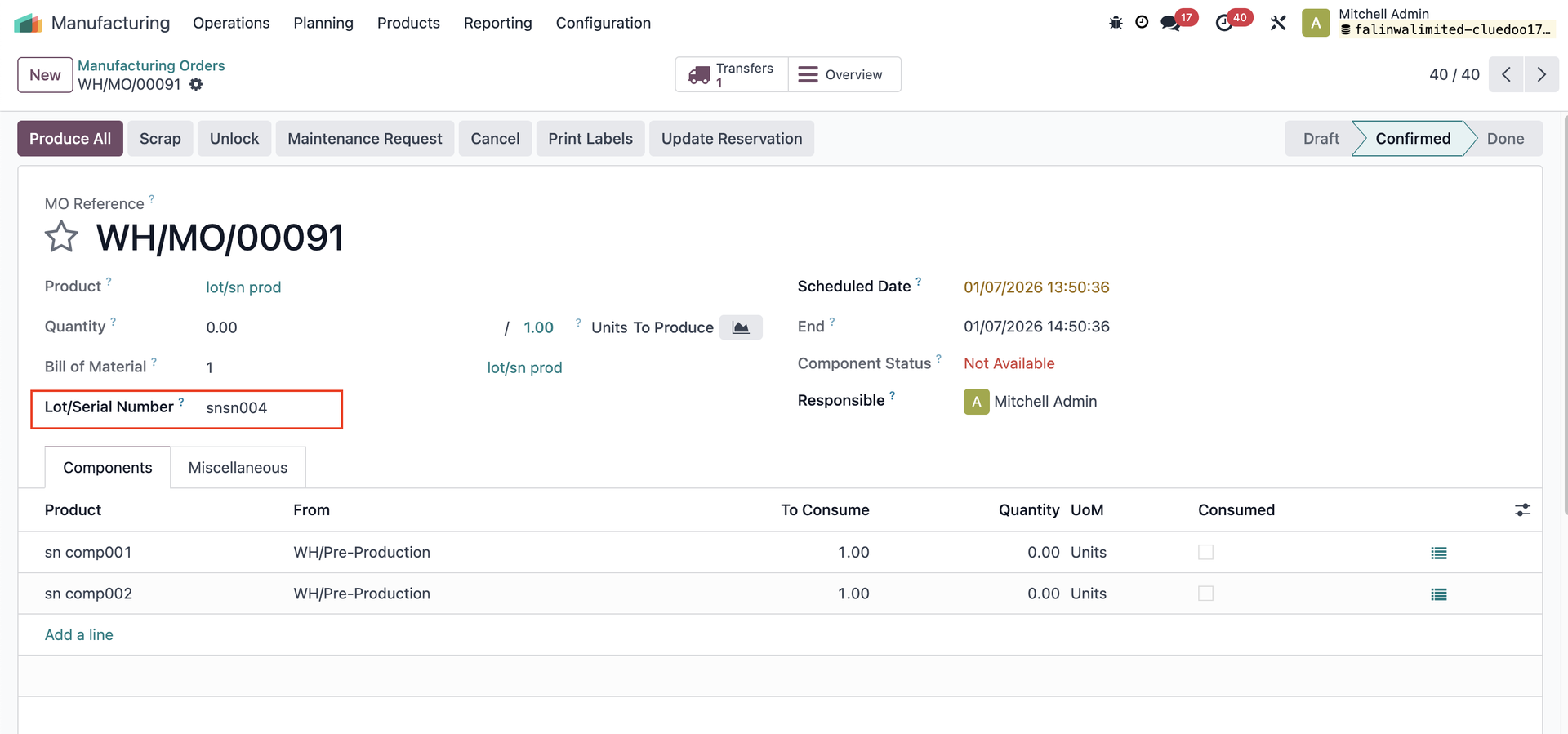 |
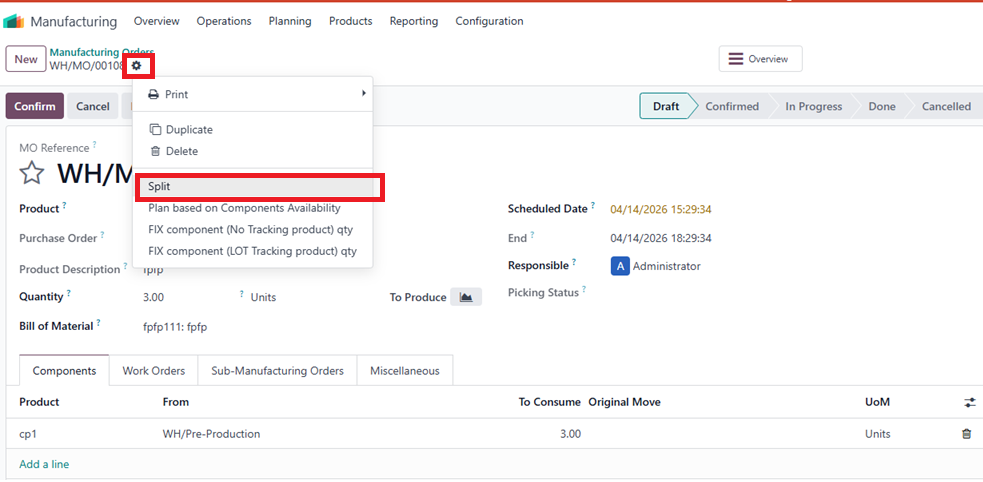
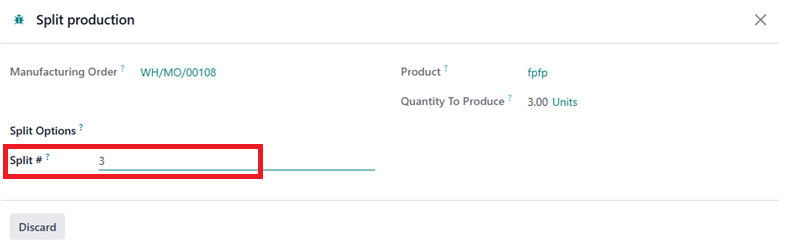
Splitting stock picking for MO
|
|
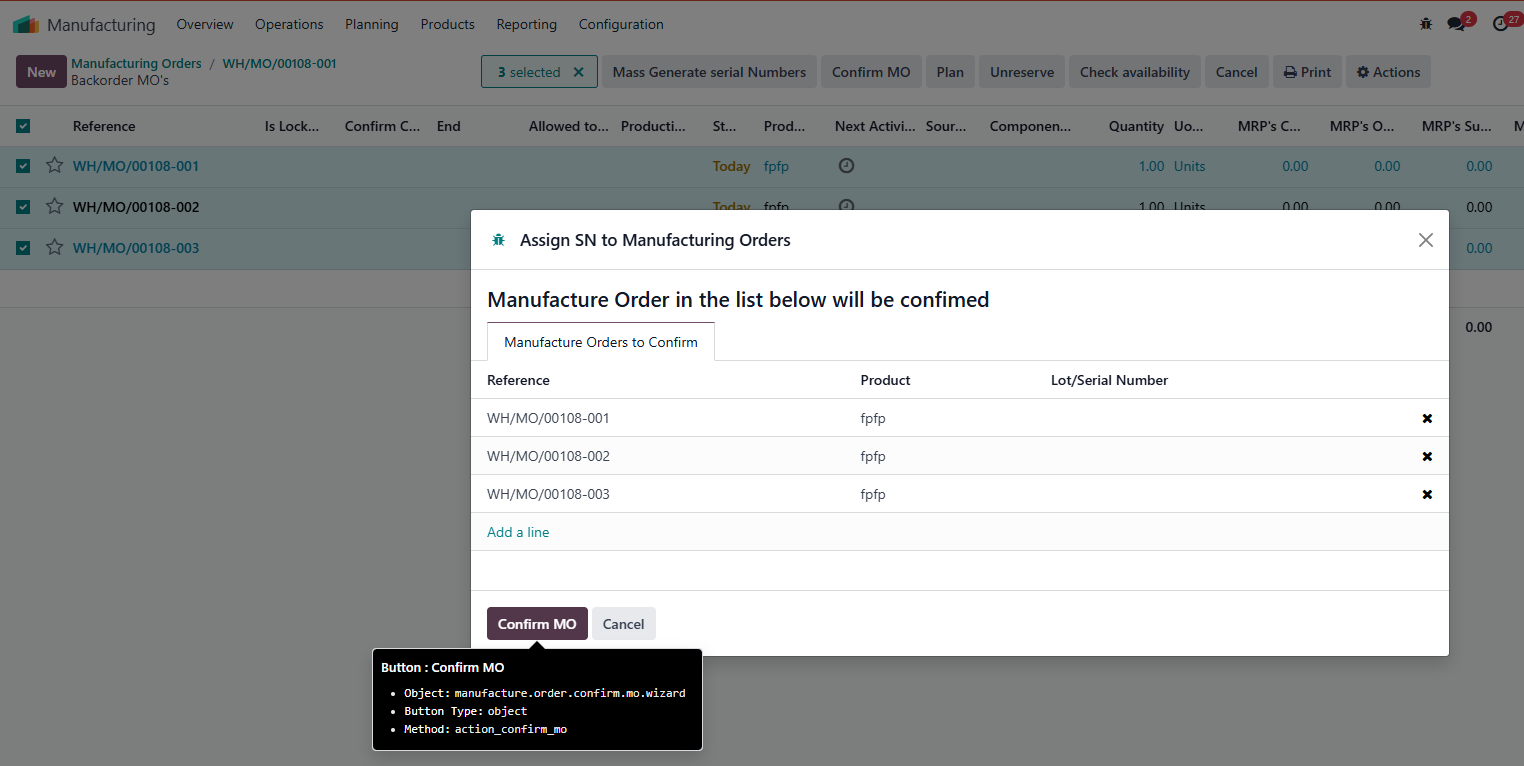
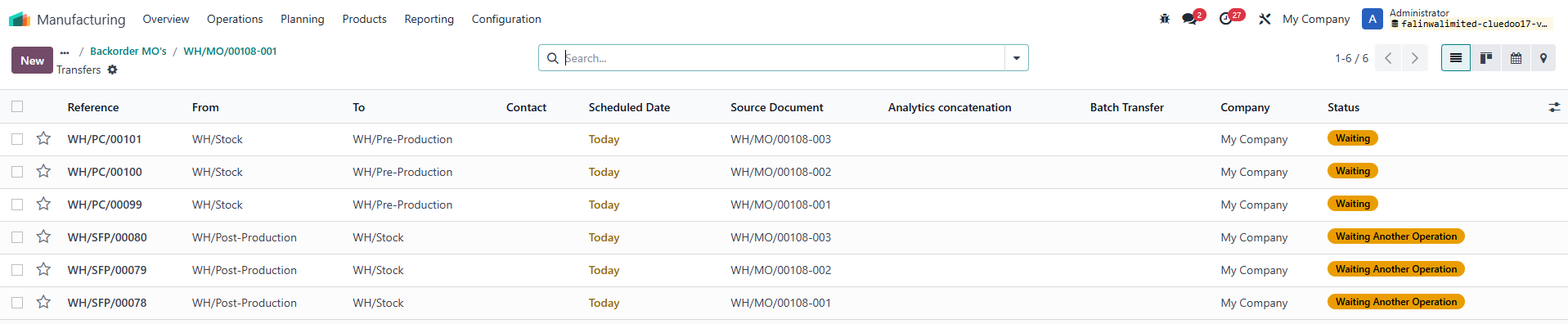
2. Mass confirm all Split MOs ==> Result: Multiple transfers created (MOs must be in Draft state) |
|
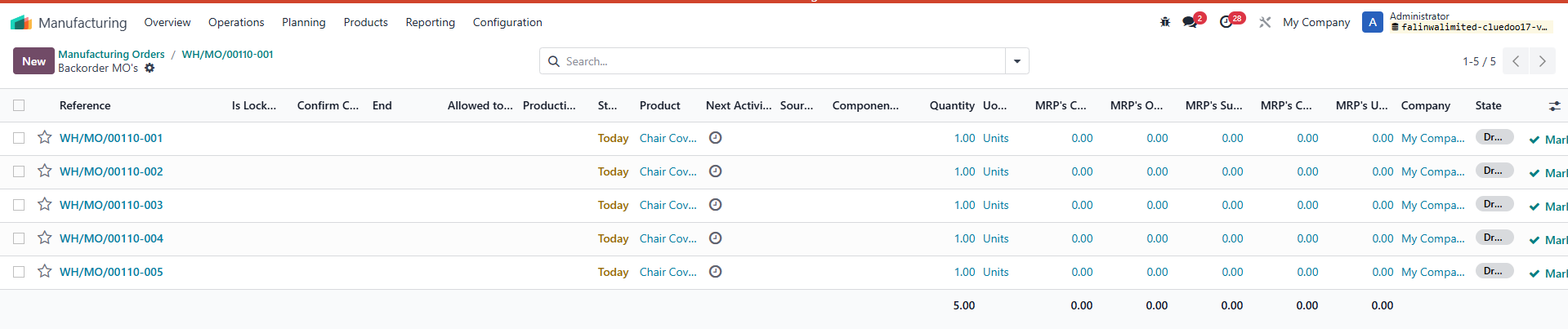
Test case for MOs quantity > 5 1. Create MO with product's quantity > 5. Then split into MOs |
|
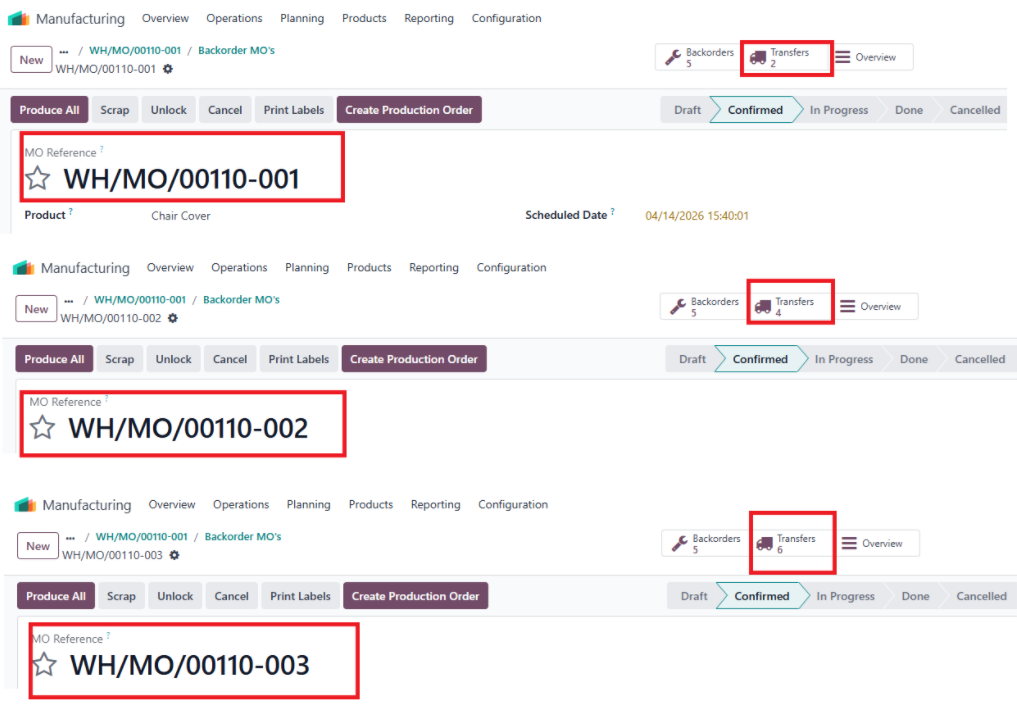
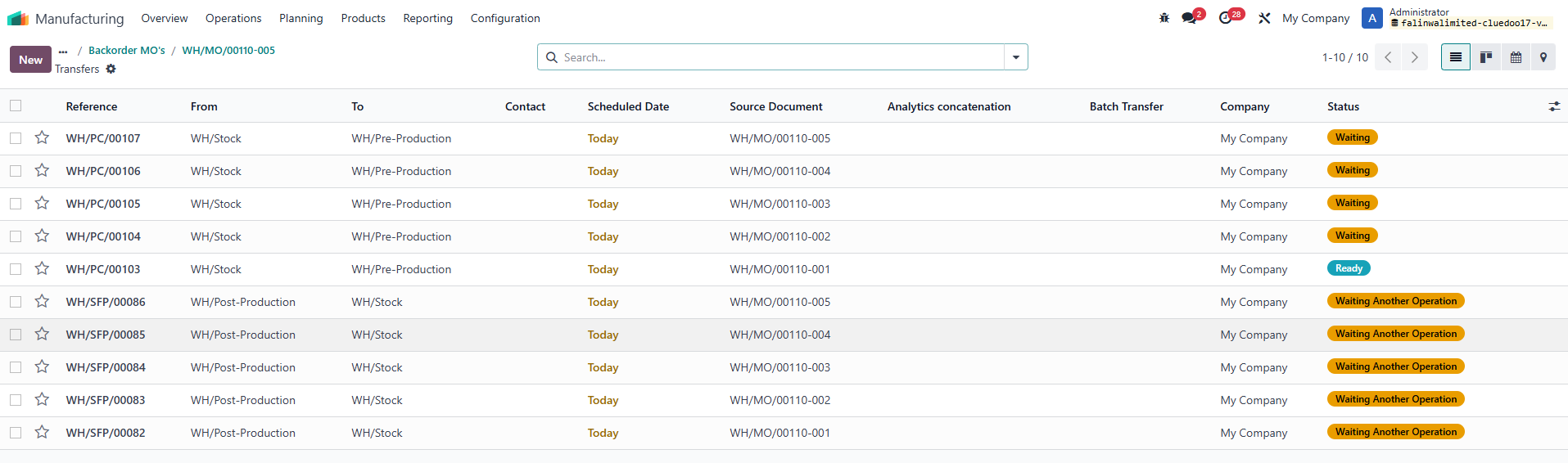
2. Mannually confirm each MO Result: Transfers created for each MO For example: Create MO WH/MO/00110 with product quantity = 5 --> Split into 5 MOs. Confirm WH/MO/00110 001 to WH/MO/00110-005 respectively. Each MO creates 2 transfers. |
|