ODOO'S FUNCTION
In Odoo, when relocating stock to another location, the reserved quantity is not transferred to the new location. Instead, Odoo automatically unreserves it from the original location and moves the on-hand quantity to the new one, requiring you to manually reserve it again afterward.
CLUEDOO'S FUNCTION
CLuedoo allows user to relocate the reserved quantity together with the quantity on hand to a different location, without having to relocate the reserved quantity separately.
SALES ORDERS1. Create a Sales Order → Add a product that is tracked by lot/sn → Confirm → Go to the Delivery transfer | 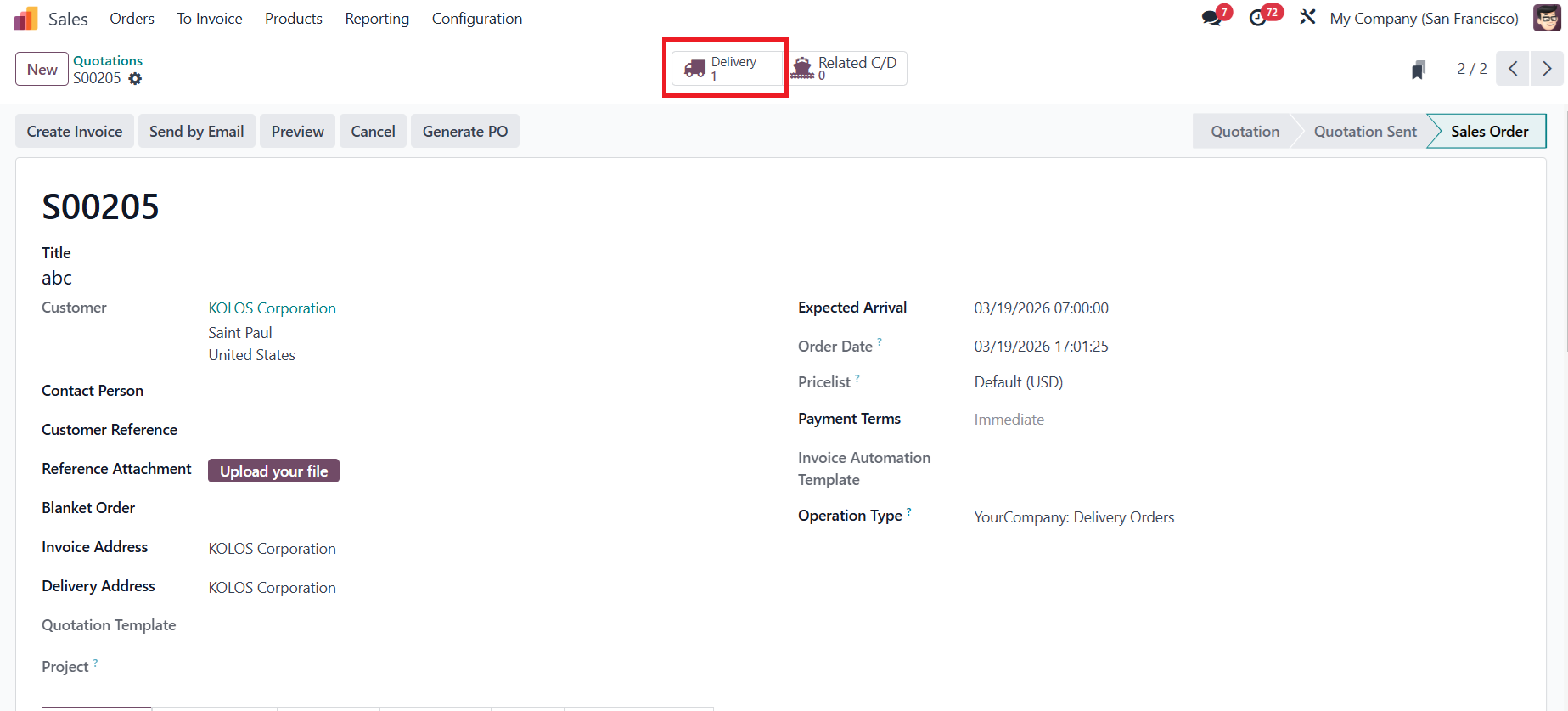 |
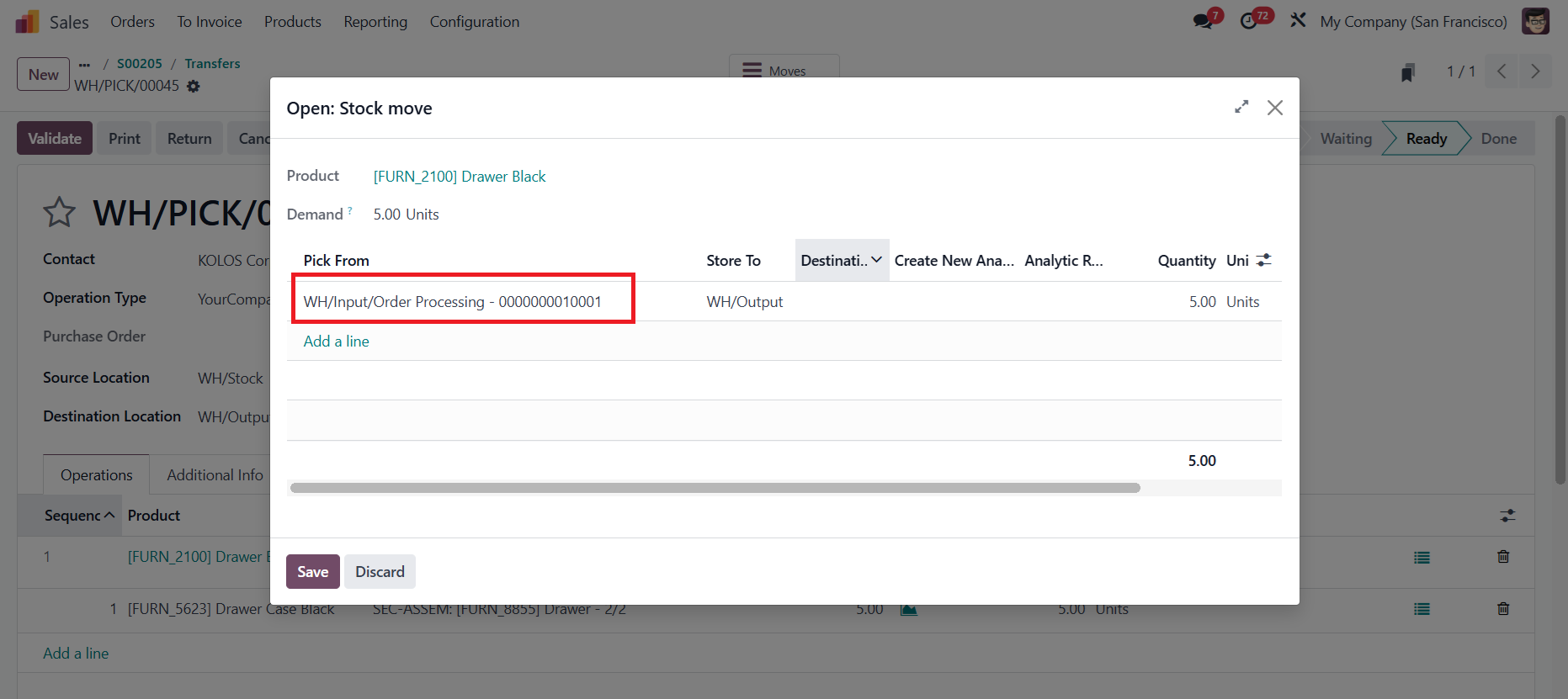
2. In the picking, click on the 3 lines icon → Assign lot/sn to the product. e.g., the product will be picked from WH/Stock with Lot 0000000010001, quantity = 5. | 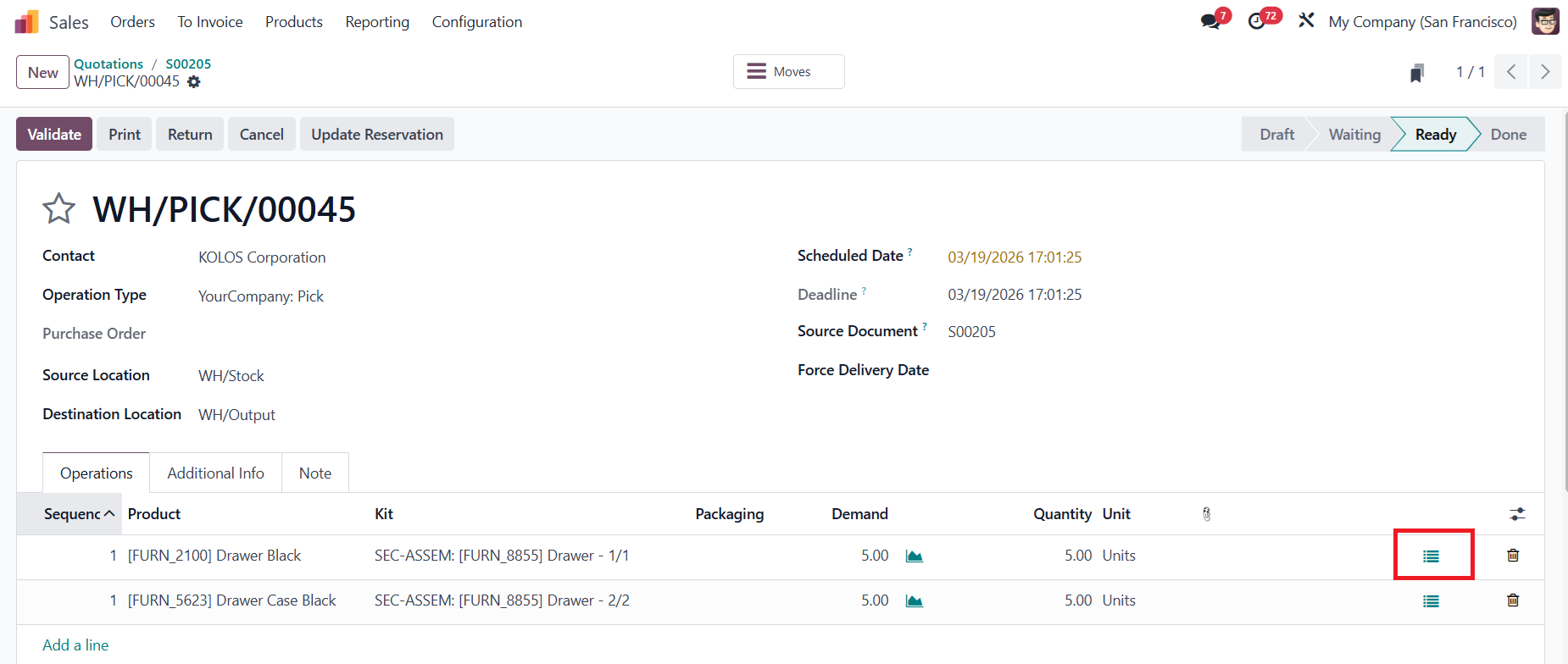 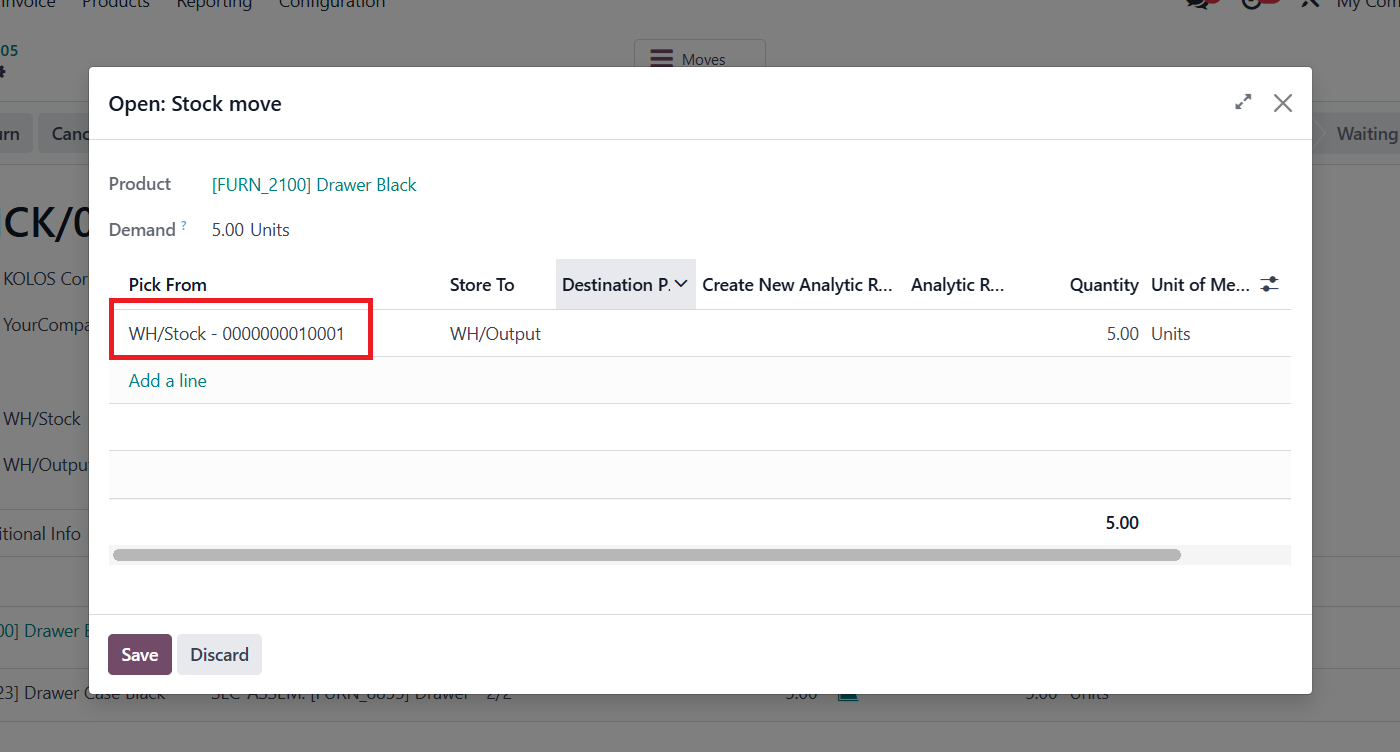 |
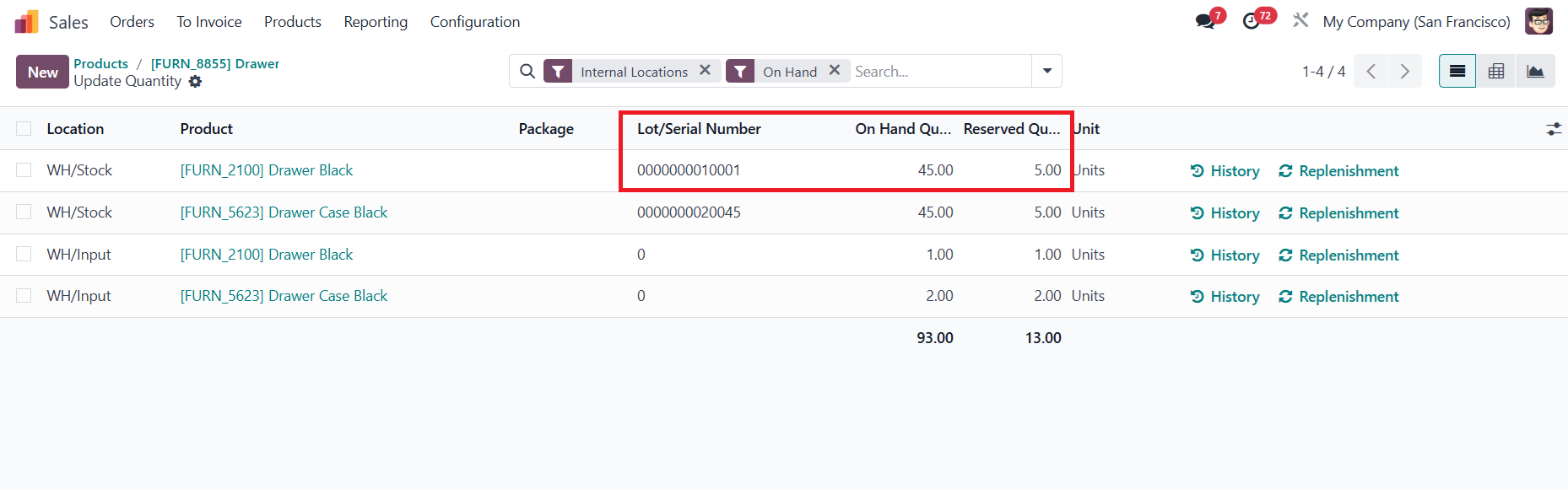
3. Go to the product template, in the on hand quantity, you can see the Reserved Quantity of 5 with lot 0000000010001 for that location. |
|
4. Select the stock quant you want to relocate the reserved quantity → click Relocate | 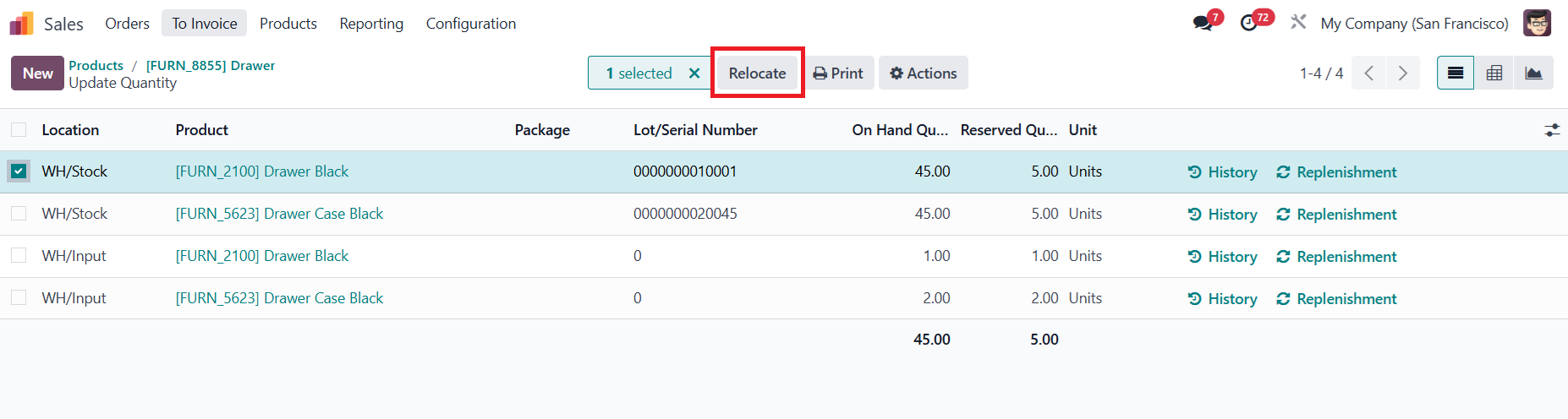 |
5. Input which Location or/and Package (if any) it will be relocated to. | 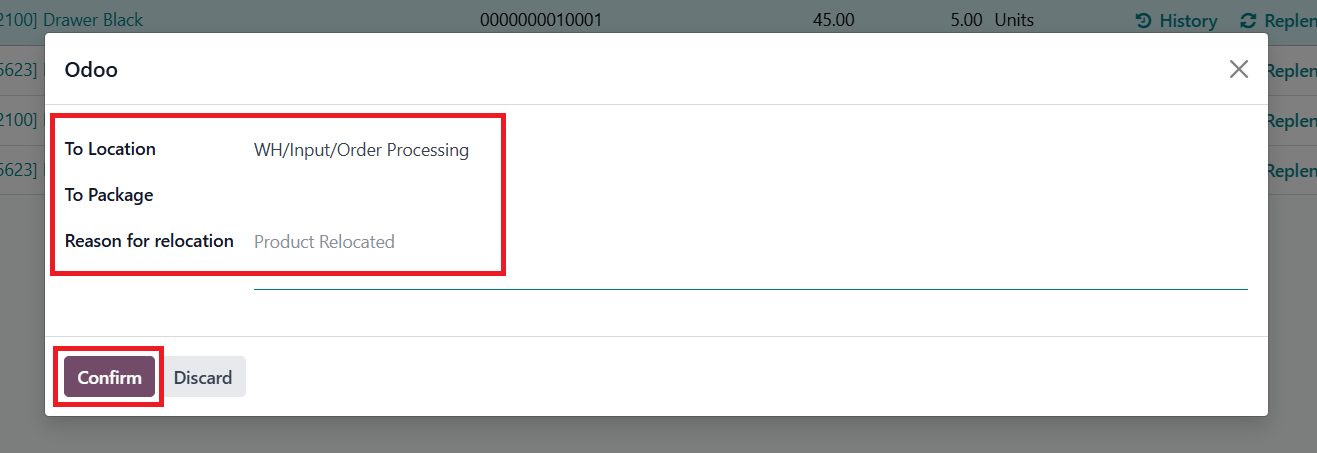 |
Result: The On Hand Quantity and Reserved Quantity are completely relocated to the new location, with the same Lot. | 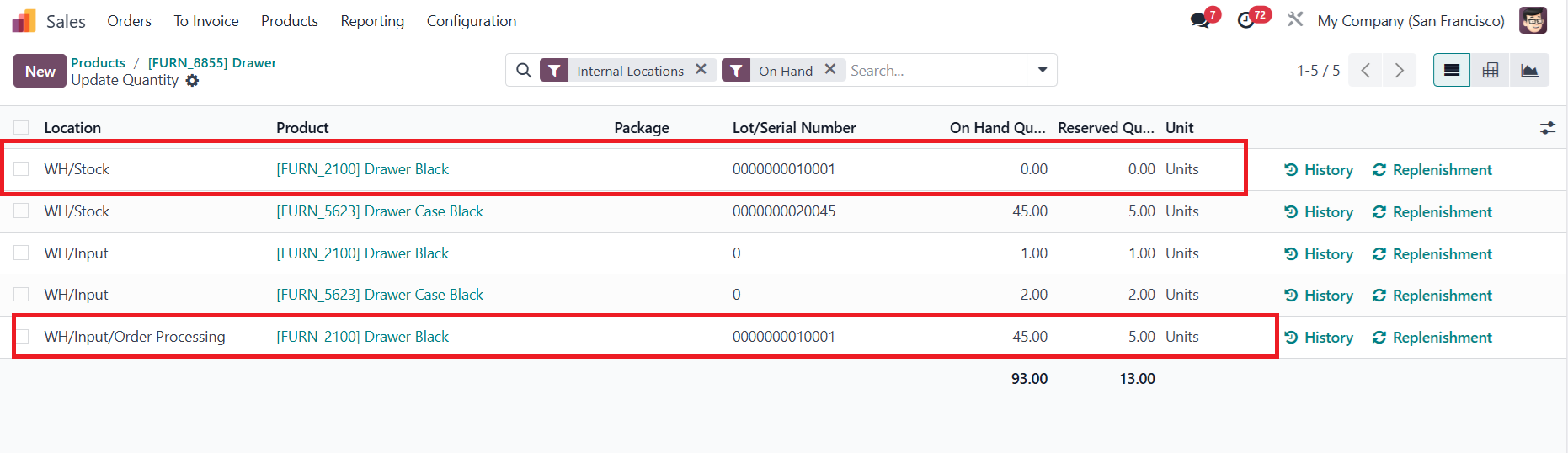 |
6. Go back to the transfer, the information in the stock move is automatically updated. |
|
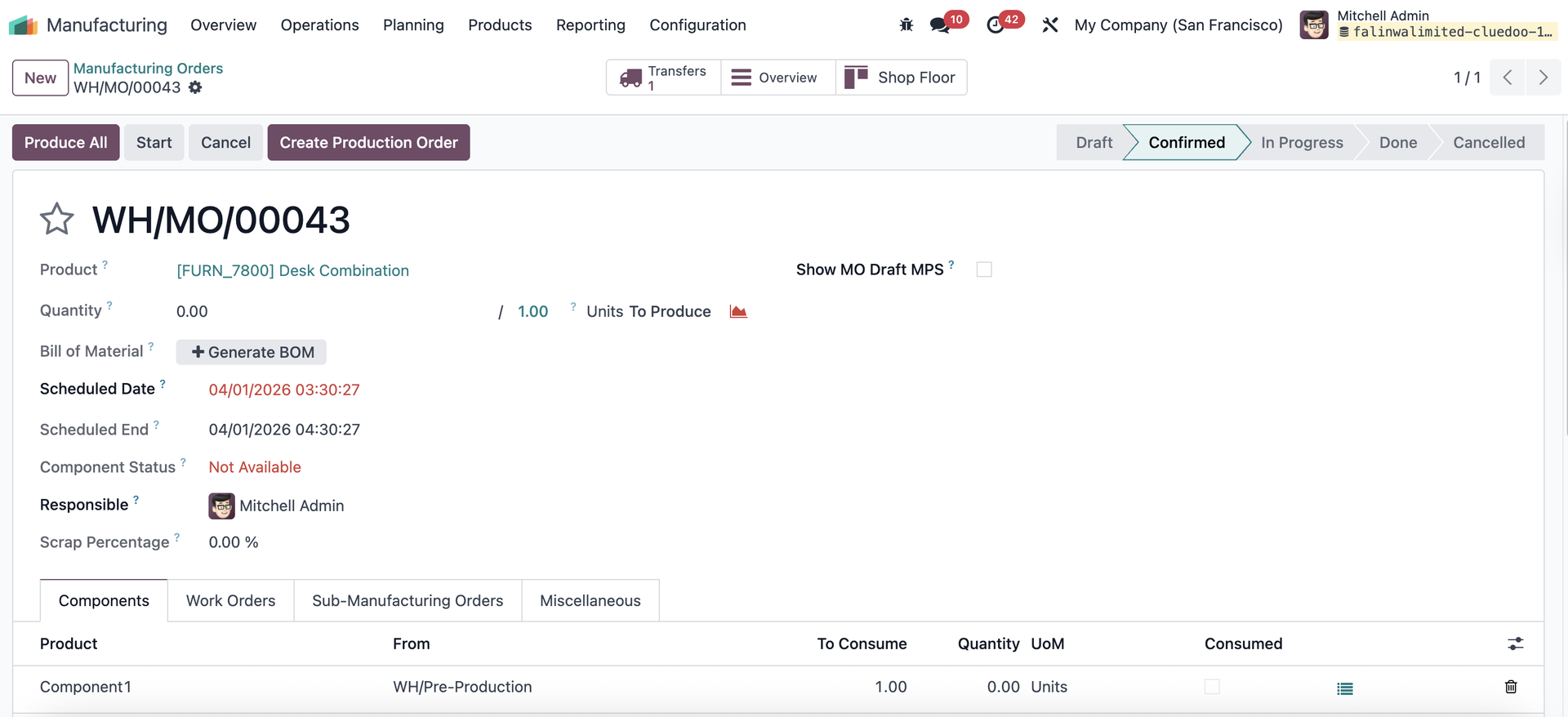
MANUFACTURING ORDERS1. Create a new MO → add the product and the components → Confirm |
|
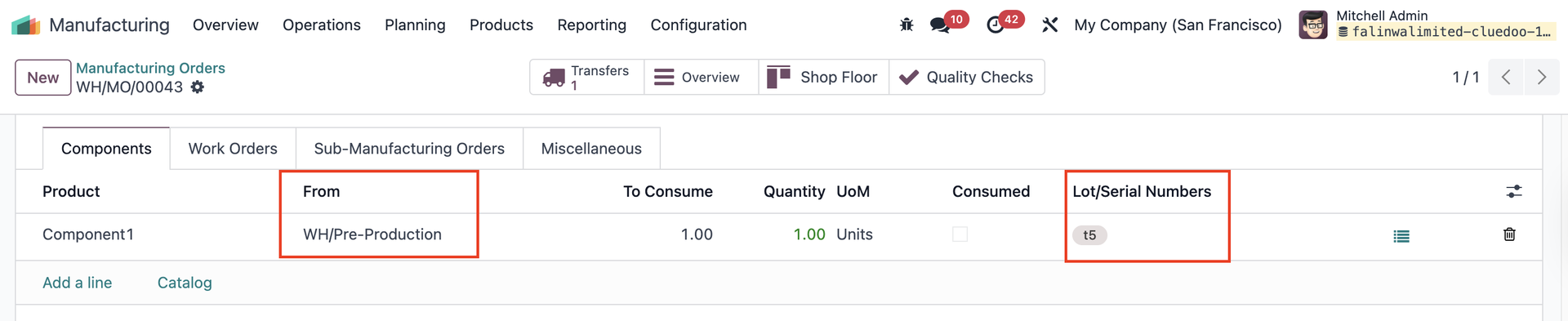
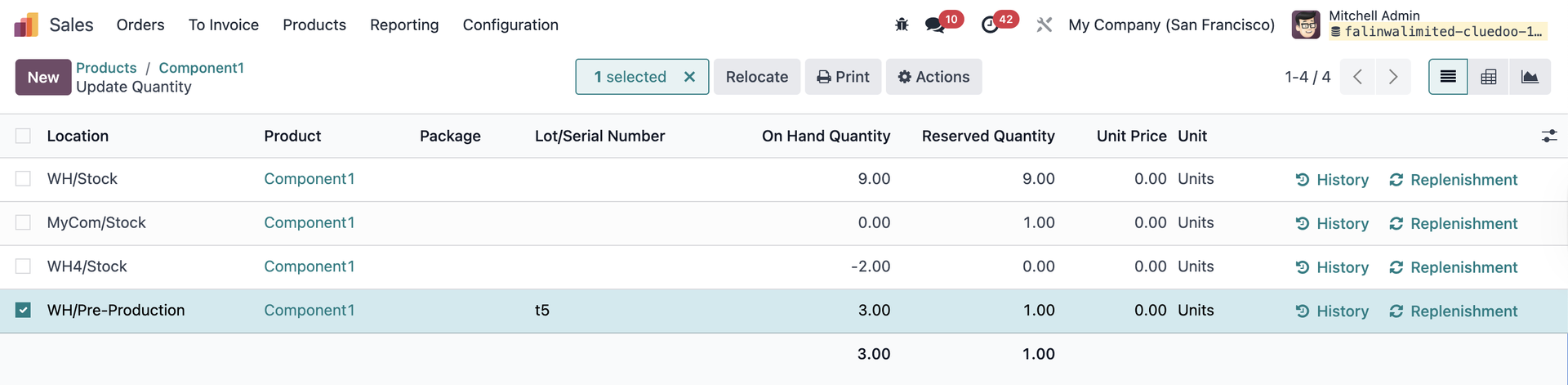
2. Assign lot/sn for the component(s) e.g., the component will be picked from WH/Pre-Production with lot t5 |
|
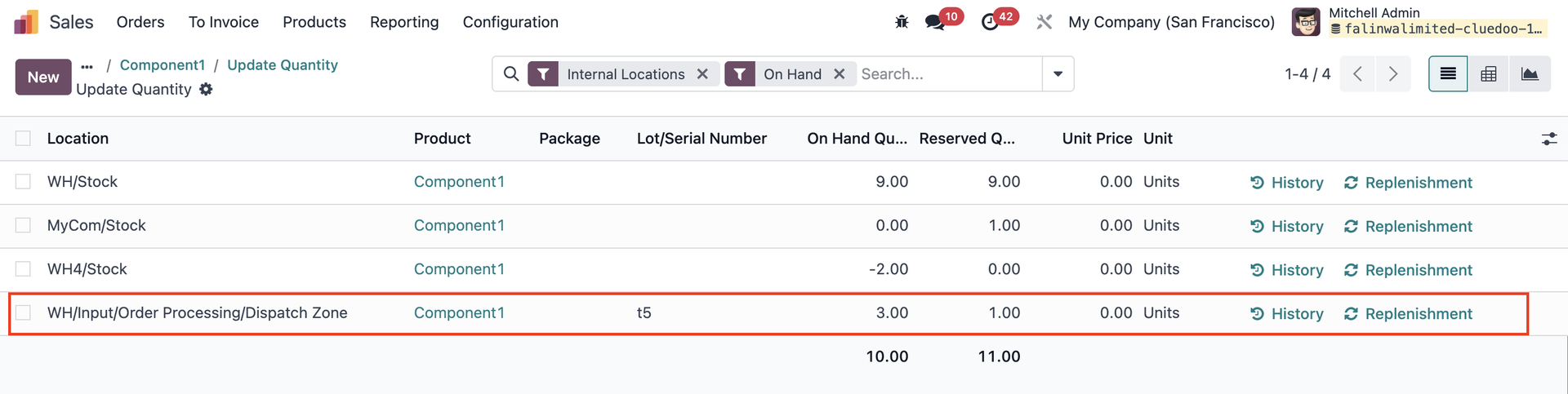
3. Relocate the product to another location | From WH/Pre-Production
To WH/Input/Order Processing/Dispatch Zone
|
4. Go to Inventory → Moves History to check if the relocation is recorded. |
|
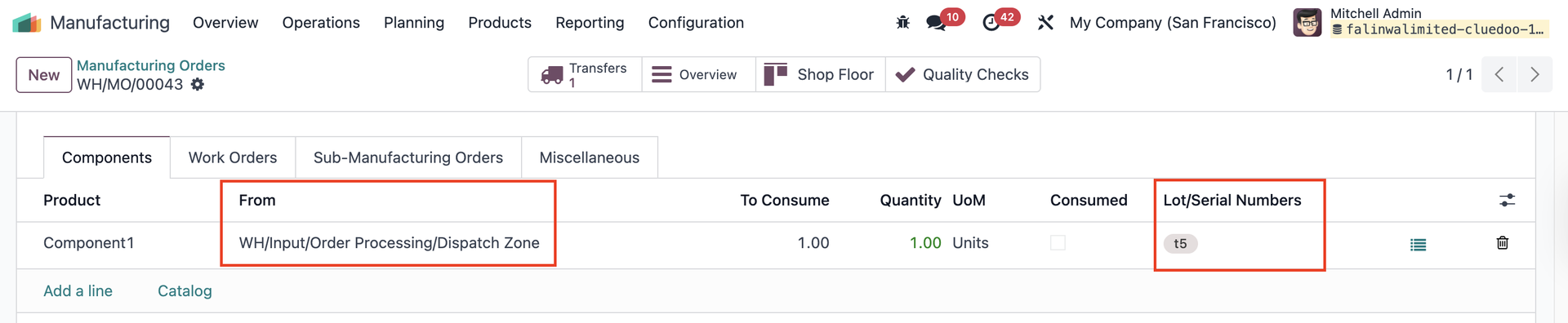
5. Go back to the MO and the new location is automatically updated. |
|