ODOO'S FUNCTION
In Odoo, stock valuation layers are created automatically for inventory movements, but there is no dedicated categorization of these layers. Users cannot easily distinguish whether a valuation layer was created from a reception, delivery, landed cost, inventory adjustment, valuation adjustment, or inter-warehouse transfer. This limitation makes reporting, analysis, and reconciliation of inventory valuation more complex, as all movements are lumped together without a clear type, reducing visibility into the financial impact of each stock operation.
CLUEDOO'S FUNCTION
CLuedoo introduces a new object called Stock Valuation Layer Category (SVL Category). This object allows users to classify each stock valuation layer by type, with options such as Reception, Delivery, Landed Cost, Inventory Adjustment, Valuation Adjustment, and Inter-Warehouse. By adding this classification, users gain better visibility and control over inventory valuation, enabling more precise reporting, analysis, and auditing of stock movements.
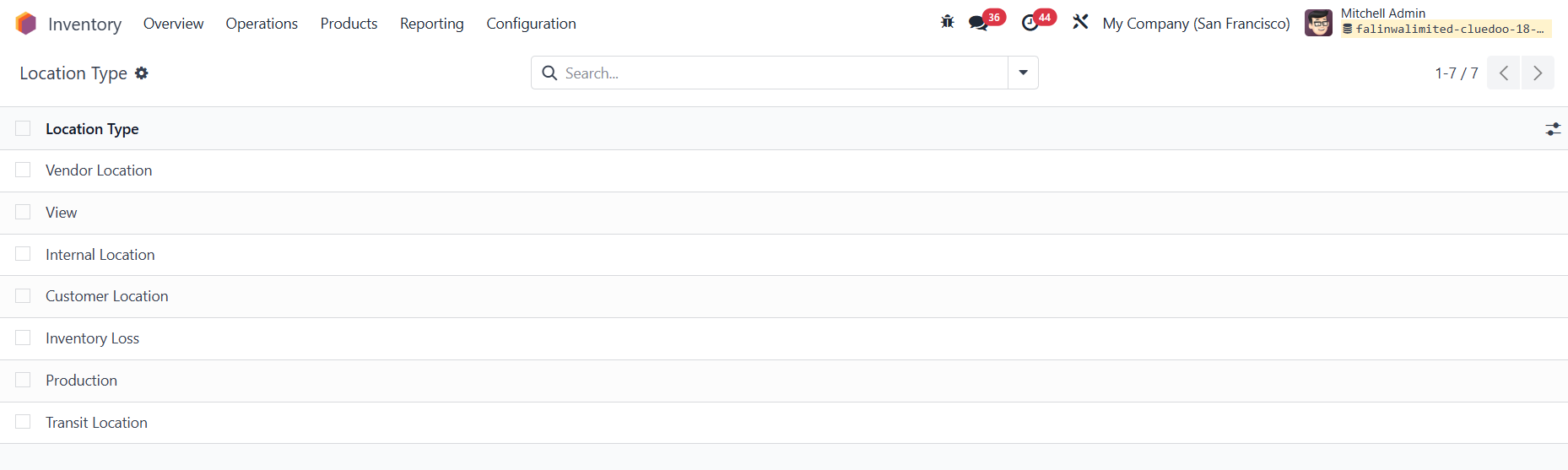
1. Go to Inventory > Configuration > Detail Stock > Location Type You will find a list of all the location types. |
|
2. Go to Inventory > Configuration > Detail Stock > SVL Category Choose an SVL Category or create a new one by clicking New | 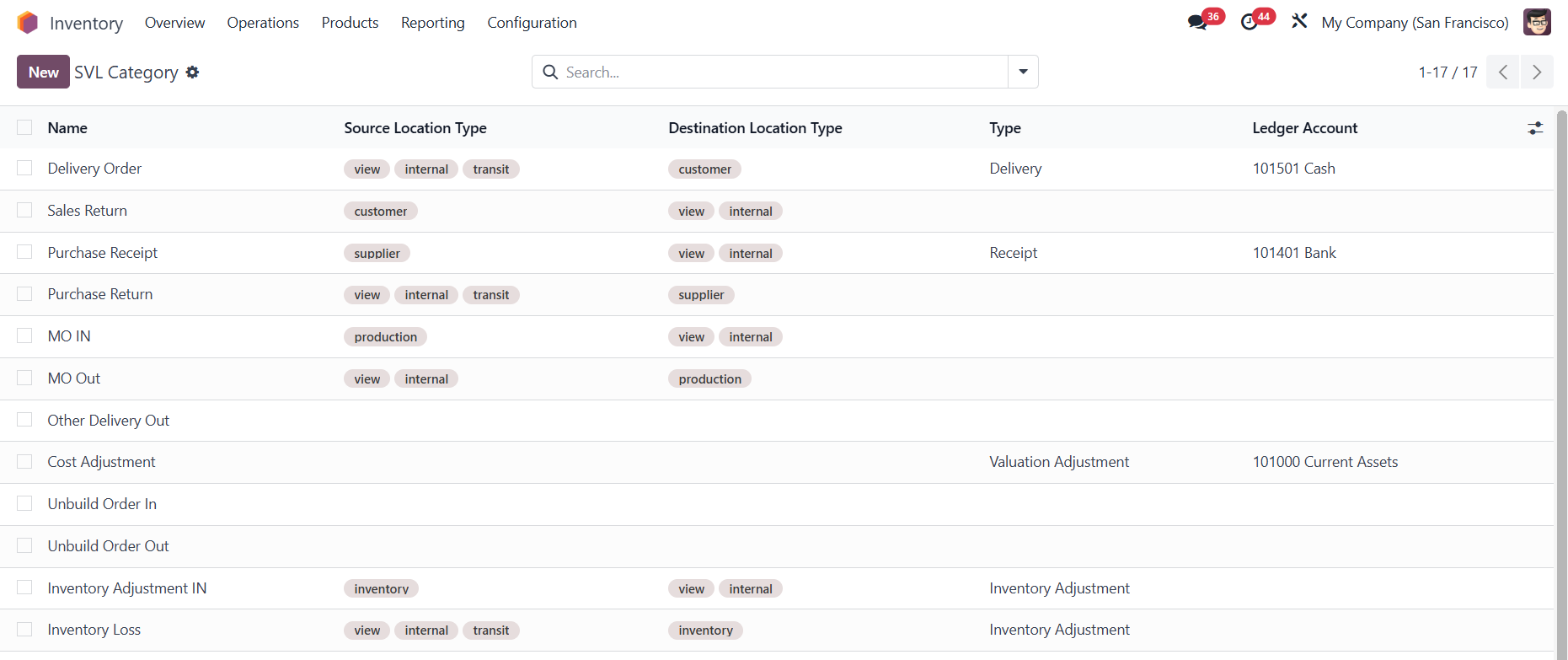 |
There are 6 types of category to select:
Note: For Landed Cost and Valuation Adjustment types, the Source / Destination Location Type is optional | 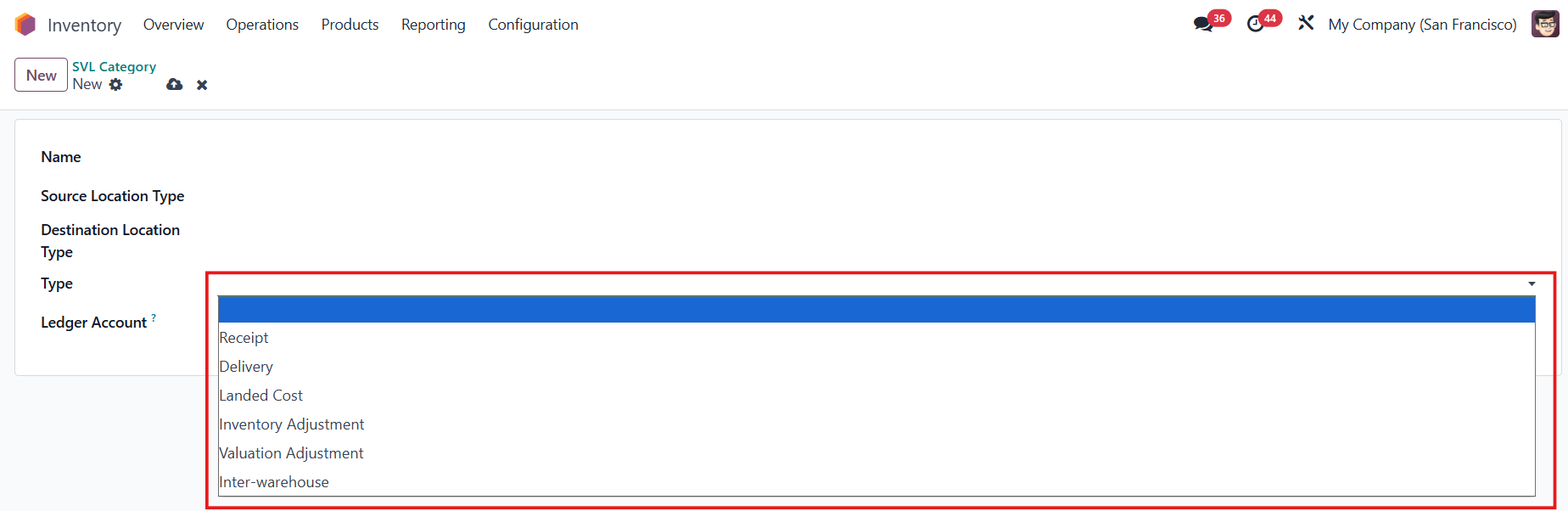 |
3. Fill in all the necessary information > Save e.g., I create an SVL Category for inter-warehouse | 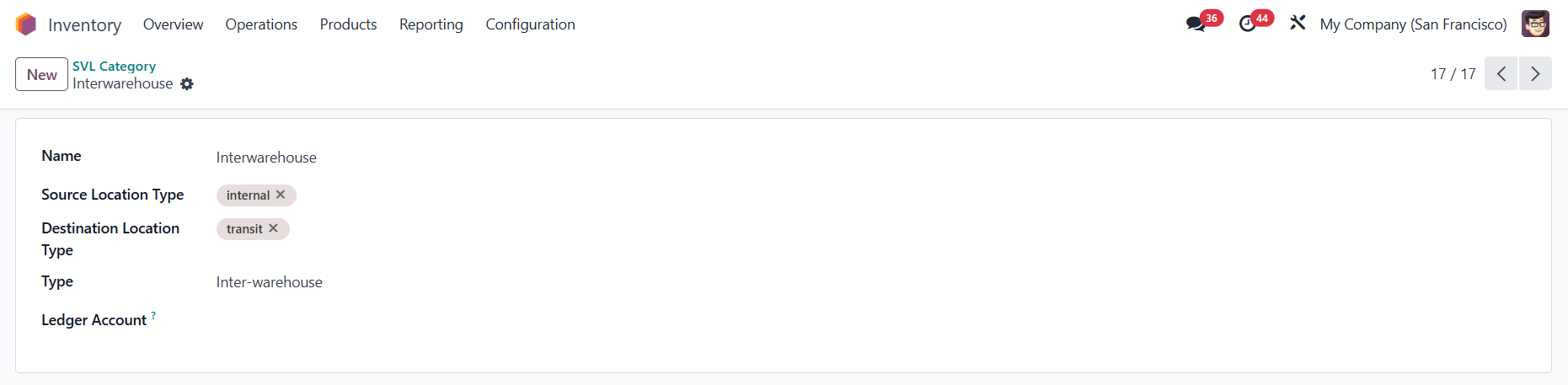 |
4. Create a new transfer and make sure the Source and Destination locations match the ones you set in the SVL Category > Validate | 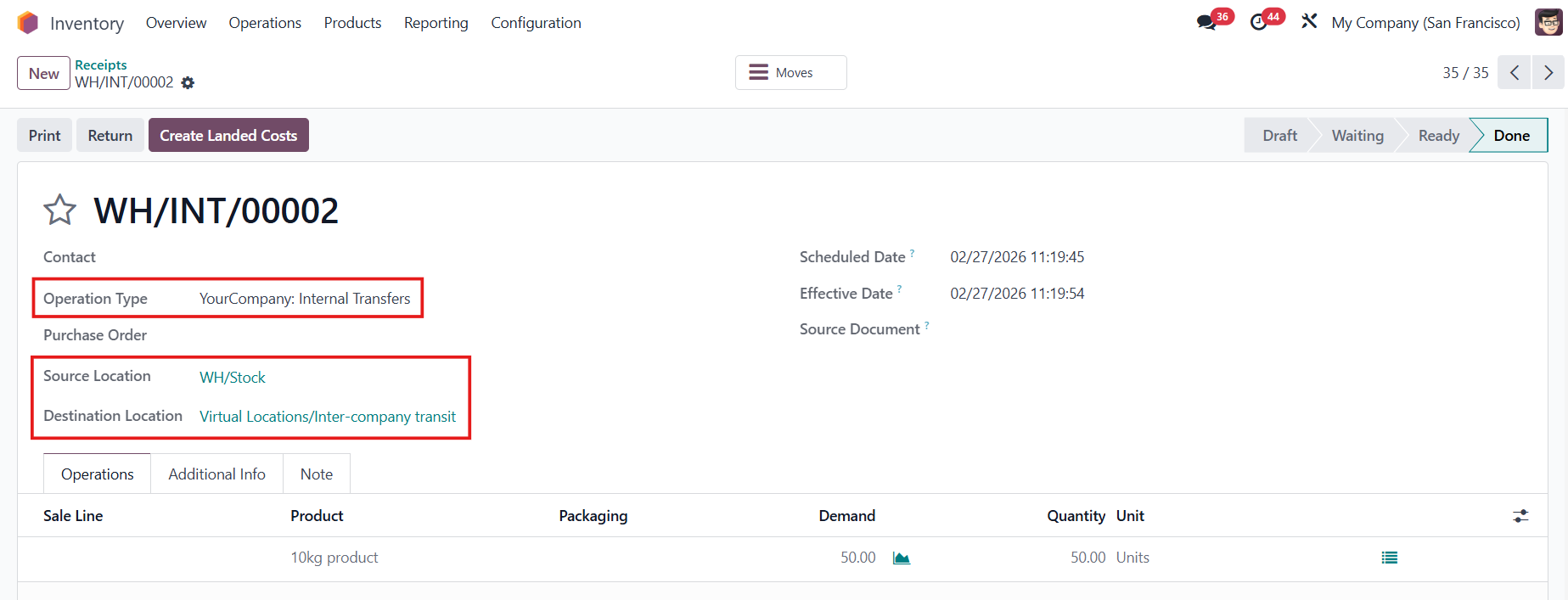 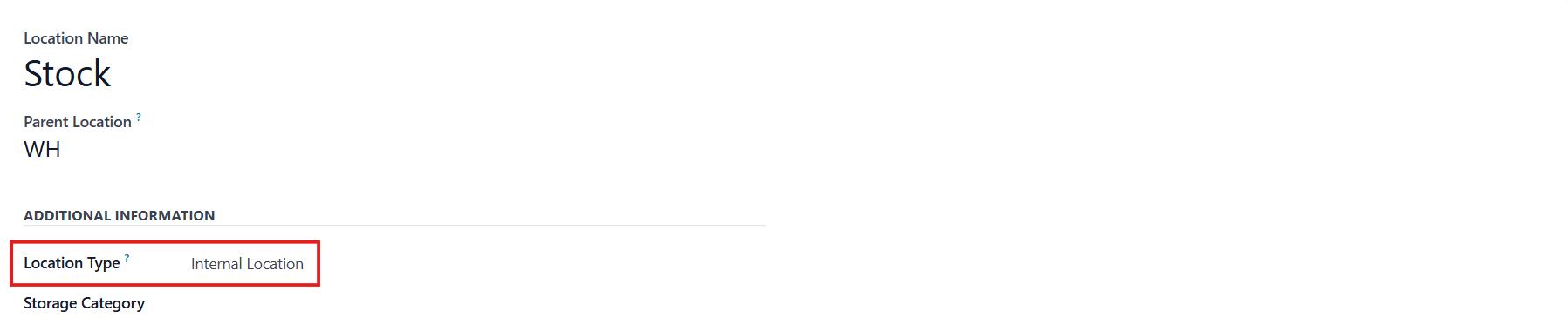  |
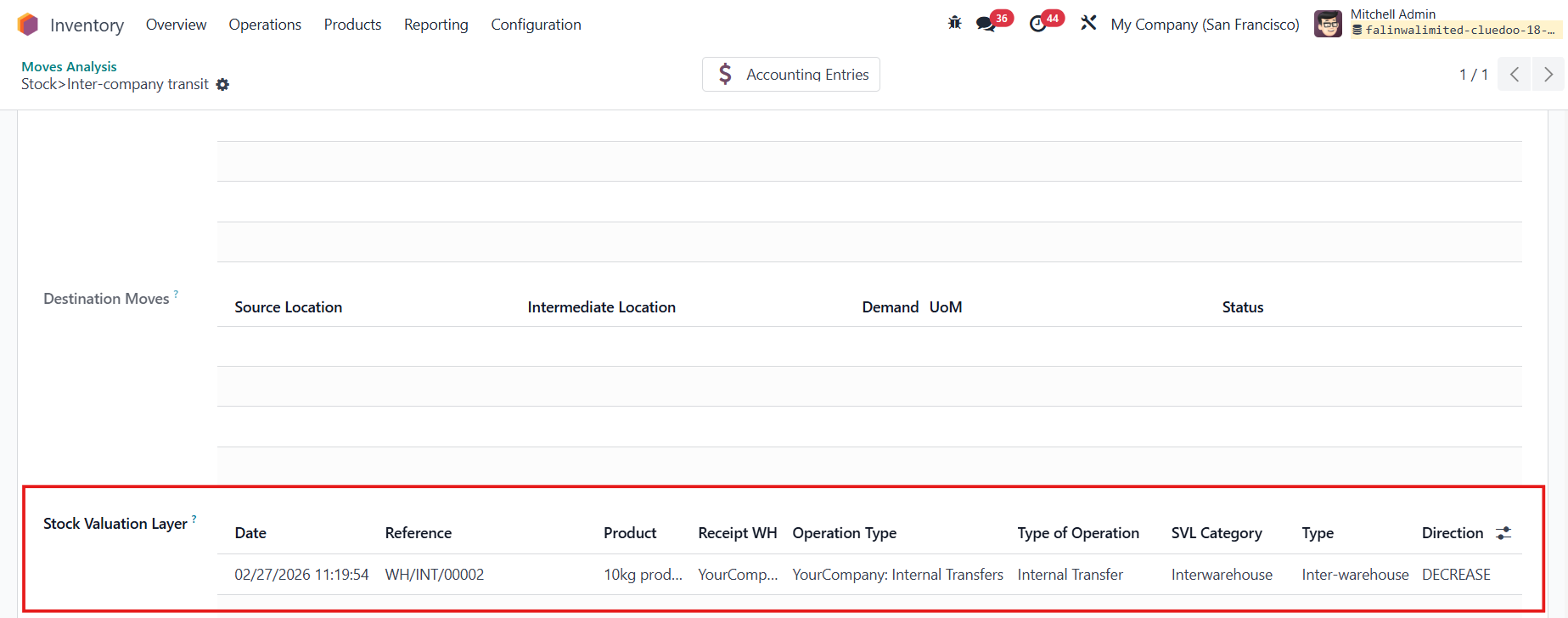
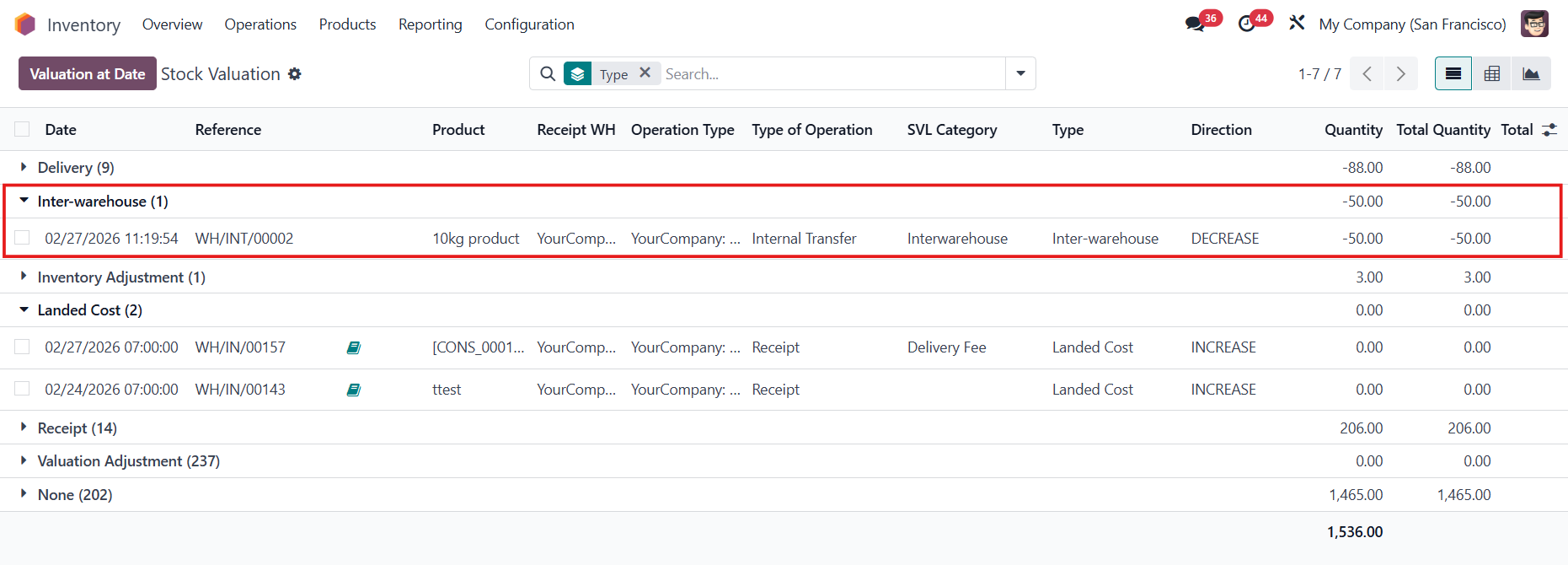
5. Go to Inventory > Reporting > Valuation The transfer you just created will automatically have the SVL Category and Type generated based on the combination of its Source and Destination Location types. From the list view, you can also see Receipt Warehouse, Operation Type, Type of Operation, and Direction.
|  |
Notes:
|
|
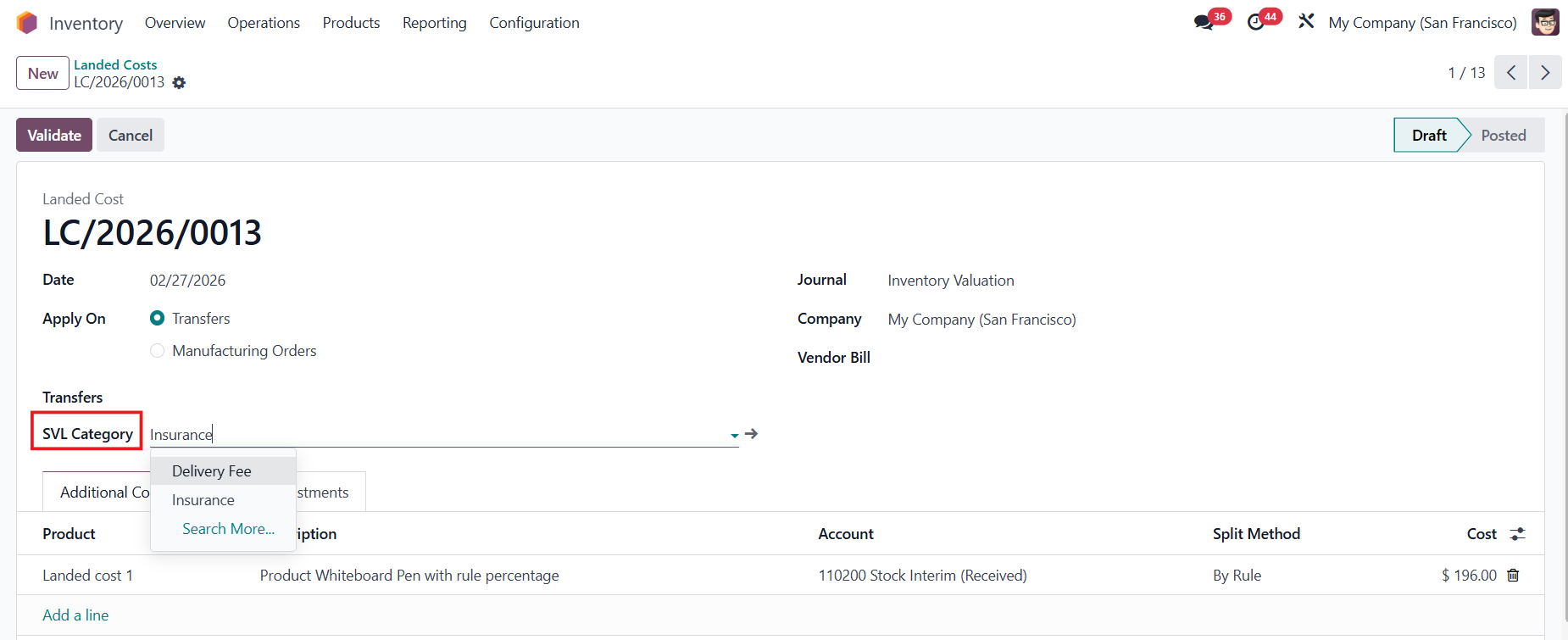
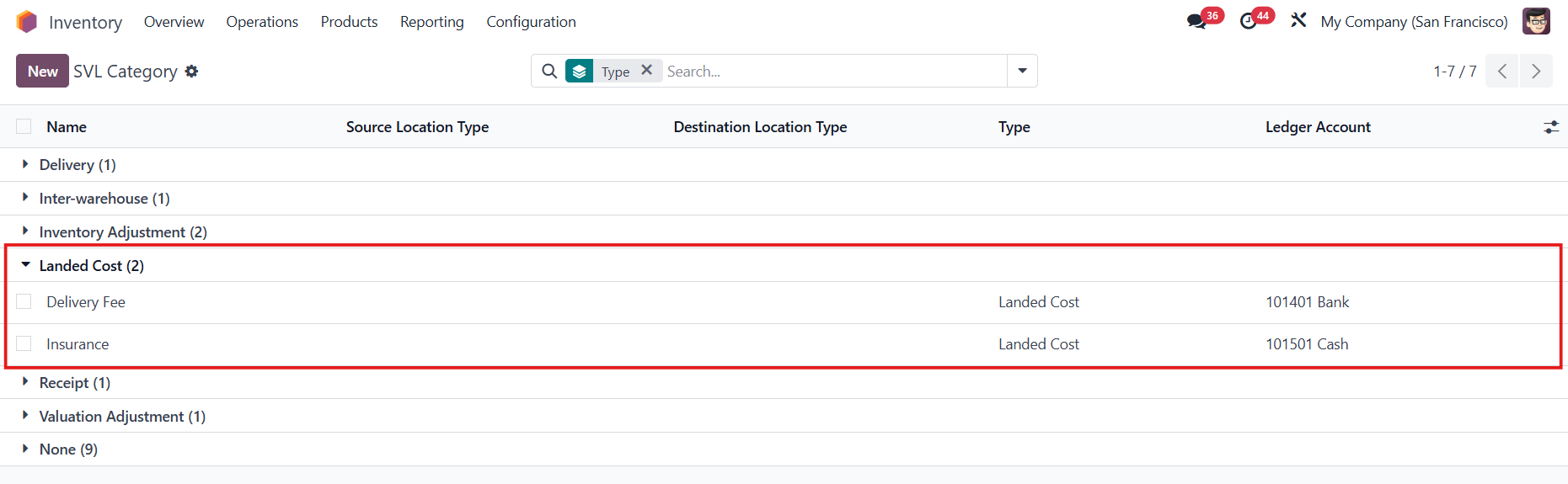
It will only show the categories with type Landed Cost. |
|