


ODOO'S FUNCTION
Odoo does not provide a state or status field on locations, so all locations are treated the same in replenishment, MPS, and forecast calculations.
CLUEDOO'S FUNCTION
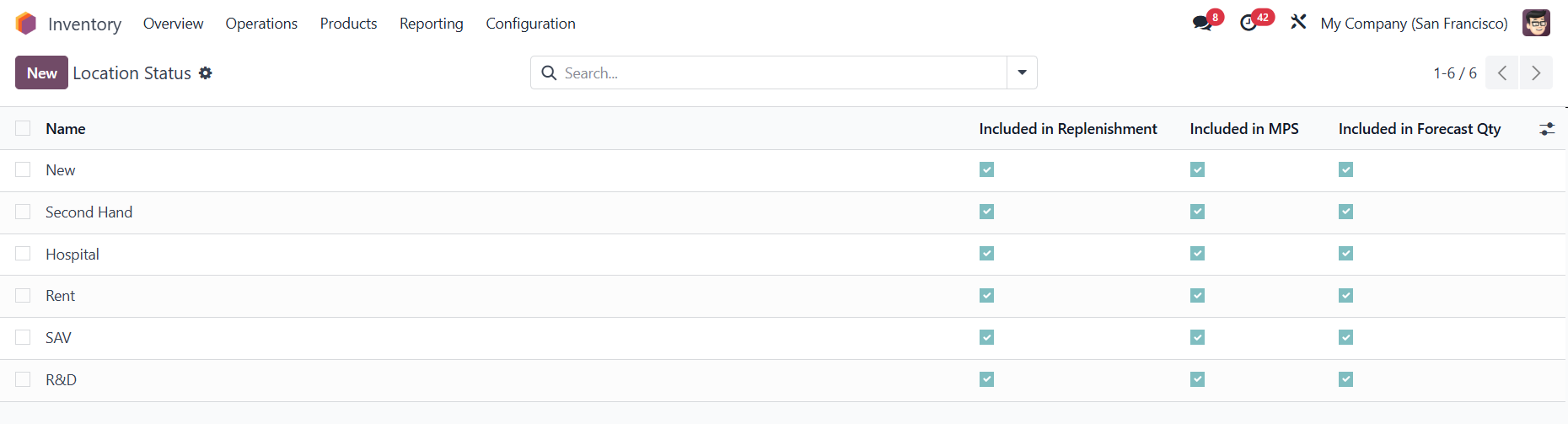
CLuedoo adds a Location Status/State with default options (New, Second Hand, Hospital, Rent, SAV, R&D) and allows configuring whether each state is included in Replenishment, MPS, and Forecast Quantity.
LOCATION STATUS1. Go to Inventory > Configuration > Location Management > Location Status, we have 6 predefined statuses. By default, all the options to include in Replenishment, MPS, and Forecast Quantity will be checked. |
|
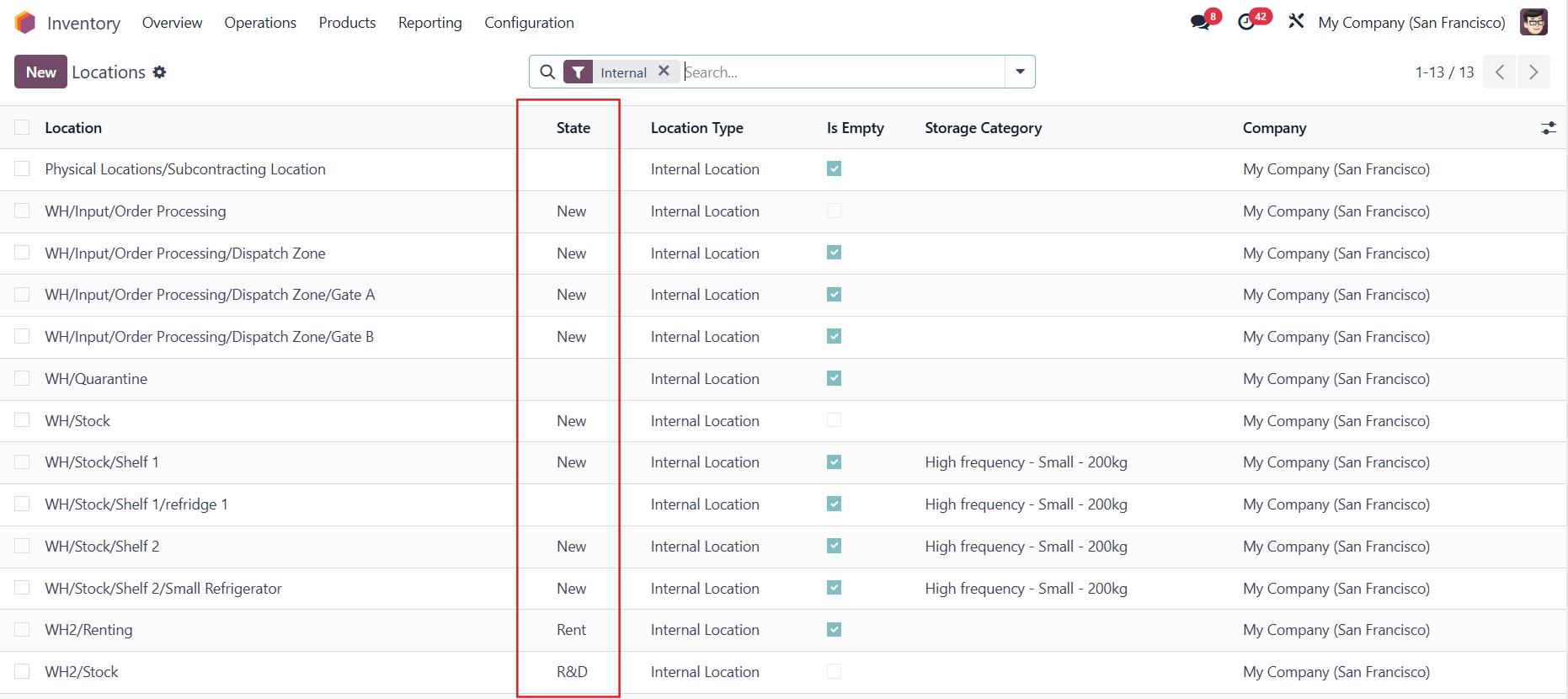
| 2. Go to Warehouse Management > Locations, and you will see a State column Access the location form to define the state/status.
|  |
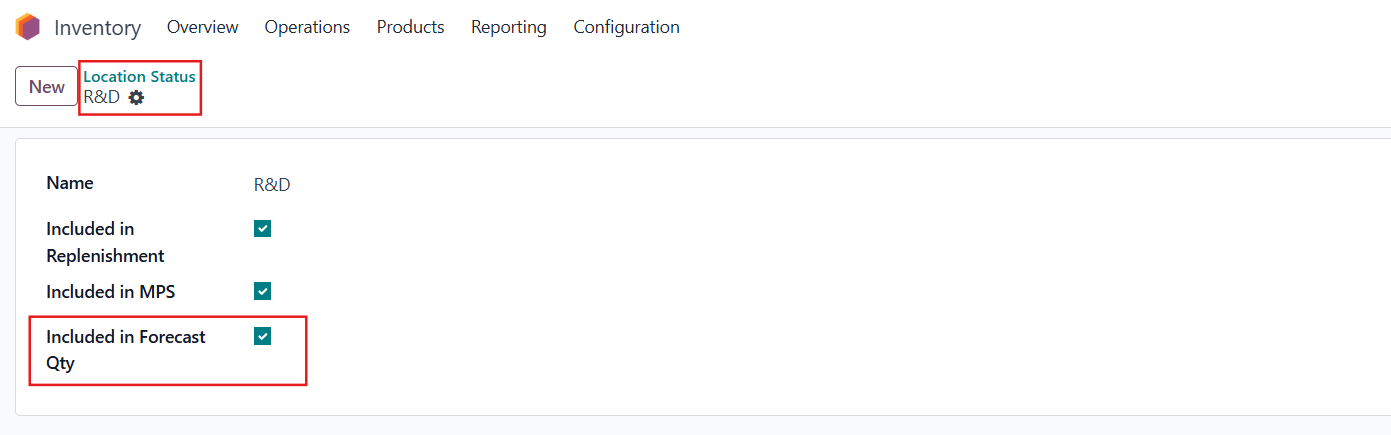
INCLUDED IN FORECAST QUANTITY
e.g., WH2/Stock with R&D status
|  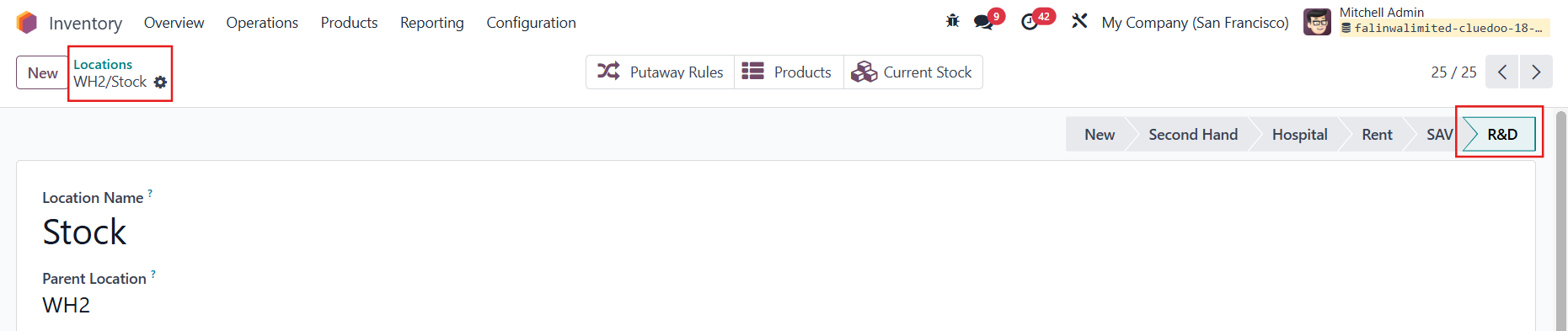 |
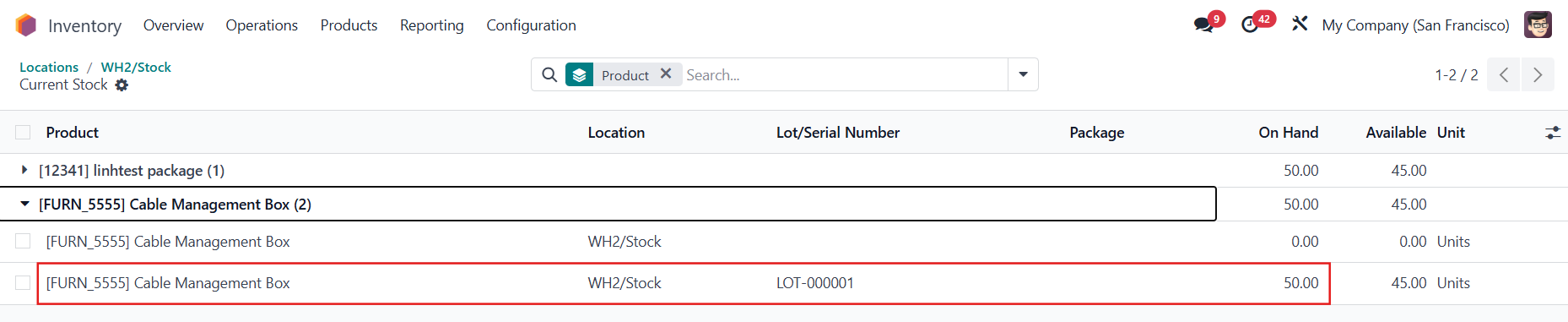
For example, product Cable Management Box, in WH2/Stock location, has quantity on-hand = 50 |
|
In the product’s forecast report, select the warehouse that contains the location > the on-hand quantity in WH2/Stock will then be displayed.
|  |
|  |
INCLUDED IN REPLENISHMENTGo to Inventory > Operations > Procurement > Replenishment > Add a product and its location
| 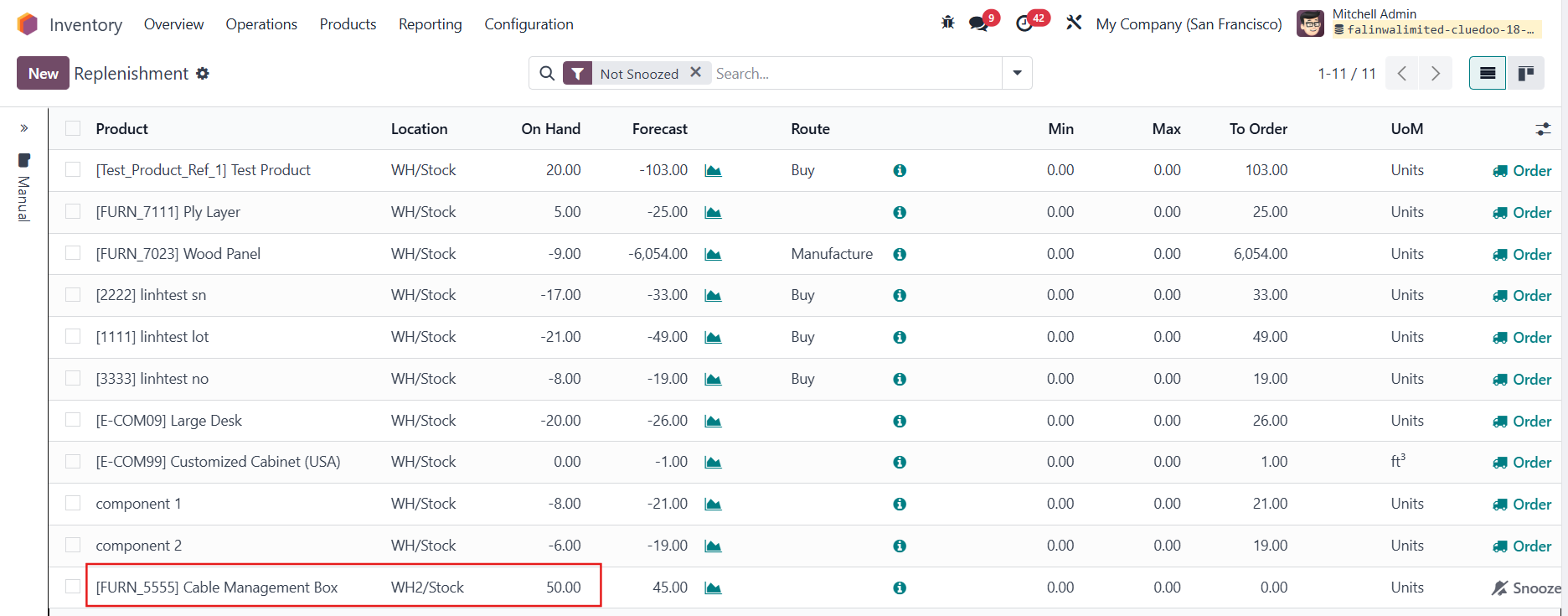 |
| 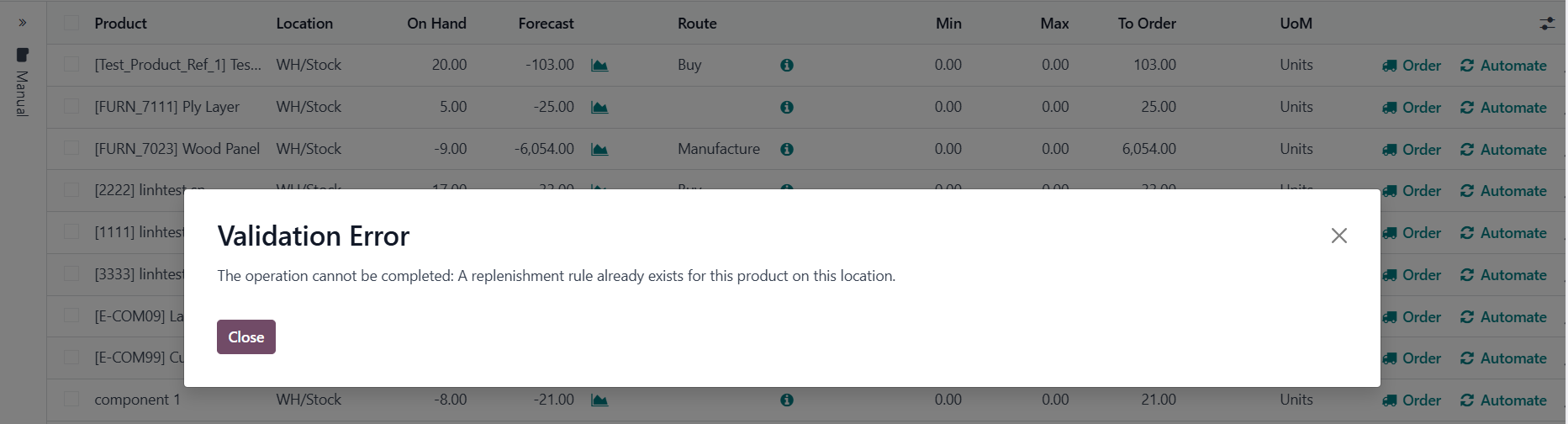 |
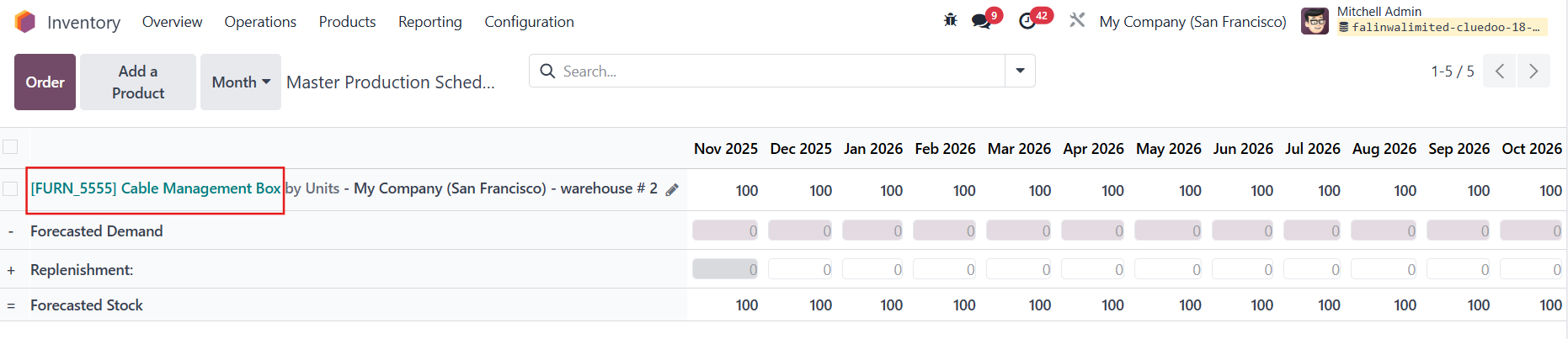
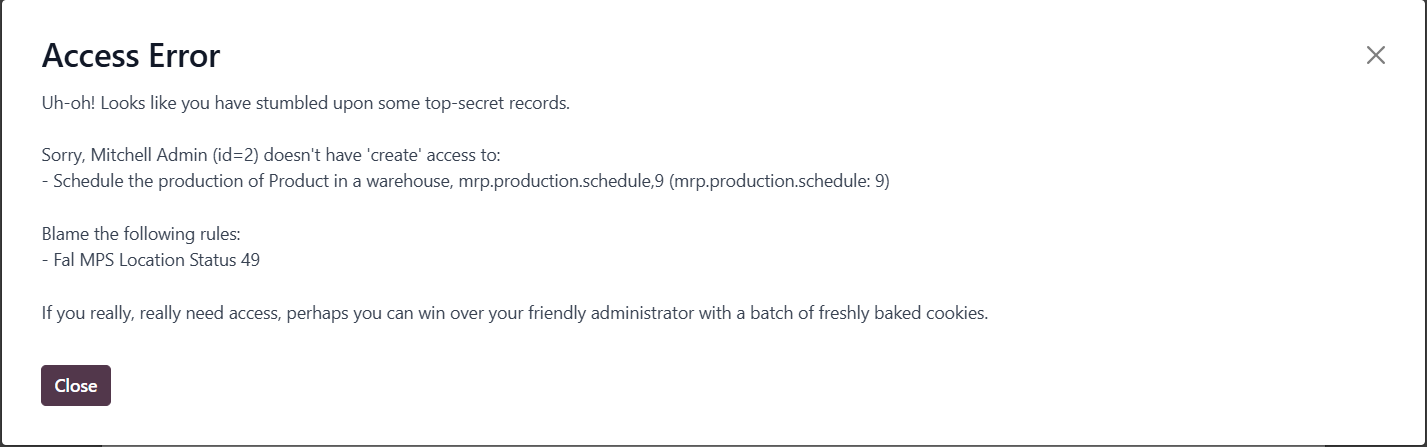
INCLUDED IN MPSGo to Inventory > Operations > Procurement > Master Production Schedule > Add a Product and select a Production Warehouse
| 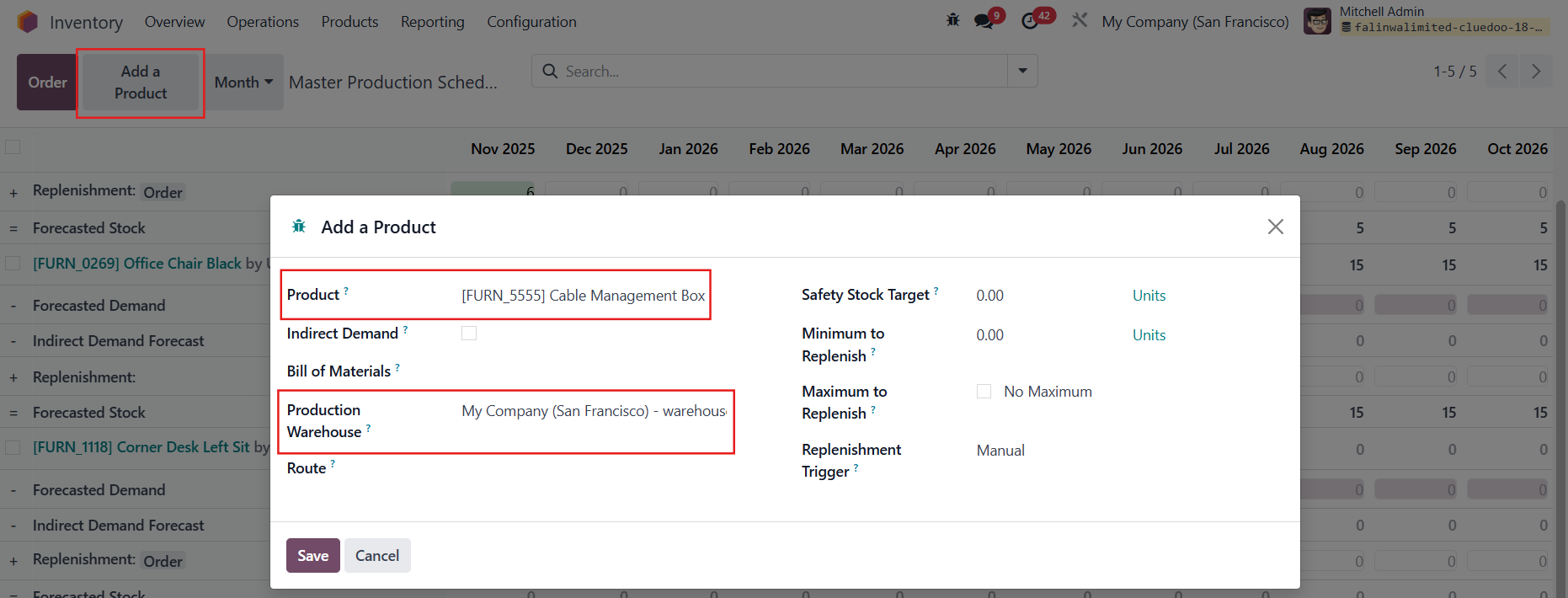 |
|  |
|  |