


ODOO'S FUNCTION
In Odoo, the Approvals module allows users to submit various types of requests, such as business trips or purchases, and managers can approve or reject them. However, there is:
No dedicated approval type for inventory operations such as internal transfers, deliveries, or receipts.
No support for analytic distribution within approval requests, making it difficult to track costs associated with inventory movements.
No integration between the approval flow and analytic plans.
Analytic information is not propagated from approvals to downstream documents like Purchase Orders or Receipts.
CLUEDOO'S FUNCTION
CLuedoo enhances Odoo’s approval system by extending functionality for inventory operations and analytics:
✅ New Approval Type: Create Stock Transfer
Adds a specific approval category to manage internal/external stock movements with managerial oversight.
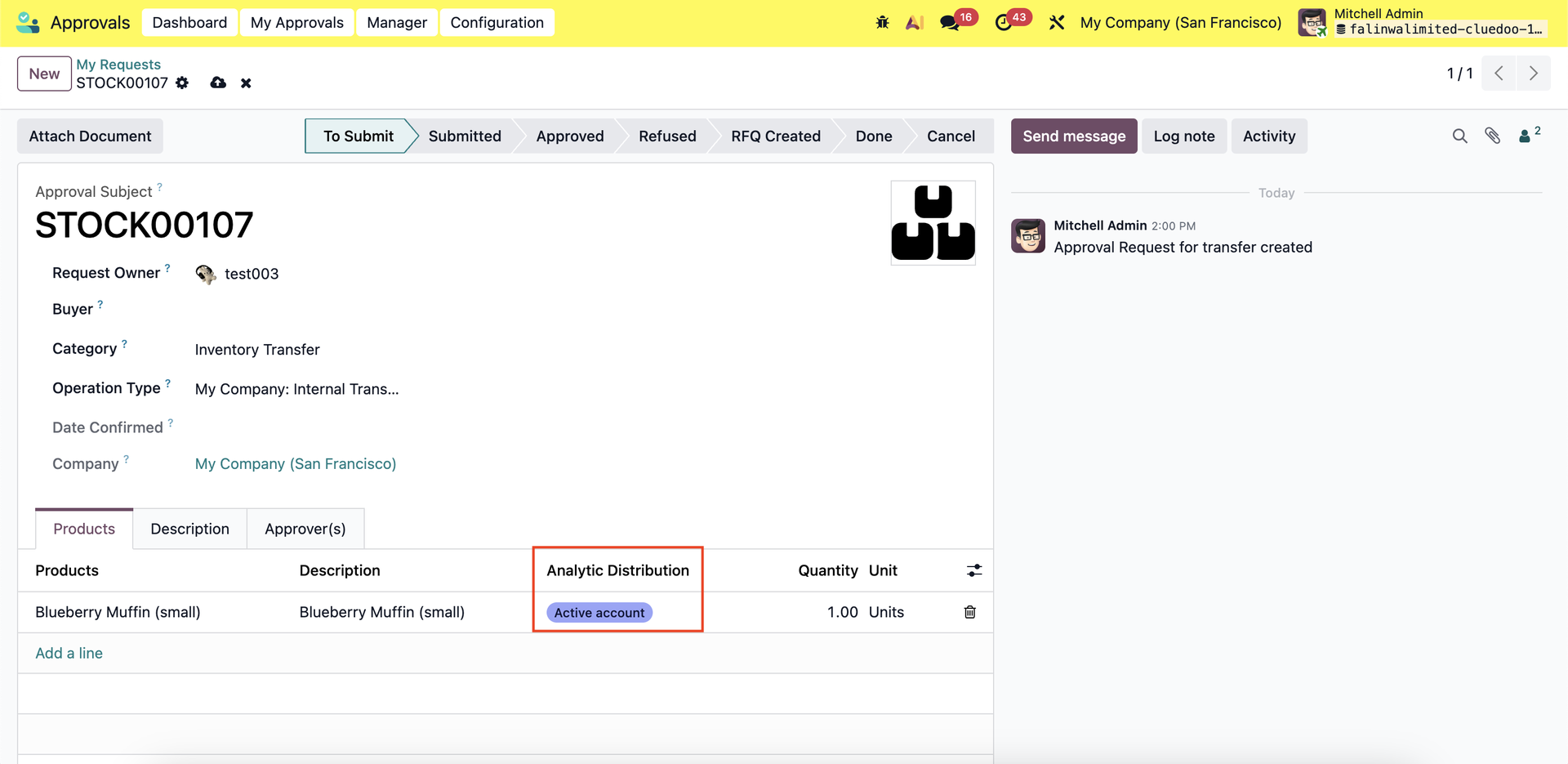
✅ Analytic Distribution in Approval Requests
Users can input analytic distribution directly on approval requests for Inventory Transfers.
✅ Applicability Selection in Analytic Plans
Define whether analytic distribution is mandatory, optional, or unavailable for approval requests related to stock.
✅ Propagation of Analytic Distribution
Automatically propagate analytic distribution:
From Approval Request → to Purchase Order (via RFQ) → to Receipt
Ensures continuity in cost allocation across inventory and procurement processes.
CONFIGURATIONTo configure the Inventory Transfer category, go to Approvals > Configuration > Approval Type: Create Stock Transfer | 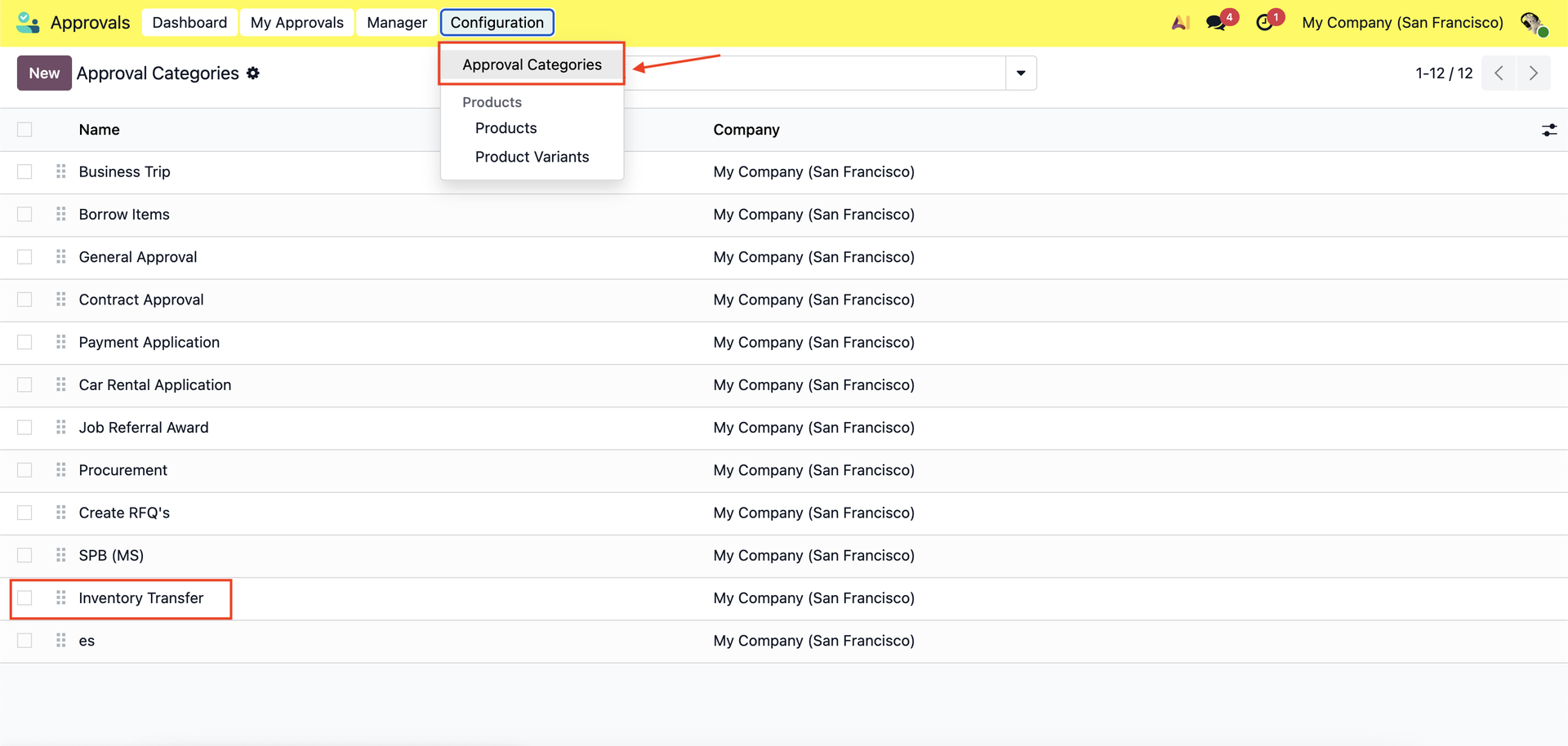 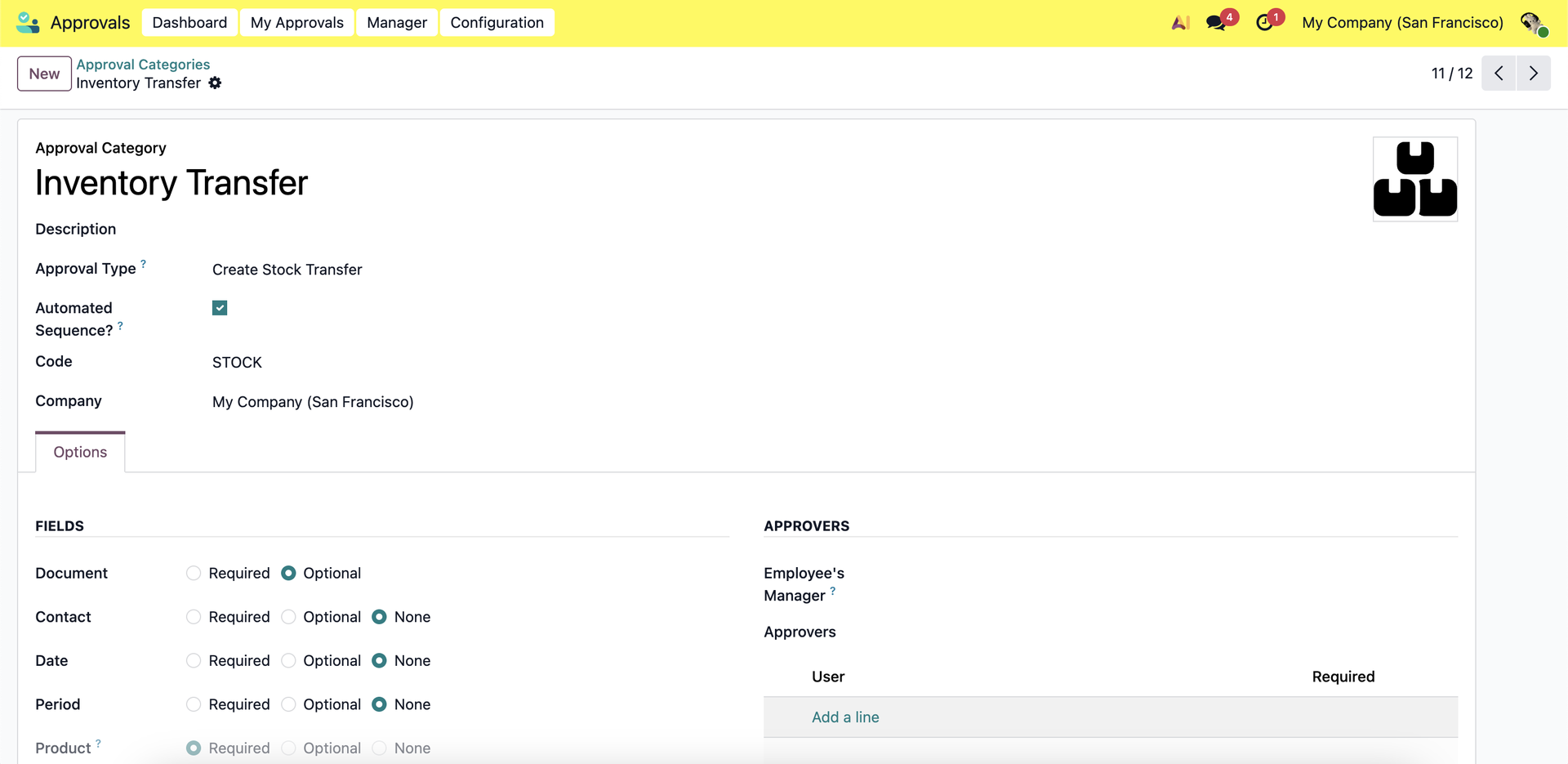 |
User scenario: As an inventory staff member, I need to transfer 30 cherry pies from the warehouse to the alternative warehouse. I need a manager's approval for this transfer. | 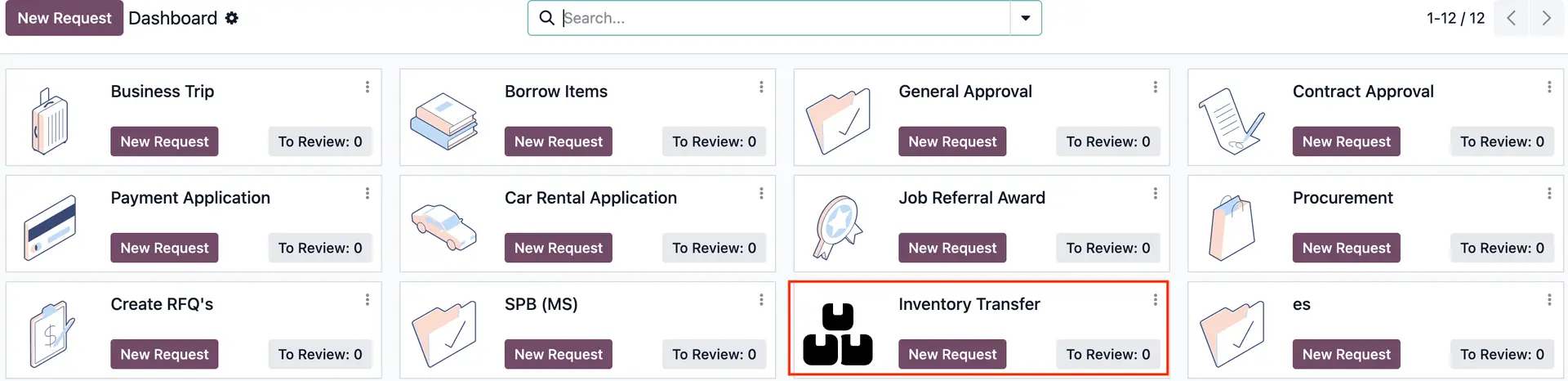 |
USAGE1. Go to Approvals, from the User's approval dashboard, create a new request on "Inventory Transfer" and submit. | 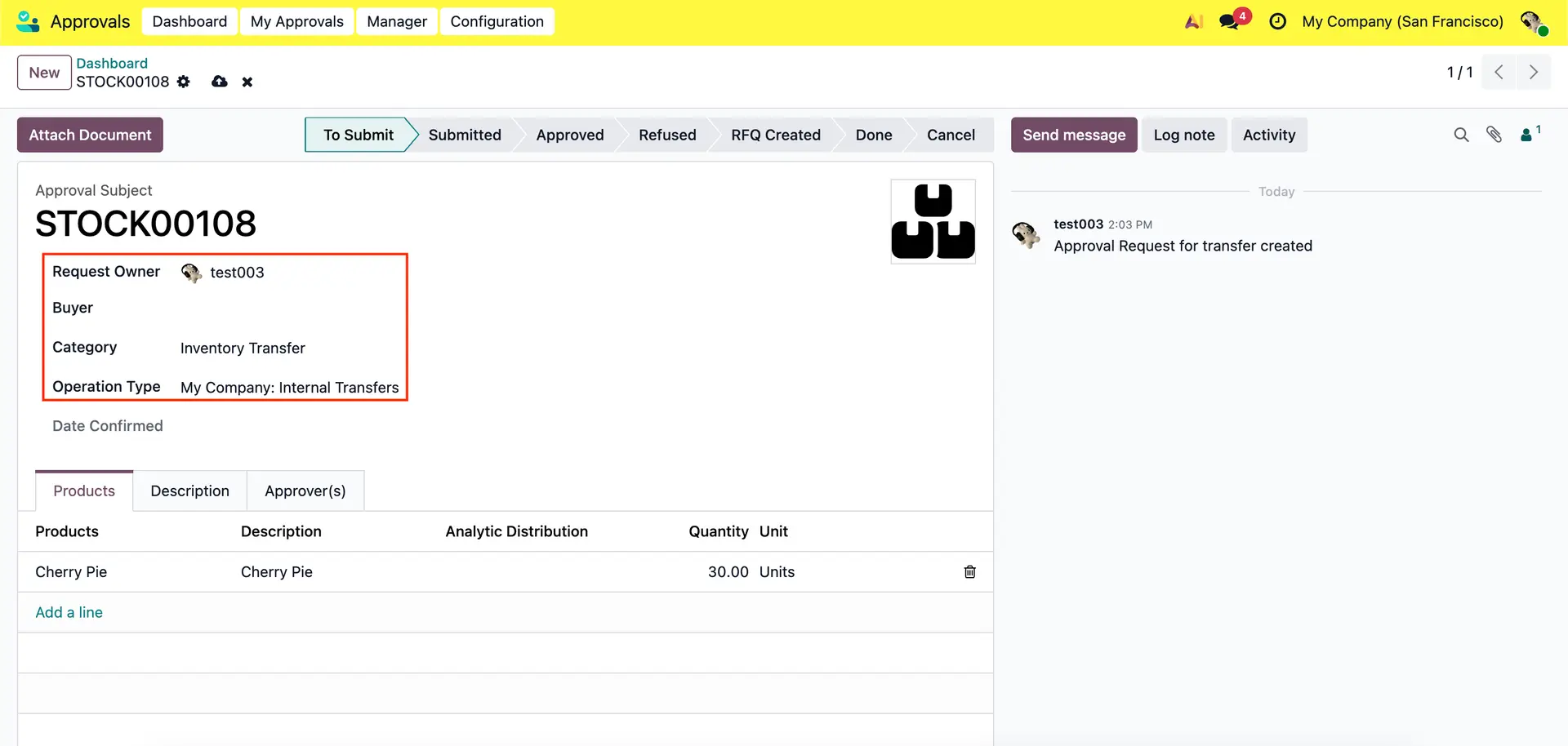 |
| 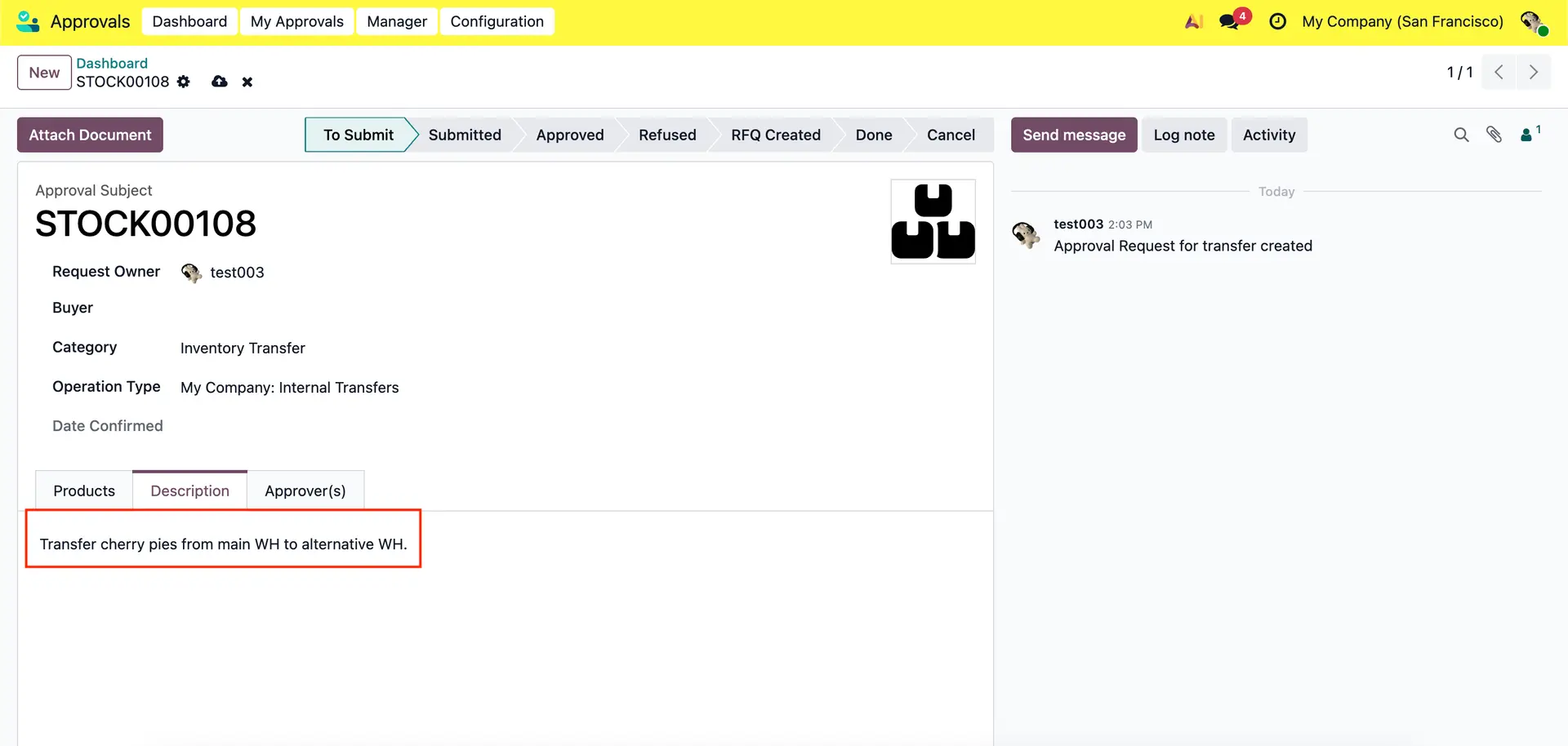 |
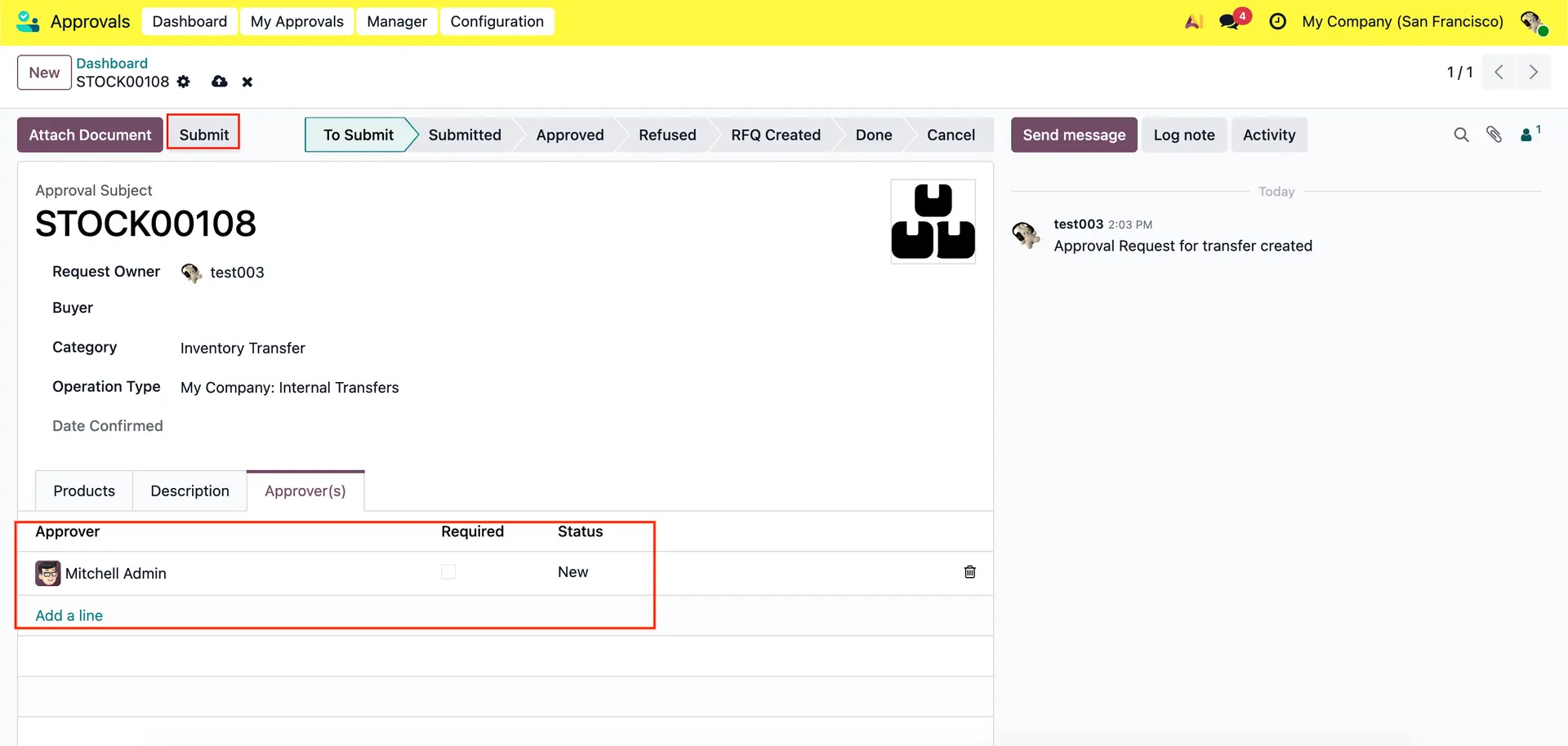 | |
2. From the Approver's dashboard, click on a new approval request and approve it. | 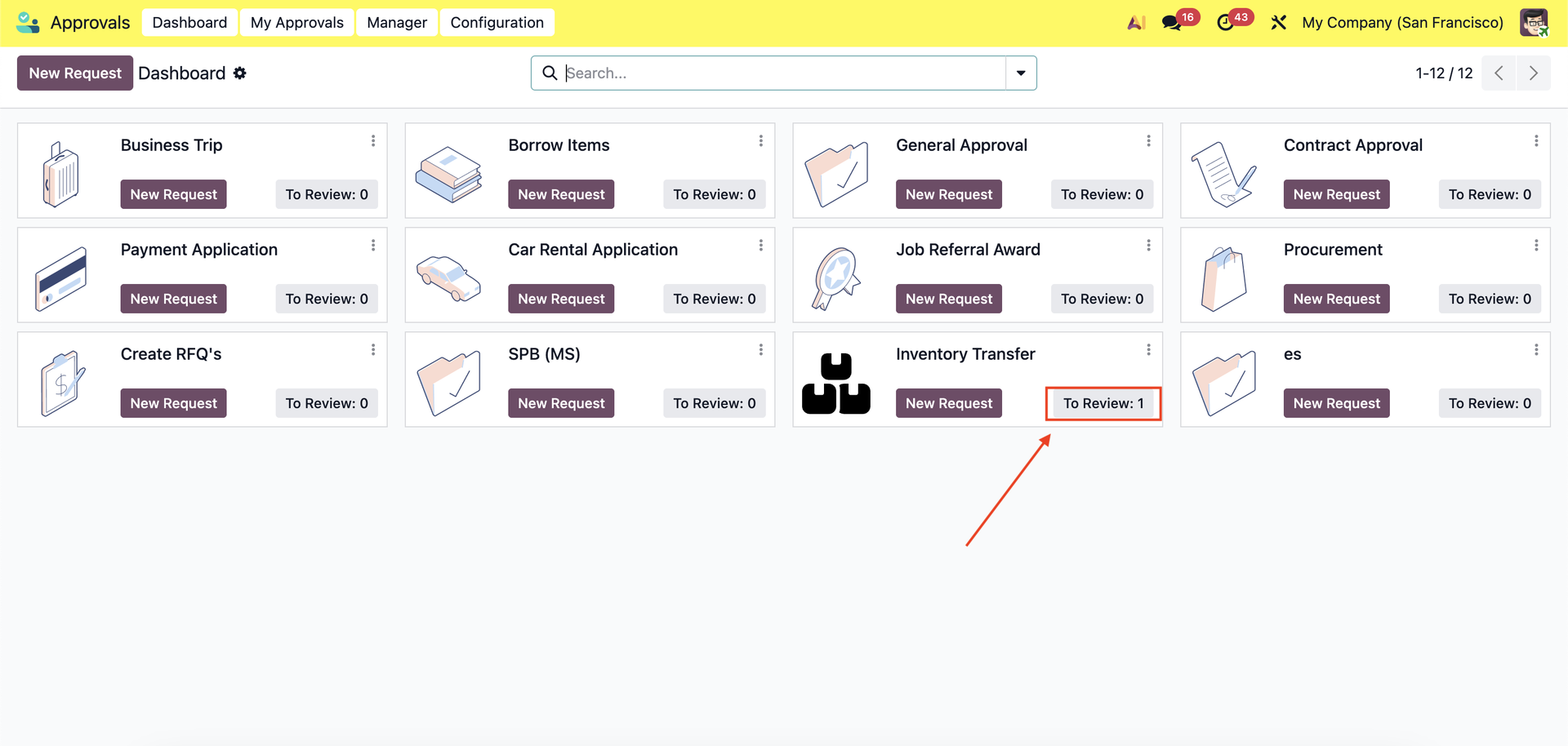 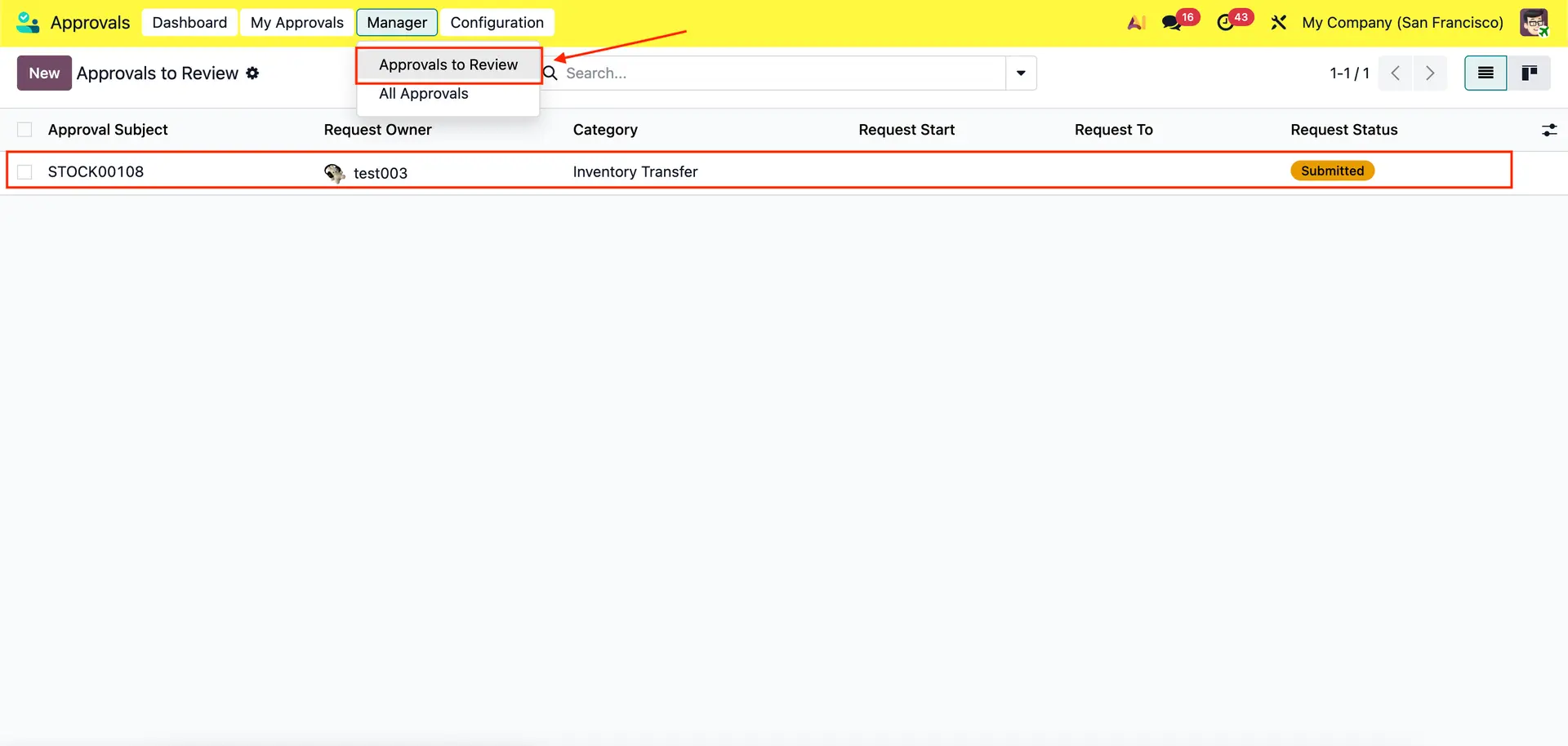 |
3. From the User's dashboard, go to "My Requests" and click on the approved stock transfer request. | 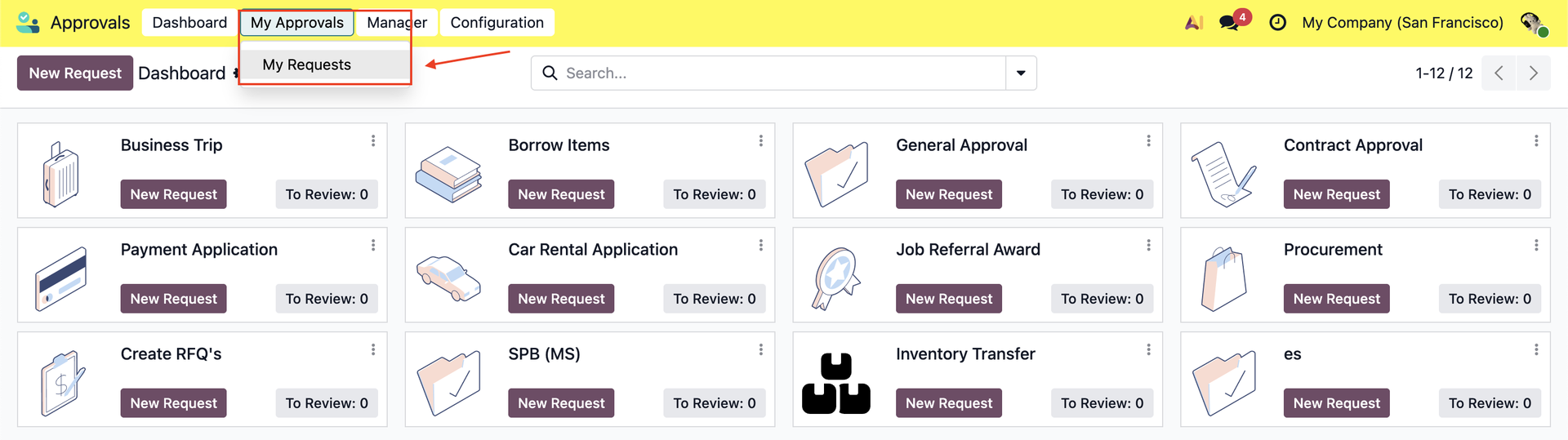 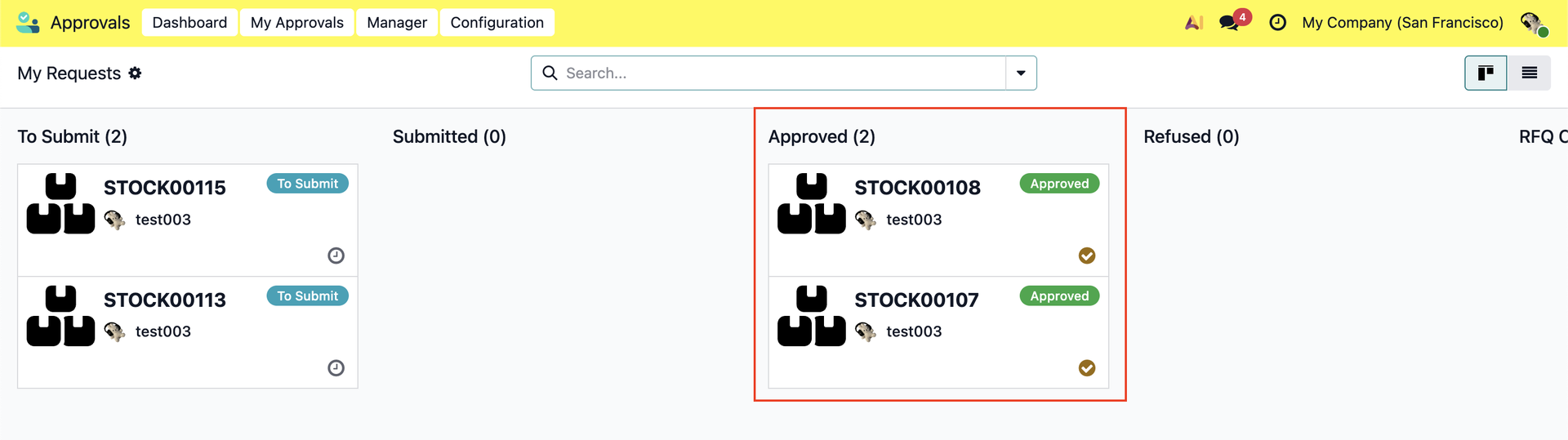 |
4. Click on "Create Transfer" and click on the "Transfer" smart button. | 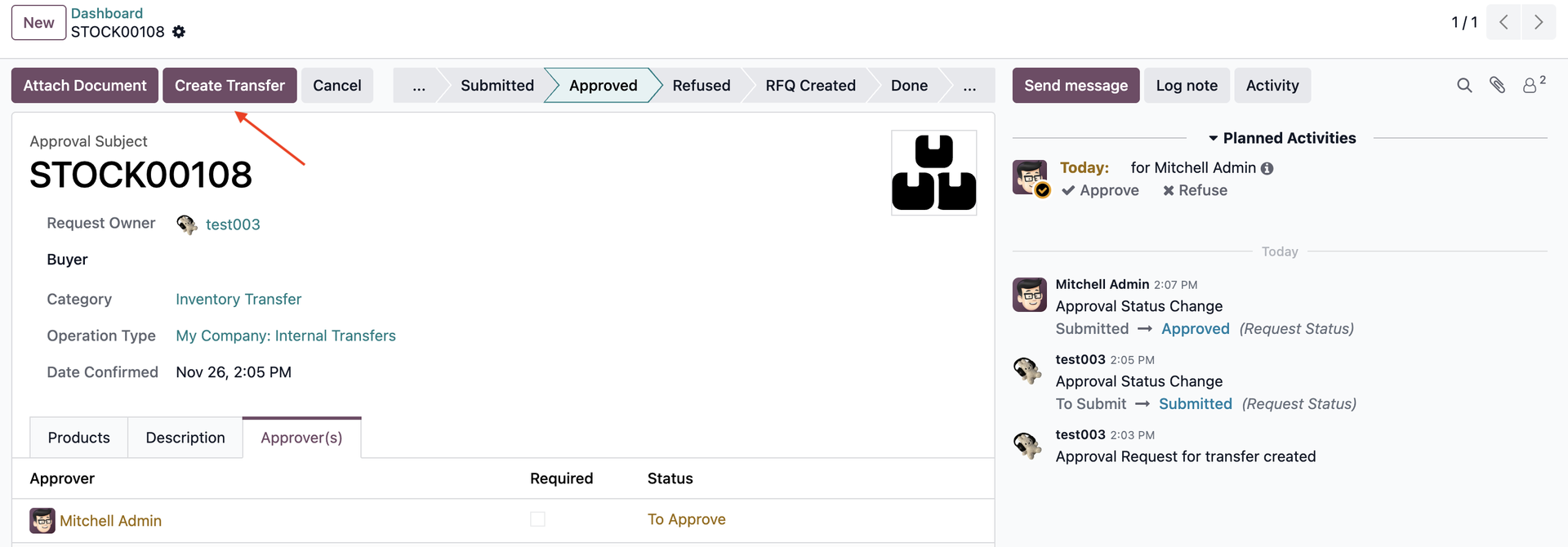 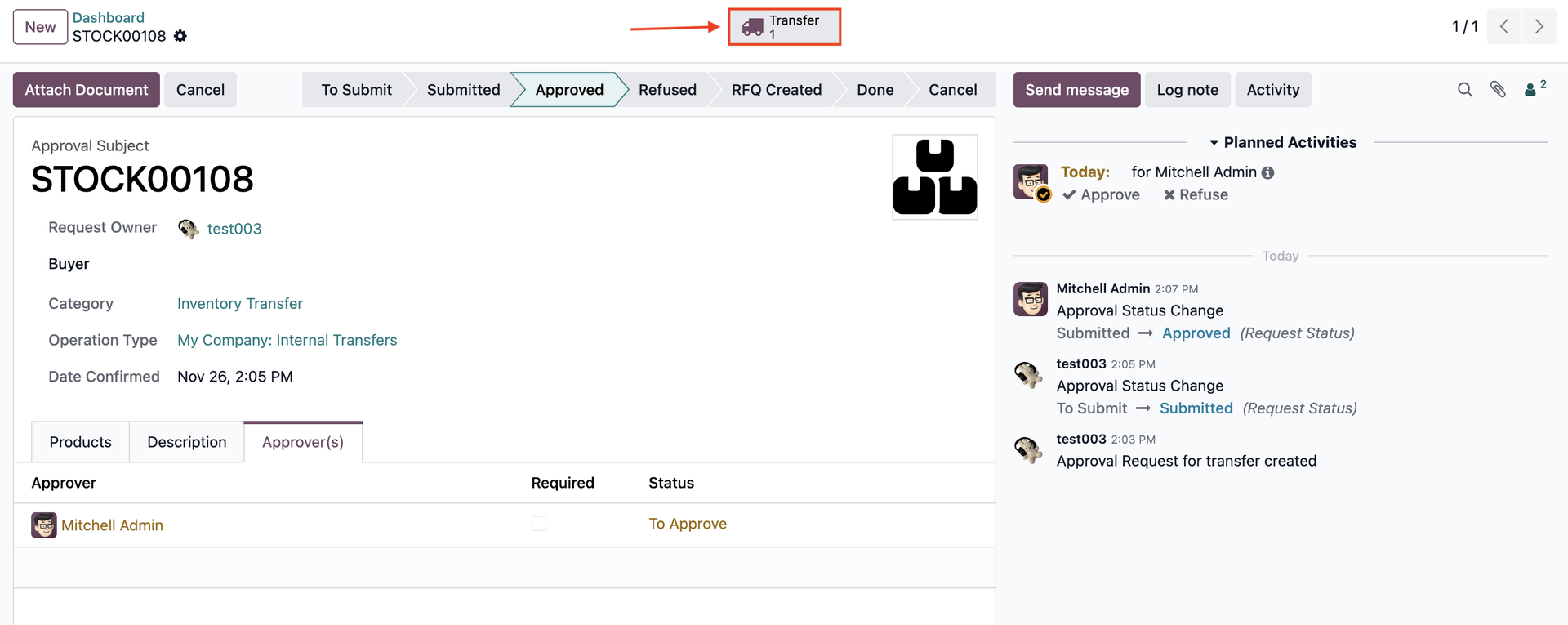 |
5. On the transfer draft, the User can specify Source Location and Destination Location. Afterwards, the User can go on with the transfer process. | 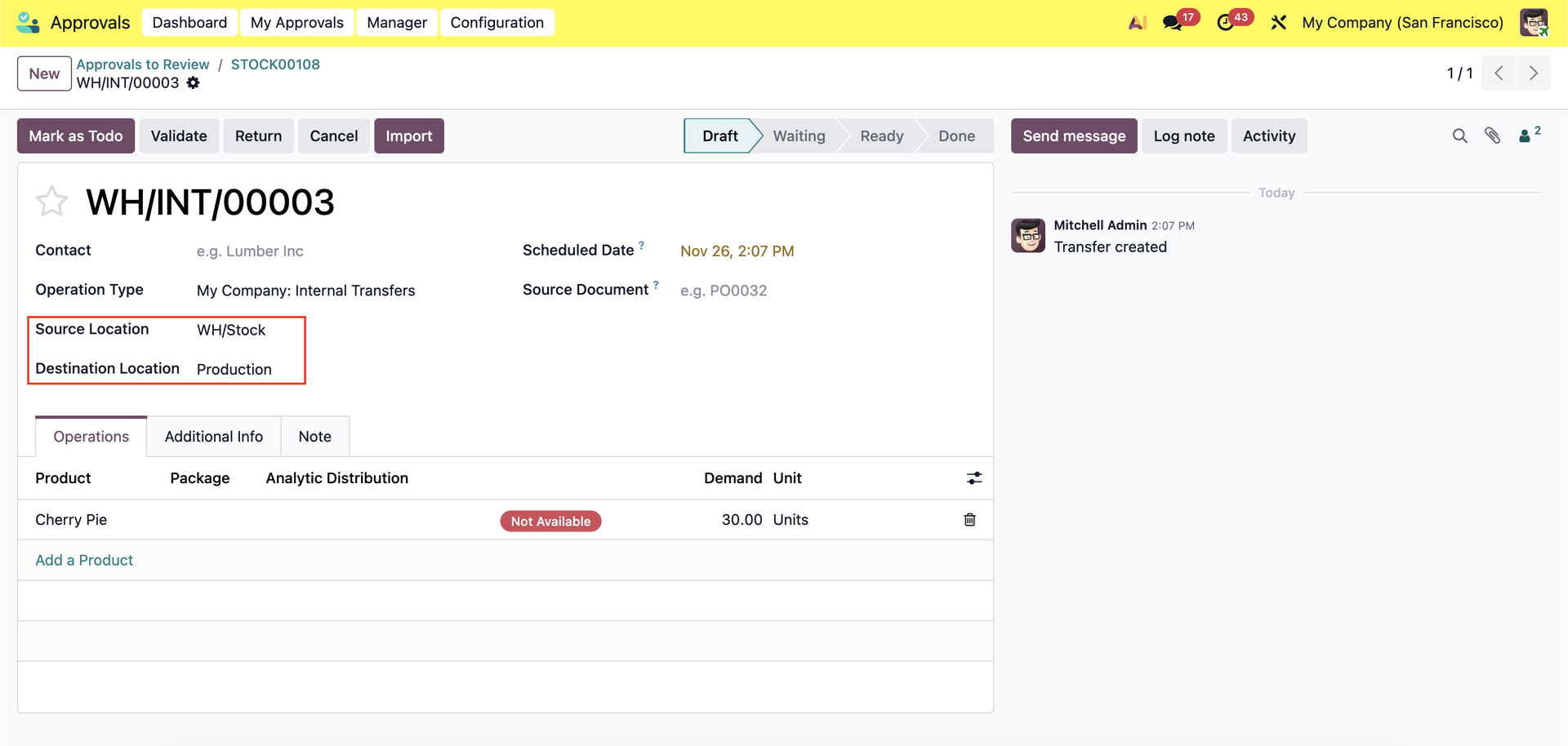 |
ADD ANALYTIC DISTRIBUTION1. On the user's dashboard: You will see an option to add Analytic Distribution > Fill in the necessary information > Submit |
|
2. On the approver's dashboard: Approve the request > Create Transfer > Under Operations, the Analytic Distribution has been inherited. Alternatively, you can also create the transfer on the user's dashboard. | 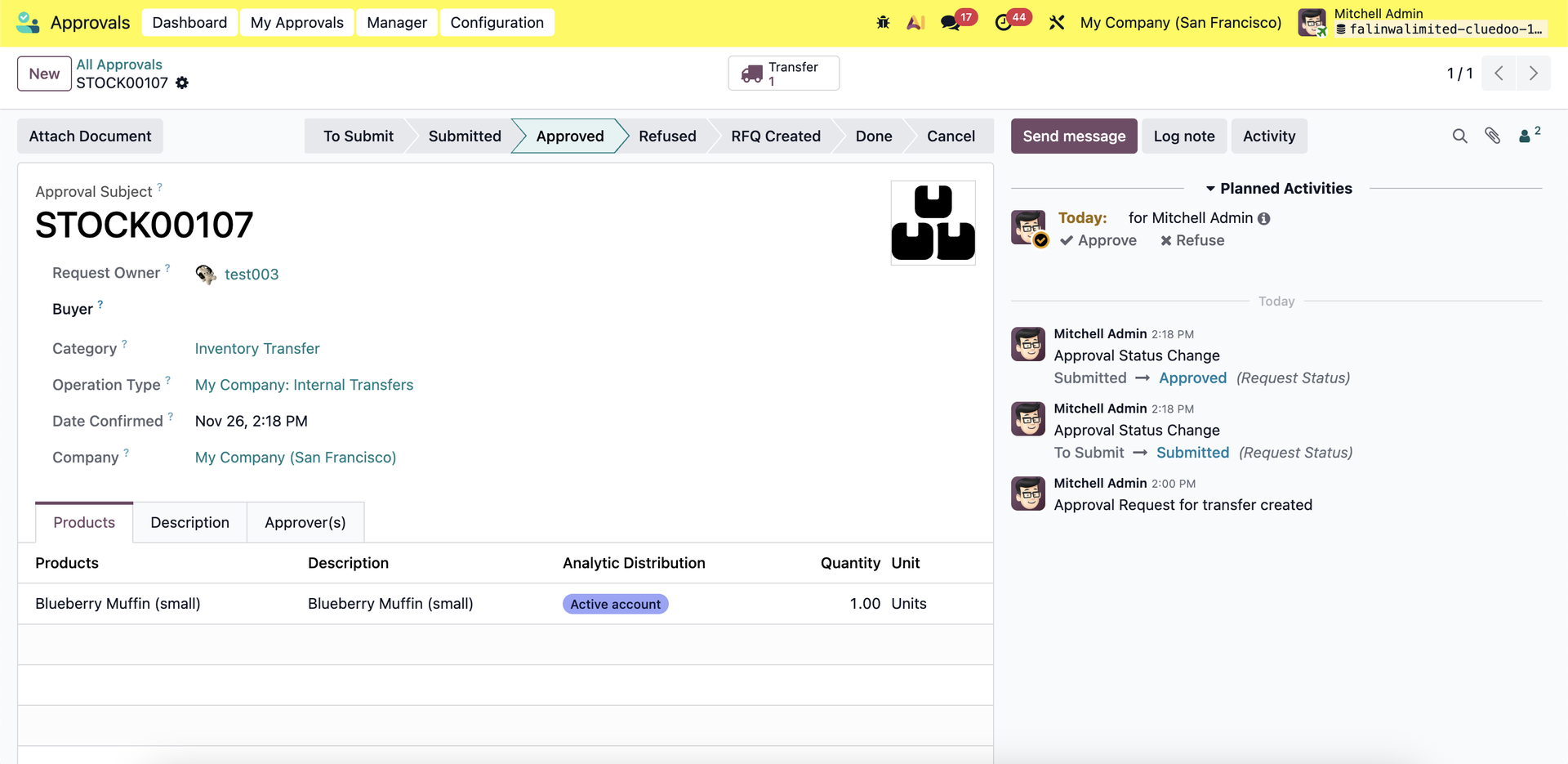 |
3. Go to Inventory > Internal Transfers, the Analytic Distribution can also be seen in the list view. | 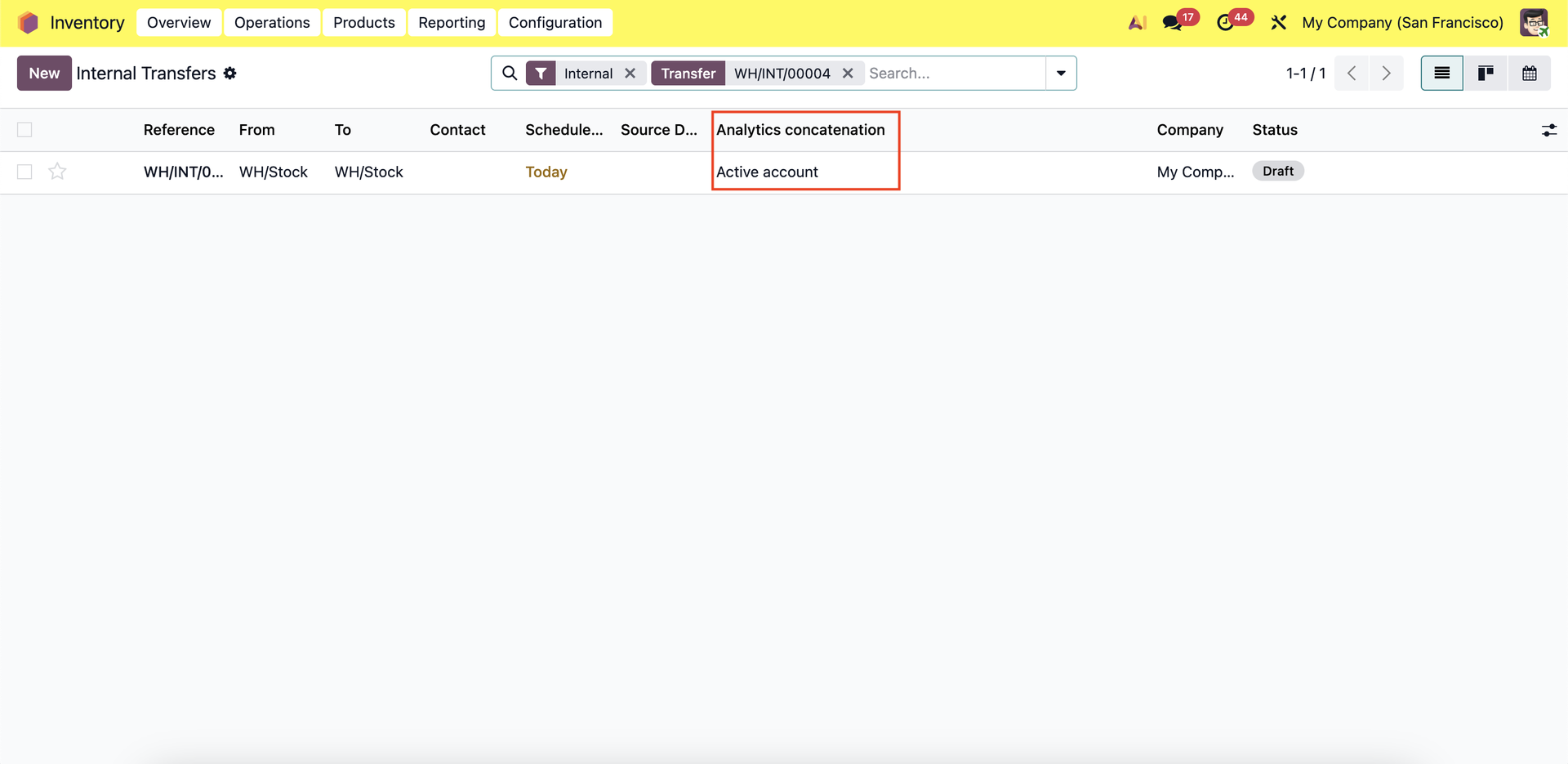 |
APPROVAL APPLICABILITY1. Go to Analytic Plans > choose a plan (e.g., Internal) > you can change the applicability for using the analytic plan of the domain Approval Stock. Note: If you set Default Applicability then it'll automatically apply to all the models unless you set it differently for specific model(s) | 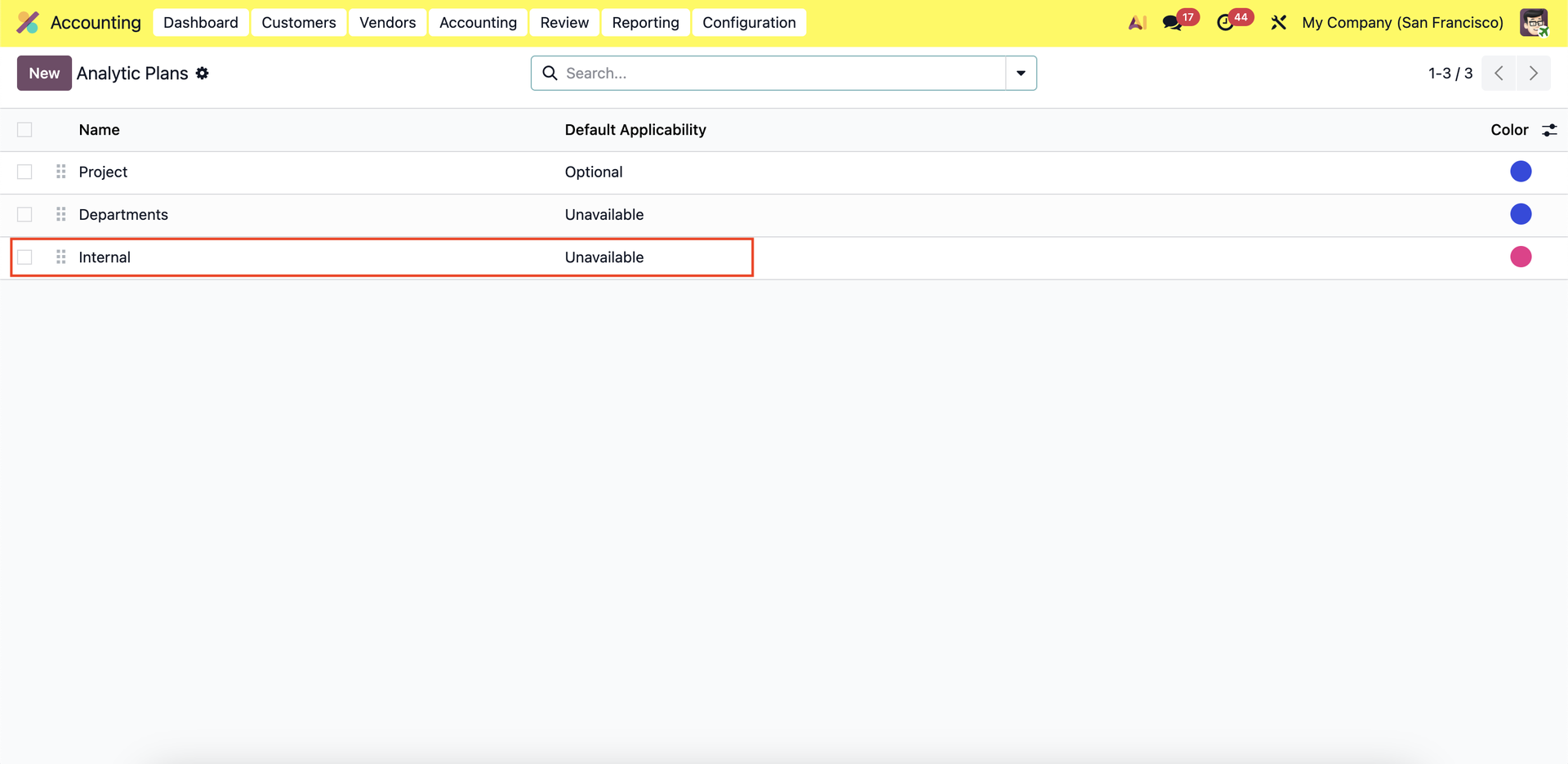 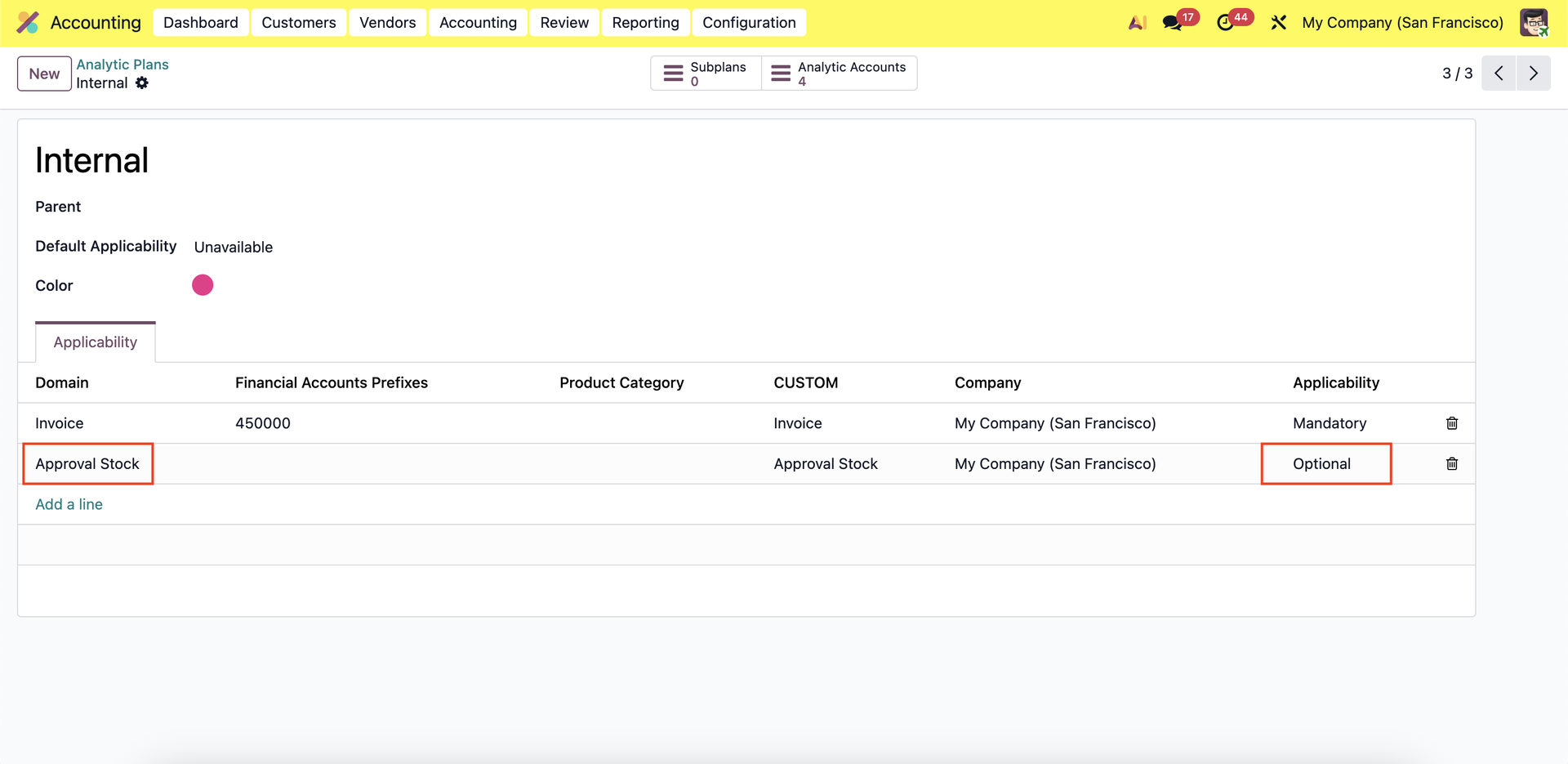 |
2. Go to Approvals > Create a new request on Inventory Transfer If you choose applicability = Mandatory for Approval Stock, you will have to choose Internal in Analytic Distribution before saving. | 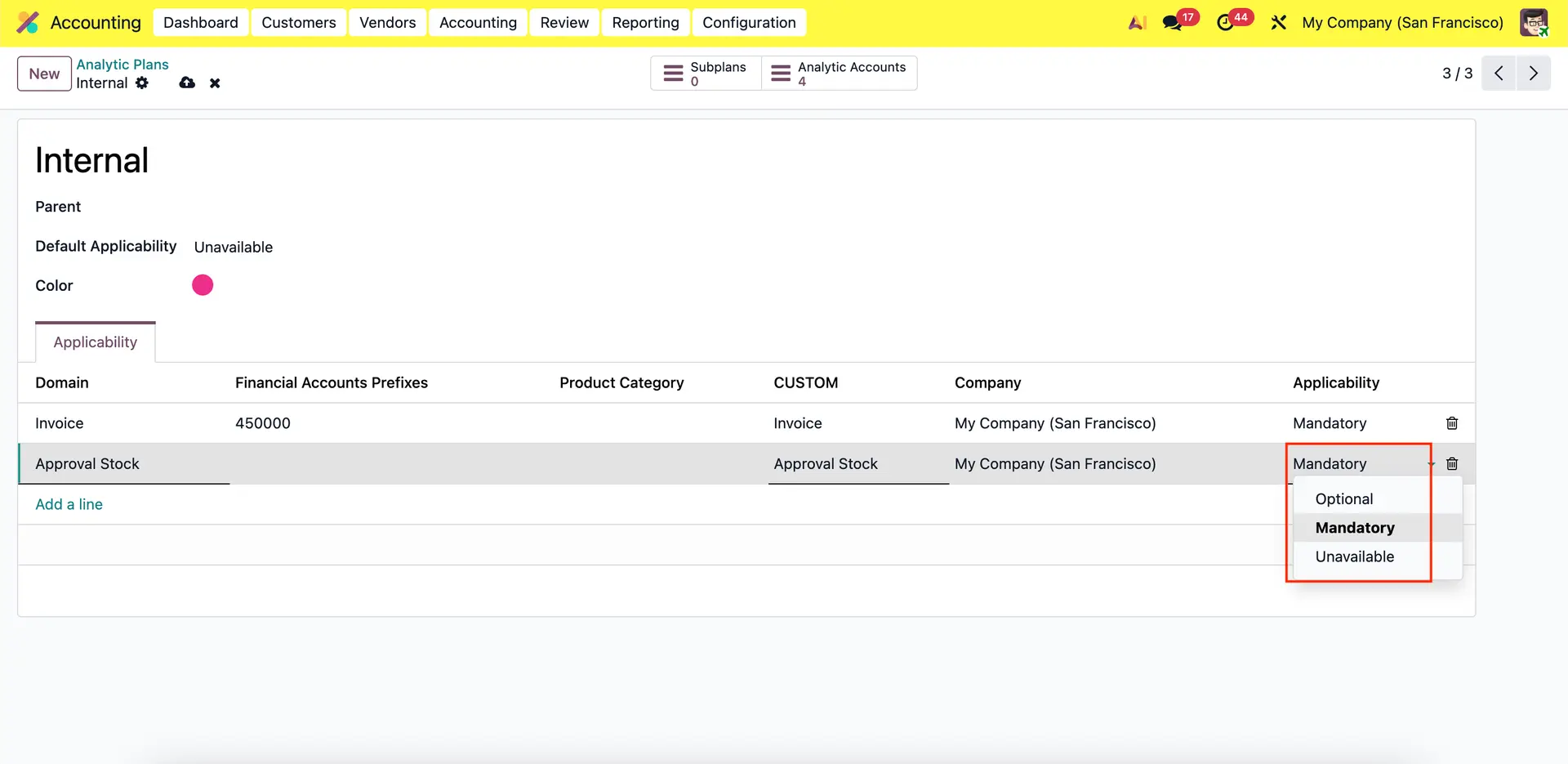 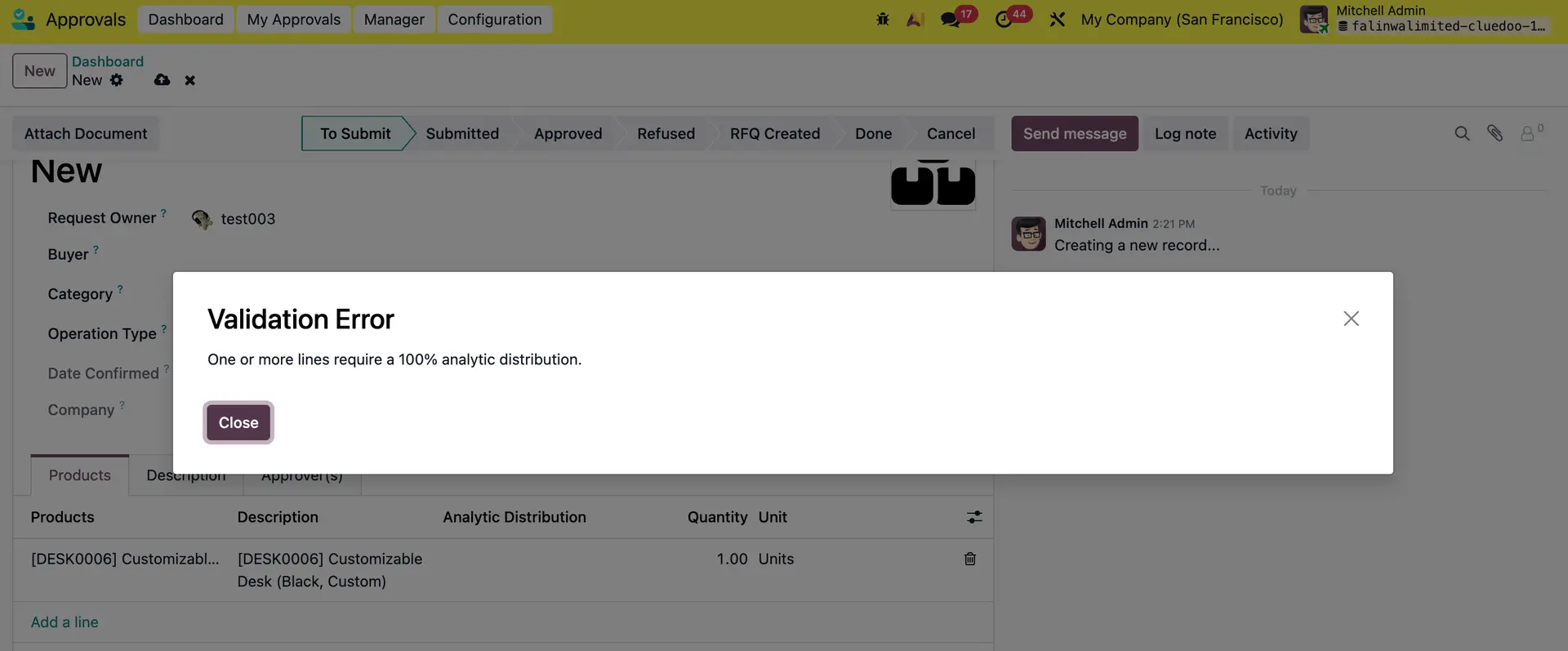 |
If you choose applicability = Optional for Approval Stock, you can choose Internal or not in Analytic Distribution before saving. | 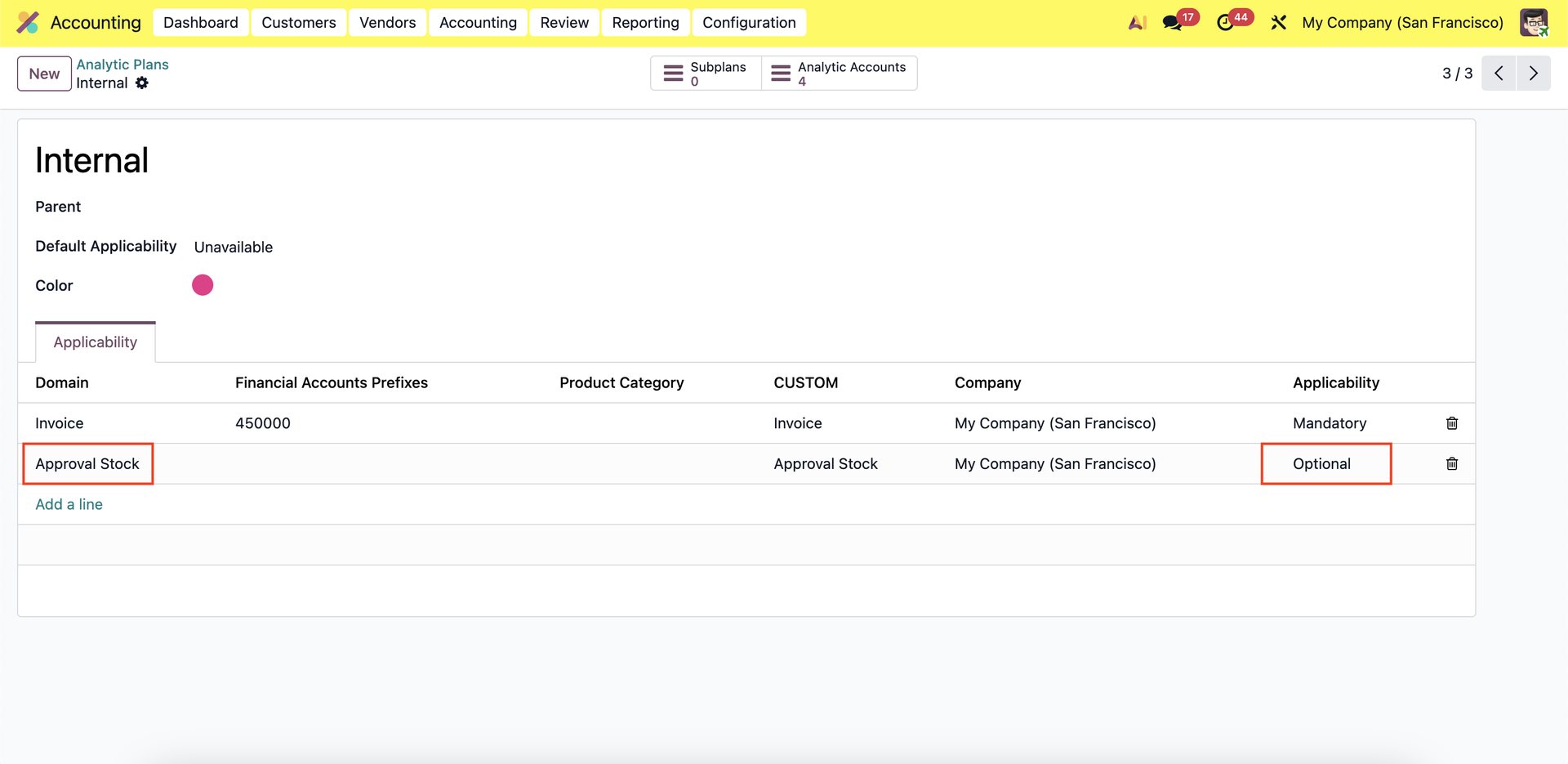 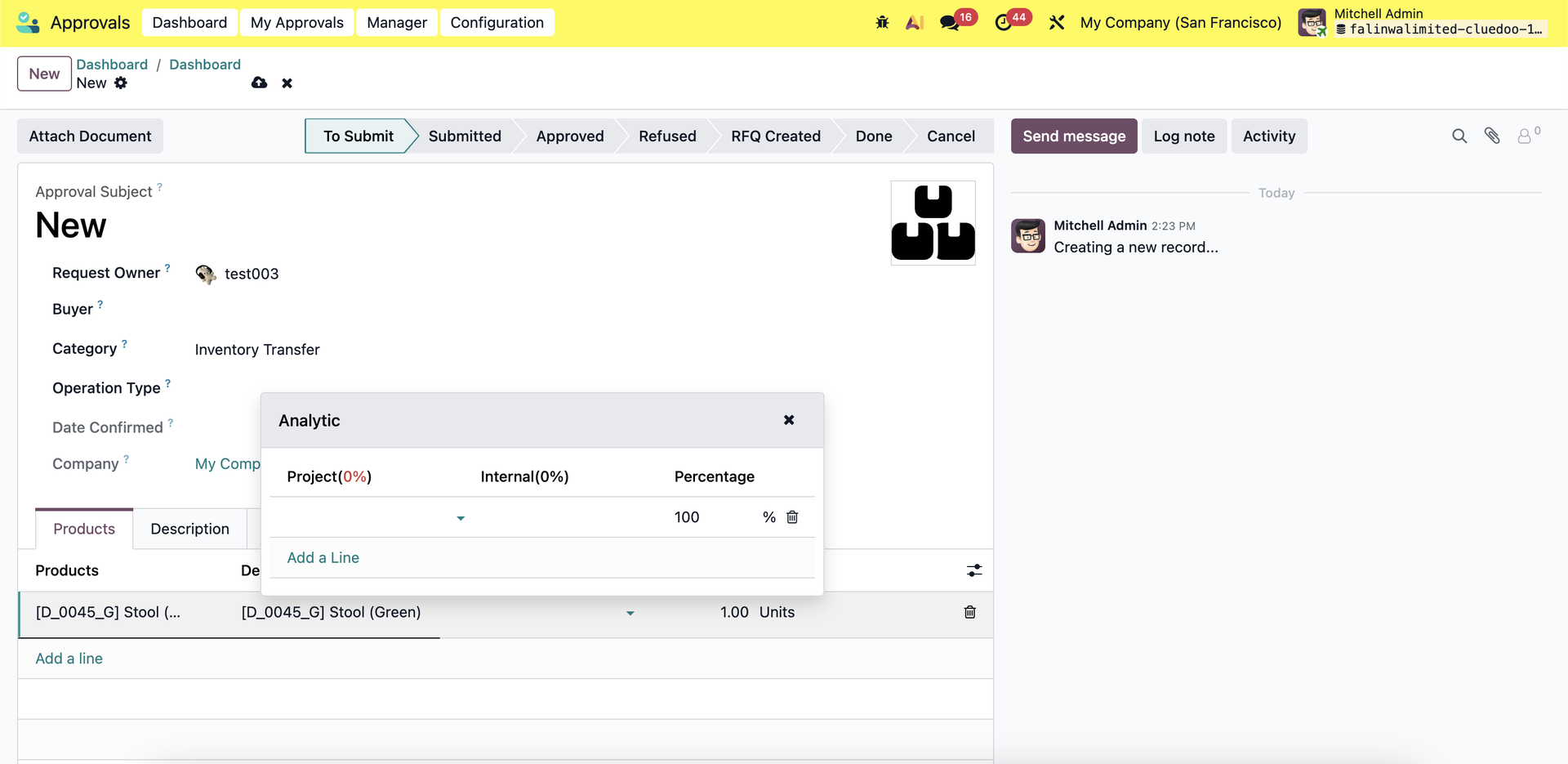 |
2.3. If you choose applicability = Unavailable for Approval Stock, you cannot choose Internal in Analytic Distribution. | 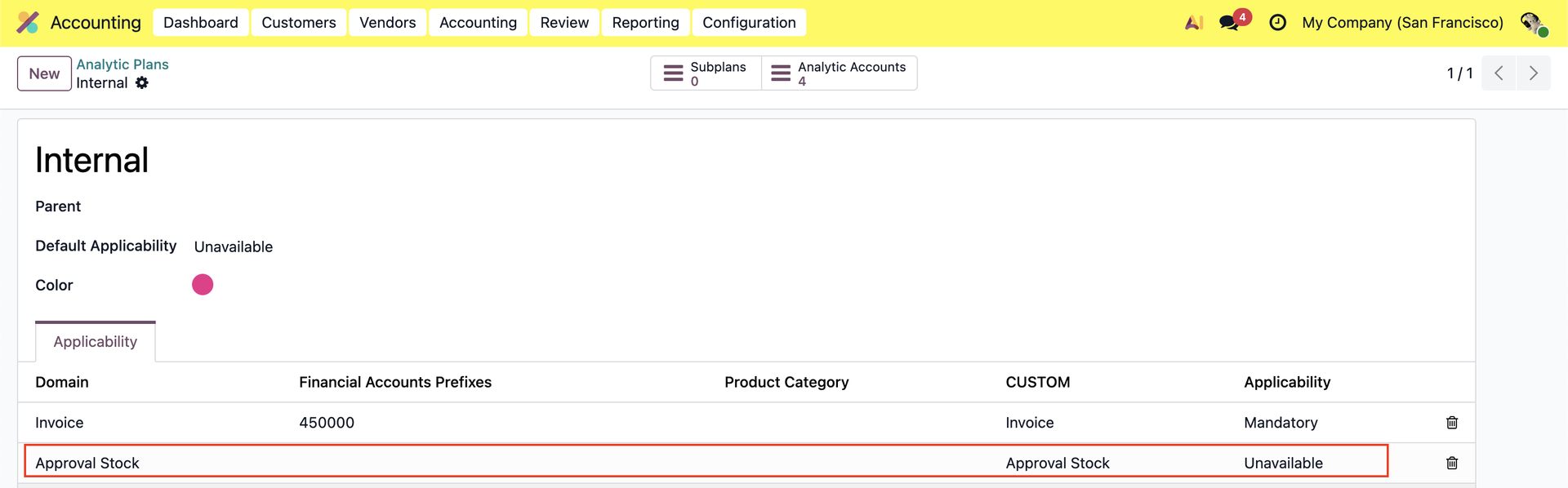 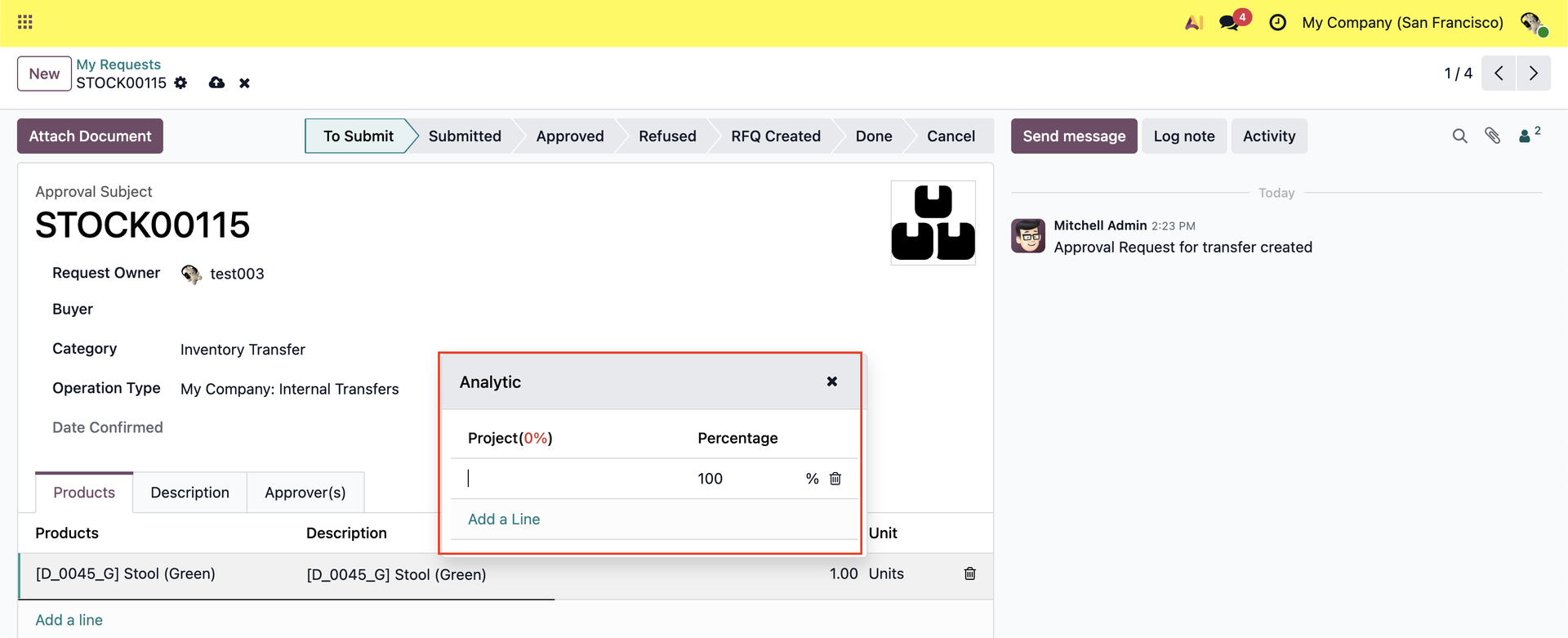 |