



ODOO'S FUNCTION
By default, Odoo’s MPS lets users plan replenishment per product and manually trigger MOs/POs based on Suggested Replenishment. However, it lacks one-click actions to order or delete all products at once. Users must process each product manually, which is inefficient for large operations. Draft MOs are not counted in Actual Replenishment, causing potential inaccuracies. Bulk management tools are also missing.
CLUEDOO'S FUNCTION
CLuedoo’s MPS Order and Delete Enhancements adds bulk operation tools:
- Order All (per product): Trigger replenishment for a single product.
- Global Order All: Order all products in one click.
- Delete All (per product): Remove all orders for that product.
- Global Delete All: Clear all MPS orders at once for easy cleanup.
1. Go to Master Production Order > You can see Order All for each product > Click on it > This product will be ordered due to Suggested Replenishment. Note: Refresh the page after changing anything in order for MPS to update the value. | 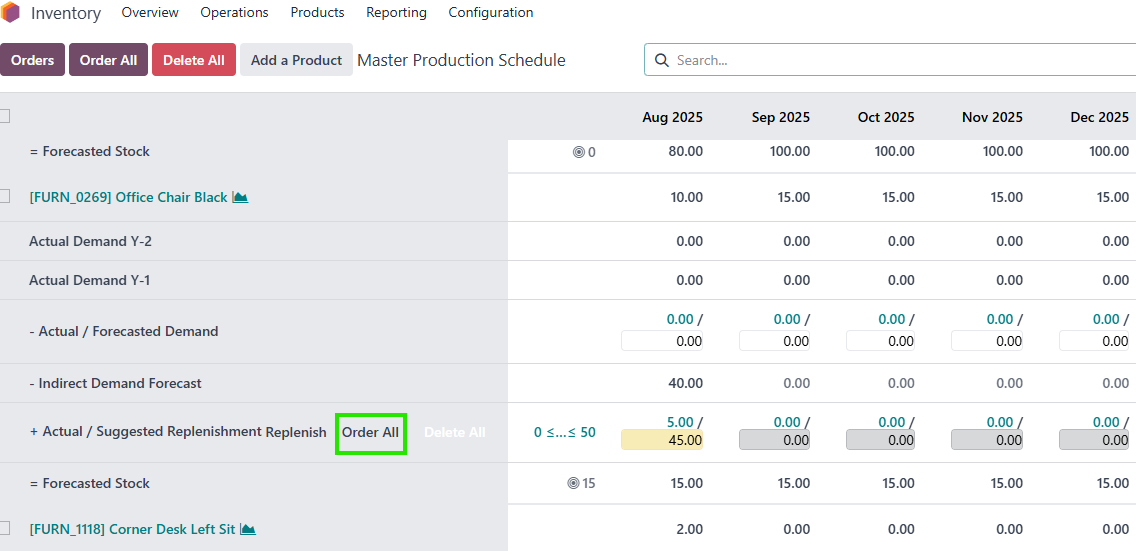 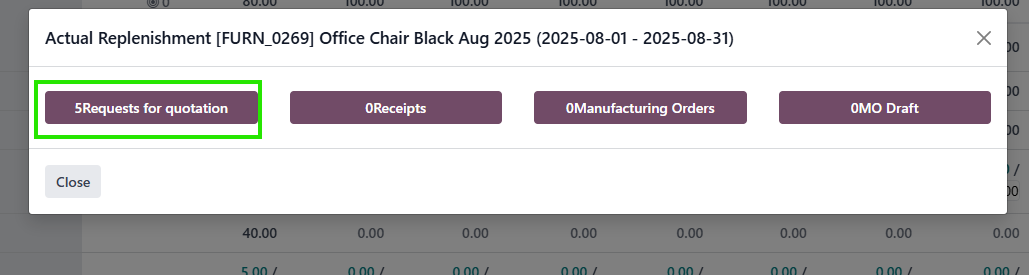 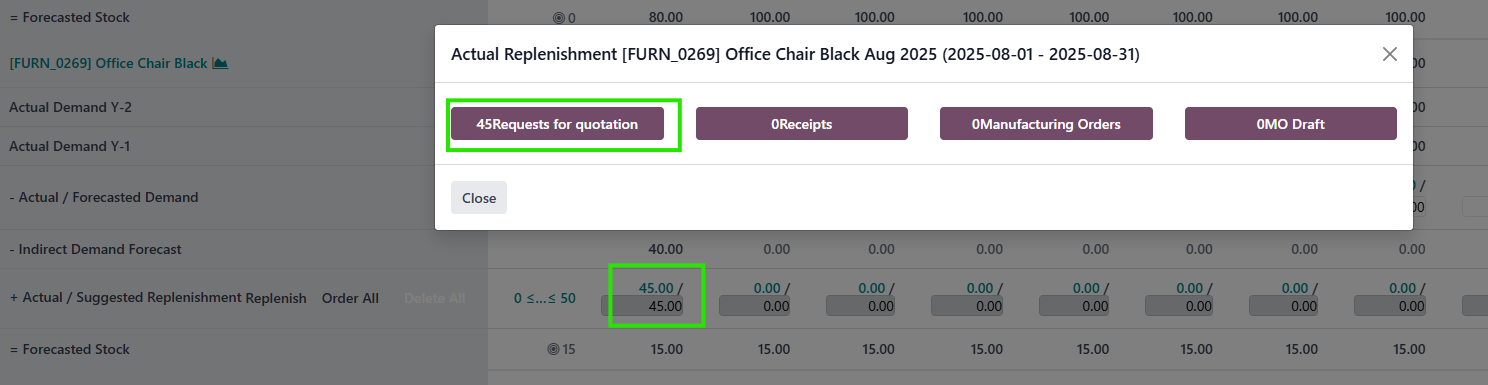 |
2. You also can order all of the products in MPS with one click. | 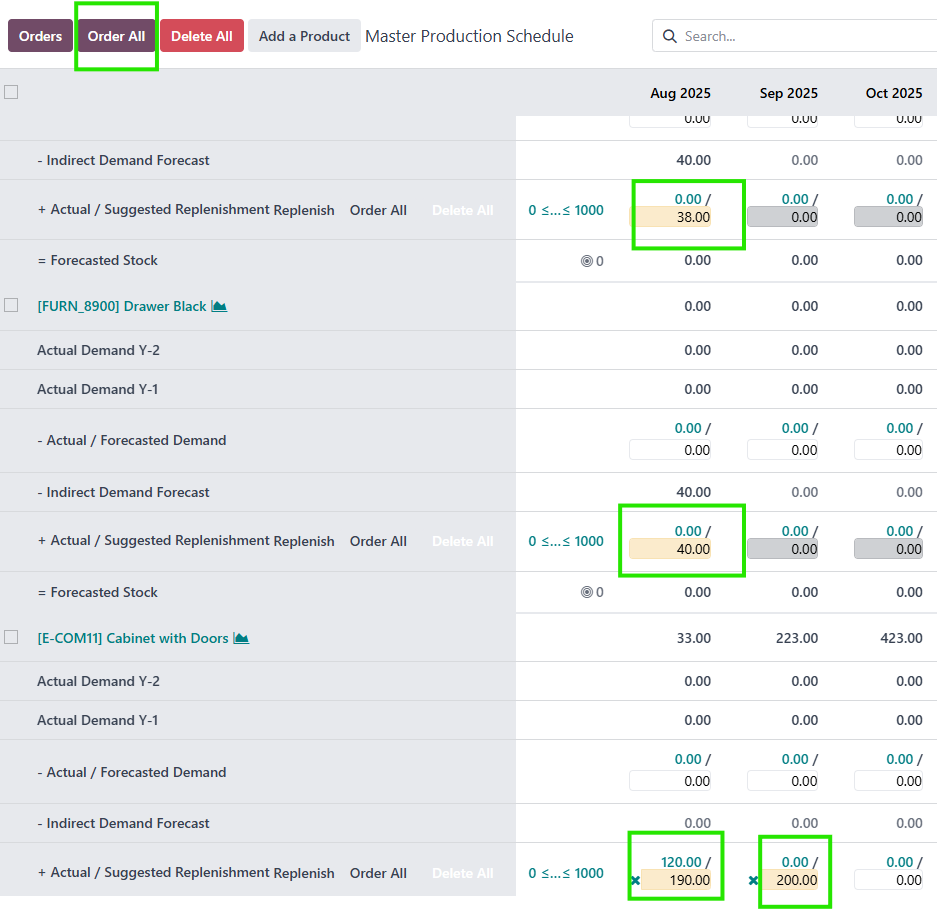  |
Go to the MPS Groups, and you can see all the Forecast Demand, Purchase Orders, and Manufacturing Orders that were created using the Order All button. Both MPS Forecast Demand and MPS Group will be locked after clicking Order All | 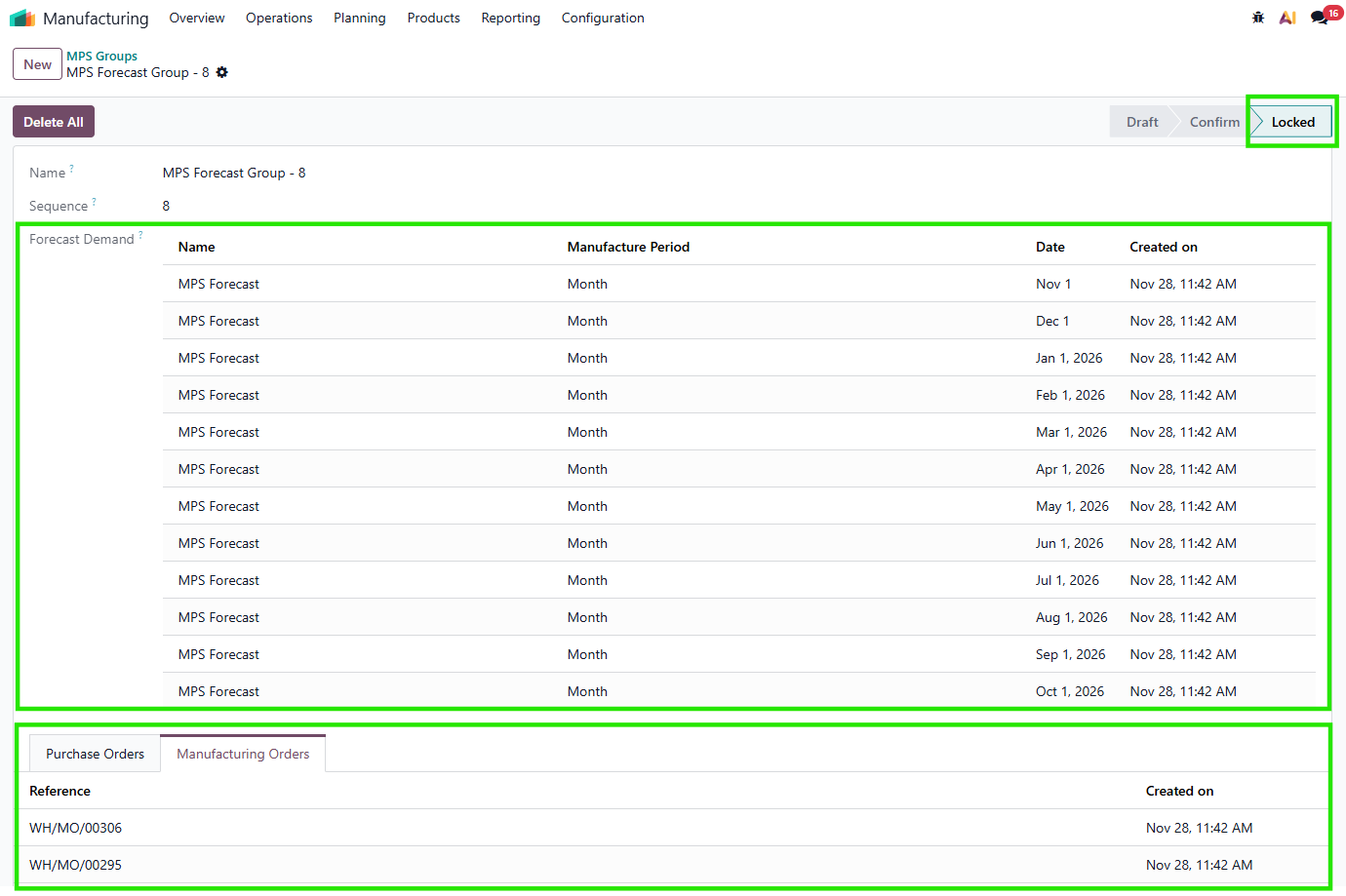 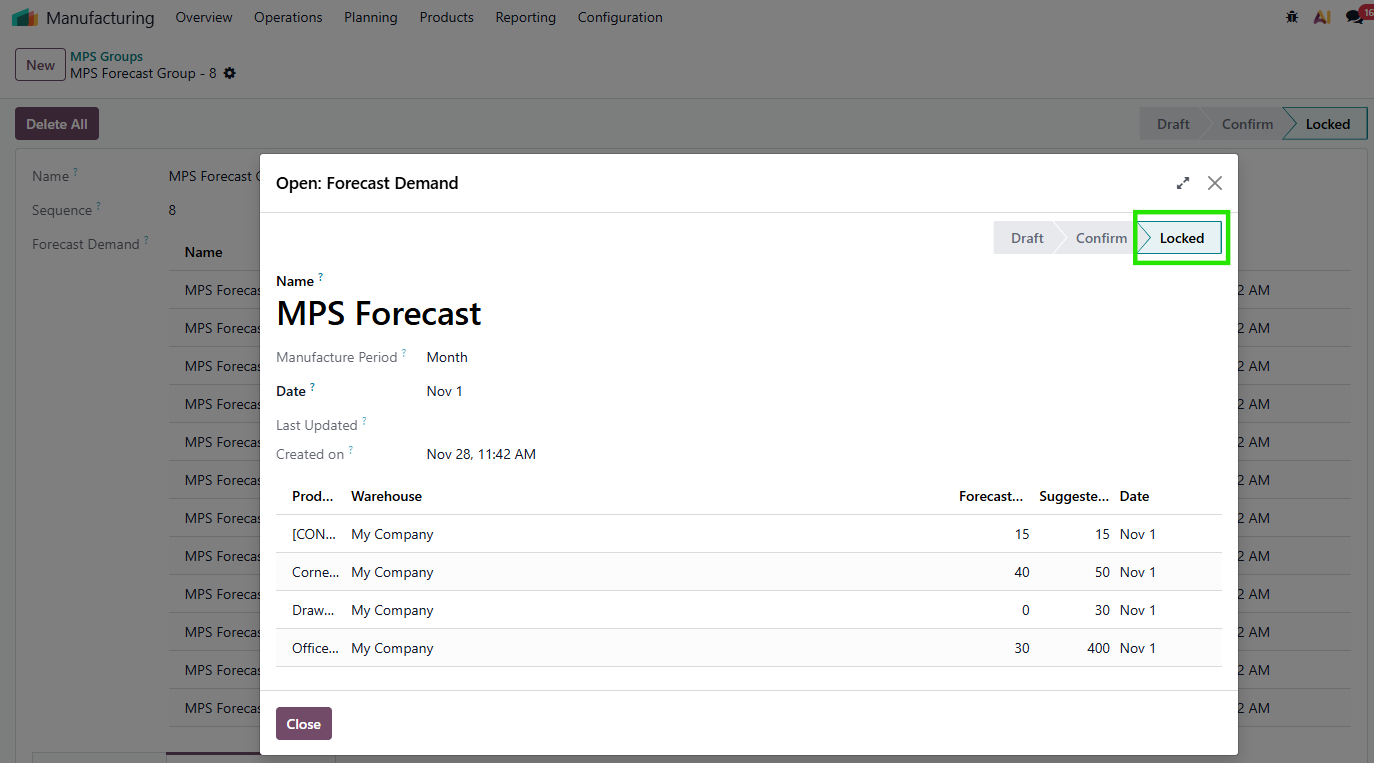 |
Note: If you order all manufacturing products, Actual Replenishment does not update although a manufacturing order was created. The reason is that the MO draft is not included in the actual replenishment. You must activate the module fal_mps_mo_ext if you wish it to be included. | 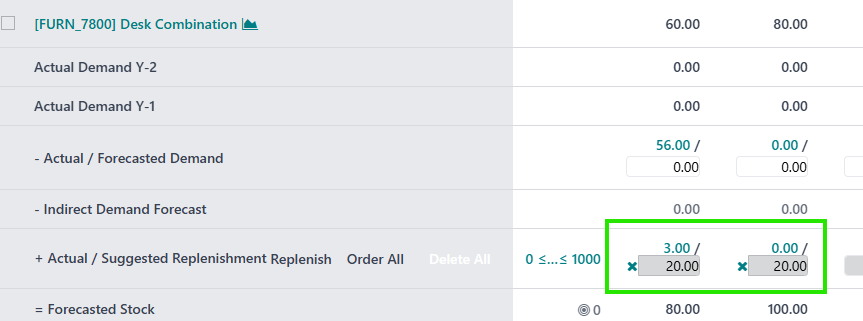 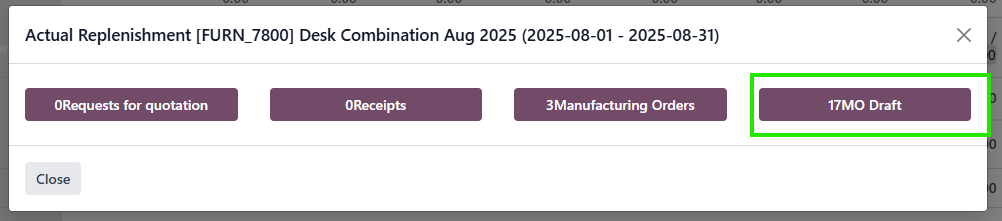 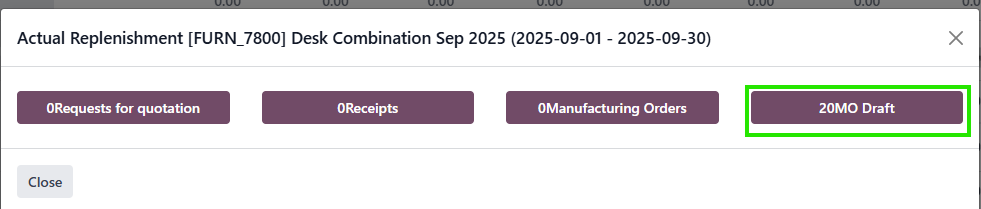 |
3. Besides ordering all, you can also delete all the DRAFT orders. This module supports deleting all orders of a product or all products.
| 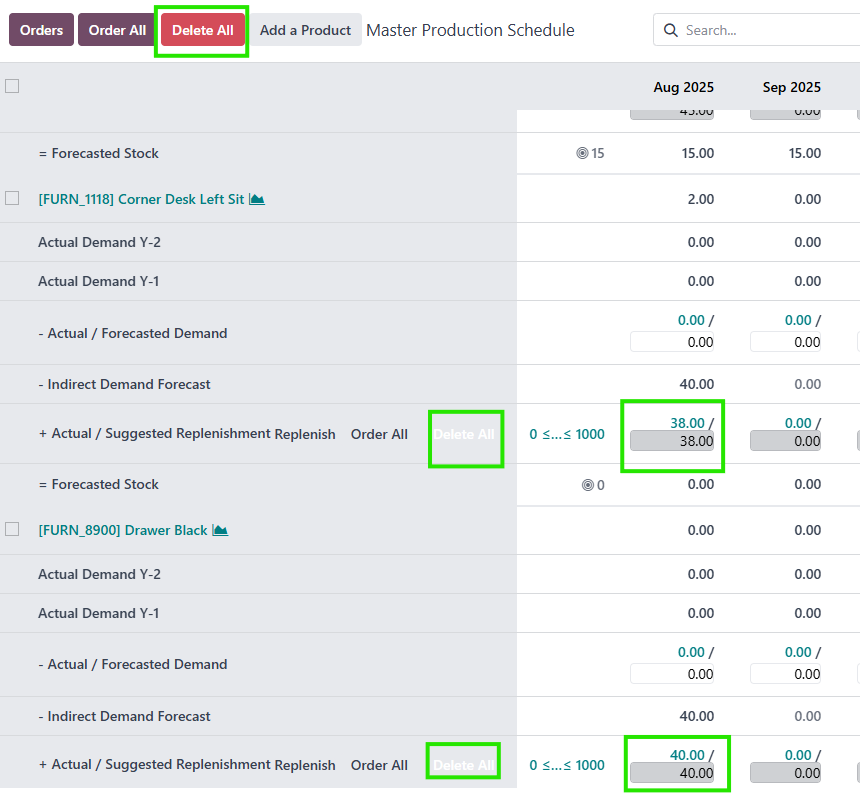 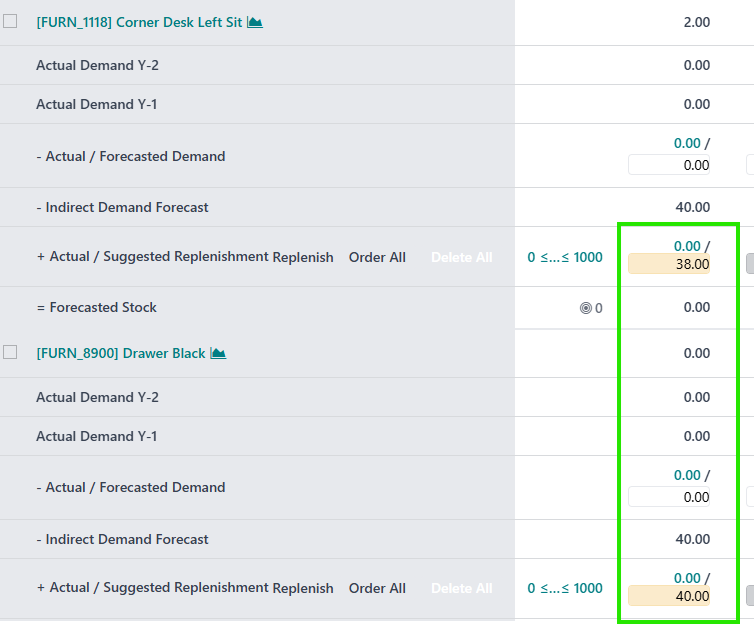 |
You can also Delete All from MPS Groups, which will delete all the MO/PO linked with that group only | 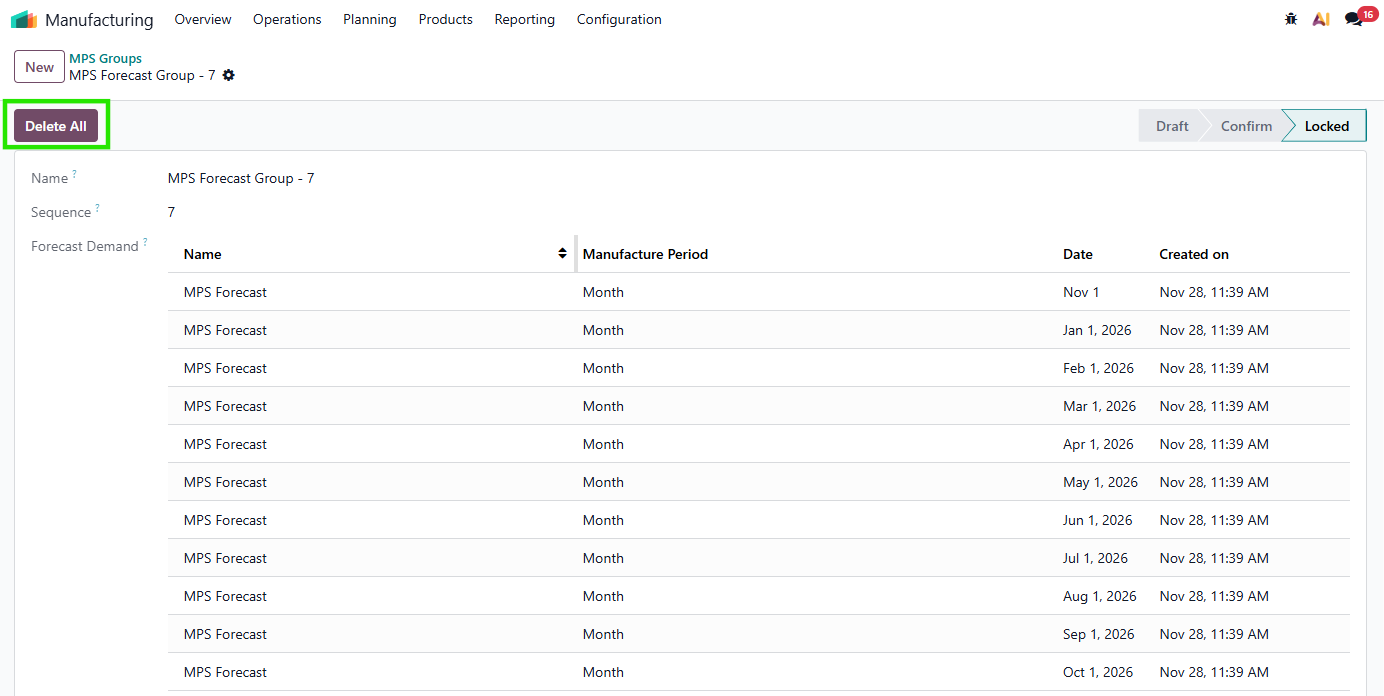 |
4. You can set exact days you want to Order All/Delete All the MPS by using the "Set Scheduler Manually" button | 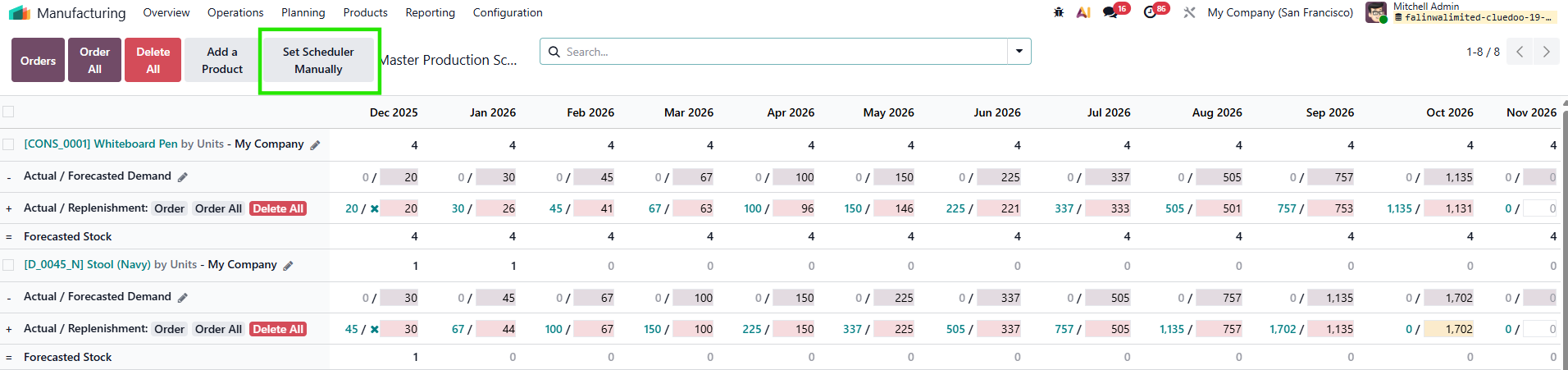 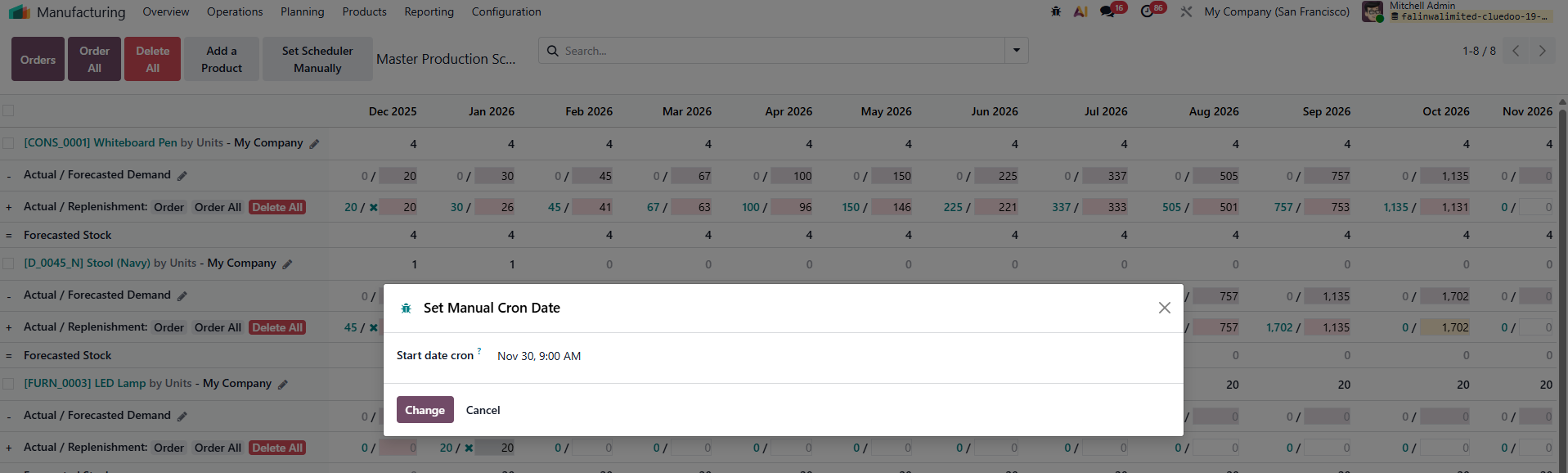 |
or Go to Settings > Scheduled Actions > Automatic Delete -> Order All MPS in order to Delete All/Order All the product in the MPS menu automatically | 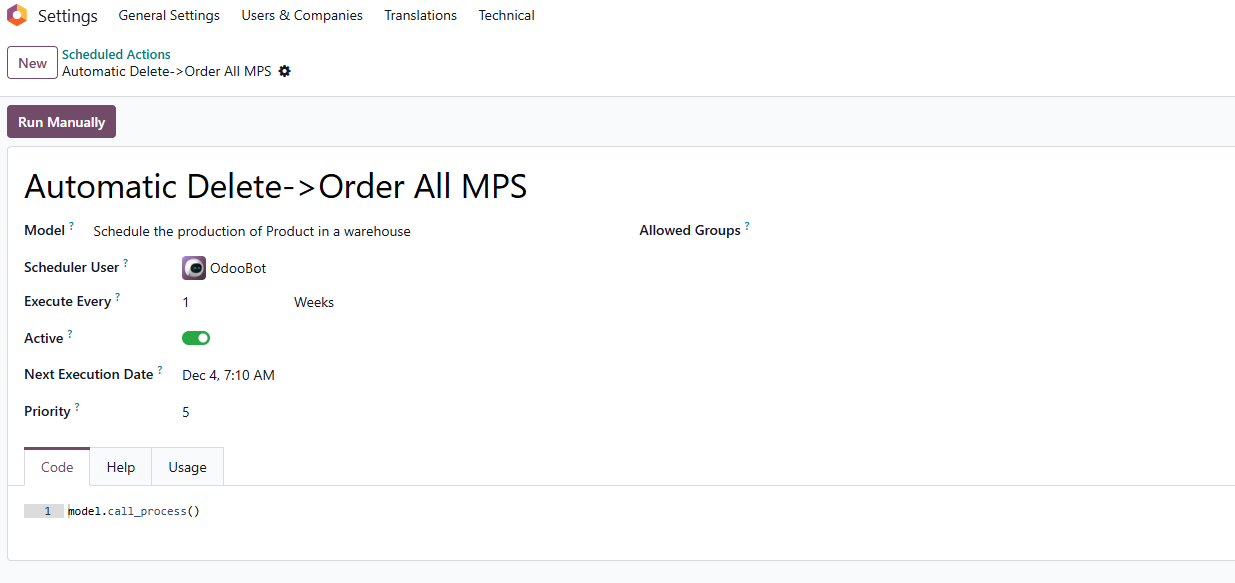 |