ODOO'S FUNCTION
Since Odoo 19, the reordering rule only allows the Multiple Quantity to be defined by UoM Packaging (e.g., Pack of 6, Box of 12). Users no longer have the option to enter a simple numeric value for multiple quantities, which can be restrictive for products that don't have strictly defined packaging units.
CLUEDOO'S FUNCTION
CLuedoo provides flexibility by offering two options for the Multiple Type:
1️⃣ Multiple by Quantity: Restores the classic functionality (like v18) where users can enter any numeric value (e.g., 5, 10) as the ordering multiple.
2️⃣ Multiple by UoM (Unit of measures): Supports the modern Odoo v19 standard using packaging units. This allows businesses to choose the most suitable replenishment logic for each specific product, whether based on physical packaging or simple bulk quantities.
CONFIGURATION | |
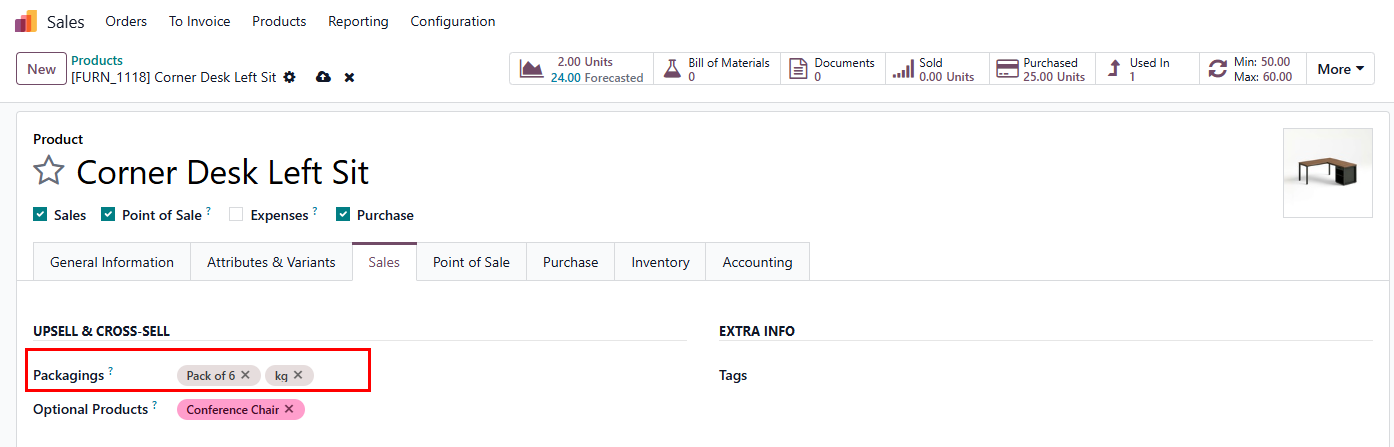
If you plan to use the Unit of Measures (ODS 19) type, ensure your products have Packaging defined. Go to Sales > Products > choose a product > Under tab Sales > Users can choose more than one type of Packaging for one product). |
|
USAGE | |
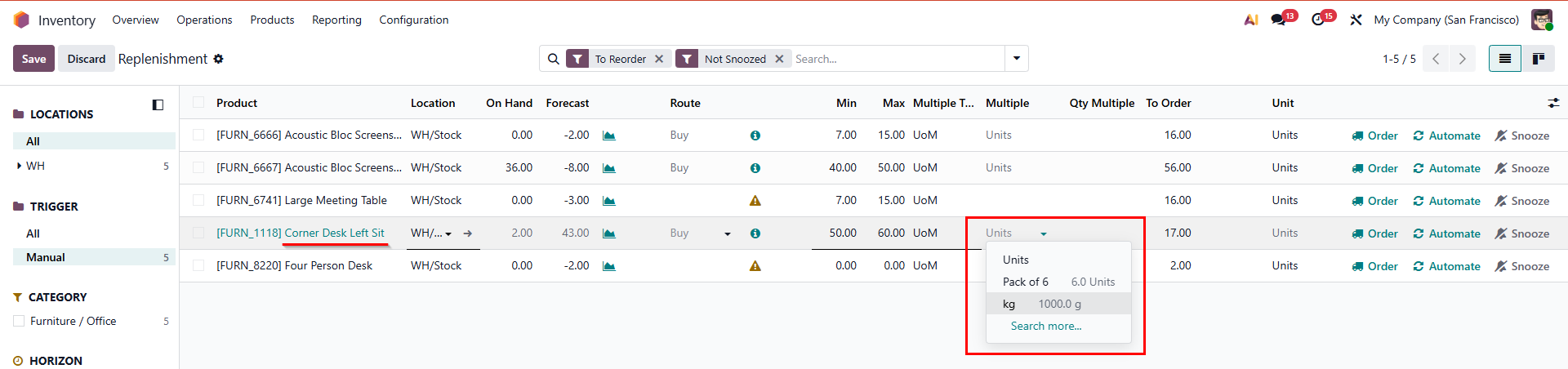
Go to Inventory > Operations > Replenishment > User can see the column Multiple Type with two types: UoM and Quantity. |
|
Ordering by pre-defined package (UoM) If the user sets Multiple Type = UoM > All set up Packagings options for this product will show in the dropdown list. The system automatically uses the quantity defined in that package (e.g., 6) as the ordering multiple. |
|
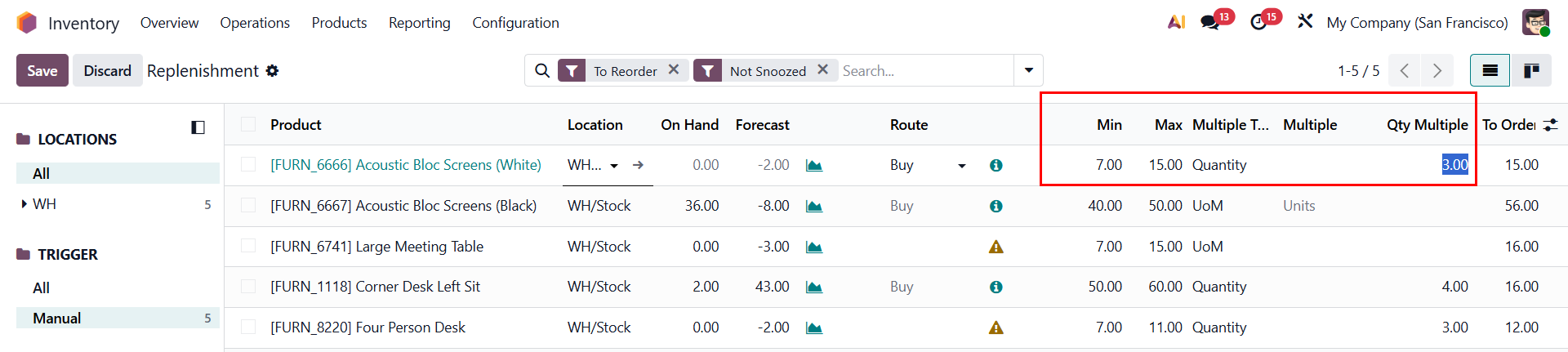
Ordering by a fixed number (Quantity)
|
|
Logic in 3 steps:
e.g., Product has On Hand qty = 2, Forecast qty = 43, Min qty = 50, Max qty = 60 and Qty Multiple = 4 Calculatation: (60 - 43)/4 = 4.25 → To Order = 4x4 = 16 |