



STORY BEHIND THE FEATURES
ODOO BEHAVIOR
Odoo does not provide the functionality to create Stock Valuation Layers for Internal Transfers when Source Location: Transit Location & Destination Location: Internal Location (or vice versa). This limitation may pose challenges for businesses that wish to track valuation impact during stock movements between these locations
CLUEDOO BEHAVIOR
CLueoo provides the functionality to create Stock Valuation Layers for Internal Transfers when Source Location: Transit Location & Destination Location: Internal Location (or vice versa), enabling businesses to accurately track and reflect changes in inventory value between these locations. As a result, Landed Costs can be applied to internal transfers with the above source and destination location setup
HOW TO USE THIS MODULE ?
Internal Transfer 1Go to Inventory > Internal Transfers > Create a new Internal Transfer > Add products (Goods) > Set up Source Location and Destination Location: Case 1
Case 2
> Validate | 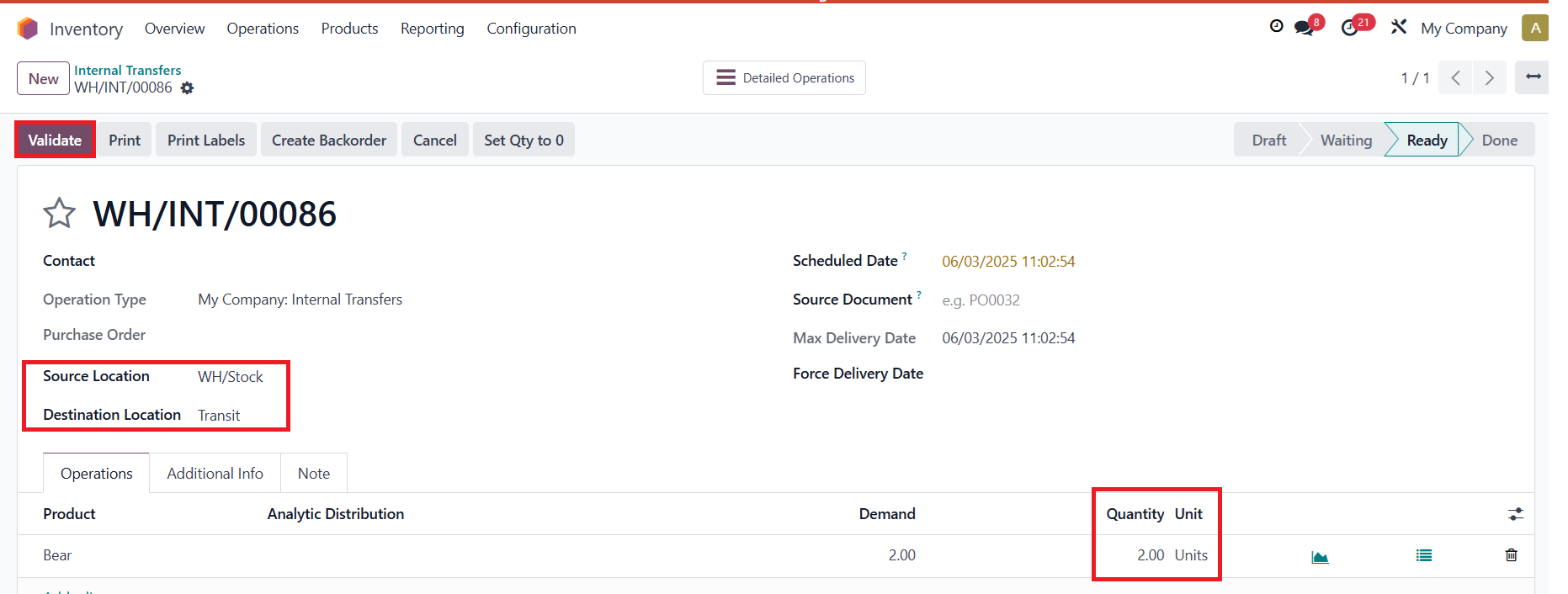 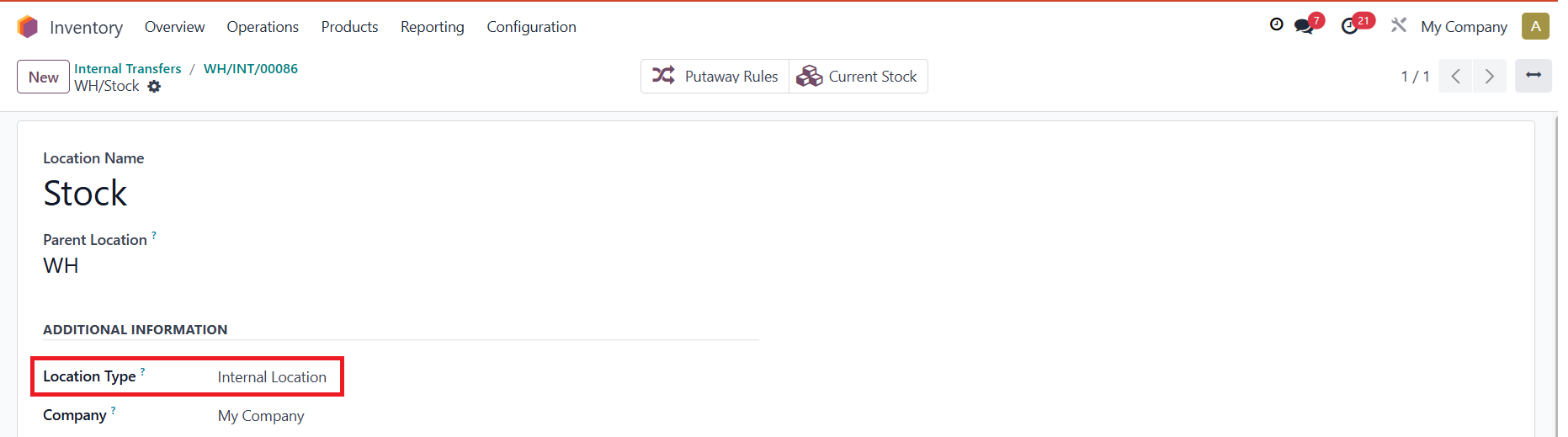 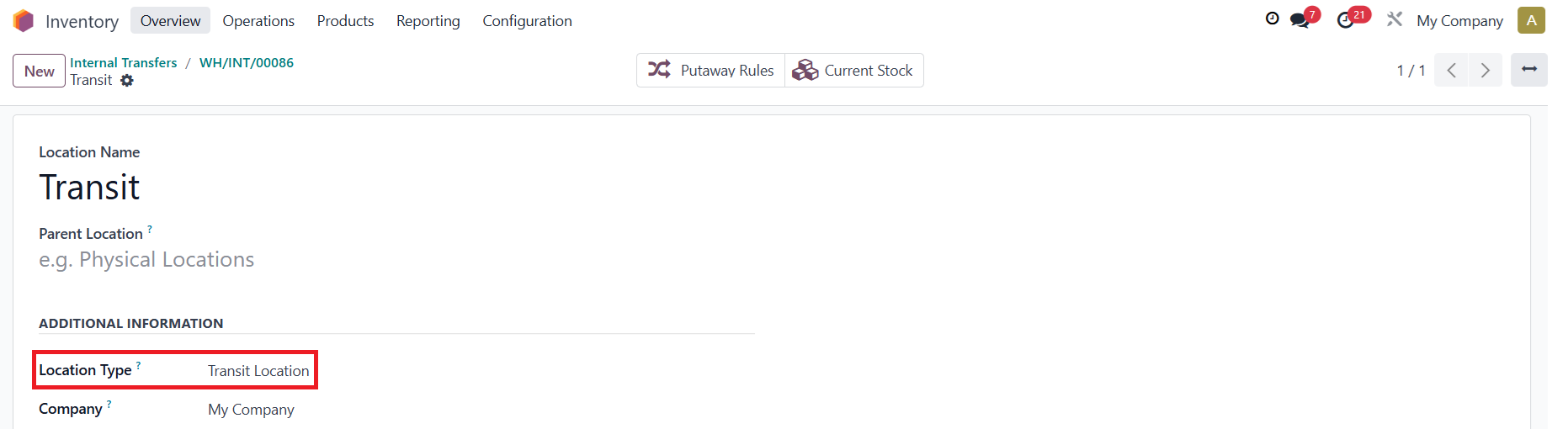 |
2Click on Valuation button > Can see 2 stock valuation layers automatically created > Notice that the Moved Quantity is visible based on Location and Delivered Quantity EX: The Delivered Quantity of WH/INT/00086 = 2 => The Moved Quantity of Internal Location = -2, and that of Transit Location = 2 |  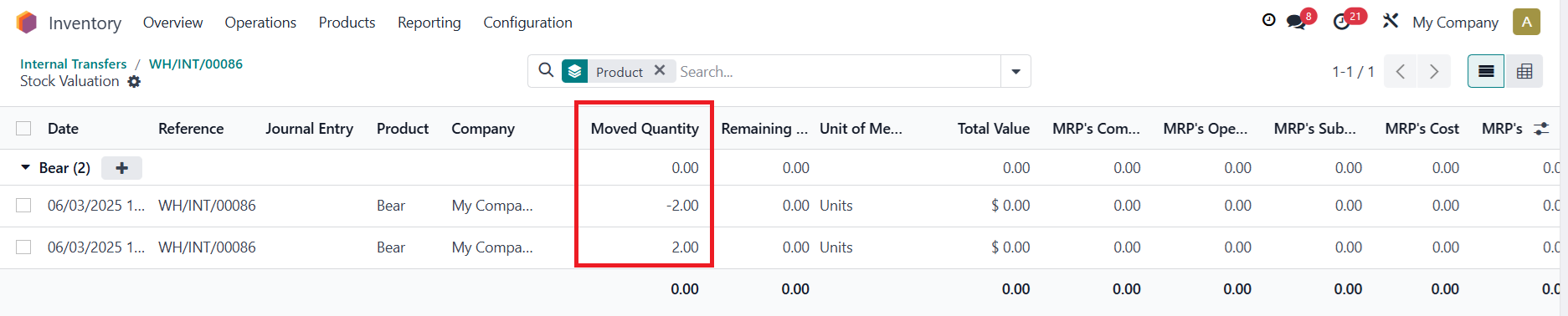 |
3Note: If you create an internal transfer with the product with the configuration like:
> There will be a Journal Entry created on the Stock Valuation Layer as well | 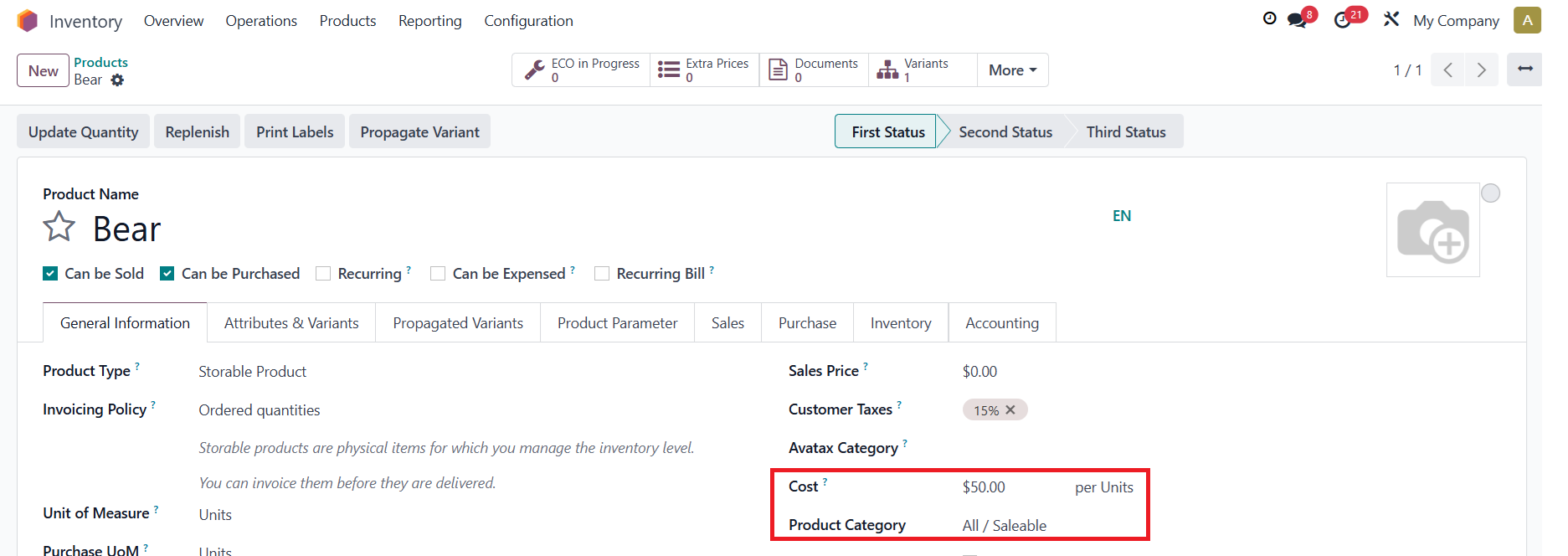   |
Apply Landed Cost to Internal Transfer 1Apply Landed Cost to Internal Transfer successfully only when the Product of Internal Transfer has the following condition:
|  |
2Go to Inventory > Landed Costs > Create a new Landed Cost > Set up:
> Validate | 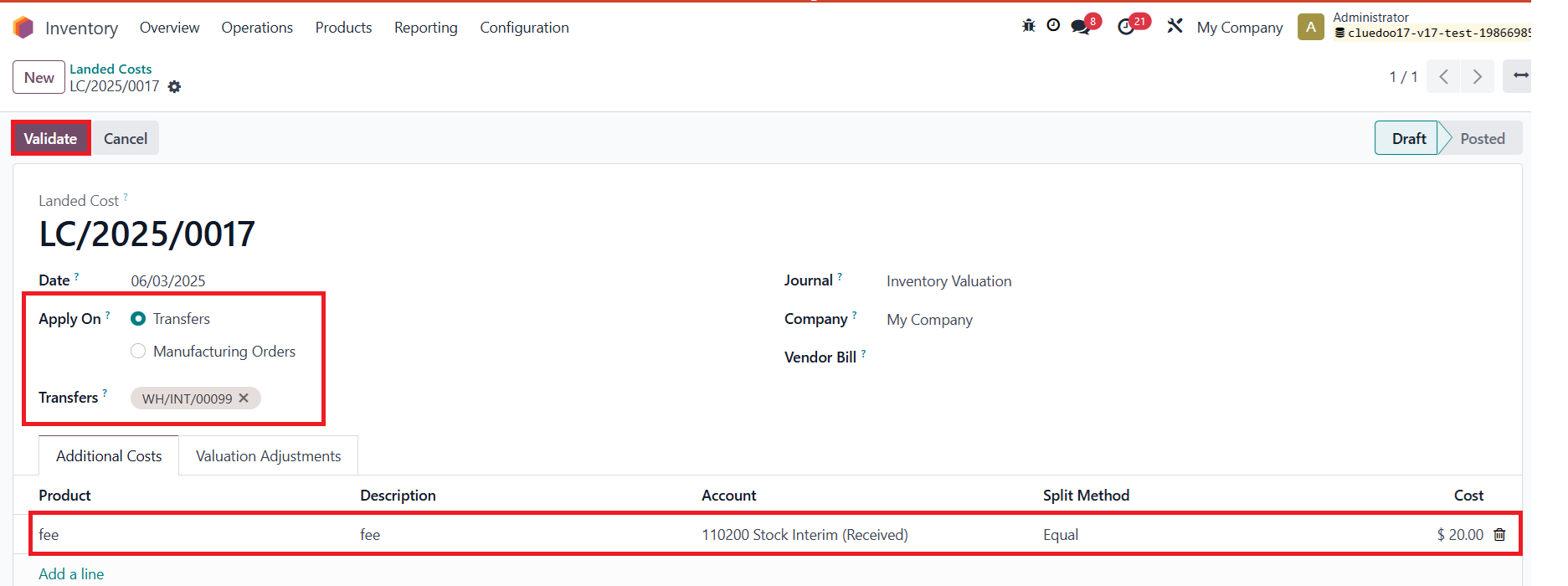 |
3Click on Valuation button > You can see a stock valuation layer created for the Landed Cost automatically as well |   |